MySQL Lesson 6: The WHERE Clause

Hello everybody,

It’s Michael, and today’s post will focus on the WHERE clause in MySQL. For those that don’t know, the WHERE clause basically acts like an IF statement in the sense that it tells the query to only selects rows WHERE certain criteria are met.

OK, so I know I mentioned in MySQL Lesson 4 that the HAVING clause also acts like an if statement. Well, here are some differences between HAVING and WHERE:

  • HAVING is used to filter grouped records (think of the queries I posted in MySQL Lesson 4) while WHERE is used to filter individual records
  • HAVING always goes with GROUP BY while WHERE never goes with GROUP BY; this is because WHERE does not filter aggregate records while HAVING does.

Now, let’s try out a simple WHERE query

14Sep capture1

In this query, I selected the fields Singer Name, Age, and Gender from the Singer table. The WHERE Age < 30 line asks the query to select only those singers who are under 30 years old, of which there are 5 (Taylor Swift, Soulja Boy, Lorde, Ariana Grande, and Grace VanderWaal).

Let’s try another WHERE query, this time with a logical operator (more on that below)

14Sep capture2

In this query, I selected the Ceremony, Won/Nominated fields and the Album_idAlbum foreign key from the Awards table. The WHERE Album_idAlbum = 29 OR Album_idAlbum = 53 line asks the query to only display the results corresponding to awards that albums FK29* OR FK53* were considered for  (both FK29 and FK53 are Jay-Z albums, with FK29 being The Blueprint 3 and FK53 being 4:44). As you can see, The Blueprint 3 has two wins out of 3 nominations while 4:44 has 7 nominations.

*FK means having the foreign key, so FK29 means “album with foreign key 29” and FK53 means “album with foreign key 53”

For those wondering what the point of logical operators is, they basically supplement the WHERE clause by setting specific criteria to filter out records. Here are the three most common:

  • AND-select records matching (condition 1) AND (condition 2)
  • OR-select records matching either (condition 1) OR (condition 2)
  • NOT-do not select records matching (condition 1)

You can use all three in the same WHERE statement, just remember that, barring parentheses, NOT will be the first thing read by MySQL, then AND, followed by OR. Portions of the WHERE statement in parentheses are always read first, similar to the order of operations (remember PEMDAS?)

Let’s do another WHERE query, this time working with dates

15Sep capture1

In this query, I selected the Name and Release Date fields from the Album table. The WHERE MONTH(Release Date) = 12 OR MONTH(Release Date) = 1 OR MONTH(Release Date) = 2 line asks the query to only display the names of albums that were released in the winter months of December, January, or February (represented by 12, 1, and 2, respectively). As you can see, 6 albums meet the criteria

When dealing with dates in a WHERE query, you can either include the whole date (eg. 2011-01-01) or just the YEAR, MONTH, or DAY portion, The correct syntax would be YEAR(field), MONTH(field) or DAY(field), depending on what portion of the date you want to include in your query.

  • If you’re dealing with MONTH, remember that months are always represented by the numbers 1-12 (January through December, respectively). Typing in the name of the month usually won’t work for querying.

Sometimes, including the whole date or part of the date won’t make a difference in the results displayed, as shown by these two queries

15Sep capture2

15Sep capture3

Each query selects the Name and Release Date fields from the Album table and sorts the results by release date in descending order (starting from the most recently album and then going further back in time). But as you can see, the WHERE line is different for each query. The first query displays WHERE Release Date > 2009-12-31 while the second query displays WHERE YEAR(Release Date) >= 2010. These queries are examples off how including part of the date or the whole date doesn’t make a difference in the output, as both queries select albums released in the 2010s.

  • Keep in mind that there are some times that selecting the whole date or part of the date does make a difference in query output.

Now let’s try another WHERE query, this time using string patterns.

15Sep capture4

In this query, I selected the fields Singer Name and Birthplace from the Singer table. The WHERE Birthplace LIKE '%US' line asks the query only to display the names (and birthplaces) of singers who were born in the US.

You might be wondering what the ‘%US’ means. It basically tells the query to select rows in the Birthplace field that end in ‘US’. Some possible variations of this string pattern include:

  • ‘US%’-select all birthplaces that start with ‘US’
  • ‘%US%’-select all birthplaces that have ‘US’ anywhere in the name
  • ‘_US%’-select all birthplaces that have the letters U and S in the second and third positions, respectively
  • ‘US_%_%_%’-select all birthplaces that start with ‘US’ and are at least 4 characters long
  • ‘U%S’-select all birthplaces that start with U and end with S

Remember to always use single quotes (‘ ‘) not back-ticks (“) when dealing with string patterns.

One more thing I wanted to note that I mentioned earlier in the differences between the WHERE and HAVING clauses. Now I know I said that the WHERE clause deals with individual records while the HAVING clause deals with grouped records. One thing I did not mention is that the WHERE and HAVING clauses can be used in the same query. Here’s an example:

19Sep capture

In this query I selected the field Featured Artist Name from the Featured Artist table. I also added COUNT(Featured Artist Name) in order to display the amount of times each singer appears on the featured artist table. The WHERE Featured Artist Age < 40 line asks the query only to display the names of featured artists under the age of 40. Lines 3-5 of the query group the results by Featured Artist Name and add the additional criteria of only displaying the names of featured artists that appear at least twice on the table (in addition to being under 40 years old); the results are then ordered based on number of appearances (from most to least).

Here are some things you should know about joint WHERE/HAVING queries:

  • WHERE always comes before HAVING in a query; this is because WHERE deals with data before it has been aggregated and HAVING deals with data after it has been aggregated
  • On a similar note, do not forget the GROUP BY clause in the query, as that must always be included before the HAVING clause
    • This is because the data has to be grouped before it can be filtered further

Thanks for reading,

Michael

MySQL Lesson 5: More Aggregate Functions, Aliases & Sorting Query Results

Hello everybody,

It’s Michael, and today’s post will be covering more aggregate functions along with aliases and sorting query results (using the same database).

I already covered one aggregate function-COUNT-in the previous post. This time I’ll be covering a few more aggregate functions-AVG, SUM, MAX, MIN. For those unfamiliar, aggregate functions perform a calculation on a set of values and return a single value.

Let’s start with a query using the AVG function.

7Sep capture1

In this query, I selected the fields Gender and Age from the Singer table and grouped my results by Gender. The AVG(Age) basically calculates the average age of the group of male singers as well as the average age of female singers (results for each gender are displayed separately). As you can see, the average age of female singers on this database is 35.75 years, while the average age for male singers is 42.2143. The AVG function will ignore any null results, so bands/groups and deceased singers didn’t factor into this query, as the Age field is null in those cases.

Let’s try a similar query (by selecting both average age and gender) except using the Featured Artist table this time.

7Sep catpure2

Similar to the previous query, the results are grouped by gender and the average age is calculated for each gender group. In this case, the average age for female featured artists in 38.35 years and for male featured artists it is 41.9304 years. Also, similar to the previous query, null results are ignored, so deceased artists and bands/groups did not factor into the calculation of the results.

However, you may have noticed something different at this portion of the query

  • AVG(Featured Artist Age) AS Average Age

The AS keyword signifies an alias, which basically gives the column a different name in order to improve the query’s readability. Aliases are beneficial because to those unfamiliar with MySQL jargon, column names like AVG(Featured Artist Age) aren’t easy to understand due to their technical nature. Thus, column aliases like Average Age make query results understandable for anybody.

  • You can also use aliases for table names too.

Now let’s introduce another aggregate function-MAX.

7Sep capture2

In this query, I selected Genre and Release Date from the Album table. The part of the query with MAX(Release Date) AS Most Recent Album will display the maximum release date (which means the date of the most recently released album) for each genre listed in the table.

However, you may have noticed another new concept in this query-the ORDER BY clause.ORDER BY basically sorts the results in either ascending or descending order (indicated by ASC and DESC respectively). In this query, the dates (and in turn, the genres) are sorted in descending order, which goes from the maximum release date (June 29, 2018) to the farthest back date (September 29, 2009).

  • The ORDER BY clause works with both numerical and non-numerical data. If you’re dealing with non-numerical data such as a list of names, ASC and DESC will sort your data in alphabetical and reverse alphabetical order respectively.

Oh, and in case you were wondering which albums correspond to which dates, here’s a rundown

  • September 29, 2009-Barbara Streisand-Love is the Answer
  • May 23, 2011-Lady Gaga-Born This Way
  • November 19, 2012-Rihanna-Unapologetic
  • September 13, 2013-Avicii-True
  • June 13, 2014-Linkin Park-The Hunting Party
  • January 8, 2016-David Bowie-Blackstar
  • April 29, 2016-Martina McBride-Reckless
  • November 3, 2017-Grace VanderWaal-Just The Beginning
  • June 15, 2018-Mike Shinoda-Post Traumatic
  • June 29, 2018-Gorrillaz-The Now Now

Now here’s the next aggregate function I will cover-MIN.

7Sep capture3

In this query, I selected the Album_idAlbum foreign key and Track Duration field from the Tracks table. TheMIN(Track Duration) AS Shortest Song portion selects the duration of the shortest song in each album (only the ID number for the album is displayed). If you’re wondering which duration corresponds to which song, look at the spreadsheet with the Tracks information I provided in MySQL Lesson 4.

Here’s a query with the last of the four aggregate functions I will cover-SUM.

8Sep capture1

This query is similar to the first one because I chose the Gender and Age fields from the Album table and grouped the results by Gender, except this time I used the SUM function instead of the AVG function. In this query, the sum function displays the total age for male singers and female singers in separate rows (572 for female singers and 591 for male singers). Remember that null records (representing bands and deceased singers) are not factored into the query’s calculations.

Thanks for reading,

Michael

MySQL Lesson 4: GROUP BY, HAVING & COUNT

Hello everybody,

Now that I’ve run through the basics of querying, I figured the next functions to work with should be the GROUP BY, HAVING, and COUNT functions. I will cover all three of these functions in this post because I feel they perfectly compliment one another (and you can use all three in the same query).

I’ll begin with a simple GROUP BY query.

3Sep capture

As you can see here, I selected the Genre column from the Album table and asked the query to group by Genre. What the query does is group each of the rows by genre; multiple rows with the same genre are grouped together.

Here’s another GROUP BY query, this time using the Singer table.

3Sep capture2

The results of this query are grouped by Gender (F for female, M for male, and NULL for bands). Multiple rows with the same gender are grouped together.

Now let’s run the first query again with the addition of the COUNT function.

3Sep capture3

This basically does the same thing as the first query, except it displays how many times each genre appears in the table (that’s the point of including COUNT(Genre)). As you can see, Pop appears the most times (16 of the 57 albums), followed by Rap (15 albums), and Rock (10 albums).

Here’s the second query, also with the addition of the COUNT function

3Sep capture4

Just like the second query, the results are grouped by gender, except this time the query also counts how many times each gender appears in the table. In other words, this query shows how many female and male singers are listed on this table (17 and 21 respectively). As for why 0 is listed for NULL, MySQL didn’t count the NULL rows in the Gender column (in case you were wondering, there are 10 NULL columns-or 10 bands-listed on this table).

Now let’s run the third query again, this time with the addition of the HAVING function.

3Sep capture5

The HAVING function is essentially an if statement; it tells the query only select those results that meet certain criteria. In this case, the query will only select genres with COUNT(Genre) greater than 5, meaning that the genre appears more than 5 times on the table. In this case, pop, rap, and rock meet the criteria (appearing 16, 15, and 10 times respectively)

  • Syntax tip to keep in mind-HAVING always comes after GROUP BY.

Let’s run the fourth query again, this time with the addition of the COUNT function.

3Sep capture6

Just like the query above, only results that meet a certain criteria are selected. In this case, we only want the results where Gender = ‘F’ (meaning how many female singers are listed on this table). As you can see, there are 17 female singers listed.

  • HAVING doesn’t just need to include numerical criteria (such as COUNT(column_name)) but can also include non-numerical criteria as well (as can be seen above)

By the way, here’s the Excel workbook with all of the spreadsheets that contain the information used in this database-MySQL database (blog). I tried uploading the SQL file but was unable to do so.

Thanks for reading,

Michael


MySQL Lesson 3: Intro to Querying

Hello everybody,

The MySQL database I wrote for MySQL Lesson 1 & MySQL Lesson 2 is finally ready for querying (and this series of querying posts). Querying, for those that don’t know, is basically asking the database a question and using SQL to find the answer.

First off, let’s start with the most basic query-SELECT * FROM (table). The asterisk means “everything”, as in “Select everything from a certain table”.

31Aug capture

In this case, I wrote SELECT * FROM mydb.Singer, which means I would select every record and every column from the Singer table (remember mydb is the name of the schema).

Let’s try that same query again, except with the album table.

31Aug capture2

Just as with the previous query, every record and every column are selected from this table.

Now, once again using the album table, here’s a query where only certain columns are selected.

31Aug capture3

For this query, I selected the columns name, duration, and release date, which means my query will only display every record for these three columns.

  • At first my query kept giving me a syntax error message for the Release Date field, so I just put the name of the field in back-ticks; these errors usually happen with fields that have spaces in their names (like Release Date) because MySQL isn’t sure whether the word Date is part of the field name or a separate data type. Back-ticks usually solve this issue.

31Aug capture4

As you can see, I selected the Singer Name, Age, and Gender columns from the Singer table; thus, only the records for those three columns will be displayed.

Thanks for reading,

Michael

R Analysis 1: Logistic Regression & The 2017-18 TV Season

Hello everybody,

Yes, I know you all wanted to learn about MySQL queries, but I am still preparing the database (don’t worry it’s coming, just taking a while to prepare). And since I did mention I’ll be doing analyses on this blog, that is what I will be doing on this post. It’s basically an expansion of the TV show set from R Lesson 4: Logistic Regression Models & R Lesson 5: Graphing Logistic Regression Models with 3 new variables.

So, as we should always do, let’s load the file into R and get an understanding of our variables, with str(file).

17Aug capture

As for the new variables, let’s explain. By the way, the numbers you see for the new variables are dummy variables (remember those?). I thought the dummy variables would be a better way to categorize the variables.

  • Rating-a TV show’s parental rating (no not how good it is)
    • 1-TV G
    • 2-TV PG
    • 3-TV 14
    • 4-TV MA
    • 5-Not applicable
  • Usual day of week-the day of the week a show usually airs its new episodes
    • 1-Monday
    • 2-Tuesday
    • 3-Wednesday
    • 4-Thursday
    • 5-Friday
    • 6-Saturday
    • 7-Sunday
    • 8-Not applicable (either the show airs on a streaming service or airs 5 days a week like a talk show or doesn’t have a consistent airtime)
  • Medium-what network the show airs on
    • 1-Network TV (CBS, ABC, NBC, FOX or the CW)
    • 2-Cable TV (Comedy Central, Bravo, HBO, etc.)
    • 3-Streaming TV (Amazon, Hulu, etc.)

I decided to do three logistic regression models (one for each of the new variables). The renewed/cancelled variable (known as X2018.19.renewal.) is still the binary variable, and the other dependent variable I used for the three models is season count (known as X..of.seasons..17.18.).

First, remember to install (and use the library function for) the ggplot2 package. This will come in handy for the graphing portion.

17Aug capture2

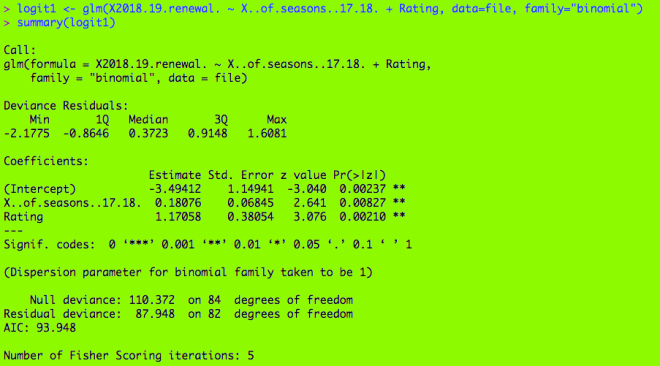
Here’s my first logistic regression model, with my binary variable and two dependent variables (season count and rating). If you’re wondering what the output means, check out R Lesson 4: Logistic Regression Models for a more detailed explanation.

17Aug capture3

Here are two functions you need to help set up the model. The top function help set up the grid and designate which categorical variable you want to use in your graph. The bottom function helps predict the probabilities of renewal for each show in a certain category. In this case, it would be the rating category (the ones with TV-G, TV-PG, etc.)

19Aug capture5

Here’s the ggplot function. Geom_line() creates the lines for each level of your categorical variable; here are 5 lines for the 5 categories.

19Aug capture6

19Aug capture4

Here’s the graph. As you see, there are five lines, one for each of the ratings. What are some inferences that can be made?

  • The TV-G shows (category 1) usually have the lowest chance of renewal. In this model, a TV-G show would need to have run for approximately a minimum of 22 seasons for at least 50% chance of renewal. (Granted, the only TV-G show on this database is Fixer Upper, which was not renewed)
  • The TV-PG shows have a slightly better chance at renewal as renewal odds for these shows are at least 25%. To attain at a minimum 50% of renewal, these shows would only need to have run for approximately a minimum of 17 seasons, not 22 (like The Simpsons).
  • The TV-14 shows have a minimum 50% chance of renewal, regardless of how many seasons they have run. They would need to have run for at least 25 seasons to attain a minimum 75% chance of renewal, however (SNL would be the only applicable example here, as it was renewed and has run for 43 seasons).
  • The TV-MA shows have a minimum 76% (approximately) chance of renewal no matter how many seasons they have aired. Shows like South Park, Archer, Real Time, Big Mouth and Orange is the New Black are all TV-MA, and all of them were renewed.
  • The unrated shows had the best chances at renewal, as they had a minimum 92% (approximately) chance at renewal. (Granted, Watch What Happens Live! is the only unrated show on this list)

Next, we repeat the process used to create the plot for the first model for these next two models.

19Aug capture3

19Aug capture7

19Aug capture9

19Aug capture8

What are some inferences that can be made? (I know this graph is hard to read, but we can still make observations from this graph.

  • The orange line (representing Tuesday shows) is the lowest on the graph, so this means Tuesday shows usually had the lowest chances of renewal. This makes sense, as Tuesday shows like LA to Vegas, The Mick, and Rosanne were all cancelled.
  • On the other end, the pink line (representing shows that either aired on streaming services, did not have a consistent time slot, or aired every day like talk shows) is the highest on the graph, so this means shows without a regular time slot had the best chances at renewal (such as Atypical, Jimmy Kimmel Live!, and House of Cards).

19Aug capture10

19Aug capture11

19Aug capture13

19Aug capture12

What inferences can we make from this graph?

  • The network shows (from the 5 major broadcast networks CBS, ABC, NBC, FOX and the CW) had the lowest chances at renewal. At least 11 seasons would be needed for a minimum 50% chance of renewal.
    • Some shows would include The Simpsons (29 seasons), Family Guy (16 seasons), The Big Bang Theory (11 seasons), and NCIS (15 seasons), all of which were renewed.
  • The cable shows (from channels such as Comedy Central, HBO, and Bravo) have a minimum 58% (approximately) chance of renewal, but at least 15 seasons would be needed for a minimum 70% chance of renewal.
    • Some shows would include South Park (21 seasons) and Real Time (16 seasons), both of which were renewed.
  • The streaming shows (from services such as Netflix, Hulu, or CBS All Access) had the best odds for renewal (approximately 76% minimum chance at renewal). At least 30 seasons would be needed for a 90% chance at renewal.
    • This doesn’t make any sense yet, as streaming shows have only been around since the early-2010s.

Thanks for reading, and I’ll be sure to have the MySQL database ready so you can start learning about querying.

Michael


MySQL Lesson 2: Launching the Database & Inserting Records

Hello everybody,

It’s Michael, and I thought the prefect place to continue from last post would be to show you guys how to launch the database as well as insert records into the database.

But first, I have some corrections to make. This will be the diagram we will use

5Aug capture1

It’s similar to the one in the previous post, except for one less foreign key in the Awards table that should not have been there along with some other added and modified attributes such as

  • The release year for album has been changed to release date.
  • The featured artist and singer tables have new and/or modified attributes, which include
    • Gender-the gender of the singer/featured artists (it can be null if we are analyzing a group)
      • This is the only addition to the singer table.
    • Age-the age of the featured artist as of August 1, 2018.
    • Birthplace-the birthplace of the featured artist (or where a group was formed)
    • Death-the date of death of the singer/featured artist
      • This was a new column for the featured artist table, but it was on the singer table (I just changed the name from “Date of Death” to Death”)

Now that I got that clarified, the next question would be “How do we launch the database?” We do so with a process called forward engineering (under the database drop-down menu click forward engineering). Forward engineering allows us to export our diagram to an SQL server.

  • You’ll also see an option for reverse engineering in the drop-down menu. You won’t need it to launch the database, but just if you’re wondering what reverse engineering is, it’s essentially the opposite of forward engineering, where you can extract the ER diagram from a launched database (this process can come in handy if you want to modify attributes or relationships in the diagram, but remember to forward engineer again)


Alright, now here’s how to forward engineer your database.

First step is connection options. Choose “new connection” for stored connection and “Standard (TCP/IP)” for connection method. Keep everything else as is.

30Jul capture1

Next step would be setting up options for the database to be created. Personally, the only two boxes I would check include “Generate INSERT statements for tables” and “Include model attached scripts”.

30Jul capture2

Next we have to select the objects to forward engineer. Since there are only table objects so far in this diagram, then table objects are the only thing we will be forward engineering. If you’re wondering what the show filter button does, it just allows you to select which tables you don’t want to (or want to) include in the final diagram. Since all five tables are relevant to the database, ignore the show filter column.30Jul capture4

If your forward engineering process succeeds, then you will see green checkmarks by each item and the message “Forward Engineer Finished Successfully”.

  • However, if your forward engineering process had errors, then you will be notified. There will be a white box showing you what exactly your error is. This happened to me the first time I tried to forward engineer, as the fields of data type TIME() had 10 as the maximum length while 6 can be the maximum length for fields with data type TIME(). I fixed the error, ran the forward engineering process again, and it worked, as shown below.

30Jul capture5

Now let’s check to see if our database successfully launched.To do so, click on the schemas tab, then click the loading icon. If you see something called “mydb”, then the database successfully loaded onto the MySQL server.

1Aug capture1

Now our database is active, but it’s also empty. So, let’s fill it up (and we’re gonna need to fill up all 5 tables separately). So, we use SELECT * FROM mydb.(whatever table you want to insert data into) to first check out the table (the output is shown in the bottom half of the screen). The output, as seen on the bottom half of the picture, shows that the table is empty.

3Aug capture1

Now let’s add a record to the table and see what happens.

  • Note-this was before I decided to add a gender field. But the procedure is basically the same.

3Aug capture23Aug capture3

If the “Apply Script Process” is successful, then the next time you run the (SELECT * FROM mydb.Singer) prompt, you should see the record added into the database.

3Aug capture4

The same procedure applies to fill in other records for this table

3Aug capture6

  • The process wasn’t successful for me at first, but this was only because my “Date of Death” values should have been formatted like Year-Month-Day, not Month/Day/Year.

Here’s a screenshot of the database with the gender field filled out.

5Aug capture2

Now let’s fill out the album table (because it connects to the idSinger column)

  • And if you’re wondering what to put for Singer_idSinger, refer back to the Singer table to figure out which primary key in that table corresponds to the album.

5Aug capture3

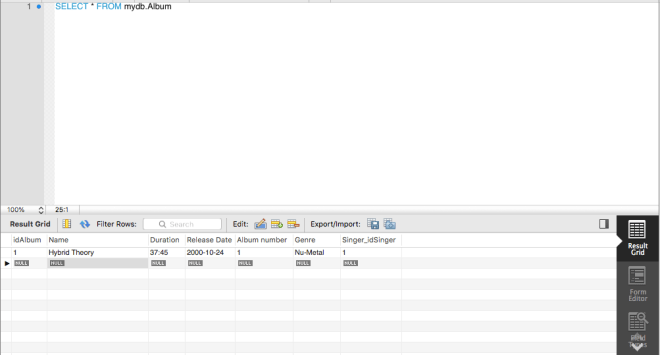
And if forward engineering succeeds, then this record should pop up the next time you run (SELECT * FROM mydb.Album).

5Aug capture4.png

Let’s add two more records to see what happens.

5Aug capture5

Here’s the output, and in case you’re wondering, I set the idAlbum primary key field to auto-increment, so all I had to do was type 1 as the Hybrid Theory primary key, then the primary keys for the rest of the albums were automatically generated.

5Aug capture6

If you know how to fill in one table, then you can figure out how to fill out the rest. I’ll actually get into querying with my next post.

Thanks for reading,

Michael

MySQL Lesson 1: Building an ER Diagram

Hello everybody,

This is Michael, and as I mentioned in the last post, I will start building the database that I will be using for this series of posts.

The database will store information about 54 albums (3 for each year from 2000 to 2018) such as track listings, artists, featured artists on certain tracks, genre, release year, duration (of album and individual track), etc.

In the previous post, I did mention that MySQL is meant for query-based analysis. However, before beginning to do queries, we must create our database. As the title explains, this post will focus on the creation of an ER (entity-relationship) diagram. An ER diagram is a graphical representation of items in a database (in this case, albums, track listings, artists, etc.) and how they are related to each other (like how albums can have several track listings).

So, without further hesitation, here is the ER diagram for the database I will be using.

28Jul capture1

Now you may be confused by all of the arrows and tables in the diagram. Here’s an explanation.

  • This ER diagram will represent the relationship between albums and singers, songs on the album, featured artists, as well as any awards the album either won or received nominations.
  • How do all of these tables relate to each other? Here’s how.
    • Each album must have several tracks, while each track belongs to one and only one album (the thing that looks like a three-pointed arrow means “many” while the thing with two vertical lines represents “one”)
    • Each track can have several, one, or no feature artists (that’s why you see a circle) but each featured artist must belong to one and only track.
    • Each singer can appear more than once (if they have several albums in the database) or just once but each album must correspond to one and only one singer.
    • Each album can be nominated for one or several awards (eg. Grammys, MTV VMAs, etc.) but each award must correspond to only one album.
      • You’ll notice that this is the only dotted line in the diagram. This is because the relationship between album and awards is non-identifying, meaning that you can identify the award based on idAwards field alone, without needing the album field for identification.
      • As for the rest of the relationships (which are known as identifying relationships), each table is dependent on the other table for identification
        • For example, you can’t identify a featured artist without knowing what track they appear on. Likewise, you can’t identify a song without knowing what album it is a part of. Nor can you identify an album without knowing which singer/group created it.

Now what about the attributes in each table (those are the things with diamonds right by them)? Here’s what each of them mean.

  • The album field contains the attributes
    • Name-the name of the album
    • Duration-how long the album is (given in hours:minutes:seconds)
    • Release Year-the year the album came out
    • Album number-how many albums has the artist made up through that point; in other words, is this the artist’s 1st album? 4th? 5th?
    • Genre-the genre of the album
  • The singer field contains the attributes
    • Singer Name-the singer’s (or group’s) name
    • Age-the singer’s age as of August 1, 2018 (if they are still living)
    • Birthplace-the singer’s birthplace (or where the group was formed)
    • Date of Death-the date the artist died
      • You’ll notice the attributes age and date of death have white diamonds right by them; this is because each of them can be null (have no value). For instance, the date of death field can stay blank for living artists. For the other attributes that have blue diamonds besides them, they have to have some sort of value (can’t be null in other words).
  • The tracks field contains the attributes
    • Track Name-the song’s name
    • Track Duration-the length of the song (given in hours:minutes:seconds)
  • The featured artist field contains the attribute
    • Featured artist name-the name of any artist who appears on a particular track
  • The awards field contains the attributes
    • Ceremony-the ceremony where the album either was nominated for or won an award (Grammys, Billboard Music Awards, etc.)
    • Ceremony Year-the year of the ceremony where the album either got nominated for or won an award
    • Won/Nominated-whether an album won or was nominated for a particular award

But wait, what are those keys right by some of the attributes? Those are called primary keys, which are one or more columns with data used to uniquely identify each row in the table. Primary keys are usually stored in auto-incrementing indexes (starting with 1, then 2, then 3, and so on) to ensure uniqueness. For example, in the album table, 1 would be the primary key for the first album in the database, then 2, then 3, all the way to 54.

Take this part of the diagram:

28Jul capture2


idSinger and idAlbum are both primary keys in their respective tables. But wait, why does Singer_idSinger1 appear in the album table? That is because Singer_idSinger1 is a foreign key, which is a column or set of columns in a table that refers to the primary key in another table-which would be the primary key for the singer table. Foreign keys basically serve as a means to connect the referencing table (album) with the referenced table (singer).

If you want to know how primary keys and foreign keys differ from each other, here’s a handy table (Source-https://www.essentialsql.com/what-is-the-difference-between-a-primary-key-and-a-foreign-key/)

Comparison of Primary to Foreign Key Attributes

That’s all for now. Thanks for reading,

Michael

What is MySQL?

Hello everybody,

This is Michael, and as I mentioned in the welcome post, I will include other programming languages on this blog. Don’t worry, I’ll still post plenty of R lessons and analyses, but I thought it was time to include other programming languages. The next one I will introduce is MySQL, which is an open-source (meaning free to use) relational database system.

  • Relational databases are created to recognize relations among items in a database. Let’s say you wanted to make a database of NFL teams and include team name, quarterback, running back, center, safety, linebacker, wide receiver, and any other football positions I missed here, along with season record. Team name would be related to any of the positions I just mentioned, as teams have someone for each of the positions. Team name would also be related to season record, as each team has a win-loss-or-sometimes-tie record each year.

To clarify, MySQL and SQL are two totally different things, being that MySQL is database management software whereas SQL is a programming language (it stands for structured query language) used to manage relational databases.

Another thing I wanted to point out is that MySQL and R-although they are both great analytical tools-serve two different purposes. Personally, I would use R to analyze data from a statistical standpoint (as seen by my logistic regression posts) while I would use MySQL for query-based analysis. Each tool has its pros and cons, as R is better for analysis and visualization of data yet the syntax is more complicated than MySQL (that’s just my opinion). Likewise, MySQL is great for query-based analysis, which is more difficult to do in R, but isn’t the best for performing advanced analyses or creating data visualizations. MySQL is also restricted to relational databases, while R is not.

For this series of posts, I’ll build a database (I’ll be using the same database throughout this series of MySQL posts) using MySQL Workbench, which I’d recommend for anyone wanting to make their own MySQL databases. If you want to install it, here’s a handy link-http://www.ccs.neu.edu/home/kathleen/classes/cs3200/MySQLWorkbenchMAC10.pdf

Don’t worry everybody, I’ll actually start building the database with my next MySQL post. This post was just meant to explain the basics of MySQL.

Thank you for reading,

Michael


R Lesson 5: Graphing Logistic Regression Models

Hello everybody,

It’s Michael, and today I’ll be discussing graphing with logistic regression. This will serve as a continuation of R Lesson 4: Logistic Regression Models (I’ll be using the dataset and the models from that post).

Let’s start by graphing the second model from R Lesson 4. That’s the one that includes season count and premiere year (I feel this would be more appropriate to graph as it is the more quantitative of the two models).

Here’s the formula for the model if you’re interested (as well as the output):

20Jul capture1

Now let’s plot the model (but first, let’s remember to install the ggplot2 package).

20Jul capture5

Next we have to figure out the probabilities that each show will be renewed (or not).

20Jul capture6

And finally, let’s plot the model.

20Jul capture7

20Jul capture4

What are some conclusions we can draw from the model?

  • The shows with less than 25 seasons and that premiered between 1975 and the early 90s (such as Roseanne which had 10 seasons and premiered in 1988) had no chance at renewal.
  • For shows with less than 25 seasons, the more recently the show premiered, the more likely it was renewed (as shown by the progressively brighter colors).
  • For the few outlier shows with more than 25 seasons (regardless of when they premiered) they had a 100% chance at renewal.
    • The two notable examples would be The Simpsons (at 29 seasons) and SNL (at 43 seasons)

Thanks for reading,

Michael


R Lesson 4: Logistic Regression Models

Hello everybody,

It’s Michael, and today’s post will be the first to cover data modeling in R. The model I will be discussing is the logistic regression model. For those that don’t know, logistic regression models explore the relationship between a binary* dependent variable and one or more independent variables.

*refers to variable with only 2 possible values, like yes/no, wrong/right, healthy/sick etc.

The data set I will be using is-TV shows-which gives a list of 85 random TV shows of various genres that were currently airing during the 2017-18 TV season and whether or not each show was renewed for the 2018-19 TV season. So, like any good data scientist, let’s first load the file and read (as well as understand) the data.

9Jul capture1

The variables include

  • TV Show-the name of the TV show
  • Genre-the genre of the TV show
  • Premiere Year-the year the TV show premiered (for reboots like Roseanne, I included the premiere date of the original, not the revival)
  • X..of.seasons..17.18. (I’ll refer to it as season count)-how many seasons the show had aired at the conclusion of the 2017-18 TV season (in the case of revived shows like American Idol, I counted both the original run and revival, which added up to 16 seasons)
  • Network-the network the show was airing on at the end of the 2017-18 TV season
  • X2018.19.renewal. (my binary variable)-Whether or not the show was renewed for the 2018-19 TV season
    • You’ll notice I used 0 and 1 for this variable; this is because it is a good idea to use dummy variables (the 0 and 1) for your binary dependent variable to help quantify qualitative data.
      • The qualitative data in this case being whether a show was renewed for the 2018-19 TV season (shown by 1) or not (shown by 0)


Now that we know the variables in our data set, let’s figure out what we want to analyze.

  • Let’s analyze the factors (eg. network, genre) that affected a certain TV show’s renewal or cancellation (the binary variable represented by 0/1)

So here’s the code to build the model, using the binary dependent variable and two of the independent variables (I’ll use genre and premiere year)

9Jul capture2

9Jul capture3

9Jul capture4

What does all of this output mean?

  • The call just reprints the model we created.
  • The estimate represents the change in log odds (or logarithm of the odds) for the dependent variable should a certain independent variable variable be increased by 1.
    • Log odds function–>log(p/(1-p))
    • For instance, if the premiere year increases by 1 (let’s say from 2009 to 2010), the odds that it was renewed for the 18-19 TV season decrease by 6.73% (as evidenced by the -0.06763 as the premiere year estimate)
  • Standard error represents how far the sample mean is from the population mean. In the case of premiere year, the two means are close together. In the case of genre however, the two means are mostly far apart (then again, genre isn’t numerical).
  • Z-value is the ratio of the estimate to the standard error
  • P-value (denoted by Pr(|>z|)) helps you determine the significance of your results by giving you a number between 0 and 1
    • P-values are used to either prove or disprove your null hypothesis (a claim you are making about your data)
      • Let’s say you think a show’s genre and premiere year affected its chances of renewal; this would be your null hypothesis.
      • Your alternative hypothesis would be the opposite of your null hypothesis; that is, genre and premiere year don’t affect a shows chances of renewal
    • Small p-values (those <=0.05) indicate strong evidence against the null hypothesis, so in these cases, you can reject the null hypothesis. For p-values larger than 0.05, you should accept the null hypothesis.
      • Since all the p-values are well above 0.05, you can accept the null hypothesis
  • Null deviance shows how well our dependent variable (whether or not a show got renewed) is predicted by a model that includes only the intercept
  • Residual deviance shows how well our dependent variable (whether or not a show got renewed) is predicted by a model that includes the intercept as well as any independent variables
    • As you can see here, the residual deviance is 89.496 on 71 degrees of freedom, a decrease of 20.876 from null deviance (as well as a decrease of 13 degrees of freedom).
  • AIC (or Akaike Information Criterion) is a way to gauge the quality of your model through comparison of related models; the point of the AIC is to prevent you from using irrelevant independent variables.
    • The AIC itself is meaningless unless we have another model to compare it to, which I will include in this post.
  • The number of Fisher scoring iterations shows how many times the model ran to attain maximum likelihood, 17 in this case. This number isn’t too significant.

Now let’s create another model, this time including season count in place of genre.

10Jul capture1

How does this compare to the previous model?

  • There is a smaller difference between null & residual deviance (12.753 and 2 degrees of freedom, as opposed to 20.876 and 13 degrees of freedom)
  • The AIC is 13.88 smaller than that of the previous model, which indicates a better quality of the model
  • The number of Fisher scoring iterations is also lower than the previous model (5 as opposed to 17), which means it took less tries to attain maximum likelihood (that a show was renewed)
  • The estimate for premiere year also increased
    • This time, if premiere year increases by 1, the odds that a show was renewed for the 2018-19 TV season increased by 14.81%, rather than decreased.
    • If season count increased by 1 (say from 4 to 5 seasons), then the odds a show was renewed increased by 31.45%
  • The asterisk by season count just gives an idea of the range of p-values of season count (denoted by Pr(|>z|))
    • The p-value of season count is >0.01 but <0.05 (which makes perfect sense as Pr(|>z|) is 0.027
  • Let’s create two null hypotheses-premiere year and season count affects a show’s chances of renewal (we are treating these as separate hypotheses).
    • Premiere year is greater than 0.05, so accept this null hypothesis.
      • In other words, premiere year did affect a show’s chances for renewal.
    • Season count is less than 0.05, so reject this null hypothesis.
      • In other words, season count didn’t affect a show’s chances for renewal.

That’s all for now. Thanks for reading.

Michael