HTML Lesson 8: Block & Inline Content in HTML

Hello everybody,

Michael here, and today I thought I’d do another series of web-development lessons, starting with an HTML lesson on the difference between block and inline content in HTML.

When creating a website in HTML, it’s important to know the difference between block and inline content in HTML when it comes to designing your webpage.

Block content refers to webpage content that always starts on a new line; the browsers will automatically add a margin before and after the content. Block content always stretches out as far left and as far right on the webpage as it can.

Inline content, on the other hand, doesn’t start on a new line and doesn’t stretch across the webpage-rather, inline content only takes up as much width as necessary.

Now that I’ve explained the basics of block and inline content, let me first show you some examples of block content:

<!DOCTYPE html>
<html lang="en" dir="ltr">
  <head>
    <meta charset="utf-8">
    <title></title>
  </head>
  <body>
    <h1>Flight finder:</h1>
    <form action="Submitted.html" method="POST">
      <label for="datepicker1">Pick the date you want to depart for your vacation</label><br>
      <input type="date" id="datepicker1" name="datepicker1" min="2021-03-25" max="2022-03-25"><br>
      <br>
      <label for="datepicker2">Pick the date you want to return from your vacation</label><br>
      <input type="date" id="datepicker2" name="datepicker2" min="2021-03-25" max="2022-03-25"><br>
      <br>
      <label for="time1">What time would you like to depart? (flights shown within 90 minutes of selected time)</label><br>
      <input type="time" id="time1" name="time1"><br>
      <br>
      <label for="time2">What time would you like to return? (flights shown within 90 minutes of selected time)</label><br>
      <input type="time" id="time2" name="time2"><br>
      <br>
      <label for="layover">How many layovers do you want?</label><br>
      <input type="number" id="layover" name="layover" min="0" max="3"><br>
      <br>
      <input type="submit" value="Submit">
    </form>

    <div class="container">
      <p>Thank you for booking your next trip with XYZ Airlines!!</p>
      <p>Can't wait to see you on your travels!!</p>
    </div>
  </body>
</html>

Take this HTML code (that I pulled from a form I made in HTML Lesson 7: Forms pt.2 (More Fun With Forms)) that will show you this form:

Pay attention to the code I highlighted in orange. Notice the <div> tag in the highlighted code. <div> simply denotes a section in a webpage, but it also often used for styling webpages with CSS (don’t worry, I’ve got a whole series of CSS lessons planned).

Wonder why I set a container class in my <div> tag? Well-although I won’t be doing so in this lesson-the container class will allow me to apply a certain CSS styling (color, font, size, etc.) to every element in the container. Let’s say I wanted to make all the text red and change the font to Comic Sans. I could easily do so with CSS simply by calling this <div> tag and applying the appropriate styling (I’ll discuss how to work CSS styling in the future).

However, you may have also noticed that I have two other block elements hiding within the <div> tag-if you guessed the two <p> elements, you are correct. Yes, the <p>, or paragraph, tag also counts as a block element and as you may have guessed, the <p> tag allows users to denote paragraphs (or single non-header lines of text, which are still paragraphs in the context of HTML) on their webpage.

Since you have two block elements within a larger block element, how would you work the CSS styling? If you wanted to apply the same style to everything in the <div> tag, you would call the <div> tag in your CSS file and apply whatever styling you want to all of the elements in the <div> tag.

However, if you wanted to apply different styling to each paragraph element inside the <div> tag, you would need to call each <p> tag in your CSS file and apply the individual stylings you want to each <p> tag.

  • If you really wanted to, you could apply the same styling to each <p> tag, but that would be redundant because if you wanted to apply the same styling to each <p>, simply call the <div> tag in your CSS file and apply the styling to that.
  • <form> is also an block element, and so are the header tags (<h1> in this form).

Now, what would inline content look like on an HTML webpage. Take a look at the form code that I posted above. There are three inline elements scattered throughout the form-<label>, <input>, and <br>-which denote a label for a form element, an inpute element for a form, and a line break between each section of the form, respectively.

While I’m on the topic of inline elements, I wanted to discuss a special type of inline element-the <span> tag. Like the <div> tag, the <span> tag defines a section in your document, however, you’d only use the <span> tag with inline elements (recall that the <div> tag is used for block-level elements).

  • Think of the <span> tag as the inline version of the <div> tag (or the <div> tag as the block version of the <span> tag).

Although the <div> and <span> tags both denote sections of your document, the <span> tag allows you to run CSS styling on certain sections of your document. Take a look at this section of the form code:

<div class="container">
      <p>Thank you for booking your next trip with XYZ Airlines!!</p>
      <p>Can't wait to see you on your travels!!</p>
</div>

Now, let’s see what happens when we wrap a <span> tag inside the first <p> tag:

    <div class="container">
      <p><span>Thank you for booking your next trip with XYZ Airlines!!</span></p>
      <p>Can't wait to see you on your travels!!</p>
    </div>

OK, in this case, the <span> tag has no effect on the appearance of the <p> tag since, even though <span> tags technically require no parameters, having no parameters in the <span> tag won’t change the styling of your document at all. Let’s see what happens when we add a little CSS styling magic to the <span> tag:

<div class="container">
      <p><span style='font-weight:bold'>Thank you</span> for booking your next trip with XYZ Airlines!!</p>
      <p>Can't wait to see you on your travels!!</p>
</div>

To add some CSS styling in your <span> tag, pass in a style parameter inside the <span> tag and pass in your desired styling as a string value for the style parameter. In this example, since I wanted to make the Thank you part of the first <p> tag bold, I wrapped Thank you in a <span> tag and applied a font-weight:bold styling to Thank you.

Now, what if you wanted to apply more than one CSS styling to your <span> tag? Take a look at this code below:

<div class="container">
      <p><span style='font-weight:bold; color:green'>Thank you</span> for booking your next trip with XYZ Airlines!!</p>
      <p>Can't wait to see you on your travels!!</p>
</div>

In this example, I made the Thank you portion of the first <p> tag both bold AND green by applying this styling: font-weight:bold; color:green. Keep in mind that if you’re applying more than one type of CSS styling to your <span> tag, you’ll need to separate each styling element (font-weight and color in this example) with a semicolon.

Thanks for reading,

Michael

HTML Lesson 7: Forms pt.2 (More Fun With Forms)

Hello everyone,

Michael here, and today’s lesson will be a continuation of the previous HTML forms lesson. In this post, I’ll cover some more neat things you can do with HTML forms.

In the previous lesson, I covered four input types for HTML forms-checkboxes, radio buttons, text boxes, and submit buttons. However, there are several more input types that you can use to make your forms more versatile.

Let’s start by exploring three new elements-tel, email , and password. These three elements allow a user to input their phone number, email, and password into a form, respectively. Here’s here we would incorporate these elements into the form:

<!DOCTYPE html>
<html lang="en" dir="ltr">
  <head>
    <meta charset="utf-8">
    <title></title>
  </head>
  <body>
    <h1>Sign up for membership:</h1>
    <form action="Submitted.html" method="POST">
      <label for="first">Please enter your first name:</label><br>
      <input type="text" id="first" name="first"><br>
      <br>
      <label for="last">Please enter your last name:</label><br>
      <input type="text" id="last" name="last"><br>
      <br>
      <label for="Email">Please enter your e-mail:</label><br>
      <input type="email" id="Email" name="Email" placeholder="email@user.com"><br>
      <br>
      <label for="pwd">Please create a password:</label><br>
      <input type="password" id="pwd" name="pwd" placeholder="password"><br>
      <br>
      <label for="phone">Please enter your phone number:</label><br>
      <input type="tel" id="phone" name="phone" pattern="[0-9]{3}-[0-9]{3}-[0-9]{4}"><br>
      <br>
      <input type="submit" value="Submit">
    </form>
  </body>
</html>

In this form, I included two text box elements, a submit button, and fields for users to input their e-mail address, password, and phone number.

How exactly did I code out the e-mail address, password, and phone number fields? Let’s take a closer look at each field:

Here’s the code I used for the e-mail field:

<input type="email" id="Email" name="Email" placeholder="email@user.com"><br>

To add an e-mail address input field to the form, the input type is email. I also used an optional attribute called placeholder, which allows me to set a placeholder for the email field (in this case, I used email@user.com as the value for the placeholder); the field placeholder will be displayed until the user types something into the field.

  • Recall from the previous lesson that you need to set the id of the input tag to be equal to the for of the corresponding label in order to connect the input field with the corresponding label.

Now let’s take a look at the password field:

<input type="password" id="pwd" name="pwd" placeholder="password"><br>

To add a password input field to the form, the input type is password (pretty self-explanatory right?). As with the e-mail field, you can also add a placeholder attribute to the password field (I used password as the placeholder value).

Lastly, here’s the telephone number field:

<input type="tel" id="phone" name="phone" pattern="[0-9]{3}-[0-9]{3}-[0-9]{4}"><br>

To add a telephone number input field, the input type is tel. However, let’s take a look at the pattern attribute. The pattern attribute allows you to indicate the pattern for the phone number; this is useful since different countries have different phone number patterns. For this example, I’ll use a US phone pattern (three digits-three digits-four digits).

You’ll also notice that I used regular expressions to specify the phone number pattern; I did do a Java lesson on regular expressions a while back, so if you want a refresher, here’s where to go: Java Lesson 18: RegEx (or Regular Expressions).

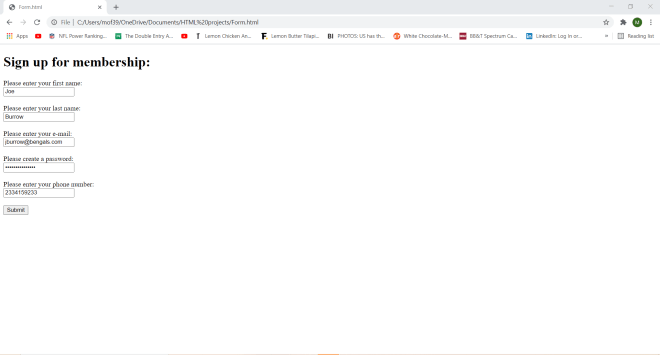
Now, let’s input data into this form and see what it looks like:

As you can see, the password is shown as a series of black dots so that it can’t be seen by anybody.

Interestingly, the phone number dashes don’t automatically show up in the phone number field.

Now let’s play around with some other input elements-color and number:

<!DOCTYPE html>
<html lang="en" dir="ltr">
  <head>
    <meta charset="utf-8">
    <title></title>
  </head>
  <body>
    <h1>Order your shirt and shoes:</h1>
    <form action="Submitted.html" method="POST">
      <label for="first">Please enter your first name:</label><br>
      <input type="text" id="first" name="first"><br>
      <br>
      <label for="shirtcolor">What is your favorite shirt color?</label><br>
      <input type="color" id="shirtcolor" name="shirtcolor"><br>
      <br>
      <label for="size">What is your shoe size?</label><br>
      <input type="number" id="size" name="size" min="5" max="15"><br>
      <br>
      <input type="submit" value="Submit">
    </form>
  </body>
</html>

In this form, I included a text box element, a submit button, a color picker, a number picker, and a submit button.

How did I create the color picker and number picker inputs? Let’s first take a look at the code to create the color picker:

<input type="color" id="shirtcolor" name="shirtcolor"><br>

To add a color picker to a form, set the input type to color.

Now here’s the code to create the number picker:

<input type="number" id="size" name="size" min="5" max="15"><br>

To add a number picker to a form, set the input type to number. You can customize the min and max parameters to your choosing; in this example, I set min to 5 and max to 15; this indicates that the number picker I created has a range of 5-15. I could’ve also set a step attribute, which would’ve specified how to increment the numbers in the number picker. For instance, if I used 5 as the value for step, I would’ve only seen 5, 10, and 15 on the number picker since I would only see increments of 5 (starting with 5) on the number picker.

The color picker displays a built-in color picker tool for you to choose a certain color. Pretty self-explanatory right?

For the most part, the color picker should work on any browser (I’m using Google Chrome) but there may be a few browsers that don’t support the color picker.

Anyway, here’s the neat thing about the color picker-you can customize the color you want according to RGB scales, HSL scales, or color hex codes. Let me explain what each of these color scales mean:

  • RGB stands for red, green, and blue. R, G, and B can be represented by any number from 0-255, which represent the intensity of the red, green, and blue hues, respectively, in the custom color. A 0 for any parameter of RGB represents the least intense hue of red, green or blue while a 255 for any RGB parameter is the most intense hue.
  • HSL stands for hue, saturation, and lightness. H represents a degree on the color wheel and can be represented with any number from 0-360; 0 is pure red, 120 is pure green, and 240 is pure blue. S & L represent a color’s saturation and lightness, respectively; both S & L are represented with percentages from 0-100. For S, 0% represents gray and 100% represents full color. For L, 0% represents black and 100% represents white.
  • Color hex codes store colors as six-character hexadecimal codes (recall from Java Lesson 5: Java Numbering Systems that the hexadecimal system encompasses both 0-9 and the letters A-F). Color hex codes can range from #000000 (pure black) to #FFFFFF (pure white).
    • Keep your eyes peeled for a future lesson on color and programming color scales.

The number picker allows you choose a number between 5 and 15. Why between 5 and 15? Take a closer look at this line of code:

<input type="number" id="size" name="size" min="5" max="15"><br>

In the <input> tag, I set min to 5 and max to 15, thus making the range of numbers you can choose from between 5-15.

Last but not least, let’s play around with some date-time form tools-more specifically, let’s focus on date and time:

<!DOCTYPE html>
<html lang="en" dir="ltr">
  <head>
    <meta charset="utf-8">
    <title></title>
  </head>
  <body>
    <h1>Flight finder:</h1>
    <form action="Submitted.html" method="POST">
      <label for="datepicker1">Pick the date you want to depart for your vacation</label><br>
      <input type="date" id="datepicker1" name="datepicker1"><br>
      <br>
      <label for="datepicker2">Pick the date you want to return from your vacation</label><br>
      <input type="date" id="datepicker2" name="datepicker2"><br>
      <br>
      <label for="time1">What time would you like to depart? (flights shown within 90 minutes of selected time)</label><br>
      <input type="time" id="time1" name="time1"><br>
      <br>
      <<!DOCTYPE html>
<html lang="en" dir="ltr">
  <head>
    <meta charset="utf-8">
    <title></title>
  </head>
  <body>
    <h1>Flight finder:</h1>
    <form action="Submitted.html" method="POST">
      <label for="datepicker1">Pick the date you want to depart for your vacation</label><br>
      <input type="date" id="datepicker1" name="datepicker1" min="2021-03-25" max="2022-03-25"><br>
      <br>
      <label for="datepicker2">Pick the date you want to return from your vacation</label><br>
      <input type="date" id="datepicker2" name="datepicker2" min="2021-03-25" max="2022-03-25"><br>
      <br>
      <label for="time1">What time would you like to depart? (flights shown within 90 minutes of selected time)</label><br>
      <input type="time" id="time1" name="time1"><br>
      <br>
      <label for="time2">What time would you like to return? (flights shown within 90 minutes of selected time)</label><br>
      <input type="time" id="time2" name="time2"><br>
      <br>
      <label for="layover">How many layovers do you want?</label><br>
      <input type="number" id="layover" name="layover" min="0" max="3"><br>
      <br>
      <input type="submit" value="Submit">
    </form>
  </body>
</html>

In this form, I have two date pickers (created with the date input type), two time pickers (created with the time input type), a number picker, and a submit button.

For both of the date pickers, I used the min and max attributes to set a range for the dates; for both date pickers, min is 2021-03-25 and max is 2022-03-25-this means that March 25, 2021 (today) is the earliest date you can pick while March 25, 2022 (a year from now) is the latest date you can pick.

The time pickers allow you to select any time between midnight and 11:59 PM. To select a time on the time picker, you’d need to scroll through the hour and minute sections to pick the hour and minute you want. You would also need to specify whether you want the time to be AM or PM.

  • The date input type allows you to create a date picker while the time input type allows you to create a time picker, but if you wanted a date AND time picker, use the input type datetime-local (you won’t be able to specify a time zone, however).

Thanks for reading,

Michael
HTML Lesson 6: Forms pt.1

Hello everybody,

Michael here, and today’s lessons will be on creating forms in HTML. Forms are used to process user input in HTML webpages.

Here’s a simple example of an HTML form:

<!DOCTYPE html>
<html lang="en" dir="ltr">
  <head>
    <meta charset="utf-8">
    <title></title>
  </head>
  <body>
    <h1>Here's an HTML form:</h1>
    <form>
      <label for="first">Please enter your first name:</label><br>
      <input type="text" id="first" name="first"><br>
      <label for="last">Please enter your last name:</label><br>
      <input type="text" id="last" name="last"><br>
      <br>
      <input type="submit" value="Submit">
    </form>
  </body>
</html>

In this example, I created a simple HTML form where a user enters their first and last name and clicks the submit button. Granted, nothing will happen when I click the submit button since I didn’t program the button to do anything once it’s clicked, but I just wanted to include it here to show you all a simple example of an HTML form.

Anyway, what do all of the form tags I used mean? Let’s break it down:

  • To create the form, I use the <form> tag. I will also wrap all of the forms elements in this tag.
  • For the text boxes where the user enters their first and last name, I used the <input> tag for each of them and set the input type as text (which indicates a textbox input).
  • I also added labels on top of each of the text boxes with the <label> tag.
  • To create the submit button, I used another <input> tag but set the input type as submit.
  • As for the for label parameter, its value should be equal to the id value on the corresponding input element in order to connect the label with the corresponding input.
    • Specifying the for and id parameters will be especially important in CSS (which I’ll discuss more when I do my CSS series).

Now, let me show you a more complicated HTML form example:

<!DOCTYPE html>
<html lang="en" dir="ltr">
  <head>
    <meta charset="utf-8">
    <title></title>
  </head>
  <body>
    <h1>Here's an HTML form:</h1>
    <form>
      <label for="first">Please enter your first name:</label><br>
      <input type="text" id="first" name="first"><br>
      <label for="last">Please enter your last name:</label><br>
      <input type="text" id="last" name="last"><br>
      <br>
      <label for="gender">What is your gender?</label><br>
      <input type="radio" id="gender" name="gender">Male<br>
      <input type="radio" id="gender" name="gender">Female<br>
      <input type="radio" id="gender" name="gender">Other<br>
      <br>
      <input type="submit" value="Submit">
    </form>
  </body>
</html>

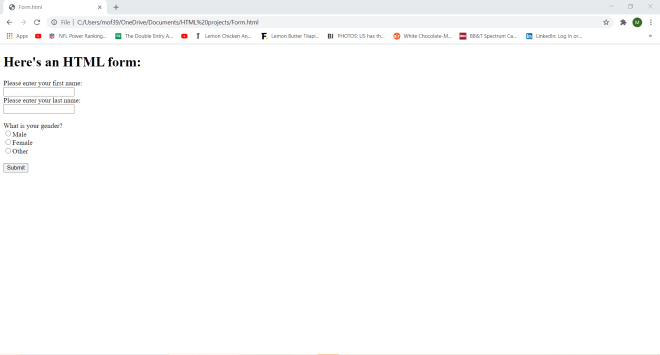
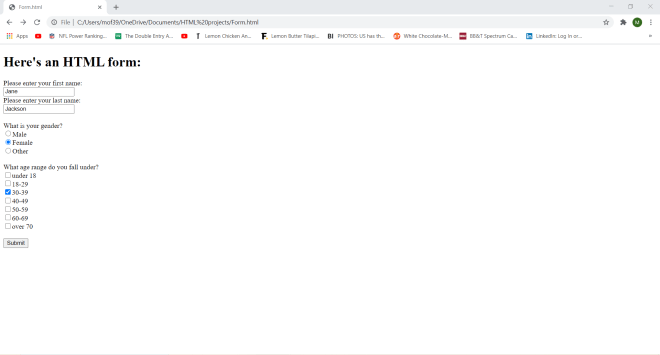
I expanded upon the previous example by adding some radio buttons to the form. Radio buttons are ideal if you want the user to only select ONE of several different choices; in this example, I added three radio buttons with the values Male, Female, and Other each wrapped in an <input> tag with type radio. I also added a corresponding label and specified the for parameter of the label along with the id parameter of each radio button in order to connect the label with each of the radio buttons.

  • If you want multiple radio buttons, you’ll unfortunately need to type them out 1-by-1. HTML doesn’t yet allow you to group several radio buttons inside a single input tag.

Now, let’s add some checkboxes to the form:

<!DOCTYPE html>
<html lang="en" dir="ltr">
  <head>
    <meta charset="utf-8">
    <title></title>
  </head>
  <body>
    <h1>Here's an HTML form:</h1>
    <form>
      <label for="first">Please enter your first name:</label><br>
      <input type="text" id="first" name="first"><br>
      <label for="last">Please enter your last name:</label><br>
      <input type="text" id="last" name="last"><br>
      <br>
      <label for="gender">What is your gender?</label><br>
      <input type="radio" id="gender" name="gender">Male<br>
      <input type="radio" id="gender" name="gender">Female<br>
      <input type="radio" id="gender" name="gender">Other<br>
      <br>
      <label for="age">What age range do you fall under?</label><br>
      <input type="checkbox" id="age" name="age">under 18<br>
      <input type="checkbox" id="age" name="age">18-29<br>
      <input type="checkbox" id="age" name="age">30-39<br>
      <input type="checkbox" id="age" name="age">40-49<br>
      <input type="checkbox" id="age" name="age">50-59<br>
      <input type="checkbox" id="age" name="age">60-69<br>
      <input type="checkbox" id="age" name="age">over 70<br>
      <br>
      <input type="submit" value="Submit">
    </form>
  </body>
</html>

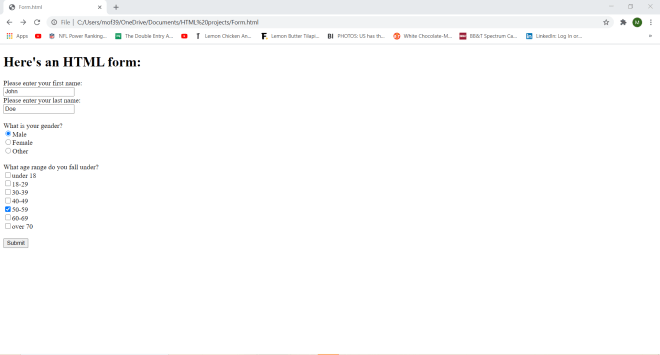
To add checkboxes to an HTML form, set the input type of the <input> tag to checkbox and in order to create a group of checkboxes, set the id parameter of each checkbox to be equal to the for parameter of the corresponding <label> tag.

  • The <label> tag is optional, but if you choose not to include a <label> tag (or even if you did), use the same value for the id parameters for all of your checkboxes.

Now that we’ve discussed some basic elements of HTML forms, there’s another point I want to bring up. All input elements in HTML must have a name attribute for their value to be submitted-though in this example, nothing happens when you hit the submit button.

Now, let me show you how to make something happen when you click the submit button; I’ll use the same code I used for the previous example but this time, I’ll add another HTML page-Submitted.html-that the user will be redirected to once they hit the submit button. Here’s the code for Submitted.html:

<!DOCTYPE html>
<html lang="en" dir="ltr">
  <head>
    <meta charset="utf-8">
    <title></title>
  </head>
  <body>
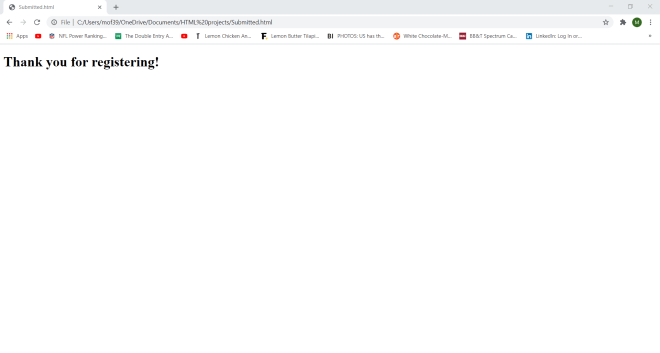
    <h1>Thank you for registering!</h1>
  </body>
</html>

And here’s the revised code for the previous example:

<!DOCTYPE html>
<html lang="en" dir="ltr">
  <head>
    <meta charset="utf-8">
    <title></title>
  </head>
  <body>
    <h1>Here's an HTML form:</h1>
    <form action="Submitted.html">
      <label for="first">Please enter your first name:</label><br>
      <input type="text" id="first" name="first"><br>
      <label for="last">Please enter your last name:</label><br>
      <input type="text" id="last" name="last"><br>
      <br>
      <label for="gender">What is your gender?</label><br>
      <input type="radio" id="gender" name="gender">Male<br>
      <input type="radio" id="gender" name="gender">Female<br>
      <input type="radio" id="gender" name="gender">Other<br>
      <br>
      <label for="age">What age range do you fall under?</label><br>
      <input type="checkbox" id="age" name="age">under 18<br>
      <input type="checkbox" id="age" name="age">18-29<br>
      <input type="checkbox" id="age" name="age">30-39<br>
      <input type="checkbox" id="age" name="age">40-49<br>
      <input type="checkbox" id="age" name="age">50-59<br>
      <input type="checkbox" id="age" name="age">60-69<br>
      <input type="checkbox" id="age" name="age">over 70<br>
      <br>
      <input type="submit" value="Submit">
    </form>
  </body>
</html

Now let’s fill out the form…

…and hit submit to see what happens:

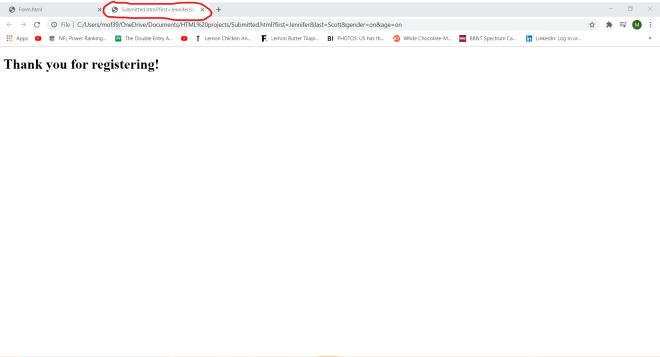
Notice that the Forms.html code looks nearly identical to the Forms.html code from the previous example with one small change-the line <form action="Submitted.html">. The action parameter tells the form what to do once the submit button is clicked-in this case, the user will be redirected to the Submitted.html webpage where they will see the message Thank you for registering!.

  • In the <form action="..."> line, I was able to simply write Submitted.html because I saved Sumbitted.html and Forms.html in the same directory on my computer. If you have two HTML files on your computer that you want to connect that are in different directories, you would need to specify the file path of the file that you want to connect to.

Whenever you use the action parameter to redirect the user to another webpage, by default, the new webpage opens in the same window where the current webpage is located. However, we can change that with the target parameter. Here’s how to do so:

<!DOCTYPE html>
<html lang="en" dir="ltr">
  <head>
    <meta charset="utf-8">
    <title></title>
  </head>
  <body>
    <h1>Here's an HTML form:</h1>
    <form action="Submitted.html" target="_blank">
      <label for="first">Please enter your first name:</label><br>
      <input type="text" id="first" name="first"><br>
      <label for="last">Please enter your last name:</label><br>
      <input type="text" id="last" name="last"><br>
      <br>
      <label for="gender">What is your gender?</label><br>
      <input type="radio" id="gender" name="gender">Male<br>
      <input type="radio" id="gender" name="gender">Female<br>
      <input type="radio" id="gender" name="gender">Other<br>
      <br>
      <label for="age">What age range do you fall under?</label><br>
      <input type="checkbox" id="age" name="age">under 18<br>
      <input type="checkbox" id="age" name="age">18-29<br>
      <input type="checkbox" id="age" name="age">30-39<br>
      <input type="checkbox" id="age" name="age">40-49<br>
      <input type="checkbox" id="age" name="age">50-59<br>
      <input type="checkbox" id="age" name="age">60-69<br>
      <input type="checkbox" id="age" name="age">over 70<br>
      <br>
      <input type="submit" value="Submit">
    </form>
  </body>
</html>

Now let’s fill out the form and see what happens:

Notice how Submitted.html opened in a new webpage. This is because I added the target parameter to the <form action = "..."> tag. Setting the target parameter to _blank opens the Submitted.html webpage in a new tab. There are four values that you can use for the target parameter, which include:

  • _blank-The value I used for this example
  • _self-The Submitted.html webpage would be displayed in the current window; this is the default value for target if nothing else is specified
  • _parent-The form response is displayed in a parent frame
  • _top-The form response is displayed in the body of the window

Next, let’s discuss the two methods for submitting form data-get and post. To better explain these two methods, I’ll fill in the form I’ve been using with new data and show you what happens when you use the get and post methods.

Here’s the code for Form.html using the get method (to add the method, all I needed to do was specify method="get" in the <form> tag:

<!DOCTYPE html>
<html lang="en" dir="ltr">
  <head>
    <meta charset="utf-8">
    <title></title>
  </head>
  <body>
    <h1>Here's an HTML form:</h1>
    <form action="Submitted.html" method="GET">
      <label for="first">Please enter your first name:</label><br>
      <input type="text" id="first" name="first"><br>
      <label for="last">Please enter your last name:</label><br>
      <input type="text" id="last" name="last"><br>
      <br>
      <label for="gender">What is your gender?</label><br>
      <input type="radio" id="gender" name="gender">Male<br>
      <input type="radio" id="gender" name="gender">Female<br>
      <input type="radio" id="gender" name="gender">Other<br>
      <br>
      <label for="age">What age range do you fall under?</label><br>
      <input type="checkbox" id="age" name="age">under 18<br>
      <input type="checkbox" id="age" name="age">18-29<br>
      <input type="checkbox" id="age" name="age">30-39<br>
      <input type="checkbox" id="age" name="age">40-49<br>
      <input type="checkbox" id="age" name="age">50-59<br>
      <input type="checkbox" id="age" name="age">60-69<br>
      <input type="checkbox" id="age" name="age">over 70<br>
      <br>
      <input type="submit" value="Submit">
    </form>
  </body>
</html>

And here’s what happens when I submit the form:

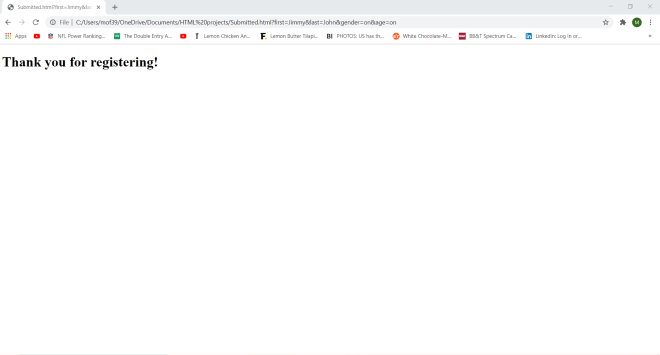
As you can see, we were redirected to the Submitted.html webpage. However, pay attention to this part of the URL:

Submitted.html?first=Jimmy&last=John&gender=on&age=on

Both the get and post methods will redirect you to the Submitted.html webpage after you click the submit button on the form, but only get will actually display all of the form data on the URL; the data is appended at the end of the URL after the name of the webpage (Submitted.html in this example) followed by a question mark.

  • Security tip for you all-NEVER use the get method if your form has sensitive data (e.g. Social Security Numbers) as all of the data that is sent to the form will be visible in the URL!

Now let’s see what happens when you use the post method to submit this form:

<!DOCTYPE html>
<html lang="en" dir="ltr">
  <head>
    <meta charset="utf-8">
    <title></title>
  </head>
  <body>
    <h1>Here's an HTML form:</h1>
    <form action="Submitted.html" method="POST">
      <label for="first">Please enter your first name:</label><br>
      <input type="text" id="first" name="first"><br>
      <label for="last">Please enter your last name:</label><br>
      <input type="text" id="last" name="last"><br>
      <br>
      <label for="gender">What is your gender?</label><br>
      <input type="radio" id="gender" name="gender">Male<br>
      <input type="radio" id="gender" name="gender">Female<br>
      <input type="radio" id="gender" name="gender">Other<br>
      <br>
      <label for="age">What age range do you fall under?</label><br>
      <input type="checkbox" id="age" name="age">under 18<br>
      <input type="checkbox" id="age" name="age">18-29<br>
      <input type="checkbox" id="age" name="age">30-39<br>
      <input type="checkbox" id="age" name="age">40-49<br>
      <input type="checkbox" id="age" name="age">50-59<br>
      <input type="checkbox" id="age" name="age">60-69<br>
      <input type="checkbox" id="age" name="age">over 70<br>
      <br>
      <input type="submit" value="Submit">
    </form>
  </body>
</html>

Now pay attention to the URL that’s shown on the Submitted.html webpage:

C:/Users/mof39/OneDrive/Documents/HTML%20projects/Submitted.html

Notice that you don’t see any of the form data on the URL-this is because the post method does store the data you entered but doesn’t display that data on the URL.

  • Get is the default method for storing form data, but once again, if you’ve got sensitive data on your form, use the post method!!!

Thanks for reading,

Michael

HTML Lesson 5: Links & Quotes

Hello everybody,

Michael here, and today’s lesson will be on using links and quotes in HTML.

First off, let’s start with HTML links. You can use HTML links when you either want to link to a different page on the same website or a page on a different website altogether.

First, let me show you how to use a link to connect to a different webpage:

<!DOCTYPE html>
<html lang="en" dir="ltr">
  <head>
    <meta charset="utf-8">
    <title></title>
  </head>
  <body>
    <a href="https://www.linkedin.com">Click here to go to LinkedIn</a>
  </body>
</html>

And here’s what appears when you click the link text:

In this example, I wrapped the link text-Click here to go to LinkedIn-inside an <a> tag. To ensure that the link text works, I made sure to include the URL of the site I wanted to go to-in this case, LinkedIn-as the value of the href attribute in the <a> tag.

Now, what if you wanted to link to another webpage on the same website. Here’s how to do so:

First, here’s the HTML for webpage 1 (using the same code from an example on the previous HTML post):

<!DOCTYPE html>
<html lang="en" dir="ltr">
  <head>
    <meta charset="utf-8">
    <title></title>
    <style>
table, th, td {
  border: 1px solid black;
}
</style>
  </head>
  <body>
    <h1>Organizational Chart of Department A</h1>
    <table>
    <tr>
      <th>Manager</th>
      <th colspan="5">Direct Reports</th>
    </tr>
    <tr>
      <td>Katie</td>
      <td>Tyler</td>
      <td>James</td>
      <td>Max</td>
      <td>McKenna</td>
      <td>Maria</td>
    </tr>
    <tr>
      <td>Paul</td>
      <td>Douglas</td>
      <td>Brianna</td>
      <td>William</td>
      <td>Nicole</td>
      <td>Tony</td>
    </tr>
  </table>
  <a href="C:\Users\mof39\OneDrive\Documents\HTML projects\Links 2.html">Click here to view Department B's organizational structure</a>
  </body>
</html>

And here’s the HTML for webpage 2:

<!DOCTYPE html>
<html lang="en" dir="ltr">
  <head>
    <meta charset="utf-8">
    <title></title>
    <style>
table, th, td {
  border: 1px solid black;
}
</style>
  </head>
  <body>
    <h1>Organizational Structure of Department B</h1>
    <table>
      <tr>
        <th>Manager:</th>
        <td>Madison</td>
      </tr>
      <tr>
        <th rowspan="6">Direct Reports:</th>
        <td>Jeff</td>
      </tr>
      <tr>
        <td>Amanda</td>
      </tr>
      <tr>
        <td>Marcus</td>
      </tr>
      <tr>
        <td>Stan</td>
      </tr>
      <tr>
        <td>Allison</td>
      </tr>
    </table>
    <a href="C:\Users\mof39\OneDrive\Documents\HTML projects\Links 1.html">Click here to view Department A's organizational structure</a>
  </body>
</html>

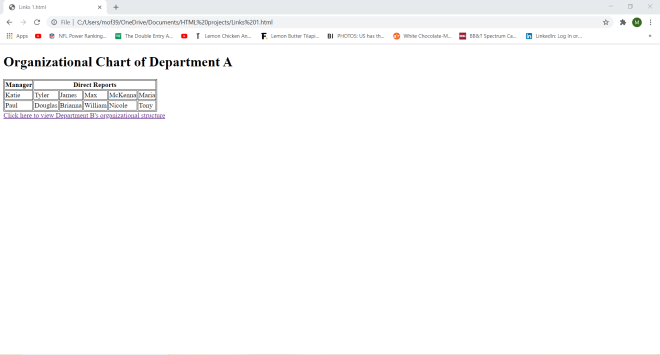
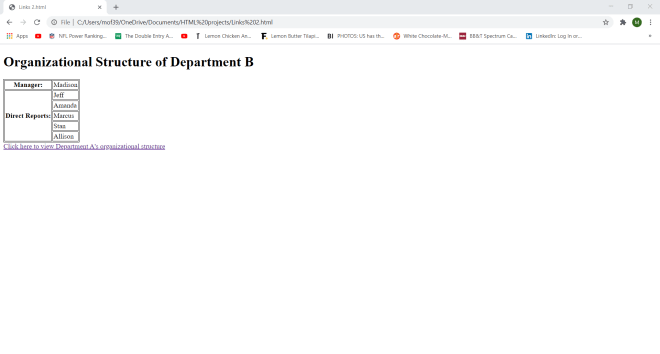
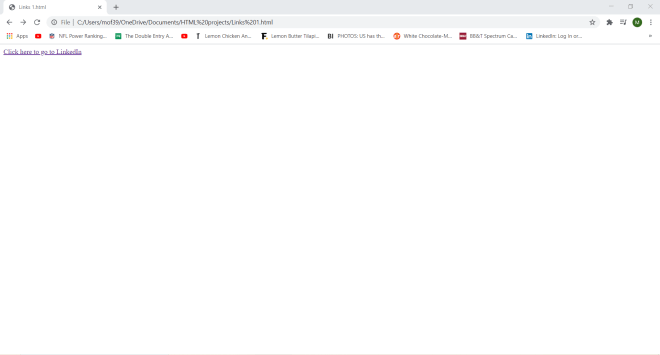
Now, here’s what webpage 1 looks like:

When I click the Click here to view Department B's organizational structure link text, I get sent to webpage 2:

Likewise, when I click on the link text on webpage 2, I get sent back to webpage 1.

  • You don’t always need to use link text; you can use images as links (I showed you how to do so in the previous HTML lesson).

Now, I know I mentioned you can use link text and set images as links in HTML, but did you know you can also link to someone’s e-mail with HTML? Here’s how to do so:

<!DOCTYPE html>
<html lang="en" dir="ltr">
  <head>
    <meta charset="utf-8">
    <title></title>
    <style>
table, th, td {
  border: 1px solid black;
}
</style>
  </head>
  <body>
    <h1>Send me an email:</h1>
    <a href="mailto:miketheblogger@outlook.com">Send email</a>
  </body>
</html>

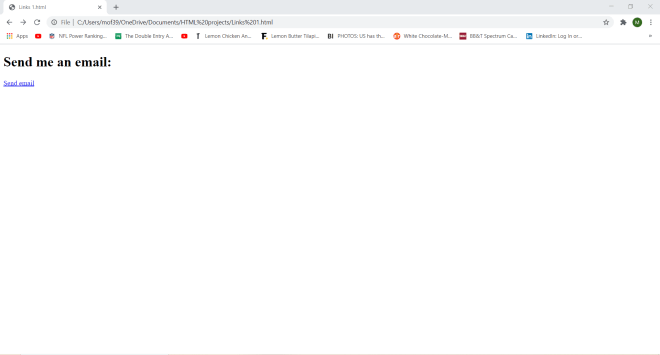
Now, here’s what happens when I click on the Send email link text:

In my case, the e-mail program on my laptop opened up and the e-mail address I specified-miketheblogger@outlook.com-was already shown on the To line. I don’t know if the same thing will happen for you guys (guess it depends on what laptop/computer you are using-I’m working with a Dell G5).

  • In case you were wondering, miketheblogger@outlook.com is just a throwaway e-mail address that I will use for some of the lessons I will post.
  • In order to ensure the e-mail link works, always remember to include mailto: before you specify the e-mail address in the href attribute.

Now that I’ve covered some of the basics of HTML links, let’s dive right in to HTML quotes.

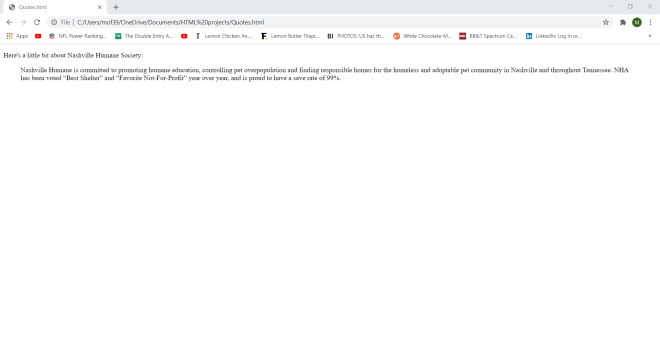
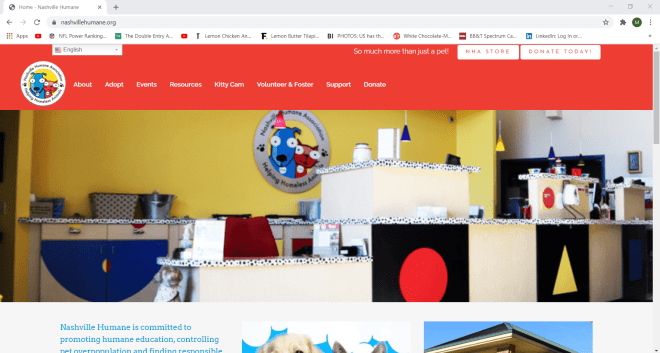
First off, let me show you how to create a block-quote in HTML. Block-quotes are sections of text in the webpage that usually come from another source. Here’s a simple example of an HTML block-quote using an excerpt from the Nashville Humane Society website’s homepage:

<!DOCTYPE html>
<html lang="en" dir="ltr">
  <head>
    <meta charset="utf-8">
    <title></title>
  </head>
  <body>
    <p>Here's a little bit about Nashville Humane Society:</p>
    <blockquote cite="https://nashvillehumane.org">
      Nashville Humane is committed to promoting humane education, controlling pet overpopulation and finding
      responsible homes for the homeless and adoptable pet community in Nashville and throughout Tennessee.
      NHA has been voted “Best Shelter” and “Favorite Not-For-Profit” year over year, and is proud to have a save rate of 99%.
    </blockquote>
  </body>
</html>

To add a block-quote to your HTML webpage, use the aptly-named <blockquote> tag.

  • HTML block-quotes are always indented by the browser.
  • You can cite the source of the quote by add the quote’s source to the cite attribute, but this is optional.

Now, what if we wanted to link this quote back to the Nashville Humane Society’s website’s homepage? Here’s how to do so:

<!DOCTYPE html>
<html lang="en" dir="ltr">
  <head>
    <meta charset="utf-8">
    <title></title>
  </head>
  <body>
    <p>Here's a little bit about Nashville Humane Society:</p>
    <a href="https://nashvillehumane.org"><blockquote cite="https://nashvillehumane.org">
      Nashville Humane is committed to promoting humane education, controlling pet overpopulation and finding
      responsible homes for the homeless and adoptable pet community in Nashville and throughout Tennessee.
      NHA has been voted “Best Shelter” and “Favorite Not-For-Profit” year over year, and is proud to have a save rate of 99%.
    </blockquote></a>
  </body>
</html>

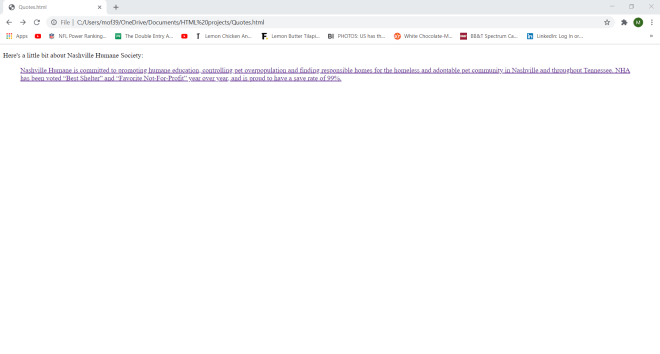
Here’s where the link takes you:

To turn a block-quote (or any quote) into a link, all I needed to do was to wrap the blockquote in an <a> tag and specify the website I wanted to link to in the href attribute.

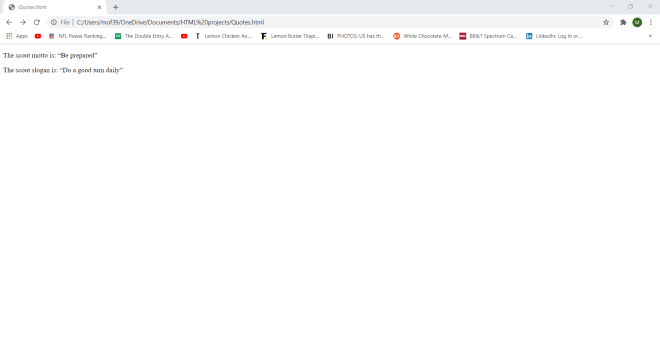
Now, what if you wanted to add a short quotation to your web-page. Here’s how to do so (I actually added two short quotations here, but you’ll get the idea):

<!DOCTYPE html>
<html lang="en" dir="ltr">
  <head>
    <meta charset="utf-8">
    <title></title>
  </head>
  <body>
    <p>The scout motto is: <q>Be prepared</q>
    <p>The scout slogan is: <q>Do a good turn daily</q></p>
  </body>
</html>

To insert a short quotation in your webpage, wrap the quotation text in a <q> tag; the browser will automatically add quotation marks to any text wrapped in a <q> tag.

  • You can also add a cite attribute to a short quotation, but it wasn’t necessary here.

Great job so far! Now let’s see how you can deal with acronyms in HTML:

<!DOCTYPE html>
<html lang="en" dir="ltr">
  <head>
    <meta charset="utf-8">
    <title></title>
  </head>
  <body>
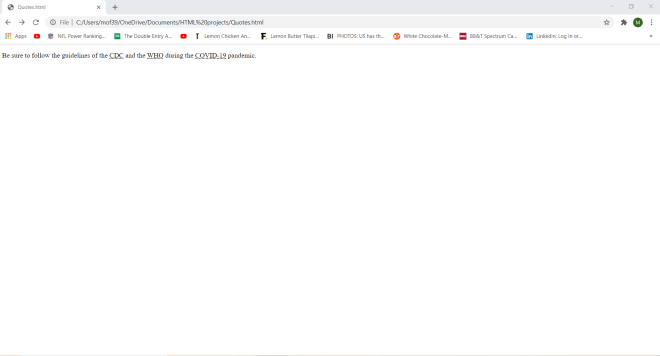
    <p>Be sure to follow the guidelines of the <abbr title="Centers for Disease Control">CDC</abbr> and the <abbr title="World Health Organization">WHO</abbr> during the <abbr title="Coronavirus Disease 2019">COVID-19</abbr> pandemic.</p>
  </body>
</html>

For any acronyms in HTML, wrap them in <abbr> tags and specify the full name of the acronym in the title attribute of the <abbr> tag.

Also, if you hover over each acronym, you can see the value of the full name in a text box. You can see that CDC stands for Centers for Disease Control, WHO stands for World Health Organization, and COVID-19 stands for Coronavirus Disease 2019.

Now let’s take a look at the <address> tag. The <address> tag is used for contact information for either an individual or an organization. This tag can be used for several different modes of contact information such as physical address, e-mail addresses, social media profiles, etc.

Here’s an example of the <address> tag in action:

<!DOCTYPE html>
<html lang="en" dir="ltr">
  <head>
    <meta charset="utf-8">
    <title></title>
  </head>
  <p>To come to the Parthenon in Nashville, please visit this address:</p>
  <address>
    2600 West End Ave.,<br>
    Nashville, TN 37203.
  </address>
</html>

To add an address (of any kind) to your HTML webpage, wrap the name of the address in an <address> tag. Addresses are always italicized in your browser and browsers always add a line break before and after the address element.

Last but not least, let’s explore the <cite> tag (which is similar to the cite attribute). The <cite> tag is usually used to define the title of a creative work (not the creator of such a work).

Here’s the <cite> tag in action:

<!DOCTYPE html>
<html lang="en" dir="ltr">
  <head>
    <meta charset="utf-8">
    <title></title>
  </head>
  <body>
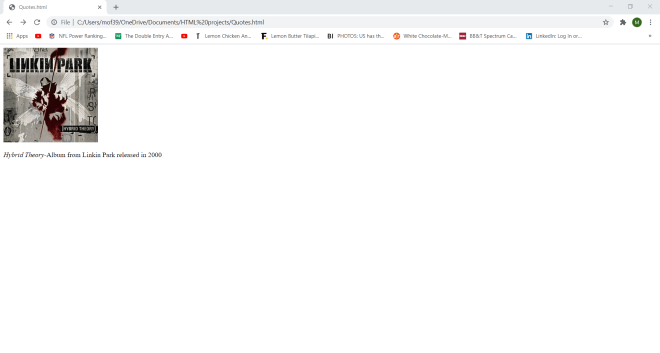
    <img src="C:/Users/mof39/OneDrive/Pictures/hybridtheory.jfif" alt="album cover">
    <p><cite>Hybrid Theory-</cite>Album from Linkin Park released in 2000</p>
  </body>
</html>

To cite a creative work, wrap the name of the creative work (in this case Hybrid Theory) in a <cite> tag-don’t wrap the name of the work’s creator in the <cite> tag! The browser will automatically italicize anything in the <cite> tag.

Thanks for reading,

Michael
HTML Lesson 4: Images and Tables

Hello everybody,

It’s Michael, and today’s HTML lesson will be on inserting images and tables into HTML.

As you have seen from the previous three lessons, there’s quite a bit you can do with HTML. Now let me show you how to include images in HTML. Here’s a simple example of how to do so:

<!DOCTYPE html>
<!DOCTYPE html>
<html lang="en" dir="ltr">
  <head>
    <meta charset="utf-8">
    <title></title>
  </head>
  <body>
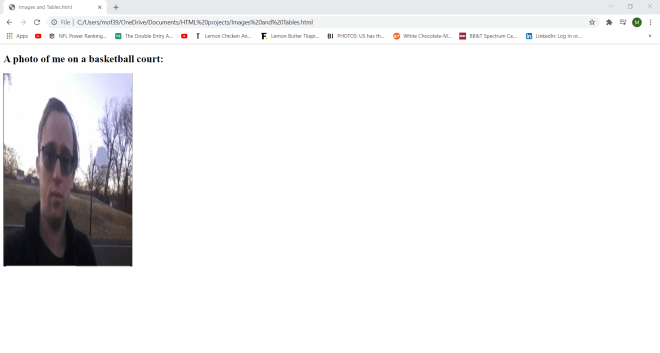
    <h2>A photo of me on a basketball court:</h2>
    <img src="C:\\Users\\mof39\\OneDrive\\Pictures\\ball.png" alt="basketball court">
  </body>
</html>

In this example, I inserted the H2 line of “A blurry photo of me on a park basketball court” along with an image of me on a park basketball court (now you all get to see what I look like) onto my HTML webpage.

How did I get the image onto my webpage? Well, I used the HTML tag for images-<img>-and filled it in with the two necessary attributes-src for the file path of the image and alt for alternate text for the image.

  • Alternate text provides a user with a brief description of the image if the user can’t view it for any reason (such as slow connection, the user needs a screen reader, etc.).
  • The <img> tag is an empty tag since it only has attributes and no closing tag.

Adding an image to a webpage with HTML is fairly simple. What if you wanted to play around with the image’s height and width. Here’s how to do so (using the same image from the previous example):

<!DOCTYPE html>
<html lang="en" dir="ltr">
  <head>
    <meta charset="utf-8">
    <title></title>
  </head>
  <body>
    <h2>A photo of me on a basketball court:</h2>
    <img src="C:\\Users\\mof39\\OneDrive\\Pictures\\ball.png" alt="basketball court" style="width:300px;height:450px;">
  </body>
</html>

For this webpage, I used the exact same code I used in the previous example, however I did add the style attribute to the <img> tag. In the style attribute, I specified the height and width I wanted for the image in pixels (all sizes in HTML are measures with pixels or px). I then refreshed the webpage and VOILA-you get to see the manipulated image. Notice how all I did was simply manipulate the image’s size-I didn’t crop it at all (I’ll likely cover image cropping when I start posting CSS content).

  • Instead of doing the width:X;height:X; thing I did to specify the image’s width and height, you could also list the width and height separately like this-width="300", height="450". However, using the style attribute is an efficient shortcut.

Now, one thing you probably didn’t know about HTML images is that you can also post animated GIFs (Graphics Interchange Format) to your HTML webpage. Here’s how to do so:

<!DOCTYPE html>
<html lang="en" dir="ltr">
  <head>
    <meta charset="utf-8">
    <title></title>
  </head>
  <body>
    <h2>Gronk spike:</h2>
    <img src="C:\\Users\\mof39\\OneDrive\\Pictures\\gronk.gif" alt="Rob Gronkowski spikes a football">
  </body>
</html>

To add a GIF to the webpage, I used the same <img> tag that I would with normal images and included both the src and alt attributes.

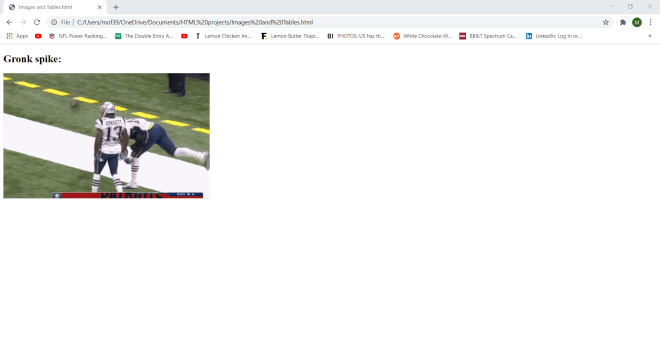
Also, since I can’t show the GIF animation with a webpage screenshot, here’s the Gronk spike GIF in all its glory (FYI, I don’t own any of the GIFs/images I’ll be using):

Pretty neat stuff so far, right? Well, now let me show you how to use an image as a link to another website:

<!DOCTYPE html>
<html lang="en" dir="ltr">
  <head>
    <meta charset="utf-8">
    <title></title>
  </head>
  <body>
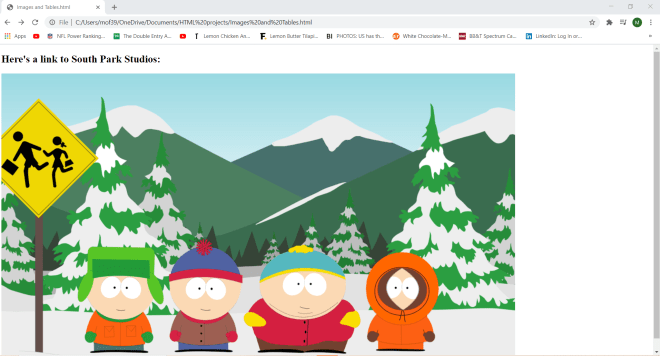
    <h2>Here's a link to South Park Studios:</h2>
    <a href="https://southpark.cc.com/">
      <img src="C:\\Users\\mof39\\OneDrive\\Pictures\\south park.png" alt="The four main characters on South Park">
    </a>
  </body>
</html>

And here’s what happens once you click the image:

In this example, the image serves as a link to the South Park Studios website. In order to make an image a link, wrap the <img> tag and its attributes in an <a> tag-the <a> tag is typically used for links (which I’ll cover more in the next post). The <a> tag has an attribute-href; set the value of this attribute to the website/webpage you want to link to.

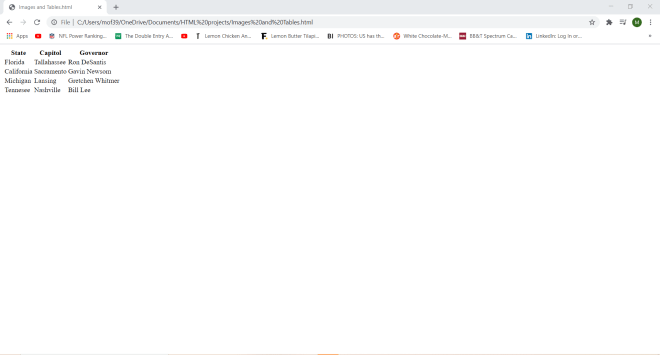
Alright, now that we’ve covered the basics of using images with HTML, now let’s cover creating tables in HTML. Here’s a simple example of HTML tables:

<!DOCTYPE html>
<html lang="en" dir="ltr">
  <head>
    <meta charset="utf-8">
    <title></title>
  </head>
  <body>
    <table>
      <tr>
        <th>State</th>
        <th>Capitol</th>
        <th>Governor</th>
      </tr>
      <tr>
        <td>Florida</td>
        <td>Tallahassee</td>
        <td>Ron DeSantis</td>
      </tr>
      <tr>
        <td>California</td>
        <td>Sacramento</td>
        <td>Gavin Newsom</td>
      </tr>
      <tr>
        <td>Michigan</td>
        <td>Lansing</td>
        <td>Gretchen Whitmer</td>
      </tr>
      <tr>
        <td>Tennesee</td>
        <td>Nashville</td>
        <td>Bill Lee</td>
      </tr>
    </table>
  </body>
</html>

As you can see here, I have created a simple HTML table. How did I make this table? Well, all tables in HTML use these four tags-<table>, <tr>, <th> and <td>. The <table> tag creates the table itself, <tr> creates the table rows, <th> creates the table headers, and <td> creates the table details (these are the main non-header elements of the table).

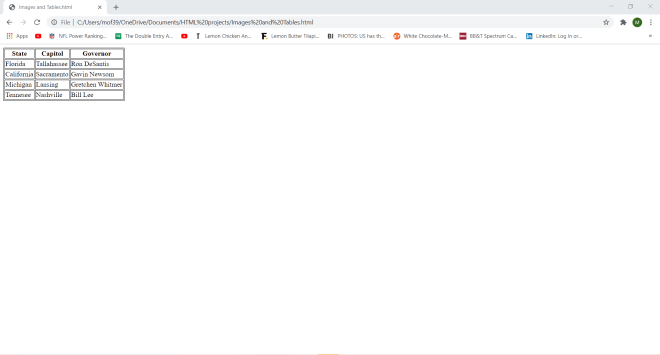
OK, this is a great start. But how would I add borders to the table? Here’s how:

<!DOCTYPE html>
<html lang="en" dir="ltr">
  <head>
    <meta charset="utf-8">
    <title></title>
    <style>
table, th, td {
  border: 1px solid black;
}
</style>
  </head>
  <body>
    <table>
      <tr>
        <th>State</th>
        <th>Capitol</th>
        <th>Governor</th>
      </tr>
      <tr>
        <td>Florida</td>
        <td>Tallahassee</td>
        <td>Ron DeSantis</td>
      </tr>
      <tr>
        <td>California</td>
        <td>Sacramento</td>
        <td>Gavin Newsom</td>
      </tr>
      <tr>
        <td>Michigan</td>
        <td>Lansing</td>
        <td>Gretchen Whitmer</td>
      </tr>
      <tr>
        <td>Tennesee</td>
        <td>Nashville</td>
        <td>Bill Lee</td>
      </tr>
    </table>
  </body>
</html>

To add borders to the table, I used the <style> tag and added a 1 pixel solid black border to any element with a table, th, or td tag.

  • The table border demo is just a preview of the exciting things to come in my CSS series of posts!

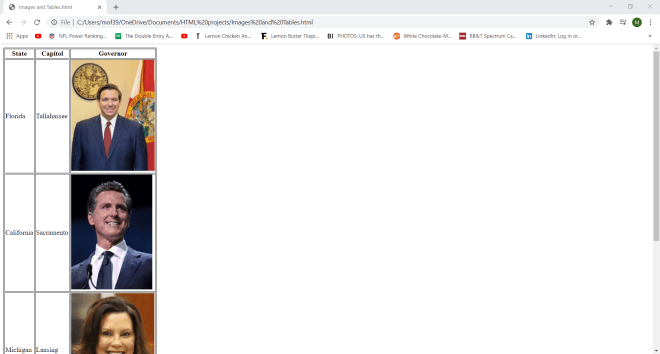
OK, this table looks even better, but what if we wanted to add some images of the governors of these four states? Here’s how to do so:

<!DOCTYPE html>
<html lang="en" dir="ltr">
  <head>
    <meta charset="utf-8">
    <title></title>
    <style>
table, th, td {
  border: 1px solid black;
}
</style>
  </head>
  <body>
    <table>
      <tr>
        <th>State</th>
        <th>Capitol</th>
        <th>Governor</th>
      </tr>
      <tr>
        <td>Florida</td>
        <td>Tallahassee</td>
        <td><img src="C:\Users\mof39\OneDrive\Pictures\desantis.jfif"></td>
      </tr>
      <tr>
        <td>California</td>
        <td>Sacramento</td>
        <td><img src="C:\Users\mof39\OneDrive\Pictures\newsom.jfif"></td>
      </tr>
      <tr>
        <td>Michigan</td>
        <td>Lansing</td>
        <td><img src="C:\Users\mof39\OneDrive\Pictures\whitmer.jfif"></td>
      </tr>
      <tr>
        <td>Tennesee</td>
        <td>Nashville</td>
        <td><img src="C:\Users\mof39\OneDrive\Pictures\lee.jfif"></td>
      </tr>
    </table>
  </body>
</html>

In this example, I simply replaced each governor’s name with their image (using a file path from my computer). Yes, you can use images as table elements in HTML (just remember to use the <img> tag).

Now, let’s say you wanted a table with a cell that spans several columns. Here’s how to create one:

<!DOCTYPE html>
<html lang="en" dir="ltr">
  <head>
    <meta charset="utf-8">
    <title></title>
    <style>
table, th, td {
  border: 1px solid black;
}
</style>
  </head>
  <body>
    <table>
    <tr>
      <th>Manager</th>
      <th colspan="5">Direct Reports</th>
    </tr>
    <tr>
      <td>Katie</td>
      <td>Tyler</td>
      <td>James</td>
      <td>Max</td>
      <td>McKenna</td>
      <td>Maria</td>
    </tr>
    <tr>
      <td>Paul</td>
      <td>Douglas</td>
      <td>Brianna</td>
      <td>William</td>
      <td>Nicole</td>
      <td>Tony</td>
    </tr>
  </table>
  </body>
</html>

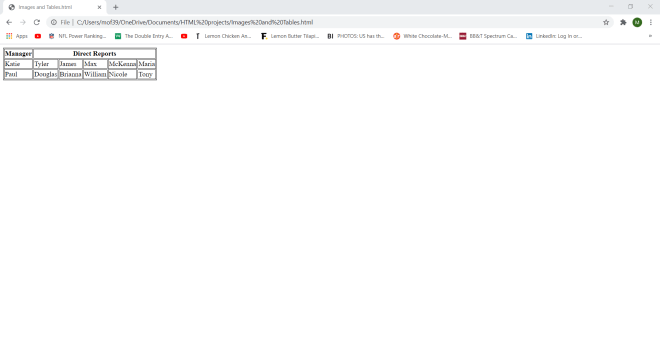
To create a table with a cell that spans several columns, you would need to specify which table header you want to span several columns-in this example, the Direct Reports header will span several columns. To specify how many columns you would like to stretch a cell, use the colspan attribute inside the <th> tag of the column you want to expand; in this example, I stretched the Direct Reports cell for 5 columns.

Now, what if I wanted to stretch a table cell for multiple rows? Here’s how to do so:

<!DOCTYPE html>
<html lang="en" dir="ltr">
  <head>
    <meta charset="utf-8">
    <title></title>
    <style>
table, th, td {
  border: 1px solid black;
}
</style>
  </head>
  <body>
    <table>
      <tr>
        <th>Manager:</th>
        <td>Madison</td>
      </tr>
      <tr>
        <th rowspan="6">Direct Reports:</th>
        <td>Jeff</td>
      </tr>
      <tr>
        <td>Amanda</td>
      </tr>
      <tr>
        <td>Marcus</td>
      </tr>
      <tr>
        <td>Stan</td>
      </tr>
      <tr>
        <td>Allison</td>
      </tr>
    </table>
  </body>
</html>

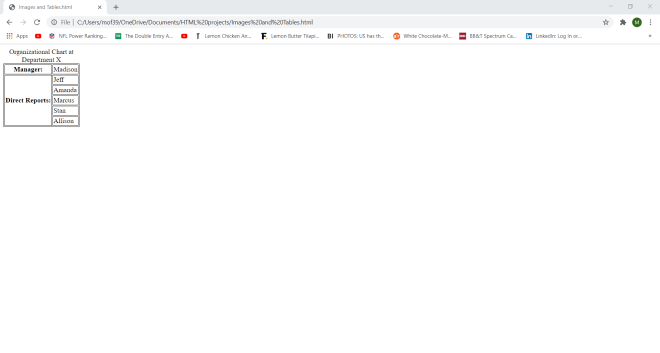
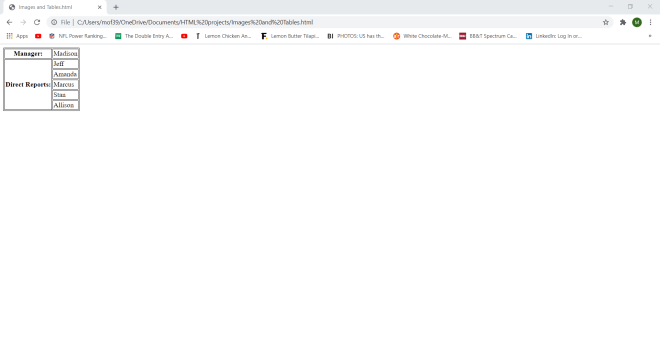
This example is conceptually identical to the previous example (since both tables show a manager and their direct reports). However, this table shows the manager in one row and their direct reports on six different rows.

So, where did I make a cell span multiple rows? Take a look at the Direct Reports cell. I wrapped this cell in a <th> tag and use the rowspan attribute to make the cell span five rows (one for each of the manager’s direct reports). In order to show all of the direct reports in five different rows, I had to wrap each name in its own <tr> tag. Note how I wrapped the first name-Jeff-in the same <tr> tag as the Direct Reports table header (this was important to do in order to ensure that the rowspan tool worked properly).

Now what if I wanted to add a caption to the table? Here’s how to do so (using the same table from the previous example):

<!DOCTYPE html>
<html lang="en" dir="ltr">
  <head>
    <meta charset="utf-8">
    <title></title>
    <style>
table, th, td {
  border: 1px solid black;
}
</style>
  </head>
  <body>
    <table>
      <caption>Organizational Chart at Department X</caption>
      <tr>
        <th>Manager:</th>
        <td>Madison</td>
      </tr>
      <tr>
        <th rowspan="5">Direct Reports:</th>
        <td>Jeff</td>
      </tr>
      <tr>
        <td>Amanda</td>
      </tr>
      <tr>
        <td>Marcus</td>
      </tr>
      <tr>
        <td>Stan</td>
      </tr>
      <tr>
        <td>Allison</td>
      </tr>
    </table>
  </body>
</html>

To add a caption, all I did was wrap the caption I wanted to use inside a <caption> tag. When you’re adding a caption to your HTML table, remember to place the <caption> tag right after the opening <table> tag. The <caption> tag won’t work if you place it right before the closing </table> tag,

Thanks for reading,

Michael
HTML Lesson 3: HTML Lists

Hello everybody,

It’s Michael, and today I will be showing you how to create lists in HTML.

HTML allows you to create three types of list-ordered, unordered, and description lists. First, I’ll show you how to create ordered lists:

<!DOCTYPE html>
<html lang="en" dir="ltr">
  <head>
    <meta charset="utf-8">
    <title>HTML Lists Lesson</title>
  </head>
  <body>
    <p>Here is my grocery list:</p>
    <ol>
      <li>Milk</li>
      <li>Eggs</li>
      <li>Chicken</li>
      <li>Apples</li>
      <li>Popsicles</li>
    </ol>
  </body>
</html>

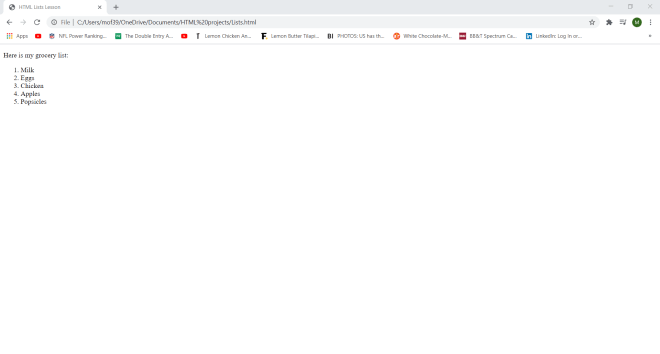
So, how did I create this list? First of all, I used the <p> tag for the “Here is my grocery list:” line. Next, to create my ordered list, I used the <ol> tag and for each list item, I used the <li> tag (I had to wrap each list item in its own <li> tag). In ordered lists, all list items are marked with numbers.

Next, I’ll show you how to create unordered lists:

<!DOCTYPE html>
<html lang="en" dir="ltr">
  <head>
    <meta charset="utf-8">
    <title>HTML Lists Lesson</title>
  </head>
  <body>
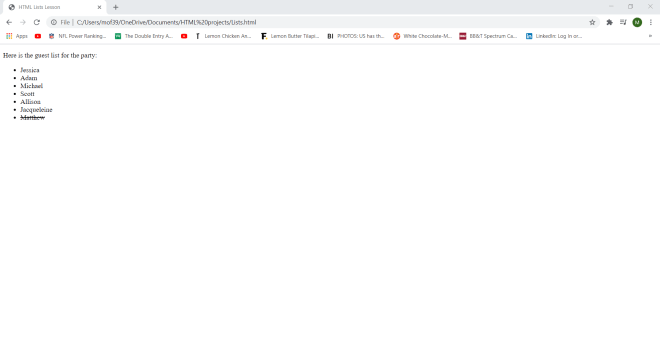
    <p>Here is the guest list for the party:</p>
    <ul>
      <li>Jessica</li>
      <li>Adam</li>
      <li>Michael</li>
      <li>Scott</li>
      <li>Allison</li>
      <li>Jacqueleine</li>
      <li><del>Matthew</del></li>
    </ul>
  </body>
</html>

In this example, I used the <p> tag for the “Here’s the guest list for the party:” line. To create my unordered list, I used the same process I did for creating my ordered list, except I used the <ul> tag instead of the <ol> tag. Also, all of the elements in unordered lists are displayed with bullet points, not numbers.

  • Did you spot the call-back to the previous HTML lesson (the element in stroke-through)?

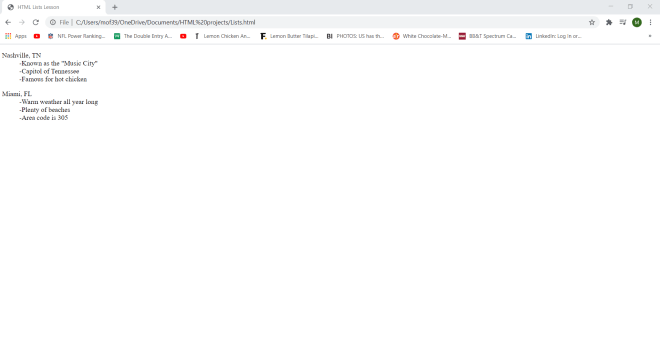
The third type of list you can create in HTML is the description list, which is a list of terms with a description of each term. Here’s how to create a description list in HTML:

<!DOCTYPE html>
<html lang="en" dir="ltr">
  <head>
    <meta charset="utf-8">
    <title>HTML Lists Lesson</title>
  </head>
  <body>
    <dl>
      <dt>Nashville, TN</dt>
      <dd>-Known as the "Music City"</dd>
      <dd>-Capitol of Tennessee</dd>
      <dd>-Famous for hot chicken</dd>
    </dl>
    <dl>
      <dt>Miami, FL</dt>
      <dd>-Warm weather all year long</dd>
      <dd>-Plenty of beaches</dd>
      <dd>-Area code is 305</dd>
    </dl>
  </body>
</html>

In this example, I have my two description lists each wrapped in a <dl> tag. For each list, I have the main term (Nashville, TN and Miami, FL) wrapped in a <dt> tag. Each description of each main term is wrapped in a <dd> tag (adding a dash after each item is optional).

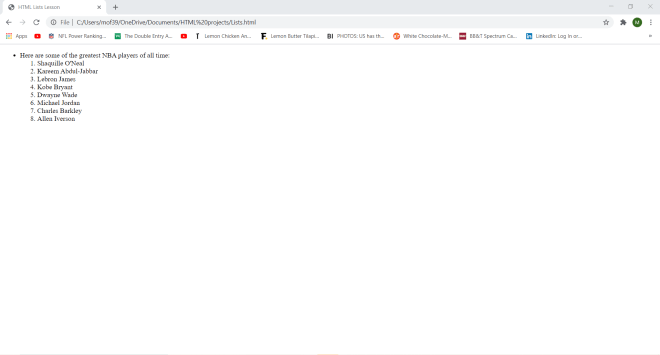
Now, you’re probably wondering if it’s possible to create nested lists in HTML. The answer to that question is yes-here’s how to do so with an unordered list inside of an ordered list:

<!DOCTYPE html>
<html lang="en" dir="ltr">
  <head>
    <meta charset="utf-8">
    <title>HTML Lists Lesson</title>
  </head>
  <body>
      <ul>
        <li>Here are some of the greatest NBA players of all time:</li>
        <ol>
          <li>Shaquille O'Neal</li>
          <li>Kareem Abdul-Jabbar</li>
          <li>Lebron James</li>
          <li>Kobe Bryant</li>
          <li>Dwayne Wade</li>
          <li>Michael Jordan</li>
          <li>Charles Barkley</li>
          <li>Allen Iverson</li>
        </ol>
      </ul>
  </body>
</html>

In this nesting example, the outermost list is the unordered list (tagged <ul>) while the innermost list is the ordered list (tagged <ol>). The unordered list only has one item while the ordered list has 8 items.

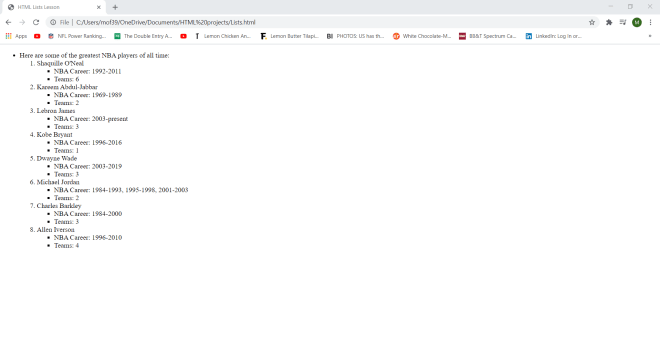
Now here’s a more complicated list nesting example, with an unordered list nested inside of an ordered list nested inside of an unordered list:

<!DOCTYPE html>
<html lang="en" dir="ltr">
  <head>
    <meta charset="utf-8">
    <title>HTML Lists Lesson</title>
  </head>
  <body>
      <ul>
        <li>Here are some of the greatest NBA players of all time:</li>
        <ol>
          <li>Shaquille O'Neal</li>
          <ul>
            <li>NBA Career: 1992-2011</li>
            <li>Teams: 6</li>
          </ul>
          <li>Kareem Abdul-Jabbar</li>
          <ul>
            <li>NBA Career: 1969-1989</li>
            <li>Teams: 2</li>
          </ul>
          <li>Lebron James</li>
          <ul>
            <li>NBA Career: 2003-present</li>
            <li>Teams: 3</li>
          </ul>
          <li>Kobe Bryant</li>
          <ul>
            <li>NBA Career: 1996-2016</li>
            <li>Teams: 1</li>
          </ul>
          <li>Dwayne Wade</li>
          <ul>
            <li>NBA Career: 2003-2019</li>
            <li>Teams: 3</li>
          </ul>
          <li>Michael Jordan</li>
          <ul>
            <li>NBA Career: 1984-1993, 1995-1998, 2001-2003</li>
            <li>Teams: 2</li>
          </ul>
          <li>Charles Barkley</li>
          <ul>
            <li>NBA Career: 1984-2000</li>
            <li>Teams: 3</li>
          </ul>
          <li>Allen Iverson</li>
          <ul>
            <li>NBA Career: 1996-2010</li>
            <li>Teams: 4</li>
          </ul>
        </ol>
      </ul>
  </body>
</html>

In this example, I didn’t change the outermost unordered list or the ordered list from the previous example. However, after each item in the ordered list, I added an unordered list with these two bullet points-NBA Career: and Teams: (which refer to the length of a player’s NBA career and how many teams he played for); since there are 8 items in the ordered list, I created 8 unordered lists nested within each of the ordered list items. Pretty neat if I do say so myself.

Thanks for reading,

Michael
HTML Lesson 2: Basic HTML Text Formatting

Hello everybody,

Michael here, and today’s post will be an HTML lesson on the basics of formatting text in HTML.

Let’s start off with a simple HTML web-page (this isn’t the same code from the previous HTML lesson):

<!DOCTYPE html>
<html lang="en" dir="ltr">
  <head>
    <meta charset="utf-8">
    <title>HTML formatting</title>
  </head>
  <body>
    <h1>Here is our second HTML webpage</h1>
    <p>Lorem ipsum dolor sit amet, consectetur adipisicing elit, sed do eiusmod tempor incididunt ut labore et dolore magna aliqua. Ut enim ad minim veniam, quis nostrud exercitation ullamco laboris nisi ut aliquip ex ea commodo consequat. Duis aute irure dolor in reprehenderit in voluptate velit esse cillum dolore eu fugiat nulla pariatur. Excepteur sint occaecat cupidatat non proident, sunt in culpa qui officia deserunt mollit anim id est laborum.</p>
  </body>
</html>

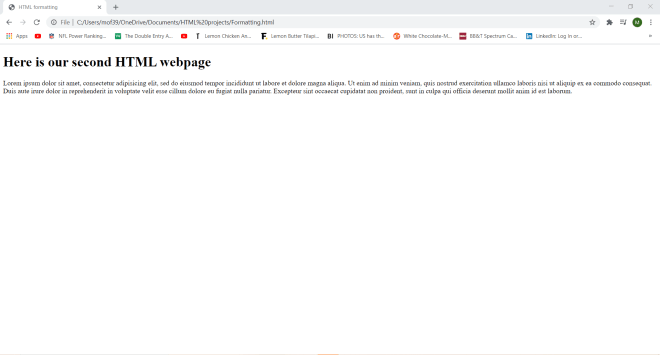
As you can see, I have generated a plain (and rather boring) HTML webpage with one line of the lorem ipsum placeholder text.

Now, let’s play around with the text styling on this webpage. Here’s the code I will use for this example (as well as the resulting webpage):

<!DOCTYPE html>
<html lang="en" dir="ltr">
  <head>
    <meta charset="utf-8">
    <title>HTML formatting</title>
  </head>
  <body>
    <h1>Here is our second HTML webpage</h1>
    <b>Lorem ipsum dolor sit amet, consectetur adipisicing elit, sed do eiusmod tempor incididunt ut labore et dolore magna aliqua. Ut enim ad minim veniam, quis nostrud exercitation ullamco laboris nisi ut aliquip ex ea commodo consequat. Duis aute irure dolor in reprehenderit in voluptate velit esse cillum dolore eu fugiat nulla pariatur. Excepteur sint occaecat cupidatat non proident, sunt in culpa qui officia deserunt mollit anim id est laborum.</b>
    <br>
    <br>
    <i>Lorem ipsum dolor sit amet, consectetur adipisicing elit, sed do eiusmod tempor incididunt ut labore et dolore magna aliqua. Ut enim ad minim veniam, quis nostrud exercitation ullamco laboris nisi ut aliquip ex ea commodo consequat. Duis aute irure dolor in reprehenderit in voluptate velit esse cillum dolore eu fugiat nulla pariatur. Excepteur sint occaecat cupidatat non proident, sunt in culpa qui officia deserunt mollit anim id est laborum.</i>
  </body>
</html>

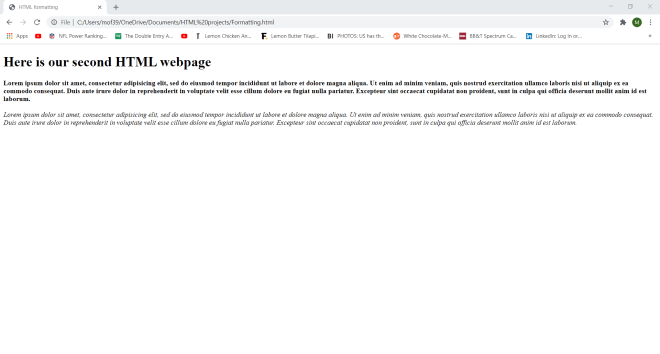
I used the same text in this example as I did in the previous example-the only difference is that I added a second lorem ipsum paragraph.

Also, you’ll notice that the two lorem ipsum paragraphs have special formatting-the first paragraph is bold and the second paragraph is italicized. How did I do that? Well, I wrapped the first lorem ipsum paragraph in a <b> tag-any text in this tag turns bold. I wrapped the second lorem ipsum paragraph in an <i> tag-any text in this tag turns italic.

  • FYI, the <br> tag simply serves as a line-breaker between lines of text in HTML. There is no </br> ending tag.
  • You can wrap formatted paragraphs in a <p> tag, but it’s not necessary for text formatting (I didn’t do so in the code above).
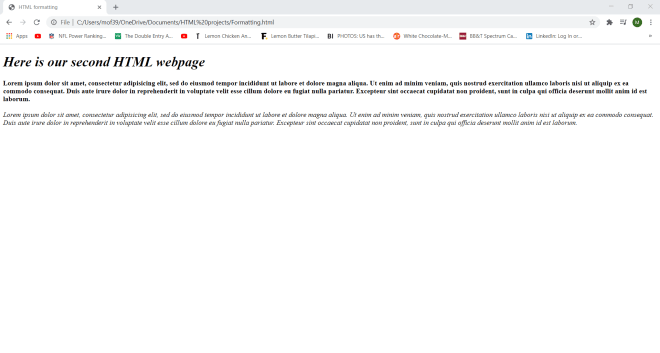
  • You can also format headers. Here’s how I italicized the header of this webpage:
<h1><i>Here is our second HTML webpage</i></h1>

All I needed to do to italicize the header of the webpage was wrap the <i> tag inside the <h1> tag and voila!-I have an italicized header. I could’ve also wrapped the <b> tag inside the <h1> tag, but that would’ve been redundant since H1 is already bold.

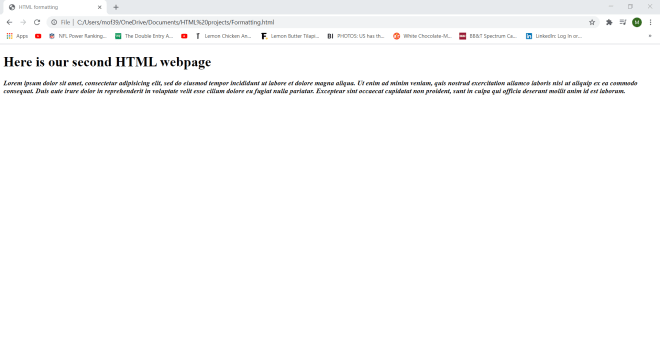
Now, can I turn text both bold AND italic? Yes, and here’s how to do so:

<!DOCTYPE html>
<html lang="en" dir="ltr">
  <head>
    <meta charset="utf-8">
    <title>HTML formatting</title>
  </head>
  <body>
    <h1>Here is our second HTML webpage</h1>
    <b><i>Lorem ipsum dolor sit amet, consectetur adipisicing elit, sed do eiusmod tempor incididunt ut labore et dolore magna aliqua. Ut enim ad minim veniam, quis nostrud exercitation ullamco laboris nisi ut aliquip ex ea commodo consequat. Duis aute irure dolor in reprehenderit in voluptate velit esse cillum dolore eu fugiat nulla pariatur. Excepteur sint occaecat cupidatat non proident, sunt in culpa qui officia deserunt mollit anim id est laborum.</b></i>
  </body>
</html>

In order to turn text bold AND italic, wrap the text in both a <b> and an <i> tag (it doesn’t matter if you use the <b> tag before the <i> tag or vice versa).

Now, let’s check out three new text formatting elements-<strong>, <em>, and <small>:

<!DOCTYPE html>
<html lang="en" dir="ltr">
  <head>
    <meta charset="utf-8">
    <title>HTML formatting</title>
  </head>
  <body>
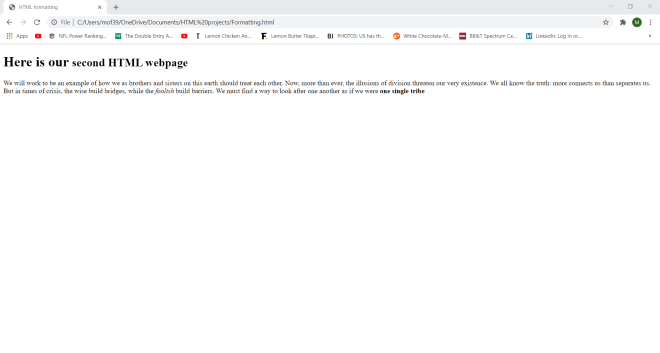
    <h1>Here is our <small>second HTML webpage</small></h1>
    <p>We will work to be an example of how we as brothers and sisters on this earth should treat each other. Now, more than ever,
      the illusions of division threaten our very existence. We all know the truth: more connects us than separates us.
      But in times of crisis, the wise build bridges,
       while the <em>foolish</em> build barriers. We must find a way to look after one another as if we were <strong>one single tribe</strong></p>
  </body>
</html>

In this example, I created a webpage with the same Here is our second HTML webpage header but with different paragraph text (it’s part of T’Challa’s speech at the end of Black Panther).

Notice how the word “foolish” is italicized, the phrase “one single tribe” is bold, and the phrase “second HTML webpage” is displayed in smaller font. How did I do that? Well, I wrapped an <em> tag around the word “foolish”; the <em> tag represents emphasized text, which is usually italicized. Similarly, I wrapped a <strong> tag around the phrase “one single tribe”; the <strong> tag represents important text, which is usually in bold. As for the phrase “second HTML webpage”, it is smaller because I wrapped it in a <small> tag (yes, you can wrap text formatting tags around headers-I did so in an earlier example).

Now, last but not least, let me show you five other formatting tags-<mark>, <del>, <ins>, <sub> and <sup>:

<!DOCTYPE html>
<html lang="en" dir="ltr">
  <head>
    <meta charset="utf-8">
    <title>HTML formatting</title>
  </head>
  <body>
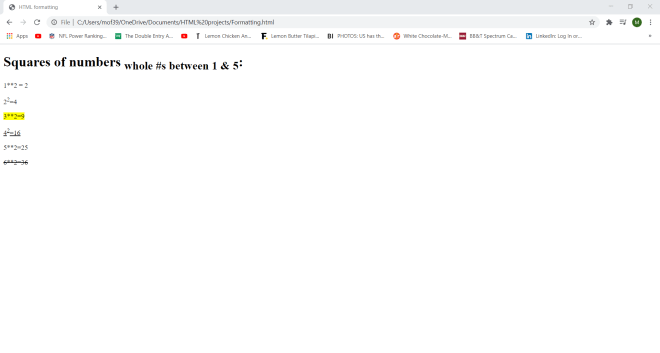
    <h1>Squares of numbers <sub>whole #s between 1 & 5</sub>:</h1>
    <p>1**2 = 2</p>
    <p>2<sup>2</sup>=4</p>
    <p><mark>3**2=9</mark></p>
    <p><ins>4<sup>2</sup>=16</p>
    <p>5**2=25</p>
    <p><del>6**2=36</del></p>
  </body>
</html>

The first formatting tag I used in this webpage is <sub>, which turns any text wrapped in this tag into a subscript. In this example, I wrapped the phrase “whole #s between 1 & 5” (located in H1) in the subscript tag.

The next tag I used is <sup>, which turns text into a superscript-like the “2” in the equation 22 = 4.

Next, I used the <mark> tag to highlight the equation 3**2=9. After that, the final two tags I used were <ins> and <del>, which represent inserted and deleted webpage text, respectively. Text wrapped in an <ins> tag, like “42 = 16″ on this webpage (which is also partially wrapped in a <sup> tag), is underlined while text wrapped in a <del> tag, like “6**2=36” on this webpage, is displayed with stroke-through.

Thanks for reading,

Michael
HTML Lesson 1: Intro to HTML and Atom text editor

Hello everybody,

Michael here, and today I decided to do something I haven’t done here in a while-introduce a new programming language (the last time I introduced a new programming language was with Python in August 2019). The newest programming language (and 5th overall) will be HTML, which stands for Hypertext Markup Language; this language is used to code web pages. I will eventually cover CSS (Cascading Style Sheets) as well; CSS is the language used to style HTML web pages.
Now, before we begin, let’s install Atom text editor-this will be the text editor that I will use to create HTML/CSS web pages. Here is the link to download it-atom.io. By the way, this software is completely open-source, which means it won’t cost you anything in subscription/license fees!

Here’s what the landing page for Atom text editor looks like:

To create a new HTML project, you should first create a new folder on your computer (it doesn’t matter where on the computer you put the folder but I’d suggest putting it in Documents). Then, once you create the folder, go to the File tab on the top ribbon and click File –> New File (or use the CTRL+N shortcut).

Once you create a new folder, then click on File –> Add Project Folder (or use the CTRL+Shift+A cut). Then click on the folder you created.

After clicking on the folder, it will appear in Atom text editor (my folder’s name is HTML projects):

To add projects to the folder, right click the folder and select the New File option (or use the A shortcut). After doing this, pick a name for the file; you can name the file whatever you want, but be sure to use .html at the end of the name-otherwise you won’t be able to properly run the exercises (I will call this file Intro.html).

Now, here’s what a blank HTML file looks like on Atom text editor:

Now, let’s type in the word html. Here’s the code that appears:

<!DOCTYPE html>
<html lang="en" dir="ltr">
  <head>
    <meta charset="utf-8">
    <title></title>
  </head>
  <body>
    
  </body>
</html>

This is the basic outline for all HTML files. Even though there is nothing in the title or body, this code still gives us a working HTML page. To open the HTML file, right click the file name under the Project tab (or use the CTRL+Shift+C shortcut) and then click the Copy Full Path option. Then paste the file path onto the URL space-the file will open in a separate tab in your browser (or a new window if you opened a new window).

  • If you want an easier way to open your HTML file, simply go to your computer’s File Explorer program, locate your HTML file, and click on it to open it-it will open in a new window.

Here’s what the HTML file looks like with just the basic outline:

The basic outline-only HTML file returns a blank webpage with the file name as the tab name.

  • I used Google Chrome for this lesson, but any web browser will work for these exercises.

Now, why is a blank webpage returned and why was the file name set as the tab name? Let’s take another look at the HTML code:

<!DOCTYPE html>
<html lang="en" dir="ltr">
  <head>
    <meta charset="utf-8">
    <title></title>
  </head>
  <body>

  </body>
</html>

To understand the basics of HTML, you need to understand these two tags-<title> and <body>. The <title> tag is where the webpage (or tab) title is stored-if there is no value in the <title> tag, the webpage title defaults to the tab title. The <body> tag stores the actual content of the webpage-if there is nothing in the <body> tag, you will see a blank webpage.

You may be wondering why <title> and <body> (and all of the other tags such as <head> and <html>) appear twice-once with a backslash and once without. The backslash indicates where a tag ends; the formal name for the tag with the backslash is the end tag while the formal name for the tag without the backslash is the start tag. For instance, <body> indicates the beginning of the webpage’s body of content while </body> indicates the end of the body of content. Likewise, <html...> indicates the starting point for the webpage while </html> indicates the ending point for the webpage.

Now, let’s add some content to our webpage:

<!DOCTYPE html>
<html lang="en" dir="ltr">
  <head>
    <meta charset="utf-8">
    <title>The first HTML lesson</title>
  </head>
  <body>
      <h1>Welcome to our first HTML lesson</h1>
      <h2>Here is our first HTML webpage</h2>
  </body>
</html>

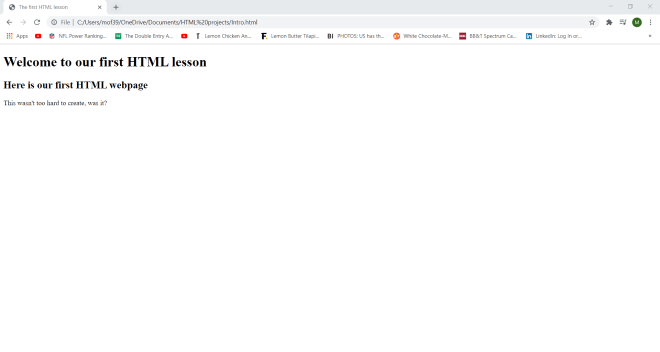
Here’s what the webpage looks like now:

So, how was I able to not only change the tab name but also add content to the webpage? Well, to change the webpage name, I had to insert a value into the <title> tag; in this case, I used the title The first HTML lesson. As you can see, the tab also now has the title The first HTML lesson.

The first line of content on the webpage-Welcome to our first HTML lesson-was used as the value for the <h1> tag. The second line of content-Here is our first HTML webpage-was used as the value for the <h2> tag. The <h1> and <h2> parameters represent headings in HTML-<h1> is used for the most important/main heading while <h2> is used for the second-most important heading. There are six heading tags in HTML-<h1> to <h6>; <h1> is used for the most significant/main headings while <h6> is used for the least significant headings.

Now, let’s add another line of content to this webpage. Here’s the new code:

<!DOCTYPE html>
<html lang="en" dir="ltr">
  <head>
    <meta charset="utf-8">
    <title>The first HTML lesson</title>
  </head>
  <body>
      <h1>Welcome to our first HTML lesson</h1>
      <h2>Here is our first HTML webpage</h2>
      <p>This wasn't too hard to create, was it?</p>
  </body>
</html>

As you can see, I added a new line to the webpage-This wasn't too hard to create, was it?. To add this line to the webpage, I used the <p> tag, which stands for the paragraph tag. The paragraph tag allows you to add regular, non-header text to a webpage.

Last but not least, I wanted to show you something cool that you could do with the <p> tag. Here’s the code that I will use:

<!DOCTYPE html>
<html lang="en" dir="ltr">
  <head>
    <meta charset="utf-8">
    <title>The first HTML lesson</title>
  </head>
  <body>
      <h1>Welcome to our first HTML lesson</h1>
      <h2>Here is our first HTML webpage</h2>
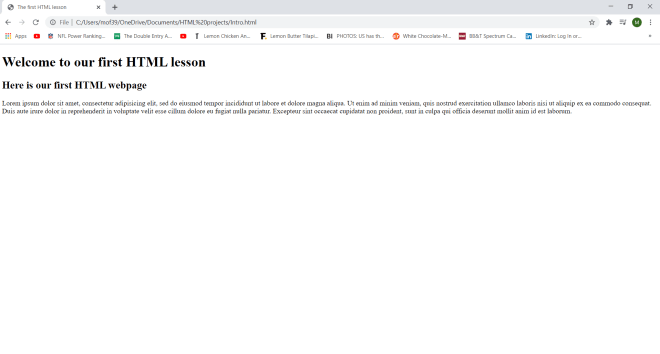
      <p>Lorem ipsum dolor sit amet, consectetur adipisicing elit, sed do eiusmod tempor incididunt ut labore et dolore magna aliqua. Ut enim ad minim veniam, quis nostrud exercitation ullamco laboris nisi ut aliquip ex ea commodo consequat. Duis aute irure dolor in reprehenderit in voluptate velit esse cillum dolore eu fugiat nulla pariatur. Excepteur sint occaecat cupidatat non proident, sunt in culpa qui officia deserunt mollit anim id est laborum.</p>
  </body>
</html>

If you ever need a placeholder for real content on your webpage, type lorem into Atom text editor and the text lorem ipsum dolor... will pop up. Lorem ipsum is Latin placeholder text that is commonly used in web/graphic design and publishing in order to showcase and test out the visual appearance of content (like a book or webpage). The lorem ipsum placeholder text actually comes from a book written by the ancient Roman scholar Cicero in 45 BC (little bit of trivia for you all).

Thanks for reading,

Michael