Hello everybody,
It’s Michael, and today I will be showing you how to create lists in HTML.
HTML allows you to create three types of list-ordered, unordered, and description lists. First, I’ll show you how to create ordered lists:
<!DOCTYPE html>
<html lang="en" dir="ltr">
  <head>
    <meta charset="utf-8">
    <title>HTML Lists Lesson</title>
  </head>
  <body>
    <p>Here is my grocery list:</p>
    <ol>
      <li>Milk</li>
      <li>Eggs</li>
      <li>Chicken</li>
      <li>Apples</li>
      <li>Popsicles</li>
    </ol>
  </body>
</html>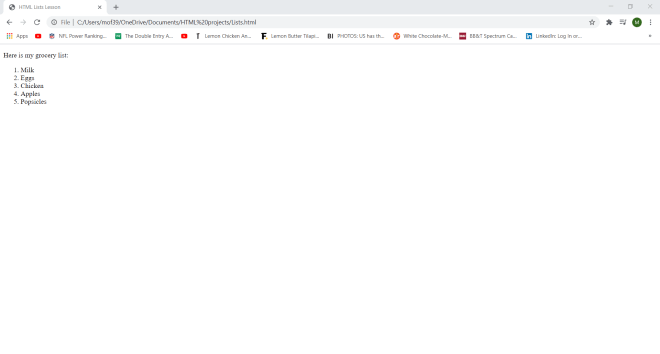
So, how did I create this list? First of all, I used the <p> tag for the “Here is my grocery list:” line. Next, to create my ordered list, I used the <ol> tag and for each list item, I used the <li> tag (I had to wrap each list item in its own <li> tag). In ordered lists, all list items are marked with numbers.
Next, I’ll show you how to create unordered lists:
<!DOCTYPE html>
<html lang="en" dir="ltr">
  <head>
    <meta charset="utf-8">
    <title>HTML Lists Lesson</title>
  </head>
  <body>
    <p>Here is the guest list for the party:</p>
    <ul>
      <li>Jessica</li>
      <li>Adam</li>
      <li>Michael</li>
      <li>Scott</li>
      <li>Allison</li>
      <li>Jacqueleine</li>
      <li><del>Matthew</del></li>
    </ul>
  </body>
</html>
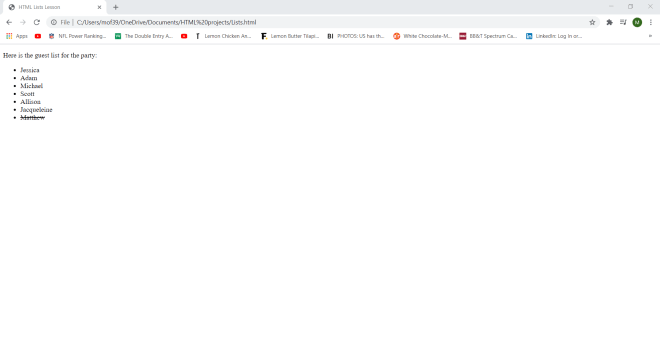
In this example, I used the <p> tag for the “Here’s the guest list for the party:” line. To create my unordered list, I used the same process I did for creating my ordered list, except I used the <ul> tag instead of the <ol> tag. Also, all of the elements in unordered lists are displayed with bullet points, not numbers.
- Did you spot the call-back to the previous HTML lesson (the element in stroke-through)?
The third type of list you can create in HTML is the description list, which is a list of terms with a description of each term. Here’s how to create a description list in HTML:
<!DOCTYPE html>
<html lang="en" dir="ltr">
  <head>
    <meta charset="utf-8">
    <title>HTML Lists Lesson</title>
  </head>
  <body>
    <dl>
      <dt>Nashville, TN</dt>
      <dd>-Known as the "Music City"</dd>
      <dd>-Capitol of Tennessee</dd>
      <dd>-Famous for hot chicken</dd>
    </dl>
    <dl>
      <dt>Miami, FL</dt>
      <dd>-Warm weather all year long</dd>
      <dd>-Plenty of beaches</dd>
      <dd>-Area code is 305</dd>
    </dl>
  </body>
</html>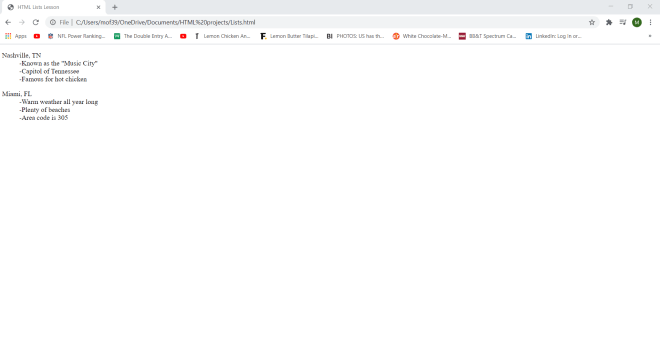
In this example, I have my two description lists each wrapped in a <dl> tag. For each list, I have the main term (Nashville, TN and Miami, FL) wrapped in a <dt> tag. Each description of each main term is wrapped in a <dd> tag (adding a dash after each item is optional).
Now, you’re probably wondering if it’s possible to create nested lists in HTML. The answer to that question is yes-here’s how to do so with an unordered list inside of an ordered list:
<!DOCTYPE html>
<html lang="en" dir="ltr">
  <head>
    <meta charset="utf-8">
    <title>HTML Lists Lesson</title>
  </head>
  <body>
      <ul>
        <li>Here are some of the greatest NBA players of all time:</li>
        <ol>
          <li>Shaquille O'Neal</li>
          <li>Kareem Abdul-Jabbar</li>
          <li>Lebron James</li>
          <li>Kobe Bryant</li>
          <li>Dwayne Wade</li>
          <li>Michael Jordan</li>
          <li>Charles Barkley</li>
          <li>Allen Iverson</li>
        </ol>
      </ul>
  </body>
</html>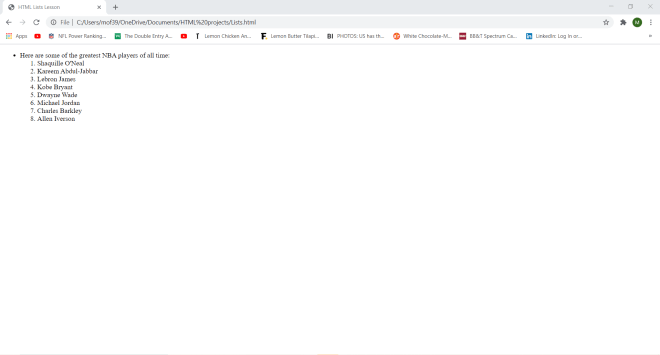
In this nesting example, the outermost list is the unordered list (tagged <ul>) while the innermost list is the ordered list (tagged <ol>). The unordered list only has one item while the ordered list has 8 items.
Now here’s a more complicated list nesting example, with an unordered list nested inside of an ordered list nested inside of an unordered list:
<!DOCTYPE html>
<html lang="en" dir="ltr">
  <head>
    <meta charset="utf-8">
    <title>HTML Lists Lesson</title>
  </head>
  <body>
      <ul>
        <li>Here are some of the greatest NBA players of all time:</li>
        <ol>
          <li>Shaquille O'Neal</li>
          <ul>
            <li>NBA Career: 1992-2011</li>
            <li>Teams: 6</li>
          </ul>
          <li>Kareem Abdul-Jabbar</li>
          <ul>
            <li>NBA Career: 1969-1989</li>
            <li>Teams: 2</li>
          </ul>
          <li>Lebron James</li>
          <ul>
            <li>NBA Career: 2003-present</li>
            <li>Teams: 3</li>
          </ul>
          <li>Kobe Bryant</li>
          <ul>
            <li>NBA Career: 1996-2016</li>
            <li>Teams: 1</li>
          </ul>
          <li>Dwayne Wade</li>
          <ul>
            <li>NBA Career: 2003-2019</li>
            <li>Teams: 3</li>
          </ul>
          <li>Michael Jordan</li>
          <ul>
            <li>NBA Career: 1984-1993, 1995-1998, 2001-2003</li>
            <li>Teams: 2</li>
          </ul>
          <li>Charles Barkley</li>
          <ul>
            <li>NBA Career: 1984-2000</li>
            <li>Teams: 3</li>
          </ul>
          <li>Allen Iverson</li>
          <ul>
            <li>NBA Career: 1996-2010</li>
            <li>Teams: 4</li>
          </ul>
        </ol>
      </ul>
  </body>
</html>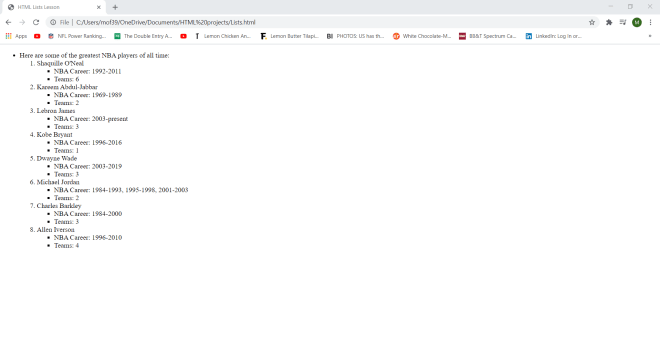
In this example, I didn’t change the outermost unordered list or the ordered list from the previous example. However, after each item in the ordered list, I added an unordered list with these two bullet points-NBA Career: and Teams: (which refer to the length of a player’s NBA career and how many teams he played for); since there are 8 items in the ordered list, I created 8 unordered lists nested within each of the ordered list items. Pretty neat if I do say so myself.
Thanks for reading,
Michael