Python Lesson 30: MATPLOTLIB Histograms, Pie Charts, and Scatter Plots (MATPLOTLIB pt. 3)

Hello everybody,

Michael here, and today’s post will be on creating histograms and pie-charts in MATPLOTLIB (this is the third lesson in my MATPLOTLIB series).

For this lesson, we’ll be using this dataset:

This dataset contains information on the top 125 US grossing movies of 2021 (data from BoxOfficeMojo.com-great source if you want to do data analyses on movies) . Let’s read it into our IDE and learn about each of the variables in this dataset:

import pandas as pd
films2021 = pd.read_excel(r'C:/Users/mof39/OneDrive/Documents/2021 movie data.xlsx')
films2021.head()

Now, what do each of these variables mean? Let’s take a look:

  • Rank-In terms of overall US gross during theatrical run, where the movie ranks (from 1-125)
  • Movie-The name of the movie
  • Total Gross-The movie’s total US gross over the course of its theatrical run (as of January 25, 2022)
  • Screens played in (overall)-The number of US theaters the movie played in during its theatrical run
  • Opening Weekend Gross-The movie’s total opening weekend US gross
  • Opening Weekend % of Total Gross-The movie’s US opening weekend gross’s percentage of the total US gross
  • Opening Weekend Theaters-The number of US theaters the movie played in during its opening run
  • Release Date-The movie’s US release date
  • Distributor-The studio that distributed the movie
  • Rotten Tomatoes Score-The movie’s Rotten Tomatoes Score-0 represents a 0% score and 1 represents a 100% score. For movies that had no Rotten Tomatoes score, a 0 was listed.
    • These are the critics scores I used, not the audience rating (which, if you’ve read Rotten Tomatoes reviews, can vary widely from the critic’s scores).

Now, let’s get started with the visualization creations! First off, let’s explore creating histograms in MATPLOTLIB. For our first MATPLOTLIB histogram, let’s use the Rotten Tomatoes Score column to analyze the Rotten Tomatoes score distribution among the 125 movies on this list:

import matplotlib.pyplot as plt
%matplotlib inline

plt.figure(figsize=(10, 8))
plt.hist(films2021['Rotten Tomatoes Score'])
plt.ylabel('Frequency', size = 15)
plt.xlabel('Rotten Tomatoes Score', size=15)
plt.title('Rotten Tomatoes score distribution among 2021 movies', size=15)

First of all, remeber that since we’re using MATPLOTLIB to create these visualizations, you’ll need to include the lines import matplotlib.pyplot as plt and %matplotlib inline in your code (before you create the plot).

Now, to create the histogram, I used five lines of code. The first line of code simply sets the graph size to 10×8-you’d need to execute this line of code (though you can change the dimensions as you wish). The plt.hist() line of code takes in a single paramter-the column you want to use for the histogram. Since histograms are created with just a single column, you’d only need to pass in one column as the parameter for this function-in this case, I used the Rotten Tomatoes Score column. The next three lines of code set name and size of the graph’s y-label, x-label, and title, respectively.

So, what conclusions can we draw from this graph? First of all, since there are 10 bars in the graph, we can conclude that the Rotten Tomatoes score frequencies are being distributed in 10% intervals (e.g. 0-10%, 10-20%, 20-30%, and so on). We can also conclude that most of the 125 movies in this dataset fall in either the 80-90% interval or the 90-100% interval, so critics seemed to enjoy most of the movies on this list (e.g. Spider-Man: No Way Home, Dune, Free Guy). On the other hand, there are very few movies on this list that critics didn’t enjoy-most of the 0s on this list have no Rotten Tomatoes critic score-as only 11 of the movies on this list had either no critic score or had a score in the 0-10% or 10-20% intervals (e.g. The House Next Door: Meet The Blacks 2).

Now, the graph looks great, but what if you wanted fewer frequency intervals? In this case, let’s cut down the amount of intervals from 10 to 5. Here’s the code to do so:

import matplotlib.pyplot as plt
%matplotlib inline

plt.figure(figsize=(10, 8))
plt.hist(films2021['Rotten Tomatoes Score'], bins=5)
plt.ylabel('Frequency', size = 15)
plt.xlabel('Rotten Tomatoes Score', size=15)
plt.title('Rotten Tomatoes score distribution among 2021 movies', size=15)

As you can see, our graph now only has 5 bars rather than 10. How did I manage to make this change? Pay attention to this line of code:

plt.hist(films2021['Rotten Tomatoes Score'], bins=5)

I still passed in the same column into the plt.hist() function. However, I added the optional bins parameter, which allows me to customize the number of intervals in the histogram (I used five intervals in this case). Since there are only five intervals in this graph rather than 10, the intervals entail 20% score ranges (0-20%, 20-40%, 40-60%, 60-80%, 80-100%).

  • You can use as many intervals as you want for your histogram, but my suggestion is that you take a look at the maximum value of any column you want to use for your histogram and pick a bins value that evenly divides by that maximum value (in this case, I used 5 for the bins since 100 evenly divides by 5).
  • Speaking of maximum value, you’ll only want to use quantiative (numerical) values for your histogram, as quantiative values work best when measuring frequency distribution.

Awesome work so far! Next up, let’s explore pie-charts in MATPLOTLIB. To start with pie-charts, let’s create one based off the Distributors column in the data-frame:

import matplotlib.pyplot as plt
%matplotlib inline

distributors = films2021['Distributor'].value_counts()
distributors = distributors[:6]

plt.figure(figsize=(10,8))
plt.title('Major Movie Distributors in 2021', size=15)
distributors.plot(kind='pie')

So, how did I manage to generate this nice looking pie chart? First of all, to create the pie chart, I wanted to get a count of how many times each distributor appears in the list, so I used PANDAS’ handy-dandy .value_counts() function to get the number of times each distributor appears in the list-I stored the results of the .value_counts() function in the distributors variable. As for the distributors[:6] line of code, I included this since there were over 20 distributors on this list, I only wanted to include the top 6 distributors (the 6 distribtuors that appear the most on this list) to create a neater-looking pie chart.

You’ll recognize the plt.figure() and plt.title() lines from the histogram example, as their functionalities are to set the figure size of the graph and the graph’s title, respectively. However, pay attention to the distributors.plot(kind='pie') line. Whenever you create a data-frame out of value counts (as I did with the distributors variable), running plt.[insert code here] won’t work. You’d need to use the syntax data-frame.plot(kind='kind of graph you want to create')-and yes, remember to pass in the value for kind as a string.

So, what can we infer from this pie-chart? For one thing, Warner Bros. had most of the top-US grossing movies of 2021, with 18 movies on this list coming from Warner Bros. (Dune, Space Jam: A New Legacy, Godzilla vs. Kong). Surprisingly, there are only 7 Disney movies on this list (well, 14 if you count the 7 Searchlight Pictures films-Searchlight Pictures is a subsidiary of Disney as of March 2019). Even more surprising? Warner Bros. released all of their 2021 films on a day-and-date model, meaning that all of their 2021 films were released in theaters AND on their streaming service HBO MAX, so I’m surprised that they (not Disney) have the most movies on this list.

OK, so our pie chart looks good so far. But what if you wanted to add in the percentages along with the corresponding values (values refering to the amount of times a distributor’s name appears in the dataset)? Change this line of code from the previous example:

distributors.plot(kind='pie', autopct=lambda p : '{:.0f}%  ({:,.0f})'.format(p,p * sum(distributors)/100))

In the .plot() function, I added an extra parameter-autopct. What does autopct do? Well, I could say this function displays the percentage of the time each distributor appears in the list, but that’s oversimplifying it. Granted, all percentages are displayed alongside their corresponding values (e.g. the Lionsgate slice shows 12% alongside the 7 label, indiciating that Lionsgate appears 7 times (and 12% of the time) on the distributors data-frame). However, this is accomplished with the help of a handy-dandy lambda function (for a refresher on lambda functions, refer to this lesson-Python Lesson 12: Lambdas & List Comprehension) that, in summary, calculates the amount of times each distributor’s name appears in distributors and displays that number (along with the corresponding percentage) in the appropriate slice of the pie chart.

Awesome work so far! Now, last but not least, let’s create a scatterplot using the Total Gross and Screens played in (overall) columns to analyze the relationship between a movie’s total US gross and how many US theaters it played in during its run:

import matplotlib.pyplot as plt
%matplotlib inline

plt.figure(figsize=(10,8))
plt.title('Screens played in', size=15)
plt.xlabel('Total screens played in during theatrical run', size=15)
plt.ylabel('Total US gross (in hundereds of millions of dollars)', size=15)
plt.scatter(films2021['Screens played in (overall)'], films2021['Total Gross'])
  • I could only get part of the scatter plot since the output was too big to be displayed without needing to scroll down.

So, how did I manage to generate this output? First of all, as I’ve done with every MATPLOTLIB visual I’ve created in this post, I include the .figure(), .title(), .xlabel(), and .ylabel() functions to help with the plotting of this graph. To actually generate and plot the scatterplot, I use the .scatter() function and passed in two parameters-the x-axis (Screens played in (overall)) and the y-axis (Total Gross).

So, what can we conclude from this scatterplot? It appears that the more screens a movie played in during its theatrical run, the higher its total gross-however, this trend isn’t noticeable for movies that played in under 2000 screens nationwide (namely the foreign films and limited-release films). Oh, and in case you’re wondering, there is one point in the scatterplot that you can’t see which corresponds to Spider-Man: No Way Home (which still has a handful of showing left at my local movie theater as of February 3, 2022). Not surprising that the Spider-Man: No Way Home point is all the way at the top, since it grossed approximately $677 million in the US during its (still-ongoing) theatrical run. Just for perspective, the #2 ranked movie on this list-Shang-Chi and the Legend of the Ten Rings-grossed approximately $224 million during its theatrical run (and played on just 36 fewer screens than Spider-Man: No Way Home). The highest grossing non-MCU (Marvel Cinematic Universe for those unaware) movie-F9: The Fast Saga (ranked at #5)-grossed approximately $173 million in comparison.

Thanks for reading,

Michael
Python Lesson 29: More Things You Can Do With MATPLOTLIB Bar Charts (MATPLOTLIB pt. 2)

Hello everybody,

Michael here, and today’s lesson will cover more neat things you can do with MATPLOTLIB bar-charts.

In the previous post, I introduced you all to Python’s MATPLOTLIB package and showed you how you can use this package to create good-looking bar-charts. Now, we’re going to explore more MATPLOTLIB bar-chart functionalities.

Before we begin, remember to run these imports:

import pandas as pd
import numpy as np
import matplotlib.pyplot as plt

#Also include the %matplotlib inline line in your notebook.

Also remember to run this code:

tokyo21medals = pd.read_csv('C:/Users/mof39/OneDrive/Documents/Tokyo Medals 2021.csv')

This code creates a data-frame that stores the Tokyo 2021 medals data. The link to this dataset can be found in the Python Lesson 27: Creating Pandas Visualizations (pandas pt. 4) post.

Now that we’ve done all the necessary imports, let’s start exploring more cool things you can do with a MATPLOTLIB bar-chart.

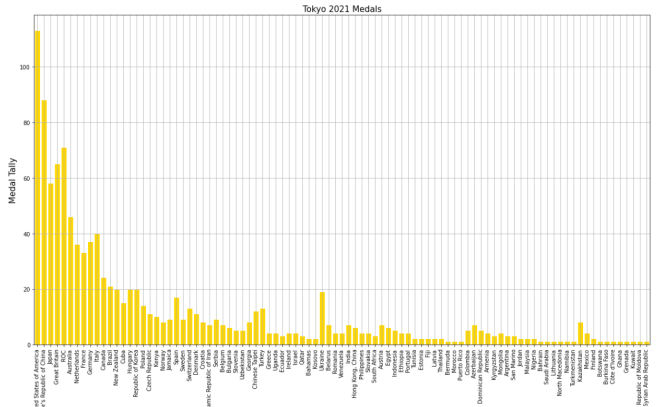
Let’s say you wanted to add some grid lines to your bar-chart. Here’s the code to do so (using the gold bar vertical bar-chart example from Python Lesson 28: Intro to MATPLOTLIB and Creating Bar-Charts (MATPLOTLIB pt. 1)):

tokyo21medals.plot(x='Country', y='Total', kind='bar', figsize=(20,11), legend=None)
plt.title('Tokyo 2021 Medals', size=15)
plt.ylabel('Medal Tally', size=15)
plt.xlabel('Country', size=15)
xValues = np.array(tokyo21medals['Country'])
yValues = np.array(tokyo21medals['Total'])
plt.bar(xValues, yValues, color = 'gold')
plt.grid()

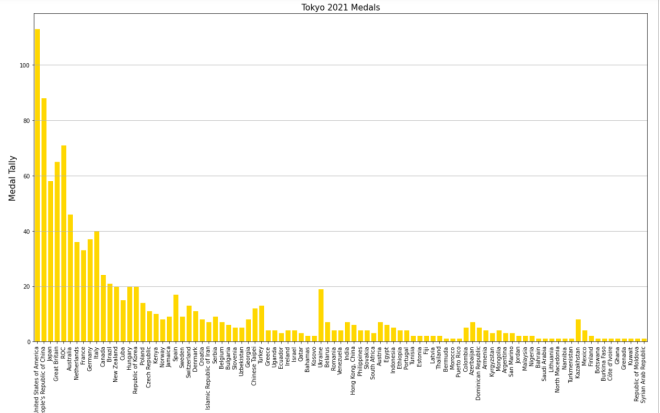
Pretty neat, right? After all, all you needed to do was pop the plt.grid() function to your code and you get neat-looking grid lines. However, in this bar-chart, it isn’t ideal to have grid lines along both axes.

Let’s say you only wanted grid lines along the y-axis. Here’s the slight change in the code you’ll need to make:

plt.grid(axis='y')

In order to only display grid lines on one axis, pass in an axis parameter to the plt.grid() function and set the value of axis as the axis you wish to use as the parameter (either x or y). In this case, I set the value of axis to y since I want the gridlines on the y-axis.

Here’s the new graph with the gridlines on just the y-axis:

Honestly, I think this looks much neater!

Now, what if you wanted to plot a bar-chart with several differently-colored bars side-by-side? In the context of this dataset, let’s say we wanted to plot each country’s bronze medal, silver medal, and gold medal count side-by-side. Here’s the code we’d need to use:

tokyo21medalssubset = tokyo21medals[0:10]

plt.figure(figsize=(20,11))
X = tokyo21medalssubset['Country']
bronze = tokyo21medalssubset['Bronze Medal']
silver = tokyo21medalssubset['Silver Medal']
gold = tokyo21medalssubset['Gold Medal']
Xaxis = np.arange(len(X))
plt.bar(Xaxis - 0.2, bronze, 0.3, label='Bronze medals', color='#cd7f32')
plt.bar(Xaxis, silver, 0.3, label='Silver medals', color='#c0c0c0')
plt.bar(Xaxis + 0.2, gold, 0.3, label='Gold medals', color='#ffd700')
plt.xticks(Xaxis, X)
plt.xlabel('Country', size=15)
plt.ylabel('Total medals won', size=15)
plt.title('Tokyo 2021 Olympic medal tallies', size=15)
plt.legend()
plt.show()

So, how does all of the code work? Well, before I actually started creating the code that would create the bar-chart, I first created a subset of the tokyo21medals data-frame aptly named tokyo21medalssubset that contains only the first 10 rows of the tokyo21medals data-frame. The reason I did this was because the bar-chart would look rather cramped if I tried to include all countries.

After creating the subset data-frame, I then ran the plt.figure function with the figsize tuple to set the size of the plot to (20,11).

The variable X grabs the x-axis values I want to use from the data-frame-in this case I’m grabbing the Country values for the x-axis. However, X doesn’t create the x-axis; that’s the work of the aptly-named Xaxis variable. Xaxis actually creates the nice, evenly-spaced intervals that you see on the above bar-chart’s x-axis; it does so by using the np.arange() function and passing in len(X) as the parameter.

As for the bronze, silver, and gold variables, they store all of the Bronze Medal, Silver Medal, and Gold Medal values from the tokyo21medalssubset data-frame.

After creating the Xaxis variable, I then ran the plt.bar() function three times-one for each column of the data-frame I used. Each plt.bar() function has five parameters-the bar’s distance from the “center bar” in inches (represented with Xaxis +/- 0.2), the variable representing the column that the bar will use (bronze, silver, or gold), the width of the bar in inches (0.3 in this case), the label you want to use for the bar (which will be used for the bar-chart’s legend), and the color you want to use for the bar (I used the hex codes for bronze, silver, and gold).

  • By “center bar”, I mean the middle bar in a group of bars on the bar-chart. In this bar-chart, the “center bar” is always the grey bar as it is always between the silver and gold bars in all of the bar groups.
  • Don’t worry, I’ll cover color hex codes in greater detail in a future post.

After creating the bronze, gold, and silver bars, I then used the plt.xticks() function-and passed in the X and Xaxis variable to create the evenly-spaced x-axis tick marks on the bar-chart. Once the x-axis tick marks are plotted, I used the plt.title(), plt.xlabel(), and plt.ylabel() functions to set the labels (and display sizes) for the chart’s title, x-axis, and y-axis, respectively.

Lastly, I ran the plt.legend() and plt.show() functions to create the chart’s legend and display the chart, respectively. Remember the label parameter that I used in each of the plt.bar() functions? Well, each of these values were used to create the bar-chart’s legend-complete with the appropriate color-coding!

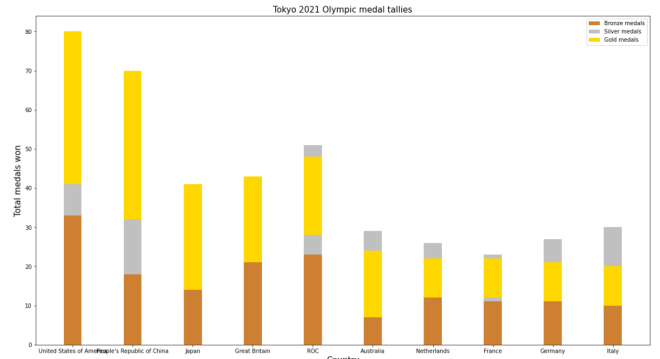
Now, what if instead of plotting the bronze, silver, and gold bars side-by-side, you wanted to plot them stacked on top of each other. Here’s the code we’d use to do so:

plt.figure(figsize=(20,11))
X = tokyo21medalssubset['Country']
bronze = tokyo21medalssubset['Bronze Medal']
silver = tokyo21medalssubset['Silver Medal']
gold = tokyo21medalssubset['Gold Medal']
Xaxis = np.arange(len(X))
plt.bar(Xaxis, bronze, 0.3, label='Bronze medals', color='#cd7f32')
plt.bar(Xaxis, silver, 0.3, label='Silver medals', color='#c0c0c0', bottom=bronze)
plt.bar(Xaxis, gold, 0.3, label='Gold medals', color='#ffd700', bottom=silver)
plt.xticks(Xaxis, X)
plt.xlabel('Country', size=15) 
plt.ylabel('Total medals won', size=15)
plt.title('Tokyo 2021 Olympic medal tallies', size=15)
plt.legend()
plt.show()

Now, this code is similar to the code I used to create the bar-chart with the side-by-side bars. However, there are some differences the plt.bar() functions between these two charts, which include:

  • There’s no +/- 2 in any parameter, as I’m stacking bars on top of each other rather than plotting them side-by-side
  • For the second and third plt.bar() functions, I included a bottom parameter and set the value of this parameter to the bar I want to plot below the bar I’m plotting.
    • OK, that may sound confusing, but to clarify, when I’m plotting the silver bar, I set bottom equal to bronze as I’m plotting the bronze bar below the silver bar. Likewise, when I plot the gold bar, I set bottom equal to silver, as I want the silver bar below the gold bar.

Honestly, this looks much neater than the side-by-side bar-chart we made.

Aside from the differences in plt.bar() functions between this chart and the chart above, the rest of the code is the same between the two charts.

Thanks for reading,

Michael

Python Lesson 28: Intro to MATPLOTLIB and Creating Bar-Charts (MATPLOTLIB pt. 1)

Hello everybody,

Michael here, and today’s lesson will serve as an intro to Python’s MATPLOTLIB package-this is part 1 in my MATPLOTLIB series. I will also cover bar-chart manipulation with MATPLOTLIB.

Now, as I mentioned in my previous post (Pandas Lesson 27: Creating Pandas Visualizations (pandas pt. 4)), MATPLOTLIB is another Python visualization creation package-just like pandas-but unlike the pandas package, MATPLOTLIB has more functionalities (such as adding interactive components to visualizations).

Now, to work with the MATPLOTLIB package, be sure to run this command to install the package-pip install matplotlib (or run the pip list command to check if you already have it).

For this post, we’ll be working with the same Tokyo 2021 dataset we used for the previous post (click the Pandas Lesson 27 link to find and download that dataset).

Once you’ve installed the MATPLOTLIB package, run this code in your IDE:

import pandas as pd
import matplotlib.pyplot as plt
%matplotlib inline

tokyo21medals = pd.read_csv('C:/Users/mof39/OneDrive/Documents/Tokyo Medals 2021.csv')
  • Since I didn’t discuss the PYPLOT sub-package, I’ll do so right here. PYPLOT is essentially a MATPLOTLIB sub-package that contains the majority of MATPLOTLIB’s utilities-this is why when we import MATPLOTLIB to our IDE, we usually include the PYPLOT sub-package.

You’ll probably recognize all of this code from the previous post. That’s because I used some MATPLOTLIB in the previous post and included the %matplotlib inline line. You’ll also need to import pandas and create a pandas data-frame that stores the Tokyo Medals 2021 dataset into the IDE (just for consistency’s sake, I’ll call this data-frame tokyo21medals).

Now, before we get into more MATPLOTLIB specifics, let’s review the little bit of MATPLOTLIB I covered in the previous lesson.

So, just to recap, here’s the MATPLOTLIB code I used to create the bar-chart in the previous lesson:

tokyo21medals.plot(x='Country', y='Total', kind='bar', figsize=(20,11))
plt.title('Tokyo 2021 Medals', size=15)
plt.ylabel('Medal Tally', size=15)
plt.xlabel('Country', size=15)

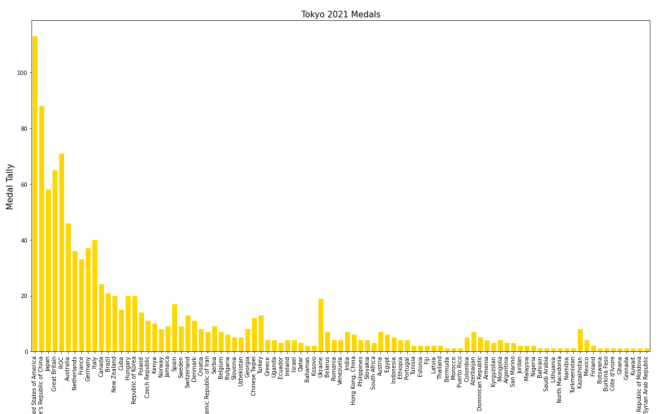
And here’s the bar-chart that was generated:

Now, how exactly did I generate this bar-chart? First of all, I used pandas’ plot() function (remember to import pandas) and filled it with four parameters-the column I want to use for the x-axis, the column I want to use for the y-axis, the type of visual I want to create, and the display size I want for said visual.

After creating the blueprint of the visual with pandas’ plot() function, I then used MATPLOTLIB’s plt.title() function to set a title for the bar-chart (I also passed in a size parameter to set the display size of the title). Next, I used MATPLOTLIB’s plt.ylabel() function to set a label for the chart’s y-axis and just as I did with the plt.title() function, I passed in a size parameter to set the display size for the y-axis label. Lastly, I used the plt.xlabel() function to change the bar-chart’s x-axis label, and, just as I did for the plt.title() and plt.xlabel() functions, I also added a size parameter to set the display size for the x-axis label. However, when you first create the bar-chart, you’ll notice that a default x-axis label has already been set-Country-which is the name of the column I chose for the x-axis. In this case, I didn’t change the label name, just the label display size. However, in order to change the label display size, you’ll need to pass in the x-axis label you’d like to use as the first parameter of the plt.xlabel() axis function.

  • Why do all of these functions start with plt? Remember the import matplotlib.pyplot as plt import you did.

Now, MATPLOTLIB bars are blue by default. What if you wanted to change their color? Let’s say we wanted to go with the theme of this dataset and change all the bars to gold (this dataset covers Tokyo 2021 Olympic medal tallies, after all). Here’s the code to do so:

tokyo21medals.plot(x='Country', y='Total', kind='bar', figsize=(20,11))
plt.title('Tokyo 2021 Medals', size=15)
plt.ylabel('Medal Tally', size=15)
plt.xlabel('Country', size=15)
xValues = np.array(tokyo21medals['Country'])
yValues = np.array(tokyo21medals['Total'])
plt.bar(xValues, yValues, color = 'gold')

So, how did I get the gold color on all of these bars? Well, before I discuss that, let me remind you that you’ll need to install NumPy (import numpy as np in case you forgot) here. I’ll explain why shortly.

After you create the outline for the bar-chart (with panda’s plot() function) and set labels for the bar-chart’s x-axis, y-axis, and title, you’ll need to store the values for the x-axis and y-axis in NumPy arrays (this is where the NumPy package comes in). For both the x-axis and y-axis, use the np.array() function and pass in the data-frame columns you used for the x-axis and y-axis, respectively. After creating the NumPy arrays, write this line of code-plt.bar(xValues, yValues, color = 'gold'). The plt.bar() function takes three parameters-the two NumPy arrays you created for you x-axis and y-axis and the color parameter which sets the color of the bars (I set the bars to gold in this case).

  • Hex codes will work for the color as well.

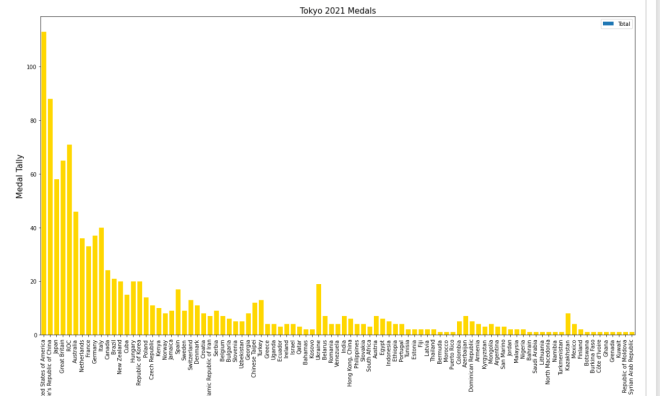
Looks pretty good! But wait, the legend is still blue!

In this case, let’s remove the legend altogether. Here’s the code to do so:

tokyo21medals.plot(x='Country', y='Total', kind='bar', figsize=(20,11), legend=None)
plt.title('Tokyo 2021 Medals', size=15)
plt.ylabel('Medal Tally', size=15)
plt.xlabel('Country', size=15)
xValues = np.array(tokyo21medals['Country'])
yValues = np.array(tokyo21medals['Total'])
plt.bar(xValues, yValues, color = 'gold')

And here’s the bar-chart without the legend:

In order to remove the legend from the bar-chart, all you needed to do was add the line legend=None to the tokyo21medals.plot() function. The legend=None line removes the legend from the bar-chart.

Last but not least, let’s explore how to display the bars horizontally rather than vertically.

Assuming we keep the gold coloring on the bars, here’s the code you’d need to display the bars horizontally:

plt.figure(figsize=(25,25))
plt.title('Tokyo 2021 Medals', size=15)
plt.ylabel('Country', size=15)
plt.xlabel('Medal Tally', size=15)
xValues = np.array(tokyo21medals['Country'])
yValues = np.array(tokyo21medals['Total'])
plt.barh(xValues, yValues, color='gold')

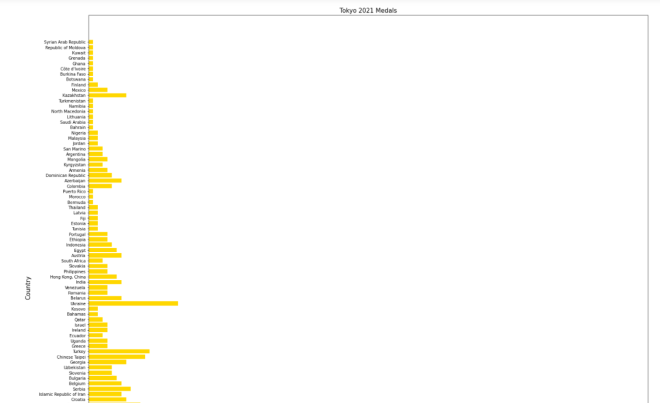
And here’s the new bar-chart with the horizontal bars (well, part of it-the bar-chart was too big to fit in one picture):

As you can see, the code I used to create this horizontal bar-chart is different from the code I used to create the vertical bar-chart. Here are some of those code differences:

  • I didn’t use pandas’ plot() function at all; to create the horizontal bar-chart, PYPLOT functions alone did the trick.
  • Unlike the code I used for the vertical bar-charts, I included PYPLOT’s figsize() function as the first function to be executed in this code block. I passed in a two-element tuple as this function’s parameter in order to set the size of the bar-chart (in this case, I set the bar-chart’s size to 25×25).
    • Just a suggestion, but if you’re using MATPLOTLIB to create your visual, you should set the size of the visual in the first line of code you use to create your visual.
  • Country is in the x-axis NumPy array while Total is in the y-axis NumPy array.
  • To plot the bar chart, I used PYPLOT’s barh() function rather than the bar() function. I still passed in a color parameter to the barh() function, though.

Even with all these differences, I didn’t change the plot title, x-axis label, or y-axis label.

Thanks for reading,

Michael