R Lesson 25: Creating & Reading Word Documents in R

Hello everybody,

Michael here, and today’s post will be on creating and reading Microsoft Word documents in R.

As you’ve seen in my previous blog posts, R is capable of several amazing things-you can create a game of Minesweeper, plot US maps and color-code them with data, create calendar plots (with moon phases included), and so much more.

First, let’s discuss how to create Word documents in R. We’ll need to start by installing two packages-officer and dplyr.

Once these two packages are installed, let’s use the read_docx() function to create an empty Word document:

testDoc <- read_docx()
  • Ideally, you should store the empty document in a variable.

Now, after creating the empty document, let’s add some text to the document:

testDoc <- testDoc %>% body_add_par("This is the first line on the document") 
testDoc <- testDoc %>% body_add_par("Here is another test paragraph") 
testDoc <- testDoc %>% body_add_par("And here is yet another test paragraph") 

Using the body_add_par() function, three paragraphs will be added to the word document. Keep in mind that three separate paragraphs will be added, therefore, the three lines of text you see here will appear on three different lines. If you wanted to add all these lines on the same paragraph, you’d only need to use one body_add_par() line.

Now, what if you wanted to add some images to the document? Here’s how you’d do that:

set.seed(0)
img <- tempfile(fileext=".png")
png(filename=img, width=6, height=6, units='in', res=500)
plot(sample(100,50))
dev.off()
null device 
          1 
testDoc <- testDoc %>% body_add_img(src = img, width = 5, height = 5, style = "centered")

To add an image to a Word document via R, you’ll need to create a temp file using the tempfile() function (and remember to store the temp file in a variable). Temp files (or temporary files) are files that need to be stored on your computer momentarily and removed when they are no longer needed. You’d also need to run the plot() function in order to plot the sample image onto the document.

Now, to save the document to your computer, run this code:

print(testDoc, target="C:/Users/mof39/OneDrive/Documents/testDoc.docx")

To save the document, you’d need to run the print() function along with two parameters-the document you created earlier, and a target location on your computer where you want to store the document. If there’s a certain location on your computer where you wish to save the Word document, you’ll need to specify the whole path as the target.

Here’s what the Word document looks like:

As you can see, the Word document has the three paragraphs (rather, lines) that we added, along with the plot-image that we added.

But what if you wanted to add a non-plot image to the document? Here’s how to do so:

testDoc2 <- read_docx("C:/Users/mof39/OneDrive/Documents/testDoc.docx")
testDoc2 <- testDoc2 %>% body_add_img(src = "C:/Users/mof39/OneDrive/Pictures/ball.png", width=5, height=5, style="centered")
print(testDoc2, target="C:/Users/mof39/OneDrive/Documents/testDoc.docx")

To add a new image to a word document, you’d first create a new document object and run the read_docx() function-passing in the path to the original test document as a parameter for this function. Next, to add a new image to the document, run the body_add_img function and pass in the necessary parameters-the path to the image on your computer, the image’s height, width, and style. Finally, save the image by running the print function, using the new document variable and the path to the original test document as parameters (use the path to the original test document as the target parameter).

  • If you want to add a new paragraph to your document, use the body_add_par() function. Refer to the body_add_par() example earlier in this post if you’re unsure of the syntax you’ll need to use.

Here’s what the document looks like with the added image:

Awesome! Now that we’ve covered the basics of creating Word documents in R, let’s now discuss how to read existing Word documents in R.

To start, let’s demonstrate how to read the Word document we just created into R:

testDoc3 <- read_docx("C:/Users/mof39/OneDrive/Documents/testDoc.docx")
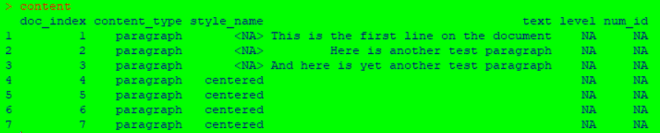
content <- docx_summary(testDoc3)

To read a Word document into R, use the read_docx() function and pass the path (the location where the document is stored on your computer) to the document as the parameter for the function. Remember to store the output for this function in a variable (I used test3 in this example).

Next, to be able to display the document’s content, run the docx_summary() function and pass in the variable your created in the previous step as the function parameter. Just as with the previous step, you should store the output for this step in a variable (I used content in this example).

To actually see the document’s content, run the command content (or whatever variable you used for the docx_summary() function output) in the R console. As you can see from the example above, this function returns a data-frame that contains the Word document’s content. This data-frame gives you information such as the content type of a certain element along with the content of the element (such as the text of the paragraph).

Now, what if we only wanted to retrieve a certain content type when we read in the document? Here’s how to do so:

paragraph <- content %>% filter(content_type == "paragraph")
paragraph$text

To only retrieve a certain element type from the file, run the content %>% filter(content_type == "paragraph") line-remember to store the output from this function in a variable. Also remember to replace content with the variable name you used for the output of the docx_summary() function.

To actually retrieve the text from each paragraph, run the command paragraph$text (remember to replace paragraph with whatever variable name you used for the output of the filter() function.

Thanks for reading,

Michael

R Lesson 24: A GUI for ggplots

Hello everybody,

Michael here, and first of all, thank you all for reading my first 100 posts-your support is very much appreciated! Now, for my 101st post, I will start a new series of R lessons-today’s lesson being on how to use an R GUI (graphical user interface for those unfamiliar with programming jargon) to build data visualizations and to perform some exploratory data analysis.

Now, you may be thinking that you can build data visualizations and perform exploratory data analysis with several lines of code. That’s true, but I will show you another approach to building visuals and performing exploratory data analysis.

At the beginning of this post, I mentioned that I will demonstrate how to use an R GUI. To install the GUI, install the esquisse package in R.

  • Fun fact: the esquisse package was created by two developers at DreamRs-a French R consulting firm (apparently R consulting firms are a thing). Esquisse is also French for “sketch”.

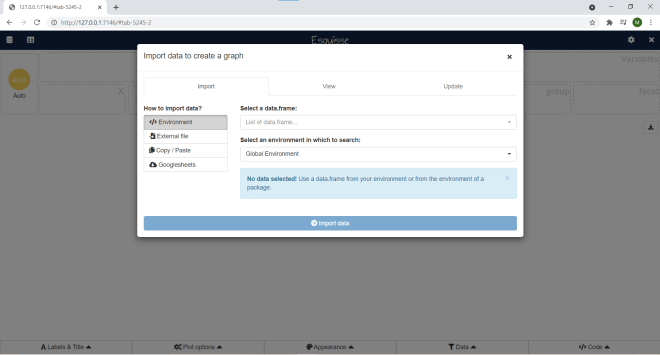
To launch the Esquisse GUI, run this command in R-esquisse:esquisser(). Once you run this command, this webpage should pop up:

Before you start having fun creating visualizations, you would need to import data from somewhere. Esquisse gives you four options for importing your data-a dataframe in R that you created, a file on your computer, copying & pasting your data, or a Googlesheets file (Google Sheets is Google’s version of Excel spreadsheets).

For this demonstration, I will use the 2020 NBA playoffs dataset I used in the post R Analysis 10: Linear Regression, K-Means Clustering, & the 2020 NBA Playoffs.

Now, you could realistically import data into Esquisse through these four commands I just mentioned, but there is a more efficient way to import data into Esquisse. First, I ran this line of code to create a data frame from the dataset I’ll be using-NBA <- read.csv("C:/Users/mof39/OneDrive/Documents/2020 NBA playoffs.csv"). You’d obviously need to change this depending on the dataset you’ll be using and the location on your computer where the dataset is stored.

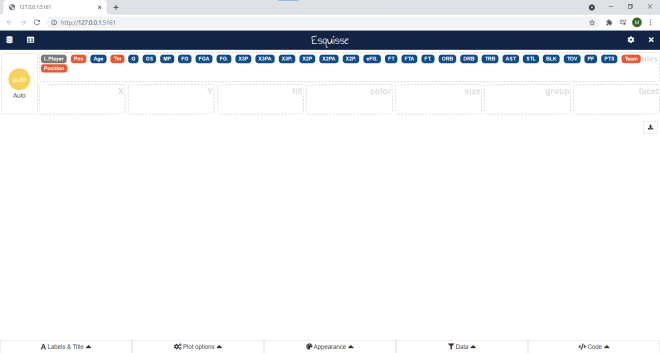
Next, I ran the command esquisse::esquisser(NBA), which tells Esquisse to automatically load in the NBA data-frame:

As you can see, all the variables from the NBA data-frame appear here. For explanations on each of these variables, please refer to the aforementioned 2020 NBA Playoffs analysis post I hyperlinked to here.

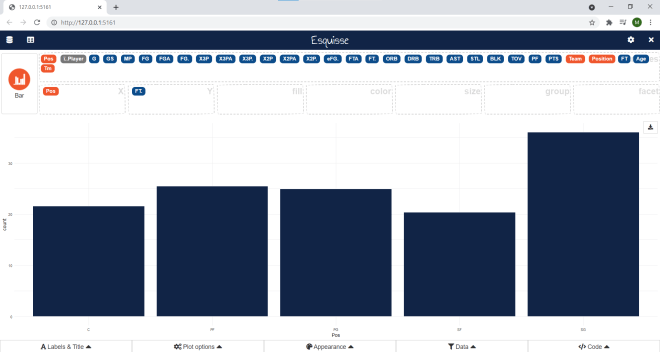
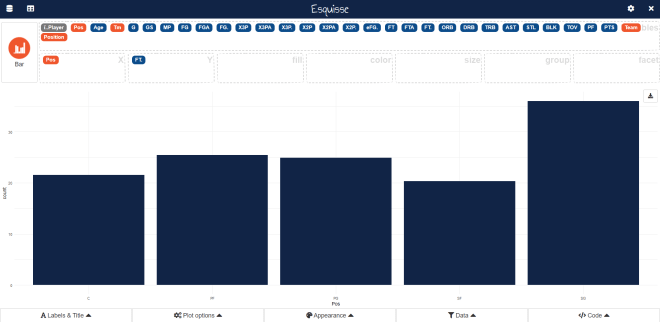
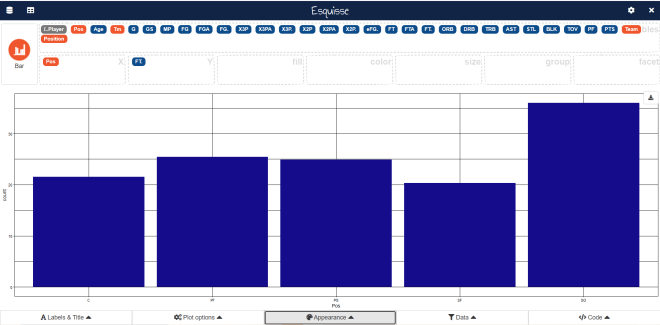
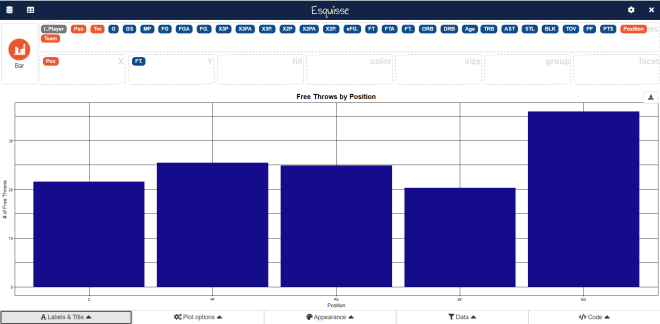
Now, let’s start building some visualizations! Here’s a simple bar-chart using the Pos. and FT. variables:

In this example, I built a simple bar-chart showing the total amount of playoff free throws made (not those that missed) in the 2020 NBA playoffs grouped by player position. Simple enough right? After all, all I did was drag Pos into the X-axis box and FT. into the Y-axis box.

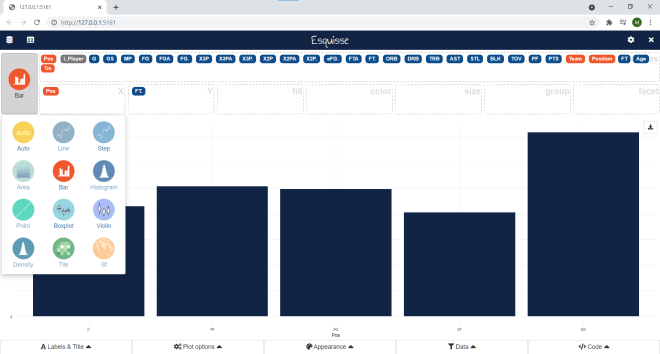
Now, did you know there are further options for modifying the chart? Click on the Bar button and see what you can do:

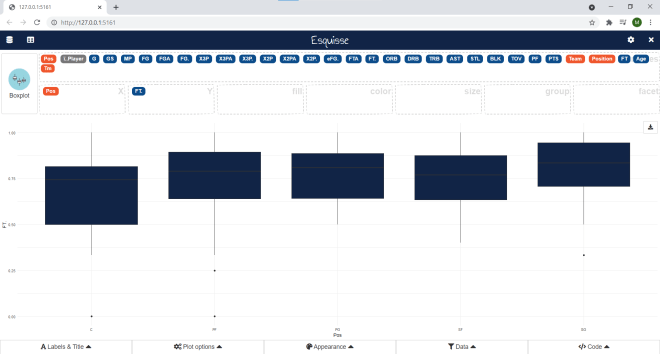
Depending on the data you’re using for your visualization, you can change the type of visual you use. Any visual icon that looks greyed-out won’t work for the data you’re using; in this example, only a bar-chart, box-plot, or violin-plot would work with the data I’m using.

Here’s what the data looks like as a box-plot:

Now, let’s change this plot back to a bar graph:

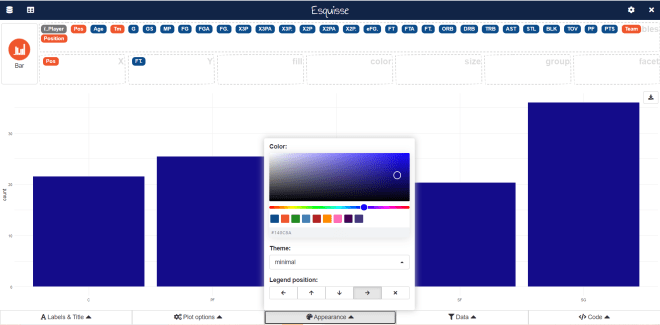
Click on the Appearance button:

In the Appearance interface, you can manipulate the color of the bars (either with the color slider or by typing in a color hex code), change the theme of the bar graph (or whatever visual you’re using), and adjust the placement of the legend on your bar graph (if your bar graph has a legend).

  • The four arrows for Legend position allow you to place the legend either to the left of the bar graph, on top of the bar graph, or on the bottom of the bar graph (the X allows you to exclude a legend).
  • The theme allows you to customize the appearance of the bar graph. Here’s what the graph looks like with the linedraw theme:

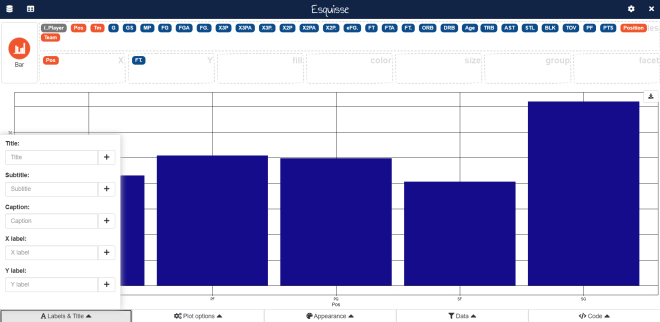
Now, let’s say we wanted to change the axis labels for our bar-chart and add a title. Click on Labels & Title:

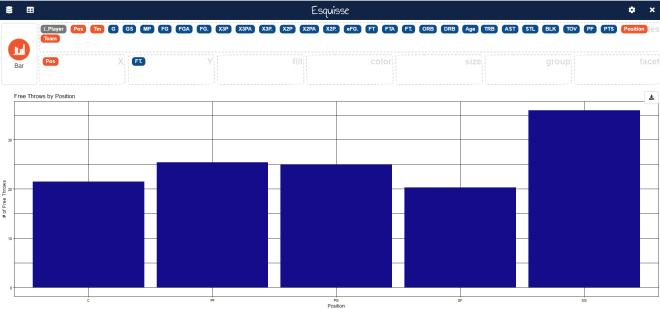
As you can see, we can set a title, subtitle, caption, x-axis label, and y-axis label for our bar chart. In this example, we’ll only set a title, x-axis label, and y-axis label:

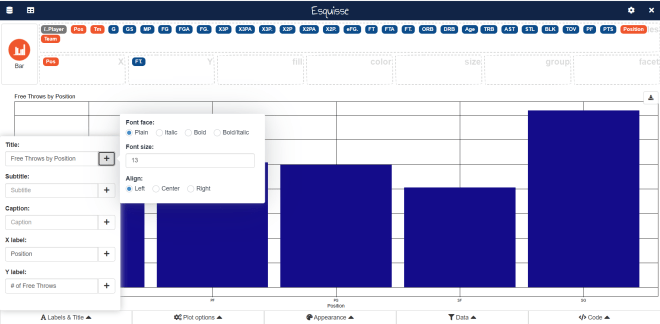
Looks good so far-but the print does seem small. Also, the left-aligned title doesn’t look good (but this is just my opinion). Luckily there’s an easy way to fix this. Click on Labels & Title again:

To change the title (or any of the label elements), click on the + sign right by an element’s text box. For all label elements, a mini-interface will appear that allows you to change the font face (though you can’t change the font itself), the font size, and the alignment for all elements. For the title, I’ll use a bold font face with size 16 and center-alignment. For the axis labels, I’ll use a plain font face with size 12 and center-alignment:

Now the graph looks much better!

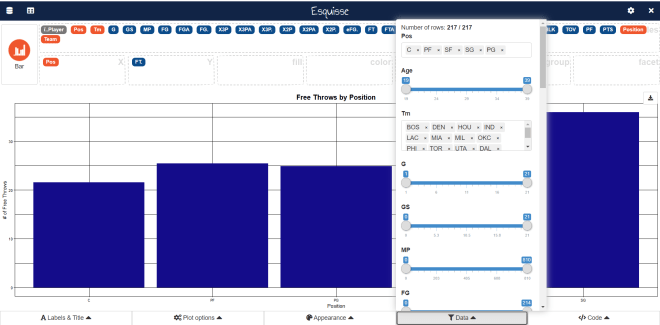
What if we wanted to filter the graph further? Let’s say we wanted to see this same data, but only for players 30 and over. Click on the Data button:

If you scroll down this interface, you will see all the fields that you can filter the data with; numerical fields are shown with slicers while non-numerical fields are shown as lists of elements. To filter data for only the players who are 30 and over, move the left end of the slider for Age to 30 and keep the right end of the slider in its current position.

  • You can filter by fields that you’re not using in your visual.

Last but not least, let’s check out the Code button:

Unlike the other four buttons, the Code button doesn’t alter anything in the bar chart. Rather, the Code button will simply display the R code used to create the chart. Honestly, I think this is a pretty great feature for anyone who’s just getting started with R and wants to get the basic idea of how to create simple ggplots.

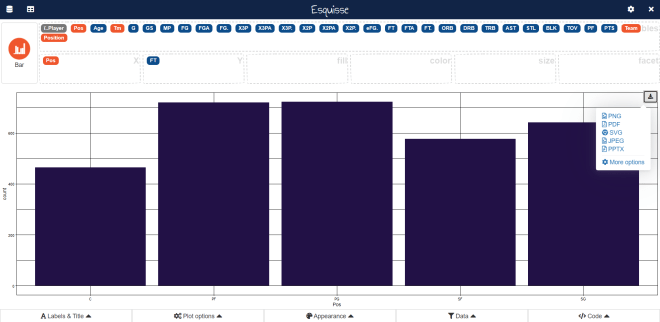
Lastly, let’s explore how to export your visualization. To export your visualization, first click on the download icon on the upper-right hand side of your visualization:

There are five main ways you can export your visualization-into a PDF, PNG, JPEG, PPTX, or SVG file. Just in case any of you weren’t aware, PNGs and JPEGs are images and a PPTX is a PowerPoint file. An SVG is a standard file type used for rendering 2-D images on the internet.

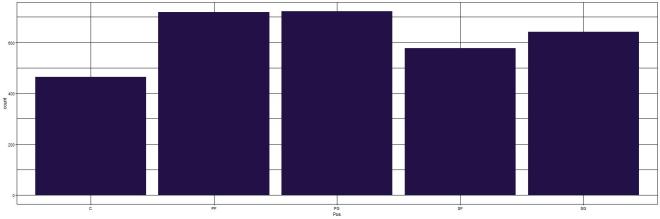
I will save this visualization as a JPEG. Here’s what it looks like in JPEG form:

You’ll see the graph as I left it, but you won’t see the Esquisse interface in the image (which is probably for the best)

All in all, Esquisse is pretty handy if you want to create simple ggplot visualizations without writing code. Sadly, Esquisse doesn’t allow you to create dashboards yet (dashboards are collections of related visualizations on a single page, like the picture below):

  • This picture shows a sample Power BI dashboard; Power BI is a Microsoft-owned dashboard building tool.

R Lesson 23: US Mapmaking with R (pt. 2)-Coloring the Map with Geographic Data

Hello everybody,

Michael here, and first of all, Happy New Year! I bet you’re glad that 2020 is finally behind us!

Now, for my first post of 2021, I will continue my lesson on US Mapmaking with R that I started before the holidays. This time, I will cover how to fill in the map based on certain geographic data. Also, before you start coding along, make sure to install the usmap package.

Now, let’s upload our first data set (I’ll use two data sets for this lesson) to R. Here’s the file for the data:

This is a simple dataset showing the amount of COVID-19 cases and deaths in each state (excluding DC) as of January 13, 2021. However, this data-frame needs one more column-FIPS (representing the FIPS code of each state). Here’s how to add the FIPS column to this data-frame:

> file$fips <- fips(file$ï..state)
> str(file)
'data.frame':   50 obs. of  4 variables:
 $ ï..state: chr  "Alabama" "Alaska" "Arizona" "Arkansas" ...
 $ Cases   : int  410995 50816 641729 262020 2815933 366774 220576 67173 1517472 749417 ...
 $ Deaths  : int  5760 225 10673 4186 31105 5326 6536 994 23754 11803 ...
 $ fips    : chr  "01" "02" "04" "05" ...

In this example, I used the fips function to retrieve all of the FIPS codes for each state. I then stored the results of this function in a variable called file$fips, which attaches the fips variable to the existing file data-frame. Once I ran the str(file) command again, I see that the fips variable has been added to the file data-frame.

Now, let’s plot a basic US map with the COVID case data-this time, let’s focus on cases:

plot_usmap(data=file, values="Cases")

In order to create a US map plot of COVID cases, all I needed to do was to indicate the data (which is the data-frame file) and the values (Cases enclosed in double quotes).

As you can see, the map plot above is colored in varying shades of blue to represent a state’s cumulative COVID case count-the lighter the blue, the more cumulative cases a state had. California is the colored with lightest shade of blue, as they had over 2 million cumulative cases as of January 13, 2021. On the other hand, Vermont is colored with the darkest shade of blue, as they were the only state with fewer than 10,000 COVID cases as of January 13, 2021.

The map plot above looks good, but what if you wanted to change the color or scale? Here’s how to do so (and add a title in the process)-also keep in mind that if you want to update the color, scale, and title for the map plot, remember to install the ggplot2 package:

 plot_usmap(data=file, values="Cases") + labs(title="US COVID cases in each state 1-13-21") + scale_fill_continuous(low = "lightgreen", high = "darkgreen", name = "US COVID cases", label = scales::comma) + theme(legend.position = "right")

In this example, I still created a US plot map from the Cases column in the dataset, but I changed the color scale-and in turn color-of the map plot to shades of green (where the greater of COVID cases in a state, the darker the shade of green that state is colored). I also changed the scale name to US COVID cases and labels to scales::comma, which displays the numbers on the scale as regular numbers with thousands separators (not the scientific notation that was displayed on the previous example’s scale.

After modifying the coloring and scale of the map plot, I also added a title with the labs function and used the theme function to place the legend to the right of the map plot.

Now I will create another map, this time using the Deaths column as the values. Here’s the code to do so:

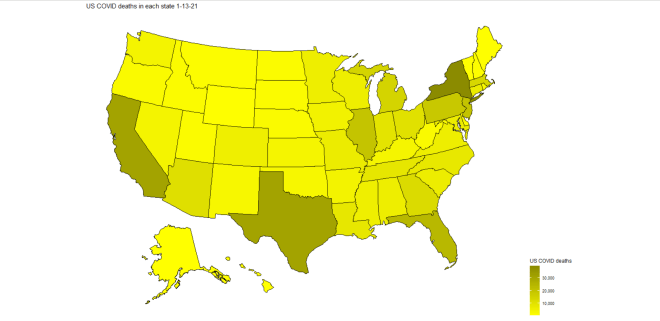
 plot_usmap(data=file, values="Deaths") + labs(title="US COVID deaths in each state 1-13-21") + scale_fill_continuous(low = "yellow1", high = "yellow4", name = "US COVID deaths", label = scales::comma) + theme(legend.position = "right")

In this example, I used the same code from the previous example, except I replaced “cases” with “deaths” and colored the map in yellow-scale (the more deaths a state had, the darker the shade of yellow). As you can see, California, Texas, and New York have the darkest shades of yellow, which meant that they led the nation in COVID-19 deaths on January 13, 2021. However, unlike with COVID cases, New York led the nation in COVID deaths, not California (New York had just under 40,000 COVID deaths while California had roughly 31,000).

Now, let’s try creating a state map (broken down by county) with COVID data. For these next examples, I’ll create a county map of the state of Tennessee’s COVID cases and deaths-similar to what I did in the previous two examples.

First, let’s upload the new dataset to R. Here’s the file for the dataset:

Just like the previous dataset, this dataset also has data regarding COVID cases & deaths, except this time it’s broken down by counties in the state of Tennessee (and the data is from January 22, 2021, not January 13).

Now, before we start creating the map plots, we need to retrieve the county FIPS codes for each of the 95 Tennessee counties. Here’s the code to do so:

> file2$fips <- fips(file2$ï..county, state="TN")
> str(file2)
'data.frame':   95 obs. of  4 variables:
 $ ï..county: chr  "Davidson County" "Shelby County" "Knox County" "Hamilton County" ...
 $ Cases    : int  81141 79388 40804 36652 33687 21776 18551 14836 14674 12811 ...
 $ Deaths   : int  679 1169 434 337 294 142 232 149 160 216 ...
 $ fips     : chr  "47037" "47157" "47093" "47065" ...

To retrieve the FIPS codes for counties, you would follow the same syntax as you would if you were retrieving FIPS codes for states. However, you also need to specify the state where the counties in the dataset are located-recall that from the previous lesson R Lesson 22: US Mapmaking with R (pt. 1) that there are several counties in different states that have the same name (for instance, 12 states have a Polk County, including Tennessee).

Now that we have the county FIPS codes, let’s start plotting some maps! Here’s the code to plot the map of Tennessee counties with COVID case data by county:

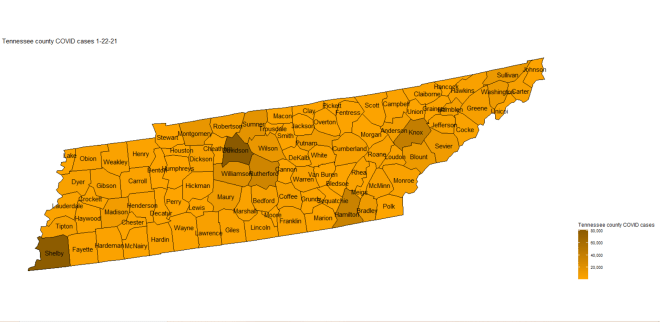
plot_usmap(regions="counties", data=file2, values="Cases", labels=TRUE, include=c("TN")) + labs(title="Tennessee county COVID cases 1-22-21") + scale_fill_continuous(low = "orange1", high = "orange4", name = "Tennessee county COVID cases", label = scales::comma) + theme(legend.position = "right")

Now, the code to create a state map plot broken down by county is nearly identical to the code used to create a map plot of the whole US with a few differences. Since you are plotting a map of an individual state, you need to specify the state you are plotting in the include parameter’s vector (the state is TN in this case). Also, since you are breaking down the state map by county, specify that regions are counties (don’t use county since you’re plotting all counties in a specific state, not just a single county).

  • You don’t need to add the county name labels to the map-I just thought that it would be a nice addition to the map plot.

In this example, I colored the map plot in orange-scale (meaning that the more cases of COVID in a county, the darker the shade of orange will be used). As you can see, the four counties with the darkest shades of orange are Davidson, Shelby, Knox, and Hamilton counties, meaning that these four counties had the highest cumulative case count as of January 22, 2021. These four counties also happen to be where Tennessee’s four major cities-Nashville, Memphis, Knoxville, and Chattanooga-are located.

Now let’s re-create the plot above, except this time let’s use the Deaths variable for values (and change the color-scale as well):

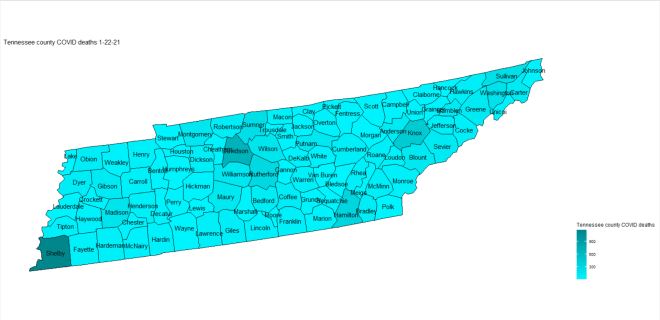
plot_usmap(regions="counties", data=file2, values="Deaths", labels=TRUE, include=c("TN")) + labs(title="Tennessee county COVID deaths 1-22-21") + scale_fill_continuous(low = "turquoise1", high = "turquoise4", name = "Tennessee county COVID deaths", label = scales::comma) + theme(legend.position = "right")

In this example, I used the same code from the previous example, except I used Deaths for the values and replaced the word “cases” with “deaths” on both the legend scale and title of the map plot. I also used turquoise-scale for this map plot rather than orange-scale.

An interesting difference between this map plot and the Tennessee COVID cases map plot is that, while the four counties that led in case counts (Hamilton, Knox, Shelby, and Davidson) also led in deaths, Shelby County is actually darker on the map than Davidson county, which implies that Shelby County (where Memphis is located) led in COVID deaths (Davidson County led in cases).

Thanks for reading, and can’t wait to share more great programming and data analytics content in 2021 with you all!

Michael

R Lesson 22: US Mapmaking with R (pt. 1)

Hello everybody,

Michael here, and today’s post (which is my last post for 2020) will be a lesson on basic US mapmaking with R. Today we’ll only focus on US mapmaking with R, but don’t worry, I intend to do a global mapmaking with R post later on.

Before we get started mapmaking, install these two packages to R-ggplot2 and usmap. Once you get these two packages installed, write this code and see the output:

plot_usmap(regions = "states") + labs(title="US States") + theme(panel.background = element_rect(color="black", fill = "lightblue"))

As you can see, we have created a basic map of the US (with Alaska and Hawaii), complete with a nice blue ocean.

However, this isn’t the only way you can plot a basic map of the US. The regions parameter has four different options for plotting the US map-states (which I just plotted), state, counties, and county.

Let’s see what happens when we use the state option:

plot_usmap(regions = "state", include=c("TN")) + labs(title="Tennessee") + theme(panel.background = element_rect(color="black", fill = "lightblue"))

In this example, I used the state option for the regions parameter to create a plot of the state of Tennessee (but left everything else unaltered).

How did I manage to get a plot of a single state? The plot_usmap function has several optional parameters, one of which is include. To plot the state of Tennessee, I passed a vector to the include parameter that consisted of a single element-TN.

  • Whenever you want to plot a single state (or several states), don’t type in the state’s full name-rather, use the state’s two-letter postal code.
  • Another parameter is exclude, which allows you to exclude certain states from a multi-state map plot (I’ll discuss multi-state map plots later).

Awesome! Now let’s plot our map with the counties option:

plot_usmap(regions = "counties") + labs(title="US Counties") + theme(panel.background = element_rect(color="black", fill = "lightblue"))

This map looks just like the first map, except it shows all of the county lines in each state.

Last but not least, let’s plot our map with the county option:

plot_usmap(regions = "county", include=c("Davidson County")) + labs(title="Davidson County") + theme(panel.background = element_rect(color="black", fill = "lightblue"))

In this example, I attempted to create a plot of Davidson County, TN, but that didn’t work out. The plot didn’t work because, even though I told R to include Davidson County in the plot, R didn’t know which state Davidson County was in, as there are two counties named Davidson in the US-one in Tennessee and another in North Carolina.

This shows you that using the county name alone when using the county argument for the regions parameter won’t work, since there are often multiple counties in different states that share the same name-the most common county name in the US is Washington County, which is shared by 31 states.

So, how do I correctly create a county plot in R? First, I would need to retrieve the county’s FIPS code.

To give you some background, FIPS stands for Federal Information Processing Standards and FIPS codes are 2- or 5-digit codes that uniquely identify states or counties. State FIPS codes have 2-digits and county FIPS codes have 5 digits; the first two digits of a county FIPS code are the corresponding state’s FIPS code. Here’s an example of county FIPS codes using the two Davidson Counties I discussed earlier:

> fips(state="TN", county="Davidson")
[1] "47037"
> fips(state="NC", county="Davidson")
[1] "37057"

In this example, I printed out the county FIPS codes for the two Davidson Counties. The FIPS code for Davidson County, TN is 47307 because Tennessee’s FIPS code is 47. Similarly, the FIPS code for Davidson County, NC is 37057 because North Carolina’s FIPS code is 37.

Now that we know the FIPS code for Davidson County, TN, we can create a plot for the county. Here’s the code to do so:

plot_usmap(regions = "county", include=c(fips(state="TN", county="Davidson"))) + labs(title="Davidson County, TN") + theme(panel.background = element_rect(color="black", fill = "lightblue"))

When I create a map plot of an individual US county, I get the shape of the county.

  • A more efficient way to write the code for this plot would have been plot_usmap(regions = "county", include=c(fips) + labs(title="Davidson County, TN") + theme(panel.background = element_rect(color="black", fill = "lightblue")) where fips would be stored as a variable with the value fips <- fips(state="TN", county="Davidson") .

So how can we get a map of several US counties, or rather, a state map broken down by counties? Here’s the code to do so:

plot_usmap(regions = "counties", include=c("TN")) + labs(title="Tennessee's 95 counties") + theme(panel.background = element_rect(color="black", fill = "lightblue"))

To create a state map broken down by counties, set regions to counties and set the include parameter to include the state you want to plot (TN in this case). As you can see, I have created a map plot of the state of Tennessee that shows all 95 county boundaries in the state.

What if you wanted to plot several states at once? Well, the usmap packages has built-in region parameters that create a plot of certain US regions (as defined by the US Census Bureau), which consist of several states. The regions you can plot include:

  • .east_north_central-Illinois, Indiana, Michigan, Ohio, and Wisconsin
  • .east_south_central-Alabama, Kentucky, Mississippi, and Tennessee
  • .midwest_region-any state in the East North Central and the West North Central regions
  • .mid_atlantic-New Jersey, New York, and Pennsylvania
  • .mountain-Arizona, Colorado, Idaho, Montana, Nevada, New Mexico, Utah, and Wyoming
  • .new_england-Connecticut, Maine, Massachusetts, New Hampshire, Rhode Island, and Vermont
  • .northeast_region-any state in the New England or Mid-Atlantic regions
  • .north_central_region-any state in the East and West North Central regions
  • .pacific-Alaska, California, Hawaii, Oregon, and Washington
  • .south_atlantic-Delaware, Florida, Georgia, Maryland, North Carolina, South Carolina, Virginia, Washington DC, and West Virginia
  • .south_region-any state in the South Atlantic, East South Central, and West South Central regions
  • .west_north_central-Iowa, Kansas, Minnesota, Missouri, Nebraska, North Dakota, and South Dakota
  • .west_region-any state in the Mountain and Pacific regions
  • .west_south_central-Arkansas, Oklahoma, Louisiana, and Texas

Let’s plot out a simple region map for the .east_south_central region. Here’s the code to do so:

 plot_usmap(include = .east_south_central) +  labs(title="East South Central US", size=10) + theme(panel.background = element_rect(color="black", fill = "lightblue"))

Simple enough, right? All I did was set the include parameter to .east_south_central.

  • Remember to always include a dot in front of the region name so R reads the region name as one of the built-in regions in usmap; if you don’t include the dot, R would read the region name as a simple String, which will generate errors in your code.

Now let’s break up the region map by counties. Here’s the code to do so:

plot plot_usmap(regions = "counties", include = .east_south_central) +  labs(title="East South Central US", size=10) + theme(panel.background = element_rect(color="black", fill = "lightblue"))

To show all of the county lines in a specific region, simply set the regions parameter to counties. Also (and you probably noticed this already), if you don’t set a value for the regions parameter, regions defaults to states.

OK, so I’ve covered the basics of US map plotting with the usmap package. But did you know you can display state and county names on the map plot? Here’s the code to add state name labels to a map plot of the whole US:

 plot_usmap(regions = "states", labels=TRUE) + labs(title="US States") + theme(panel.background = element_rect(color="black", fill = "lightblue"))

The code I used to create this map plot is almost identical to the code I used to create the first map plot with one major exception-I included a labels parameter and set it to TRUE. If the labels parameter is set to true, the state label name will be displayed on each state (the label name being the state’s 2-letter postal code).

Now let’s display county names on a map, using the state map of Tennessee. Here’s the code to do so:

 plot_usmap(regions = "counties", labels=TRUE, include=c("TN")) + labs(title="Tennessee's 95 counties") + theme(panel.background = element_rect(color="black", fill = "lightblue"))

As you can see, by setting labels to TRUE, I was able to include all of Tennessee’s county names on the map (and most of them fit quite well, though there are a few overlaps).

Thanks for reading,

Michael

Also, since this is my last post of 2020, thank you all for reading my content this year. I know it’s been a crazy year, but hope you all learned something from my blog in the process. Have a happy, healthy, and safe holiday season, and I’ll see you all in 2021 with brand new programming content (including a part 2 to this lesson)!

R Lesson 21: Calendar Plots

Hello everybody,

Michael here, and today’s post will be an R lesson on calendar plots in R. Now I know I already did a lesson on dates and times in R, but this lesson will focus on creating cool calendar plots in R with the calendR package.

Before we start making calendar plots, let’s install the calendR package.

Once we install these packages, let’s start by building a simple calendar plot with this line of code-calendR(). Here’s the output we get:

As you can see, the calendR() prints out a calendar for the current year (2020). If no parameter is specified, calendR() print the current year’s calendar by default.

If you want to print the calendar for a different year, specify the year in the parameter. Let’s say you wanted to print last year’s calendar (2019). To print last year’s calendar, use this line of code-calendR (year=2019). Here’s the output from that line of code:

OK, now let’s try some other neat calendar tricks. First, let’s set up our calendar plot to have weeks start on Monday (weeks start on Sunday by default). Here’s the code to do so:

calendR(start="M")

Since I didn’t specify a year in the parameter, calendR will print out a calendar of the current year by default.

Awesome! Now let’s add some color to certain special days. Here’s the code to do so:

calendR(special.days = c(61,91,121,331,360,366), special.col="lightgreen", low.col="white")

When adding color to certain special days, here are some things to keep in mind:

  • The calendR function has its own parameter to denote special days-aptly named special.days. Special.col specifies a color for the special days while low.col specifies a color for all other days.
  • To choose which days to highlight, specify the corresponding number for the day you want to highlight (e.g. 1 corresponds to January 1, 2 to January 2, and so on). Remember that if the calendar plot is for a leap year (like the plot above), day numbers from March 1 onward will be different than they would be in a non-leap year (e.g. the day number for March 2 in a non-leap year would be 61, while in a leap year it would be 62).

Now what if we wanted to highlight all of the weekends? Let’s see how we can do that. Use this line of code to highlight the weekends in 2020:

calendR(special.days="weekend")

Now what if we wanted to add several color-coded events to the calendar? Here’s the code to do that:

events <- rep(NA, 366) 
events[1] <- "Holidays"
events[45] <- "Holidays"
events[146] <- "Holidays"
events[186] <- "Holidays"
events[251] <- "Holidays"
events[305] <- "Holidays"
events[331] <- "Holidays"
events[360] <- "Holidays"
events[366] <- "Holidays"
events[61] <- "My Birthday"
calendR(special.days=events, special.col=c("green", "orange"), legend.pos="right") 

How did I create this calendar plot? Let me give you a step-by-step breakdown:

  • In order to add events to the calendar plot, you would first need to create a vector of NA values. My vector is called events, but the name of the vector doesn’t matter. Just remember to make the vector the same length of the number of days of days as the corresponding year.
    • Hint-the vector will have a length of 366 for leap years (such as 2020) and 365 for non-leap years (such as 2021)
  • Next, add all of the events you want on the calendar to the corresponding day of the year on the vector. For example, two days I wanted to highlight were January 1 and May 25 (New Year’s Day and Memorial Day 2020, respectively), so I added these two days to positions 1 and 146 of the events vector, as January 1 and May 25 were the 1st and 146th days of 2020, respectively.
    • If you want multiple dates under the same event category (e.g. “Holidays” in this example) , you’ll have to list all of the corresponding days of the year in the vector 1-by-1, unless the dates are consecutive (e.g. an event that goes on for 7 consecutive days). You can’t list all of the corresponding days of the year in a comma-separated array like you can in Java or Python (I know because I tried to do this and it didn’t work).
  • Once you added all of the events to the calendar, use the calendR function to create the color-coded calendar plot with events. The function takes four parameters, which include:
    • year-the year for the calendar plot; if a year isn’t specified, calendR will create a plot of the current year by default (as it does in this example)
    • special.days-the vector of events you created (events in this example)
    • special.col-the colors to represent each of the events
      • Only use as many colors as you have event categories. In this example, I only have two event categories-“My Birthday” and “Holidays”-and thus only use two colors for this function. Also keep in mind that the first color listed will be used for the first event category, the second color for the second event category, and so on.
    • legend.pos-the positioning of the legend on the plot; in this example, legend.pos equals right, which means that the legend will be displayed on the right of the graph

Now, what if you wanted to make a calendar plot for just a single month? Using the current month as an example, here’s how to do so:

calendR(month = 12)

By simply using the code calendR(year = X, month = 1-12) you can create a calendar plot for any month of any year. Remember that if you don’t specify the year, calendR will create a plot for chosen month of the current year (2020) by default.

Great, now let’s add some color to certain days! Here’s the code to do that (along with the corresponding output):

calendR(month = 12, special.days=c(9, 16, 25, 27, 31), special.col="yellow", low.col="white")

OK, what if we wanted to add several color-coded events to the calendar? Let’s see how we can do this:

events2 <- rep(NA, 31)
events2[24:25] <- "Holidays"
events2[31] <- "Holidays"
events2[1:4] <- "Workweek"
events2[16] <- "Birthdays"
events2[27] <- "Birthdays"
calendR(month = 12, special.days=events2, special.col = c("red", "orange", "lightblue"), low.col="white", legend.pos="top") 

The process for adding color-coded events for a month-long calendar plot is the same as it is for a year-long calendar plot, except you would need to make the events vector the length of the days in the month rather than the length of the days in the year. In this case the length of the events vector (called events2 to avoid confusion with the other events vector) would be 31, as there are 31 days in December.

  • Just so you know, low.col in the last two examples refers to the color of the boxes that don’t contain color-coded events.

Great, now let’s say we wanted to add some text to the days. How would we go about this? Here’s how:

calendR(month = 12, text=c("Battlebots", "Birthday", "Christmas", "Birthday", "New Year's Eve"), text.pos=c(3, 16, 25, 27, 31), text.size=4.5, text.col="green4")

Here’s a step-by-step breakdown of how I created this plot:

  • First, I indicated the month I wanted to use for my calendar plot. Since I didn’t specify a year, calendR will automatically plot the chosen month of the current year (December 2020).
  • Next, I created a vector of text I wanted to add to the calendar plot and used text.pos to indicate which days should contain which text (for instance, the first element in the text vector corresponds with the first element of the text.pos vector).
    • Remember to keep the text vector the same size as the text.pos vector.
    • I know this sounds obvious, but know how many days the month on your calendar plot has, or else the calendar plot won’t work. For instance, trying to place text on 32 in this plot won’t work because December doesn’t have a 32nd.
  • Text.size and text.col specify the font size and color of the text, respectively.

Now let’s try something different-creating a lunar calendar, which is a month-long calendar plot that shows the different moon phases on each day of the month. Also, just out of curiosity, let’s create a lunar calendar for next month-here’s the code to do so:

calendR(year = 2021, month = 1, lunar = TRUE, lunar.col="gray60", lunar.size=8)

Here’s a step-by-step breakdown of how I created this lunar calendar:

  • Since I’m creating this lunar calendar for next month, I had to specify both the year (2021) and the month (1), as next month is the January 2021 (crazy, huh).
  • I had to set lunar to TRUE to indicate that this is a lunar calendar
  • Lunar.col signifies the color of the non-visible area of the moons.
  • Lunar.size signifies the size of the moons on the calendar plot.
  • In case you’re wondering what each of the moon phases are, here’s a handy little graphic (feel free to Google this information if you want to learn more about moon phases):

Last but not least, let me show you how we can create a calendar plot with custom start and end dates. A perfect example of this type of calendar plot would be an academic calendar, which I will show you how to create below, using the 2020-21 Metro Nashville Public Schools calendar as an example:

events3 <- rep(NA, 304)
events3[3] <- "Day Off"
events3[6] <- "Day Off"
events3[38] <- "Day Off"
events3[63] <- "Day Off"
events3[66:70] <- "Day Off"
events3[73] <- "Day Off"
events3[84] <- "Day Off"
events3[95] <- "Day Off"
events3[103] <- "Day Off"
events3[117:119] <- "Day Off"
events3[140] <- "Day Off"
events3[143:147] <- "Day Off"
events3[150:154] <- "Day Off"
events3[157:159] <- "Day Off"
events3[171] <- "Day Off"
events3[199] <- "Day Off"
events3[227:231] <- "Day Off"
events3[238] <- "Day Off"
events3[245] <- "Day Off"
events3[299] <- "Day Off"
events3[4] <- "First & Last Days of School"
events3[298] <- "First & Last Days of School"
events3[136:139] <- "Half Days"
events3[293:294] <- "Half Days"
events3[297] <- "Half Days" 

calendR(start_date = "2020-08-01", end_date = "2021-05-31", special.days=events3, special.col=c("salmon", "seagreen1", "gold"), legend.pos="right", title = "Metro Nashville Public Schools 2020-21 Calendar")

So, how did I create this color-coded calendar plot with a custom start and end date? Here’s a step-by-step breakdown of the process:

  • Since I knew the start and end dates I wanted to use for this calendar plot, I created an events vector (named events3 to avoid confusion with the other two events vectors) of length 304. My start and end dates are August 1, 2020 and May 31, 2021, respectively, which cover a 304 day period (including the end date).
  • I then added all of the events to the corresponding days on the vector. Since this isn’t a standard calendar year vector, knowing which element corresponds to which day is trickier. However, I created an excel table with the dates in my date range on one column and the corresponding day in the other column, like this:
  • After inserting all of the events to the corresponding days in the vector, I then used the calendR function to indicate my start_date and end_date.
  • For the special.days argument, I used the events3 vector I created.
  • I then indicated the three colors I wanted to use for the three event categories as the argument for special.col
    • For special.col remember to include the same amount of colors as event categories in this vector. Since I had 3 event categories, I used 3 colors in this vector.
  • I then set legend.pos to right, which tells calendR to place the legend to the right of the calendar plot.
  • Lastly, I set the title of the plot to Metro Nashville Public Schools 2020-21 Calendar.

Thanks for reading,

Michael

R Analysis 10: Linear Regression, K-Means Clustering, & the 2020 NBA Playoffs

Hello everybody,

Michael here, and today’s post will be an R analysis on the 2020 NBA Playoffs.

As many of you know, the 2019-20 NBA Season was suspended on March 11, 2020 due to COVID-19. However, the season resumed on July 30, 2020 inside a “bubble” (essentially an isolation zone without fans present) in Disney World. 22 teams played 8 regular-season “seeding” games in the bubble before playoffs commenced on August 14, 2020. The resumed season concluded on October 11, 2020, when the LA Lakers defeated the Miami Heat in the NBA Finals to win their 17th championship. The data comes from https://www.basketball-reference.com/playoffs/NBA_2020_totals.html (Basketball Reference), which is a great site if you’re looking for basketball statistics and/or want to do some basketball analyses.

Before we start analyzing the data, let’s first upload it to R and learn about the data (and here’s the data):

This dataset contains the names of 217 NBA players who participated in the 2020 Playoffs along with 30 other types of player statistics.

Now, I know it’s a long list, but here’s an explanation of all 31 variables in this dataset:

  • ..Player-The name of the player
  • Pos-The player’s position on the team. For an explanation of the five main basketball positions, please check out this link https://jr.nba.com/basketball-positions/
  • Age-The age of the player as of July 30, 2020 (the date the NBA season resumed)
  • Tm-The team the player played for during the 2019-20 NBA season
  • G-The games the player participated in during the 2020 NBA playoffs
  • GS-The amount of playoff games that the player was in the game’s starting lineup
  • MP-The amount of minutes a player was on the court during the playoffs
  • FG-The amount of field goals a player scored during the playoffs
    • For those who don’t know, a field goal in basketball is any shot that’s not a free throw.
  • FGA-The amount of field goals a player tried to make during the playoffs (this includes both successful and unsuccessful field goals)
  • FG.-The percentage of a player’s field goal attempts that were successful.
  • X3P-The amount of 3-point field goals a player scored during the playoffs
    • Field goals can be worth either 2 or 3 points, depending on where the player shoots the field goal from
  • X3PA-The amount of 3-point field goals a player attempted during the playoffs (both successful and unsuccessful 3-pointers)
  • X3P.-The percentage of a player’s 3-point field goals that were successful
  • X2P-The amount of 2-point field goals a player scored during the playoffs
  • X2PA-The amount of 2-point field goals a player attempted during the playoffs (both successful and unsuccessful 2-pointers)
  • X2P.-The percentage of a player’s 2-point field goals that were successful
  • eFG.-The percentage of a player’s successful field goal attempts, adjusting for the fact that 3-point field goals are scored higher than 2-point field goals
  • FT-The amount of free throws a player scored during the playoffs
  • FTA-The amount of free throw attempts a player made during the playoffs (both successful and unsuccessful attempts)
  • FT.-The percentage of a player’s successful free throw attempts during the playoffs
  • ORB-The amount of offensive rebounds a player made during the playoffs
    • A player gets a rebound when they retrieve the ball after another player misses a free throw or field goal. The player gets an offensive rebound if their team is currently on offense and a defensive rebound if their team is currently on defense.
  • DRB-The amount of defensive rebounds a player made during the playoffs
  • TRB-The sum of a player’s ORB and DRB
  • AST-The amount of assists a player made during the playoffs
    • A player gets an assist when they pass the ball to one of their teammates who then scores a field goal.
  • STL-The amount of steals a player made during the playoffs
    • A player gets a steal when they cause a player on the opposite team to turnover the ball.
  • BLK-The amount of blocks a player made during the playoffs
    • A player gets a block when they deflect a field goal attempt from a player on the other team
  • TOV-The amount of turnovers a player made during the playoffs
    • A player gets a turnover when they lose possession of the ball to the opposing team. Just in case you were wondering, the goal for a player is to make as few turnovers as possible.
  • PF-The amount of personal fouls a player made during the playoffs
    • A player gets a personal foul when they make illegal personal contact with a player on the other team. The goal for players is to make as few personal fouls as possible, since they will be disqualified from the remainder of the game if they get too many.
  • PTS-The sum of the amount of field goals and free throws a player made during the playoffs
  • Team-The name of the team the player played for during the 2020 NBA playoffs
    • Team and Tm basically give you the same information, except Team gives you the name of the team (e.g. Mavericks) while Tm gives you the three-letter abbreviation for the team (e.g. in the case of the Mavericks the 3-letter abbreviation is DAL)
  • Position-The position the team reached in the 2020 NBA playoffs. There are 7 possible values for position which include:
    • ECR1-The team made it to the first round of the Eastern Conference playoffs
    • ECSF-The team made it to the Eastern Conference Semifinals
    • ECF-The team made it to the Eastern Conference Finals
    • WCR1-The team made it to the first round of the Western Conference playoffs
    • WCSF-The team made it to the Western Conference Semifinals
    • WCF-The team made it to the Western Conference Finals
    • Finals-The team made it to the 2020 NBA Finals

Whew, that was a lot of information to explain, but I felt it was necessary to explain this in order to better understand the data (and the analyses I will do).

Now, before we start creating analyses, let’s first create a missmap to see if there are any missing rows in the data (to create the missmap, remember to install the Amelia package). To create the missmap, use this line of code-missmap(file):

As you can see here, 98% of the observations are present, while only 2% are missing.

Let’s take a look at the five columns with missing data. They are:

  • FT.-free throw percentage
  • X3P.-percentage of 3-pointers made during playoffs
  • X2P.-percentage of 2-pointers made during playoffs
  • eFG.-percentage of successful field goal attempts during playoffs (adjusted for the fact that 3-pointers are worth more than 2-pointers)
  • FG.-percentage of successful field goal attempts during playoffs (not adjusted for the score difference between 2- and 3-pointers)

What do all of these columns have in common? They are all percentages, and the reason why there would be missing data in these columns is because a player doesn’t have any statistics in these categories. For instance, the reason why FT. would be blank is because a player didn’t make any free throws during the playoffs (same logic applies to 3-pointers, 2-pointers, and field goals).

So what will we do with these columns? In this case, I will simply ignore these columns in my analysis because I won’t be focusing on percentages.

Alright, now that I went over the basics of the data, let’s start analyzing the data. First off, I’ll start with a couple of linear regressions.

The first linear regression I will do will analyze whether a player’s age affects how many playoff games they played. Here’s the formula for that linear regression:

linearModel1 <- lm(Age~G, data=file)

And here’s a summary of the linear model:

Now, what does all of this mean? (and for a refresher on linear regression models, please read my post _):

  • The residual standard error gives us the amount that the response variable (Age) deviates from the regression line. In this example, the player’s age deviates from the regression line by 4.066 years.
  • The Multiple R-Squared and Adjusted R-Squared are measures of how well the model fits the data. The closer the R-squared to 1, the better the fit of the model.
    • In this case, the Multiple R-Squared is 3.42% and the Adjusted R-Squared is 2.97%, indicating that there is almost no correlation between a player’s age and the amount of playoff games they played.
  • The F-Statistic is a measure of the relationship (or lack thereof) between the dependent and independent variables. This metric (and the corresponding p-value) isn’t too important when dealing with simple linear regression models such as this one, but it is important when analyzing multiple linear regression models (i.e. models with multiple variables).
    • To make things easier, just focus on the F-statistic’s corresponding p-value when analyzing the relationship between the dependent and independent variables. If the p-value is less than 0.05, accept the null hypothesis (that the independent variable and dependent variables aren’t related). If the p-value value is greater than 0.05, reject the null hypothesis.

OK, so it looks like there isn’t any correlation between a player’s age and the amount of playoff games they played. But what happens when I include Team in the analysis?

Here’s the code for that linear regression model:

linearModel2 <- lm(Age~G+Team, data=file)

However, something to note is that Team is of type chr, which isn’t allowed in linear regression analysis. So, we would need to use this simple line of code to convert Team to type factor:

file$Team <- as.factor(file$Team)

Alright, so let’s see the summary of this linear regression model:

Now, let’s analyze this model further:

  • The residual standard error shows us that a player’s age deviates from the regression line by 3.902 years (down from 4.066 years in the previous model).
  • The Multiple R-Squared and Adjusted R-Squared (17.26% and 10.64% respectively) shows us that this model has a better fit than the previous model, but both metrics are still too small to imply that there is any correlation between a player’s age, the team he plays for, and how many playoff games he played.
  • The F-statistic’s corresponding p-value is much less than 0.05 (0.001024), which indicates that a player’s age has no bearing on the amount of playoff games they played or the team they played for.
  • Notice how all of the values for Team are displayed. This is because when you include a factor in a linear regression, you will see all of the possible values for the factor (there are 16 possible values in this case for the 16 teams that made it to playoffs)

Now we will do some k-means clustering analyses. First, let’s create a cluster using the variables FT and FG (free throws and field goals, respectively):

As you can see, I have displayed the head (the first six observations) of the cluster.

  • I used 8 and 18 as the column numbers because FG and FT are the 8th and 18th columns in the dataset, respectively.

Alright, let’s do some k-means clustering:

So what does this output tell us? Let’s find out:

  • In this example, I created 5 clusters from cluster1. The 5 clusters have sizes of 104, 36, 10, 64, and 3 respectively.
  • The cluster means show us the means for each variable used in this analysis-FT and FG. Recall that cluster means are calculated from the values in each cluster, so the cluster mean for FG in cluster 1 is calculated from all of the FG values in cluster 1 (same logic applies for the other 4 clusters).
  • The clustering vector shows you which observations belong to which cluster. In this example, the cluster observations are sorted alphabetically by a player’s last name. The first three observations belong to clusters 1, 4, and 3, which correspond to Jaylen Adams, Steven Adams, and Edrice “Bam” Adebayo. Likewise, the last three observations belong to clusters 1, 1, and 2, which correspond to Nigel Williams-Goss, Delon Wright, and Ivica Zubac, respectively.
  • The WCSSBC (within cluster sum of squares by cluster) shows us the variablity of observations in a certain cluster. The smaller the WCSSBC, the more compact the cluster. In this example, cluster 1 is the most compact since it has the smallest WCSSBC (2886.26).
  • The between_SS/total_SS ratio shows the overall goodness-of-fit for the model. The higher this ratio is, the better the model fits the data. In this example, the between_SS/total_SS is 91.5%, indicating that this model is an excellent fit for the data.

Now let’s graph our clusters (and remember to install the ggplot2 package);

Here’s the code we’ll use to make the first graph:

plot(cluster1, col=NBAPlayoffs$cluster, main="2020 NBA Playoffs Field Goals vs Free Throws", xlab = "Playoff field goals", ylab="Playoffs free throws", pch=19)

In this graph, we have 5 clusters grouped by color. Let’s analyze each of these clusters:

  • The black cluster represent players who scored 20 or fewer playoff free throws and 20 or fewer playoff field goals. Some notable players that fall into this cluster include Jared Dudley (Lakers), Hassan Whiteside (Trail Blazers), and Bol Bol (Nuggets).
  • The dark blue cluster represents players who scored between 0 and 35 playoff free throws and between 15 and 50 playoff field goals. Some notable players that fall into this cluster include Andre Igoudala (Heat), Markieff Morris (Lakers), and Victor Oladipo (Pacers).
  • The red cluster represents players who scored between 20 and 50 playoff free throws and between 35 and 90 playoff field goals. Some notable players that fall into this cluster include Giannis Antentokonumpo (Bucks), Jae Crowder (Heat), and Rudy Gobert (Jazz).
  • The other two clusters (which are light green and light blue) represent players who scored at least 45 playoff free throws and at least 100 playoff field goals.
    • In case you’re wondering, the three players who are in the light green cluster are Jimmy Butler (Heat), Anthony Davis (Lakers), and LeBron James (Lakers)-all three of whom participated in the 2020 NBA Finals.

So, what insights can we gather from this data? One insight is certain-a team’s playoff position alone doesn’t have much impact on the amount of free throws and field goals they scored. For instance, Dion Waiters, JR Smith, and Talen Horton-Tucker are in the lowest FG/FT cluster, but all three of them are on the Lakers, who won the NBA Championship. However, Dion Waiters and Talen Horton-Tucker didn’t play in any Finals games, while JR Smith did play in some Finals games but only averaged 7.5 minutes per games throughout the playoffs.

Likewise, you might think that the two highest FG/FT clusters would only have Heat and Lakers players, given that these two teams made it all the way to the Finals. Two exceptions to this are James Harden (Rockets) and Kawhi Leonard (Clippers), who were both eliminated in the Western Conference semifinals.

Now let’s do another k-means clustering analysis, this time using two different scoring categories-total rebounds and assists (represented by TRB and AST respectively).

First, let’s create the main cluster (let’s use 23 and 24 as the column numbers because TRB and AST are the 23rd and 24th columns of the dataset, respectively):

Now, let’s create the k-means analysis:

What does this output tell us? Let’s find out:

  • In this example, I created 4 clusters from cluster2 with sizes of 65, 18, 128, and 6, respectively.
  • The cluster means display the averages of TRB and AST for each cluster.
  • The clustering vector shows us which observations correspond to which cluster. From this vector, we can see that the first three observations belong to cluster 3.
  • The WCSSBC indicates the compactness of each cluster. Since cluster 4 has the smallest WCSSBC (13214.83), it is the most compact cluster. Cluster 1, on the other hand, has the highest WCSSBC (32543.42), so it is the least compact cluster.
  • The between_SS/total_SS ratio shows us the goodness-of-fit for the model. In this case, the between_SS/total_SS ratio is 82.9%, which indicates that this model is a good fit for the data (though this ratio is lower than the previous model’s ratio of 91.5%).

Alright, now let’s graph this cluster. Remember to install the ggplot2 package and use this line of code:

plot(cluster2, col=NBAPlayoffs2$cluster, main="2020 NBA Playoffs Rebounds vs Assists", xlab = "Playoff rebounds", ylab="Playoff assists", pch=19)

In this graph, we have 4 clusters grouped by color. Let’s see what each of these clusters mean:

  • The green cluster represents players who scored 40 or fewer playoff assists and 30 or fewer playoff rebounds. Notable players who fall into this cluster include Meyers Leonard (Heat), Dion Waiters (Lakers), and Al Horford (76ers).
  • The black cluster represents players who scored between 0 and 60 playoff assists and between 35 and 100 playoff rebounds. Notable players who fall into this cluster include Kelly Olynyk (Heat), Chris Paul (Thunder), and Kyle Kuzma (Lakers).
  • The red cluster represent players who scored between 15 and 130 playoff assists and between 45 and 130 playoff rebounds. Notable players who fall into this cluster include Russell Westbrook (Rockets), Jae Crowder (Heat), and Kyle Lowry (Raptors).
  • The blue cluster represents the six players in the top rebounds/assists tier, which include:
    • Jimmy Butler (Heat)
    • Jayson Tatum (Celtics)
    • Nikola Jokic (Nuggets)
    • Bam Adebayo (Heat)
    • Anthony Davis (Lakers)
    • LeBron James (Lakers)
      • Four of these players participated in the NBA Finals while Jayson Tatum and Nikola Jokic were eliminated in the Conference Finals.

So, what insights can we draw from this cluster analysis? First of all, similar to the previous cluster analysis, a team’s playoff position (i.e. Conference Finals) has no bearing as to which player falls in which cluster. For example, the Heat and Lakers made it to the NBA Finals, yet there are Heat and Lakers players in every cluster.

And just as with the previous cluster analysis, the top cluster doesn’t only have Finals players, as Jayson Tatum and Nikola Jokic are included in the top cluster-and both of them were eliminated in the Conference Finals.

Last but not least, let’s create a cluster analyzing two things players try not to get-personal fouls and turnovers. First, let’s create the main cluster (use 27 and 28 as the column numbers since TOV and PF are the 27th and 28th columns in the dataset respectively):

Next, let’s create the k-means analysis:

So, what does this output tell us? Let’s find out:

  • In this example, I created 4 clusters from cluster3 with sizes of 30, 70, 104, and 13, respectively.
  • The cluster means display the means of TOV and PF for each cluster.
  • The clustering vector shows us which observations belong to which cluster. In this example, the first three observations belong to cluster 3 (just like in the previous example).
  • The WCSSBC shows us how compact each cluster is; in this example, cluster 3 is the most compact since it has the smallest WCSSBC (1976.298).
  • The between_SS/total_SS ratio shows us the goodness-of-fit for the model; in this example, this ratio is 84.9%, which indicates that the model is a great fit for the data.
    • Interestingly, the k-means analysis with the best goodness-of-fit is the first analysis with a between_SS/total_SS ratio of 91.5%. I think this is surprising since the first model had 5 clusters while this model and the previous model have 4 clusters.

Now, let’s plot our k-means analysis (and remember to install ggplot2!)

plot(cluster3, col=NBAPlayoffs3$cluster, main="2020 NBA Playoffs Turnovers vs Personal Fouls", xlab = "Playoff turnovers", ylab="Playoff personal fouls", pch=19)

Just as with the previous graph, we have four clusters grouped by color in this plot (and coincidentally in the same color order as the previous graph). What do each of these clusters mean? Let’s find out:

  • The green cluster represents players who committed 15 or fewer playoff turnovers as well as 12 or fewer playoff personal fouls. Notable players that fall into this cluster include JR Smith (Lakers), Kyle Korver (Bucks), and Damian Lillard (Trail Blazers).
    • In this example, being in the lowest cluster is the best, since the aim of every player is to commit as few turnovers and personal fouls as possible. Plus, if a player commits too many personal fouls in a game, they’re ejected.
    • Also, the more turnovers a player commits, the more opportunities the opposing team gets to score.
      • In reality, the data isn’t as black-and-white as I make it seem. This is because the further a player made it into the playoffs, the more opportunities they would have for committing turnovers and personal fouls.
      • Data is never black-and-white as it looks. The key to being a good data analyst is to analyze every piece of data in a dataset to see how it’s all interconnected.
  • The red cluster represents players who committed between 7 and 35 playoff turnovers and between 2 and 35 playoff personal fouls. Notable players who fall into this cluster include Carmelo Anthony (Trail Blazers), Kendrick Nunn (Heat), and Rudy Gobert (Jazz).
  • The black cluster represents players who committed between 9 and 35 playoff turnovers and between 33 and 66 playoff personal fouls. Notable players who fall into this cluster include Rajon Rondo (Lakers), Danny Green (Lakers), and Jae Crowder (Heat).
  • The blue cluster represents the 13 players who are in the highest turnover/personal foul tier. Here’s the full list:
    • Goran Dragic (Heat)
    • Paul George (Clippers)
    • Jaylen Brown (Celtics)
    • Tyler Herro (Heat)
    • James Harden (Rockets)
    • Marcus Smart (Celtics)
    • Bam Adebayo (Heat)
    • Jayson Tatum (Celtics)
    • Jamal Murray (Nuggets)
    • Anthony Davis (Lakers)
    • Jimmy Butler (Heat)
    • Nikola Jokic (Nuggets)
    • and Lebron James (Lakers)
      • You might be surprised to see 6 NBA Finalists on this list, but I have a theory as to why that’s the case. See, the farther a player makes it in the playoffs, the more opportunities they have to score (and commit fouls and turnovers). And if you saw the 2020 NBA Finals, there were quite a bit of personal fouls and turnovers committed by both the Heat and Lakers (especially with Anthony Davis’s foul trouble in Game 3).

Thanks for reading,

Michael

R Lesson 20: Fun with R

Hello everybody,

Michael here, and in today’s post, we’ll be having a little fun with R (and that means two things in this post). Now, I’ve focused all of my R posts on data analysis/data manipulation, but this time, I thought I’d do something a little different with R. Something a little more fun.

Now, the title of this post-R Lesson 20: Fun with R-means two things. First of all, I’m going to show you some of the fun things you can do with R (aside from data analysis/data manipulation, which I think are pretty fun to cover). Second, the name of the package to access the fun functionalities is literally called fun.

First of all, to start discovering all of these neat functionalities, let’s install the fun package:

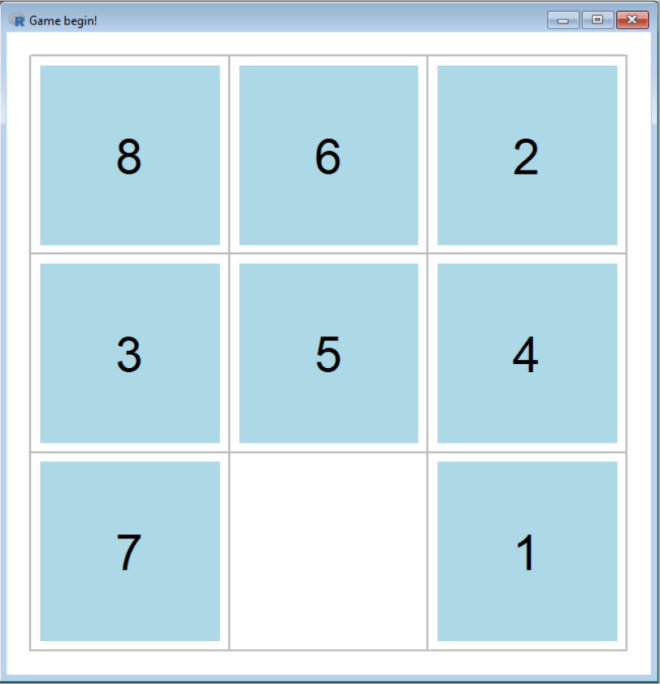
Now, let’s starting having some fun with R (see what I did there). First, let’s start off by opening up a sliding puzzle game. To open up the sliding puzzle, use this line of code: sliding_puzzle()

As you can see, I have managed to generate a 3-by-3 sliding puzzle with just one line of code! Now let’s see what happens when I complete the game:

While I’m playing the game, R keeps track of how many moves I’ve made and how long I took to complete the puzzle (34.62 seconds…not bad):

Now, one thing to keep in mind when calling a function from the fun package is to always include the parentheses. If you were to call the sliding_puzzle function without the pair of parentheses, here’s the output you would get (which is just the code that was used to create the game):

One thing I wanted to mention about the sliding puzzle game (or any of the functions in the fun package) is that it’s customizable. The 3-by-3 board with blue squares are just the default for the sliding puzzle game, but I can customize the size of the board and the color of the squares to my choosing. Let’s see what happens when I use a 6-by-6 board with yellow square:

But first, to create the 6-by-6 board with yellow squares, use this line of code:

  • sliding_puzzle(size=c(6,6), bg="yellow")

Now let’s see what the new sliding puzzle looks like:

Great! Now let’s see what it looks like once I’ve completed it:

Awesome! Now, just out of curiosity, how long did it take me to complete this puzzle?

So it took me 1,060 moves and 702.34 seconds (roughly 11 minutes and 43 seconds) to solve this puzzle! Not bad for a 6-by-6 sliding puzzle.

Now, for the sliding tile puzzle, even though you can customize the size of the board and the color of the squares, here are some things you unfortunately can’t customize:

  • The text that appears on the squares; you will always get the numbers from 1 to the size of the board-1.
  • The shapes of the tiles; no, you can’t use circles/triangles/diamonds, etc. on the game

Now let’s check out another fun R game-Minesweeper. For those who don’t know, Minesweeper is a classic puzzle game where you have to clear a rectangular board without clicking on a square with a hidden “mine”. Clues are given in certain squares as to how many mines are in a neighboring square.

To create a Minesweeper board, use this line of code: mine_sweeper(). Here’s what the default Minesweeper board looks like:

Now here’s what the board looks like after I complete a game:

As you can see, I clicked on a square with a “mine” and lost the game. To be honest, I was never that good at Minesweeper anyway.

Now, let’s customize the Minesweeper board. Let’s use this line of code-mine_sweeper(width = 11, height = 9, mines = 25, cheat = FALSE)-and see what the board looks like:

Now let’s see what the board looks like after I complete the game:

Well, that was just bad luck on my part.

OK, something I didn’t mention is that there is a hack in R’s version of Minesweeper that would help you win. All you would need to do is set cheat to TRUE.

Now let’s create a board with the same line of code we used last time-mine_sweeper(width = 11, height = 9, mines = 25, cheat = FALSE)-except change the FALSE to TRUE. Let’s see what the board looks like:

It’s the same board we got last time. But take a look at this:

This matrix shows you where all of the mines are hidden (indicated by a -1) along with the number that will be in each square (a 0 indicates a blank square).

With this handy little cheat code, I can easily find out where all of the mines are and win the game (though this does take some of the fun out of the game):

Now, if only R could generate a Minesweeper game that looks something like this:

Another fun game that R has in it’s fun package is Gomoku, which is a five-in-a-row version of Tic-Tac-Toe that uses white and black circles in place of Xs and Os.

Let’s see what a basic Gomoku board looks like (use this line of code-gomoku()):

Now let’s see what happens when I complete a game of Gomoku (against myself, since there isn’t a way to play against the computer yet):

As you can see, black managed to get five in a row before white, so black wins the game (though the function doesn’t have a programmed way to determine a winner, so you’ll need to figure it out yourself)

Now, you can also change the size of the Gomoku board, but you can’t have different numbers of rows and columns on the board (so 4-by-6 and 9-by-7 boards won’t work with R’s version of Gomoku). Let’s create a 6-by-6 Gomoku board using this line of code-gomoku(n=6):

Now here’s what my completed 6-by-6 Gomoku game looks like:

OK, so I’ve shown all of the games that the fun package has to offer. However, the fun package has more than just games.

An interesting non-game function in the fun package is random_password(), which generates a random password of a certain length (or a default length of 13 characters). This function comes in handy when you’re creating an account on any service (e-mail, streaming, etc.) and can’t think of a good strong password.

Let’s see what we get when we use the random_password() function:

random_password()
[1] "di_8WLK=GgI4"

As you can see, the random_password() function has generated a random 13-character password. Each time you use the random_password() function, you’ll get a different 13-character password.

  • The more random the password is, the harder it will be for hackers to break into your account. Just a helpful cybersecurity tip.

But what if you wanted to set some parameters for your random password? Here’s how you would do that:

random_password(length=14, extend=FALSE)
[1] "13QEiz0D6nJF7d"

In this example, I set a password with a length of 14 characters. The extend = FALSE indicates that the random password should only have letters and numbers and contain no special characters (e.g. !, :, -, (, ]). This functionality comes in handy when you need to generate a strong password on a website that doesn’t allow you to use special characters for the password.

  • If you set extend to TRUE, the randomly generated password will contain special characters.

Another interesting non-game function in the fun package is shutdown(), which automatically shuts down your computer. Shutdown() takes one parameter-wait=X-which tells the computer to wait X seconds before shutting down. For instance, shutdown (x=20) will shut down your computer after 20 seconds.

  • I didn’t try to run this function because I still had files open on my computer that I wanted to save, and running shutdown() would’ve caused me to lose all my work. Just keep this in mind before running shutdown().

By the way, the functions I discussed aren’t the only functions the fun package has to offer. For more information on everything the fun package has to offer, please check out this document-

And one more thing-wouldn’t it be cool if R’s fun package had a pinball game that was similar to this? (2000s kids like myself will recognize this):

Thanks for reading,

Michael

R Lesson 19: Fun With Dates & Times

Hello everybody,

It’s Michael, and today I thought I’d do an R lesson (which I haven’t done in almost 9 months). Today’s R lesson will be a little different, as it’s not an analysis. Rather, it’s a demo that shows what R can do beyond performing analyses-in today’s post, I’ll show you how to work with dates and times in R, as well as manipulate them with a handy little package called lubridate.

After installing the lubridate package, let’s start to play around with it. First, let’s create a date in three different formats:

Screen Shot 2020-04-26 at 11.48.34 AM

In this example, I displayed a date in three different formats (year-month-day, month-day-year, day-month-year). Notice how the different date formats use different separators. For instance, the year-month-day format doesn’t use separators while the month-day-year format uses dashes and the day-month-year format uses backslashes.

  • Keep in mind these separators aren’t necessary, and if you use other separators for certain formats (or no separators at all), that would be perfectly acceptable. Just don’t incorrectly place certain elements of the date (in other words, don’t place the year first if you’re using month-day-year formatting).


Ok, so creating dates is only the basics of what the lubridate package can do-and we haven’t even gotten to the fun parts yet. For instance, did you know you could include a time with your date?:

Screen Shot 2020-04-26 at 12.11.22 PM

In this example, I created the variable dateandtime, which contains today’s date (April 26, 2020) along with the time (12:10) using the mdy_hm function, which allows me to include the date (in month-day-year format) along with the time (only the hour and minute though).

  • You can also add an s to the mdy_hm function if you want to include seconds in the date-time object.
  • The time only works with 24-hour notation (more commonly known as “military time”), so trying to write something like “01:15 PM” wouldn’t work-unless you could figure out how to concatenate the “AM” or “PM” onto the end of the date-time object.
  • You could also change the formatting of the date in the date-time object, but remember to write the function according to the formatting you chose. For instance, if you chose to use year-month-day formatting, remember to write the function as ymd_hm (or ymd_hms if you choose to include  the seconds)


But wait, there more you can include in a date-time object! Yes, you can also include the time-zone in your date-time object. See, the date-time object defaults to UTC, or Coordinated Universal Time. For those that don’t know what Coordinated Universal Time is, it’s not a time zone, but rather a 24-hour time standard used to synchronize world clocks. In other words, it’s the base point for all other time zones in the world, as they are determined by their distance from the UTC. Also, keep in mind that while the UTC doesn’t adjust to daylight savings time clock changes, the difference between the UTC and the local time does change. For instance, the difference between the UTC and US Central Time Zone is 6 hours when daylight savings time isn’t in place (from the first Sunday in November to the second Sunday in March), but only 5 hours when daylight savings time is in place.

So, let’s see what happens when we add the time-zone to our date-time object:

Screen Shot 2020-04-26 at 1.07.10 PM

In this example, I added the US Central Time Zone to the date-time object (I chose Central Time since I am currently in Nashville, TN, which is in the Central Time Zone). The way to add the time-zone to a date-time object is to use the variable tz and set tz to US/(choose time zone). You can’t write the name of a city and expect R to recognize it (I know, since I tried to write US/Nashville and got an error from R).

  • I’m impressed that R knew the US is in Daylight Savings Time since the date-time object did have CDT (Central Daylight Time, as opposed to Central Standard Time) besides it. Then again, R probably looked at the date and time-zone and correctly assumed that the US is in Daylight Savings Time.

The next thing I want to show you is how to extract certain information in a date-time object. Here’s an example of that (using out dateandtime2 object):

Screen Shot 2020-04-27 at 9.49.17 PM

All in all, there are 10 functions to extract information from a date-time object. Here’s an explanation of each of them:

  • second-extracts the second from the date-time object. In this example, second is zero since I didn’t include any seconds in this date-time object.
  • minute-extracts the minute from the date-time object. In this example, minute is 5 since the time in dateandtime2 is 13:05
  • hour-extracts the hour from the date-time object. In this example, hour is 13.
  • day-extracts the day from the date-time object. Since the date I used is April 26, 2020, 26 is given as the day
  • wday-extracts the number of the weekday from the date-time object. Since lubridate assumes the week starts on Sunday (some calendars start the week on Monday), Sunday is wday 1, Monday is wday 2, and so on until you get to Saturday (wday 7).
  • yday-extracts what day of the year the date is. In simpler terms, April 26, 2020 is the 117th day of 2020, so 117 is displayed.
  • week-extracts what week of the year the date falls on. Since April 26, 2020 is the 17th week of 2020, 17 is be displayed.
  • month-extracts the numerical value of the month, which can range from 1 (January) to 12 (December). Since April is the 4th month of the year, 4 is displayed
  • year-extracts the year from the date, which is 2020 in this case
  • tz-extracts the timezone from the date-time object (provided you set a timezone). In this case, the tz is US/Central, which is the US’s Central Time Zone.

Next, Iet’s demonstrate how to convert a date-time object into a different time zone:

Screen Shot 2020-05-02 at 3.54.23 PM

This date-time object contains the date 05-02-2020 and the time 15:50 (which means 3:50PM). The tz is set to US/Central, which represents the US’s Central Time Zone (and my current city of Nashville, TN is in the Central Time Zone).

But what if I wanted to call some relatives in Bogota, Colombia?  What time would it be there? Well, the with_tz function can help with figuring out this question. Simply use you date-time object and the timezone you wish to convert to as the parameters for this function. When I tried to find out the time in Bogota, Colombia, it turns out that when it’s 3:50PM in Nashville, TN, it’s also 3:50PM in Bogota, Colombia. The -05 means it’s five hours behind UTC (likewise, a +05 would mean that it’s five hours ahead of UTC).

Now, if it’s 3:50PM in Nashville, TN, what time would it be in Paris, France? Using the with_tz function, we can see that it’s 10:50PM in Paris, France, meaning that Paris is 7 hours ahead of Nashville. The CEST stands for Central European Summer Time.

But how would you know which timezone to use? Here’s a nice little hack-type in OlsonNames() into the compiler and you will see the list of all possible time-zones that lubridate will accept:

[1] “Africa/Abidjan” “Africa/Accra” “Africa/Addis_Ababa” “Africa/Algiers”
[5] “Africa/Asmara” “Africa/Asmera” “Africa/Bamako” “Africa/Bangui”
[9] “Africa/Banjul” “Africa/Bissau” “Africa/Blantyre” “Africa/Brazzaville”
[13] “Africa/Bujumbura” “Africa/Cairo” “Africa/Casablanca” “Africa/Ceuta”
[17] “Africa/Conakry” “Africa/Dakar” “Africa/Dar_es_Salaam” “Africa/Djibouti”
[21] “Africa/Douala” “Africa/El_Aaiun” “Africa/Freetown” “Africa/Gaborone”
[25] “Africa/Harare” “Africa/Johannesburg” “Africa/Juba” “Africa/Kampala”
[29] “Africa/Khartoum” “Africa/Kigali” “Africa/Kinshasa” “Africa/Lagos”
[33] “Africa/Libreville” “Africa/Lome” “Africa/Luanda” “Africa/Lubumbashi”
[37] “Africa/Lusaka” “Africa/Malabo” “Africa/Maputo” “Africa/Maseru”
[41] “Africa/Mbabane” “Africa/Mogadishu” “Africa/Monrovia” “Africa/Nairobi”
[45] “Africa/Ndjamena” “Africa/Niamey” “Africa/Nouakchott” “Africa/Ouagadougou”
[49] “Africa/Porto-Novo” “Africa/Sao_Tome” “Africa/Timbuktu” “Africa/Tripoli”
[53] “Africa/Tunis” “Africa/Windhoek” “America/Adak” “America/Anchorage”
[57] “America/Anguilla” “America/Antigua” “America/Araguaina” “America/Argentina/Buenos_Aires”
[61] “America/Argentina/Catamarca” “America/Argentina/ComodRivadavia” “America/Argentina/Cordoba” “America/Argentina/Jujuy”
[65] “America/Argentina/La_Rioja” “America/Argentina/Mendoza” “America/Argentina/Rio_Gallegos” “America/Argentina/Salta”
[69] “America/Argentina/San_Juan” “America/Argentina/San_Luis” “America/Argentina/Tucuman” “America/Argentina/Ushuaia”
[73] “America/Aruba” “America/Asuncion” “America/Atikokan” “America/Atka”
[77] “America/Bahia” “America/Bahia_Banderas” “America/Barbados” “America/Belem”
[81] “America/Belize” “America/Blanc-Sablon” “America/Boa_Vista” “America/Bogota”
[85] “America/Boise” “America/Buenos_Aires” “America/Cambridge_Bay” “America/Campo_Grande”
[89] “America/Cancun” “America/Caracas” “America/Catamarca” “America/Cayenne”
[93] “America/Cayman” “America/Chicago” “America/Chihuahua” “America/Coral_Harbour”
[97] “America/Cordoba” “America/Costa_Rica” “America/Creston” “America/Cuiaba”
[101] “America/Curacao” “America/Danmarkshavn” “America/Dawson” “America/Dawson_Creek”
[105] “America/Denver” “America/Detroit” “America/Dominica” “America/Edmonton”
[109] “America/Eirunepe” “America/El_Salvador” “America/Ensenada” “America/Fort_Nelson”
[113] “America/Fort_Wayne” “America/Fortaleza” “America/Glace_Bay” “America/Godthab”
[117] “America/Goose_Bay” “America/Grand_Turk” “America/Grenada” “America/Guadeloupe”
[121] “America/Guatemala” “America/Guayaquil” “America/Guyana” “America/Halifax”
[125] “America/Havana” “America/Hermosillo” “America/Indiana/Indianapolis” “America/Indiana/Knox”
[129] “America/Indiana/Marengo” “America/Indiana/Petersburg” “America/Indiana/Tell_City” “America/Indiana/Vevay”
[133] “America/Indiana/Vincennes” “America/Indiana/Winamac” “America/Indianapolis” “America/Inuvik”
[137] “America/Iqaluit” “America/Jamaica” “America/Jujuy” “America/Juneau”
[141] “America/Kentucky/Louisville” “America/Kentucky/Monticello” “America/Knox_IN” “America/Kralendijk”
[145] “America/La_Paz” “America/Lima” “America/Los_Angeles” “America/Louisville”
[149] “America/Lower_Princes” “America/Maceio” “America/Managua” “America/Manaus”
[153] “America/Marigot” “America/Martinique” “America/Matamoros” “America/Mazatlan”
[157] “America/Mendoza” “America/Menominee” “America/Merida” “America/Metlakatla”
[161] “America/Mexico_City” “America/Miquelon” “America/Moncton” “America/Monterrey”
[165] “America/Montevideo” “America/Montreal” “America/Montserrat” “America/Nassau”
[169] “America/New_York” “America/Nipigon” “America/Nome” “America/Noronha”
[173] “America/North_Dakota/Beulah” “America/North_Dakota/Center” “America/North_Dakota/New_Salem” “America/Ojinaga”
[177] “America/Panama” “America/Pangnirtung” “America/Paramaribo” “America/Phoenix”
[181] “America/Port_of_Spain” “America/Port-au-Prince” “America/Porto_Acre” “America/Porto_Velho”
[185] “America/Puerto_Rico” “America/Punta_Arenas” “America/Rainy_River” “America/Rankin_Inlet”
[189] “America/Recife” “America/Regina” “America/Resolute” “America/Rio_Branco”
[193] “America/Rosario” “America/Santa_Isabel” “America/Santarem” “America/Santiago”
[197] “America/Santo_Domingo” “America/Sao_Paulo” “America/Scoresbysund” “America/Shiprock”
[201] “America/Sitka” “America/St_Barthelemy” “America/St_Johns” “America/St_Kitts”
[205] “America/St_Lucia” “America/St_Thomas” “America/St_Vincent” “America/Swift_Current”
[209] “America/Tegucigalpa” “America/Thule” “America/Thunder_Bay” “America/Tijuana”
[213] “America/Toronto” “America/Tortola” “America/Vancouver” “America/Virgin”
[217] “America/Whitehorse” “America/Winnipeg” “America/Yakutat” “America/Yellowknife”
[221] “Antarctica/Casey” “Antarctica/Davis” “Antarctica/DumontDUrville” “Antarctica/Macquarie”
[225] “Antarctica/Mawson” “Antarctica/McMurdo” “Antarctica/Palmer” “Antarctica/Rothera”
[229] “Antarctica/South_Pole” “Antarctica/Syowa” “Antarctica/Troll” “Antarctica/Vostok”
[233] “Arctic/Longyearbyen” “Asia/Aden” “Asia/Almaty” “Asia/Amman”
[237] “Asia/Anadyr” “Asia/Aqtau” “Asia/Aqtobe” “Asia/Ashgabat”
[241] “Asia/Ashkhabad” “Asia/Atyrau” “Asia/Baghdad” “Asia/Bahrain”
[245] “Asia/Baku” “Asia/Bangkok” “Asia/Barnaul” “Asia/Beirut”
[249] “Asia/Bishkek” “Asia/Brunei” “Asia/Calcutta” “Asia/Chita”
[253] “Asia/Choibalsan” “Asia/Chongqing” “Asia/Chungking” “Asia/Colombo”
[257] “Asia/Dacca” “Asia/Damascus” “Asia/Dhaka” “Asia/Dili”
[261] “Asia/Dubai” “Asia/Dushanbe” “Asia/Famagusta” “Asia/Gaza”
[265] “Asia/Harbin” “Asia/Hebron” “Asia/Ho_Chi_Minh” “Asia/Hong_Kong”
[269] “Asia/Hovd” “Asia/Irkutsk” “Asia/Istanbul” “Asia/Jakarta”
[273] “Asia/Jayapura” “Asia/Jerusalem” “Asia/Kabul” “Asia/Kamchatka”
[277] “Asia/Karachi” “Asia/Kashgar” “Asia/Kathmandu” “Asia/Katmandu”
[281] “Asia/Khandyga” “Asia/Kolkata” “Asia/Krasnoyarsk” “Asia/Kuala_Lumpur”
[285] “Asia/Kuching” “Asia/Kuwait” “Asia/Macao” “Asia/Macau”
[289] “Asia/Magadan” “Asia/Makassar” “Asia/Manila” “Asia/Muscat”
[293] “Asia/Nicosia” “Asia/Novokuznetsk” “Asia/Novosibirsk” “Asia/Omsk”
[297] “Asia/Oral” “Asia/Phnom_Penh” “Asia/Pontianak” “Asia/Pyongyang”
[301] “Asia/Qatar” “Asia/Qyzylorda” “Asia/Rangoon” “Asia/Riyadh”
[305] “Asia/Saigon” “Asia/Sakhalin” “Asia/Samarkand” “Asia/Seoul”
[309] “Asia/Shanghai” “Asia/Singapore” “Asia/Srednekolymsk” “Asia/Taipei”
[313] “Asia/Tashkent” “Asia/Tbilisi” “Asia/Tehran” “Asia/Tel_Aviv”
[317] “Asia/Thimbu” “Asia/Thimphu” “Asia/Tokyo” “Asia/Tomsk”
[321] “Asia/Ujung_Pandang” “Asia/Ulaanbaatar” “Asia/Ulan_Bator” “Asia/Urumqi”
[325] “Asia/Ust-Nera” “Asia/Vientiane” “Asia/Vladivostok” “Asia/Yakutsk”
[329] “Asia/Yangon” “Asia/Yekaterinburg” “Asia/Yerevan” “Atlantic/Azores”
[333] “Atlantic/Bermuda” “Atlantic/Canary” “Atlantic/Cape_Verde” “Atlantic/Faeroe”
[337] “Atlantic/Faroe” “Atlantic/Jan_Mayen” “Atlantic/Madeira” “Atlantic/Reykjavik”
[341] “Atlantic/South_Georgia” “Atlantic/St_Helena” “Atlantic/Stanley” “Australia/ACT”
[345] “Australia/Adelaide” “Australia/Brisbane” “Australia/Broken_Hill” “Australia/Canberra”
[349] “Australia/Currie” “Australia/Darwin” “Australia/Eucla” “Australia/Hobart”
[353] “Australia/LHI” “Australia/Lindeman” “Australia/Lord_Howe” “Australia/Melbourne”
[357] “Australia/North” “Australia/NSW” “Australia/Perth” “Australia/Queensland”
[361] “Australia/South” “Australia/Sydney” “Australia/Tasmania” “Australia/Victoria”
[365] “Australia/West” “Australia/Yancowinna” “Brazil/Acre” “Brazil/DeNoronha”
[369] “Brazil/East” “Brazil/West” “Canada/Atlantic” “Canada/Central”
[373] “Canada/Eastern” “Canada/Mountain” “Canada/Newfoundland” “Canada/Pacific”
[377] “Canada/Saskatchewan” “Canada/Yukon” “CET” “Chile/Continental”
[381] “Chile/EasterIsland” “CST6CDT” “Cuba” “EET”
[385] “Egypt” “Eire” “EST” “EST5EDT”
[389] “Etc/GMT” “Etc/GMT-0” “Etc/GMT-1” “Etc/GMT-10”
[393] “Etc/GMT-11” “Etc/GMT-12” “Etc/GMT-13” “Etc/GMT-14”
[397] “Etc/GMT-2” “Etc/GMT-3” “Etc/GMT-4” “Etc/GMT-5”
[401] “Etc/GMT-6” “Etc/GMT-7” “Etc/GMT-8” “Etc/GMT-9”
[405] “Etc/GMT+0” “Etc/GMT+1” “Etc/GMT+10” “Etc/GMT+11”
[409] “Etc/GMT+12” “Etc/GMT+2” “Etc/GMT+3” “Etc/GMT+4”
[413] “Etc/GMT+5” “Etc/GMT+6” “Etc/GMT+7” “Etc/GMT+8”
[417] “Etc/GMT+9” “Etc/GMT0” “Etc/Greenwich” “Etc/UCT”
[421] “Etc/Universal” “Etc/UTC” “Etc/Zulu” “Europe/Amsterdam”
[425] “Europe/Andorra” “Europe/Astrakhan” “Europe/Athens” “Europe/Belfast”
[429] “Europe/Belgrade” “Europe/Berlin” “Europe/Bratislava” “Europe/Brussels”
[433] “Europe/Bucharest” “Europe/Budapest” “Europe/Busingen” “Europe/Chisinau”
[437] “Europe/Copenhagen” “Europe/Dublin” “Europe/Gibraltar” “Europe/Guernsey”
[441] “Europe/Helsinki” “Europe/Isle_of_Man” “Europe/Istanbul” “Europe/Jersey”
[445] “Europe/Kaliningrad” “Europe/Kiev” “Europe/Kirov” “Europe/Lisbon”
[449] “Europe/Ljubljana” “Europe/London” “Europe/Luxembourg” “Europe/Madrid”
[453] “Europe/Malta” “Europe/Mariehamn” “Europe/Minsk” “Europe/Monaco”
[457] “Europe/Moscow” “Europe/Nicosia” “Europe/Oslo” “Europe/Paris”
[461] “Europe/Podgorica” “Europe/Prague” “Europe/Riga” “Europe/Rome”
[465] “Europe/Samara” “Europe/San_Marino” “Europe/Sarajevo” “Europe/Saratov”
[469] “Europe/Simferopol” “Europe/Skopje” “Europe/Sofia” “Europe/Stockholm”
[473] “Europe/Tallinn” “Europe/Tirane” “Europe/Tiraspol” “Europe/Ulyanovsk”
[477] “Europe/Uzhgorod” “Europe/Vaduz” “Europe/Vatican” “Europe/Vienna”
[481] “Europe/Vilnius” “Europe/Volgograd” “Europe/Warsaw” “Europe/Zagreb”
[485] “Europe/Zaporozhye” “Europe/Zurich” “GB” “GB-Eire”
[489] “GMT” “GMT-0” “GMT+0” “GMT0”
[493] “Greenwich” “Hongkong” “HST” “Iceland”
[497] “Indian/Antananarivo” “Indian/Chagos” “Indian/Christmas” “Indian/Cocos”
[501] “Indian/Comoro” “Indian/Kerguelen” “Indian/Mahe” “Indian/Maldives”
[505] “Indian/Mauritius” “Indian/Mayotte” “Indian/Reunion” “Iran”
[509] “Israel” “Jamaica” “Japan” “Kwajalein”
[513] “Libya” “MET” “Mexico/BajaNorte” “Mexico/BajaSur”
[517] “Mexico/General” “MST” “MST7MDT” “Navajo”
[521] “NZ” “NZ-CHAT” “Pacific/Apia” “Pacific/Auckland”
[525] “Pacific/Bougainville” “Pacific/Chatham” “Pacific/Chuuk” “Pacific/Easter”
[529] “Pacific/Efate” “Pacific/Enderbury” “Pacific/Fakaofo” “Pacific/Fiji”
[533] “Pacific/Funafuti” “Pacific/Galapagos” “Pacific/Gambier” “Pacific/Guadalcanal”
[537] “Pacific/Guam” “Pacific/Honolulu” “Pacific/Johnston” “Pacific/Kiritimati”
[541] “Pacific/Kosrae” “Pacific/Kwajalein” “Pacific/Majuro” “Pacific/Marquesas”
[545] “Pacific/Midway” “Pacific/Nauru” “Pacific/Niue” “Pacific/Norfolk”
[549] “Pacific/Noumea” “Pacific/Pago_Pago” “Pacific/Palau” “Pacific/Pitcairn”
[553] “Pacific/Pohnpei” “Pacific/Ponape” “Pacific/Port_Moresby” “Pacific/Rarotonga”
[557] “Pacific/Saipan” “Pacific/Samoa” “Pacific/Tahiti” “Pacific/Tarawa”
[561] “Pacific/Tongatapu” “Pacific/Truk” “Pacific/Wake” “Pacific/Wallis”
[565] “Pacific/Yap” “Poland” “Portugal” “PRC”
[569] “PST8PDT” “ROC” “ROK” “Singapore”
[573] “Turkey” “UCT” “Universal” “US/Alaska”
[577] “US/Aleutian” “US/Arizona” “US/Central” “US/East-Indiana”
[581] “US/Eastern” “US/Hawaii” “US/Indiana-Starke” “US/Michigan”
[585] “US/Mountain” “US/Pacific” “US/Pacific-New” “US/Samoa”
[589] “UTC” “W-SU” “WET” “Zulu”

Last but not least, let’s learn how to do arithmetic with dates and times (and quite personally, I think this is tons of fun):

Screen Shot 2020-05-02 at 4.21.06 PM

The lubridate packages contains two general time span classes-durations and periods. To create a function for periods, simply use the plural form for the unit of time you wish to make a period from. To create a function for durations, use the formatting for periods functions, but add a d in front of the unit of time.

In the hours() function, the amount of hours, minutes and seconds are displayed; since I used 15 for hours, the period is shown as 15H 0M 0S. In the dhours() function, the amount of hours are converted into seconds; since I also used 15 for hours, the duration shown is 54000s.

What if we used decimals for our period and duration functions? Let’s see what would happen:

Screen Shot 2020-05-03 at 11.56.27 AM

In this example, I used 15.5 hours for both my period and duration functions. While 15.5 worked fine with my duration function, it gave me an error when I tried to use it with my period function because the parameter for a period function must be an integer.

The period function will give you the entire time period down to the second, while the duration function will always give you the length of the time period in seconds.

  • I’m not sure how far the duration function would go, but I did try using dmonth and got an error.

Why are there two classes of time in lubridate? This is because the calendar timeline isn’t as reliable as the number line. See, durations always supply mathematically precise results-a duration year is ALWAYS 365 days (even for a leap year like 2020). However, periods fluctuate the way the calendar timeline does, so in periods, 2019 has 365 days while 2020 has 366 days.

But, before I get into any further time-date arithmetic, let’s see how R can detect a leap year:

Screen Shot 2020-05-02 at 4.43.19 PM

To find out whether a year is a leap year, simply use the leap_year() function along with the year you want to inquire about as the parameter. If the result is FALSE, the year isn’t a leap year, but if it’s TRUE, then the year is a leap year. As you can see, 2018 and 2019 aren’t leap years, but 2020 is a leap year.

Now, let’s perform some basic addition with period years and duration years:

Screen Shot 2020-05-03 at 12.18.50 PM

When I add 1 period year and 1 duration year to the date January 1 2019, I get January 1 2020 both times. This is because 2019 has 365 days, so 1 period year and 1 duration year from January 1 2019 would add up to January 1 2020.

However, with a leap year like 2020, the results from period years and duration years would be different. Similar to the last example, I am adding 1 period year and 1 duration year to January 1 2020. Since period years fluctuate with the calendar timeline, 1 period year from January 1 2020 is January 1 2021. However, 1 duration year from January 1 2020 is December 1 2020, since duration years always contain 365 days (and 2020 has 366 days).

Aside from adding period years and duration years, you can also perform other arithmetic with other units of time (such as days and months);

Screen Shot 2020-05-03 at 12.48.12 PM

In the first expression shown, I added 1 month to the date May 3 2020 and got June 3 2020. In the second expression, I subtracted 18 days from May 3 2020 and got April 15 2020.

Now, here’s where things get interesting. Notice how the third and fourth expressions shown generated error messages. This is because, unlike with regular numbers and decimals, you can’t multiply or divide units of time.

  • If you can’t multiply or divide units of time, then you certainly can’t do more advanced things like raising a date to a certain power or find the base-10 logarithm of a certain date (just saying in case anyone was wondering).

Now, there’s something interesting I wanted to point out when it comes to adding months to dates. In the example, when I added 1 month to May 3 2020, I got June 3 2020. Seems clear enough, right? Well, not always. See, there are two possible answers to adding a month to May 3 2020. They are:

  • June 3 2020, which is 31 days after May 3 2020
  • May 31 2020, which is 4 weeks after May 3 2020 (four weeks is considered a month)

I’ll explain the whole month addition thing later, but now, let’s discuss how to calculate the duration between two dates. To do this, we must first create a date interval:

Screen Shot 2020-05-03 at 1.21.37 PM

To create an interval, use the interval function that lubridate provides. For the parameters, use two dates-and keep the second date greater than the first date.

  • You can also include date-time objects as parameters in interval, complete with time-zones. I just chose not to include them for simplicity’s sake.

I’m going to use my most recent holiday vacation for this example, which lasted from December 24 2019 to January 5 2020. I stored my interval in the variable vacation.

Now, how long was my holiday vacation in days?:

Screen Shot 2020-05-03 at 1.30.38 PM

Dividing the vacation variable by ddays(1) gives us the length of my vacation in days-12. To be sure we get the exact duration in days, I had to use 1 as the parameter for ddays, because if I had used another number, I wouldn’t have gotten the exact duration. For instance, I tried vacation/ddays(2), and got 6, which is half the duration of my vacation (in days).

  • I could’ve used days(1) instead of ddays(1) and I would’ve gotten the same answer-12.

Now here’s another example of an interval:

Screen Shot 2020-05-03 at 1.39.13 PM

This interval represents how long I’ve been living in Nashville as of May 3 2020. 09052019 is the first parameter, since I moved to Nashville on September 5 2019.

Now how long is that in days and months?:

Screen Shot 2020-05-03 at 1.41.35 PM

So, according to these calculations, I’ve been living in Nashville for 241 days, or 7.93 months as of May 3 2020. What I find interesting is that the days and ddays functions both returned 241, despite having a February 29 factored in.

Now let’s try an even larger time interval:

Screen Shot 2020-05-03 at 2.01.06 PM

This interval represents how long this blog has been active for as of May 3 2020 (I launched this blog on June 13 2018). So how long would this be in years, months, and days?:

Screen Shot 2020-05-03 at 1.53.37 PM

All in all, this blog has been active for:

  • 1.888 period years and 1.89 duration years.
  • 22.67 months
  • 690 days (both period days and duration days)

Personally, I think it’s interesting that dyears and ddays can be used, but not dmonths. But I guess it’s just one of those R quirks.

Last but not least, let’s discuss the whole adding months thing. Earlier in this post, I did mention there were several possible answers to adding a month (or months) to a certain time using the example of May 3 2020. In that example, I said that there were two possible answers to the question of adding a month-June 3 (31 days from May 3) or May 31 (four weeks from May 3). See, since the 12 months of the year aren’t equal length, trying to do arithmetic with them won’t work.

So, how would we approach this problem? Let’s take a look:

Screen Shot 2020-05-03 at 9.47.03 PM

In this example, the months function keeps adding a month to 04302020 (April 30 2020) 11 times. You can see the results of the months function in the output below; the first result is 2020-04-30 and the last result is 2021-03-30, which is 11 months from the start date.

But wait, what’s the NA doing there? See, since there’s no such date as February 30 2021, an NA is displayed in its place.

  • The syntax for the months functions is as follows-months(X months from date:Y months from X). This means that the value to the left of the colon should be how many months from the start date you want to begin the calculation at and the value to the right of the colon should be how many months from the first value you want the calculations to end at.
  • It’s not necessary to use 0 as the first value for the months function, but if you want to include the given date in your calculation, then use 0.

OK, so what if we didn’t want to see any NA values. Here’s how we’d approach that:

Screen Shot 2020-05-03 at 9.58.35 PM

The floor_date function automatically starts the calculations on the first of the month following the date given (since I gave 05032020 as the date, the calculations automatically start with June 1 2020). The months function will add 1 month to June 1 2020 11 times and display all 12 of these results (the 12 results include June 1 2020). The days function tells R to run under the assumption that each month has 31 days (though using 28 for days would’ve worked just fine too).

OK, so there’s another approach to the whole adding-a-month-to-a-date-several-times question. Here it is:

Screen Shot 2020-05-03 at 10.07.32 PM

Using the %m+% and %m-% operators, you can get a list of months up to X months out from a certain date. The amazing thing about these operators is that they will automatically roll back to the last day of the month if necessary.

One thing to keep in mind is that the %m+% operator will move forward 1 month for X amount of months but the %m-% operator will move backwards 1 month for X amount of months. At least both are very precise when calculating months.
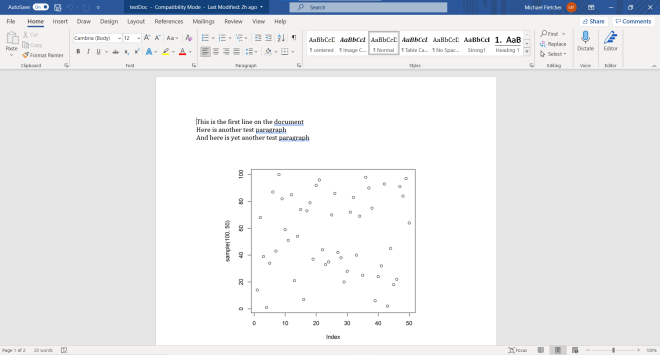


R Analysis 9: ANOVA, K-Means Clustering & COVID-19

Hello everybody,

It’s Michael here, and today’s post is an R analysis about the COVID-19 pandemic using ANOVA & K-means clustering. I haven’t done many analyses on current events, so I thought I’d change things up here a little (especially since COVID-19 is an important moment in modern history).

Here’s the dataset-COVID-19 Worldwide (4-12-20)

First of all, let’s load our dataset into R and learn more about each variable:

Screen Shot 2020-04-12 at 9.22.30 PM

This dataset contains 213 samples and 14 variables. Let’s learn more about each variable:

  • Country-The name of the country whose COVID-19 cases are being analyzed. Keep in mind that not every value in this column is a country-some exceptions include:
    • World-The total amount of coronavirus cases worldwide
    • Reunion-This is a French island located in the Indian Ocean
    • Diamond Princess-This is a Carnival-owned cruise ship that first disembarked from Yokohama, Japan
  • Total Cases-The total amount of COVID-19 cases in a particular country.
    • Keep in mind that these are the total amount of cases as of April 12, 2020. The numbers have (very likely) fluctuated a lot since this writing.
  • New Cases-The amount of new COVID-19 cases in a particular country on April 12, 2020
  • Total Deaths-The total amount of people that have died in a particular country from COVID-19
  • New Deaths-The amount of people in a particular country who died from COVID-19 on April 12, 2020.
  • Total Recovered-The total amount of people in a particular country who have recovered from COVID-19.
  • Active Cases-The amount of active cases in a particular country as of April 12, 2020.
  • Serious Critical-The amount of serious or critical cases in a particular country.
  • Total Cases 1M pop-The total amount of cases in a particular country per 1 million residents.
  • Deaths 1M pop-The total amount of deaths in a particular country per 1 million residents.
  • Total Tests-The total amount of COVID-19 tests a particular country has administered.
  • Tests 1M pop-The total amount of tests a particular country has administered per 1 million residents.
  • Continent-The continent a country is located on (if applicable)
  • Lockdown-The measures a particular country has taken to stop the spread of COVID-19, which can include:
    • Curfew-country has enacted a curfew for its citizens, which restricts their movement at certain hours of the day
    • Lockdown-country has enacted a mass lockdown/quarantine (terms are used interchangeably), requiring all citizens to stay at home at all hours of the day with few exceptions (e.g. getting groceries, performing an essential job)
    • No large gatherings-country bans all large gatherings (e.g. concerts, festivals)
      • OK, so almost every country I’ve analyzed bans or strongly discourages large gatherings. This label is for countries that have only banned large gatherings without enacting any other significant restrictions.
    • None-country has implemented no major restrictions on their citizens
    • Partial curfew-country has enacted a curfew only in certain regions or for certain groups of people (e.g. elderly)
    • Partial lockdown-country has enacted a lockdown only in certain regions or for certain groups of people
    • Social distancing-country has enacted social distancing measures, such as closing schools, bars, and restaurants
      • Almost every affected country has enacted some form of social distancing, but this label only applies to those countries who have only enacted social distancing rules without any other major restrictions.
    • Stay-at-home-country has issued a nationwide stay-at-home order, which requires citizens to stay at home except for essential activities (e.g. grocery shopping, working at an essential business) and outdoor exercise-provided social distancing is maintained.
    • Travel restrictions-country has enacted travel restrictions, restricting citizens from leaving and/or foreigners from entering.
      • President Trump’s Europe travel ban doesn’t factor into this label.
    • Various-country has enacted various measures throughout the nation
      • The US is the only country that has this label, as all 50 states have responded differently to the COVID-19 crisis (for instance, 43 states have issued stay-at-home orders, but 7 haven’t). Likewise, each state has their own definition of “essential businesses”.


  • Something I want to mention about factor variables that I didn’t mention earlier-levels in factor variables are organized alphabetically. So for the Lockdown variable, Curfew would have a factor level of 1, as it’s the first value alphabetically. Likewise, Various would have a factor level of 11, as it’s the last value alphabetically.

Now, let’s see how tidy our dataset is by seeing how many values are missing (remember to install the Amelia package and use the line misssmap(file) to obtain the missingness map):

Screen Shot 2020-04-18 at 12.22.22 PM

As you can see, 19% of all values in the dataset are missing, while the other 81% of values are present.

  • Yes, I know the dataset is not as tidy as the ones I’ve used in other posts. But I think this is a good things, as several real-life datasets you’ll encounter could be considerably messier than this one.

So, what should I do about the missing values. First of all, since the New Deaths variable has too many missing values, I won’t use it in any of my analyses. As for the rest of the variables with missing values, I will simply replace those missing values with zeroes. As to why I’d do that, replacing the missing values with zeroes won’t impact any of the variables’ means. Here’s how to do that:

file$New.Cases[is.na(file$New.Cases)] <- 0
> file$Serious.Critical[is.na(file$Serious.Critical)] <- 0
> file$Tests..1M.pop[is.na(file$Tests..1M.pop)] <- 0
> file$Total.Tests[is.na(file$Total.Tests)] <- 0

file$Deaths..1M.pop[is.na(file$Deaths..1M.pop)] <- 0
> file$Total.Deaths[is.na(file$Total.Deaths)] <- 0
> file$Total.Recovered[is.na(file$Total.Recovered)] <- 0

These seven lines of code will replace any missing values within these seven variables with zeroes.

Now, for this analysis I will be doing two one-way ANOVA models. Here’s my first one-way ANOVA model:

Screen Shot 2020-04-18 at 3.26.13 PM

In this model, I used Total Cases as the dependent variable and Lockdown as the independent variable; I’m analyzing the relationship a country’s containment measures would have on their total coronavirus cases.

As you can see, Lockdown isn’t that significant of a variable, as it only has a single period besides it, which means its p-value is between 0.05 and 0.1, which is too large to be considered statistically significant. The f-value is also low-1.749-which, along with the high p-value, means that there isn’t enough evidence to reject the null hypothesis (that a country’s containment measures don’t have a significant impact on their coronavirus cases).

Nonetheless, let’s performs a Tukey’s HSD test to see if we can get some interesting insights:

TukeyHSD(model1, conf.level=0.99)
Tukey multiple comparisons of means
99% family-wise confidence level

Fit: aov(formula = file$Total.Cases ~ file$Lockdown)

$`file$Lockdown`
diff lwr upr p adj
Lockdown-Curfew 15932.078 -112699.14 144563.30 0.9999954
No large gatherings-Curfew 22064.565 -477726.47 521855.60 1.0000000
None-Curfew 10803.501 -99222.47 120829.47 0.9999995
Partial curfew-Curfew 53433.565 -446357.47 553224.60 0.9999989
Partial lockdown-Curfew 4838.065 -355855.05 365531.18 1.0000000
Self-quarantine-Curfew -3134.435 -502925.47 496656.60 1.0000000
Social distancing-Curfew 61926.065 -298767.05 422619.18 0.9999023
Stay-at-home-Curfew 20215.565 -479575.47 520006.60 1.0000000
Travel restrictions-Curfew 3225.565 -496565.47 503016.60 1.0000000
Various-Curfew 546553.565 46762.53 1046344.60 0.0027658
No large gatherings-Lockdown 6132.487 -489368.42 501633.40 1.0000000
None-Lockdown -5128.577 -93648.53 83391.37 1.0000000
Partial curfew-Lockdown 37501.487 -457999.42 533002.40 1.0000000
Partial lockdown-Lockdown -11094.013 -365818.68 343630.65 1.0000000
Self-quarantine-Lockdown -19066.513 -514567.42 476434.40 1.0000000
Social distancing-Lockdown 45993.987 -308730.68 400718.65 0.9999929
Stay-at-home-Lockdown 4283.487 -491217.42 499784.40 1.0000000
Travel restrictions-Lockdown -12706.513 -508207.42 482794.40 1.0000000
Various-Lockdown 530621.487 35120.58 1026122.40 0.0038187
None-No large gatherings -11261.064 -502260.94 479738.81 1.0000000
Partial curfew-No large gatherings 31369.000 -660560.36 723298.36 1.0000000
Partial lockdown-No large gatherings -17226.500 -616454.91 582001.91 1.0000000
Self-quarantine-No large gatherings -25199.000 -717128.36 666730.36 1.0000000
Social distancing-No large gatherings 39861.500 -559366.91 639089.91 1.0000000
Stay-at-home-No large gatherings -1849.000 -693778.36 690080.36 1.0000000
Travel restrictions-No large gatherings -18839.000 -710768.36 673090.36 1.0000000
Various-No large gatherings 524489.000 -167440.36 1216418.36 0.1478284
Partial curfew-None 42630.064 -448369.81 533629.94 0.9999999
Partial lockdown-None -5965.436 -354375.13 342444.26 1.0000000
Self-quarantine-None -13937.936 -504937.81 477061.94 1.0000000
Social distancing-None 51122.564 -297287.13 399532.26 0.9999773
Stay-at-home-None 9412.064 -481587.81 500411.94 1.0000000
Travel restrictions-None -7577.936 -498577.81 483421.94 1.0000000
Various-None 535750.064 44750.19 1026749.94 0.0028637
Partial lockdown-Partial curfew -48595.500 -647823.91 550632.91 0.9999999
Self-quarantine-Partial curfew -56568.000 -748497.36 635361.36 0.9999999
Social distancing-Partial curfew 8492.500 -590735.91 607720.91 1.0000000
Stay-at-home-Partial curfew -33218.000 -725147.36 658711.36 1.0000000
Travel restrictions-Partial curfew -50208.000 -742137.36 641721.36 1.0000000
Various-Partial curfew 493120.000 -198809.36 1185049.36 0.2174452
Self-quarantine-Partial lockdown -7972.500 -607200.91 591255.91 1.0000000
Social distancing-Partial lockdown 57088.000 -432179.94 546355.94 0.9999974
Stay-at-home-Partial lockdown 15377.500 -583850.91 614605.91 1.0000000
Travel restrictions-Partial lockdown -1612.500 -600840.91 597615.91 1.0000000
Various-Partial lockdown 541715.500 -57512.91 1140943.91 0.0327333
Social distancing-Self-quarantine 65060.500 -534167.91 664288.91 0.9999987
Stay-at-home-Self-quarantine 23350.000 -668579.36 715279.36 1.0000000
Travel restrictions-Self-quarantine 6360.000 -685569.36 698289.36 1.0000000
Various-Self-quarantine 549688.000 -142241.36 1241617.36 0.1052700
Stay-at-home-Social distancing -41710.500 -640938.91 557517.91 1.0000000
Travel restrictions-Social distancing -58700.500 -657928.91 540527.91 0.9999995
Various-Social distancing 484627.500 -114600.91 1083855.91 0.0914743
Travel restrictions-Stay-at-home -16990.000 -708919.36 674939.36 1.0000000
Various-Stay-at-home 526338.000 -165591.36 1218267.36 0.1443175
Various-Travel restrictions 543328.000 -148601.36 1235257.36 0.1149652

Since Lockdown isn’t statistically significant in this model, none of these pairwise differences are statistically significant. The pairwise difference that is the closest to being statistically significant is that of Various-partial lockdown, which has a pairwise difference of 0.033 (rounded to three decimal places).

  • Various and partial lockdown are somewhat similar to each other, as some of the US’s (the only country with the various label) containment measures include stay-at-home orders in 43 states, which have the same intent as partial lockdowns but allow for outdoor exercise.


Now, let’s see what happens when we change the dependent variable but keep the same independent variable-Lockdown (keep in mind I’m still doing one-way ANOVA):

Screen Shot 2020-04-18 at 4.17.37 PM

Ok, so this time I used Total.Tests as the dependent variable, which means I’m analyzing the effect of a country’s containment measures on their total amount of COVID-19 tests. And this time, it looks like Lockdown is a very statistically significant variable, as it has the highest significance code (three asterisks) and a p-value far less than 0.001-as well as an equally high corresponding f-value of 54.95. In this case, we can reject the null hypothesis and conclude that a country’s containment measures do have an effect on the amount of COVID-19 tests they have.

Since Lockdown has more statistical significance this time, the Tukey’s HSD test should have plenty of statistically significant pairwise differences. Let’s find out:

>TukeyHSD(model2, conf.level=0.99)
Tukey multiple comparisons of means
99% family-wise confidence level

Fit: aov(formula = file$Total.Tests ~ file$Lockdown.)

$`file$Lockdown.`
diff lwr upr p adj
Lockdown-Curfew 96151.24 -32955.08 225257.552 0.1662125
No large gatherings-Curfew 73822.83 -427814.18 575459.833 0.9999766
None-Curfew -10792.37 -121224.72 99639.985 0.9999995
Partial curfew-Curfew 348388.83 -153248.18 850025.833 0.2508108
Partial lockdown-Curfew 606940.83 244915.50 968966.152 0.0000001
Self-quarantine-Curfew 18835.83 -482801.18 520472.833 1.0000000
Social distancing-Curfew 644769.83 282744.50 1006795.152 0.0000000
Stay-at-home-Curfew 373840.83 -127796.18 875477.833 0.1654945
Travel restrictions-Curfew 41059.83 -460577.18 542696.833 0.9999999
Various-Curfew 2737994.83 2236357.82 3239631.833 0.0000000
No large gatherings-Lockdown -22328.41 -519659.44 475002.620 1.0000000
None-Lockdown -106943.60 -195790.50 -18096.706 0.0005266
Partial curfew-Lockdown 252237.59 -245093.44 749568.620 0.7128433
Partial lockdown-Lockdown 510789.59 154754.75 866824.425 0.0000104
Self-quarantine-Lockdown -77315.41 -574646.44 420015.620 0.9999610
Social distancing-Lockdown 548618.59 192583.75 904653.425 0.0000014
Stay-at-home-Lockdown 277689.59 -219641.44 775020.620 0.5800281
Travel restrictions-Lockdown -55091.41 -552422.44 442239.620 0.9999984
Various-Lockdown 2641843.59 2144512.56 3139174.620 0.0000000
None-No large gatherings -84615.19 -577428.56 408198.178 0.9999022
Partial curfew-No large gatherings 274566.00 -419918.99 969050.989 0.9230867
Partial lockdown-No large gatherings 533118.00 -68323.64 1134559.643 0.0400545
Self-quarantine-No large gatherings -54987.00 -749471.99 639497.989 0.9999999
Social distancing-No large gatherings 570947.00 -30494.64 1172388.643 0.0190437
Stay-at-home-No large gatherings 300018.00 -394466.99 994502.989 0.8706277
Travel restrictions-No large gatherings -32763.00 -727247.99 661721.989 1.0000000
Various-No large gatherings 2664172.00 1969687.01 3358656.989 0.0000000
Partial curfew-None 359181.19 -133632.18 851994.561 0.1904062
Partial lockdown-None 617733.19 268036.66 967429.727 0.0000000
Self-quarantine-None 29628.19 -463185.18 522441.561 1.0000000
Social distancing-None 655562.19 305865.66 1005258.727 0.0000000
Stay-at-home-None 384633.19 -108180.18 877446.561 0.1202463
Travel restrictions-None 51852.19 -440961.18 544665.561 0.9999991
Various-None 2748787.19 2255973.82 3241600.561 0.0000000
Partial lockdown-Partial curfew 258552.00 -342889.64 859993.643 0.8741210
Self-quarantine-Partial curfew -329553.00 -1024037.99 364931.989 0.7887362
Social distancing-Partial curfew 296381.00 -305060.64 897822.643 0.7474791
Stay-at-home-Partial curfew 25452.00 -669032.99 719936.989 1.0000000
Travel restrictions-Partial curfew -307329.00 -1001813.99 387155.989 0.8523867
Various-Partial curfew 2389606.00 1695121.01 3084090.989 0.0000000
Self-quarantine-Partial lockdown -588105.00 -1189546.64 13336.643 0.0133169
Social distancing-Partial lockdown 37829.00 -453246.04 528904.045 1.0000000
Stay-at-home-Partial lockdown -233100.00 -834541.64 368341.643 0.9320348
Travel restrictions-Partial lockdown -565881.00 -1167322.64 35560.643 0.0211145
Various-Partial lockdown 2131054.00 1529612.36 2732495.643 0.0000000
Social distancing-Self-quarantine 625934.00 24492.36 1227375.643 0.0058011
Stay-at-home-Self-quarantine 355005.00 -339479.99 1049489.989 0.7029526
Travel restrictions-Self-quarantine 22224.00 -672260.99 716708.989 1.0000000
Various-Self-quarantine 2719159.00 2024674.01 3413643.989 0.0000000
Stay-at-home-Social distancing -270929.00 -872370.64 330512.643 0.8377204
Travel restrictions-Social distancing -603710.00 -1205151.64 -2268.357 0.0095176
Various-Social distancing 2093225.00 1491783.36 2694666.643 0.0000000
Travel restrictions-Stay-at-home -332781.00 -1027265.99 361703.989 0.7785425
Various-Stay-at-home 2364154.00 1669669.01 3058638.989 0.0000000
Various-Travel restrictions 2696935.00 2002450.01 3391419.989 0.0000000

In this Tukey’s HSD test, there are several statistically significant pair-wise differences (those with a p-value of 0.01 or less). One thing I’ve noticed is that most of the statistically significant pair-wise differences have a lot in common. Here are three examples of this:

  • Partial lockdown-curfew (p-value of 0.0000001)-Partial lockdowns and curfews are similar since both are only partial restrictions of citizens’ movements outside of their homes, whether at certain hours of the day (in the case of curfew) or only for certain (usually high-risk) people (in the case of partial lockdown)
  • Social distancing-lockdown (p-value of 0.0000014)-Social distancing merely asks people to drastically limit their contact with others outside of the home and to stay at least 6-feet away from people when in public places like parks and grocery stores. A lockdown is a more strict form of social distancing which asks people to stay in their homes 24/7 except for essential activities (e.g. grocery shopping, working in essential jobs); for the most part, you can’t go outside for exercise during a lockdown (though countries under lockdown like the UK allow for outdoor exercise).
  • Social distancing-self quarantine (p-value of 0.0058011)-Self-quarantine is a more strict form of social distancing where someone wouldn’t leave their residence (or invite anybody into their residence) for at least two weeks; self-quarantining could also mean staying in a separate room for at least two weeks from other people living in your house. Self-quarantining is usually only necessary if you’ve been to a COVID-19 hotspot or have been in contact with someone who has COVID-19 within the last two weeks (e.g. coworkers, friends).


Alright, now since there are so many variables in this set, I thought I’d do another analysis that I haven’t done in quite some time-a k-means clustering. And yes, this is the first time I’m doing two different analyses in one post.

Anyway, let’s start building our cluster, first using the variables Total Cases and Total Tests:

Screen Shot 2020-04-19 at 12.37.25 PM

In this example, I created a cluster using the second and eleventh variables in the dataset (Total Cases and Total Tests). I also displayed the head, or first six observations in the cluster (use tail if you want to see the last six observations).

Now let’s do some k-means clustering:

Screen Shot 2020-04-19 at 12.47.11 PM

So, since it’s been a while since I’ve done a k-means clustering analysis, here’s what each of these output blocks mean:

  • The first line always goes K-means clustering with (X) clusters of sizes _____. This tells you how many clusters were created and the sizes of each cluster.
    • In this example, the clusters have sizes of 3, 9, 1, 33, 166, and 1, which means that cluster 1 has 3 observations, cluster 2 has 9 observations, clusters 3 and 6 have only one observation, cluster 4 has 33 observations, and cluster 5 has 166 observations.
  • The next block of code gives you all of the cluster means for each variable used in the clustering analysis-Total Cases and Total Tests. Means for each variable are grouped by cluster, so the means for Total Cases and Total Tests in cluster 1 are calculated from all the values for Total Cases and Total Tests in cluster 1 (the same logic applies to the other 5 clusters).
  • After the cluster means, the next block of code contains the clustering vector, which shows you which observations belong to which cluster. Granted, the positions of the observations aren’t explicitly mentioned, but this vector starts with the first observation and ends with the 213th observation, so you can tell which observation you’re looking at. For instance, the first three observations belong to cluster 5 (which correspond to Afghanistan, Albania, and Algeria); the last three observations also happen to belong to cluster 5 (which correspond to Yemen, Zambia, and Zimbabwe).
  •  After the clustering vector, the next block contains the WCSSBC (within cluster sum-of-squares by cluster), which measures the variability of observations in a certain cluster. The smaller the WCSSBC is, the more compact the cluster. I’m guessing the two WCSSBC of 0 belong to clusters 3 and 6, as each cluster only has one observation. The WCSSBC of the other clusters are all over 10 million.
  • In the same block of code as the WCSSBC, you’ll see the between_SS/total_SS amount, which is the ratio of the between sum-of-squares to the total sum-of-squares. In simple terms, this ratio measure the overall goodness-of-fit of the model-the higher this ratio is, the better the model fits the data. Since this ratio is 98.3%, the model is an excellent fit for the data.
  • The available components column isn’t relevant for our analysis, so I won’t go into detail here.


Now, let’s graph our clusters (remember to install the ggplot2 package):

Here’s the code to create the graph:

plot(cluster1, col=covid19$cluster, main="COVID-19 tests & cases", xlab = "COVID-19 cases", ylab="COVID-19 tests", pch=19)

Screen Shot 2020-04-19 at 10.19.10 PM

In this graph, there are six clusters, which are grouped by color. Let’s analyze what each cluster means:

  • The bright green cluster represents the worldwide total of COVID-19 cases on April 12, 2020, which was roughly 1.8 million at the time (but is roughly 2.4 million as of April 19, 2020). Since the worldwide total of tests administered wasn’t factored into this dataset, 0 is used as the worldwide total of tests administered.
  • The pink cluster represents the COVID-19 cases in the US, as well as the number of tests the US has administered. The reason why the pink cluster looks so high is that even though the US had administered roughly 2.7 million tests as of April 12, 2020, the US also was the only country that had over 500,000 cases (the number is now closer to 800,000 as of April 19, 2020).
    • Not counting the worldwide total, the US still has the most COVID-19 cases as of this writing.
  • The black cluster represent the countries that had anywhere between 0 and 200,000 COVID-19 cases as well as anywhere between a million and 1.5 millions tests administered.
  • The other three clusters (which are red, dark blue, and light blue) represent the countries that had anywhere between 0 and 200,000 COVID-19 cases but only administered between 0 and 750,000 tests.

All in all, the clusters are quite compact, but this graph does show that even though a country may have administered plenty of COVID-19 tests, this doesn’t mean that that country will have fewer cases. For instance, Italy had only administered just over a million tests but had approximately 156,000 cases. On the other hand, the US had administered roughly 2.7 million tests but had over 500,000 cases (so in other words, the US administered twice as many tests as Italy but still had over triple the amount of Italy’s cases).

Sure, administering more COVID-19 tests would help keep a country’s case count in check (just look at Germany), but if you only analyze the amount of tests a country has given, you’d be ignoring other factors that affect a country’s COVID-19 case count (such as whether or not a country has imposed a nationwide lockdown or something as simple as the country’s total population).

Thanks for reading, and remember to stay safe, wash your hands, and practice good social distancing. Together, we can flatten the curve!

Also, thank you to all the grocery store workers, firefighters, policemen, scientists, doctors, and anybody else who is helping us get through these rough times.

Michael


R Analysis 8: Linear Regression & the Top 200 Albums of the 2010s

Hello everybody,

It’s Michael, and welcome to the roaring (20)20s! With that said, it’s fitting that my first post of the 2020s will be about the 2010s-more specifically, Billboard’s Top 200 Albums of the 2010s, which I will analyze using linear regression.

Here’s the dataset-Billboard 200.

As always, let’s open up R, upload the file, and learn more about our dataset:

Screen Shot 2020-01-27 at 10.23.53 PM

This dataset shows all of the album that ended up on Billboard’s Top 200 Decade-End Chart along with information about each album (such as number of tracks).

In total, there are 200 observations of 7 variables:

  • Rank-Where the album ranked on the Billboard’s Top 200 Decade-End Chart (anywhere from 1 to 200)
  • Album-The name of the album
  • Artist-The singer/group (or distributor in the case of some movie soundtrack) who created the album
  • Genre-The main genre of the album (note that albums can fit into several sub-genres, which I will explore in this analysis)
  • Tracks-How many tracks are on the album
  • Metacritic-The album’s Metacritic score
    • For those that don’t know, Metacritic is a movie/TV show/music review site, much like Rotten Tomatoes (except RT doesn’t review music)
  • Release Date-The album’s release date
    • Even though this is a 2010s Decade-End Chart, there are interestingly a handful of albums from the late ’00s. Guess they still held up into the ’10s.

Now, let’s check to see if there’s missing data (remember to install the Amelia package):

  • Also remember to type the command missmap(file) (or whatever variable you called your file) to see the missing-ness map.

Screen Shot 2020-01-27 at 10.42.32 PM

As you can see, 97% of observations are present while 3% are missing. All of the missing observations are in the Metacritic column-this is because not all albums have a Metacritic score (there are plenty of other music review sites such as HipHop DX, but I only went off of Metacritic reviews to maintain consistency in the dataset).

Now, I don’t know if I’ve mentioned this before, but when there are missing values in a column in R, there are three things you can do:

  • Don’t use the column in analysis
  • Fill in missing column values with the mean of the column (meaning the mean you get from all non-NA values inn the column)
  • Fill in the missing column values with an arbitrary fixed value

The first option sometimes works, but not for this dataset, as I want to use the Metacritic column in some way in this analysis. The second option might work, but I won’t use it since I feel that imputing the mean Metacritic score for any NAs in the column wouldn’t make much sense (plus this option won’t work with non-numeric columns). In this case, the third option is my best best; I will fill in any missing values in the Metacritic column using the number 0. You could pick any number-I just chose 0 since doing so gives me an easy way to spot the albums without Metacritic scores. Plus 0 won’t impact the mean of the Metacritic column in any significant way.

Here’s the line of code to make the magic happen:

file$Metacritic[is.na(file$Metacritic)] <- 0

Once we run this line of code, here’s what the Metacritic column looks like now:

Screen Shot 2020-01-28 at 9.55.25 PM

All the NAs are filled with zeroes, which, in my opinion, makes the column a lot neater looking.

Now, let’s do some linear regression. Here’s a simple model with one independent and one dependent variable:

> model1 <- lm(file$Metacritic~file$Genre)
> summary(model1)

Call:
lm(formula = file$Metacritic ~ file$Genre)

Residuals:
Min 1Q Median 3Q Max
-65.345 -7.384 2.661 13.667 55.692

Coefficients:
Estimate Std. Error t value Pr(>|t|)
(Intercept) 3.222e-14 1.546e+01 0.000 1.000000
file$GenreChristmas 2.433e+01 2.187e+01 1.113 0.267277
file$GenreCountry 3.581e+01 1.619e+01 2.211 0.028262 *
file$GenreElectronic 4.700e+01 2.046e+01 2.298 0.022708 *
file$GenreFolk 6.650e+01 2.445e+01 2.720 0.007156 **
file$GenreJazz 3.750e+01 2.445e+01 1.534 0.126801
file$GenreMovie Soundtrack 2.231e+01 1.715e+01 1.300 0.195099
file$GenreMusical 8.500e+01 3.093e+01 2.748 0.006584 **
file$GenreOpera 5.400e+01 3.093e+01 1.746 0.082465 .
file$GenrePop 6.534e+01 1.586e+01 4.121 5.71e-05 ***
file$GenreR&B 4.925e+01 1.729e+01 2.849 0.004889 **
file$GenreRap 6.133e+01 1.591e+01 3.855 0.000160 ***
file$GenreReggae -6.545e-14 3.093e+01 0.000 1.000000
file$GenreRock 6.908e+01 1.729e+01 3.996 9.31e-05 ***
file$GenreSoul 7.550e+01 2.046e+01 3.691 0.000294 ***
file$GenreVarious -1.459e-13 2.445e+01 0.000 1.000000

Signif. codes: 0 ‘***’ 0.001 ‘**’ 0.01 ‘*’ 0.05 ‘.’ 0.1 ‘ ’ 1

Residual standard error: 26.78 on 184 degrees of freedom
Multiple R-squared: 0.314, Adjusted R-squared: 0.2581
F-statistic: 5.614 on 15 and 184 DF, p-value: 2.224e-09

In this model, I used Metacritic as the dependent variable (I did say I was going to use it in this analysis) and Genre as the independent variable. I chose these two variables because I wanted to analyze whether certain genres tend to get higher/lower Metacritic scores.

What does all of the output mean? Since my last linear regression post was over a year ago, let me give you guys a refresher:

  • The residual standard error refers to the amount that the dependent variable (Metacritic) deviates from the true regression line. In this case, the RSE is 26.78, meaning the Metacritic score deviates from the true regression line by 27 (rounded to the nearest whole number). Since Metacritic scores only go up to 100, 27 is quite a large RSE.
  • The R-squared is the measure of a model’s goodness-of-fit; the closer to 1 means the better the fit. The difference between the Multiple R-Squared and the Adjusted R-Squared is that the former isn’t dependent on the amount of variables in the model while the latter is. In this case, the Multiple R-Squared is 31.4% while the adjusted R-squared is 25.81%. This implies that there isn’t much of a correlation between an album’s genre and Metacritic score.
    • It’s not an official rule, but I’d say the Multiple R-Squared should be at 51% for there to be any correlation between a dependent variable and any independent variable(s). The Adjusted R-Squared can be slightly lower than 51%.
    • In the post R Analysis 2: Linear Regression & NFL Attendance, I mentioned the idea that “correlation does not imply causation”, which holds true here. In the context of this model, just because there is a slight correlation between an album’s genre and its Metacritic score, this doesn’t mean that certain album genres will tend to score higher/lower on Metacritic.
    • Disregard the F-statistic and corresponding p-value. However, if you want more context on both of these things, please check out the link in the previous bullet point for a more in-depth explanation.
  • Notice how the independent variable-Genre-is split up into several different sub-categories. These sub-categories represent all of the album genres listed in this dataset.
    • The asterisks right by the subcategories (after the Pr(>|t|) column) are significance codes, which in this case represent each individual genre’s significance to the album’s Metacritic score. In other words, the significance codes show which genres are likely to have an impact on an album’s Metacritic score. Any genre with two or three asterisks will significantly influence an album’s Metacritic score; such genres include:
      • Folk
      • Musical
      • Pop
      • Rap
      • R&B
      • Rock
      • Soul

Now, I want to try another model using Metacritic, but this time I will use two independent variables-Artist and Genre-and see if this improves the accuracy of the model:

model2 <- lm(file$Metacritic ~ file$Genre + file$Artist)

summary(model2)

Call:
lm(formula = file$Metacritic ~ file$Genre + file$Artist)

Residuals:
Min 1Q Median 3Q Max
-41.667 0.000 0.000 0.687 47.333

Coefficients: (6 not defined because of singularities)
Estimate Std. Error t value Pr(>|t|)
(Intercept) -2.167e+01 2.844e+01 -0.762 0.448674
file$GenreChristmas 2.167e+01 3.399e+01 0.637 0.525909
file$GenreCountry 1.502e+01 3.425e+01 0.438 0.662358
file$GenreElectronic -6.473e+01 3.785e+01 -1.710 0.091599 .
file$GenreFolk 1.977e+01 3.549e+01 0.557 0.579287
file$GenreJazz 5.917e+01 3.134e+01 1.888 0.063118 .
file$GenreMovie Soundtrack 2.167e+01 2.150e+01 1.008 0.316958
file$GenreMusical 1.067e+02 3.399e+01 3.138 0.002477 **
file$GenreOpera 7.567e+01 3.399e+01 2.226 0.029188 *
file$GenrePop 1.727e+01 2.719e+01 0.635 0.527498
file$GenreR&B 3.297e+01 2.963e+01 1.112 0.269683
file$GenreRap 2.167e+01 3.134e+01 0.691 0.491590
file$GenreReggae 2.167e+01 3.399e+01 0.637 0.525909
file$GenreRock 9.467e+01 3.399e+01 2.785 0.006858 **
file$GenreSoul 1.427e+01 3.549e+01 0.402 0.688886
file$GenreVarious 2.167e+01 3.876e+01 0.559 0.577891
file$Artist21 Pilots 7.000e+00 2.633e+01 0.266 0.791120
file$Artist21 Savage 8.100e+01 2.280e+01 3.552 0.000683 ***
file$ArtistA Boogie wit da Hoodie -1.858e-13 2.280e+01 0.000 1.000000
file$ArtistAdele 7.940e+01 3.115e+01 2.549 0.012978 *
file$ArtistAlicia Keys -1.130e+01 3.331e+01 -0.339 0.735394
file$ArtistAriana Grande 8.115e+01 2.666e+01 3.044 0.003271 **
file$ArtistBarbara Streisand 5.940e+01 3.115e+01 1.907 0.060612 .
file$ArtistBeyonce 7.720e+01 2.428e+01 3.180 0.002182 **
file$ArtistBillie Eilish 8.640e+01 3.115e+01 2.773 0.007083 **
file$ArtistBlake Shelton 7.065e+01 3.747e+01 1.886 0.063440 .
file$ArtistBob Marley NA NA NA NA
file$ArtistBrantley Gilbert 6.650e+00 3.747e+01 0.177 0.859634
file$ArtistBruno Mars 7.140e+01 2.719e+01 2.626 0.010585 *
file$ArtistBryson Tiller -1.130e+01 3.331e+01 -0.339 0.735394
file$ArtistCamila Cabello 8.240e+01 3.115e+01 2.645 0.010052 *
file$ArtistCardi B 8.400e+01 2.280e+01 3.684 0.000445 ***
file$ArtistCarrie Underwood 6.865e+01 3.508e+01 1.957 0.054280 .
file$ArtistCast of Hamilton NA NA NA NA
file$ArtistChris Brown -1.130e+01 3.331e+01 -0.339 0.735394
file$ArtistChris Stapleton 9.165e+01 3.747e+01 2.446 0.016922 *
file$ArtistColdplay 6.940e+01 3.115e+01 2.228 0.029075 *
file$ArtistDaBaby 1.931e-13 2.280e+01 0.000 1.000000
file$ArtistDaft Punk 1.734e+02 4.079e+01 4.251 6.37e-05 ***
file$ArtistDisney -8.179e-14 2.150e+01 0.000 1.000000
file$ArtistDJ Khaled 6.100e+01 2.280e+01 2.675 0.009266 **
file$ArtistDrake 7.500e+01 1.493e+01 5.024 3.63e-06 ***
file$ArtistDrake & Future 7.000e+01 2.280e+01 3.070 0.003033 **
file$ArtistDreamWorks 8.081e-14 2.633e+01 0.000 1.000000
file$ArtistDuck Dynasty -7.019e-13 2.633e+01 0.000 1.000000
file$ArtistEd Sheeran 6.890e+01 2.824e+01 2.440 0.017179 *
file$ArtistEminem 6.567e+01 1.700e+01 3.864 0.000244 ***
file$ArtistEric Church 8.615e+01 3.508e+01 2.456 0.016503 *
file$ArtistFall Out Boy -1.000e+00 2.633e+01 -0.038 0.969811
file$ArtistFetty Wap 6.800e+01 2.280e+01 2.982 0.003920 **
file$ArtistFlorida Georgia Line 6.650e+00 3.508e+01 0.190 0.850186
file$Artistfun 6.440e+01 3.115e+01 2.067 0.042367 *
file$ArtistFuture 7.350e+01 1.862e+01 3.948 0.000184 ***
file$ArtistG-Eazy 7.400e+01 2.280e+01 3.245 0.001791 **
file$ArtistGoyte -4.000e+00 2.633e+01 -0.152 0.879682
file$ArtistHozier 8.640e+01 3.861e+01 2.238 0.028365 *
file$ArtistHunter Hayes 6.650e+00 3.747e+01 0.177 0.859634
file$ArtistImagine Dragons -2.300e+01 2.280e+01 -1.009 0.316560
file$ArtistJ Cole 7.033e+01 1.700e+01 4.138 9.49e-05 ***
file$ArtistJason Aldean 3.715e+01 3.382e+01 1.098 0.275734
file$ArtistJay-Z 6.000e+01 2.280e+01 2.631 0.010426 *
file$ArtistJohn Legend 6.070e+01 3.331e+01 1.823 0.072583 .
file$ArtistJuice WRLD 3.050e+01 1.862e+01 1.638 0.105806
file$ArtistJustin Bieber 7.040e+01 2.666e+01 2.641 0.010160 *
file$ArtistJustin Timberlake 7.190e+01 2.824e+01 2.546 0.013054 *
file$ArtistKane Brown 6.650e+00 3.747e+01 0.177 0.859634
file$ArtistKanye West 7.500e+01 2.280e+01 3.289 0.001566 **
file$ArtistKanye West & Jay-Z 7.600e+01 2.280e+01 3.333 0.001367 **
file$ArtistKaty Perry 6.090e+01 2.824e+01 2.157 0.034405 *
file$ArtistKelly Clarkson 7.300e+01 2.633e+01 2.773 0.007099 **
file$ArtistKendrick Lamar 9.300e+01 1.862e+01 4.995 4.06e-06 ***
file$ArtistKesha 1.404e+02 4.079e+01 3.442 0.000972 ***
file$ArtistKevin Gates 8.100e+01 2.280e+01 3.552 0.000683 ***
file$ArtistKhalid 1.770e+01 3.059e+01 0.579 0.564710
file$ArtistLady Antebellum 6.965e+01 3.508e+01 1.986 0.050951 .
file$ArtistLady Gaga 7.780e+01 2.428e+01 3.205 0.002025 **
file$ArtistLana Del Rey 6.640e+01 3.115e+01 2.131 0.036524 *
file$ArtistLil Baby 2.779e-14 2.280e+01 0.000 1.000000
file$ArtistLil Baby & Gunna 7.600e+01 2.280e+01 3.333 0.001367 **
file$ArtistLil Uzi Vert 7.500e+01 2.280e+01 3.289 0.001566 **
file$ArtistLil Wayne 6.633e+01 1.700e+01 3.903 0.000214 ***
file$ArtistLionel Richie 7.840e+01 3.115e+01 2.517 0.014113 *
file$ArtistLittle Big Town 8.165e+01 3.747e+01 2.179 0.032638 *
file$ArtistLizzo 8.400e+01 2.280e+01 3.684 0.000445 ***
file$ArtistLMFAO 1.334e+02 4.079e+01 3.270 0.001659 **
file$ArtistLorde 8.340e+01 3.115e+01 2.677 0.009219 **
file$ArtistLuke Bryan 4.832e+01 3.425e+01 1.411 0.162647
file$ArtistLuke Combs 6.650e+00 3.747e+01 0.177 0.859634
file$ArtistMacklemore & Ryan Lewis 7.400e+01 2.280e+01 3.245 0.001791 **
file$ArtistMaroon 5 6.007e+01 2.719e+01 2.209 0.030413 *
file$ArtistMeek Mill 7.700e+01 2.280e+01 3.377 0.001193 **
file$ArtistMeghan Trainor 6.340e+01 3.115e+01 2.035 0.045580 *
file$ArtistMetalica -8.437e-14 2.633e+01 0.000 1.000000
file$ArtistMichael Buble NA NA NA NA
file$ArtistMigos 7.400e+01 1.862e+01 3.975 0.000167 ***
file$ArtistMiley Cyrus 6.540e+01 3.115e+01 2.099 0.039351 *
file$ArtistMiranda Lambert 9.265e+01 3.747e+01 2.473 0.015804 *
file$ArtistMumford & Sons -7.500e+00 2.280e+01 -0.329 0.743190
file$ArtistNicki Minaj 6.900e+01 1.862e+01 3.706 0.000414 ***
file$ArtistOf Monsters and Men 6.790e+01 3.861e+01 1.759 0.082931 .
file$ArtistOne Direction 6.840e+01 2.666e+01 2.566 0.012402 *
file$ArtistOneRepublic -8.000e+00 2.633e+01 -0.304 0.762141
file$ArtistPanic! At the Disco 7.440e+01 3.115e+01 2.388 0.019597 *
file$ArtistPentatonix 2.167e+01 3.134e+01 0.691 0.491590
file$ArtistPharrell 7.140e+01 3.115e+01 2.292 0.024884 *
file$ArtistPhillip Phillips 6.540e+01 3.115e+01 2.099 0.039351 *
file$ArtistPink 8.140e+01 3.115e+01 2.613 0.010953 *
file$ArtistPost Malone 2.550e+01 1.862e+01 1.370 0.175117
file$ArtistQueen 7.000e+01 2.633e+01 2.659 0.009690 **
file$ArtistRihanna 7.440e+01 2.824e+01 2.635 0.010324 *
file$ArtistRIhanna 6.690e+01 2.824e+01 2.369 0.020542 *
file$ArtistRobin Thicke 4.400e+00 3.115e+01 0.141 0.888085
file$ArtistSade 8.640e+01 3.861e+01 2.238 0.028365 *
file$ArtistSam Hunt 6.650e+00 3.747e+01 0.177 0.859634
file$ArtistSam Smith 7.140e+01 2.824e+01 2.529 0.013672 *
file$ArtistScotty McCreery 6.650e+00 3.747e+01 0.177 0.859634
file$ArtistShawn Mendes 4.090e+01 2.824e+01 1.449 0.151874
file$ArtistSia 7.140e+01 3.115e+01 2.292 0.024884 *
file$ArtistSony Pictures -8.989e-14 2.633e+01 0.000 1.000000
file$ArtistSusan Boyle NA NA NA NA
file$ArtistSZA 7.470e+01 3.331e+01 2.243 0.028026 *
file$ArtistTaylor Swift 7.965e+01 2.666e+01 2.988 0.003854 **
file$ArtistThe Band Perry 6.650e+00 3.747e+01 0.177 0.859634
file$ArtistThe Black Eyed Peas 6.440e+01 3.115e+01 2.067 0.042367 *
file$ArtistThe Black Keys 1.000e+01 2.280e+01 0.439 0.662319
file$ArtistThe Lumineers NA NA NA NA
file$ArtistThe Weeknd 5.920e+01 3.059e+01 1.935 0.056961 .
file$ArtistThomas Rhett 6.650e+00 3.747e+01 0.177 0.859634
file$ArtistTravis Scott 7.450e+01 1.862e+01 4.001 0.000153 ***
file$ArtistUniversal Studios 2.167e+01 2.150e+01 1.008 0.316958
file$ArtistUsher 4.570e+01 3.331e+01 1.372 0.174332
file$ArtistVarious 3.005e-14 2.280e+01 0.000 1.000000
file$ArtistWarner Bros. -1.194e-13 2.633e+01 0.000 1.000000
file$ArtistXXXTentacion NA NA NA NA
file$ArtistZac Brown Band 3.032e+01 3.425e+01 0.885 0.379001

Signif. codes: 0 ‘***’ 0.001 ‘**’ 0.01 ‘*’ 0.05 ‘.’ 0.1 ‘ ’ 1

Residual standard error: 18.62 on 71 degrees of freedom
Multiple R-squared: 0.8721, Adjusted R-squared: 0.6415
F-statistic: 3.782 on 128 and 71 DF, p-value: 3.626e-09

So how does this model differ from the previous model. Let’s analyze:

  • The residual standard error is smaller than that of the previous model by nearly 8 (assuming you round model 1’s RSE to 27 and model 2’s RSE to 19). In the context of Metacritic scores, 19 is a much smaller RSE than 27, so this helps improve the model’s accuracy.
  • This model’s Multiple R-Squared and Adjusted R-Squared are considerably larger than those of the previous model (87.21% and 64.15%, respectively, while the previous model’s Multiple R-Squared and Adjusted R-Squared were 31.4% and 25.81% respectively). This model’s R-Squared (both multiple and adjusted) imply that there is a strong correlation between an album’s genre and Metacritic score if the album’s artist is factored in to the analysis.
  • Just as with the previous model, the independent variables are divided into sub-categories which encompass all the possible values for that variable. All of the genres listed in the dataset are present, as are all of the artists listed in the dataset. The significance codes are also present here, but this time they are present for both the genre and artist subcategories. Any genre that has either two or three asterisks besides it does significantly affect an album’s Metacritic score-same logic applies for any artists with two or three asterisks beside their name.
    • So, what are the genres that most significantly impact an album’s Metacritic score (this is different from the previous model):
      • Musical
      • Rock
    • Now, which artists are most likely to have a significant impact on an album’s Metacritic score?:
      1. 21 Savage
      2. Ariana Grande
      3. Beyonce
      4. Billie Eilish
      5. Cardi B
      6. Daft Punk
      7. DJ Khaled
      8. Drake
      9. Drake & Future (they did an album together so I listed them both as the artist)
      10. Eminem
      11. Fetty Wap
      12. Future
      13. G-Eazy
      14. J Cole
      15. Kanye West
      16. Kanye West & Jay-Z
      17. Kelly Clarkson
      18. Kendrick Lamar
      19. Kesha
      20. Kevin Gates
      21. Lady Gaga
      22. Lil Baby & Gunna
      23. Lil Uzi Vert
      24. Lil Wayne
      25. Lizzo
      26. LMFAO
      27. Lorde
      28. Macklemore & Ryan Lewis
      29. Meek Mill
      30. Migos
      31. Nicki Minaj
      32. Queen
      33. Taylor Swift
      34. Travis Scott
    • Yes, 34 of the 120 artists listed have a significant impact on an album’s Metacritic score. And 23 of them are rappers (though keep in mind that if two artists made an album/mixtape together, I listed them on the same bullet point).
    • Personally, I think it’s interesting that Queen is on this list. But that could be just because of the 2018 Queen movie Bohemian Rhapsody.
  • Remember how I said to disregard the F-statistic and corresponding p-value when I was analyzing the previous model. Since this linear regression model has two independent variables, the F-statistic and corresponding P-value are important. The f-statistic is a numerical measure of the relationship (or lack thereof) between the dependent variable and any independent variables. However, the F-statistic must be analyzed in conjunction with the P-value in order to get a sense of the independent variables’ relationship with the dependent variable.
    • The concepts of null and alternative hypotheses are important here.
      • The null hypothesis states that the independent variables DON’T have a significant impact on the dependent variable while the alternative hypotheses states the opposite.
    • If the P-value is less than 0.001, you can safely reject the null hypotheses. Since the P-value in this model is much less than 0.001, you can reject the null hypothesis. This means that the combination of an album’s genre and respective artist does impact the album’s Metacritic score.

So, which model is better? After analyzing each model, I’d say model #2 is much better than model #1-and not just because model #2 has two independent variables (though that certainly helps make the model more accurate). The fact that model #2 has a lower RSE, higher Multiple/Adjusted R-Squared, 36 statistically significant subcategories (2 for genre and 34 for artist), and a P-value low enough to reject the null hypothesis all help make model #2 the better model.

Thanks for reading and here’s to lots of great content in 2020,

Michael