And Now Let’s Create Some AI Art! (AI pt.6)

Hello everybody,

Michael here, and today’s post will be a little different than my previous posts. First of all, I know you all are looking forward to more neural network content-and don’t worry, I’ll deliver on that! However, while I get that content ready, I thought I’d do something a little fun for you all by experimenting the popular AI art tool DALL-E 2.

An intro to DALLE 2

We’ll start our journey down the AI art rabbit hole by first discussing the basics of DALLE 2.

First of all, what is DALLE 2? Well, DALLE 2 is the second version of the DALLE AI art algorithm-both DALLE and DALLE 2 were created by OpenAI-the same lab that created the ChatGPT chatbot. In fact, ChatGPT and both iterations of the DALLE art algorithm utilize the GPT (or Generative Pre-Transformer) NLP neural network. The original iteration of DALLE was released in January 2021 and DALLE 2 was released as a beta test in July 2022.

Setting up DALLE 2

Now, how would you start using DALLE 2? First of all, click on this link to be navigated to DALLE’s homepage-https://openai.com/product/dall-e-2:

Once you get to the DALLE 2 homepage, click on the Try DALLE link to start working with DALLE 2. Once you click on this link, you’ll need to sign up for a free DALLE 2 account (if you have a Gmail account, you can simply use these credentials for signing up).

After signing up for a DALLE 2 account, you’ll see a screen that looks like this:

Once you see this screen, you can type a prompt into the text box and have fun creating AI art!

  • If you haven’t figured out where the name DALLE 2 comes from, it’s simply a portmanteau of the artist Salvador Dali and the PIXAR robot WALL-E (which was a great movie by the way).
  • You only get 15 free DALLE 2 prompts a month, so use them wisely. Of course, you can always pay for more prompts if you feel inclined to do so-the cheapest deal is 115 prompts for $15 (not bad).

And now let’s create some AI art!

Let’s start with a simple DALLE 2 prompt-perhaps A coloring book page featuring two tabby cats and a ball of yarn. Here’s the output we get:

As you can see, DALLE 2 does quite a great job of creating a coloring book page featuring two tabby cats and a ball of yarn-it even returns one partially colored page.

This prompt, along with any other prompt you type into the input box, will generate four AI art images based off of what you typed into the input box.

Now, let’s try this prompt-A painting of a cow jumping over the moon in the style of Andy Warhol-and see what kind of output we get:

As you can see, DALLE 2 did quite a good job of creating an Andy Warhol-style painting of a cow jumping over the moon. If you’re familiar with Warhol’s work, you’ll be amazed at how well the DALLE 2 algorithm replicates his style (though I would be remiss not to note that DALLE 2’s amazing ability to recreate any art style isn’t without controversy, as this algorithm can easily mimic many art styles without the consent of the artists).

AI art still has a long ways to go

Look, DALLE 2 is smart enough (or rather, built well enough) to generate thousands and thousands of images by working its deep learning magic to mimic thousands of different art styles. But-at least as of March 2023-AI art is still far from perfect.

Let’s say we wanted to generate an AI image of an ice cream shop with the sign Mike's Ice Cream Shop with DALLE 2. Here’s what happens:

In this example, I used the prompt A colored pencil sketch of an ice cream store with a sign that says "Mike's Ice Cream Shop". The four art pieces that were generated create great colored-pencil sketches of an ice cream shops, but none of the storefront signs say “Mike’s Ice Cream Shop”, which is part of the request I sent to DALLE 2. Rather, all the signs generated contain gibberish text (my favorite one is the second picture which has a sign reading “Mik Mic Shke”).

OK, so DALLE 2 can’t really generate a good sign for my made-up ice cream store, but can it generate a good logo for this blog? Let’s find out:

OK, so I asked DALLE 2 to generate a logo for this blog and include the blog’s name-Michael’s Programming Bytes-and its slogan-“Byte sized programming classes for all coding learners”-on the logo. Much like the “Mike’s Ice Cream Shop” example above, the four logos generated don’t contain either the blog’s name or slogan. What the AI-genreated logos contain, however, is a lot of gibberish (though if I ever created a blog called “Mtheglyles” with the slogan “Byilyse”, I’d certainly use the first AI-generated logo).

So, we can see that DALLE 2 isn’t so good with inserting string of text into its AI-generated art. However, can DALLE 2 generate images of people? Let’s find out:

In this example, I typed in the prompt A watercolor painting of President Joe Biden and as you can see from the lack of output above, my request was denied by DALLE 2.

If you click the content policy hyperlink, you’ll be redirected to DALLE 2’s content creation policy, which would give you a better idea as to why this request was denied:

As you can see from the content policy screenshot above, this request was denied because DALLE 2 generally doesn’t accept politically-themed prompts and my Joe Biden prompt fell into that category.

Now, let’s try another prompt that contains a public figure, but this time, let’s make it a non-political public figure. Take a look at the prompt below:

In this example, I used the prompt A photo of a movie poster with Ryan Reynolds' face on it and DALLE 2 generated four images of movie posters with what it thinks is Ryan Reynolds’ face on it. Granted, just like with the ice cream store example, the text on these AI-generated movie posters is pure gibberish, but the face on the first AI-generated poster does resemble Ryan Reynolds pretty closely. The face on the second poster bears somewhat of a resemblance to Reynolds while the third face (and especially the fourth face) looks almost nothing like him.

Interestingly enough, when I swapped Ryan Reynolds’ name (but left the rest of the prompt unchanged) for a female actress-Gal Gadot-this is what I got:

My best guess as to why DALLE 2 will generate images of some public figures (without 100% accuracy) and not others is, aside from their content policy, that OpenAI (the lab that makes DALLE 2) doesn’t want it to be too easy for people to make deepfakes-which in this day and age, would be a fair reason to make it hard to generate fully-accurate images of public figures.

Now that we’ve discovered the limits of DALLE 2 when it comes to generating images of public figures, let’s see how this algorithm does when it comes to generating images of general people:

In this example, I used the prompt A photo of friends on a college campus and the AI-generated results have been quite hit-or-miss. Granted, DALLE 2 did a good job of generating the background-a generic college campus in this case-but DALLE 2 didn’t quite have the same magic when it came to generating images of the people. Let’s take a closer look at one of those images (to take a closer look at an image, simply click on it):

As you can see in this image above, DALLE 2 did a great job of generating the background-a generic college campus-but didn’t do such a good job of generating the generic college students (especially the students’ faces). Also, if you zoom into this picture really closely, you’ll see that the young lady in the orange tank-top has six fingers on one hand.

Yes, even AI has its biases

Aside from DALLE 2’s sometimes imperfect art generations, another thing to note about this algorithm (and AI at large) is that, just like humans, AI has its biases too.

Are you familiar with unconscious bias? If not, it’s a phenomenon that affects how you behave around other people based off of assumptions and/or beliefs you may have about other people just based off of appearances (e.g. baggy clothes, skin color, etc.) rather than their character.

Well, AI does have its unconscious biases too. Think about it-who do you need to create and maintain AI infrastructure? Humans! Since humans have their unconscious biases, they can often incorporate their biases into the programs that they create (though I’m sure this isn’t true for every programmer/developer).

Let’s observe AI bias in action through this DALLE 2 prompt:

So the prompt I used-An oil painting of an American rapper-seems quirky enough, right? Well, take a look at the four AI-generated images and tell me what they have in common. Since all the AI-generated paintings are of black men, this does look like a clear example of unconscious bias in AI.

Let’s try one more example:

OK, so I used the prompt A photo of a kindergarten teacher and surprisingly, got less biased photos than I did in the previous example (but still, 3/4 of the AI-generated photos are of women, and not a ton of diversity in the AI-generated photos).

  • Interestingly enough, AI seems to fine generating images of people when it’s a single person. When there are multiple people in the picture (as you saw with our college friends example), things fall apart.

Before I go

Before we go, I just want to leave you with some final things I wanted to mention about DALLE 2.

To download any image generated, click on the image itself and once the down arrow icon appears, click on it to download the image:

Also, as per a 2022 ruling by the U.S. Copyright Office, AI-generated images don’t have any copyright protections on them (yet), which means you can use the images as freely as you’d like, but you also can’t claim a copyright on any images you generate through DALLE 2, since after all, the art technically wasn’t created by you but rather by a bunch of 1s and 0s.

Thanks for reading,

Michael

Python Lesson 40: The NLP Bag-Of-Words (NLP pt. 6/AI pt.5)

Hello everybody,

Michael here, and in today’s post, we’re going to explore a Python NLP machine learning/AI technique known as the bag-of-words.

What is the bag-of-words?

Good question-what is Python’s bag-of-words technique? The bag-of-words is a simple NLP algorithm that turns text into fixed-length vectors by counting the number of times a word occurs in a text string or document. The information that the bag-of-words algorithm provides is useful for various NLP tasks such as topic modelling (along the lines of categorizing a news article based on its content) and sentiment analysis, among other things.

  • Do you wonder why this algorithm is called the bag-of-words? The bag-of-words algorithm represents a text string or document as a, well, “bag” of words. All this algorithm does is count how many times a word appears in a text string or document-the string/document’s syntax and semantics aren’t taken into account here. By that I mean if we have a word like free in a sentence that’s used as both a noun and a verb, the bag-of-words algorithm won’t take the different tenses of the word into account.

It’s data preparation time!

Now that you know the gist of the bag-of-words algorithm, let’s implement it in Python!

However, before we get to the fun part (implementing the algorithm), let’s first import the three packages and download the two NLTK modules we’ll be using in this lesson:

import pandas
import nltk
nltk.download('punkt')
nltk.download('stopwords')
from nltk.corpus import stopwords

Next up, let’s add a list of strings that we will be analyzing:

reviews = ["Wow! You’ll say that over and over again as this mind-blowing, superhero epic unfolds. Wow!",
          "The tribute here is heartfelt, but the spirit of the man and the character sometimes get lost in all the bric-a-brac of the Marvel machine... the film lands on a triumphant note of succession, as it must– the gods inside and above the narrative demand it.",
          "An exercise in superhero mourning done right.",
          "The MCU’s mechanics are too oppressive to allow for true mournful meditation.",
          "This soulful sequel teams an emotional tribute to late star Chadwick Boseman with some spectacular visual action. A maturity milestone for the Marvel Cinematic Universe, starring Angela Bassett and Winston Duke.",
          "The opening and closing sequences of Wakanda Forever will make your heart ache. But at 2hrs 41mins, this is also one of the longest films in the MCU. And there are long stretches in it which border on boredom. I was weepy but also weary.",
          "Coogler pulls off an incredible feat, despite some story stumbles, creating a superhero film that is emotionally affecting, politically and culturally urgent, and that pays loving tribute not just to T’Challa but Chadwick Boseman too.",
          "“Wakanda Forever” is the first blockbuster wake, and it’s powered not by vibranium but by its vibrant and fully felt emotions.",
          "For all its comic-book violence, over-the-top villainy, and too dark CGI, at its core this is a film about dealing with loss.",
          "It’s both a tribute to the late Chadwick Boseman and a problem for the movie that “Black Panther: Wakanda Forever” feels his loss so keenly.",
          "Presented the daunting task of bidding farewell to a star tragically taken in his prime in sober but stirring fashion, Coogler has given audiences, and the studio, a solidly and gracefully executed dive into a “Wakanda” for right now."]

In this example, we’re going to analyze 11 randomly selected critic reviews from the most recently released MCU (Marvel Cinematic Universe) film Black Panther: Wakanda Forever-which, by the way, is one of the MCU’s best entries since Avengers: Endgame.

  • Well, now that Ant-Man and the Wasp: Quantumania is out, Black Panther: Wakanda Forever is no longer the most recently released MCU film.

Now that we have the strings that we are going to analyze, let’s start analyzing! The first step in our analysis will be data preparation-which should be the first step in any data analysis you do. Here’s one way to approach the data preparation process:

stopwordsList = set(stopwords.words('english'))
tokensList = []

for r in reviews:
    tokens = nltk.word_tokenize(r)                
    tokens = list(filter(lambda word: word not in '.!,’“”:...', tokens))
    tokens = list(filter(lambda word: word.casefold() not in stopwordsList, tokens))
        
    if 'must-' in tokens:
        tokens.remove('must-')

    tokensList.append(tokens)
               
    print(tokens)  

['Wow', 'say', 'mind-blowing', 'superhero', 'epic', 'unfolds', 'Wow']
['tribute', 'heartfelt', 'spirit', 'man', 'character', 'sometimes', 'get', 'lost', 'bric-a-brac', 'Marvel', 'machine', 'film', 'lands', 'triumphant', 'note', 'succession', 'must–', 'gods', 'inside', 'narrative', 'demand']
['exercise', 'superhero', 'mourning', 'done', 'right']
['MCU', 'mechanics', 'oppressive', 'allow', 'true', 'mournful', 'meditation']
['soulful', 'sequel', 'teams', 'emotional', 'tribute', 'late', 'star', 'Chadwick', 'Boseman', 'spectacular', 'visual', 'action', 'maturity', 'milestone', 'Marvel', 'Cinematic', 'Universe', 'starring', 'Angela', 'Bassett', 'Winston', 'Duke']
['opening', 'closing', 'sequences', 'Wakanda', 'Forever', 'make', 'heart', 'ache', '2hrs', '41mins', 'also', 'one', 'longest', 'films', 'MCU', 'long', 'stretches', 'border', 'boredom', 'weepy', 'also', 'weary']
['Coogler', 'pulls', 'incredible', 'feat', 'despite', 'story', 'stumbles', 'creating', 'superhero', 'film', 'emotionally', 'affecting', 'politically', 'culturally', 'urgent', 'pays', 'loving', 'tribute', 'Challa', 'Chadwick', 'Boseman']
['Wakanda', 'Forever', 'first', 'blockbuster', 'wake', 'powered', 'vibranium', 'vibrant', 'fully', 'felt', 'emotions']
['comic-book', 'violence', 'over-the-top', 'villainy', 'dark', 'CGI', 'core', 'film', 'dealing', 'loss']
['tribute', 'late', 'Chadwick', 'Boseman', 'problem', 'movie', 'Black', 'Panther', 'Wakanda', 'Forever', 'feels', 'loss', 'keenly']
['Presented', 'daunting', 'task', 'bidding', 'farewell', 'star', 'tragically', 'taken', 'prime', 'sober', 'stirring', 'fashion', 'Coogler', 'given', 'audiences', 'studio', 'solidly', 'gracefully', 'executed', 'dive', 'Wakanda', 'right']

So, how exactly did I preprocess the data? Well, I first created a stopwordsList, which will allow us to filter out all of the [English] stopwords from the text. I also created a tokensList that I will append each of the processed tokens to-I’ll explain this more further in the post.

  • When running NLP analyses, you don’t necessarily have to remove the stopwords from the text you’re analyzing-it’s more of a best practice thing to do!

After creating my stopwords list, I then ran a for loop through all of the elements in the reviews list and word-tokenized each element using NLTK’s sent_tokenize method. I also stored the outputs of the word-tokenization in the tokens variable.

The two following lines are where the data preparation magic really happens, as I utilize a combination of filter and lambda functions to remove both commonly occuring punctuation and stopwords from each tokens list.

  • In case you’re wondering why I chose to remove punctuation and stopwords on separate lines of code, I tried running this line-tokens: list(filter(lambda word: word not in '.!,’“”:...', tokens) | filter(lambda word: word.casefold() not in stopwordsList, tokens)) and it didn’t remove the punctuation or stopwords.
  • Yes, you’ll need to include the list wrapper in your code. Otherwise, the filter function will return a bunch of Filter class objects rather than the processed word-tokenized list (tokens).

After removing the punctuation and stopwords from the list, I noticed that there was a must- token (yes, with a dash) among the filtered tokens, so I added in a few lines of code to check for this token and remove it. Lastly, I then printed out all of the processed tokens (after the punctuation and stopwords have been removed).

Now for the fun part…the bag-of-words implementation!

Now that the data has been processed, it’s time for the fun part…implementing the bag-of-words algorithm! The first step in implementing the bag of words would be to create a vocab list of all the tokens (words) found in each of the reviews (and pay attention to the underlined lines of code):

stopwordsList = set(stopwords.words('english'))
vocab = []

for r in reviews:
    tokens = nltk.word_tokenize(r)                
    tokens = list(filter(lambda word: word not in '.!,’“”:...', tokens))
    tokens = list(filter(lambda word: word.casefold() not in stopwordsList, tokens))
        
    if 'must–' in tokens:
        tokens.remove('must–')
               
    for t in tokens:
        vocab.append(t)
        
vocab = list(set(vocab))

print(vocab)

['loss', 'milestone', 'powered', 'Challa', 'bidding', 'mechanics', 'triumphant', 'task', 'violence', 'spectacular', 'CGI', 'feat', 'lands', 'creating', 'fashion', 'allow', 'feels', 'stretches', 'starring', 'villainy', 'gods', 'movie', 'sober', 'Cinematic', 'felt', 'incredible', 'action', 'Chadwick', 'opening', 'affecting', 'get', '41mins', 'border', 'sequel', 'problem', 'Bassett', 'wake', 'note', 'spirit', 'done', 'succession', 'machine', 'Angela', 'loving', 'comic-book', 'dive', 'pulls', 'star', 'stirring', 'man', 'boredom', 'pays', 'first', 'prime', 'ache', 'taken', 'late', 'demand', 'Presented', 'fully', 'exercise', 'one', 'film', 'Panther', 'despite', 'sometimes', 'farewell', 'mind-blowing', 'Winston', 'blockbuster', 'weary', 'character', 'Marvel', 'meditation', 'Black', 'mourning', 'emotions', 'heartfelt', 'Coogler', 'MCU', 'emotionally', 'studio', 'closing', 'superhero', 'lost', 'Universe', '2hrs', 'Wakanda', 'inside', 'keenly', 'long', 'executed', 'also', 'films', 'sequences', 'core', 'vibrant', 'tribute', 'tragically', 'culturally', 'epic', 'Wow', 'audiences', 'urgent', 'emotional', 'soulful', 'over-the-top', 'vibranium', 'visual', 'teams', 'Duke', 'bric-a-brac', 'true', 'maturity', 'gracefully', 'Forever', 'right', 'mournful', 'oppressive', 'make', 'unfolds', 'weepy', 'given', 'Boseman', 'dark', 'story', 'dealing', 'say', 'heart', 'solidly', 'narrative', 'stumbles', 'politically', 'daunting', 'longest']

The new lines of code I added include initializing an empty vocab list that I will add the vocabulary list that I create from the tokens in each string in the reviews list.

I also added another for loop within the main for loop that iterates through each token in the tokens list and appends it to the vocab list. Once all the tokens from each review have been iterated through, I then run the list(set(...)) nested function to turn the vocab list into a set and back into a list before printing the vocab list.

  • Why do I turn the vocab list into a set? I wanted to remove all duplicate elements from the vocab list but still wanted to keep vocab as a list, so changing the vocab list to a set then back to a list was the easiest thing to do. Recall that sets in Python are like lists but with no duplicate elements.

It’s vectorization time!

Now that we have a vocab list ready, it’s time for vectorization!

What is vectorization though? In the context of the bag-of-words algorithm, vectorization utilizes a common vocabulary list-like the vocab list we just created-and based off of that common vocabulary list, creates a frequency count for each word (or combined phrase like we did here) by assigned a number to that word that indicates how many times that word appears in a document/string.

How would we implement vectorization? First off, and this part is completely optional, let’s sort the vocab list alphabetically:

vocabSorted = sorted(vocab)
print(vocabSorted)

['2hrs', '41mins', 'Angela Bassett', 'Black Panther', 'CGI', 'Chadwick Boseman', 'Coogler', 'MCU', 'Marvel Cinematic Universe', 'Presented', 'T`Challa', 'Wakanda Forever', 'Winston Duke', 'Wow', 'ache', 'action', 'affecting', 'allow', 'also', 'audiences', 'bidding', 'blockbuster', 'border', 'boredom', 'bric-a-brac', 'character', 'closing', 'comic-book', 'core', 'creating', 'culturally', 'dark', 'daunting', 'dealing', 'demand', 'despite', 'dive', 'done', 'emotional', 'emotionally', 'emotions', 'epic', 'executed', 'exercise', 'farewell', 'fashion', 'feat', 'feels', 'felt', 'film', 'films', 'first', 'fully', 'get', 'given', 'gods', 'gracefully', 'heart', 'heartfelt', 'incredible', 'inside', 'keenly', 'lands', 'late', 'long', 'longest', 'loss', 'lost', 'loving', 'machine', 'make', 'man', 'maturity', 'mechanics', 'meditation', 'milestone', 'mind-blowing', 'mournful', 'mourning', 'movie', 'narrative', 'note', 'one', 'opening', 'oppressive', 'over-the-top', 'pays', 'politically', 'powered', 'prime', 'problem', 'pulls', 'right', 'say', 'sequel', 'sequences', 'sober', 'solidly', 'sometimes', 'soulful', 'spectacular', 'spirit', 'star', 'starring', 'stirring', 'story', 'stretches', 'studio', 'stumbles', 'succession', 'superhero', 'taken', 'task', 'teams', 'tragically', 'tribute', 'triumphant', 'true', 'unfolds', 'urgent', 'vibranium', 'vibrant', 'villainy', 'violence', 'visual', 'wake', 'weary', 'weepy']

In order to sort the vocabulary list alphabetically, I used the sorted() function and passed in the vocab list as the function’s parameter. I also saved the sorted vocabulary list to the vocabSorted variable.

As you can see from the output above, the sorted() function will sort all of the uppercase strings in the list alphabetically before doing the same with the lowercase strings. That’s why the capitalized Wow is listed before the lowercase ache.

  • As I just said, it’s not required to sort the vocabulary list, but I just wanted to do it in order to make the vectorization process easier.

Now, how would we create the bag-of-words vectors for each string? Take a look at the code below:

wordVectorDict = {}

for t in tokensList:
    for v in vocabSorted:
        if v in t:
            wordVectorDict[v] = t.count(v)
        else:
            wordVectorDict[v] = 0
            
    print(wordVectorDict)
    print()

{'2hrs': 0, '41mins': 0, 'Angela': 0, 'Bassett': 0, 'Black': 0, 'Boseman': 0, 'CGI': 0, 'Chadwick': 0, 'Challa': 0, 'Cinematic': 0, 'Coogler': 0, 'Duke': 0, 'Forever': 0, 'MCU': 0, 'Marvel': 0, 'Panther': 0, 'Presented': 0, 'Universe': 0, 'Wakanda': 0, 'Winston': 0, 'Wow': 2, 'ache': 0, 'action': 0, 'affecting': 0, 'allow': 0, 'also': 0, 'audiences': 0, 'bidding': 0, 'blockbuster': 0, 'border': 0, 'boredom': 0, 'bric-a-brac': 0, 'character': 0, 'closing': 0, 'comic-book': 0, 'core': 0, 'creating': 0, 'culturally': 0, 'dark': 0, 'daunting': 0, 'dealing': 0, 'demand': 0, 'despite': 0, 'dive': 0, 'done': 0, 'emotional': 0, 'emotionally': 0, 'emotions': 0, 'epic': 1, 'executed': 0, 'exercise': 0, 'farewell': 0, 'fashion': 0, 'feat': 0, 'feels': 0, 'felt': 0, 'film': 0, 'films': 0, 'first': 0, 'fully': 0, 'get': 0, 'given': 0, 'gods': 0, 'gracefully': 0, 'heart': 0, 'heartfelt': 0, 'incredible': 0, 'inside': 0, 'keenly': 0, 'lands': 0, 'late': 0, 'long': 0, 'longest': 0, 'loss': 0, 'lost': 0, 'loving': 0, 'machine': 0, 'make': 0, 'man': 0, 'maturity': 0, 'mechanics': 0, 'meditation': 0, 'milestone': 0, 'mind-blowing': 1, 'mournful': 0, 'mourning': 0, 'movie': 0, 'narrative': 0, 'note': 0, 'one': 0, 'opening': 0, 'oppressive': 0, 'over-the-top': 0, 'pays': 0, 'politically': 0, 'powered': 0, 'prime': 0, 'problem': 0, 'pulls': 0, 'right': 0, 'say': 1, 'sequel': 0, 'sequences': 0, 'sober': 0, 'solidly': 0, 'sometimes': 0, 'soulful': 0, 'spectacular': 0, 'spirit': 0, 'star': 0, 'starring': 0, 'stirring': 0, 'story': 0, 'stretches': 0, 'studio': 0, 'stumbles': 0, 'succession': 0, 'superhero': 1, 'taken': 0, 'task': 0, 'teams': 0, 'tragically': 0, 'tribute': 0, 'triumphant': 0, 'true': 0, 'unfolds': 1, 'urgent': 0, 'vibranium': 0, 'vibrant': 0, 'villainy': 0, 'violence': 0, 'visual': 0, 'wake': 0, 'weary': 0, 'weepy': 0}

{'2hrs': 0, '41mins': 0, 'Angela': 0, 'Bassett': 0, 'Black': 0, 'Boseman': 0, 'CGI': 0, 'Chadwick': 0, 'Challa': 0, 'Cinematic': 0, 'Coogler': 0, 'Duke': 0, 'Forever': 0, 'MCU': 0, 'Marvel': 1, 'Panther': 0, 'Presented': 0, 'Universe': 0, 'Wakanda': 0, 'Winston': 0, 'Wow': 0, 'ache': 0, 'action': 0, 'affecting': 0, 'allow': 0, 'also': 0, 'audiences': 0, 'bidding': 0, 'blockbuster': 0, 'border': 0, 'boredom': 0, 'bric-a-brac': 1, 'character': 1, 'closing': 0, 'comic-book': 0, 'core': 0, 'creating': 0, 'culturally': 0, 'dark': 0, 'daunting': 0, 'dealing': 0, 'demand': 1, 'despite': 0, 'dive': 0, 'done': 0, 'emotional': 0, 'emotionally': 0, 'emotions': 0, 'epic': 0, 'executed': 0, 'exercise': 0, 'farewell': 0, 'fashion': 0, 'feat': 0, 'feels': 0, 'felt': 0, 'film': 1, 'films': 0, 'first': 0, 'fully': 0, 'get': 1, 'given': 0, 'gods': 1, 'gracefully': 0, 'heart': 0, 'heartfelt': 1, 'incredible': 0, 'inside': 1, 'keenly': 0, 'lands': 1, 'late': 0, 'long': 0, 'longest': 0, 'loss': 0, 'lost': 1, 'loving': 0, 'machine': 1, 'make': 0, 'man': 1, 'maturity': 0, 'mechanics': 0, 'meditation': 0, 'milestone': 0, 'mind-blowing': 0, 'mournful': 0, 'mourning': 0, 'movie': 0, 'narrative': 1, 'note': 1, 'one': 0, 'opening': 0, 'oppressive': 0, 'over-the-top': 0, 'pays': 0, 'politically': 0, 'powered': 0, 'prime': 0, 'problem': 0, 'pulls': 0, 'right': 0, 'say': 0, 'sequel': 0, 'sequences': 0, 'sober': 0, 'solidly': 0, 'sometimes': 1, 'soulful': 0, 'spectacular': 0, 'spirit': 1, 'star': 0, 'starring': 0, 'stirring': 0, 'story': 0, 'stretches': 0, 'studio': 0, 'stumbles': 0, 'succession': 1, 'superhero': 0, 'taken': 0, 'task': 0, 'teams': 0, 'tragically': 0, 'tribute': 1, 'triumphant': 1, 'true': 0, 'unfolds': 0, 'urgent': 0, 'vibranium': 0, 'vibrant': 0, 'villainy': 0, 'violence': 0, 'visual': 0, 'wake': 0, 'weary': 0, 'weepy': 0}

{'2hrs': 0, '41mins': 0, 'Angela': 0, 'Bassett': 0, 'Black': 0, 'Boseman': 0, 'CGI': 0, 'Chadwick': 0, 'Challa': 0, 'Cinematic': 0, 'Coogler': 0, 'Duke': 0, 'Forever': 0, 'MCU': 0, 'Marvel': 0, 'Panther': 0, 'Presented': 0, 'Universe': 0, 'Wakanda': 0, 'Winston': 0, 'Wow': 0, 'ache': 0, 'action': 0, 'affecting': 0, 'allow': 0, 'also': 0, 'audiences': 0, 'bidding': 0, 'blockbuster': 0, 'border': 0, 'boredom': 0, 'bric-a-brac': 0, 'character': 0, 'closing': 0, 'comic-book': 0, 'core': 0, 'creating': 0, 'culturally': 0, 'dark': 0, 'daunting': 0, 'dealing': 0, 'demand': 0, 'despite': 0, 'dive': 0, 'done': 1, 'emotional': 0, 'emotionally': 0, 'emotions': 0, 'epic': 0, 'executed': 0, 'exercise': 1, 'farewell': 0, 'fashion': 0, 'feat': 0, 'feels': 0, 'felt': 0, 'film': 0, 'films': 0, 'first': 0, 'fully': 0, 'get': 0, 'given': 0, 'gods': 0, 'gracefully': 0, 'heart': 0, 'heartfelt': 0, 'incredible': 0, 'inside': 0, 'keenly': 0, 'lands': 0, 'late': 0, 'long': 0, 'longest': 0, 'loss': 0, 'lost': 0, 'loving': 0, 'machine': 0, 'make': 0, 'man': 0, 'maturity': 0, 'mechanics': 0, 'meditation': 0, 'milestone': 0, 'mind-blowing': 0, 'mournful': 0, 'mourning': 1, 'movie': 0, 'narrative': 0, 'note': 0, 'one': 0, 'opening': 0, 'oppressive': 0, 'over-the-top': 0, 'pays': 0, 'politically': 0, 'powered': 0, 'prime': 0, 'problem': 0, 'pulls': 0, 'right': 1, 'say': 0, 'sequel': 0, 'sequences': 0, 'sober': 0, 'solidly': 0, 'sometimes': 0, 'soulful': 0, 'spectacular': 0, 'spirit': 0, 'star': 0, 'starring': 0, 'stirring': 0, 'story': 0, 'stretches': 0, 'studio': 0, 'stumbles': 0, 'succession': 0, 'superhero': 1, 'taken': 0, 'task': 0, 'teams': 0, 'tragically': 0, 'tribute': 0, 'triumphant': 0, 'true': 0, 'unfolds': 0, 'urgent': 0, 'vibranium': 0, 'vibrant': 0, 'villainy': 0, 'violence': 0, 'visual': 0, 'wake': 0, 'weary': 0, 'weepy': 0}

{'2hrs': 0, '41mins': 0, 'Angela': 0, 'Bassett': 0, 'Black': 0, 'Boseman': 0, 'CGI': 0, 'Chadwick': 0, 'Challa': 0, 'Cinematic': 0, 'Coogler': 0, 'Duke': 0, 'Forever': 0, 'MCU': 1, 'Marvel': 0, 'Panther': 0, 'Presented': 0, 'Universe': 0, 'Wakanda': 0, 'Winston': 0, 'Wow': 0, 'ache': 0, 'action': 0, 'affecting': 0, 'allow': 1, 'also': 0, 'audiences': 0, 'bidding': 0, 'blockbuster': 0, 'border': 0, 'boredom': 0, 'bric-a-brac': 0, 'character': 0, 'closing': 0, 'comic-book': 0, 'core': 0, 'creating': 0, 'culturally': 0, 'dark': 0, 'daunting': 0, 'dealing': 0, 'demand': 0, 'despite': 0, 'dive': 0, 'done': 0, 'emotional': 0, 'emotionally': 0, 'emotions': 0, 'epic': 0, 'executed': 0, 'exercise': 0, 'farewell': 0, 'fashion': 0, 'feat': 0, 'feels': 0, 'felt': 0, 'film': 0, 'films': 0, 'first': 0, 'fully': 0, 'get': 0, 'given': 0, 'gods': 0, 'gracefully': 0, 'heart': 0, 'heartfelt': 0, 'incredible': 0, 'inside': 0, 'keenly': 0, 'lands': 0, 'late': 0, 'long': 0, 'longest': 0, 'loss': 0, 'lost': 0, 'loving': 0, 'machine': 0, 'make': 0, 'man': 0, 'maturity': 0, 'mechanics': 1, 'meditation': 1, 'milestone': 0, 'mind-blowing': 0, 'mournful': 1, 'mourning': 0, 'movie': 0, 'narrative': 0, 'note': 0, 'one': 0, 'opening': 0, 'oppressive': 1, 'over-the-top': 0, 'pays': 0, 'politically': 0, 'powered': 0, 'prime': 0, 'problem': 0, 'pulls': 0, 'right': 0, 'say': 0, 'sequel': 0, 'sequences': 0, 'sober': 0, 'solidly': 0, 'sometimes': 0, 'soulful': 0, 'spectacular': 0, 'spirit': 0, 'star': 0, 'starring': 0, 'stirring': 0, 'story': 0, 'stretches': 0, 'studio': 0, 'stumbles': 0, 'succession': 0, 'superhero': 0, 'taken': 0, 'task': 0, 'teams': 0, 'tragically': 0, 'tribute': 0, 'triumphant': 0, 'true': 1, 'unfolds': 0, 'urgent': 0, 'vibranium': 0, 'vibrant': 0, 'villainy': 0, 'violence': 0, 'visual': 0, 'wake': 0, 'weary': 0, 'weepy': 0}

{'2hrs': 0, '41mins': 0, 'Angela': 1, 'Bassett': 1, 'Black': 0, 'Boseman': 1, 'CGI': 0, 'Chadwick': 1, 'Challa': 0, 'Cinematic': 1, 'Coogler': 0, 'Duke': 1, 'Forever': 0, 'MCU': 0, 'Marvel': 1, 'Panther': 0, 'Presented': 0, 'Universe': 1, 'Wakanda': 0, 'Winston': 1, 'Wow': 0, 'ache': 0, 'action': 1, 'affecting': 0, 'allow': 0, 'also': 0, 'audiences': 0, 'bidding': 0, 'blockbuster': 0, 'border': 0, 'boredom': 0, 'bric-a-brac': 0, 'character': 0, 'closing': 0, 'comic-book': 0, 'core': 0, 'creating': 0, 'culturally': 0, 'dark': 0, 'daunting': 0, 'dealing': 0, 'demand': 0, 'despite': 0, 'dive': 0, 'done': 0, 'emotional': 1, 'emotionally': 0, 'emotions': 0, 'epic': 0, 'executed': 0, 'exercise': 0, 'farewell': 0, 'fashion': 0, 'feat': 0, 'feels': 0, 'felt': 0, 'film': 0, 'films': 0, 'first': 0, 'fully': 0, 'get': 0, 'given': 0, 'gods': 0, 'gracefully': 0, 'heart': 0, 'heartfelt': 0, 'incredible': 0, 'inside': 0, 'keenly': 0, 'lands': 0, 'late': 1, 'long': 0, 'longest': 0, 'loss': 0, 'lost': 0, 'loving': 0, 'machine': 0, 'make': 0, 'man': 0, 'maturity': 1, 'mechanics': 0, 'meditation': 0, 'milestone': 1, 'mind-blowing': 0, 'mournful': 0, 'mourning': 0, 'movie': 0, 'narrative': 0, 'note': 0, 'one': 0, 'opening': 0, 'oppressive': 0, 'over-the-top': 0, 'pays': 0, 'politically': 0, 'powered': 0, 'prime': 0, 'problem': 0, 'pulls': 0, 'right': 0, 'say': 0, 'sequel': 1, 'sequences': 0, 'sober': 0, 'solidly': 0, 'sometimes': 0, 'soulful': 1, 'spectacular': 1, 'spirit': 0, 'star': 1, 'starring': 1, 'stirring': 0, 'story': 0, 'stretches': 0, 'studio': 0, 'stumbles': 0, 'succession': 0, 'superhero': 0, 'taken': 0, 'task': 0, 'teams': 1, 'tragically': 0, 'tribute': 1, 'triumphant': 0, 'true': 0, 'unfolds': 0, 'urgent': 0, 'vibranium': 0, 'vibrant': 0, 'villainy': 0, 'violence': 0, 'visual': 1, 'wake': 0, 'weary': 0, 'weepy': 0}

{'2hrs': 1, '41mins': 1, 'Angela': 0, 'Bassett': 0, 'Black': 0, 'Boseman': 0, 'CGI': 0, 'Chadwick': 0, 'Challa': 0, 'Cinematic': 0, 'Coogler': 0, 'Duke': 0, 'Forever': 1, 'MCU': 1, 'Marvel': 0, 'Panther': 0, 'Presented': 0, 'Universe': 0, 'Wakanda': 1, 'Winston': 0, 'Wow': 0, 'ache': 1, 'action': 0, 'affecting': 0, 'allow': 0, 'also': 2, 'audiences': 0, 'bidding': 0, 'blockbuster': 0, 'border': 1, 'boredom': 1, 'bric-a-brac': 0, 'character': 0, 'closing': 1, 'comic-book': 0, 'core': 0, 'creating': 0, 'culturally': 0, 'dark': 0, 'daunting': 0, 'dealing': 0, 'demand': 0, 'despite': 0, 'dive': 0, 'done': 0, 'emotional': 0, 'emotionally': 0, 'emotions': 0, 'epic': 0, 'executed': 0, 'exercise': 0, 'farewell': 0, 'fashion': 0, 'feat': 0, 'feels': 0, 'felt': 0, 'film': 0, 'films': 1, 'first': 0, 'fully': 0, 'get': 0, 'given': 0, 'gods': 0, 'gracefully': 0, 'heart': 1, 'heartfelt': 0, 'incredible': 0, 'inside': 0, 'keenly': 0, 'lands': 0, 'late': 0, 'long': 1, 'longest': 1, 'loss': 0, 'lost': 0, 'loving': 0, 'machine': 0, 'make': 1, 'man': 0, 'maturity': 0, 'mechanics': 0, 'meditation': 0, 'milestone': 0, 'mind-blowing': 0, 'mournful': 0, 'mourning': 0, 'movie': 0, 'narrative': 0, 'note': 0, 'one': 1, 'opening': 1, 'oppressive': 0, 'over-the-top': 0, 'pays': 0, 'politically': 0, 'powered': 0, 'prime': 0, 'problem': 0, 'pulls': 0, 'right': 0, 'say': 0, 'sequel': 0, 'sequences': 1, 'sober': 0, 'solidly': 0, 'sometimes': 0, 'soulful': 0, 'spectacular': 0, 'spirit': 0, 'star': 0, 'starring': 0, 'stirring': 0, 'story': 0, 'stretches': 1, 'studio': 0, 'stumbles': 0, 'succession': 0, 'superhero': 0, 'taken': 0, 'task': 0, 'teams': 0, 'tragically': 0, 'tribute': 0, 'triumphant': 0, 'true': 0, 'unfolds': 0, 'urgent': 0, 'vibranium': 0, 'vibrant': 0, 'villainy': 0, 'violence': 0, 'visual': 0, 'wake': 0, 'weary': 1, 'weepy': 1}

{'2hrs': 0, '41mins': 0, 'Angela': 0, 'Bassett': 0, 'Black': 0, 'Boseman': 1, 'CGI': 0, 'Chadwick': 1, 'Challa': 1, 'Cinematic': 0, 'Coogler': 1, 'Duke': 0, 'Forever': 0, 'MCU': 0, 'Marvel': 0, 'Panther': 0, 'Presented': 0, 'Universe': 0, 'Wakanda': 0, 'Winston': 0, 'Wow': 0, 'ache': 0, 'action': 0, 'affecting': 1, 'allow': 0, 'also': 0, 'audiences': 0, 'bidding': 0, 'blockbuster': 0, 'border': 0, 'boredom': 0, 'bric-a-brac': 0, 'character': 0, 'closing': 0, 'comic-book': 0, 'core': 0, 'creating': 1, 'culturally': 1, 'dark': 0, 'daunting': 0, 'dealing': 0, 'demand': 0, 'despite': 1, 'dive': 0, 'done': 0, 'emotional': 0, 'emotionally': 1, 'emotions': 0, 'epic': 0, 'executed': 0, 'exercise': 0, 'farewell': 0, 'fashion': 0, 'feat': 1, 'feels': 0, 'felt': 0, 'film': 1, 'films': 0, 'first': 0, 'fully': 0, 'get': 0, 'given': 0, 'gods': 0, 'gracefully': 0, 'heart': 0, 'heartfelt': 0, 'incredible': 1, 'inside': 0, 'keenly': 0, 'lands': 0, 'late': 0, 'long': 0, 'longest': 0, 'loss': 0, 'lost': 0, 'loving': 1, 'machine': 0, 'make': 0, 'man': 0, 'maturity': 0, 'mechanics': 0, 'meditation': 0, 'milestone': 0, 'mind-blowing': 0, 'mournful': 0, 'mourning': 0, 'movie': 0, 'narrative': 0, 'note': 0, 'one': 0, 'opening': 0, 'oppressive': 0, 'over-the-top': 0, 'pays': 1, 'politically': 1, 'powered': 0, 'prime': 0, 'problem': 0, 'pulls': 1, 'right': 0, 'say': 0, 'sequel': 0, 'sequences': 0, 'sober': 0, 'solidly': 0, 'sometimes': 0, 'soulful': 0, 'spectacular': 0, 'spirit': 0, 'star': 0, 'starring': 0, 'stirring': 0, 'story': 1, 'stretches': 0, 'studio': 0, 'stumbles': 1, 'succession': 0, 'superhero': 1, 'taken': 0, 'task': 0, 'teams': 0, 'tragically': 0, 'tribute': 1, 'triumphant': 0, 'true': 0, 'unfolds': 0, 'urgent': 1, 'vibranium': 0, 'vibrant': 0, 'villainy': 0, 'violence': 0, 'visual': 0, 'wake': 0, 'weary': 0, 'weepy': 0}

{'2hrs': 0, '41mins': 0, 'Angela': 0, 'Bassett': 0, 'Black': 0, 'Boseman': 0, 'CGI': 0, 'Chadwick': 0, 'Challa': 0, 'Cinematic': 0, 'Coogler': 0, 'Duke': 0, 'Forever': 1, 'MCU': 0, 'Marvel': 0, 'Panther': 0, 'Presented': 0, 'Universe': 0, 'Wakanda': 1, 'Winston': 0, 'Wow': 0, 'ache': 0, 'action': 0, 'affecting': 0, 'allow': 0, 'also': 0, 'audiences': 0, 'bidding': 0, 'blockbuster': 1, 'border': 0, 'boredom': 0, 'bric-a-brac': 0, 'character': 0, 'closing': 0, 'comic-book': 0, 'core': 0, 'creating': 0, 'culturally': 0, 'dark': 0, 'daunting': 0, 'dealing': 0, 'demand': 0, 'despite': 0, 'dive': 0, 'done': 0, 'emotional': 0, 'emotionally': 0, 'emotions': 1, 'epic': 0, 'executed': 0, 'exercise': 0, 'farewell': 0, 'fashion': 0, 'feat': 0, 'feels': 0, 'felt': 1, 'film': 0, 'films': 0, 'first': 1, 'fully': 1, 'get': 0, 'given': 0, 'gods': 0, 'gracefully': 0, 'heart': 0, 'heartfelt': 0, 'incredible': 0, 'inside': 0, 'keenly': 0, 'lands': 0, 'late': 0, 'long': 0, 'longest': 0, 'loss': 0, 'lost': 0, 'loving': 0, 'machine': 0, 'make': 0, 'man': 0, 'maturity': 0, 'mechanics': 0, 'meditation': 0, 'milestone': 0, 'mind-blowing': 0, 'mournful': 0, 'mourning': 0, 'movie': 0, 'narrative': 0, 'note': 0, 'one': 0, 'opening': 0, 'oppressive': 0, 'over-the-top': 0, 'pays': 0, 'politically': 0, 'powered': 1, 'prime': 0, 'problem': 0, 'pulls': 0, 'right': 0, 'say': 0, 'sequel': 0, 'sequences': 0, 'sober': 0, 'solidly': 0, 'sometimes': 0, 'soulful': 0, 'spectacular': 0, 'spirit': 0, 'star': 0, 'starring': 0, 'stirring': 0, 'story': 0, 'stretches': 0, 'studio': 0, 'stumbles': 0, 'succession': 0, 'superhero': 0, 'taken': 0, 'task': 0, 'teams': 0, 'tragically': 0, 'tribute': 0, 'triumphant': 0, 'true': 0, 'unfolds': 0, 'urgent': 0, 'vibranium': 1, 'vibrant': 1, 'villainy': 0, 'violence': 0, 'visual': 0, 'wake': 1, 'weary': 0, 'weepy': 0}

{'2hrs': 0, '41mins': 0, 'Angela': 0, 'Bassett': 0, 'Black': 0, 'Boseman': 0, 'CGI': 1, 'Chadwick': 0, 'Challa': 0, 'Cinematic': 0, 'Coogler': 0, 'Duke': 0, 'Forever': 0, 'MCU': 0, 'Marvel': 0, 'Panther': 0, 'Presented': 0, 'Universe': 0, 'Wakanda': 0, 'Winston': 0, 'Wow': 0, 'ache': 0, 'action': 0, 'affecting': 0, 'allow': 0, 'also': 0, 'audiences': 0, 'bidding': 0, 'blockbuster': 0, 'border': 0, 'boredom': 0, 'bric-a-brac': 0, 'character': 0, 'closing': 0, 'comic-book': 1, 'core': 1, 'creating': 0, 'culturally': 0, 'dark': 1, 'daunting': 0, 'dealing': 1, 'demand': 0, 'despite': 0, 'dive': 0, 'done': 0, 'emotional': 0, 'emotionally': 0, 'emotions': 0, 'epic': 0, 'executed': 0, 'exercise': 0, 'farewell': 0, 'fashion': 0, 'feat': 0, 'feels': 0, 'felt': 0, 'film': 1, 'films': 0, 'first': 0, 'fully': 0, 'get': 0, 'given': 0, 'gods': 0, 'gracefully': 0, 'heart': 0, 'heartfelt': 0, 'incredible': 0, 'inside': 0, 'keenly': 0, 'lands': 0, 'late': 0, 'long': 0, 'longest': 0, 'loss': 1, 'lost': 0, 'loving': 0, 'machine': 0, 'make': 0, 'man': 0, 'maturity': 0, 'mechanics': 0, 'meditation': 0, 'milestone': 0, 'mind-blowing': 0, 'mournful': 0, 'mourning': 0, 'movie': 0, 'narrative': 0, 'note': 0, 'one': 0, 'opening': 0, 'oppressive': 0, 'over-the-top': 1, 'pays': 0, 'politically': 0, 'powered': 0, 'prime': 0, 'problem': 0, 'pulls': 0, 'right': 0, 'say': 0, 'sequel': 0, 'sequences': 0, 'sober': 0, 'solidly': 0, 'sometimes': 0, 'soulful': 0, 'spectacular': 0, 'spirit': 0, 'star': 0, 'starring': 0, 'stirring': 0, 'story': 0, 'stretches': 0, 'studio': 0, 'stumbles': 0, 'succession': 0, 'superhero': 0, 'taken': 0, 'task': 0, 'teams': 0, 'tragically': 0, 'tribute': 0, 'triumphant': 0, 'true': 0, 'unfolds': 0, 'urgent': 0, 'vibranium': 0, 'vibrant': 0, 'villainy': 1, 'violence': 1, 'visual': 0, 'wake': 0, 'weary': 0, 'weepy': 0}

{'2hrs': 0, '41mins': 0, 'Angela': 0, 'Bassett': 0, 'Black': 1, 'Boseman': 1, 'CGI': 0, 'Chadwick': 1, 'Challa': 0, 'Cinematic': 0, 'Coogler': 0, 'Duke': 0, 'Forever': 1, 'MCU': 0, 'Marvel': 0, 'Panther': 1, 'Presented': 0, 'Universe': 0, 'Wakanda': 1, 'Winston': 0, 'Wow': 0, 'ache': 0, 'action': 0, 'affecting': 0, 'allow': 0, 'also': 0, 'audiences': 0, 'bidding': 0, 'blockbuster': 0, 'border': 0, 'boredom': 0, 'bric-a-brac': 0, 'character': 0, 'closing': 0, 'comic-book': 0, 'core': 0, 'creating': 0, 'culturally': 0, 'dark': 0, 'daunting': 0, 'dealing': 0, 'demand': 0, 'despite': 0, 'dive': 0, 'done': 0, 'emotional': 0, 'emotionally': 0, 'emotions': 0, 'epic': 0, 'executed': 0, 'exercise': 0, 'farewell': 0, 'fashion': 0, 'feat': 0, 'feels': 1, 'felt': 0, 'film': 0, 'films': 0, 'first': 0, 'fully': 0, 'get': 0, 'given': 0, 'gods': 0, 'gracefully': 0, 'heart': 0, 'heartfelt': 0, 'incredible': 0, 'inside': 0, 'keenly': 1, 'lands': 0, 'late': 1, 'long': 0, 'longest': 0, 'loss': 1, 'lost': 0, 'loving': 0, 'machine': 0, 'make': 0, 'man': 0, 'maturity': 0, 'mechanics': 0, 'meditation': 0, 'milestone': 0, 'mind-blowing': 0, 'mournful': 0, 'mourning': 0, 'movie': 1, 'narrative': 0, 'note': 0, 'one': 0, 'opening': 0, 'oppressive': 0, 'over-the-top': 0, 'pays': 0, 'politically': 0, 'powered': 0, 'prime': 0, 'problem': 1, 'pulls': 0, 'right': 0, 'say': 0, 'sequel': 0, 'sequences': 0, 'sober': 0, 'solidly': 0, 'sometimes': 0, 'soulful': 0, 'spectacular': 0, 'spirit': 0, 'star': 0, 'starring': 0, 'stirring': 0, 'story': 0, 'stretches': 0, 'studio': 0, 'stumbles': 0, 'succession': 0, 'superhero': 0, 'taken': 0, 'task': 0, 'teams': 0, 'tragically': 0, 'tribute': 1, 'triumphant': 0, 'true': 0, 'unfolds': 0, 'urgent': 0, 'vibranium': 0, 'vibrant': 0, 'villainy': 0, 'violence': 0, 'visual': 0, 'wake': 0, 'weary': 0, 'weepy': 0}

{'2hrs': 0, '41mins': 0, 'Angela': 0, 'Bassett': 0, 'Black': 0, 'Boseman': 0, 'CGI': 0, 'Chadwick': 0, 'Challa': 0, 'Cinematic': 0, 'Coogler': 1, 'Duke': 0, 'Forever': 0, 'MCU': 0, 'Marvel': 0, 'Panther': 0, 'Presented': 1, 'Universe': 0, 'Wakanda': 1, 'Winston': 0, 'Wow': 0, 'ache': 0, 'action': 0, 'affecting': 0, 'allow': 0, 'also': 0, 'audiences': 1, 'bidding': 1, 'blockbuster': 0, 'border': 0, 'boredom': 0, 'bric-a-brac': 0, 'character': 0, 'closing': 0, 'comic-book': 0, 'core': 0, 'creating': 0, 'culturally': 0, 'dark': 0, 'daunting': 1, 'dealing': 0, 'demand': 0, 'despite': 0, 'dive': 1, 'done': 0, 'emotional': 0, 'emotionally': 0, 'emotions': 0, 'epic': 0, 'executed': 1, 'exercise': 0, 'farewell': 1, 'fashion': 1, 'feat': 0, 'feels': 0, 'felt': 0, 'film': 0, 'films': 0, 'first': 0, 'fully': 0, 'get': 0, 'given': 1, 'gods': 0, 'gracefully': 1, 'heart': 0, 'heartfelt': 0, 'incredible': 0, 'inside': 0, 'keenly': 0, 'lands': 0, 'late': 0, 'long': 0, 'longest': 0, 'loss': 0, 'lost': 0, 'loving': 0, 'machine': 0, 'make': 0, 'man': 0, 'maturity': 0, 'mechanics': 0, 'meditation': 0, 'milestone': 0, 'mind-blowing': 0, 'mournful': 0, 'mourning': 0, 'movie': 0, 'narrative': 0, 'note': 0, 'one': 0, 'opening': 0, 'oppressive': 0, 'over-the-top': 0, 'pays': 0, 'politically': 0, 'powered': 0, 'prime': 1, 'problem': 0, 'pulls': 0, 'right': 1, 'say': 0, 'sequel': 0, 'sequences': 0, 'sober': 1, 'solidly': 1, 'sometimes': 0, 'soulful': 0, 'spectacular': 0, 'spirit': 0, 'star': 1, 'starring': 0, 'stirring': 1, 'story': 0, 'stretches': 0, 'studio': 1, 'stumbles': 0, 'succession': 0, 'superhero': 0, 'taken': 1, 'task': 1, 'teams': 0, 'tragically': 1, 'tribute': 0, 'triumphant': 0, 'true': 0, 'unfolds': 0, 'urgent': 0, 'vibranium': 0, 'vibrant': 0, 'villainy': 0, 'violence': 0, 'visual': 0, 'wake': 0, 'weary': 0, 'weepy': 0}

In this example, I created a wordVectorDict dictionary, which I’ll use to create the word vectors for each element in the tokensList.

After creating the wordVectorDict dictionary, I then run a for loop through the tokensList and run a nested for loop through the vocabSorted list (you can simply use the vocab list if you chose not to sort the vocabulary). As for the wordVectorDict dictionary, each of the elements in the vocabSorted list serve as keys while the count of each element in a processed review string serves as the corresponding values. For instance, in the first review, the word Wow is used twice, so the key-value pair for the word Wow in the first wordVectorDict would be Wow: 2. If an element in the sortedVocab list doesn’t appear in a processed review string, the corresponding value to the vocabulary key would be 0. For instance, since the word farewell doesn’t appear in the first review, its key-value pair would be farewell: 0.

As you could probably guess from my code, I created 11 wordVectorDict dictionaries, one for each element in the tokensList, and printed them all out so you can see what each word vector will eventually look like (more on that later).

Creating the word vectors

Now that we’ve got an idea as to the token count for each processed review, it’s time to create the word vectors! How would we do so? Take a look at the underlined lines of code to see one approach to creating the word vectors:

import numpy as np

wordVectorDict = {}
wordVector = []

for t in tokensList:
    for v in vocabSorted:
        if v in t:
            wordVectorDict[v] = t.count(v)
        else:
            wordVectorDict[v] = 0
        
    wordVector = np.array(list(wordVectorDict.values()))
    print(wordVector)

[0 0 0 0 0 0 0 0 0 0 0 0 0 0 0 0 0 0 0 0 2 0 0 0 0 0 0 0 0 0 0 0 0 0 0 0 0
 0 0 0 0 0 0 0 0 0 0 0 1 0 0 0 0 0 0 0 0 0 0 0 0 0 0 0 0 0 0 0 0 0 0 0 0 0
 0 0 0 0 0 0 0 0 0 1 0 0 0 0 0 0 0 0 0 0 0 0 0 0 0 0 1 0 0 0 0 0 0 0 0 0 0
 0 0 0 0 0 0 1 0 0 0 0 0 0 0 1 0 0 0 0 0 0 0 0 0]
[0 0 0 0 0 0 0 0 0 0 0 0 0 0 1 0 0 0 0 0 0 0 0 0 0 0 0 0 0 0 0 1 1 0 0 0 0
 0 0 0 0 1 0 0 0 0 0 0 0 0 0 0 0 0 0 0 1 0 0 0 1 0 1 0 0 1 0 1 0 1 0 0 0 0
 1 0 1 0 1 0 0 0 0 0 0 0 0 1 1 0 0 0 0 0 0 0 0 0 0 0 0 0 0 0 0 1 0 0 1 0 0
 0 0 0 0 0 1 0 0 0 0 0 1 1 0 0 0 0 0 0 0 0 0 0 0]
[0 0 0 0 0 0 0 0 0 0 0 0 0 0 0 0 0 0 0 0 0 0 0 0 0 0 0 0 0 0 0 0 0 0 0 0 0
 0 0 0 0 0 0 0 1 0 0 0 0 0 1 0 0 0 0 0 0 0 0 0 0 0 0 0 0 0 0 0 0 0 0 0 0 0
 0 0 0 0 0 0 0 0 0 0 0 1 0 0 0 0 0 0 0 0 0 0 0 0 0 1 0 0 0 0 0 0 0 0 0 0 0
 0 0 0 0 0 0 1 0 0 0 0 0 0 0 0 0 0 0 0 0 0 0 0 0]
[0 0 0 0 0 0 0 0 0 0 0 0 0 1 0 0 0 0 0 0 0 0 0 0 1 0 0 0 0 0 0 0 0 0 0 0 0
 0 0 0 0 0 0 0 0 0 0 0 0 0 0 0 0 0 0 0 0 0 0 0 0 0 0 0 0 0 0 0 0 0 0 0 0 0
 0 0 0 0 0 0 1 1 0 0 1 0 0 0 0 0 0 1 0 0 0 0 0 0 0 0 0 0 0 0 0 0 0 0 0 0 0
 0 0 0 0 0 0 0 0 0 0 0 0 0 1 0 0 0 0 0 0 0 0 0 0]
[0 0 1 1 0 1 0 1 0 1 0 1 0 0 1 0 0 1 0 1 0 0 1 0 0 0 0 0 0 0 0 0 0 0 0 0 0
 0 0 0 0 0 0 0 0 1 0 0 0 0 0 0 0 0 0 0 0 0 0 0 0 0 0 0 0 0 0 0 0 0 1 0 0 0
 0 0 0 0 0 1 0 0 1 0 0 0 0 0 0 0 0 0 0 0 0 0 0 0 0 0 0 1 0 0 0 0 1 1 0 1 1
 0 0 0 0 0 0 0 0 0 1 0 1 0 0 0 0 0 0 0 0 1 0 0 0]
[1 1 0 0 0 0 0 0 0 0 0 0 1 1 0 0 0 0 1 0 0 1 0 0 0 2 0 0 0 1 1 0 0 1 0 0 0
 0 0 0 0 0 0 0 0 0 0 0 0 0 0 0 0 0 0 0 0 1 0 0 0 0 0 0 1 0 0 0 0 0 0 1 1 0
 0 0 0 1 0 0 0 0 0 0 0 0 0 0 0 1 1 0 0 0 0 0 0 0 0 0 0 0 1 0 0 0 0 0 0 0 0
 0 0 1 0 0 0 0 0 0 0 0 0 0 0 0 0 0 0 0 0 0 0 1 1]
[0 0 0 0 0 1 0 1 1 0 1 0 0 0 0 0 0 0 0 0 0 0 0 1 0 0 0 0 0 0 0 0 0 0 0 0 1
 1 0 0 0 0 1 0 0 0 1 0 0 0 0 0 0 1 0 0 1 0 0 0 0 0 0 0 0 0 1 0 0 0 0 0 0 0
 0 1 0 0 0 0 0 0 0 0 0 0 0 0 0 0 0 0 0 1 1 0 0 0 1 0 0 0 0 0 0 0 0 0 0 0 0
 0 1 0 0 1 0 1 0 0 0 0 1 0 0 0 1 0 0 0 0 0 0 0 0]
[0 0 0 0 0 0 0 0 0 0 0 0 1 0 0 0 0 0 1 0 0 0 0 0 0 0 0 0 1 0 0 0 0 0 0 0 0
 0 0 0 0 0 0 0 0 0 0 1 0 0 0 0 0 0 0 1 0 0 1 1 0 0 0 0 0 0 0 0 0 0 0 0 0 0
 0 0 0 0 0 0 0 0 0 0 0 0 0 0 0 0 0 0 0 0 0 1 0 0 0 0 0 0 0 0 0 0 0 0 0 0 0
 0 0 0 0 0 0 0 0 0 0 0 0 0 0 0 0 1 1 0 0 0 1 0 0]
[0 0 0 0 0 0 1 0 0 0 0 0 0 0 0 0 0 0 0 0 0 0 0 0 0 0 0 0 0 0 0 0 0 0 1 1 0
 0 1 0 1 0 0 0 0 0 0 0 0 0 0 0 0 0 0 0 1 0 0 0 0 0 0 0 0 0 0 0 0 0 0 0 0 1
 0 0 0 0 0 0 0 0 0 0 0 0 0 0 0 0 0 0 1 0 0 0 0 0 0 0 0 0 0 0 0 0 0 0 0 0 0
 0 0 0 0 0 0 0 0 0 0 0 0 0 0 0 0 0 0 1 1 0 0 0 0]
[0 0 0 0 1 1 0 1 0 0 0 0 1 0 0 1 0 0 1 0 0 0 0 0 0 0 0 0 0 0 0 0 0 0 0 0 0
 0 0 0 0 0 0 0 0 0 0 0 0 0 0 0 0 0 1 0 0 0 0 0 0 0 0 0 0 0 0 0 1 0 1 0 0 1
 0 0 0 0 0 0 0 0 0 0 0 0 1 0 0 0 0 0 0 0 0 0 0 1 0 0 0 0 0 0 0 0 0 0 0 0 0
 0 0 0 0 0 0 0 0 0 0 0 1 0 0 0 0 0 0 0 0 0 0 0 0]
[0 0 0 0 0 0 0 0 0 0 1 0 0 0 0 0 1 0 1 0 0 0 0 0 0 0 1 1 0 0 0 0 0 0 0 0 0
 0 0 1 0 0 0 1 0 0 0 0 0 1 0 1 1 0 0 0 0 0 0 0 0 1 0 1 0 0 0 0 0 0 0 0 0 0
 0 0 0 0 0 0 0 0 0 0 0 0 0 0 0 0 0 0 0 0 0 0 1 0 0 1 0 0 0 1 1 0 0 0 0 1 0
 1 0 0 1 0 0 0 1 1 0 1 0 0 0 0 0 0 0 0 0 0 0 0 0]

To create the word vector lists, I simply grabbed the values from all of the wordVectorDict elements, placed them into a numpy array, and printed each array.

  • Yes, you will need to install and import numpy for this example.

As you can see from the output, most of the elements in each numpy array are zeroes and ones with a handful of twos-indicating that many of the tokens in the vocabSorted list only appear in each string once or not at all.

Presenting our bag-of-words

Now that we’ve created our word vector for each processed element in the reviews list, it’s time to figure out how to best present the data. Take a look at the code below (and pay attention to the underlined lines of code):

import numpy as np
import pandas as pd

wordVectorDict = {}
wordVector = []
bagOfWords = pd.DataFrame()
wordVectorList = []

for t in tokensList:
    for v in vocabSorted:
        if v in t:
            wordVectorDict[v] = t.count(v)
        else:
            wordVectorDict[v] = 0
        
    wordVector = np.array(list(wordVectorDict.values()))
    
    wordVectorList.append(wordVector)
    
    bagOfWords = pd.DataFrame(wordVectorList)
    
bagOfWords

In this example, I created a pandas data-frame (appropriately called bagOfWords) for all 11 wordVectors that shows you how many times a token appears in a particular string. I used the wordVectorList variable to gather all 11 wordVector elements into a single list; creating the wordVectorList made it easier to create the data-frame.

  • The 0-row corresponds to the first element in reviews whereas the 10-row would correspond to the 11th and final element in reviews.

So, data-frame is looking pretty good, right? There’s just one issue-you can’t tell which tokens are which just by the headers (though granted, this data-frame does utilize the vocabSorted list, so it’ll take you some time to figure out which token corresponds to which index).

How can we fix this issue? There’s just one tiny change in the code above that you’ll need to make. Can you guess what that would be?

import numpy as np
import pandas as pd

wordVectorDict = {}
wordVector = []
bagOfWords = pd.DataFrame()
wordVectorList = []

for t in tokensList:
    for v in vocabSorted:
        if v in t:
            wordVectorDict[v] = t.count(v)
        else:
            wordVectorDict[v] = 0
        
    wordVector = np.array(list(wordVectorDict.values()))
    
    wordVectorList.append(wordVectorDict)
    
    bagOfWords = pd.DataFrame(wordVectorList, columns=vocabSorted)
    
bagOfWords

The small change I made in the code is to add the columns = vocabSorted line to the pd.DataFrame() function and just like that, the indeces of each element in the vocabSorted list is replaced with the token itself, making it much easier to tell where all the ones and zeroes connect to.

Thanks for reading!

Michael

A Quick Lesson On CNNs, RNNs, and ANNs (AI pt. 4)

Hello everybody,

Michael here, and today, I thought I’d do something a little different. I won’t be doing any coding projects for today’s lesson, but since I’m currently doing an AI series of blog posts, I though I might take this post to explain the three main types of neural networks you’ll likely encounter in your AI work-CNNs, RNNs and ANNs.

All about ANNs

To begin our post on the three main types of neural networks, let’s first discuss ANNs, or artificial neural networks.

ANNs are the broadest type of neural network, as they encompass basically all types of neural networks. The aim of an ANN is to programaticially mimic the way the human brain thinks using plenty of tiny components that interact with each other-components which are otherwise referred to as artificial neurons (similar to the neurons in a human brain).

In simpler terms, the aim of ANNs is to teach the computer program to do things our brains can do, such as classify images, translate text from one language to another, and even detect people’s faces in an area.

A great example of an ANN can be seen below:

This is the homepage for my YouTube TV account, and above you’ll see a section called TOP PICKS FOR YOU. This is a reccommender section, as it uses an ANN to recommend programs that might be of interest to me based off of my viewing history (as of mid-January 2023). As you can see, the visible part of the TOP PICKS FOR YOU section has lots of cartoons and sports programming.

CNNs-A specific type of ANN

Next up, let’s explore CNNs, or convolutional neural networks, which are a type of ANN.

CNNs are neural networks that are often used for image analysis tasks such as identifying specific people/things in a picture and generating new images/videos from existing images/videos.

How exactly do CNNs work? Well, take a look at this brilliantly-rendered illustration I created on Microsoft Paint in about five minutes:

In this example, the CNN takes the image and utilizes several filtering layers, referred to as convolutional layers, to extract certain features from the image. As you can see from the above picture, this CNN is using four convolutional layers to extract four different features from the photo-face, location (the photo was taken), background (of the photo), and other things in the photo (like the color of my tie).

  • CNNs often utilize hundreds of convolutional layers-not just four-to extract features from an image.

The convolutional layers then take the details of each feature to generate new images containing these features. The generated images are then passed through multiple pooling layers, which bascially gather the gist of the information from the images generated from the convolutional layers. The CNN then uses fully connected layers to connect the information from both the convolutional layers and the pooling layers to classify objects in images.

Still not getting the gist of how CNNs work? Here’s an example that might help.

If you’ve got photos backed up to Google’s cloud, you’ve likely come across a feature that allows you to locate images based on the people or pets, places, or things that appear in the image. This feature is a great example of CNNs at work, as it uses CNNs to process an image, generate a new image from the original image, and use the information from the new generated image to identify the people, pets, places, or things in the image.

Aside from the Google Photos cloud example I just mentioned, another great example of a CNN can be seen in my previous two posts-Python Lesson 38: Building Your First Neural Network (AI pt. 2) and Python Lesson 39: One Simple Way To Improve Your Neural Network’s Accuracy (AI pt. 3). Since the MNIST classification neural network involved classifying images, in this case images of handwritten digits from 0-9, this neural network qualifies as a CNN.

RNNs-another type of ANN

Another type of ANN I wanted to discuss with you is RNNs, or recurrent neural networks. Unlike CNNs, which are mostly used for image analysis tasks, RNNs are used to analyze sequences of data such as text or audio.

How do RNNs work? Well, take a look at my other beautifully-rendered Microsoft Paint illustration to get a visual idea of how RNNs work:

In this example, we’re going to use Taylor Swift music to illustrate how RNNs work. To start the execution of the RNN, we’ll use music from four of Swift’s albums-Reputation, Midnights, Folklore, and Fearless-as input. In this RNN example, each of the albums would be initially processed through an input layer and further processed through a recurrent layer. Each recurrent layer creates connections that allow the information processed from the inputs to flow from one step of processing to the text. How do RNNs accomplish this seamless flow of information? The recurrent layers in RNNs store their “memory”, so to speak, of all the information that was processed from the inputs-the RNN’s “memory” works quite similarly to how our brain’s “memory” works. The RNN’s recurrent layers then use the data gathered from the information processing to generate an output-in this example, the output would be a new AI-generated Taylor Swift song (which, if you’re a Taylor Swift fan, might not enjoy).

Another great example of an RNN would be a chatbot, which is a program that utilizes an RNN to essentially have a conversation with you-a lot of businesses utilize them for customer service matters.

One famous chatbot you’ve likely come across recently is a little tool called ChatGPT, which looks like this:

For those unfamiliar, ChatGPT is a free AI chatbot launched by the AI research lab OpenAI on November 30, 2022. If you have used ChatGPT, you’ll be amazed at how smart and versatile it is. It can do things ranging from writing simple Python scripts (as seen in the screenshot above) to giving you dating advice and…well, the things ChatGPT can do warrants its own blog post (consider this a little preview of future content).

Combining CNNs and RNNs

Now, after reading my explinations of CNNs and RNNs, you might be wondering if you can build a tool combining both types of neural networks. The short answer here is yes-and I’ve got a well known example to prove it:

This is a neat, albeit controversial, tool called DALL-E. DALL-E utilizes both CNNs and RNNs to generate pictures based off of a text description. As you can see from the example above, DALL-E did quite a good job of generating a painting of an orange cat in the style of Pablo Picasso’s Cubist era. However, DALL-E’s accuracy in replicating Picasso’s style is also not without its ethical concerns, as it could threaten artists’ livelihoods due to its uncanny accuracy to replicate thousands of art styles.

As for the other things DALL-E can do…well, consider this another preview for a future blog post (because I think DALL-E’s capabilities also warrant its own blog post).

Thanks for reading,

Michael

Python Lesson 39: One Simple Way To Improve Your Neural Network’s Accuracy (AI pt. 3)

Hello everybody,

Michael here, and hope you all had a wonderful holiday season. I’ve got lots of exciting content planned for 2023-including something special for the blog’s 5th anniversary (yup, this blog turns 5 on June 13)-and I hope you all will follow along on this programming journey.

To start the year, I thought I’d pick up where I left off in 2022. If you recall, the last post I wrote in 2022 involved creating a basic neural network in Python using the famous MNIST dataset-Python Lesson 38: Building Your First Neural Network (AI pt. 2). In that post, you’ll also likely recall that the neural network we built had an accuracy of less than 20%. In this post, we’ll explore a simple way to improve that neural network’s accuracy. Let’s get coding!

A little refresher on our previous project

In case you’d like to see it again, here’s our code for the neural network project we made in the previous post:

import tensorflow as tf
import keras as kr
import tensorflow_datasets as tfds

(trainX, trainY), (testX, testY) = mnist.load_data()

trainX.shape
testX.shape
trainY.shape
testY.shape

import matplotlib.pyplot as plt
imageNum = 1500
plt.imshow(trainX[imageNum], cmap='magma')

import matplotlib.pyplot as plt
imageNum = 3332
plt.imshow(testX[imageNum], cmap='magma')

firstNeuralNetwork = tf.keras.models.Sequential([
    tf.keras.layers.Flatten(input_shape=(28,28)),
    tf.keras.layers.Dense(150, activation='relu'),
    tf.keras.layers.Dropout(0.2),
    tf.keras.layers.Dense(10)
])

firstNeuralNetwork.compile(optimizer='adam', loss='sparse_categorical_crossentropy', metrics=['accuracy'])
firstNeuralNetwork.fit(x=trainX,y=trainY, epochs=25)

firstNeuralNetwork.evaluate(testX, testY)

To recap, in this code, we built a basic neural network in Python to classify handwritten digits in the MNIST dataset and as I mentioned earlier, this model wasn’t very accurate. In fact, we didn’t acheive accuracy higher than 20% through any of the iterations. Let’s explore some ways we can change that.

One simple way to improve the neural network’s accuracy

Pay attention to this line of code-it creates the second Dense layer in our neural network (the layer that must have ten neurons in this example):

tf.keras.layers.Dense(10)

Similar to what we did for the first Dense layer, add an activation parameter when creating this dense layer (after the number 10). However, this time, set the value of the activation parameter to softmax, like so:

tf.keras.layers.Dense(10, activation='softmax')

You’re likely wondering, what is the softmax function? Here’s an easy way to explain it. Imagine you’re arranging a summertime trip and have four choices of departure dates-June 30, July 1, July 3, and July 5. Let’s say you wanted to use the softmax function to decide a departure date.

The way the softmax function works is that it takes the four aforementioned dates and assigns random probabilities to each of them-the sum of these four probabilites will equal 1 (essentially, we’re dividing the group of possible departure dates into four parts). In this example, let’s say the four probabilities assigned were 46% (for June 30), 20% (for July 1), 19% (for July 3), and 15% (for July 5). All of these probabilites add up to 1-or 100%.

Now that we’ve explained the softmax function, let’s see how it helps improve our neural networks accuracy without changing anything else in the code.

First, let’s see how the accuracy for each epoch is affected:

firstNeuralNetwork.compile(optimizer='adam', loss='sparse_categorical_crossentropy', metrics=['accuracy'])
firstNeuralNetwork.fit(x=trainX,y=trainY, epochs=25)

Epoch 1/25
1875/1875 [==============================] - 5s 2ms/step - loss: 2.4216 - accuracy: 0.7781
Epoch 2/25
1875/1875 [==============================] - 4s 2ms/step - loss: 0.5508 - accuracy: 0.8612
Epoch 3/25
1875/1875 [==============================] - 5s 3ms/step - loss: 0.4453 - accuracy: 0.8877
Epoch 4/25
1875/1875 [==============================] - 5s 3ms/step - loss: 0.3841 - accuracy: 0.9004
Epoch 5/25
1875/1875 [==============================] - 5s 2ms/step - loss: 0.3730 - accuracy: 0.9069
Epoch 6/25
1875/1875 [==============================] - 4s 2ms/step - loss: 0.3482 - accuracy: 0.9123
Epoch 7/25
1875/1875 [==============================] - 4s 2ms/step - loss: 0.3343 - accuracy: 0.9167
Epoch 8/25
1875/1875 [==============================] - 4s 2ms/step - loss: 0.3250 - accuracy: 0.9178
Epoch 9/25
1875/1875 [==============================] - 4s 2ms/step - loss: 0.3182 - accuracy: 0.9224
Epoch 10/25
1875/1875 [==============================] - 5s 2ms/step - loss: 0.3103 - accuracy: 0.9238
Epoch 11/25
1875/1875 [==============================] - 5s 2ms/step - loss: 0.3041 - accuracy: 0.9251
Epoch 12/25
1875/1875 [==============================] - 5s 2ms/step - loss: 0.3022 - accuracy: 0.9258
Epoch 13/25
1875/1875 [==============================] - 4s 2ms/step - loss: 0.2983 - accuracy: 0.9280
Epoch 14/25
1875/1875 [==============================] - 4s 2ms/step - loss: 0.2962 - accuracy: 0.9288
Epoch 15/25
1875/1875 [==============================] - 4s 2ms/step - loss: 0.2832 - accuracy: 0.9320
Epoch 16/25
1875/1875 [==============================] - 4s 2ms/step - loss: 0.2904 - accuracy: 0.9321
Epoch 17/25
1875/1875 [==============================] - 5s 3ms/step - loss: 0.2861 - accuracy: 0.9308
Epoch 18/25
1875/1875 [==============================] - 5s 3ms/step - loss: 0.2805 - accuracy: 0.9337
Epoch 19/25
1875/1875 [==============================] - 5s 2ms/step - loss: 0.2859 - accuracy: 0.9334
Epoch 20/25
1875/1875 [==============================] - 5s 3ms/step - loss: 0.2775 - accuracy: 0.9365
Epoch 21/25
1875/1875 [==============================] - 4s 2ms/step - loss: 0.2800 - accuracy: 0.9346
Epoch 22/25
1875/1875 [==============================] - 4s 2ms/step - loss: 0.2825 - accuracy: 0.9371
Epoch 23/25
1875/1875 [==============================] - 5s 3ms/step - loss: 0.2743 - accuracy: 0.9370
Epoch 24/25
1875/1875 [==============================] - 6s 3ms/step - loss: 0.2749 - accuracy: 0.9383
Epoch 25/25
1875/1875 [==============================] - 5s 3ms/step - loss: 0.2703 - accuracy: 0.9372

Well, that’s a significant improvement from the per-epoch accuracy from the previous post! I mean, 77.8% accuracy on just the first epoch is quite impressive-and by the 25th and last epoch-the model achieves 93.7% accuracy.

Now, let’s check out the overall accuracy of the model:

firstNeuralNetwork.evaluate(testX, testY)

313/313 [==============================] - 1s 2ms/step - loss: 0.4758 - accuracy: 0.9471

94.7% overall accruacy-all by adding a simple line of code! If you recall from the previous post, our model’s overall accuracy was just 10.5%.

Thanks for reading, and I can’t wait to share all of the exiciting programming content I have planned for you all in 2023!

Also, if there’s anything you can take away from this lesson, it’s that sometimes the smallest code changes can make a big difference in your program.

Python Lesson 38: Building Your First Neural Network (AI pt. 2)

Hello everybody,

Michael here, and in today’s post-my last post of 2022-I will be showing you how to create your first neural network in Python. I know you haven’t seen stuff like this on my blog before, but I thought I’d end the year teaching you all something new.

Now, there are two possible ways you can create a neural network in Python-one of which involves creating the framework for your neural network by scratch with a combination of classes and functions (which, if you readers want, I’ll cover how to do this). The other way involves using two of Python’s built-in packages-Keras and TensorFlow-which I will discuss more in this post.

A little bit about Keras and Tensorflow

Tensorflow and Keras are two prominent Python neural network machine learning packages. However, Tensorflow is an entire open-source end-to-end neural network package while Keras is more like an interface within Tensorflow. If it helps, think of Keras like a package-within-a-package in Tensorflow; whenever you use Keras, you’re actually using the Tensorflow library. However, Keras is a more intutive version of the Tensorflow libary, albeit with some trade-offs (such as the lack of ability to access more complex functionalities).

Package installation

Before we get started with our neural network creation, let’s first install our packages. You’re going to need both Tensorflow and Keras for this tutorial, but you only need to run the pip install tensorflow command on the command prompt, as installing Tensorflow will usually install Keras too. However, on the off chance that Keras doesn’t get installed with Tensorflow, you could run the pip install keras command on the command prompt.

  • Just in case you forgot, if you want to check if you’ve already pip-installed a certain package, run the pip list command and run through the list of installed packages to find the package you’re looking for (all packages are listed in alphabetical order).

Setting up the neural network

For this lesson, we’re going to start off by building a simple neural network-one that works with the MNIST Keras dataset. For those who don’t know, the MNIST (Modified National Institute of Standards and Technology) dataset is a very, very large dataset of images containing the handwritten digits 0-9-the MNIST dataset is commonly used for training image processing systems (or if you’re just starting out with neural network machine learning). This dataset contains 70,000 28×28 pixel images-60,000 images for the training dataset and 10,000 images for the testing dataset.

  • The MNIST dataset is certainly larger than most of the other datasets we’ve worked with in earlier posts (if you recall, the datasets from my earlier machine learning posts had about a few thousand elements tops). The reason for this is because, unlike the other machine learning I’ve taught you (k-means clustering, Naive Bayes classifications), neural networks are really well-suited for large datasets-and by large, I mean at least 10,000 records.

To start creating our neural network, first include these three lines of code in your Jupyter notebook:

import tensorflow as tf
import keras as kr
import tensorflow_datasets as tfds

Pay attention to the highlighted import line-in addition to the Tensorflow and Keras packages, you’ll also need the tensorflow_datasets package for this lesson. The tensorflow_datasets package contains several Tensorflow datasets you can work with when developing neural networks (such as the MNIST dataset, which we will be working with in this lesson).

  • If you haven’t installed the tensorflow_datasets package yet, run the line pip install tensorflow_datasets on your command prompt or run the line !pip install tensorflow_datasets on your Jupyter notebook (or whichever IDE you’re using).

Loading the MNIST dataset (and a word of advice)

Now that we’ve imported the necessary packages into our Python IDE, the next thing we need to do is import the MNIST dataset into our IDE. Here’s the code to do so:

from keras.datasets import mnist

Unlike most of my other machine learning/data analytics posts, I won’t be attaching a dataset to this post because we’ll be using a built-in Python dataset for this post. If you’re familiar with some popular data analytics/machine learning datasets such as titanic (detailing survivors and victims of the Titanic disaster), iris (detailing petal and sepal widths of a sample of 50 irises), and mtcars (detailing various features about a bunch of old cars), you’ve probably seen them on A LOT of data analytics/machine learning tutorials. There’s a good reason for that-they’re freely available and built-in datasets on several programs (Python and R to name just two).

For those who’ve been following my blog for a while, you’ll notice that I try to stay away from overly cliche datasets (I mean, if you’re a data science/data anayltics machine learning student, you’re probably quite sick of the iris dataset). However, even though MNIST is a very commonly used (and a little cliche) dataset, I think it will be the most appropriate first dataset to introduce you all to neural network creation.

Also, final word of advice for you all-if you’re trying to build a data science/data analytics/machine learning portfolio to land yourself a tech job (as I did when I launched this blog in summer 2018), try to stay away from cliche datasets. Find datasets that stand out (and ideally interest you)-you’ll be sure to impress the recruiters!

Now back to the lesson! After importing the MNIST dataset into your IDE, run this line of code to split the MNIST dataset into training and testing datasets:

(trainX, trainY), (testX, testY) = mnist.load_data()

When loading the MNIST dataset into your IDE (or any large dataset for that matter), remember to split your dataset into training and testing datasets, each denoted by their own variables.

  • I know it’s been a while since I’ve done any machine learning posts, so as a refresher, when building a machine learning model, the training dataset trains the model to work while the testing dataset is used to test if the model works as intended. When working with machine learning datasets, don’t split the main dataset 50-50 into training and testing datasets. The training dataset should be the larger dataset; a split like 70% training/30% testing should work fine-though the MNIST dataset has a split of ~85% training/~15% testing, which will work for this dataset.

Why do we need X and Y training and testing datasets? The X datasets encompass the whole dimensions of the training and testing datasets-the size (60,000 for training and 10,000 for testing) along with the dimensions of each image (28×28 pixels). The Y datasets on the other hand just encompass the sizes of each dataset.

In case you’re wondering about the size of each X and Y dataset, run the .shape command for each like so-remember not to include a pair of parentheses after each .shape command, as you can’t call tuple objects:

trainX.shape
(60000, 28, 28)

testX.shape
(10000, 28, 28)

trainY.shape
(60000,)

testY.shape
(10000,)

And now…time to build the model!

Now that we’ve loaded our MNIST dataset into Python, split the data into training and testing datasets, and obtained the shapes of each dataset, it’s time to get our feet wet and build our first neural network!

However, before we dive into the neural network nitty-gritty, there’s something I want to show you. Take a look at the code and output below:

import matplotlib.pyplot as plt
imageNum = 1500
plt.imshow(trainX[imageNum], cmap='magma')

In this example, I imported the matplotlib.pyplot package (which you may recall from my MATPLOTLIB lessons) to plot the 1501st image in the MNIST training dataset in MATPLOTLIB’s magma color scheme (the cmap parameter refers to MATPLOTLIB’s color schemes). As you can see, this image of a handwritten 9 is displayed as a 28×28 pixel image-which makes sense, as all images in the MNIST dataset (both training and testing) have a 28×28 pixel size.

  • MATPLOTLIB has several different color schemes to choose from. For a list of all available color scheme choices, check out this link-https://matplotlib.org/stable/tutorials/colors/colormaps.html.
  • In order to plot any of the images in the MNIST dataset, you’ll need to use either of the X datasets (in this example, trainX and testX) since they encompass the image sizes and in turn, contain the actual images. The Y datasets simply encompass the images themselves, so you would be able to retrieve any element from the MNIST dataset from either of the Y datasets, but you won’t be able to plot the image itself.
  • Just like many of the other Python projects I’ve done throughout this blog involving lists, the MNIST dataset is basically a giant zero-indexed list of images. So for a parameter like imageNum, you can choose any value between 0 and 59,999 if you’re analyzing the 60,000 image training dataset. If you’re analyzing the 10,000 image testing dataset, you can choose any value between 0 and 9,999. In the example above, I chose the 1,501st image in the testing dataset (as the imageNum I chose was 1,500, which represents the element at index 1,500).

Just for fun, let’s also plot a random image from the testing dataset:

import matplotlib.pyplot as plt
imageNum = 3332
plt.imshow(testX[imageNum], cmap='magma')

In this example, I did the same thing as I did in the previous example, except I decided to plot the 3,333rd image from the MNIST testing dataset-which happens to be the number 4.

Now that we know how to plot each element in the MNIST dataset (for both the testing and training datasets) it’s time to create our model! Take a look at the code below to see how we can create our first Python neural network model:

firstNeuralNetwork = tf.keras.models.Sequential([
    tf.keras.layers.Flatten(input_shape=(28,28)),
    tf.keras.layers.Dense(150, activation='relu'),
    tf.keras.layers.Dropout(0.2),
    tf.keras.layers.Dense(10)
])

Now, if you’ve never seen a Python neural network before, you’re probably wondering what all of this code means. But don’t worry-your friendly neighborhood coding blogger is here to break it all down for you!

First off, let’s start with the Sequential sub-module. We use this sub-module in order to create the outer part of the neural network; in this sub-module, we wrap all the functions for the neural network inside of a list wrapped inside of the Sequential object constructor (referrring to the pair of parentheses that enclose the list). Why do we need a sequential model for the neural network? In this example, using a sequential model for the neural network allows us to add the other four layers in this neural network-Flatten, Dense, Dropout, and Dense-in sequential order, which is important for neural networks.

Now what about the four layers wrapped in our sequential model-Flatten, Dropout and the two Dense layers? The Flatten layer, well, flattens the input from 2-dimensional to 1-dimensional-which is important as we’re dealing with thousands of 2-D images for this dataset. How does Flatten flatten the input data? The Flatten layer’s input_shape parameter takes in the dimensions of the object to flatten-in this case each 28×28 image in the MNIST dataset-and takes in the (28, 28) tuple as the value of the input_shape argument.

The Dropout layer removes some of the data from the model in order to prevent overfitting. In the context of machine learning, what is overfitting? Overfitting in machine learning is what happens when your model has excellent accuracy with training data but not with new and unfamiliar data.

Let me give you an example. Let’s say you want to create a model that predicts whether an employee at a very, very, very large company is going to get a promotion based off of their resume. Let’s also assume that you train a model containing 5,000 resumes and it predicts outcomes with 96% accuracy-pretty awesome, right! Now let’s say you feed the model a new set of 2,500 resumes and it predicts outcomes with only a 44% accuracy-what happened here? The model experienced overfitting, as it was able to predict outcomes with great accuracy for the training dataset but with less-than-stellar accuracy for the new and unfamiliar dataset.

In our neural network, the Dropout layer will ignore 10% of the data in the training dataset to avoid overfitting.

Last but not least, we have two Dense layers for our neural network. The first Dense layer activates the neural network using the ReLU, or rectified linear unit activation, function. For more on the algebra behind ReLU, check out this article-https://machinelearningmastery.com/rectified-linear-activation-function-for-deep-learning-neural-networks/ (if you’re into linear algebra and/or trigonometry, I think you’ll enjoy this article). In the most basic sense, ReLU is a linear activation function that is used in a lot of neural networks due to its easy-to-train and well-performance.

In the first Dense layer, you’ll notice a number right before the activation parameter-that number indicates how many neurons you want to have in the neural network upon activation; in this case, we have 150 neurons upon activation of our neural network. The second Dense layer also has a number too-10. What’s the difference between these two numbers? In the first Dense layer, you can have as many neurons as you’d like upon activation while in the second Dense layer, you must have 10 neurons as there are ten unique objects for classifcation (images of the numbers 0-9).

Fitting and Compiling the Model

The last two things we need to do before we deploy our model are to fit it and compile it. How can we do that? Take a look at the code below:

firstNeuralNetwork.compile(optimizer='adam', loss='sparse_categorical_crossentropy', metrics=['accuracy'])
firstNeuralNetwork.fit(x=trainX,y=trainY, epochs=25)

So, what does all of this code mean? First of all, the optimizer parameter and value set the neural network’s optimization alogrithm-in this case, we’re using Tensorflow’s adam optimizer (for a more in-depth explination on that optimizer, check out this link-https://www.educba.com/tensorflow-adam-optimizer/), though you can experiement with whatever Tensorflow optimizer you like.

The loss parameter and corresponding value set the neural network’s loss function, which is used to help optimize the model’s performance by measuring the discrepancies between the predicted values and the target values. In the context of the MNIST dataset, each element would be considered a target value and the value that the neural network predicts as part of its classification would be the target value. In this example, we’re using the sparse_categorical_crossentropy loss function, which measures the cross-entropy (or contrast or discrepancy) between the predicted values and the actual values.

The metrics parameter and corresponding value (or list in this case) set the metrics-or in this case, metric-that you’d like to use to measure the neural network’s accuracy. In this example, we’re going with the accuracy metric, as this is the easiest metric to understand. Accuracy is also often used as a baseline for other metrics such as precision and f1 score (which is similar to accuracy but it takes false positives and false negatives into account).

In the fit function, you’ll first need to pass in your training datasets for both the X and Y values. As for the epoch parameter and value, an epoch is essentially an iteration through all the training data that isn’t ignored by the Dropout layer. To train a neural network and optimize it for accuracy, iterating through all of the training data once won’t suffice-you’ll need at least 10 iterations through the training data to optimize your neural network (though more epochs couldn’t hurt). In this neural network, we’re using 25 epochs, meaning that we will iterate through the training data 25 times.

Now, let’s see how our neural network performs through each epoch (or iteration):

Epoch 1/25
1875/1875 [==============================] - 5s 2ms/step - loss: 2.3026 - accuracy: 0.1118
Epoch 2/25
1875/1875 [==============================] - 4s 2ms/step - loss: 2.3028 - accuracy: 0.1137
Epoch 3/25
1875/1875 [==============================] - 4s 2ms/step - loss: 2.3030 - accuracy: 0.1118
Epoch 4/25
1875/1875 [==============================] - 4s 2ms/step - loss: 2.3032 - accuracy: 0.1124
Epoch 5/25
1875/1875 [==============================] - 4s 2ms/step - loss: 2.3030 - accuracy: 0.1114
Epoch 6/25
1875/1875 [==============================] - 4s 2ms/step - loss: 2.3032 - accuracy: 0.1118
Epoch 7/25
1875/1875 [==============================] - 4s 2ms/step - loss: 2.3030 - accuracy: 0.1100
Epoch 8/25
1875/1875 [==============================] - 4s 2ms/step - loss: 2.3030 - accuracy: 0.1125
Epoch 9/25
1875/1875 [==============================] - 4s 2ms/step - loss: 2.3028 - accuracy: 0.1114
Epoch 10/25
1875/1875 [==============================] - 4s 2ms/step - loss: 2.3027 - accuracy: 0.1107
Epoch 11/25
1875/1875 [==============================] - 4s 2ms/step - loss: 2.3028 - accuracy: 0.1129
Epoch 12/25
1875/1875 [==============================] - 4s 2ms/step - loss: 2.3026 - accuracy: 0.1113
Epoch 13/25
1875/1875 [==============================] - 4s 2ms/step - loss: 2.3028 - accuracy: 0.1135
Epoch 14/25
1875/1875 [==============================] - 4s 2ms/step - loss: 2.3032 - accuracy: 0.1124
Epoch 15/25
1875/1875 [==============================] - 4s 2ms/step - loss: 2.3030 - accuracy: 0.1133
Epoch 16/25
1875/1875 [==============================] - 4s 2ms/step - loss: 2.3026 - accuracy: 0.1121
Epoch 17/25
1875/1875 [==============================] - 4s 2ms/step - loss: 2.3030 - accuracy: 0.1124
Epoch 18/25
1875/1875 [==============================] - 4s 2ms/step - loss: 2.3030 - accuracy: 0.1133
Epoch 19/25
1875/1875 [==============================] - 4s 2ms/step - loss: 2.3030 - accuracy: 0.1120
Epoch 20/25
1875/1875 [==============================] - 4s 2ms/step - loss: 2.3028 - accuracy: 0.1134
Epoch 21/25
1875/1875 [==============================] - 4s 2ms/step - loss: 2.3026 - accuracy: 0.1141
Epoch 22/25
1875/1875 [==============================] - 4s 2ms/step - loss: 2.3026 - accuracy: 0.1129
Epoch 23/25
1875/1875 [==============================] - 4s 2ms/step - loss: 2.3030 - accuracy: 0.1126
Epoch 24/25
1875/1875 [==============================] - 4s 2ms/step - loss: 2.3030 - accuracy: 0.1127
Epoch 25/25
1875/1875 [==============================] - 4s 2ms/step - loss: 2.3037 - accuracy: 0.1117

In this epoch run log, we can see several different metrics for each epoch, such as loss and accuracy. However, the only metric you should focus on is each epoch’s accuracy, as that tells you the accuracy of the neural network throughout each training run. For instance, the first epoch (denoted as Epoch 1/25) had an accuracy of 11.18%. The final epoch (denoted as Epoch 25/25) had an accuracy of 11.17%-all in all, pretty abysmal accruacy for the neural network.

Neural network evaluation time!

Last but not least, it’s neural network evaluation time! To evaluate the accuracy of the overall model (as opposed to individual epochs), all you need is one line of code:

firstNeuralNetwork.evaluate(testX, testY)

313/313 [==============================] - 1s 1ms/step - loss: 2.3026 - accuracy: 0.1045

Just like you saw with the epochs, you’ll see the loss and accuracy metrics. Pay close attention to the accuracy metric, as this will tell you the model’s overall accuracy, which is still pretty bad at 10.45%.

  • I know this may seem confusing, but remember when you’re fitting & compiling the model to use the training dataset (for both the X and Y axes). When you’re evaluating the model’s accuracy, use the testing dataset (for both the X and Y axes).

Yes, I know the accuracy of this neural network sucked. However, the aim of this lesson was not to build the best neural network out there-rather, my aim was to teach you the basics of neural network creation so that you all knew the basic concepts of neural networks. A lot of the concepts we discussed in this post-activation algorithms, epochs, dropout rate-can be experimented with to your liking in order to optimize the neural network’s accuracy.

Final code and some parting words for 2022

So, I know we had A LOT of code for this lesson. In case you wanted to run the code in the order we discussed it, here’s the entire script below for your convinience (outputs not included):

import tensorflow as tf
import keras as kr
import tensorflow_datasets as tfds

(trainX, trainY), (testX, testY) = mnist.load_data()

trainX.shape
testX.shape
trainY.shape
testY.shape

import matplotlib.pyplot as plt
imageNum = 1500
plt.imshow(trainX[imageNum], cmap='magma')

import matplotlib.pyplot as plt
imageNum = 3332
plt.imshow(testX[imageNum], cmap='magma')

firstNeuralNetwork = tf.keras.models.Sequential([
    tf.keras.layers.Flatten(input_shape=(28,28)),
    tf.keras.layers.Dense(150, activation='relu'),
    tf.keras.layers.Dropout(0.2),
    tf.keras.layers.Dense(10)
])

firstNeuralNetwork.compile(optimizer='adam', loss='sparse_categorical_crossentropy', metrics=['accuracy'])
firstNeuralNetwork.fit(x=trainX,y=trainY, epochs=25)

firstNeuralNetwork.evaluate(testX, testY)

Thanks for coming along on this coding journey in 2022! Hope you all sharpened your skills and/or learned something new along the way this year! Have a very happy holiday season and rest assured-I will be back in 2023 with brand new coding content (and a little something special for my blog’s 5th anniversary)!

Michael

Python Lesson 37: Intro to Neural Networks (AI pt. 1)

Hello everybody,

Michael here, and for today’s post, I’ll discuss something a little different-neural networks; this is the first post of my new AI (artificial intelligence) series. Granted, I’ll be using Python, which I’ve used quite a bit in this blog (this is my 37th Python lesson after all).

More specifically, in today’s post, I will be discussing the basics of neural networks and how to set up a simple neural network in Python. And in case you’re wondering (and/or really enjoy AI content), the remainder of my 2022 blog posts AND my first few 2023 posts will cover neural networks.

But first, a little bit about machine learning…

For those of you who’ve been following my blog for quite a while, you may recall that a lot of my earlier entries covered machine learning.

But what is machine learning exactly? It’s essentially a process where you are training a program to do something (like identifying a certain plant from a photo)-or in better terms, training a machine to learn something (hence the term machine learning). One of my early posts from February 2019-R Lesson 10: Intro to Machine Learning-Supervised and Unsupervised-does a good job of explaining some of the basics of machine learning. Granted, I wrote this post as part of a series of R lessons, but the gist of the post can be applied to any programming/automation tool.

Now onto neural networks

What is a neural network (in the context of programming)? To help explain this concept, think of the way all of the neurons in your brain process information. Neural networks operate in a similar manner, as they are meant to process information via a computer program that’s meant to mimic the way our brains process information.

Neural networks are a form of machine learning, and just like machine learning, you can utilize supervised and unsupervised machine learning with neural networks. Unsupervised machine learning with neural networks actually has a name of its own-deep learning, which is a process you use to allow the neural network to train itself rather than coding in any guidance for the neural network’s operation.

A neural network you’ve likely come across

A neural network you’ve most likely seen or heard of before is deepfakes. If you’ve ever seen a video where it appears someone’s face looks stitched onto someone else’s body-that’s deepfake AI at work.

A great example of deepfake AI at work was seen on season 17 (2022) of America’s Got Talenthttps://www.youtube.com/watch?v=Jr8yEgu7sHU&t=116s. The act in the linked video-Metaphysic-utilized deepfake AI to make it appear as if the king of rock’n’roll Elvis and judges Sofia Vergara and Heidi Klum were singing Elvis’s greatest hits. Take a closer look at the video, and you realize that “Elvis”, “Sofia”, and “Heidi” are being animated by three singers in real-time standing in front of projectors. Pretty neat stuff, right? Plus, Metaphysic finished the season in 4th place-not too shabby for AGT’s first deepfake/metaverse AI act.

Another brilliant, albeit controversial, example of deepfake AI at work can be found in Kendrick Lamar’s 2022 music video for The Heart Part 5https://www.youtube.com/watch?v=uAPUkgeiFVY (highly recommend listening to Mr. Morale & the Big Steppers). In this video, Kendrick Lamar uses deepfake AI to transform himself into six notable celebrities-OJ Simpson, Kanye West, Jussie Smollett, Will Smith, Kobe Bryant, and Nipsey Hussle-while rapping six different verses from the perspectives of these individuals.

Did I cover neural networks before?

Did I ever explicitly cover neural networks before? No.

However, several past posts did cover machine learning-both supervised and unsupervised. Here are a few of those posts:

Thanks for reading,

Michael

Bootstrap Lesson 5: Basic Bootstrap Helper Classes

Hello everybody,

Michael here, and today’s lesson is all about basic helper classes in Bootstrap. Well, in my previous lesson Bootstrap Lesson 4: Jumbotrons and Image Carousels I briefly mentioned Bootstrap helper classes when creating Jumbotrons. In this post, I want to spend some time explaining how the helper classes I mentioned in my previous post work.

What are Bootstrap helper classes exactly? Well, they’re the special classes in Bootstrap that allow you to set features such as color and padding, among other things. To better explain Bootstrap helper classes, I’ll use my examples from my previous post (the post linked above).

Padding and margin classes

Let’s start off by exploring Bootstrap padding classes. But before we do that, let’s take a look at this code from my previous post used to create a basic Bootstrap Jumbotron:

<!DOCTYPE html>
<link href="https://cdn.jsdelivr.net/npm/bootstrap@5.2.0/dist/css/bootstrap.min.css" rel="stylesheet" integrity="sha384-gH2yIJqKdNHPEq0n4Mqa/HGKIhSkIHeL5AyhkYV8i59U5AR6csBvApHHNl/vI1Bx" crossorigin="anonymous">
<script src="https://cdn.jsdelivr.net/npm/bootstrap@5.2.0/dist/js/bootstrap.bundle.min.js" integrity="sha384-A3rJD856KowSb7dwlZdYEkO39Gagi7vIsF0jrRAoQmDKKtQBHUuLZ9AsSv4jD4Xa" crossorigin="anonymous"></script>
<head>
  <body>
    <div class="mt-4 p-5 bg-light text-black">
      <h1>Michael's photos</h1>
      <p>Photos of me from my phone's camera roll</p>
    </div>
  </body>
</head>

Pay attention to the p-5 line. The p-5 line-or rather, any line that begins with a p, denotes padding for an element (in this example, the Jumbotron)-the p helper class allows you to change the element’s padding.

Bootstrap also has an m helper class, which allows you to change the element’s margins.

  • In case you forgot the difference between padding and margins, padding is the space between an element’s border (whether visible or not) and the element’s content-like this Jumbotron’s border and it’s content. On the other hands, margins are the space around an element’s border-like the space between the Jumbotron’s border(s) and the edge(s) of the webpage.

Now, two important things to know about padding and margin classes are the ability to set the size and locations of the padding and margins.

Bootstrap has seven options to set the location of the padding and margins:

  • t-set the margin or padding to the top side of the element
  • b-set the margin or padding to the bottom side of the element
  • l-set the margin or padding to the left side of the element
  • r-set the margin or padding to the right side of the element
  • x-set the margin or padding to both the left and right sides of the element
  • y-set the margin or padding to both the top and bottom sides of the element
  • blank-set the margin or padding to all four sides of the element

Bootstrap also has seven options to set the size of the padding and margins:

  • 0-include no margins or padding
  • 1-set the margins or padding of the element to 0.25 pixels (by default)
  • 2-set the margins or padding of the element to 0.5 pixels (by default)
  • 3-set the margins or padding of the element to 1 pixel (by default)
  • 4-set the margins or padding of the element to 1.5 pixels (by default)
  • 5-set the margins or padding of the element to 3 pixels (by default)
  • auto-auto-sets the padding of any element (only used if the element’s margins are set to auto)

To set the location and sizing of an element’s margins or padding, follow this syntax: [m/p][location]-[sizing]. The m or p will always come first to indicate whether you want to add margins or padding to the element, then the location of the margins/padding will be listed. If you want to specify a sizing for your margins/padding (other than the default sizing), the sizing of the margins/padding will be listed after the hyphen.

Pay attention to the lines mt-4 and p-5 from the above example. The line mt-4 sets the Jumbotron’s top margins to “4” (1.5 pixels). The line p-5 set’s the Jumbotron’s padding to “5” (3 pixels). Notice how there isn’t another letter in the p-5 line; because of this, the padding is set to 3 pixels across all corners of the element rather than just a single corner.

Background classes

Next, we’ll explore Bootstrap background helper classes, which are denoted with bg (for instance, bg-light in the above example).

The Bootstrap background helper classes serve as contextual classes that help give your background some more meaning. There are ELEVEN possible Bootstrap background helper classes, which include:

  • bg-primary-turns your background dark blue
  • bg-secondary-turns your background grey
  • bg-success-turns your background green
  • bg-danger-turns your background red
  • bg-warning-turns your background yellow
  • bg-info-turns your background light blue
  • bg-light-turns your background light grey
  • bg-dark-turns your background dark
  • bg-body and bg-white-turns your background white
  • bg-transparent-makes your background transparent

In the previous example, I used the bg-light helper class to give my Jumbotron a light background. Now, just for the heck of it, let’s see what the Jumbotron background would look like with a different style (pay attention to the highlighted line of code):

<!DOCTYPE html>
<link href="https://cdn.jsdelivr.net/npm/bootstrap@5.2.0/dist/css/bootstrap.min.css" rel="stylesheet" integrity="sha384-gH2yIJqKdNHPEq0n4Mqa/HGKIhSkIHeL5AyhkYV8i59U5AR6csBvApHHNl/vI1Bx" crossorigin="anonymous">
<script src="https://cdn.jsdelivr.net/npm/bootstrap@5.2.0/dist/js/bootstrap.bundle.min.js" integrity="sha384-A3rJD856KowSb7dwlZdYEkO39Gagi7vIsF0jrRAoQmDKKtQBHUuLZ9AsSv4jD4Xa" crossorigin="anonymous"></script>
<head>
  <body>
    <div class="mt-4 p-5 bg-info text-black">
      <h1>Michael's photos</h1>
      <p>Photos of me from my phone's camera roll</p>
    </div>
  </body>
</head>

In order to give my Jumbotron the light blue color, all I did was change the bg class from bg-light to bg-info. Pretty neat stuff right?

Here’s another example of Bootstrap background helper classes in action, taken from my post Bootstrap Lesson 2: Typography and Tables:

<!DOCTYPE html>
<html lang="en">
<head>
  <title>Bootstrap Example</title>
  <meta charset="utf-8">

  <link rel="stylesheet" href="https://maxcdn.bootstrapcdn.com/bootstrap/3.4.1/css/bootstrap.min.css">

</head>
<body>

<div class="container">
  <h1>2021 AFC Standings</h1>
  <table class="table">
    <thead>
      <tr>
        <th>Team</th>
        <th>Record</th>
        <th>Seeding</th>
      </tr>
    </thead>
    <tbody>
      <tr class="success">
        <td>Tennessee Titans</td>
        <td>12-5</td>
        <td>1</td>
      </tr>
      <tr class="success">
        <td>Kansas City Chiefs</td>
        <td>12-5</td>
        <td>2</td>
      </tr>
      <tr class="success">
        <td>Buffalo Bills</td>
        <td>11-6</td>
        <td>3</td>
      </tr>
      <tr class="success">
        <td>Cincinnati Bengals</td>
        <td>10-7</td>
        <td>4</td>
      </tr>
      <tr class="warning">
        <td>Las Vegas Raider</td>
        <td>10-7</td>
        <td>5</td>
      </tr>
      <tr class="warning">
        <td>New England Patriots</td>
        <td>10-7</td>
        <td>6</td>
      </tr>
      <tr class="warning">
        <td>Pittsburgh Steelers</td>
        <td>9-7-1</td>
        <td>7</td>
      </tr>
      <tr class="danger">
        <td>Indianapolis Colts</td>
        <td>9-8</td>
        <td>8</td>
      </tr>
      <tr class="danger">
        <td>Miami Dolphins</td>
        <td>9-8</td>
        <td>9</td>
      </tr>
      <tr class="danger">
        <td>Los Angeles Chargers</td>
        <td>9-8</td>
        <td>10</td>
      </tr>
      <tr class="danger">
        <td>Cleveland Browns</td>
        <td>8-9</td>
        <td>11</td>
      </tr>
      <tr class="danger">
        <td>Baltimore Ravens</td>
        <td>8-9</td>
        <td>12</td>
      </tr>
      <tr class="danger">
        <td>Denver Broncos</td>
        <td>7-10</td>
        <td>13</td>
      </tr>
      <tr class="danger">
        <td>New York Jets</td>
        <td>4-13</td>
        <td>14</td>
      </tr>
      <tr class="danger">
        <td>Houston Texans</td>
        <td>4-13</td>
        <td>15</td>
      </tr>
      <tr class="danger">
        <td>Jacksonville Jaguars</td>
        <td>3-14</td>
        <td>16</td>
      </tr>
    </tbody>
  </table>
</div>

</body>
</html>

In this example, I used three Bootstrap background helper classes (success, warning, and danger) to color in each row according to each AFC team’s playoff standings in 2021 (division clinched, wildcard, did not qualify for playoffs). Granted, I didn’t explicitly use the bg-success, bg-danger, and bg-warning background classes, but the idea is still the same-to color in the table rows according to a certain context.

Text helper classes

Last but not least, I want to explain text helper classes (such as the one you’ll see in the line text-black).

In the Jumbotron example, I used the line text-black to set the color of the Jumbotron text to black. Seems pretty self-explanatory, right? Well, the text helper classes-unlike the padding, margin, and background helper classes-are quite versatile, as there are several ways to modify Bootstrap text.

  • If you want to change the color of text using Bootstrap helper classes, you can only do so by writing the name of the color (so no HEX/RGB/other colorscale codes here)

Text alignment

The first such way to modify Bootstrap text-aside from changing the color-is by changing the text’s alignment. Let’s see how that would work with the Jumbotron from the previous post (pay attention to the highlighted line of code):

<!DOCTYPE html>
<link href="https://cdn.jsdelivr.net/npm/bootstrap@5.2.0/dist/css/bootstrap.min.css" rel="stylesheet" integrity="sha384-gH2yIJqKdNHPEq0n4Mqa/HGKIhSkIHeL5AyhkYV8i59U5AR6csBvApHHNl/vI1Bx" crossorigin="anonymous">
<script src="https://cdn.jsdelivr.net/npm/bootstrap@5.2.0/dist/js/bootstrap.bundle.min.js" integrity="sha384-A3rJD856KowSb7dwlZdYEkO39Gagi7vIsF0jrRAoQmDKKtQBHUuLZ9AsSv4jD4Xa" crossorigin="anonymous"></script>
<head>
  <body>
    <div class="mt-4 p-5 bg-light text-center text-black">
      <h1>Michael's photos</h1>
      <p>Photos of me from my phone's camera roll</p>
    </div>
  </body>
</head>

First of all, you’ll noticed I changed the Jumbotron’s background class back to bg-light, but that isn’t too important here.

What is important here is how I changed the alignment of the text-in this case, I center-aligned all text in the Jumbotron. All I had to do was add the line text-center to center the text.

  • In case you’re wondering how to center-align the text and keep its black color, you’ll need to add text-center and text-black as separate lines. Trying something like text-center-black or text-black-center won’t work-while these lines won’t give you any errors, the text won’t be centered in your Jumbotron.

There are two other ways to align your text in Bootstrap-text-start and text-end, which will left-align and right-align your text, respectively.

Text wrapping

Next, let’s explore how to utilize text wrapping in Bootstrap. First off, let’s see an example of text wrapping in the Jumbotron (pay attention to the highlighted line of code):

<!DOCTYPE html>
<link href="https://cdn.jsdelivr.net/npm/bootstrap@5.2.0/dist/css/bootstrap.min.css" rel="stylesheet" integrity="sha384-gH2yIJqKdNHPEq0n4Mqa/HGKIhSkIHeL5AyhkYV8i59U5AR6csBvApHHNl/vI1Bx" crossorigin="anonymous">
<script src="https://cdn.jsdelivr.net/npm/bootstrap@5.2.0/dist/js/bootstrap.bundle.min.js" integrity="sha384-A3rJD856KowSb7dwlZdYEkO39Gagi7vIsF0jrRAoQmDKKtQBHUuLZ9AsSv4jD4Xa" crossorigin="anonymous"></script>
<head>
  <body>
    <div class="mt-4 p-5 bg-light text-center text-black text-wrap">
      <h1>Michael's photos</h1>
      <p>Photos of me from my phone's camera roll. These are pretty awesome photos if you ask me. Just take a look at all the amazing scenery I managed to capture. Y'all should take a look. You won't believe what picture 3 looks like. I swear!</p>
</head>

To show you how text-wrapping works in Bootstrap, I added a bunch of rambling text to the <p> tag of the Jumbotron to ensure it was long enough to wrap. To wrap the text, I simply added the line text-wrap to the Jumbotron’s <div class-="..."> tag.

If you didn’t want the text-wrapping in the Jumbotron, replace the text-wrap class with the text-nowrap class. Here’s what the Jumbotron would look like with no text-wrapping:

Interestingly, Bootstrap doesn’t try to squeeze all the text into the Jumbotron. Rather, the text spills outside the Jumbtron, so you’ll need to scroll across the window to read the entire document. Pretty user-unfriendly, amirite?

Text transformation

Next up, let’s explore text transformation in Bootstrap. But first, a little demo (pay attention to the highlighted line of code):

<!DOCTYPE html>
<link href="https://cdn.jsdelivr.net/npm/bootstrap@5.2.0/dist/css/bootstrap.min.css" rel="stylesheet" integrity="sha384-gH2yIJqKdNHPEq0n4Mqa/HGKIhSkIHeL5AyhkYV8i59U5AR6csBvApHHNl/vI1Bx" crossorigin="anonymous">
<script src="https://cdn.jsdelivr.net/npm/bootstrap@5.2.0/dist/js/bootstrap.bundle.min.js" integrity="sha384-A3rJD856KowSb7dwlZdYEkO39Gagi7vIsF0jrRAoQmDKKtQBHUuLZ9AsSv4jD4Xa" crossorigin="anonymous"></script>
<head>
  <body>
    <div class="mt-4 p-5 bg-light text-center text-black text-wrap text-capitalize">
      <h1>Michael's photos</h1>
      <p>Photos of me from my phone's camera roll. These are pretty awesome photos if you ask me. Just take a look at all the amazing scenery I managed to capture. Y'all should take a look. You won't believe what picture 3 looks like. I swear!</p>
</head>

In this example, I used the line text-capitalize to capitalize the text. However, text-capitalize doesn’t do what you think it might do-capitalize the entire text. Rather, text-capitalize only captializes the first letter of each word in the Jumbotron and leaves all other letters lowercase.

If you’re looking to capitalize the entire text, replace text-capitalize with text-uppercase. Similarly, if you’re looking to lowercase the entire text, replace text-capitalize with text-lowercase.

Font sizes

The next way you can modify your text in Bootstrap is through modifying font sizes. Before we discuss this, here’s a little demo for y’all (pay attention to the highlighted line of code):

<!DOCTYPE html>
<link href="https://cdn.jsdelivr.net/npm/bootstrap@5.2.0/dist/css/bootstrap.min.css" rel="stylesheet" integrity="sha384-gH2yIJqKdNHPEq0n4Mqa/HGKIhSkIHeL5AyhkYV8i59U5AR6csBvApHHNl/vI1Bx" crossorigin="anonymous">
<script src="https://cdn.jsdelivr.net/npm/bootstrap@5.2.0/dist/js/bootstrap.bundle.min.js" integrity="sha384-A3rJD856KowSb7dwlZdYEkO39Gagi7vIsF0jrRAoQmDKKtQBHUuLZ9AsSv4jD4Xa" crossorigin="anonymous"></script>
<head>
  <body>
    <div class="mt-4 p-5 bg-light text-center text-black text-wrap text-capitalize fs-1">
      <h1>Michael's photos</h1>
      <p>Photos of me from my phone's camera roll. These are pretty awesome photos if you ask me. Just take a look at all the amazing scenery I managed to capture. Y'all should take a look. You won't believe what picture 3 looks like. I swear!</p>
</head>

Unlike most of the other text modifications we’ve discussed, the text modification for font looks a little different since it uses the fs (font size) helper class-and yet, it still works to change the text’s font size.

In this example, I used the fs-1 helper class to change the Jumbotron text’s font size and as you can see, the fs-1 helper class makes the text quite large! Why might that be?

Well, there are six possible values for the fs helper classes-ranging from 1 to 6. fs-1 creates the largest text, while fs-6 creates the smallest text. Does this concept sound familiar to you? If so, it’s because HTML headers also have six possible values-ranging from 1 to 6, with 1 creating the largest header and 6 creating the smallest header.

Font effects

Now that we’ve dicsussed modifying the font size, let’s turn our attention to font effects in Bootstrap-things like boldening and italicizing the text. Take a look at the example Jumbotron code below (and pay attention to the highlighted text):

<!DOCTYPE html>
<link href="https://cdn.jsdelivr.net/npm/bootstrap@5.2.0/dist/css/bootstrap.min.css" rel="stylesheet" integrity="sha384-gH2yIJqKdNHPEq0n4Mqa/HGKIhSkIHeL5AyhkYV8i59U5AR6csBvApHHNl/vI1Bx" crossorigin="anonymous">
<script src="https://cdn.jsdelivr.net/npm/bootstrap@5.2.0/dist/js/bootstrap.bundle.min.js" integrity="sha384-A3rJD856KowSb7dwlZdYEkO39Gagi7vIsF0jrRAoQmDKKtQBHUuLZ9AsSv4jD4Xa" crossorigin="anonymous"></script>
<head>
  <body>
    <div class="mt-4 p-5 bg-light text-center text-black fw-bold">
      <h1>Michael's photos</h1>
      <p>Photos of me from my phone's camera roll. These are pretty awesome photos if you ask me. Just take a look at all the amazing scenery I managed to capture. Y'all should take a look. You won't believe what picture 3 looks like. I swear!</p>
</head>

In this example, I made all of the text on the Jumbotron bold with the line fw-bold (granted, that doesn’t seem to affect the <h1> tag’s appearance all that much). Simple, but pretty neat right?

Some other text effects you could use on your Bootstrap text include:

  • fw-normal-no text effect (this seems quite redunant to include if you ask me)
  • fw-light-light text
  • fst-italic-italicized text
  • fst-normal-normal font style text (also quite redunant, but Bootstrap includes it anyway)
  • fw-bolder-this will make the text bolder than its parent element
  • fw-lighter-this will make the text lighter than its parent element

As you can see, we’ve got several different text effects to use with Bootstrap text. As you can also see, there are TWO different helper classes for text effects-fw (font weight) and fst (font styling). The fact that text effects have two different helper classes is unique, as all of the other text modifications we’ve discussed and will discuss only have one helper class.

Line spacings

Next up, we’ll discuss line spacings in text. But first, a little demo with our Jumbotron (which you should be quite familiar with by now, and as always, pay attention to the highlighted line of code):

<!DOCTYPE html>
<link href="https://cdn.jsdelivr.net/npm/bootstrap@5.2.0/dist/css/bootstrap.min.css" rel="stylesheet" integrity="sha384-gH2yIJqKdNHPEq0n4Mqa/HGKIhSkIHeL5AyhkYV8i59U5AR6csBvApHHNl/vI1Bx" crossorigin="anonymous">
<script src="https://cdn.jsdelivr.net/npm/bootstrap@5.2.0/dist/js/bootstrap.bundle.min.js" integrity="sha384-A3rJD856KowSb7dwlZdYEkO39Gagi7vIsF0jrRAoQmDKKtQBHUuLZ9AsSv4jD4Xa" crossorigin="anonymous"></script>
<head>
  <body>
    <div class="mt-4 p-5 bg-light text-center text-black lh-lg">
      <h1>Michael's photos</h1>
      <p>Photos of me from my phone's camera roll. These are pretty awesome photos if you ask me. Just take a look at all the amazing scenery I managed to capture. Y'all should take a look. You won't believe what picture 3 looks like. I swear!</p>
</head>

Just like the font size modification I previously discussed, the line spacing modifications don’t use the text helper class. Rather, the line spacing modifications use the lh (line height) helper class-as you can see from the above example, I use lh-lg to change the line spacing in my Jumbotron.

There are three other options to change the line spacing in Bootstrap text-lh-1 (which gives the smallest line spacing), lh-sm (which gives slightly bigger line spacing), and lh-base (which gives the default line spacing). lh-lg gives you the largest possible line spacing in Bootstrap.

Underline and strokethrough

Last but not least, let’s discuss how to add underlines and strokethrough effects to your Bootstrap text. Here are two demos on how to do just that, first with the underline effect (pay attention to the highlighted line of code):

<!DOCTYPE html>
<link href="https://cdn.jsdelivr.net/npm/bootstrap@5.2.0/dist/css/bootstrap.min.css" rel="stylesheet" integrity="sha384-gH2yIJqKdNHPEq0n4Mqa/HGKIhSkIHeL5AyhkYV8i59U5AR6csBvApHHNl/vI1Bx" crossorigin="anonymous">
<script src="https://cdn.jsdelivr.net/npm/bootstrap@5.2.0/dist/js/bootstrap.bundle.min.js" integrity="sha384-A3rJD856KowSb7dwlZdYEkO39Gagi7vIsF0jrRAoQmDKKtQBHUuLZ9AsSv4jD4Xa" crossorigin="anonymous"></script>
<head>
  <body>
    <div class="mt-4 p-5 bg-light text-center text-black lh-lg text-decoration-underline">
      <h1>Michael's photos</h1>
      <p>Photos of me from my phone's camera roll. These are pretty awesome photos if you ask me. Just take a look at all the amazing scenery I managed to capture. Y'all should take a look. You won't believe what picture 3 looks like. I swear!</p>
</head>

Now here’s what the same Jumbotron text would look like with a strokethrough effect:

<!DOCTYPE html>
<link href="https://cdn.jsdelivr.net/npm/bootstrap@5.2.0/dist/css/bootstrap.min.css" rel="stylesheet" integrity="sha384-gH2yIJqKdNHPEq0n4Mqa/HGKIhSkIHeL5AyhkYV8i59U5AR6csBvApHHNl/vI1Bx" crossorigin="anonymous">
<script src="https://cdn.jsdelivr.net/npm/bootstrap@5.2.0/dist/js/bootstrap.bundle.min.js" integrity="sha384-A3rJD856KowSb7dwlZdYEkO39Gagi7vIsF0jrRAoQmDKKtQBHUuLZ9AsSv4jD4Xa" crossorigin="anonymous"></script>
<head>
  <body>
    <div class="mt-4 p-5 bg-light text-center text-black lh-lg text-decoration-line-through">
      <h1>Michael's photos</h1>
      <p>Photos of me from my phone's camera roll. These are pretty awesome photos if you ask me. Just take a look at all the amazing scenery I managed to capture. Y'all should take a look. You won't believe what picture 3 looks like. I swear!</p>
</head>

In both examples, I use the text-decoration helper class to add some text decoration effects to the Jumbotron text. In this case, I added an underline effect with the line text-decoration-underline and added a strokethrough effect with the line text-decoration-line-through.

There’s also a third text decoration effect within the text-decoration helper class-text-decoration-none. However, this will only work with hyperlinks, as the text-decoration-none effect will only remove all text decorations within hyperlinks, so if you tried to use this effect on something like the Jumbotron from the above example, it won’t work.

Thanks for reading,

Michael

Bootstrap Lesson 4: Jumbotrons and Image Carousels

Hello everybody,

Michael here, and it looks like we’ve got quite a lesson today-we’ll be covering Jumbrotrons and carousels in Bootstrap!
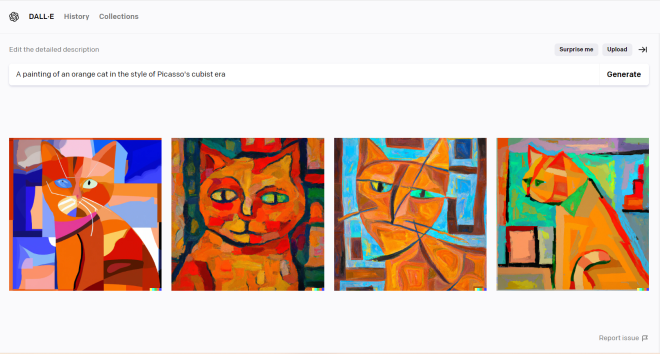
Now, let’s begin with some Bootstrap Jumbotrons!

Bootstrap Jumbotrons

What is a Bootstrap Jumbotron? If you answer anything like a Jumbotron you’d see in sporting arenas, you are sort of right. While Bootstrap Jumbotrons aren’t as gigantic as their sporting arena counterparts, the general idea of both Jumbotrons is the same-to emphasize and call attention to specific content (whether it be a cheering crowd or webpage content).

Now, here’s a little quirk about Bootstrap Jumbotrons-there’s no longer a special class to create them in Bootstrap. See, Jumbotrons were introduced in Bootstrap 3-with their own Bootstrap class-as big padded boxes used to call attention to special webpage content. However, the Jumbotron class was phased out by Bootstrap 5 BUT even with that being said, you can still create Jumbotrons in Bootstrap through a clever combination of <div> tags and special Bootstrap classes. Let’s take a look at the code below to see how we can replicate a Jumbotron in Bootstrap 5:

<!DOCTYPE html>
<link href="https://cdn.jsdelivr.net/npm/bootstrap@5.2.0/dist/css/bootstrap.min.css" rel="stylesheet" integrity="sha384-gH2yIJqKdNHPEq0n4Mqa/HGKIhSkIHeL5AyhkYV8i59U5AR6csBvApHHNl/vI1Bx" crossorigin="anonymous">
<script src="https://cdn.jsdelivr.net/npm/bootstrap@5.2.0/dist/js/bootstrap.bundle.min.js" integrity="sha384-A3rJD856KowSb7dwlZdYEkO39Gagi7vIsF0jrRAoQmDKKtQBHUuLZ9AsSv4jD4Xa" crossorigin="anonymous"></script>
<head>
  <body>
    <div class="mt-4 p-5 bg-light text-black">
      <h1>Michael's photos</h1>
      <p>Photos of me from my phone's camera roll</p>
    </div>
  </body>
</head>
  • The line mt-4 p-5 bg-primary text-white rounded is made up of a combination of several different Bootstrap helper classes, which I’ll cover in future Bootstrap posts.

As you can see, using several Bootstrap helper classes (along with an <h1> and <p> tag), I managed to replicate a Bootstrap Jumbotron. Pretty simple stuff right?

Now that Jumbotrons have been covered, let’s move on to our next topic for today-Bootstrap carousels.

Carousels

No, we’re not going to ride the state fair’s merry-go-round here today (though wouldn’t that be fun). Rather, we’re going to discuss the image carousel, which is a feature used in webpage design that serves as a slideshow (or “carousel”) of images.

How would we implement the carousel in Bootstrap? Pay attention to the highlighted section of code below:

<!DOCTYPE html>
<link href="https://cdn.jsdelivr.net/npm/bootstrap@5.2.0/dist/css/bootstrap.min.css" rel="stylesheet" integrity="sha384-gH2yIJqKdNHPEq0n4Mqa/HGKIhSkIHeL5AyhkYV8i59U5AR6csBvApHHNl/vI1Bx" crossorigin="anonymous">
<script src="https://cdn.jsdelivr.net/npm/bootstrap@5.2.0/dist/js/bootstrap.bundle.min.js" integrity="sha384-A3rJD856KowSb7dwlZdYEkO39Gagi7vIsF0jrRAoQmDKKtQBHUuLZ9AsSv4jD4Xa" crossorigin="anonymous"></script>
<head>
  <body>
    <div class="mt-4 p-5 bg-light text-black">
      <h1>Michael's park photos</h1>
      <p>My favorite parks</p>
    </div>

<div id="demo" class="carousel slide" data-bs-ride="carousel">
  <div class="carousel-indicators">
    <button type="button" data-bs-target="#demo" data-bs-slide-to="0" class="active"></button>
    <button type="button" data-bs-target="#demo" data-bs-slide-to="1"></button>
    <button type="button" data-bs-target="#demo" data-bs-slide-to="2"></button>
<button type="button" data-bs-target="#demo" data-bs-slide-to="3"></button>
  </div>


  <div class="carousel-inner">
    <div class="carousel-item active">
      <img src="bicentennial.jpg" alt="Bicentennial Capitol Mall State Park" class="d-block w-100">
    </div>
    <div class="carousel-item">
      <img src="stafford.jpg" alt="Stafford Park" class="d-block w-100">
    </div>
    <div class="carousel-item">
      <img src="sevier.jpg" alt="Sevier Park" class="d-block w-100">
    </div>
    <div class="carousel-item">
      <img src="veterans.jpg" alt="Veterans Park" class="d-block w-100">
    </div>
  </div>

  <button class="carousel-control-prev" type="button" data-bs-target="#demo" data-bs-slide="prev">
    <span class="carousel-control-prev-icon"></span>
  </button>
  <button class="carousel-control-next" type="button" data-bs-target="#demo" data-bs-slide="next">
    <span class="carousel-control-next-icon"></span>
  </button>
</div>
  </body>
</head>
  • Yes, I did change the Jumbotron message from the previous example, but that’s irrelevant here.

The carousel elements, explained

So, how was I able to create the carousel? First, pay attention to the <div id="demo" class="carousel slide" data-bs-ride="carousel"> line. This line creates the carousel by using the Bootstrap class carousel slide and initializes the carousel with the data-bs-ride="carousel" line; the purpose of including this line is to include the ability to jump from image to image in the carousel.

The four following lines of code create buttons that allow you to jump from image to image on the carousel. Pay attention to this chunk of code-data-bs-slide-to="0", as it’s repeated four times-one for each of the four images I’ve included in this carousel. The only difference in the four instances of this line is that “0” is replaced with “1”, “2”, and “3”, which allow you to naviagate to the second, third, and fourth images in the carousel, respectively. Also, in the line of code to create the first button (the line that contains data-bs-slide-to="0"), you’ll also see a chunk of code that says class="active"-this indicates the carousel’s default image (in other words, the first image you’ll see on the carousel when you open the webpage).

  • Why is the value of the first data-bs-slide-to set to 0 while the value of the last data-bs-slide-to set to 3, even though there are four images in the carousel? This is because, when building a Bootstrap carousel, 0 refers to the first image-thus, 3 would refer to the fourth image. Zero-indexing system at work, much like in Python!

After adding the buttons, you’ll need to add another div class-carousel-inner. This is the fun part of the carousel, as this section of code actually adds your images to the carousel. All images except for the default image must have the class carousel-item, though the default image must have the class carousel-item active; this way, Bootstrap knows which image to display upon a user’s arrival to the webpage.

As for the image source (or src), if you have your images in the same directory as your HTML/CSS code, all you need to do to include the image onto the carousel is write src="[image name].[image extension]". If your images are in a different directory than your HTML/CSS code, you’ll need to include the image’s whole file path in the src parameter.

After including the images, the last thing you’ll need to add to the carousel are the Back and Next buttons, which can be accomplished with the carousel-control-prev and carousel-control-next classes and their corresponding <span> tags. Why do each of these classes need their own <span> tags? All the carousel-control-prev and carousel-control-next classes do is add the functionality to go back and forth in the carousel. However, simply having the functionality to go back and forth isn’t enough on its own-after all, how can you expect the user to navigate back and forth in the carousel if they don’t want to use the tiny rectangular buttons on the bottom of the carousel? That’s where the <span> tags come in, as they link to the aforementioned functionalities to display two icons on the center-left and center-right hand sides of the carousel to allow the user to easily navigate back and forth through the carousel.

  • Honestly, you only need either the small rectangluar buttons or the Back and Next buttons in the carousel-you don’t absolutely need to include both elements. The only reason I did so is to teach you guys the basics of developing a Bootstrap carousel. Also, keep in mind that the differences between the small rectangular buttons and the Back/Next buttons is that the former option will allow you to jump all across the carousel (which can certainly help if you’ve got lots of images) while the latter option will only allow you to naviagate through the carousel one image at a time.

Re-sizing the carousel

Now, as you may have noticed from running the code, the carousel is looking a little big on the display. Let’s fix the sizing and fit the carousel to the screen with a little CSS magic:

html,body{
   height:100%;
}
.carousel,.item,.active{
   height:100%;
 }
.carousel-inner{
    height:100%;
}
  • By the way, this screen shot above is zoomed in at 100%.
  • Remember to save your CSS code in a CSS file and link it to your HTML/Bootstrap code-it would also be ideal to give your CSS file the same name as your corresponding HTML file.

Why would we need to set the height of all carousel elements (along with the larger HTML and body elements) to 100%? Doing so will ensure that all carousel elements fit within the entire screen without cutting off portions of the carousel.

Now, even though I said the carousel can now fit to screen once this CSS code has been added, you’ll notice that the CSS carousel doesn’t quite fit to screen. How do we fix this? Remove the Jumbotron!

Code to remove:

<div class="mt-4 p-5 bg-light text-black">
      <h1>Michael's park photos</h1>
      <p>My favorite parks</p>
</div> 

Now the carousel fits within the screen 100% with no need for scrolling!

Carousel captions

Last but not least, let’s discuss how to add captions to the carousel. Honestly, the carousel looks great so far, but what would really improve it (and in turn, improve the user experience) are captions for each image to give the user an idea of what they’re looking at.

How would we add captions to the carousel? Take a look at the highlighted sections of code below:

<!DOCTYPE html>
<link href="https://cdn.jsdelivr.net/npm/bootstrap@5.2.0/dist/css/bootstrap.min.css" rel="stylesheet" integrity="sha384-gH2yIJqKdNHPEq0n4Mqa/HGKIhSkIHeL5AyhkYV8i59U5AR6csBvApHHNl/vI1Bx" crossorigin="anonymous">
<link rel="stylesheet" href="BootstrapSite.css">
<script src="https://cdn.jsdelivr.net/npm/bootstrap@5.2.0/dist/js/bootstrap.bundle.min.js" integrity="sha384-A3rJD856KowSb7dwlZdYEkO39Gagi7vIsF0jrRAoQmDKKtQBHUuLZ9AsSv4jD4Xa" crossorigin="anonymous"></script>
<head>
  <body>
    <!-- <div class="mt-4 p-5 bg-light text-black">
      <h1>Michael's park photos</h1>
      <p>My favorite parks</p>
    </div> -->


<div id="demo" class="carousel slide" data-bs-ride="carousel">
  <div class="carousel-indicators">
    <button type="button" data-bs-target="#demo" data-bs-slide-to="0" class="active"></button>
    <button type="button" data-bs-target="#demo" data-bs-slide-to="1"></button>
    <button type="button" data-bs-target="#demo" data-bs-slide-to="2"></button>
    <button type="button" data-bs-target="#demo" data-bs-slide-to="3"></button>
  </div>


  <div class="carousel-inner">
    <div class="carousel-item active">
      <img src="bicentennial.jpg" alt="Bicentennial Capitol Mall State Park" class="d-block w-100">
      <div class="carousel-caption">
        <h2>Bicentennial Capitol Mall State Park</h2>
        <p>Nashville, TN</p>
      </div>
    </div>
    <div class="carousel-item">
      <img src="stafford.jpg" alt="Stafford Park" class="d-block w-100">
      <div class="carousel-caption">
        <h2>Stafford Park</h2>
        <p>Miami Springs, FL</p>
      </div>
    </div>
    <div class="carousel-item">
      <img src="sevier.jpg" alt="Sevier Park" class="d-block w-100">
      <div class="carousel-caption">
        <h2>Sevier Park</h2>
        <p>Nashville, TN</p>
      </div>
    </div>
    <div class="carousel-item">
      <img src="veterans.jpg" alt="Veterans Park" class="d-block w-100">
      <div class="carousel-caption">
        <h2>Veterans Park</h2>
        <p>Mentor, OH</p>
      </div>
    </div>
  </div>

  <button class="carousel-control-prev" type="button" data-bs-target="#demo" data-bs-slide="prev">
    <span class="carousel-control-prev-icon"></span>
  </button>
  <button class="carousel-control-next" type="button" data-bs-target="#demo" data-bs-slide="next">
    <span class="carousel-control-next-icon"></span>
  </button>
</div>
  </body>
</head>

The carousel sure is looking much nicer, isn’t it? After all, now the users know exactly what they are looking at. Without the captions, the users would’ve assumed that the four pictures above were of random outdoor spaces.

How did I get the captions on each slide of the carousel? Easy-below the line where you insert the image (the line with the <img> tag), insert another <div> tag and set the class as carousel-caption, which indicates that you’d like to add some captions to a particular slide.

  • As you can see in the above example, I added a <div class="carousel-caption"> line four times. If you’ve got multiple images you’d like to add captions to, you’ll need to add the <div class="carousel-caption"> line for each image.

Inside the <div class="carousel-caption"> tag, you can add the caption by using as many standard HTML tags as you wish (I used the <h2> and <p> tags). Keep in mind that the more HTML tags you use, the more lines the image’s caption will have.

  • If you want to code-along with this tutorial, any four JPG images will work. If you wish to use the images I used, you’ll find the links to download each image below.

Thanks for reading,

Michael

Bootstrap Lesson 3: Images

Hello everybody,

Michael here, and today’s post will cover the use of images in Bootstrap.

Basics of Bootstrap Images

So, how do we work with images in Bootstrap? Honestly, the process is quite similar to working with regular HTML images. Let’s take a look at this code below, which uses one of the tables from my previous Bootstrap lesson:

<!DOCTYPE html>
<link href="https://cdn.jsdelivr.net/npm/bootstrap@5.2.0/dist/css/bootstrap.min.css" rel="stylesheet" integrity="sha384-gH2yIJqKdNHPEq0n4Mqa/HGKIhSkIHeL5AyhkYV8i59U5AR6csBvApHHNl/vI1Bx" crossorigin="anonymous">
<script src="https://cdn.jsdelivr.net/npm/bootstrap@5.2.0/dist/js/bootstrap.bundle.min.js" integrity="sha384-A3rJD856KowSb7dwlZdYEkO39Gagi7vIsF0jrRAoQmDKKtQBHUuLZ9AsSv4jD4Xa" crossorigin="anonymous"></script>
<head>
  <body>
    <h1>Fall 2022 Movies</h1>
    <div class="container">
        <img src="cinema.jpg" class="rounded" alt="Stock photo of a cinema">
    </div>
    <div class="table">
      <table class="table">
        <tr>
          <th>Movie</th>
          <th>Release Date</th>
          <th>Genre</th>
        </tr>
        <tr>
          <td>Don't Worry Darling</td>
          <td>September 23</td>
          <td>Mystery</td>
        </tr>
        <tr>
          <td>Black Panther Wakanda Forever</td>
          <td>November 11</td>
          <td>Superhero</td>
        </tr>
        <tr>
          <td>Halloween Ends</td>
          <td>October 14</td>
          <td>Horror</td>
        </tr>
      </table>
    </div>
  </body>
</head>

Pay attention to the section of code highlighted in red, as that’s the section that adds the image onto the HTML site. In this example, I added a stock photo of a cinema below the Fall 2022 Movies header and above the table.

However, there’s something else that you’ll notice about the image-the corners are rounded. How did I do that? Well, in the image tag I specified a value for classrounded. Bootstrap 5 has seven different image classes you can utilize-rounded, rounded-top, rounded-end, rounded-bottom, rounded-start, rounded-circle and rounded-pill. Now, how do each of these image classes work? Let me explain:

  • rounded-all corners of the image are rounded
  • rounded-top-only the top corners of the image are rounded
  • rounded-end-only the right corners of the image are rounded
  • rounded-bottom-only the bottom corners of the image are rounded
  • rounded-start-only the left corners of the image are rounded
  • rounded-circle-the image turns into a circle
  • rounded-pill-the image turns into an oval
  • You don’t really need to wrap the image inside a <div class="container"> tag, but it helps if you want to center your image.
  • It helps to place your image in the same directory as your HTML code-otherwise, you’ll need to write the full file path in the src parameter.
  • In case you forgot or didn’t know, the alt parameter gives the user a description for an image incase the user can’t view the image itself for whatever reason (e.g. internet is down, the user is visually impaired and uses a screen reader)

Now, let’s see what happens when we give the image a new style-in this case, let’s go with a rounded-pill styling:

<!DOCTYPE html>
<link href="https://cdn.jsdelivr.net/npm/bootstrap@5.2.0/dist/css/bootstrap.min.css" rel="stylesheet" integrity="sha384-gH2yIJqKdNHPEq0n4Mqa/HGKIhSkIHeL5AyhkYV8i59U5AR6csBvApHHNl/vI1Bx" crossorigin="anonymous">
<script src="https://cdn.jsdelivr.net/npm/bootstrap@5.2.0/dist/js/bootstrap.bundle.min.js" integrity="sha384-A3rJD856KowSb7dwlZdYEkO39Gagi7vIsF0jrRAoQmDKKtQBHUuLZ9AsSv4jD4Xa" crossorigin="anonymous"></script>
<head>
  <body>
    <h1>Fall 2022 Movies</h1>
    <div class="container">
        <img src="cinema.jpg" class="rounded-pill" alt="Stock photo of a cinema" height=100 width=300>
    </div>
    <div class="table">
      <table class="table">
        <tr>
          <th>Movie</th>
          <th>Release Date</th>
          <th>Genre</th>
        </tr>
        <tr>
          <td>Don't Worry Darling</td>
          <td>September 23</td>
          <td>Mystery</td>
        </tr>
        <tr>
          <td>Black Panther Wakanda Forever</td>
          <td>November 11</td>
          <td>Superhero</td>
        </tr>
        <tr>
          <td>Halloween Ends</td>
          <td>October 14</td>
          <td>Horror</td>
        </tr>
      </table>
    </div>
  </body>
</head>

In the example above, I gave the image a rounded pill styling to make it look like an oval. As for the size, I added the optional height and width parameters to the oval to change the image’s size.

  • Keep in mind that height and width are both measured in pixels.

Responsive Bootstrap Images

Now, aside from the seven different Bootstrap image classes I mentioned above, there are also two other image stylings in Bootstrap-responsive images and thumbnails.

Responsive images auto-size to match the width of their parent element. Let’s take a look at the code below (paying attention to the highlighted line) to see how responsive images work:

<!DOCTYPE html>
<link href="https://cdn.jsdelivr.net/npm/bootstrap@5.2.0/dist/css/bootstrap.min.css" rel="stylesheet" integrity="sha384-gH2yIJqKdNHPEq0n4Mqa/HGKIhSkIHeL5AyhkYV8i59U5AR6csBvApHHNl/vI1Bx" crossorigin="anonymous">
<script src="https://cdn.jsdelivr.net/npm/bootstrap@5.2.0/dist/js/bootstrap.bundle.min.js" integrity="sha384-A3rJD856KowSb7dwlZdYEkO39Gagi7vIsF0jrRAoQmDKKtQBHUuLZ9AsSv4jD4Xa" crossorigin="anonymous"></script>
<head>
  <body>
    <h1>Fall 2022 Movies</h1>
    <div class="container">
        <img src="cinema.jpg" class="img-fluid" alt="Stock photo of a cinema">
    </div>
    <div class="table">
      <table class="table">
        <tr>
          <th>Movie</th>
          <th>Release Date</th>
          <th>Genre</th>
        </tr>
        <tr>
          <td>Don't Worry Darling</td>
          <td>September 23</td>
          <td>Mystery</td>
        </tr>
        <tr>
          <td>Black Panther Wakanda Forever</td>
          <td>November 11</td>
          <td>Superhero</td>
        </tr>
        <tr>
          <td>Halloween Ends</td>
          <td>October 14</td>
          <td>Horror</td>
        </tr>
      </table>
    </div>

To make the image responsive, I applied the img-fluid Bootstrap image class to the image. Doing so allows the image to match the width of its parent element-in this case, the Fall 2022 Movies header.

  • Look, I know the image doesn’t quite align with the Fall 2022 Movies header, but that’s beacuse I wrapped it inside a <div class="container"> tag, which moves the image away from the edge of the browser.

Thumbnail images

The other Bootstrap image styling I wanted to discuss is thumbnail images. In case you’re wondering what thumbnail images are, go to YouTube and type in anything in the search bar (like I did in the picture below):

The image I circled (along with all other images on this page) is a thumbnail, as it functions as a placeholder/hyperlink for other media-in this case the trailer for Black Panther 2.

How can we create a thumbnail image? It’s really quite simple-take a look at the highlighted line of code in the example below:

<!DOCTYPE html>
<link href="https://cdn.jsdelivr.net/npm/bootstrap@5.2.0/dist/css/bootstrap.min.css" rel="stylesheet" integrity="sha384-gH2yIJqKdNHPEq0n4Mqa/HGKIhSkIHeL5AyhkYV8i59U5AR6csBvApHHNl/vI1Bx" crossorigin="anonymous">
<script src="https://cdn.jsdelivr.net/npm/bootstrap@5.2.0/dist/js/bootstrap.bundle.min.js" integrity="sha384-A3rJD856KowSb7dwlZdYEkO39Gagi7vIsF0jrRAoQmDKKtQBHUuLZ9AsSv4jD4Xa" crossorigin="anonymous"></script>
<head>
  <body>
    <h1>Fall 2022 Movies</h1>
    <div class="container">
        <img src="cinema.jpg" class="img-thumbnail" alt="Stock photo of a cinema">
    </div>
    <div class="table">
      <table class="table">
        <tr>
          <th>Movie</th>
          <th>Release Date</th>
          <th>Genre</th>
        </tr>
        <tr>
          <td>Don't Worry Darling</td>
          <td>September 23</td>
          <td>Mystery</td>
        </tr>
        <tr>
          <td>Black Panther Wakanda Forever</td>
          <td>November 11</td>
          <td>Superhero</td>
        </tr>
        <tr>
          <td>Halloween Ends</td>
          <td>October 14</td>
          <td>Horror</td>
        </tr>
      </table>
    </div>
  </body>
</head>

In this example, all I needed to do to give the image a thumbnail styling is to change the value of the class parameter to img-thumbnail and voila!-your image has a nice 1-pixel-thick rounded border.

  • As you might have noticed, the image kept the same size it had in the responsive images example-this is because applying the thumbnail styling to your image won’t change its previous size.
  • You might have also noticed that the thumbnail images in the YouTube screenshot I shared have no rounded border-the rounded border styling is a Bootstrap thing (many websites don’t use rounded borders for their thumbnail images).

Thanks for reading,

Michael

Bootstrap Lesson 2: Typography and Tables

Hello everybody,

Michael here, and today’s lesson will cover typography and tables in Bootstrap.

Bootstrap typography

Now, before I show you how to work with tables in Bootstrap, let’s first discuss Bootstrap typography, because it works a little different than your standard HTML/CSS typography.

Take a look at the font used on our first Bootstrap website (from the previous lesson):

Bootstrap uses a default Arial-like size-14 pixel font, as seen in the photo above. However, the size-14 pixel font is just a framework-wide default, as it’s applied to any element inside a <body> or <p> tag. The six main HTML headings <h1><h6> utilize the same Arial-like font, however the text sizes for each main HTML heading are as follows:

  • <h1>-size-36
  • <h2>-size-30
  • <h3>-size-24
  • <h4>-size-18
  • <h5>-size-14
  • <h6>-size-12

And if you don’t like the default Bootstrap typography, you can always change it with a little CSS, as shown below:

h1{
  font-family: "Times New Roman";
  font-size: 40px;
  color: "red"
}

And remember to link your CSS file to your HTML file (see line highlighted in red):

<!DOCTYPE html>
<link href="https://cdn.jsdelivr.net/npm/bootstrap@5.2.0/dist/css/bootstrap.min.css" rel="stylesheet" integrity="sha384-gH2yIJqKdNHPEq0n4Mqa/HGKIhSkIHeL5AyhkYV8i59U5AR6csBvApHHNl/vI1Bx" crossorigin="anonymous">
<link rel="stylesheet" href="BootstrapSite.css">
<script src="https://cdn.jsdelivr.net/npm/bootstrap@5.2.0/dist/js/bootstrap.bundle.min.js" integrity="sha384-A3rJD856KowSb7dwlZdYEkO39Gagi7vIsF0jrRAoQmDKKtQBHUuLZ9AsSv4jD4Xa" crossorigin="anonymous"></script>
<head>
  <body>
    <h1>Here's your first Bootstrap site!!!</h1>
  </body>
</head>
  • To make things easier on yourself, give your CSS file the same name as your corresponding HTML file. For instance, since I named my HTML file BootstrapSite.html, I named my connected CSS file BootstrapSite.css.

And here’s the site with the changed font:

Tables

Now that we’ve discussed Bootstrap typography, let’s move on to Bootstrap tables. How do you create a table in Bootstrap? Take a look at the code below, which shows you an HTML table without any Bootstrap:

<!DOCTYPE html>
<link href="https://cdn.jsdelivr.net/npm/bootstrap@5.2.0/dist/css/bootstrap.min.css" rel="stylesheet" integrity="sha384-gH2yIJqKdNHPEq0n4Mqa/HGKIhSkIHeL5AyhkYV8i59U5AR6csBvApHHNl/vI1Bx" crossorigin="anonymous">
<link rel="stylesheet" href="BootstrapSite.css">
<script src="https://cdn.jsdelivr.net/npm/bootstrap@5.2.0/dist/js/bootstrap.bundle.min.js" integrity="sha384-A3rJD856KowSb7dwlZdYEkO39Gagi7vIsF0jrRAoQmDKKtQBHUuLZ9AsSv4jD4Xa" crossorigin="anonymous"></script>
<head>
  <body>
    <table>
      <tr>
        <th>Movie</th>
        <th>Release Date</th>
        <th>Genre</th>
      </tr>
      <tr>
        <td>Don't Worry Darling</td>
        <td>September 23</td>
        <td>Mystery</td>
      </tr>
      <tr>
        <td>Black Panther Wakanda Forever</td>
        <td>November 11</td>
        <td>Superhero</td>
      </tr>
      <tr>
        <td>Halloween Ends</td>
        <td>October 14</td>
        <td>Horror</td>
      </tr>
    </table>
  </body>
</head>

As you can see, I have created a simple table in HTML, but with no Bootstrap applied. As a result, the table displays just fine, but doesn’t look all that great. How can we fix this? Apply a little Bootstrap, of course (hey, this is a Bootstrap lesson after all)! Pay attention to the highlighted lines of code to see how you can apply a little Bootstrap magic to your HTML table (note-there is no CSS code attached here):

<!DOCTYPE html>
<link href="https://cdn.jsdelivr.net/npm/bootstrap@5.2.0/dist/css/bootstrap.min.css" rel="stylesheet" integrity="sha384-gH2yIJqKdNHPEq0n4Mqa/HGKIhSkIHeL5AyhkYV8i59U5AR6csBvApHHNl/vI1Bx" crossorigin="anonymous">
<script src="https://cdn.jsdelivr.net/npm/bootstrap@5.2.0/dist/js/bootstrap.bundle.min.js" integrity="sha384-A3rJD856KowSb7dwlZdYEkO39Gagi7vIsF0jrRAoQmDKKtQBHUuLZ9AsSv4jD4Xa" crossorigin="anonymous"></script>
<head>
  <body>
    <h1>Fall 2022 Movies</h1>
    <div class="table">
      <table class="table">
        <tr>
          <th>Movie</th>
          <th>Release Date</th>
          <th>Genre</th>
        </tr>
        <tr>
          <td>Don't Worry Darling</td>
          <td>September 23</td>
          <td>Mystery</td>
        </tr>
        <tr>
          <td>Black Panther Wakanda Forever</td>
          <td>November 11</td>
          <td>Superhero</td>
        </tr>
        <tr>
          <td>Halloween Ends</td>
          <td>October 14</td>
          <td>Horror</td>
        </tr>
      </table>
    </div>
  </body>
</head>

In order to apply Bootstrap stylings to my HTML table, I wrapped the code for my HTML table inside a <div> tag and specified which one of Bootstrap’s table stylings I’d like to apply-in this case, I chose the basic table styling table and specified the styling in the line <div class="table">.

Oh, but here’s the fun part about Bootstrap table stylings! Bootstrap has 7 different ways you can style your table, six of which include:

  • table-Just a plain Bootstrap table (like the example above)
  • table-striped-Gives the table “zebra stripes” (alternating grey and white rows)
  • table-bordered-Adds a border around all sides of the table and around all cells
  • table-hover-Any rows that you hover over turn grey
  • table-condensed-Makes a table more compact by reducing cell padding by half
  • table-responsive-Allows you to scroll through the table horizontally on small devices (anything less than 768 pixels wide); for devices wider than 768 pixels, there is no difference in how the table is displayed

To give your HTML table any of these stylings, wrap the HTML table code inside a <div> tag and use this syntax to apply the Bootstrap styling-<div class="Bootstrap table styling">.

Now, notice how I said you can choose seven different Bootstrap table stylings for your HTML table, but I only mentioned six stylings above. That’s because the seventh styling doesn’t involve wrapping your HTML table code in a <div> tag. Rather, the seventh styling comes in the form of contextual classes, which are table stylings that you can apply to individual table rows (<tr> tag) or table cells (<td> tag).

Let’s see how the contextual classes work:

<!DOCTYPE html>
<html lang="en">
<head>
  <title>Bootstrap Example</title>
  <meta charset="utf-8">

  <link rel="stylesheet" href="https://maxcdn.bootstrapcdn.com/bootstrap/3.4.1/css/bootstrap.min.css">

</head>
<body>

<div class="container">
  <h1>2021 AFC Standings</h1>
  <table class="table">
    <thead>
      <tr>
        <th>Team</th>
        <th>Record</th>
        <th>Seeding</th>
      </tr>
    </thead>
    <tbody>
      <tr class="success">
        <td>Tennessee Titans</td>
        <td>12-5</td>
        <td>1</td>
      </tr>
      <tr class="success">
        <td>Kansas City Chiefs</td>
        <td>12-5</td>
        <td>2</td>
      </tr>
      <tr class="success">
        <td>Buffalo Bills</td>
        <td>11-6</td>
        <td>3</td>
      </tr>
      <tr class="success">
        <td>Cincinnati Bengals</td>
        <td>10-7</td>
        <td>4</td>
      </tr>
      <tr class="warning">
        <td>Las Vegas Raider</td>
        <td>10-7</td>
        <td>5</td>
      </tr>
      <tr class="warning">
        <td>New England Patriots</td>
        <td>10-7</td>
        <td>6</td>
      </tr>
      <tr class="warning">
        <td>Pittsburgh Steelers</td>
        <td>9-7-1</td>
        <td>7</td>
      </tr>
      <tr class="danger">
        <td>Indianapolis Colts</td>
        <td>9-8</td>
        <td>8</td>
      </tr>
      <tr class="danger">
        <td>Miami Dolphins</td>
        <td>9-8</td>
        <td>9</td>
      </tr>
      <tr class="danger">
        <td>Los Angeles Chargers</td>
        <td>9-8</td>
        <td>10</td>
      </tr>
      <tr class="danger">
        <td>Cleveland Browns</td>
        <td>8-9</td>
        <td>11</td>
      </tr>
      <tr class="danger">
        <td>Baltimore Ravens</td>
        <td>8-9</td>
        <td>12</td>
      </tr>
      <tr class="danger">
        <td>Denver Broncos</td>
        <td>7-10</td>
        <td>13</td>
      </tr>
      <tr class="danger">
        <td>New York Jets</td>
        <td>4-13</td>
        <td>14</td>
      </tr>
      <tr class="danger">
        <td>Houston Texans</td>
        <td>4-13</td>
        <td>15</td>
      </tr>
      <tr class="danger">
        <td>Jacksonville Jaguars</td>
        <td>3-14</td>
        <td>16</td>
      </tr>
    </tbody>
  </table>
</div>

</body>
</html>

As you can see, we have created a colorful table showing 2021 NFL AFC (American Football Conference for those unaware) standings for all 16 AFC teams using Bootstrap’s contextual table classes. How did we accomplish this?

In this example, I used the success class for the top 4 rows, which indicates the four AFC teams that won their divisions last year. To apply the success class styling to the first four rows of this table, I used the line <tr class="success"> before the table row code for each of these rows. I then applied the same logic to style the rows for the wildcard teams (seeds 5-7) and the teams that didn’t make playoffs last year (seeds 8-16), except I replaced the success class with the warning and danger classes, respectively.

  • Another thing I’d like to note-I’ve used Atom text editor for my HTML, CSS and Bootstrap lessons, however Atom text editor will be retired by GitHub on December 15, 2022. You’ll likely still be able to download it after that date, but it won’t be updated anymore. If you’re looking for a new IDE for your web development, Sublime Text Editor and Microsoft’s Visual Studio Code are great text editors.

Thanks for reading!

Michael