OCR Scenario 5: Tesseract Translation

Hello readers!

Michael here, and in this post, I had one more Tesseract scenario I wanted to try-this one involving Tesseract translation and seeing how well Tesseract text in other languages can be translated to English. Let’s dive right in, shall we?

Let’s get stuff set up!

Before we dive into the juicy Tesseract translations, let’s first get our packages installed and modules imported on the IDE:

!pip install pytesseract
!pip install googletrans
import pytesseract
import numpy as np
from PIL import Image
from googletrans import Translator

Now, unlike our previous Tesseract scenarios, we’ll need to pip install an additional package this time-googletrans (pip install googletrans), which is an open-source library that connects to Google Translate’s API. Why is this package necessary? While Tesseract certainly has its capabilities when it comes to reading text from standard-font images (recall how Tesseract couldn’t quite grasp the text in OCR Scenario 2: How Well Can Tesseract Read Photos?, OCR Scenario 3: How Well Can Tesseract Read Documents? and OCR Scenario 4: How Well Can Tesseract Read My Handwriting?), one thing Tesseract cannot do is translate text from one language to another. Granted, it can read the text just fine, but googletrans will actually help us translate the text from one language to another. In this post, I’ll test the abilities of Tesseract in conjunction with googletrans to see not only how well Tesseract can read foreign language but also how well googletrans can translate the foreign text. I’ll test the Tesseract/googletrans conjunction with three different images in the following languages-Spanish, French, and German-and see how each image’s text is translated to English.

Leyendo el texto en Español (reading the Spanish text)

In our first Tesseract translation, we’ll attempt to read the text from and translate the following phrase from Spanish to English:

This phrase simply reads Tomorrow is Friday in English, but let’s see if our Tesseract/googletrans combination can pick up on the English translation.

First, we get the text that Tesseract read from the image:

testImage = 'spanish text.png'
testImageNP = np.array(Image.open(testImage))
testImageTEXT = pytesseract.image_to_string(testImageNP)
print(testImageTEXT)

Manana es
viernes

Next, we run a googletrans translation and translate the text from Spanish to English:

translator = Translator()
translation = await translator.translate(testImageTEXT, src='es', dest='en')
print(translation.text)

Tomorrow is
friday

As you can see, the googletrans Translator object worked its magic here with the translator method which takes three parameters-the text extracted from Tesseract, the text’s original language (Spanish or es) and the language that you want to use for text translation (English or en). The translated text is correct-the image’s text did read Tomorrow is friday in English. Personally, I’m amazed it managed to get the correct translation even though Tesseract didn’t pick up the enye (~) symbol when it read the text.

Now, you may be wondering why I added the await keyword in front of the translator.translate() method call-and here’s where I’ll introduce a new Python concept. See, the translator.translate() function is what’s known as an asynchronous function, which returns a coroutine object so that while the Google Translate API is being called and the translation is taking place, subsequent code in the program can be executed. Since the translator.translate() method is asynchronous, calling translation.text won’t return the translated text as the API request is still being made. Instead, this call will return an error, so to get around this, we’ll need to add the await keyword in front of translator.translate() before calling translator.text to be able to retrieve the translated text. The await keyword will make the program await the completion of the translation request from the Google Translate API before subsequent code is executed.

Auto-detection…how might that work?

Granted the googletrans package did a good job of translating the text above from Spanish to English, but I want to see if the translator.translate() method can auto-detect the fact that the text is in Spanish and translate it to English:

translator = Translator()
translation = await translator.translate(testImageTEXT, dest='en')
print(translation.text)

Tomorrow is
friday

In this example, I only specified that I want to translate the text to English without mentioning that the original text is in Spanish. Despite the small change, I still get the same desired translation-Tomorrow is friday.

  • I’ve noticed that when I use Google Translate, it can sometimes do a good job of auto-detecting the text’s language (though like any AI translation tool, it can also mis-detect the source language at times)

Traduisons ce texte français (Let’s translate this French text)

For my next scenario, we’re going to see how well the Tesseract/googletrans conjuction can translate the following French text:

Just as we did with the Spanish text image, let’s first read the text using Tesseract:

testImage = 'french text.png'
testImageNP = np.array(Image.open(testImage))
testImageTEXT = pytesseract.image_to_string(testImageNP)
print(testImageTEXT)

Joyeux
anniversaire a tol

OK, so a small misreading here (tol instead of the French pronoun toi), but pretty accurate otherwise. Perhaps Tesseract thought the lowercase i in toi was a lowercase l? Let’s see how this affects the French-to-English translation:

translator = Translator()
translation = await translator.translate(testImageTEXT, src='fr', dest='en')
print(translation.text)

Happy
birthday to you

Interestingly, even with the slight Tesseract misread of the French text, we still got the correct English translation of Happy birthday to you.

Deutsche TextĂ¼bersetzung (German text translation)

Last but not least, we’ll see the Tesseract/googletrans conjuction’s capabilities on German-to-English text translation. Here’s the German text we’ll try to translate to English:

Now just as we did with the Spanish text and French text images, let’s first extract the German text from this image with Tesseract:

testImage = 'german text.png'
testImageNP = np.array(Image.open(testImage))
testImageTEXT = pytesseract.image_to_string(testImageNP)
print(testImageTEXT)

Ich liebe
Programmieren
wirklich.

Let’s see what the resulting English translation is!

translator = Translator()
translation = await translator.translate(testImageTEXT, src='de', dest='en')
print(translation.text)

I love
Programming
really.

OK, so the actual phrase I put into Google translate was I really love programming and the German translation was Ich liebe Programmieren wirklich. Fair enough, right? However, the German-to-English translation of this phrase read I love programming really. How is this possible?

The translation quirk is possible because of the adverb in this case-wirklich (German for really). See, unlike English adverbs, German adverbs tend to be more flexible with where they’re placed in a sentence. So in English, “I love programming really” doesn’t sound too grammatically correct but in German, “Ich liebe Programmieren wirklich”-which places the adverb “really” after the thing it’s emphasizing “love programming”-is a more common way to use adverbs, as German adverbs tend to commonly be placed after the thing they’re emphasizing. And that is my linguistic fun fact for this post!

The Colab notebook can be found in my GitHub at this link-https://github.com/mfletcher2021/blogcode/blob/main/Tesseract_Translation.ipynb

Thanks for reading,

Michael

And Now For Michael’s Programming Bytes 2025-26 NBA Season Predictions

Hello everybody,

Michael here, and in today’s post we will discuss what I think is the fun part about this NBA post prediction series-the predictions themselves.

That’s right, now that we have our model, let’s make some predictions for the season!

Now where did we leave off?

Before we get into the juicy NBA season predictions, let’s first revisit where we left off on the previous post Another Crack At Linear Regression NBA Machine Learning Predictions (2025-26 edition):

Towards the end of the previous post, we generated this equation to assist us in generating our linear regression NBA season predictions for this year. To recap what the equation means:

  • 64.8 * (field goal %)
  • PLUS 113 * (3-point %)
  • PLUS 15.4 * (2-point %)
  • MINUS 1.94 * (seeding at end of season)
  • PLUS 0.011 * (total rebounds)
  • MINUS 0.00346 * (total assists)
  • PLUS 0.0215 * (total steals)
  • PLUS 0.00663 * (total blocks)
  • MINUS 0.0097 * (total turnovers)
  • MINUS 60.38 (the intercept)

That’s quite a mouthful, but I’ll show you the Python calculations we’ll be doing in order to generate those juicy predictions!

  • I’ll admit that even I’m not perfect with my blogs here, as I made a small mistake on the previous post that showed part of the equations as 215 * (total steals) rather than 0.0215 * (total steals). As it turns out, even experienced coders like me make oversights, so apologies for that!

A little disclaimer here

Before we dive in to our predictions, I want to clarify that these are simply win total/conference seeding predictions based off of a simple linear regression model configured by me. I personally wouldn’t use these predictions for any bets or parlays because first and foremost, I am your friendly neighborhood coding blogger, not your friendly neighborhood sportsbook. You can count on me for juicy, way-too-early predictions, but certainly not for any juicy over/unders.

If you do bet on NBA games this season, please do so responsibly! Thank you!

The way of the weighted averages

You may recall that for my post on last NBA season’s predictions, we used weighted averages to help generate the predictions. Since I personally liked that method, I’ll do so again.

Here’s the file with the weighted averages, which we’ll be using to calculate the predictions:

We’ll use the same methodology as we did last year for calculating the weighted averages, which went like this:

  • 2022-23 to 2024-25 (last 3 seasons)-0.2 weight (higher weight for the three most recent seasons)
  • 2019-20 to 2021-22 (three seasons prior to that)-0.1 (less weight for seasons further in the past, plus this timespan does include the two COVID shortened seasons)
  • 2015-16 to 2018-19 (four seasons further back)-0.025 (even less weight for these seasons further in the past)

Now here’s the weighted averages file for all 30 teams:

So, without further ado, let’s predict some win totals!

import pandas as pd

NBAAVG = pd.read_csv(r'C:\Users\mof39\OneDrive\Documents\weighted averages 2025-26.csv')

for n in NBAAVG['Team']:
    print(64.8*NBAAVG['FG%'] + 113*NBAAVG['3P%'] + 15.4*NBAAVG['2P%'] - 1.94*NBAAVG['Finish'] + 0.011*NBAAVG['TRB'] - 0.00346*NBAAVG['AST'] + 0.0215*NBAAVG['STL'] + 0.00663*NBAAVG['BLK'] - 0.0097*NBAAVG['TOV'] - 60.38)
    break

0     40.21900 (Atlanta Hawks)
1     52.98400 (Boston Celtics)
2     37.83554 (Brooklyn Nets)
3     34.54740 (Charlotte Hornets)
4     40.36300 (Chicago Bulls)
5     50.23470 (Cleveland Cavaliers)
6     43.38590 (Dallas Mavericks)
7     50.17750 (Denver Nuggets)
8     33.35420 (Detroit Pistons)
9     45.65995 (Golden State Warriors)
10    41.07520 (Houston Rockets)
11    45.93936 (Indiana Pacers)
12    51.35416 (LA Clippers)
13    45.88495 (LA Lakers)
14    47.79176 (Memphis Grizzlies)
15    41.26986 (Miami Heat)
16    48.55712 (Milwaukee Bucks)
17    47.12266 (Minnesota Timberwolves)
18    40.65833 (New Orleans Pelicans)
19    47.90818 (NY Knicks)
20    58.57943 (Oklahoma City Thunder)
21    41.25042 (Orlando Magic)
22    43.73122 (Philadelphia 76ers)
23    45.39194 (Phoenix Suns)
24    39.99757 (Portland Trail Blazers)
25    43.89877 (Sacramento Kings)
26    39.38897 (San Antonio Spurs)
27    39.13594 (Toronto Raptors)
28    40.82412 (Utah Jazz)
29    36.85122 (Washington Wizards)

Once I read the weighted averages CSV and ran the equation for all 30 teams, I get the predicted win totals for all 30 teams, which I will use for my way-too-early East/West seeding chart. Note that since the team names aren’t shown in the output, I took the liberty of manually adding each team name by each predicted win total so you know your favorite team’s projected win total (according to my model, of course).

One interesting difference between this year’s projected win totals and last year’s is the narrower range of possible win totals in this year’s model. See, the range of possible win totals in last year’s model was 24-54 wins, while the range of possible win totals in this year’s model is just 33-59 wins. Could the narrower possible win total range be due to the different features I used in this year’s model? It’ll be interesting to see how the season plays out.

Another interesting thing to note is that even though there is a narrower range of potential wins in this year’s model, the majority of teams’ win counts last season fell into this range-20 teams won between 33 and 59 games last season (Knicks, Pacers, Bucks, Pistons, Magic, Hawks, Bulls, Heat, Rockets, Lakers, Nuggets, Clippers, Timberwolves, Warriors, Grizzlies, Kings, Mavericks, Suns, TrailBlazers and Spurs).

How will the win counts look this time around? We’ll see as the season unfolds!

Michael’s Way-Too-Early Conference Seeding:

And now, for the stuff I really wanted to share with you all in this post: Michael’s Way-Too-Early Conference Seeding. Now that we’ve got our projected win totals for each team, it’s time to seed them in their projected spots! But that’s not all I’m going to do!

In addition to the model’s projected seedings, I’ll also give you my own personal seedings for all 30 teams. That’s right-this year, I want to see which set of predictions comes out more accurate-my predications or my model’s predictions. This will be fun to revisit next July once the season wraps up!

Eastern Conference predictions

To begin, let’s start with the model’s Eastern Conference predictions:

Play-OffsPlay-InsMaybe Next Year
1. Boston Celtics7. Miami Heat11. Toronto Raptors
2. Cleveland Cavaliers8. Orlando Magic12. Brooklyn Nets
3. Milwaukee Bucks9. Chicago Bulls13. Washington Wizards
4. New York Knicks10. Atlanta Hawks14. Charlotte Hornets
5. Indiana Pacers15. Detroit Pistons
6. Philadelphia 76ers

And now, let’s see my personal Eastern Conference predictions:

Play-OffsPlay-InsMaybe Next Year
1. New York Knicks7. Orlando Magic11. Toronto Raptors
2. Cleveland Cavaliers8. Milwaukee Bucks12. Philadelphia 76ers
3. Boston Celtics9. Atlanta Hawks13. Brooklyn Nets
4. Detroit Pistons10. Chicago Bulls14. Charlotte Hornets
5. Miami Heat15. Washington Wizards
6. Indiana Pacers

Here are some interesting observations about both the model’s predictions and my own personal predictions:

  • The Eastern Conference teams that made last season’s play-in (Heat, Hawks, Bulls, Magic) are the same ones projected to make another go at play-ins this year. In other words, could we see the same teams stuck in another year of play-ins?
  • Personally, I think the Hawks, Bulls and Magic will make another trip to the play-in. On the other hand, I think the Heat will eke out a 5 (maybe 6) seed in the East because of some great new acquisitions like small forward Simone Fontecchio and shooting guard Norman Powell.
  • I honestly don’t know why the model hates the Detroit Pistons, as it placed them at the bottom of the East once more. I ranked them as a possible 4-seed because after their improvement last year (44-38 from a dismal 14-68 in 2023-24), I feel they could be quite the playoff contender-and it was certainly nice to see 2021 1st Overall Pick Cade Cunningham finally develop into a star-quality player. The acquisition of the former Heat small forward Duncan Robinson should be exciting to see.
  • This might sound like a hot take here, but I don’t think the Sixers will even qualify for play-in, let alone playoffs given the plethora of issues they had last season. Least of all, Paul George and Joel Embiid-two of the biggest Sixers names-weren’t at the top of their game last season when they were healthy (and both of them missed significant time due to injuries).
  • Unlike my model, I think the Knicks could really take the top spot in the East this season. Despite falling just short of the 2025 NBA Finals, the Knicks showed they can certainly make a deep playoff run with talent such as Jalen Brunson (winner of the Clutch Player of the Year award), OG Anunoby and their acquisition of Karl-Anthony Towns from the Timberwolves during the 2024 offseason.
  • With two of the biggest names in the East-Jayson Tatum and Tyrese Haliburton-out for most if not all of this season due to Achilles injuries they got during last season’s playoffs, I think the East is wide open. Granted, I still think the Pacers and Celtics have a good chance at making the playoffs this year, but I don’t think either of them is a shoo-in for the top spot in the East, which in my opinion leaves the East playoff race wide open for another team to take the top spot (which as I said earlier, I think it could be the Knicks’ year to do just that). Also, I still think the Celtics could realistically clinch the 3-seed in the East despite the offseason departures of Jrue Holiday, Kristaps Porzingis, Al Horford and Luke Kornet, who were all key players in the Celtics 2024 Championship run.

Western Conference predictions:

First, let’s start with how the model think the Western Conference standings will play out this season:

Play-OffsPlay-InsMaybe Next Year
1. Oklahoma City Thunder7. Golden State Warriors11. Houston Rockets
2. LA Clippers8. Phoenix Suns12. Utah Jazz
3. Denver Nuggets9. Sacramento Kings13. New Orleans Pelicans
4. Memphis Grizzlies10. Dallas Mavericks14. Portland Trail Blazers
5. Minnesota Timberwolves15. San Antonio Spurs
6. LA Lakers

Just as with the model’s Eastern Conference predictions, I certainly have disagreements with the Western Conference predictions. Here’s how I think the Western Conference standings will play out this season:

Play-OffsPlay-InsMaybe Next Year
1. Oklahoma City Thunder7. Golden State Warriors11. Dallas Mavericks
2. Houston Rockets8. LA Clippers12. Memphis Grizzlies
3. Minnesota Timberwolves9. Sacramento Kings13. Utah Jazz
4. Denver Nuggets10. San Antonio Spurs14. Portland Trail Blazers
5. Houston Rockets15. New Orleans Pelicans
6. LA Lakers

As I did with my Eastern Conference predictions, here are some interesting observations between the model’s projected conference standings and my personal projected conference standings:

  • I’m sure the question on every NBA fan’s mind-including mine-is “Can the Oklahoma City Thunder pull off another championship?”. My guess-I think of all the champions we’ve seen in the 2020s alone, I think they’ve got the best shot at a repeat title. Why might that be? One big reason that could happen-the Thunder kept their core Big 3 (SGA, Chet Holmgren, and Jaylin Williams) around along with several other key players from the championship run such as Isaiah Hartenstein, Lu Dort, among others. Personally, I think that NBA teams would be wise not to go full rebuild-mode after winning their first championship, and it seems the Thunder have done just that (they only traded second-year small forward Dillon Jones, who played limited minutes in OKC’s championship run). Even if the Thunder don’t end up repeating as champions, I think, at the very least, the 1-seed in the West could be theirs for the taking once more.
  • Another interesting Western Conference storyline to watch would be whether Cooper Flagg (the 2025 #1 overall pick) becomes the next Luka Doncic for the Mavericks. After Doncic got traded for Anthony Davis during last year’s midseason trades, it’s safe to say the Mavericks’ season went south. A controversial trade and injuries to many key players-Anthony Davis (after the trade) and Kyrie Irving being the two most notable examples-didn’t help matters. Then again, having such an injury-struck roster to the point where the Mavericks nearly (but thankfully didn’t) have to forfeit games only added to their problems last season after the infamous Doncic-Davis trade. The drafting of 6’9″, 18-year-old forward Cooper Flagg could bring a spark to the struggling Mavericks (and from watching some of his highlights, I think Flagg has potential), but I think Flagg will need at least a year to gel with the Mavericks before they once again become Western Conference contenders.
  • Just as I was surprised that my model placed the Detroit Pistons at the bottom of the Eastern Conference given their improvements last season, I can say I’m just as surprised that the San Antonio Spurs were placed at the bottom of the Western Conference. Granted, they haven’t made the playoffs since 2019 and just went through a coaching change (Popovich stepped down and Mitch Johnson was named as head coach after serving as interim last season), but they did also improve their record from 22-60 in ’23-’24 to 34-48 last season. The Spurs also have their own solid Big 3 in De’Aaron Fox, Stephon Castle, and of course 2023 #1 overall pick Victor Wembanyama. Even though Wemby’s season was cut short last year due to deep vein thrombosis (a type of blood clot), his improved shooting and double-doubles could certainly help the Spurs once he’s fully recovered.
  • How might the Golden State Warriors do with their 35-and-over Big 3 (Jimmy Butler is 36, Draymond Green is 35, and Steph Curry is 37)? Given that they earned their playoff spot last season through play-ins, I’ve got a hunch that the Warriors might be seeing the play-ins once more-but will likely get a playoff spot in this manner. Yes, they had quite the herky-jerky trajectory last season, but the midseason acquisition of Jimmy Butler certainly gave them an extra spark down the regular season stretch-Butler’s basketball skills certainly paired well with guys like Steph and Draymond. Upsetting the 2-seeded Houston Rockets in the Western Conference quarterfinals last season certainly helps the Warriors’ momentum heading into this season, but I do wonder how the loss of their championship-winning forward Kevon Looney would affect the Warriors dynamic.
  • I know I said that I think the Thunder have a great chance to repeat as champions, but I also wonder if the Timberwolves would be a team to look out for in the 2026 postseason. After all, despite losing franchise mainstay Karl-Anthony Towns to the Knicks in the 2024 offseason, the Timberwolves adapted quite well as stars like Anthony Edwards and Naz Reid rose to the challenge by helping the team get to the Western Conference finals for the second year in a row (even though they got knocked out at the Western Conference finals for the second year in a row too). All in all, in terms of every NBA trade ever made, I think the Karl-Anthony towns trade-along with the players the Timberwolves got in exchange (Julius Randle and Donte DiVincenzo)-was one of the most even trades for both teams involved, as both the Knicks and Timberwolves made it to their respective conference finals.
  • Just as with my play-in predictions for the Eastern conference, at least three of the four projected play-in teams (according to the model) for the Western Conference made the play-ins last season-the Mavericks, Warriors, and Kings. I think the Warriors have the best shot at cracking the actual playoffs while the Mavericks could use another year for Cooper Flagg to develop (plus buy some time to get stars like Kyrie Irving back). It will be interesting to see how the Sacramento Kings fare because even though Domantis Sabonis, Zack LaVine and DeMar DeRozan fared well despite the disappointing finish, the talent around them could use some improvement. Perhaps the addition of Russell Westbrook (who’s in his 18th year in the NBA) could spice up the Kings’ offense, as he certainly showed he still had the athleticism and speed needed for basketball last season with the Denver Nuggets.

And now for something a little scandalous…

Boy oh boy this is certainly going to be the most interesting (or at least the most interestingly-timed) post I’ve written during this blog’s run. Why might that be?

Well, last Thursday (October 23, 2025) news broke that the FBI (US Federal Bureau of Investigation) had arrested 34 people for a pair of scandals that certainly rocked pro basketball-one involving colluding with Italian Mafia families (specifically the Gambino, Bonnano and Genovese crime families) to conduct a series of rigged poker games and another involved colluding to rig sports betting.

Here’s the wildest part though-among the 34 arrested were the current head coach of the Portland Trail Blazers (Chauncey Billups), a current Miami Heat star (Terry Rozier), and a former Cavaliers player (Damon Jones). Billups and Rozier were placed on leave by their respective teams.

Want to know some other juicy, scandalous details? Here are a few takeaways from the indictments:

  • Chauncey Billups was allegedly used by these Mafia families to lure in victims to the rigged poker games in order to make the poker games appear legitimate.
  • How the poker games were rigged is possibly the wildest part, with everything that was alleged to have happened sounding like it could’ve come from a James Bond movie. Among the methods used to rig these poker games were X-Ray tables that allowed these Mafia families to see opponents’ hands and rigged shuffling machines that could be used to predict what opponents’ hands would look like.
  • As for Rozier, the game that led to him being investigated was a March 23, 2023 game while Rozier was still with the Charlotte Hornets. In this game, Rozier left the game early due to a “foot injury”-which wasn’t true as Rozier conspired with a longtime friend of his that he planned to fake the “foot injury” in order to net this friend over $200,000 on his “under” statistics (that Rozier would underperform in the game in other words).
  • As for Damon Jones, he sold insider information to his co-conspirators during the 2022-23 season while working for the Lakers. The information concerned insider tips on lineup decisions and injury reports on star Lakers players; the co-conspirators were able to place significant wagers on their bets with this information. It was later revealed that one of the players whose injury report was leaked was LeBron James, who hasn’t been implicated in any wrongdoing.

All in all, it will be interesting to see how this scandal plays out-especially to see if anyone else get busted as part of this massive gambling ring. Here’s an October 23, 2025 release from the US DOJ (Department of Justice) describing the basics of the gambling ring (keep in mind that anyone involved is presumed innocent until proven guilty)-https://www.justice.gov/usao-edny/pr/current-and-former-national-basketball-association-players-and-four-other-individuals.

Here’s a snippet of a conference from FBI Director Kash Patel on October 23, 2025 regarding the charges-https://www.youtube.com/shorts/4F4_JMGVJXw.

All I will say is that it will be very very interesting to see not only how the rest of the NBA season plays out but also to see how commissioner Adam Silver will change league gambling policy-especially when it comes to players and coaching staff. Assuming other players and/or coaching staff get busted in the gambling ring (which could happen) the trials will be interesting-mostly because we’ll get to see who will snitch on who to get a sweet plea deal. Maybe there will be some RICO charges in the mix-which given what occurred, isn’t a stretch to think.

Anyway, thanks for reading as always, and enjoy the juicy action of the 2025-26 NBA season! The season is still young, so it’s anyone’s game!

Michael

Another Crack At Linear Regression NBA Machine Learning Predictions (2025-26 edition)

Hi everybody,

Michael here, and in today’s post, I thought I’d try something a little familiar. You may recall that last October, I released a pair of posts (Python, Linear Regression & An NBA Season Opening Day Special Post and Python, Linear Regression & the 2024-25 NBA season) attempting to predict each NBA team’s win total and conference seeding based off of their performance from the previous 10 seasons.

All in all, after seeing how the season played out-I managed to get only 3/30 teams in the correct seeding. So what would I do here?

I’ll give my ML NBA machine learning predictions another go, also using data from the previous 10 seasons (2015-16 to 2024-25). You may be wondering why I’m trying to predict the outcomes of the upcoming NBA season once more given how off last year’s predictions were-the reason I’m giving the whole “Michael’s NBA crystal ball” thing another go is because I’m not only interested in how my predictions change from one season to the next but also because I plan to use a slightly different model than I did last year (it’ll still be good old linear regression, however) so I can analyze how different factors might play a role in a team’s record and ultimately their conference seeding.

So, without further ado, let’s jump right in to Michael’s Linear Regression NBA Season Predictions II!

Reading the data

Before we dive in to our juicy predictions, the first thing we need to do is read in the data to the IDE. Here’s the file:

Now let’s import the necessary packages and read in the data!

import pandas as pd
from sklearn.model_selection import train_test_split
from pandas.core.common import random_state
from sklearn.linear_model import LinearRegression
from google.colab import files
uploaded = files.upload()
import io

NBA = pd.read_excel(io.BytesIO(uploaded['NBA analysis 2025-26.xlsx']))
NBA.info()

<class 'pandas.core.frame.DataFrame'>
RangeIndex: 300 entries, 0 to 299
Data columns (total 31 columns):
 #   Column  Non-Null Count  Dtype  
---  ------  --------------  -----  
 0   Season  300 non-null    object 
 1   Team    300 non-null    object 
 2   W       300 non-null    int64  
 3   L       300 non-null    int64  
 4   Finish  300 non-null    int64  
 5   Age     300 non-null    float64
 6   Ht.     300 non-null    object 
 7   Wt.     300 non-null    int64  
 8   G       300 non-null    int64  
 9   MP      300 non-null    int64  
 10  FG      300 non-null    int64  
 11  FGA     300 non-null    int64  
 12  FG%     300 non-null    float64
 13  3P      300 non-null    int64  
 14  3PA     300 non-null    int64  
 15  3P%     300 non-null    float64
 16  2P      300 non-null    int64  
 17  2PA     300 non-null    int64  
 18  2P%     300 non-null    float64
 19  FT      300 non-null    int64  
 20  FTA     300 non-null    int64  
 21  FT%     300 non-null    float64
 22  ORB     300 non-null    int64  
 23  DRB     300 non-null    int64  
 24  TRB     300 non-null    int64  
 25  AST     300 non-null    int64  
 26  STL     300 non-null    int64  
 27  BLK     300 non-null    int64  
 28  TOV     300 non-null    int64  
 29  PF      300 non-null    int64  
 30  PTS     300 non-null    int64  
dtypes: float64(5), int64(23), object(3)
memory usage: 72.8+ KB

As you can see, we’ve still got all 31 features that we had in last year’s dataset-the only difference between this dataset and last year’s is the timeframe covered (this dataset starts with the 2015-16 and ends with the 2024-25 season).

  • Just like last year, this year’s edition of the predictions comes from http://basketball-reference.com, where you can search up plenty of juicy statistics from both the NBA and WNBA. Also, just like last year, the only thing I changed in the data from Basketball Reference is the Finish variable, which represents a team’s conference finish (seeding-wise) as opposed to divisional finish (since divisional finishes are largely irrelevant for a team’s playoff standings).
  • If you want a better explanation of these terms, please feel free to refer to last year’s edition of my predictions post-Python, Linear Regression & An NBA Season Opening Day Special Post.

Now that we’ve read our file into the IDE, let’s create our model!

Creating the model

You may recall that last year, before we created the model, we used the Select-K-Best algorithm to help us pick the optimal model features. For a refresher, here’s what Select-K-Best chose for us:

['L', 'Finish', 'Age', 'FG%', '3P%']

After seeking the five best features for our model from the Select-K-Best algorithm, this is what we got. However, we’re not going to use the Select-K-Best suggestions this year as there are other factors I’d like to analyze when it comes to making upcoming season NBA predictions.

Granted, I’ll keep the Finish, FG%, and 3P% as I feel they provide some value to the model’s predictions, but I’ll also add a few more features of my own choosing:

X = NBA[['FG%', '3P%', '2P%', 'Finish', 'TRB', 'AST', 'STL', 'BLK', 'TOV']]
y = NBA['W']

X_train, X_test, y_train, y_test = train_test_split(X, y, test_size = 0.2, random_state = 0)

Along with the features I chose from last year’s model, I’ll also add the following other scoring categories:

  • 2P%-The percentage of a team’s successful 2-pointers in a given season
  • TRB-A team’s total rebounds in a season
  • AST-A team’s total assists in a season
  • STL-A team’s total steals in a season
  • BLK-A team’s total blocks in a season
  • TOV-A team’s total turnovers in a season

The y-variable will still be W, as we’re still trying to predict an NBA team’s win total for the upcoming season based off of all our x-variables.

Now, let’s create a linear regression model object and run our predictions through that model object:

NBAMODEL = LinearRegression()
NBAMODEL.fit(X_train, y_train)
yPredictions = NBAMODEL.predict(X_test)

yPredictions

array([43.2515066 , 36.4291265 , 55.14626364, 46.01164579, 24.18679591,
       35.59131124, 35.59836527, 49.98114132, 48.57869061, 50.65733101,
       21.296126  , 49.94020238, 31.98306604, 41.89217714, 45.65373458,
       50.57831266, 32.76923727, 45.6898562 , 20.4393901 , 55.28944034,
       52.79027154, 21.81113366, 50.79142468, 50.95798684, 53.23802534,
       50.00199063, 48.4639119 , 49.1671417 , 51.12760913, 31.20606334,
       45.3090483 , 25.02488097, 43.67955061, 48.47484838, 33.74041157,
       41.7463038 , 36.10796911, 40.5399278 , 35.30656175, 16.92677689,
       49.77947698, 39.2160337 , 22.08871355, 31.83549487, 15.2675987 ,
       18.24486804, 21.71657476, 42.21505537, 22.84745758, 25.56862333,
       43.6212702 , 20.28339646, 44.60289296, 49.20316062, 53.69182149,
       29.48304908, 44.60789347, 42.44466633, 55.93637972, 54.89728291])

Just as with last year’s model, the predictions are run on the test dataset, which consists of the last 60 of the dataset’s 300 total records.

And now for the equation…

Now that we’ve generated predictions for our test dataset, let’s find out all of the coefficients and the intercept for the equation I will use to make this year’s NBA predictions:

NBAMODEL.coef_

array([ 6.48260593e+01,  1.13945178e+02,  1.54195451e+01, -1.94822281e+00,
        1.10428617e-02, -3.46015457e-03,  2.15326621e-02,  6.63810730e-03,
       -9.70593407e-03])
NBAMODEL.intercept_

np.float64(-60.37720744829896)

Now that we know what our coefficients are, let’s see what this year’s equation looks like:

Although it’s much more of a mouthful than last year’s equation, it follows the same logic in that it uses the features of this year’s model in the order that I listed them:

['FG%', '3P%', '2P%', 'Finish', 'TRB', 'AST', 'STL', 'BLK', 'TOV']

A is FG%, B is 3P%, and so on until you get to I (which represents TOV).

  • Since all the coefficients are listed in scientific notation, I rounded them to two decimal places before converting them for this equation. Same thing for the intercept.
  • In case you’re wondering, no you can’t add all the coefficients together for this equation as each coefficient plays a part in the overall equation. Just like last year, we’re going to do the weighted-averages thing to generate projected win totals. Keep your eyes peeled for the next post, which covers the juicy predictions.

…and the accuracy test!

So now that we’ve got our 2025-26 NBA predictions model, let’s see how accurate it is:

from sklearn.metrics import mean_absolute_percentage_error

mean_absolute_percentage_error(y_test,yPredictions)

0.09573425883736708

Using the MASE (mean absolute percentage error) from sklearn like we did in last year’s analysis, we see that the model’s margin of error is roughly 9.57%. I’ll round that up to 10%, which means that despite not choosing the model’s features from a prebuilt algorithm, the overall accuracy of the model is still 90%.

Now, whether the model’s accuracy and my predictions hold up is something I’ll certainly revisit in 8 months time for another end-of-season reflection. After all, last season I only got 3 of the 30 teams in the correct seeding, though I did do better with predicting which teams didn’t make playoffs though.

  • Recall that to find the accuracy of the model using the MASE, subtract 100 from the (MASE * 100). Since the MASE rounds out to 10 as the nearest whole number (rounded to 2 decimal places), 100-10 gives us an accuracy of 90%

Last but not least, it’s prediction visualization time!

Before we go, the last thing I want to cover is how to visualize this year’s model’s predictions. Just like last year, we’re going to use the PYPLOT module from MATPLOTLIB:

import matplotlib.pyplot as plt

plt.scatter(y_test, yPredictions, color="red")
plt.xlabel('Actual values', size=15)
plt.ylabel('Predicted values', size=15)
plt.title('Actual vs Predicted values', size=15)
plt.show()

As you can see, the plot forms a sort of diagonal-line shape, which reinforces the model’s 90% prediction accuracy rate.

Also, just for comparison’s sake, here’s what my predictions looked like on last year’s model (the one where I used Select-K-Best to choose the model features):

This also looks like a diagonal-line shape, and last year’s model had a 91% accuracy rate.

Here’s the link to the Colab notebook in my GitHub-https://github.com/mfletcher2021/blogcode/blob/main/NBA_25_26_predictions.ipynb

Thanks for reading, and keep an eye out for my 2025-26 season predictions,

Michael

OCR Scenario 4: How Well Can Tesseract Read My Handwriting?

Hello everyone,

Michael here, and in today’s post, we’ll take a look at how well Tesseract could possibly read a sample of my handwriting.

So far, we’ve tested Tesseract against standard computer-font text, a photo of a banner with text, and a common US tax document. Aside from the standard computer-font text, Tesseract didn’t work well with either the banner or the tax document.

However, can Tesseract work well with reading my handwriting? Let’s find out!

But first, a little pre-processing…

Before we test Tesseract on my handwriting, let’s follow the pre-processing steps we’ve followed for the other three Tesseract scenarios: pip install the necessary packages and import them onto the IDE.

First, the pip installing:

!pip install pytesseract
!pip install opencv-python

Next, let’s import the necessary packages:

import pytesseract
import numpy as np
from PIL import Image

And now, the initial handwriting Tesseract test

Now, upon initial testing, how well can Tesseract read this sample of my handwriting?:

Let’s find out, shall we:

testImage = 'handwriting.png'
testImageNP = np.array(Image.open(testImage))
testImageTEXT = pytesseract.image_to_string(testImageNP)
print(testImageTEXT)

Output: 

Interestingly, Tesseract didn’t seem to pick up any text. I thought it might’ve picked up something, as the image simply contains black text on a white background. After all, there are no other objects in the image, nor is the information arranged like a document.

Could a little bit of image preprocessing be of any use with this image? Let’s find out!

Preprocessing time!

For this example, let’s try the same technique we used in the other two lessons-thresholding!

First off, let’s grayscale this image:

import cv2
from google.colab.patches import cv2_imshow

handwriting = cv2.imread('handwriting.png')
handwriting = cv2.cvtColor(handwriting, cv2.COLOR_BGR2GRAY)
cv2_imshow(handwriting)

Next, let’s do a little thresholding on the image. Since the image is black font with white text, let’s see how a different thresholding technique (THRESH_BINARY_INV) might be able to assist us here:

ret, thresh = cv2.threshold(handwriting, 127, 255, cv2.THRESH_BINARY_INV)
cv2_imshow(thresh)

The technique we used here-THRESH_BINARY_INV-is the opposite of what we used for the previous two lessons. In inverse binary thresholding, pixels above a certain threshold (127 in this case) turn black while pixels below this threshold turn white. I think this type of thresholding could be quite useful for handling black text on a white background, as was the case here.

Any luck reading?

Once we’ve done the thresholding, let’s see if that made a difference in the image’s Tesseract readability:

handwritingTEXT = pytesseract.image_to_string(thresh)
print(handwritingTEXT)

Output: 

Interestingly, unlike the previous two Tesseract scenarios we tested (the photo of the banner and the W-2 document), no text was read at all after thresholding.

Honestly, I thought the handwriting scenario would do far better than the banner photo or W-2 given that the contents of this image are simply black text on a white background. I mean, Tesseract was able to perfectly read the image in The Seven-Year Coding Wonder, and that was red text on a lime-green background. I guess this goes to show that while Tesseract has its potential, it also has several limitations as we’ve discovered.

Here’s the GitHub link to the Google Colab notebook for this post-https://github.com/mfletcher2021/blogcode/blob/main/OCR_handwriting_readings.ipynb.

Thanks for reading,

Michael

OCR Scenario 3: How Well Can Tesseract Read Documents?

Hello everybody,

Michael here, and in today’s post, we’ll be testing out another OCR/Tesseract scenario-how well can Tesseract read documents?

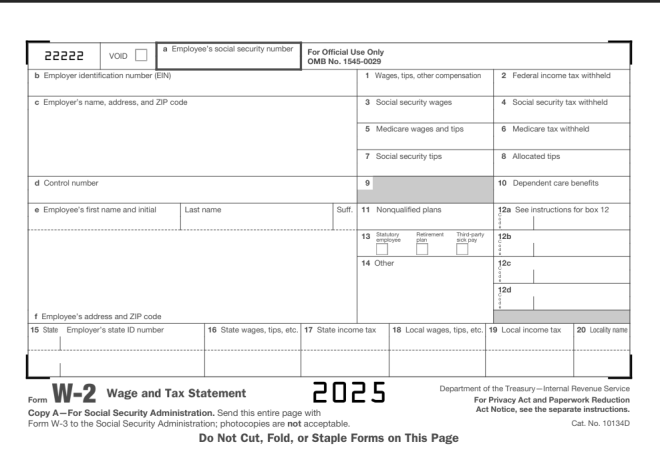
Here’s the document we’ll use for testing:

This is a standard-issue US W-2 form. For my international readers, a W-2 form is how US employees report their taxes to the federal government. All employee earnings and taxes withheld for a given calendar year are reported to the IRS (Internal Revenue Service, the agency that handles US taxpayer matters).

  • If you want to follow along with my Google Colab notebook, please save this image to your local drive and upload it to the IDE.

Let’s read the W-2

And now, let’s read in this W-2 form into our IDE. Before we start reading in the text to our IDE, let’s pip install the necessary packages if we don’t already have them:

!pip install pytesseract
!pip install opencv-python

Next, let’s import all the necessary packages to read in the image to the IDE:

import pytesseract
import numpy as np
from PIL import Image

Last but not least, let’s try to read in the W-2 form into the IDE and see what interesting results we’ll get:

testImage = 'w2 form.png'
testImageNP = np.array(Image.open(testImage))
testImageTEXT = pytesseract.image_to_string(testImageNP)
print(testImageTEXT)

| Deze | vow ] | * mens saat secur number For oficial Use Ory


Li

5 Ebr otcaon abo eR a
© Eglo ra, area, DP Sle 7 Secale wane 7 Secarmeuny ew
Teaco wager mips | aca a
7 Secisecuy oe © mosses
& Conan 3 Deport cars oan
@ Employee's frst name and inal Ee E 11 Nonqualified plans {2a See instructions for box 12
3 ey a =e =
mi
14 Other We
a
f Employee's address and ZIP code u
{5 Sie Empayers mae Dane? Te Sia wagon he, a] 7 Sa icone ax ]16 Losalwagen tp 6] 10 Local oome ax] 20 lyme
I


_|


Department of the Treasury Internal Revenue Service
com Wr=2,_ Wage and Tax statement e025 Ta Pony fl uaa
Copy A—For Social Security Admi 1. Send this entire page with ‘Act Molios, see the seperate insimuctions.

Form W-8 to the Social Security Administration; photocopies are not acceptable.
Do Not Cut, Fold, or Staple Forms on This Page

Cat. No, 10134D

OK, so using Tesseract, it appears we have some improvement from the previous scenario detailed in OCR Scenario 2: How Well Can Tesseract Read Photos? in the sense that text was even picked up at all. It appears that some sections of the W-2 form were even read perfectly (such as the line that read Do Not Cut, Fold, or Staple Forms on This Page). However, the bulk of the results appear to be complete gibberish, with a surprising amount of misread words (insimuctions instead of instructions, for example).

Now that we know how well Tesseract reads documents, let’s work some preprocessing magic to see if it yields any improvements in the text-reading process.

W-2 preprocessing

Could thresholding actually improve the Tesseract reading’s accuracy like it did for the photo test (granted, that was a marginal improvement, but it was still something).

First, let’s grayscale the image:

import cv2
from google.colab.patches import cv2_imshow

w2 = cv2.imread('w2 form.png')
w2 = cv2.cvtColor(w2, cv2.COLOR_BGR2GRAY)
cv2_imshow(w2)

Now that the image has been gray-scaled, let’s try and threshold it using the same techniques we learned from the last post:

ret, thresh = cv2.threshold(w2, 127, 255, cv2.THRESH_BINARY)
cv2_imshow(thresh)

Now that we’ve run the thresholding process on the image, let’s see how well it read the text:

w2TEXT = pytesseract.image_to_string(thresh)
print(w2TEXT)

vag


jen -urtbee EINE

" ¢ kirpleyo"s -ane. adeross. a


D Errplayers social


code

uray sunt

For Official Use Only
‘OMB No. 1545-0029

4 sans,

3. Seca seounty wae


5 Mo


7 Seca seounty 198,


andtps


|


B Allocaree s198


4 Corte naib 8 10. Lope~dent sare oe-otts
Te Eirpleyors frat “ar 1 Wa See natruct ons to Bax Te
° 13 125
14 Oe We
ta
f Eirployos's adaross ave £ * ence
18 Se EB Deiter 2 sraaes. ips. ote 18 Loca sages tps cto] 19 Lea noone tax


com WE=-2 wage and Tax Statement

Copy A—For Social Security Administration. Sere ths entire page
te the Social Securty Admin stratio7: onotoccpies are not acceptan e

born Ww.


cOes


Do Not Cut, Fold, or Staple Forms on This Page

ane


ot the


‘easy inter
For Privacy Act and Paperwork Reduction
‘Act Notice. see the separate instructions.

No.


349)

Granted, the original Tesseract reading of the W-2 form wasn’t that great, but wow this is considerably worse! I mean, what kind of a phrase is Errplayers social? However, I’ll give Tesseract some credit for surprisingly reading phrases such as the For Privacy Act and Paperwork Reduction correctly. Then again, I noticed the phrases in the document that Tesseract read the most accurately were the phrases in bold typeface.

Another one of Tesseract’s limitations?

Just as we saw when we tested Tesseract on the photo of the banner, we see that Tesseract has its limitations on reading documents as well. Interestingly enough, when we ran preprocessing on the photo of the banner, the preprocessing helped extract some text from the photo of the banner. However, when we ran the same preprocessing on the photo of the W-2, the reading came out worse than the reading we got from the original, un-processed image.

Why might that be? As you can see from the thresholding we did on the image of the W-2, most of the text in the form itself (namely the sections that contain people’s taxpayer information) comes out like it had been printed on a printer that was overdue for a black ink cartridge replacement. Thus, Tesseract wouldn’t have been able to properly read the text that came out of the image with the thresholding.

Then again, when Tesseract tried to read the text on the original, un-processed image, the results weren’t that great either. This could be because W-2 forms, like many legal forms, have a complex, multi-row layout that isn’t suited for Tesseract’s reading capabilities.

  • Personally, one reason I thought Tesseract would read this document better than the photo from the previous post is that the document’s text is not in a weird font and there’s nothing in the background of the document. I guess the results go to show that even with the things I just mentioned about the document, Tesseract still has its limitations.

Here’s the GitHub containing my Google Colab notebook for this post-https://github.com/mfletcher2021/blogcode/blob/main/OCR_document_readings.ipynb.

Thanks for reading,

Michael

OCR Scenario 2: How Well Can Tesseract Read Photos?

Hello everyone,

Michael here, and in today’s post, we’ll see how well OCR and PyTesseract can read text from photos!

Here’s the photo we will be reading from:

This is a photo of a banner at Nashville Farmer’s Market, taken by me on August 29, 2025. I figured this would be a good example to testing how well OCR can read text from photos, as this banner contains elements in different colors, fonts, text sizes, and text alignments (I know you might not be able to notice at first glance, but the Nashville in the Nashville Farmers Market logo on the bottom right-hand corner of this banner is on a small yellow background).

Let’s begin!

But first, the setup!

Before we dive right in to text extraction, let’s read the image to the IDE and install & import any necessary packages. First, if you don’t already have these modules installed, run the following commands on either your IDE or CLI:

!pip install pytesseract
!pip install opencv-python

Next, let’s import the following modules:

import pytesseract
import numpy as np
from PIL import Image

And now, let’s read the image!

Now that we’ve got all the necessary modules installed and imported, let’s read the image into the IDE:

testImage = 'farmers market sign.jpg'
testImageNP = np.array(Image.open(testImage))
testImageTEXT = pytesseract.image_to_string(testImageNP)
print(testImageTEXT)

Output: [no text read from image]

Unlike the 7 years image I used in the previous lesson, no text was picked up by PyTesseract from this image. Why could that be? I have a few theories as to why no text was read in this case:

  • There’s a lot going on in the background of the image (cars, pavilions, etc.)
  • PyTesseract might not be able to understand the fonts of any of the elements on the banner as they are not standard computer fonts
  • Some of the elements on the banner-specifically the Nashville Farmers’ Market logo on the bottom right hand corner of the banner don’t have horizontally-aligned text and/or the text is too small for PyTesseract to read.

Can we solve this issue? Let’s explore one possible method-image thresholding.

A little bit about thresholding

First of all, I figured we can try image thresholding to read the image text for two reasons: it might help PyTesseract read at least some of the banner text AND it’s a new concept I haven’t yet covered in this blog, so I figured I could teach you all something new in the process.

Now, as for image thresholding, it’s the process where grayscale images are converted to a two-colored image using a specific pixel threshold (more on that later). The two colors used in the new thresholding image are usually black and white; this helps emphasize the contrast between different elements in the image.

And now, let’s try some thresholding!

Now that we know a little bit about what image thresholding is, let’s try it on the banner image to see if we can extract at least some text from it.

First, let’s read the image into the IDE using cv2.read() and convert it to grayscale (thresholding only works with gray-scaled images):

import cv2
from google.colab.patches import cv2_imshow

banner = cv2.imread('farmers market sign.jpg')
banner = cv2.cvtColor(banner, cv2.COLOR_BGR2GRAY)
cv2_imshow(banner)

As you can see, we now have a grayscale image of the banner that can be processed for thresholding.

The thresholding of the image

Here’s how we threshold the image using a type of thresholding called binary thresholding:

ret, thresh = cv2.threshold(banner, 127, 255, cv2.THRESH_BINARY)
cv2_imshow(thresh)

The cv2.threshold() method takes four parameters-the grayscale image, the pixel threshold to apply to the image, the pixel value to use for conversion for pixels above and below the threshold, and the thresholding method to use-in this case, I’m using cv2.THRESH_BINARY.

Now, what is the significance of the numbers 127 and 255? 127 is the threshold value, which means that any pixel with an intensity less than or equal to this threshold will be set to black (intensity 0) while any pixel with an intensity above this value will be set to white (intensity 255). While 127 isn’t a required threshold value, it’s ideal because it’s like a midway point between the lowest and highest pixel intensity values (0 and 255, respectively). In other words, 127 is a quite useful threshold value for helping to establish black-and-white contrast in image thresholding. 255, on the other hand, represents the pixel intensity value to use for any pixels above the 127 intensity threshold. As I mentioned earlier, white pixels have an intensity of 255, so any pixels in the image above a 127 intensity are converted to a 255 intensity, so those pixels turns white while pixels at or below the threshold are converted to a 0 intensity (black).

  • A little bit about the ret parameter in the code: this value represent the pixel intensity threshold value you want to use for the image. Since we’re doing simple thresholding, ret can be used interchangeably with the thresholding value we specified here (127). For more advanced thresholding methods, ret will contain the calculated optimal threshold.

And now the big question…will Tesseract read any text with the new image?

Now that we’ve worked OpenCV’s thresholding magic onto the image, let’s see if PyTesseract picks up any text from the image:

bannerTEXT = pytesseract.image_to_string(thresh)
print(bannerTEXT)

a>
FU aba tee
RKET

Using the PyTesseract image_to_string() method on the new image, the only real improvement here is that there was even text read at all. It appears that even after thresholding the image, PyTesseract’s output didn’t even pick up anything close to what was on the banner (although it surprisingly did pick up the RKET from the logo on the banner).

All in all, this goes to show that even with some good image preprocessing methods, PyTesseract still has its limits. I still have several other scenarios that I will test with PyTesseract, so stay tuned for more!

Here’s the GitHub link to the Colab notebook used for this tutorial (you will need to upload the images again to the IDE, which can easily be done by copying the images from this post, saving them to your local drive, and re-uploading them to the notebook)-https://github.com/mfletcher2021/blogcode/blob/main/OCR_photo_text_extraction.ipynb.

Thanks for reading,

Michael

How To Use OCR Bounding Boxes

Hello everyone,

Michael here, and today’s post will be a lesson on how to use bounding boxes in OCR.

You’ll recall that in my 7th anniversary post The Seven-Year Coding Wonder I did an introduction to Python OCR with the Tesseract package. Now, I’ll show you how to make bounding boxes, which you can use in your OCR analyses.

But first, what are bounding boxes?

That’s a very good question. Simply put, it’s a rectangular region that denotes the location of a specific object-be it text or something else-within a given space.

For instance, let’s take this restaurant sign. The rectangle I drew on the COME ON IN part of the sign would serve as a bounding box

In this case, the red rectangular bounding box would denote the location of the COME ON IN text.

You can use bounding boxes to find anything in an image, like other text, other icons on the sign, and even the shadow the sign casts on the sidewalk.

Bounding boxes, tesseract style!

Now that we’ve explained what bounding boxes are, it’s time to test them out on an image with Tesseract!

Here’s the image we’ll test our bounding boxes on:

Now, how do we get our bounding boxes? Here’s how:

  • Keep in mind, I will continue from where I left off on my 7-year anniversary post, so if you want to know how to read the image and print the text to the IDE, here’s the post you should read-The Seven-Year Coding Wonder.

First, install the OpenCV package:

!pip install opencv-python

Next, run pytesseract’s image_to_data() method on the image and print out the resulting dictionary:

sevenYears = pytesseract.image_to_data(testImageNP, output_type=pytesseract.Output.DICT)
print(sevenYears)

{'level': [1, 2, 3, 4, 5, 5, 5, 5, 4, 5, 5], 'page_num': [1, 1, 1, 1, 1, 1, 1, 1, 1, 1, 1], 'block_num': [0, 1, 1, 1, 1, 1, 1, 1, 1, 1, 1], 'par_num': [0, 0, 1, 1, 1, 1, 1, 1, 1, 1, 1], 'line_num': [0, 0, 0, 1, 1, 1, 1, 1, 2, 2, 2], 'word_num': [0, 0, 0, 0, 1, 2, 3, 4, 0, 1, 2], 'left': [0, 528, 528, 571, 571, 1069, 1371, 1618, 528, 528, 1297], 'top': [0, 502, 502, 502, 504, 529, 502, 504, 690, 690, 692], 'width': [2129, 1205, 1205, 1124, 452, 248, 200, 77, 1205, 714, 436], 'height': [1399, 313, 313, 125, 97, 98, 99, 95, 125, 99, 123], 'conf': [-1, -1, -1, -1, 96, 96, 96, 96, -1, 96, 96], 'text': ['', '', '', '', 'Thank', 'you', 'for', '7', '', 'wonderful', 'years!']}

Now, what does all of this juicy data mean? Let’s dissect it key-by-key:

  • level-The element level in Tesseract output (1 indicates page, 2 indicates block, 3 indicates paragraph, 4 indicates line and 5 indicates word)
  • page_num-The page number on the document where the object was found; granted, this is just a one-page image we’re working with, so this information isn’t terribly useful (though if we were working with a PDF or multi-page document, this would be very helpful information)
  • block_num-This indicates which chunk of connected text (paragraph, column, etc.) an element belongs to (this runs on a 0-index system, so 0 indicates the first chunk)
  • par_num-The paragraph number that a block element belongs to (also runs on a 0-index system)
  • line_num-The line number within a paragraph (also runs on a 0-index system)
  • word_num-The word number within a line (also runs on a 0-index system)
  • left & top-The X-coordinate for the left boundary and Y-coordinate for the top boundary of the bounding box, respectively
  • width & height-The width & height in pixels, respectively, of the bounding box
  • conf-The OCR confidence value (from 0-100, 100 being an exact match) that the correct word was detected in the bounding box. If you see a conf of -1, the element has no confidence value as its not a word
  • text-The actual text in the bounding box

Wow, that’s a lot of information to dissect! Another thing to note about the above output-not all of it is relevant. Let’s clean up the output to only display information related to the words in the image:

import pandas as pd

sevenYearsDataFrame = pd.DataFrame(sevenYears)
sevenYearsWords = sevenYearsDataFrame[sevenYearsDataFrame['level'] == 5]
print(sevenYearsWords)

    level  page_num  block_num  par_num  line_num  word_num  left  top  width  \
4       5         1          1        1         1         1   571  504    452   
5       5         1          1        1         1         2  1069  529    248   
6       5         1          1        1         1         3  1371  502    200   
7       5         1          1        1         1         4  1618  504     77   
9       5         1          1        1         2         1   528  690    714   
10      5         1          1        1         2         2  1297  692    436   

    height  conf       text  
4       97    96      Thank  
5       98    96        you  
6       99    96        for  
7       95    96          7  
9       99    96  wonderful  
10     123    96     years!  

Granted, it’s not necessary to convert the image dictionary into a dataframe, but I chose to do so since dataframes are quite versatile and easy to filter. As you can see here, we have all the same metrics we got before, just for the words (which is what we really wanted).

And now, let’s see some bounding boxes!

Now that we know how to find all the information about an image’s bounding boxes, let’s figure out how to display them on the image. Granted, the pytesseract library won’t actually draw the boxes onto the images. However, we can use another familiar library to help us out here-OpenCV (which I did a series on in late 2023).

First, let’s install the opencv-python module onto our IDE if it’s not already there:

!pip install opencv-python
  • Remember, no need for the exclamation point at the front of the string if your running this command on a CLI.

Next, let’s read the image into the IDE:

import cv2
from google.colab.patches import cv2_imshow

sevenYearsTestImage = cv2.imread('7 years.png', cv2.IMREAD_COLOR)
cv2_imshow(sevenYearsTestImage)
cv2.waitKey(0)

After installing the opencv module in the IDE, we then read the image into the IDE using the cv2.imread() method. The cv2.IMREAD_COLOR ensures we read and display this image in its standard color format.

  • You may be wondering why we’re reading the image into the IDE again, especially after reading it in with pytersseract. We need to read the image again as pytesseract will only read the image string into the IDE, not the image itself. We need to read in the actual image in order to display the bounding boxes.
  • If you’re not using Google Colab as your IDE, no need to include this line-from google.colab.patches import cv2_imshow. The reason Google Colab makes you include this line is because the cv2.imshow() method caused Google Colab to crash, so think of this line as Google Colab’s fix to the problem. It’s annoying I know, but it’s just one of those IDE quirks.

Drawing the bounding boxes

Now that we’ve read the image into the IDE, it’s time for the best part-drawing the bounding boxes onto the image. Here’s how we can do that:

sevenYearsWords = sevenYearsWords.reset_index(drop=True)

howManyBoxes = len(sevenYearsWords['text'])

for h in range(howManyBoxes):
  (x, y, w, h) = (sevenYearsWords['left'][h], sevenYearsWords['top'][h], sevenYearsWords['width'][h], sevenYearsWords['height'][h])
  sevenYearsTestImage = cv2.rectangle(sevenYearsTestImage, (x, y), (x + w, y + h), (255, 0, 0), 3)

cv2_imshow(sevenYearsTestImage)

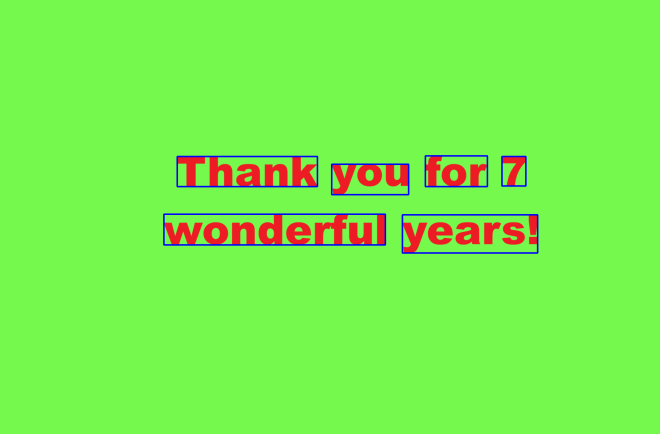
As you can see, we can now see our perfectly blue bounding boxes on each text element in this image. The process also worked like a charm, as each text element is captured perfectly inside each bounding box-then again, it helped that each text element had a 96 OCR confidence score (which ensured high detection accuracy).

How did we get these perfectly blue bounding boxes?

  • I first reset the index on the sevenYearsWords dataframe because when I first ran this code, I got an indexing error. Since the sevenYearsWords dataframe is essentially a subset of the larger sevenYearsDataFrame (the one with all elements, not just words), the indexing for the sevenYearsWords dataframe would be based off of the original dataframe, so I needed to use the reset_index() command to reset the indexes of the sevenYearsWords dataframe to start at 0.
  • Keep this method (reset_index()) in mind whenever you’re working with dataframes generated as subsets of larger dataframes.
  • howManyBoxes would let the IDE know how many bounding boxes need to be drawn-normally, you’d need as many bounding boxes as you have text elements
  • The loop is essentially iterating through the elements and drawing a bounding box on each one using the cv2.rectangle() method. The parameters for this method are: the image where you want to draw the bounding boxes, the x & y coordinates of each box, the x-coordinate plus width and y-coordinate plus height for each box, the BGR color tuple of the boxes, and the thickness of the boxes in pixels (I went with 3-px thick blue boxes).

Come find the code on my GitHub-https://github.com/mfletcher2021/blogcode/blob/main/OCR_bounding_boxes.ipynb.

Thanks for reading!

Michael

The Seven-Year Coding Wonder

Hello everyone,

Michael here, and today we’ve got another very special post! Yes dear readers, it’s time for another anniversary post-this year, Michael’s Programming Bytes turns 7!

So, how will I celebrate this anniversary? With a generic thank-you statement?

Not quite. I’ll take a cue from my 6th anniversary post (where I gave a surprise Python encryption lesson-https://michaelsprogrammingbytes.com/6-2/) and instead, show you something cool in Python to celebrate!

Let’s begin!

A little something called OCR

For this year’s anniversary celebration post, I’m going to a demo on something called OCR using Python.

What is OCR? It’s optical character recognition, which is a type of computer vision-which is a type of AI-that essentially reads any text in images and outputs the text it read to the program (to the best of its ability of course, as OCR like other types of AI can certainly make mistakes).

And now, for the OCR demo

What image might we be reading into the IDE?

Yes, we’ve got some red text and a lime-green image background (if you’ve read enough of this blog, you’ll notice that I’m quite fond of the lime-green-background-and-red-text image). Now, let’s see how well our OCR demo fares!

Package…installed

Before we start our fun little demo, let’s first install any necessary packages:

!pip install pytesseract

For this lesson, the only package we’ll need to install is the pytesseract package, which is a popular Python OCR library.

Imports…made

Next up, let’s import any modules we’ll need for the demo:

import pytesseract
import numpy as np
from PIL import Image

We’ll need three modules-pytesseract, numpy and PIL. As I just mentioned, pytesseract is the OCR library that we’ll use for this post. The PIL (Python Imaging Library/Pillow) library is like a companion to pytesseract, since even though PIL doesn’t do the actual OCR, it helps with all the important image preprocessing tasks (e.g. opening image into IDE, converting image to greyscale for optimal OCR). We’ve already explored the numpy library a while back, but I’ll explain why we’re using here shortly.

Image text…read

Last but not least, let’s read the image’s text:

testImage = '7 years.png'
testImageNP = np.array(Image.open(testImage))
testImageTEXT = pytesseract.image_to_string(testImageNP)
print(testImageTEXT)

Thank you for 7
wonderful years!

After storing the image with text as the testImage variable, we then use both the PIL Image module and the numpy module to open and preprocess the image.

  • If you’re using a Google Colab notebook for this tutorial like I did, remember to save any files (images, CSVs) to the Colab runtime, as Colab can’t easily access your local drives.

Why do we need both modules? The Image module opens Why do we need both modules? The Image module reads the testImage into the IDE while numpy helps preprocess the image further by translating it to a series of pixels, which assists with further preprocessing tasks (such as greyscaling and text extraction).

After opening and preprocessing the image, we then use the pytesseract.image_to_string()-passing in the numpy version of the test image (testImageNP in this case)-method to save the extracted text as an object. Last but not least, we then print out the extracted text and see how accurate it is. In this case, we got Thank you for 7 \n wonderful years, which is exactly what the text on the image says (it even got the \n line break right!).

All in all, this simple OCR program seems to work like a charm! I might even do a whole Python OCR series where I test Python’s OCR capabilities for a bunch of interesting scenarios-but you’ll have to keep following & reading my blog to enjoy my cool coding content.

Since I used a Google Colab notebook to put this anniversary post together, here’s the link to that notebook in my GitHub-https://github.com/mfletcher2021/blogcode/blob/main/7.ipynb. The test image is also on my GitHub, but it is attached separately (the image is called 7 years.png).

One more thing…

…I know I say this after every post, but thank you for following along my coding how-to journey for the last 7 years and 187 posts (pushing the 200-mark)! Hopefully you’ve picked up some new skills, or at least some juicy knowledge to impress on bar trivia night (I mean, I wouldn’t be disappointed in that), about the wonderful world of coding-or any other thing I’ve happened to reference on this blog over the last 7 years.

Also, if you’re wondering how long I’ll keep going, have no fear, I’ve got content for years!

Keep calm and code on!

Michael

Also, let me leave you with a picture of these two furry kittes-Simba and Marbles on Christmas Day 2017-they certainly saw me write some of my earliest content:

Python, Linear Regression & An NBA Season Opening Day Special Post

Hello readers,

Michael here, and in today’s lesson, we’re gonna try something special! For one, we’re going back to this blog’s statistical roots with a linear regression post; I covered linear regression with R in the way, way back of 2018 (R Lesson 6: Linear Regression) on this blog, so I thought I’d show you how to work the linear regression process in Python. Two, I’m going to try something I don’t normally do, which is predict the future. In this case, the future being the results of the just-beginning 2024-25 NBA season. Why try to predict NBA results you might ask? Well, for one, I wanted to try something new on this blog (hey, gotta keep things fresh six years in), and for two, I enjoy following along with the NBA season. Plus, I enjoyed writing my post on the 2020 NBA playoffs-R Analysis 10: Linear Regression, K-Means Clustering, & the 2020 NBA Playoffs.

Let’s load our data and import our packages!

Before we get started on the analysis, let’s first load our data into our IDE and import all necessary packages:

import pandas as pd
from sklearn.model_selection import train_test_split
from pandas.core.common import random_state
from sklearn.linear_model import LinearRegression

You’re likely quite familiar with pandas but for those of you that don’t know, sklearn is an open-source Python library commonly used for machine learning projects (like the linear regression we’re about to do)!

A note about uploading files via Google Colab

Once we import our necessary packages, the next thing we should do is upload the data-frame we’ll be using for this analysis.

This is the file we’ll be using; it contains team statistics such as turnovers (team total) and wins for all 30 NBA teams for the last 10 seasons (2014-15 to 2023-24). The data was retrieved from basketball-reference.com, which is a great place to go if you’re looking for juicy basketball data to analyze. This site comes from https://www.sports-reference.com/, which contains statistics on various sports from NBA to NFL to the other football (soccer for Americans), among other sports.

Now, since I used Google Colab for this analysis, I’ll show you how to upload Excel files into Colab (a different process from uploading Excel files into other IDEs):

To import local files into Google Colab, you’ll need to include the lines from google.colab import files and uploaded = files.upload() in the notebook since, for some odd reason, Google Colab won’t let you upload local files directly into your notebook. Once you run these two lines of code, you’ll need to select a file from the browser tool that you want to upload to Colab.

Next (and ideally in a separate cell), you’ll need to add the lines import io and dataframe = pd.read_csv(io.BytesIO(uploaded['dataframe name'])) to the notebook and run the code. This will officially upload your data-frame to your Colab notebook.

  • Yes, I know it’s annoying, but that’s just how Colab works. If you’re not using Colab to follow along with me, feel free to skip this section as a simple pd.read_csv() will do the trick to upload your data-frame onto the IDE.

Let’s learn about our data-frame!

Now that we’ve uploaded our data-frame into the IDE, let’s learn more about it!

NBA.info()

<class 'pandas.core.frame.DataFrame'>
RangeIndex: 300 entries, 0 to 299
Data columns (total 31 columns):
 #   Column  Non-Null Count  Dtype  
---  ------  --------------  -----  
 0   Season  300 non-null    object 
 1   Team    300 non-null    object 
 2   W       300 non-null    int64  
 3   L       300 non-null    int64  
 4   Finish  300 non-null    int64  
 5   Age     300 non-null    float64
 6   Ht.     300 non-null    object 
 7   Wt.     300 non-null    int64  
 8   G       300 non-null    int64  
 9   MP      300 non-null    int64  
 10  FG      300 non-null    int64  
 11  FGA     300 non-null    int64  
 12  FG%     300 non-null    float64
 13  3P      300 non-null    int64  
 14  3PA     300 non-null    int64  
 15  3P%     300 non-null    float64
 16  2P      300 non-null    int64  
 17  2PA     300 non-null    int64  
 18  2P%     300 non-null    float64
 19  FT      300 non-null    int64  
 20  FTA     300 non-null    int64  
 21  FT%     300 non-null    float64
 22  ORB     300 non-null    int64  
 23  DRB     300 non-null    int64  
 24  TRB     300 non-null    int64  
 25  AST     300 non-null    int64  
 26  STL     300 non-null    int64  
 27  BLK     300 non-null    int64  
 28  TOV     300 non-null    int64  
 29  PF      300 non-null    int64  
 30  PTS     300 non-null    int64  
dtypes: float64(5), int64(23), object(3)
memory usage: 72.8+ KB

Running the NBA.info() command will allow us to see basic information about all 31 columns in our data-frame (such as column names, amount of records in dataset, and object type).

In case you’re wondering about all the abbreviations, here’s an explanation for each abbreviation:

  • Season-The specific season represented by the data (e.g. 2014-15)
  • Team-The team name
  • W-A team’s wins in a given season
  • L-A team’s losses in a given season
  • Finish-The seed a team finished in during a given season in their conference (e.g. Detroit Pistons finishing 15th seed in the East last season)
  • Age-The average age of a team’s roster as of February 1 of a given season (e.g. February 1, 2024 for the 2023-24 season)
  • Ht.-The average height of the team’s roster in a given season (e.g. 6’6)
  • Wt.-The average weight (in lbs.) of the team’s roster in a given season
  • G-Total amount of games played by the team in a given season
  • MP-Total minutes played as a team in a given season
  • FG-Field goals scored by the team in a given season
  • FGA-Field goal attempts made by the team in a given season
  • FG%-Percent of successful field goals made by team in a given season
  • 3P-3-point field goals scored by the team in a given season
  • 3PA-3-point field goal attempts made by the team in a given season
  • 3P%-Percent of successful 3-point field goals made by the team in a given season
  • 2P-2-point field goals scored by the team in a given season
  • 2PA-2-point field goal attempts made by the team in a given season
  • 2P%-Percent of successful 2-point field goals made by the team in a given season
  • FT-Free throws scored by the team in a given season
  • FTA-Free throw attempts made by the team in a given season
  • FT%-Percent of successful free throw attempts made by the team in a given season
  • ORB-Team’s total offensive rebounds in a given season
  • DRB-Team’s total defensive rebounds in a given season
  • TRB-Team’s total rebounds (both offensive and defensive) in a given season
  • AST-Team’s total assists in a given season
  • STL-Team’s total steals in a given season
  • BLK-Team’s total blocks in a given season
  • TOV-Team’s total turnovers in a given season
  • PF-Team’s total personal fouls in a given season
  • PTS-Team’s total points scored in a given season

Wow, that’s a lot of variables! Now that understand know the data we’re working with better, let’s see how we can make a simple linear regression model!

The K-Best Way To Set Up Your Model

Before we start the juicy analysis, let’s first pick the features we will use for the model. In this post, we’ll explore the Select K-Best algorithm, which is an algorithm commonly used in linear regression to help select the best features for a particular model:

X = NBA.drop(['Season', 'Team', 'W', 'Ht.'], axis=1)
y = NBA['W']

from sklearn.feature_selection import SelectKBest, f_regression
features = SelectKBest(score_func=f_regression, k=5)
features.fit(X, y)

selectedFeatures = X.columns[features.get_support()]
print(selectedFeatures)

Index(['L', 'Finish', 'Age', 'FG%', '3P%'], dtype='object')

According to the Select K-Best algorithm, the five best features to use in the linear regression are L, Finish, Age, FG% and 3P%. In other words, a team’s end-of-season seeding, total losses, average roster age, and percentage of successful field goals and 3-pointers are the five most important features to predict a team’s win total.

How did the model arrive to these conclusions? First of all, I set the X and y variables-this is important as the Select K-Best algorithm needs to know what is the dependent variable and what are possible independent variable selections that can be used in the model. In this example, the dependent (or y) variable is W (for team wins) while the X variable includes all other dataset columns except for W, Team, Season, and Ht. because W is the y variable and the other three variables are categorial (or non-numerical) variables, so they really won’t work in our analysis.

Next we import the SelectKBest and f_regression packages from the sklearn.feature_selection module. Why do we need these two packages? Well, SelectKBest will allow us to use the Select K-Best algorithm while f_regression is like a back-end feature selection method that allows the Select K-Best algorithm to select the best x-amount of features for the model (I used five features for this model).

After setting up the Select K-Best algorithm, we then fit both the X and y variables to the algorithm and then print out our top five selectedFeatures.

Train, test…split!

Once we have our top five features for model, it’s time for the train, test, splitting of the model! What is train, test, split you ask? Well, our linear regression model will be split into two types of data-training data (the data we use for training the model) and testing data (the data we use to test our model). Here’s how we can utilize the train, test, split for this model:

X = NBA[['L', 'Finish', 'Age', 'FG%', '3P%']]
y = NBA['W']

X_train, X_test, y_train, y_test = train_test_split(X, y, test_size = 0.2, random_state = 0)

How does the train, test, split work? Using sklearn’s train_test_split method, we pass in four parameters-our independent variables (X), our dependent variable (y), the size of the test data (a decimal between 0 and 1), and the random state (this can be kept at 0, but it doesn’t matter what number you use-42 is another common number). In this model, I will utilize an 80/20 train, test, split, which indicates that 80% of the data will be for training while the other 20% will be used for testing.

Other common train, test, splits are 70/30, 85/15, and 67/33, but I opted for 80/20 because our dataset is only 300 rows long. I would utilize these other train, test, splits for larger datasets.

  • Something worth noting: What we’re doing here is called multiple linear regression since we’re using five X variables to predict a Y variable. Simple linear regression would only use one X variable to predict a Y variable. Just thought I’d throw in this quick factoid!

And now, for the model-making

Now that we’ve done all the steps to set up our model, the next thing we’ll need to do is actually create the model!

Here’s how we can get started:

NBAMODEL = LinearRegression()
NBAMODEL.fit(X_train, y_train)

LinearRegression()

In this example, we create a LinearRegression() object (NBAMODEL) and fit it to both the X_train and y_train data.

Predictions, predictions

Once we’ve created our model, next comes the fun part-generating the predictions!

yPredictions = NBAMODEL.predict(X_test)

yPredictions

array([53.20097648, 28.89541793, 52.26551381, 53.22220829, 35.90676716,
       32.15874993, 47.72090936, 48.32896277, 39.4193884 , 40.1548429 ,
       19.62678175, 48.3263792 , 32.13473281, 43.50887634, 43.85260484,
       52.79795145, 27.35822648, 40.23392095, 18.85423981, 61.69624816,
       51.59650403, 23.86311747, 56.18087097, 54.15867678, 49.75211403,
       46.90177259, 31.80109001, 46.82531833, 37.50563942, 32.19863141,
       52.41205133, 25.09011881, 48.94542256, 38.80244997, 24.80146638,
       42.50107728, 43.27320835, 37.45199938, 46.7795962 , 28.11289951,
       57.64388881, 29.35812466, 18.3222965 , 36.26677012, 20.56912227,
       22.15266241, 19.9955299 , 44.84930613, 45.14740453, 23.19471644,
       53.940611  , 26.0780373 , 27.88093669, 61.23347337, 52.99948229,
       34.66653881, 30.04421016, 27.21669768, 48.55215233, 47.11060905])

The yPredictions are obtained through using the predict method on the model’s X_train data, which in this case consists of 60 of the 300 records..

Evaluating the model’s accuracy

Once we’ve created the model and made our predictions on the training data, it’s time to evaluate the model’s accuracy. Here’s how to do so:

from sklearn.metrics import mean_absolute_percentage_error

mean_absolute_percentage_error(y_test,yPredictions)

0.09147159762376074

There are several ways you can evaluate the accuracy of a linear regression model. One good method as shown here is the mean_absolute_percentage_error (imported from the sklearn.metrics package). The mean absolute percentage error evaluates the model’s accuracy by indicating how off the model’s predictions are. In this model, the mean absolute percentage error is 0.09147159762376074, indicating that the model’s predictions are off by roughly 9%-which also indicates that overall, the model’s predictions are roughly 91% accurate. Not too shabby for this model!

  • Interestingly, the two COVID impacted NBA seasons in the dataset (2019-20 and 2020-21) didn’t throw off the model’s accuracy much.

Don’t forget about the equation!

Evaluating the model’s accuracy isn’t the only thing you should do when analyzing the model. You should also grab the model’s coefficients and intercept-they will be important in the next post!

NBAMODEL.coef_

array([ -0.4663858 ,  -1.30716212,   0.39700734,  34.1325687 ,
       -22.12258585])
NBAMODEL.intercept_

50.945769772855854

All linear regression models will have a coefficient and an intercept, which form the linear regression equation. Since our model had five X variables, there are five coefficients.

Now, what would our equation look like?

Here is the equation in all it’s messy glory. We’re going to be using this equation in the next post.

Linear regression plotting

For the visual learners among my readers, I thought it would be nice to include a simple scatterplot to visualize the accuracy of our linear regression model. Here’s how to create that plot:

import matplotlib.pyplot as plt
plt.scatter(y_test, yPredictions, color="red")
plt.xlabel('Actual values', size=15)
plt.ylabel('Predicted values', size=15)
plt.title('Actual vs Predicted values', size=15)
plt.show()

First, I imported the matplotlib.pyplot module. Then, I ran the plt.scatter() method to create a scatterplot. I used three parameters for this method: the y_test values, the yPredictions values, and the color="red" parameter (this just indicated that I wanted red scatterplot dots). I then used the plt.xlabel(), plt.ylabel(), and plt.title() methods to give the scatterplot an x-label title, y-label title, and title, respectively. Lastly, I used the plt.show() method to display the scatterplot in all of its red-dotted glory.

As you can see from this plot, the predicted values match the actual values fairly closely, hence the 91% accuracy/9% error.

Thanks for reading, enjoy the upcoming NBA season action, and stay tuned for my next post where I reveal my predicted records and standings for each team, East and West! It will be interesting to see how my predictions pan out over the course of the season-after all, it’s certainly something different I’m trying on this blog!

And yes, perfect timing for this blog to come out on NBA season opening day! Serendipity am I right?

Also, here’s a link to the notebook in GitHub-https://github.com/mfletcher2021/DevopsBasics/blob/master/NBA_24_25_predictions.ipynb.

And Now Let’s Create Some AI Art (Midjourney Version)(AI pt. 15)

Hello everybody,

Michael here, and for my final post of 2023, I wanted to try something a little different! Usually on this blog, I like to only use tools that are open-source (aka free)-this way, all of you can follow along with my tutorials.

However, for this post I wanted to try something different-Midjourney! Just like DALLE-2, Midjourney is an AI text-to-art generator (you may recall that I explored DALLE-2 in the post /And Now Let’s Create Some AI Art! (AI pt.6)). However, unlike DALLE-2, Midjourney cannot be used for free. But since I wanted to fool around with Midjourney, I thought I could do post on it for all of my loyal readers!

Let’s begin!

Five fast facts about Midjourney

In my intro paragraph, I did mention that Midjourney was an AI text-to-art generator. Here are five more fast facts about Midjourney:

  • It works in a very similar manner to DALLE-2 in the sense that both tools are text-to-art generators.
  • However, unlike DALLE-2, Midjourney wasn’t developed by OpenAI (it was created by Midjourney Labs).
  • As of this writing, Midjourney is currently in open beta mode, as has been the case since its creation in July 2022.
  • Midjourney utilitzes Discord as an interface to generate its AI art.
  • As long as you’re on a paid subscription, you can generate as many images as you want (unlike DALLE-2, where the free trial limits you to a certain number of image generations a month)

Setting up Midjourney

Before we start polaying aroung with the magic of Midjourney, you’ll need two things to set it up:

  • A Midjourney subscription
  • A Discord account (I’ll explain this later)

If you need assistance setting up Midjourney, please follow the stpes in this link-https://docs.midjourney.com/docs/quick-start.

Now, why would you need a Discord account? See, even though Midjourney is separate from Discord, I mentioned earlier that Midjourney currently uses Discord as its interface to generate AI art via a Midjourney Discord bot (which makes Midjourney a bit more convoluted to set up than DALLE-2).

And Now Let’s Make Some Midjourney AI Art

Once you’ve gotten Midjourney set up, let’s get started creating our very own AI art!

First, let’s open up our Discord Midjourney bot:

When you open up the bot, you’ll see the bot’s homepage. To start creating Midjourney art, go to any of the channels that start with newbies.

As you can see here, I am currently in the newbies-122 channel, which is where I can start generating AI art.

To begin with the AI art generation, I will first run the /imagine command and then type the prompt A Christmas card featuring Santa Claus and his reindeer saying "Happy Holidays To You" that is drawn in pencil sketch with lots of color. Let’s see what Midjourney spits out!

As you can see, after a few minutes, Midjourney will (just like DALLE-2) spit out four different images based off the prompt you submitted. Also, if you look at each image closely, you’ll see that Midjourney, like DALLE-2, doesn’t have the hang of generated coherent text (but it sure is good at generating gibberish).

However, you may be wondering what all of these buttons below the generated images do. Allow me to explain:

  • The U1-U4 buttons allow you to output only one of the four generated images. U1 represents the image in the upper left hand corner, U2 represents the image in the upper right hand corner, U3 represents the image in the lower left hand corner and U4 represents the image in the the lower right hand corner.
  • The V1-V4 buttons also represent the four images (V1=upper left hand image, V2=upper right hand image, V3=lower left hand image, V4=lower right hand image) but unlike the U1-U4 buttons, these buttons allow you to modify the prompt on an individual image-or as Midjourney calls it, “remixing” each image.
  • The refresh button allows you to generate four different images with the same prompt.
  • A note about these buttons: you can also use them for other users’ images, not just your own (I mean, it is fun to see other users’ prompts).

A little note about the Midjourney interface

If you’re playing around with Midjourney, you’ll notice that you’re far from the only one generating AI art. In fact, there are certianly going to be thousands of users at any given trying to generate their own AI art. While I think it’s neat that anyone can log onto Midjourney at any time, it also makes the user interface less user-friendly since if you want to find your generated art, you’ll need to do quite a bit of scrolling!

This image was taken at 11:32AM, so this should give you an idea as to how many people are generating Midjourney art at once!

Luckily, if you want to easily find your Midjourney art, head on over to https://www.midjourney.com/explore, log in to your Midjourney account, and navigate to My Images:

In this interface, I have all of the images I generated through Midjouney throughout the duration of my subscription. This way, in case I want to find any image I generated on Midjourney, all I need to do is go here.

  • As you can see from the screenshot above, the functionality to /imagine new prompts from this interface has yet to be implemented as of this writing (December 2023).

You can even click on an image to see its prompt in case you want to use and/or modify that prompt for a future image generation:

As you see here, this image was generated as part of the Christmas card prompt I wrote earlier. Personally, even though I asked the image to generate a Happy Holidays To You card featuring Santa and his reindeer, I instead get whatever this is. Santa has one reindeer in this image (and its wearing what I think is a necklace of leaves for some reason). The reindeer has six legs. There is no text in this image. The other creatures in this images look like two gerbils and two gremlin-things (it would be a stretch to call them elves). At least there’s something resembling a Christmas village in the background.

Let’s try some other scenarios

Next up, let’s try some other Midjourney scenarios! First up, let’s see Midjourney’s capabilities for generating realistic looking photographs.

Since it’s the holidays, let’s try this prompt next-/imagine A Nikon photo of the Avengers at a Christmas party at Avengers tower. Iron Man, Black Widow, Hulk, Captain America, Thor, and Hawkeye are there. 16:9 aspect ratio

Yes, Midjourney can even set aspect ratios and camera model-styles for the AI images it generates. Let’s take a look at the images we got from this prompt:

Throughout these four images, the only character that Midjourney seems to get right each time is Iron Man. Marvel fans like myself will liekly recognize several mistakes throughout these four images:

All of this just goes to show you that Midjourney, like DALLE-2, doesn’t have the best attention to detail when generating AI art.

The images I got when I used this prompt-/imagine A Nikon photo of Kang The Conqueror and Thanos at a Christmas Party, 16:9 aspect ratio-weren’t much better. Here’s one such image:

I mean, at least Midjourney made Thanos purple, but Kang the Conqueror is another story entirely (unless he happens to be one of Kang’s many variants).

Let’s try generating AI people!

So now that we’ve explored some AI art-generation scenarios, let’s try something different! As you may recall from the post And Now Let’s Create Some AI Art! (AI pt.6), DALLE-2 wasn’t the best when it came to generating images of real people. However, let’s see if Midjourney is up for the task!

Here’s the prompt I’ll use-/imagine Stephen Curry drawn in Simpsons style

And here are the generated images:

Not gonna lie, I’m surprised that not only did Midjourney generated a pretty accurate-looking Stephen Curry, but also that it generated the correct Golden State Warriors logo and generated the text Golden State Warriors correctly. However, Midjourney didn’t really replicate the Simpsons art style and in the third image, it got Steph’s jersey number wrong (he wears a #30 jersey, not a #35-which is the number Kevin Durant wore during his stint with the Warriors).

Now, just as I did with my DALLE-2 experiment, I’ll try to generate an image of a female public figure and see where that goes. Here’s the prompt I used-/imagine A drawing of Margot Robbie in colored pencil sketch, and here’s the output:

Not gonna lie, but I’m amazed at how much Midjourney’s generated images actually resemble the real Margot Robbie. Unlike DALLE-2, which didn’t allow me to generate image of female public figures for some reason, Midjourney does allow for these types of image generations and does a scarily accurate job of it too.

And now, let’s go to an AI-generated place!

So, we’ve tested how well Midjourney can replicate pop culture and people, but let’s see how well it knows places. Here’s the prompt I’ll use-/imagine A neon rendering of Bicentennial Capitol Mall State Park in Nashville, TN-and here’s the output:

From these images, I see that Midjourney at least got the Capitol part right (Bicentennial Capitol Mall State Park does have a view of the Tennessee state capitol building from the park), but the four images generated look like they could be a part of Downtown DC, not Downtown Nashville. At least Midjourney included a park in each of these four images.

If you’re wondering what Bicentennial Capitol Mall State Park looks like, here’s a picture of it (more specifically, the amphitheater in all its glory):

This is just a small sampling of the things Midjourney is capable of, and although it doesn’t always have the best attention to detail (or greatest text-generation abilities), it is still an amazing AI tool-though it can never, ever, ever replace human creativity or talent (or your friendly neighborhood coding tutorial writer).

With all that said, thank you all for another wonderful year of programming and development (and I hope you learned something along the way). Have a happy and festive holiday season to you all, and I’ll see you in 2024 for another amazing year of development and learning! Keep calm and code on!

AI-generated Santa wishes you a happy holiday season!

Michael!