Bootstrap Lesson 1: The Basics of Bootstrap

Hello everybody,

Michael here, and in today’s lesson, I’ll introduce a new programming tool-Bootstrap (the eigth programming tool I’ll cover in this blog).

What is Bootstrap exactly? Well, to put it simply, Bootstrap is an HTML/CSS/JavaScript web development tool that allows you to create mobile-friendly, easily responsive websites.

Now, you may be wondering if this means you’re going to be learning a whole new language with all new syntax. The good thing about Bootstrap is that, while I will introduce some new syntax to you all, it is very easy to understand if you’ve got at least a working knowledge of HTML and CSS (so if you’ve followed my HTML and CSS lessons, you should be good to go here). If it helps, think of Bootstrap as a supplement to HTML and CSS.

Now, how do we get started with Bootstrap? First, we’re going to start by downloading the lastest version of Bootstrap (as of September 2022)-Bootstrap 5-from getbootstrap.com.

Did I say downloading Bootstrap? You could do that, but there’s a much more convinient workaround. In your HTML file, copy these two lines of code into your document:

<link href="https://cdn.jsdelivr.net/npm/bootstrap@5.2.0/dist/css/bootstrap.min.css" rel="stylesheet" integrity="sha384-gH2yIJqKdNHPEq0n4Mqa/HGKIhSkIHeL5AyhkYV8i59U5AR6csBvApHHNl/vI1Bx" crossorigin="anonymous">

<script src="https://cdn.jsdelivr.net/npm/bootstrap@5.2.0/dist/js/bootstrap.bundle.min.js" integrity="sha384-A3rJD856KowSb7dwlZdYEkO39Gagi7vIsF0jrRAoQmDKKtQBHUuLZ9AsSv4jD4Xa" crossorigin="anonymous"></script>

These two lines of code will give you all the CSS and JavaScript scripts you’ll need to run Bootstrap (and yes, you’ll need both scripts to get the most out of Bootstrap).

  • About these two lines of code-you’ll need them every time you want to use Bootstrap for your website, as your websites won’t run on Bootstrap if you don’t include these two lines of code on top of your HTML file

Now, let’s create our first Bootstrap website! Take a look at the code below (and remember to include the two lines of code I just mentioned at the top of the file):

<!DOCTYPE html>
<link href="https://cdn.jsdelivr.net/npm/bootstrap@5.2.0/dist/css/bootstrap.min.css" rel="stylesheet" integrity="sha384-gH2yIJqKdNHPEq0n4Mqa/HGKIhSkIHeL5AyhkYV8i59U5AR6csBvApHHNl/vI1Bx" crossorigin="anonymous">
<script src="https://cdn.jsdelivr.net/npm/bootstrap@5.2.0/dist/js/bootstrap.bundle.min.js" integrity="sha384-A3rJD856KowSb7dwlZdYEkO39Gagi7vIsF0jrRAoQmDKKtQBHUuLZ9AsSv4jD4Xa" crossorigin="anonymous"></script>
<head>
  <body>
    <h1>Here's your first Bootstrap site!!!</h1>
  </body>
</head>

As you can see, we have created a simple Bootstrap site. Granted, there’s not much content or CSS stylings on the site but don’t worry-we’ll cover more cool Bootstrap features in the next few lessons!

Thanks for reading,

Michael

Python Lesson 36: Named Entity Recognition (NLP pt. 5)

Hello everybody,

Michael here, and today’s lesson will be on named entity recoginition in Python NLP.
Intro to named entity recognition

What is named entity recogintion exactly? Well, it’s NLP’s process of identifying named entities in text. Named entities are bascially anything that is a place, person, organization, time, object, or geographic entity-in other words, anything that can be denoted with a proper name.

Take a look at this headline from ABC News from July 21, 2022:

Former Minneapolis police officer sentenced in George Floyd killing

How many named entities can you find? If you answered two, you’d be correct-Minneapolis and George Floyd.

Python’s SPACY package

Before we begin any named-entity recognition analysis, we must first pip install the spacy package using this line of code-pip install spacy. Unlike the last four NLP lessons I’ve posted, this lesson won’t use the NLTK package (or any modules within) as Python’s spacy package is better suited for this task.

In case you need assistance with installing the spacy package, click on this link-https://spacy.io/usage#installation. This link will show you how to install spacy based on what operating system you have.

If you go to this link, you will see an interface like the one pictured above (picture current as of July 2022). Toggling the filters on this interface will show you the commands you’ll need to use to install not only the spacy module itself but also a trained spacy pipeline in whatever language you choose (and there are 23 options for languages here). The commands needed to install spacy will depend on things like the OS you’re using (whether Mac, Windows, or Linux), the package manage you’re using to install Python packages (whether pip, conda, or from source), among other things.

The Spacy pipeline

Similar to how we downloaded the punkt and stopwords modules in NTLK, we will also need to install a seprate module to work with spacy-in this case, the spacy pipeline. See, to ensure the spacy package works to its fullest capabilites, you’ll need to download a spacy pipeline in whatever language you choose (I’m using English for this example)

  • Remember to install the spacy pipeline AFTER installing the spacy package!

For this lesson, I’ll be using the en_core_web_md pipeline, which is a medium-sized English spacy pipeline. If you wish, you can download the en_core_web_sm or en_core_web_lg pipelines-these are the small-sized and large-sized English spacy pipelines, respectively. The larger the spacy pipeline you choose, the better its named-entity recognition functionalities would be-the small pipeline has 12 megabytes of info, the medium pipeline has 40 megabytes of info, and the large pipeline has 560 megabytes of info.

To install the medium-sized English spacy pipeline, run this command-python -m spacy download en_core_web_md.

  • If you’re downloading the small-sized or large-sized English spacy pipelines, replace en_core_web_md with en_core_web_sm or en_core_web_lg depending on the pipeline size you’re using.

However, even after installing the pipeline, you’ll still need to download it in your code using this line of code-spacy.load('en_core_web_md'). Remember that even though I’m using the en_core_web_md spacy pipeline, pass whatever pipeline you’ll be using as the parameter for the spacy.load() method.

Spacy in action

Now that I’ve explained the basics of setting up spacy, it’s time to show named-entity recognition in action. For the example I’ll show you, I’ll use this XLSX file containing twelve different news headlines from the Associated Press published on July 25 and 26, 2022:

Let’s see how we can find all of the named entities in these twelve headlines:

import spacy
nlp = spacy.load('en_core_web_md')
import pandas as pd

headlines = pd.read_excel(r'C:\Users\mof39\OneDrive\Documents\headlines.xlsx')

for h in headlines['Headline']:
    doc = nlp(h)
    
    for ent in doc.ents:
        print(ent.text)
    
    print(h)
    print() 

North Dakota
final day
North Dakota abortion clinic prepares for likely final day

Paul Sorvino
83
‘Goodfellas,’ ‘Law & Order’ actor Paul Sorvino dies at 83

Biden
Biden fights talk of recession as key economic report looms

Hobbled
GM
40%
Hobbled by chip, other shortages, GM profit slides 40% in Q2

Mike Pence
Nov.
Former Vice President Mike Pence to release memoir in Nov.

September
Elon Musk
Twitter sets September shareholder vote on Elon Musk buyout

Choco Taco
summer
Sorrow in Choco Taco town after summer treat is discontinued

Texas
Appeals court upholds Texas block on school mask mandates

QB Kyler Murray
Cardinals say QB Kyler Murray focused on football

Jack Harlow
Lil Nas X
Kendrick Lamar
MTV
Jack Harlow, Lil Nas X, Kendrick Lamar top MTV VMA nominees

New studies bolster theory coronavirus emerged from the wild

Northwest swelters under ‘uncomfortable’ multiday heat wave

In this example, I first performed all the necessary imports and read in the headlines dataset as a pandas dataframe. I then looped through all the values in the Headline column in the pandas dataframe, converted each value into a spacy doc (this is necessary for the named-entity recognition), and looped through all the tokens in the headline in order to find and print out any named entities that spacy finds-the headline itself is printed below all (or no) named entities that are found.

As you can see, spacy found named entities in 10 of the 12 headlines. However, you may notice that spacy’s named-entity recognition isn’t completely accurate, as it missed some tokens that are clearly named entities. Here are some surprising omissions:

  • Goodfellas and Law & Order on headline #2-referring to a movie and TV show, respectively
  • Q2 on headline #4-in the context of this article, refers to GM’s Q2 2022 profits
  • Twitter on headline #6-Twitter is one of the world’s most popular social media sites after all
  • Cardinals on headline #9-This headline refers to Arizona Cardinals QB Kyler Murray
  • VMA on headline #10-VMA refers to the MTV VMAs, or Video Music Awards
  • Northwest on headline #12-Northwest referring to the Northwest US region

Along with these surprising omissions, here are some other interesting observations I found:

  • Spacy read QB Kyler Murray as a single entity but not Vice President Mike Pence
  • MTV VMA wasn’t read as a single entity-rather, MTV was read as the entity
  • Hobbled shouldn’t be read as an entity at all

Now, what if you wanted to know each entity’s label? Take a look at the code below, paying attention to the red highlighted line (the line I revised from the above example):

import spacy
nlp = spacy.load('en_core_web_md')
import pandas as pd

headlines = pd.read_excel(r'C:\Users\mof39\OneDrive\Documents\headlines.xlsx')

for h in headlines['Headline']:
    doc = nlp(h)
    
    for ent in doc.ents:
        print(ent.text + ' --> ' + ent.label_)
    
    print(h)
    print() 

North Dakota --> GPE
final day --> DATE
North Dakota abortion clinic prepares for likely final day

Paul Sorvino --> PERSON
83 --> CARDINAL
‘Goodfellas,’ ‘Law & Order’ actor Paul Sorvino dies at 83

Biden --> PERSON
Biden fights talk of recession as key economic report looms

Hobbled --> PERSON
GM --> ORG
40% --> PERCENT
Hobbled by chip, other shortages, GM profit slides 40% in Q2

Mike Pence --> PERSON
Nov. --> DATE
Former Vice President Mike Pence to release memoir in Nov.

September --> DATE
Elon Musk --> ORG
Twitter sets September shareholder vote on Elon Musk buyout

Choco Taco --> ORG
summer --> DATE
Sorrow in Choco Taco town after summer treat is discontinued

Texas --> GPE
Appeals court upholds Texas block on school mask mandates

QB Kyler Murray --> PERSON
Cardinals say QB Kyler Murray focused on football

Jack Harlow --> PERSON
Lil Nas X --> PERSON
Kendrick Lamar --> PERSON
MTV --> ORG
Jack Harlow, Lil Nas X, Kendrick Lamar top MTV VMA nominees

New studies bolster theory coronavirus emerged from the wild

Northwest swelters under ‘uncomfortable’ multiday heat wave

To print out each entity’s label, I added a text arrow after each entity pointing to that entity’s label. What do each of the entity labels mean?

  • ORG-any sort of organization (like a company, educational institution, etc)
  • NORP-nationality/religious or political groups (e.g. American, Catholic, Democrat)
  • GPE-geographical entity
  • PERSON
  • LANGUAGE
  • MONEY
  • DATE
  • TIME
  • PRODUCT
  • EVENT
  • CARDINAL-as in cardinal number (one, two, three, etc.)
  • ORDINAL-as in ordinal number (first, second, third, etc.)
  • WORK OF ART-a book, movie, song; really anything that you can consider a work of art

All in all, the label matching seems to be pretty accurate. However, one mislabelled entity can be found on headline #6-Elon Musk is mislabelled as ORG (or organization) when he clearly isn’t an ORG. Another mislabelled entity is Hobbled-it is listed as a PERSON when it shouldn’t be listed as an entity at all.

Now, what if you wanted a neat way to visualize named-entity recognition? Well, Spacy’s Displacy module would be the answer for you. See, the Displacy module will help you visualize the NER (named-entity recognition) that Spacy conducts.

Let’s take a look at Displacy in action:

import spacy
nlp = spacy.load('en_core_web_md')
import pandas as pd

headlines = pd.read_excel(r'C:\Users\mof39\OneDrive\Documents\headlines.xlsx')

for h in headlines['Headline']:
    doc = nlp(h)
    displacy.render(doc, style='ent')

Pay attention to the code that I used here. Unlike the previous examples, I actually save the spacy pipeline I downloaded as a variable (nlp). I then read in the data-frame containing the headlines, loop through each value in the Headline column, and run the displacy.render() method, passing in the string I’m parsing (doc) and the displacy style I want to use (ent) as this method’s parameters.

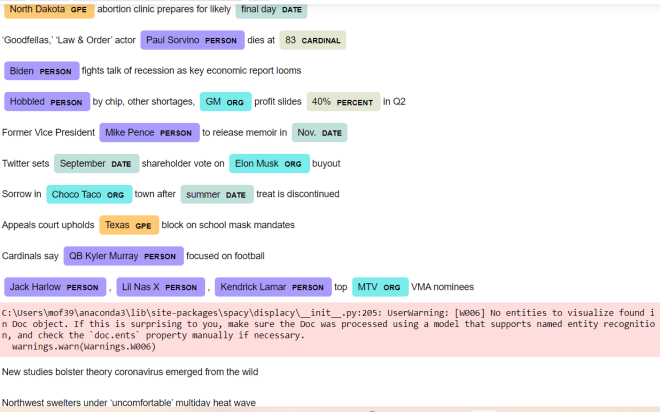
After running the code, you can see a nice, colorful output showing you all the named entities (at least the named entities spacy found) in the text along with the entitiy’s corresponding label. You’ll also notice that each entity is color-coded according to its label; for instance, geographical entites (e.g. Texas, North Dakota) are colored in orange while peoples’ names (e.g. Kendrick Lamar, Lil Nas X) are colored in purple.

While running this code, you’ll also see the UserWarning above-in this case, don’t worry, as this warning simply means that spacy couldn’t find any named entities for a particular string (in this example, spacy couldn’t find any named entities for two of the 12 strings).

Oh, and one more reminder. In the displacy.render() method, you’ll need to include style='ent' as a parameter if you want to work with named-entity recognition, as here’s the default diagram that you get as an output if you don’t specify a style:

In this case, the code still works fine, but you’ll get a dependency parse diagram, which shows you how words in a string are syntactically related to each other.

Thanks for reading,

Michael

Python Lesson 35: Parts-of-speech tagging (NLP pt. 4)

Hello everybody,

Michael here, and today’s post will cover parts-of-speech tagging as it relates to Python NLP (this is part 4 in my NLP Python series).

Intro to parts-of-speech tagging

What is parts-of-speech (POS) tagging, exactly? See, Python NLP can do some really cool things, such as getting the roots of words (Python Lesson 34: Stemming and Lemmatization (NLP pt. 3)) and finding commonly used words (stopwords) in 24 different languages (Python Lesson 33: Stopwords (NLP pt.2)). In Python, parts-of-speech tagging is a quite self-explanatory process, as it involves tokenizing a string and identifying each token’s part-of-speech (such as a noun, verb, etc.). Keep in mind that this isn’t going to be a grammar lesson, so I’m not going to teach you how to use POS tagging to improve your grammar or proofread something you wrote.

POS tagging in action

Now that I’ve explained the basics of POS tagging, let’s see it in action! Take a look at the example below:

import nltk
nltk.download('punkt')
nltk.download('averaged_perceptron_tagger')

test = input('Please input a test string: ')
tokens = nltk.word_tokenize(test)

tagged = []

for t in tokens:
    tagged = nltk.pos_tag(tokens)
    
print(tagged)

Please input a test string: I had a fun time dancing last night.
[('I', 'PRP'), ('had', 'VBD'), ('a', 'DT'), ('fun', 'JJ'), ('time', 'NN'), ('dancing', 'VBG'), ('last', 'JJ'), ('night', 'NN'), ('.', '.')]

Before getting into the fun POS tagging, you’d first need to import the nltk package and download two of the package’s modules-punkt and averaged_perceptron_tagger. punkt is NLTK’s standard package module which allows Python to work its NLP magic while averaged_perceptron_tagger is the module that enables all the fun POS tagging capabilities.

After including all the necessary imports and downloading all the necessary package modules, I then inputted and word-tokenized a test string. I then created an empty list-tagged-that will store the results of our POS tagging.

To perform the POS tagging, I iterated through each element in the list of tokens (aptly called tokens) and used NLTK’s pos_tag() method to add the appropriate POS tag to the element. I then printed out the tagged list, which contains the results of our POS tagging. As you can see, the tagged list contains a list of tuples-the first element in each tuple is the token itself while the second element is that token’s part-of-speech. Punctuation is also included, as punctuation counts as its own token, but doesn’t belong to any part-of-speech.

You likely noticed that the POS tags are all two or three character abbrevations. Here’s a table explaining all of the POS tags:

TagPart-of-speechExample/Explanation
CCcoordinating conjuctionAny of the FANBOYS conjuctions (for, and,
nor, but, or, yet, so)
CDcardinal digitThe numbers 0-9
DTdeterminerA word in front of a noun to specify quanity
or to clarify what the noun refers to (e.g. one
car, that child)
EXexistential thereThere is a snake in the grass.
FWforeign wordSince I’m using English for this post, any word
that isn’t English (e.g. palabra in Spanish)
INprepositionon, in, at
JJadjective (base form)large, tiny
JJRcomparative adjectivelarger, tinier
JJSsuperlative adjectivelargest, tiniest
LSlist marker1), 2)
MDmodal verbOtherwise known as auxiliary verb (e.g. might
happen, must visit)
NNsingular nouncar, tree, cat, etc.
NNSplural nouncars, trees, cats, etc.
NNPsingular proper nounFord
NNPSplural proper nounAmericans
PDTpredeterminerA word or phrase that occurs before a determiner
that quantifies a noun phrase (e.g. lots of toys,
few students)
POSpossessive endingMichael’s, Tommy’s
PRPpersonal pronounPronouns associated with a grammatical person-be it first person, second person, or third person (e.g.
they, he, she)
PRP$possessive pronounPronouns that indicate possession (e.g. mine, theirs, hers)
RBadverbvery, extremely
RBRcomparative adverbearlier, worse
RBSsuperlative adverbbest, worst
RPparticleAny word that doesn’t fall within the main parts-of-speech (e.g. give up)
TOthe word ‘to’to come home
UHinterjectionYikes! Ummmm.
VBbase form of verbwalk
VBDpast tense of verbwalked
VBGgerund form of verbwalking
VBNpast participle of verbwalked
VBPpresent singular form of verb (non-3rd person)walk
VBZpresent singular form
of verb (3rd-person)
walks
WDT“wh” determinerwhich
WP“wh” pronounwho, what
WP$possessive “wh” pronounwhose
WRB“wh” adverbwhere, when

As you can see, even though English has only eight parts of speech (verbs, nouns, adjectives, adverbs, pronouns, prepositions, conjuctions, and interjections), Python has 35 (!) parts-of-speech tags.

  • Even though I’m working with English here, I imagine these POS tags can work for any language.

If you take a look at the last line of output in the above example (the line containing the list of tuples), you can see two-element tuples containing the token itself as the first element along with the token’s POS tag as the second element. And yes, punctuation in a sentence counts as a token itself, but it has no POS tag. Hence why the tuple-POS tag pair for the period at the end of the sentence looks like this-['.', '.'].

Now, what if there was a sentence that had the same word twice but used as different parts-of-speech (e.g. a sentence that had the same word used as a noun and a verb). Let’s take a look at the example below:

import nltk
nltk.download('punkt')
nltk.download('averaged_perceptron_tagger')

test = input('Please input a test string: ')
tokens = nltk.word_tokenize(test)
tagged = nltk.pos_tag(tokens)
    
print(tagged)

Please input a test string: She got a call at work telling her to call the project manager.
[('She', 'PRP'), ('got', 'VBD'), ('a', 'DT'), ('call', 'NN'), ('at', 'IN'), ('work', 'NN'), ('telling', 'VBG'), ('her', 'PRP'), ('to', 'TO'), ('call', 'VB'), ('the', 'DT'), ('project', 'NN'), ('manager', 'NN'), ('.', '.')]

Take a close look at the sentence I used in this example-She got a call at work telling her to call the project manager. Notice the repeated word here-call. In this example, call is used as both a noun (She got a call at work) and a verb (to call the project manager.). The neat thing here is that NLTK’s POS tagger recognizes that the word call is used as two different parts-of-speech in that sentence.

However, the POS tagger may not always be so accurate when it comes to recognizing the same word used as a different part of speech. Take a look at this example:

import nltk
nltk.download('punkt')
nltk.download('averaged_perceptron_tagger')

test = input('Please input a test string: ')
tokens = nltk.word_tokenize(test)
tagged = nltk.pos_tag(tokens)
    
print(tagged)

Please input a test string: My apartment building is bigger than any other apartment in a 5-block vicinity.
[('My', 'PRP$'), ('apartment', 'NN'), ('building', 'NN'), ('is', 'VBZ'), ('bigger', 'JJR'), ('than', 'IN'), ('any', 'DT'), ('other', 'JJ'), ('apartment', 'NN'), ('in', 'IN'), ('a', 'DT'), ('5-block', 'JJ'), ('vicinity', 'NN'), ('.', '.')]

In this example, I’m using the word apartment twice, as both an adjective (My apartment building) and a noun (any other apartment). However, NLTK’s POS tagger doesn’t recognize that the first instance of the word apartment is being used as an adjective to modify the noun building.

  • Hey, what can you say, programs aren’t always perfect. But I’d say NLTK’s POS tagger works quite well for parts-of-speech analysis.

Thanks for reading,

Michael

Python Lesson 34: Stemming and Lemmatization (NLP pt. 3)

Hello everybody,

Michael here, and today’s lesson will cover stemming and lemmatization in Python NLP (natural language processing).

Stemming

Now that we’ve covered some basic tokenization concepts (like tokenization itself and filtering out stopwords), we can move on to the next important concepts in NLP-stemming and lemmatization. Stemming is an NLP task that involves reducing words to their roots-for instance, stemming the words “liked” and “likely” would result in “like”

Now, the NLTK package has several stemmers you can use, but for this lesson (along with all Python NLP lesson on this blog) I will be using NLTK’s PorterStemmer stemmer. Let’s see stemming in action:

import nltk
nltk.download('punkt')
from nltk.stem import PorterStemmer

test = input('Please input a test string: ')
testWords = nltk.word_tokenize(test)
print(testWords)

stemmer = PorterStemmer()
stemmedWords = [stemmer.stem(word) for word in testWords]
print(stemmedWords)

Please input a test string: Byte sized programming classes for eager coding learners
['Byte', 'sized', 'programming', 'classes', 'for', 'eager', 'coding', 'learners']
['byte', 'size', 'program', 'class', 'for', 'eager', 'code', 'learner']

To start your stemming, include the first three lines of code you see above as the imports and downloads. And yes, you’ll need to import the PorterStemmer separately.

After including all the necessary downloads and imports, I then included code to input a test string, word-tokenize that test string, and print the list of tokens. After performing the word-tokenizing, I then created a PorterStemmer object (aptly named stemmer), performed a list comprehension to stem each token in the input string, and printed the stemmed list of tokens.

What do you notice in the stemmed list of tokens (it’s the last line of output by the way)? First of all, all words are displayed in lowercase, which is nothing remarkable. Secondly, notice how most of the stemmed tokens make perfect sense (e.g. sized = size, programming = program, and so on); sometimes when stemming words in Python NLP, you’ll get some weird outputs.

Now, let’s try another input string and see what kind of results we get:

import nltk
nltk.download('punkt')
from nltk.stem import PorterStemmer

test = input('Please input a test string: ')
testWords = nltk.word_tokenize(test)
print(testWords)

stemmer = PorterStemmer()
stemmedWords = [stemmer.stem(word) for word in testWords]
print(stemmedWords)

Please input a test string: The quick brown fox jumped over the lazy brown dog and jumps over the even lazier brown cat.
['The', 'quick', 'brown', 'fox', 'jumped', 'over', 'the', 'lazy', 'brown', 'dog', 'and', 'jumps', 'over', 'the', 'even', 'lazier', 'brown', 'cat', '.']
['the', 'quick', 'brown', 'fox', 'jump', 'over', 'the', 'lazi', 'brown', 'dog', 'and', 'jump', 'over', 'the', 'even', 'lazier', 'brown', 'cat', '.']

Just like the previous example, this example tokenizes an input string and stems each element in the tokenized list. However, pay attention to the words “lazy” and “lazier”. Although “lazier” is a conjugation of “lazy”, “lazy” has a stem of, “lazi” while “lazier” has a stem of “lazier”.

OK, so if stemming sometimes gives you weird and inconsistent results (like in the example above), there’s a reason for that. See, stemming reduces words to their core meaning. However, unlike lemmatization (which I’ll discuss next), stemming is a lot cruder, so it’s not uncommon to get fragments of words when stemming. Plus, the PorterStemmer tool is based off an algorithm that was developed in 1979-so yea, it’s a little dated. There is a PorterStemmer2 tool that improves upon the PorterStemmer tool we used-just FYI.

Lemmatization

Now that we’ve covered the basics of word stemming, let’s move on to word lemmatization. Lemmatization, like stemming, is an NLP tool that is meant to reduce words to their core meaning. However, unlike stemming, lemmatization usually gives you a complete word rather than a fragment of a word (e.g. “lazi” from the previous example).

import nltk
nltk.download('punkt')
nltk.download('wordnet')
from nltk.stem import WordNetLemmatizer

test = input('Please input a test string: ')
tokens = nltk.word_tokenize(test)
lemmatizer = WordNetLemmatizer()
lemmatizedList = [lemmatizer.lemmatize(word) for word in tokens]

print(lemmatizedList)

Please input a test string: The two friends drove their nice blue cars across the Florida coast.
['The', 'two', 'friend', 'drove', 'their', 'nice', 'blue', 'car', 'across', 'the', 'Florida', 'coast', '.']

So, how did I accomplish the lemmatization? First of all, after adding in all the necessary downloads and imports (and typing in an import string), I first tokenized my input string. I then created a lemmatizer object (aptly named lemmatizer) using NLTK’s WordNetLemmatizer tool. To lemmatize each token in the input string, I ran list comprehension to pass each element of the list of tokens (aptly named tokens) into the lemmatizer tool to lemmatize each word. I stored the results of this list comprehension into the lemmatizedList and printed that list below the text input.

As you can see from the example above, the lemmas of the tokens above are the same as the tokens themselves (e.g. two, across, blue). However, some of the tokens have different lemmas (e.g. cars–>car, friends–>friend). That’s because, as I mentioned earlier, lemmas find the root of a word. In the case of the words cars and friends, the root of the word would be the word’s singular form (car and friend, respectively).

  • Just thought I’d put this out here, but the root word that is generated is called a lemma, and the group of words with a particular lemma is called a lexeme. For instance, the word “try” would be the lemma while the words “trying, tried, tries” could be part of (but not the only words) that are part of the lexeme.

So, from the example above, looks like the lemmatization works much better than stemming when it comes to finding the root of a word. But what if you tried lemmatizing a word that looked very different from its lemma? Let’s see an example of that below (using the lemmatizer object created from the previous example):

lemmatizer.lemmatize("bought")
'bought'

In this example, I’m trying to lemmatize the word “bought” (as in, I bought a new watch.) However, you can see that in this example, the lemma of bought is bought. That can’t be right, can it?

Why do you think that particular output was generated? Simply put, the lemmatizer tool, by default, will assume a word is a noun (even when that clearly isn’t the case).

How can we correct this? Take a look at the example below:

lemmatizer.lemmatize("bought", pos='v')
'buy'

In this example, I added the pos parameter, which specifies a part of speech for a particular word. In this case, I set the value of pos to v, as the word “bought” is a verb. Once I added the pos parameter, I was able to get the correct lemma for the word “bought”-“buy”.

  • When working with lemmatization, you’ll run into the issue quite a bit with adjectives and irregular verbs.

Thanks for reading,

Michael

Python Lesson 33: Stopwords (NLP pt.2)

Hello everybody,

Michael here, and today’s post will be on stopwords in Python NLP-part 2 in my NLP series.

What are stopwords? Simply put, stopwords are words you want to ignore when tokenizing a string. Oftentimes, stopwords are common English words like “a”, “the”, and “is” that are so commonly used in English that they don’t add much meaning in text.

  • Stopwords can be found for any language, but for this series of NLP lessons, I’ll focus on English words.

Now that I’ve explained the basics of stopwords, let’s see them in action:

import nltk
nltk.download('punkt')
nltk.download('stopwords')
from nltk.corpus import stopwords

test = input('Please type in a string: ')
testWords = nltk.word_tokenize(test)

stopwordsList = set(stopwords.words('english'))

filteredList = []

for t in testWords:
    if t.casefold() not in stopwordsList:
        filteredList.append(t)

print(filteredList)

Please type in a string: The puppies and the kitties played in their playpen on the hot summer afternoon.
['puppies', 'kitties', 'played', 'playpen', 'hot', 'summer', 'afternoon', '.']

To utilize NLTK’s stopwords module, you’ll need to run the nltk.download(stopwords) command and import the stopwords module from the nltk.corpus package.

  • Yes, you’ll still need to download the punkt module, as it will enable easy tokenization, which is important to have when working with stopwords.

To store the list of tokens in the string you input, create a testWords variable that stores the output of the nltk.word_tokenize function. To get a list of NLTK’s English stopwords, use the line of code set(stopwords.words('english'))-this line of code creates a set from the list of NLTK’s English stopwords. Recall that sets are like lists, except without duplicate elements.

To gather a list of stopwords in the input string, you’d need to first create an empty list-filteredList in this case-that you’ll need to filter the stopwords out of the list of tokens (testWords in this case). To remove the stopwords, you’ll need to iterate through the list of tokens (again, testWords in this case), check if each token is in the list of stopwords and if not, add the token to the empty list you created earlier (filteredList in this case).

As you can see in the example above, the input string I used has 15 tokens (the punctuation at the end of the sentence counts as a token). After filtering out the stopwords, the resulting list only contains 8 tokens, as 7 tokens have been filtered out-The and the in their on the. Yes, even though I am iterating though a UNIQUE list of stopwords, the loop I am running will check for all instances of a stopword and exclude them from the filtered list (after all, there were three instances of the word “the” in the input string).

Ever want to see all of the words included in NLTK’s English stopwords list? Run the command print(stopwords.words('english') and you’ll see all the stopwords NLTK uses in English:

['i', 'me', 'my', 'myself', 'we', 'our', 'ours', 'ourselves', 'you', "you're", "you've", "you'll", "you'd", 'your', 'yours', 'yourself', 'yourselves', 'he', 'him', 'his', 'himself', 'she', "she's", 'her', 'hers', 'herself', 'it', "it's", 'its', 'itself', 'they', 'them', 'their', 'theirs', 'themselves', 'what', 'which', 'who', 'whom', 'this', 'that', "that'll", 'these', 'those', 'am', 'is', 'are', 'was', 'were', 'be', 'been', 'being', 'have', 'has', 'had', 'having', 'do', 'does', 'did', 'doing', 'a', 'an', 'the', 'and', 'but', 'if', 'or', 'because', 'as', 'until', 'while', 'of', 'at', 'by', 'for', 'with', 'about', 'against', 'between', 'into', 'through', 'during', 'before', 'after', 'above', 'below', 'to', 'from', 'up', 'down', 'in', 'out', 'on', 'off', 'over', 'under', 'again', 'further', 'then', 'once', 'here', 'there', 'when', 'where', 'why', 'how', 'all', 'any', 'both', 'each', 'few', 'more', 'most', 'other', 'some', 'such', 'no', 'nor', 'not', 'only', 'own', 'same', 'so', 'than', 'too', 'very', 's', 't', 'can', 'will', 'just', 'don', "don't", 'should', "should've", 'now', 'd', 'll', 'm', 'o', 're', 've', 'y', 'ain', 'aren', "aren't", 'couldn', "couldn't", 'didn', "didn't", 'doesn', "doesn't", 'hadn', "hadn't", 'hasn', "hasn't", 'haven', "haven't", 'isn', "isn't", 'ma', 'mightn', "mightn't", 'mustn', "mustn't", 'needn', "needn't", 'shan', "shan't", 'shouldn', "shouldn't", 'wasn', "wasn't", 'weren', "weren't", 'won', "won't", 'wouldn', "wouldn't"]

In total, NLTK has 179 stopwords in English, which consist of common English pronouns (I, my, you), commonly used English contracations (don’t, isn’t), conjungations of common English verbs (such as be and have), and surprisingly, contractions that you don’t hear most people use nowadays (be honest, when was the last time you heard someone use a word like shan’t or mightn’t).

  • Of course, you can always append words to NLTK’s stopwords list as you see fit, but when working with stopwords in English (or any language), I’d suggest sticking with the default stopwords list.

Now, I know I mentioned that I’ll mostly be working with English throughout my NLP lessons, but let’s explore stopwords in other languages. For this example, I’ll use the same code and same input string I used in the previous example, except this time use Spanish:

Please type in a string: Los cachorros y los gatitos jugaban en su corralito en la calurosa tarde de verano.
['cachorros', 'gatitos', 'jugaban', 'corralito', 'calurosa', 'tarde', 'verano', '.']

So, the Spanish-translated version of my previous example has 16 tokens, 8 of which appear on the filtered list. Thus, there were 8 stopwords that were removed from the testWords list.

Want to see the Spanish list of stopwords? Run the command print(stopwords.words('spanish') and take a look:

['de', 'la', 'que', 'el', 'en', 'y', 'a', 'los', 'del', 'se', 'las', 'por', 'un', 'para', 'con', 'no', 'una', 'su', 'al', 'lo', 'como', 'más', 'pero', 'sus', 'le', 'ya', 'o', 'este', 'sí', 'porque', 'esta', 'entre', 'cuando', 'muy', 'sin', 'sobre', 'también', 'me', 'hasta', 'hay', 'donde', 'quien', 'desde', 'todo', 'nos', 'durante', 'todos', 'uno', 'les', 'ni', 'contra', 'otros', 'ese', 'eso', 'ante', 'ellos', 'e', 'esto', 'mí', 'antes', 'algunos', 'qué', 'unos', 'yo', 'otro', 'otras', 'otra', 'él', 'tanto', 'esa', 'estos', 'mucho', 'quienes', 'nada', 'muchos', 'cual', 'poco', 'ella', 'estar', 'estas', 'algunas', 'algo', 'nosotros', 'mi', 'mis', 'tú', 'te', 'ti', 'tu', 'tus', 'ellas', 'nosotras', 'vosotros', 'vosotras', 'os', 'mío', 'mía', 'míos', 'mías', 'tuyo', 'tuya', 'tuyos', 'tuyas', 'suyo', 'suya', 'suyos', 'suyas', 'nuestro', 'nuestra', 'nuestros', 'nuestras', 'vuestro', 'vuestra', 'vuestros', 'vuestras', 'esos', 'esas', 'estoy', 'estás', 'está', 'estamos', 'estáis', 'están', 'esté', 'estés', 'estemos', 'estéis', 'estén', 'estaré', 'estarás', 'estará', 'estaremos', 'estaréis', 'estarán', 'estaría', 'estarías', 'estaríamos', 'estaríais', 'estarían', 'estaba', 'estabas', 'estábamos', 'estabais', 'estaban', 'estuve', 'estuviste', 'estuvo', 'estuvimos', 'estuvisteis', 'estuvieron', 'estuviera', 'estuvieras', 'estuviéramos', 'estuvierais', 'estuvieran', 'estuviese', 'estuvieses', 'estuviésemos', 'estuvieseis', 'estuviesen', 'estando', 'estado', 'estada', 'estados', 'estadas', 'estad', 'he', 'has', 'ha', 'hemos', 'habéis', 'han', 'haya', 'hayas', 'hayamos', 'hayáis', 'hayan', 'habré', 'habrás', 'habrá', 'habremos', 'habréis', 'habrán', 'habría', 'habrías', 'habríamos', 'habríais', 'habrían', 'había', 'habías', 'habíamos', 'habíais', 'habían', 'hube', 'hubiste', 'hubo', 'hubimos', 'hubisteis', 'hubieron', 'hubiera', 'hubieras', 'hubiéramos', 'hubierais', 'hubieran', 'hubiese', 'hubieses', 'hubiésemos', 'hubieseis', 'hubiesen', 'habiendo', 'habido', 'habida', 'habidos', 'habidas', 'soy', 'eres', 'es', 'somos', 'sois', 'son', 'sea', 'seas', 'seamos', 'seáis', 'sean', 'seré', 'serás', 'será', 'seremos', 'seréis', 'serán', 'sería', 'serías', 'seríamos', 'seríais', 'serían', 'era', 'eras', 'éramos', 'erais', 'eran', 'fui', 'fuiste', 'fue', 'fuimos', 'fuisteis', 'fueron', 'fuera', 'fueras', 'fuéramos', 'fuerais', 'fueran', 'fuese', 'fueses', 'fuésemos', 'fueseis', 'fuesen', 'sintiendo', 'sentido', 'sentida', 'sentidos', 'sentidas', 'siente', 'sentid', 'tengo', 'tienes', 'tiene', 'tenemos', 'tenéis', 'tienen', 'tenga', 'tengas', 'tengamos', 'tengáis', 'tengan', 'tendré', 'tendrás', 'tendrá', 'tendremos', 'tendréis', 'tendrán', 'tendría', 'tendrías', 'tendríamos', 'tendríais', 'tendrían', 'tenía', 'tenías', 'teníamos', 'teníais', 'tenían', 'tuve', 'tuviste', 'tuvo', 'tuvimos', 'tuvisteis', 'tuvieron', 'tuviera', 'tuvieras', 'tuviéramos', 'tuvierais', 'tuvieran', 'tuviese', 'tuvieses', 'tuviésemos', 'tuvieseis', 'tuviesen', 'teniendo', 'tenido', 'tenida', 'tenidos', 'tenidas', 'tened']

In comparison to the English stopwords list, the Spanish list has 313 stopwords. However, both the English and Spanish lists have the same type of elements, such as conjugations of commonly used verbs (such as ser and estar), common pronouns and prepositions (yo, tu, para, contra), among other things. What you don’t see much of in the Spanish stopwords list are contractions, and that’s because there are only two knwon contractions in Spanish (al and del-both of which are on this list) while English has plenty of contractions.

Now, one cool thing about working with stopwords (and NLP in general) is that you can play around with several foreign languages. Run the command print(stopwords.fileids()) to see all the languages you can play with when working with stopwords:

['arabic', 'azerbaijani', 'bengali', 'danish', 'dutch', 'english', 'finnish', 'french', 'german', 'greek', 'hungarian', 'indonesian', 'italian', 'kazakh', 'nepali', 'norwegian', 'portuguese', 'romanian', 'russian', 'slovene', 'spanish', 'swedish', 'tajik', 'turkish']

In total, you can use 24 languages when working with stopwords-from common languages like English, Spanish and French to more interesting options like Kazakh and Turkish. Interestingly, I don’t see an option to use Mandarin on here, as it’s a commonly spoken language worldwide.

Thank you,

Michael

It’s Our Fourth Anniversary Everybody!!!

Hello readers,

Michael here, and today I thought I’d celebrate the blog’s fourth anniversary (yes, I’ve been active for that long) to introduce more exciting updates to my blog (and no, there won’t be a third home). Yes, I’m still keeping my tradition of anniversary posts every June 13.

If you’ve been reading my WordPress site throughout the years, you’ll notice that not much has changed. From the blog’s name, layout, and content, not much has changed at all-after all, I’ve strived (and will continue to strive) to give you all great programming content. Hey, if it ain’t broke, don’t fix it.

But as the years have gone by, I’ve realized that this little blog of mine could use a little revamping every now and then-and to be honest, this blog is looong overdue for a little facelift.

First off, let’s start with the About Me page. Hoo boy, this may have worked when I launched this blog in 2018, but it looks awfully dated now. After all, I’m no longer a 22-year-old recent college graduate but now a 26-year-old working professional who now has had almost three years of programming job experience under his belt (when I launched this blog, I had no programming job experience, just some coding knowledge from courses I took in my last year of undergrad). Plus, I’ve been out of school for four years now-I started this blog about a month and a half after college graduation.

Now, after a little tweaking, let’s see the new About Me page:

OK, so I couldn’t capture the whole about me page in a single screenshot, but wouldn’t you say this looks much better. I describe myself and give a little more background as to why I pursued a career in coding so that you all can know why I do what I do. I also included a link to my Medium account-as many of you know, I started publishing my blogs to Medium as well as WordPress beginning in October 2021.

I also include a picture of myself, just so you-the readers-know what I look like.

  • Also, for those who may be wondering, I took this picture in June 2021 at Radnor Lake State Park in Nashville, TN. Perfect outdoor area to visit if you’re ever in Nashville.

Now, the next major update I made is post-tagging. As you readers likely have noticed, I tend to jump back and forth between programming tools a lot in my posts (e.g. in 2018, I jumped from a series of R lessons to a series of MySQL lessons and back to another series of R lessons). The reason I do this is because I like to cover a variety of programming tools to keep this blog interesting-after all, I’ve covered SEVEN different programming tools (GitHub, Python, Java, MySQL, R, HTML, and CSS) over the course of this blog’s four-year run. Since I’ve covered so many different programming tools, I know it can get messy if you’re looking for lessons pertaining to a certain tool (such as R). That’s why I’m going back and tagging all 126 of my posts (including this post). Take a look at my first R lesson from June 25, 2018:

Notice something different on the bottom? If you’ve visited my blog, you’ll notice that I didn’t have tags on my posts up until now. In this post, I just have a single tag-R-which if you click on it, you’ll see all the R posts I’ve written on this blog (well, all the R posts I’ve tagged so far):

Programming tools like R and MySQL aren’t the only things to get their own tags. Let’s say you wanted to find posts that use music-related datasets. Well, click on any post that has a music tag and watch what happens:

In this example, after I clicked on a post with a music tag, I can see all my posts that have a music tag-most of which are also MySQL lessons. For those that have read my blog for a long time, you’ll likely remember that I utilized a dataset of American music from 2000-2018 when I published my MySQL lesson series in the summer and fall of 2018.

Also, even though this is not an update, I just wanted to remind you all that, if you ever wanted to reach out to me directly, I’ve had a handy-dandy contact form on my blog since Day 1:

Hey, it’s simple, but it works. Plus, anything you post on this form will go to an e-mail account I actually check, not a throwaway account. I’d love to answer some of your coding/programming questions.

Also, last but not least, the biggest update I have for you all. You ready?

I’m changing the name of the blog! Yes, when I first created this blog, I settled on the name Michael’s Analytics Blog because, after all, my name is Michael and I was going to share solely data analytics lessons with you all (I was in the midst of a marathon of a post-college job hunt in data analytics when I launched this blog). However, throughout the years, my blog’s focus has certainly broadened from just data analytics to more programming tools such as Python, web development (with HTML and CSS) and even GitHub (recall my celebratory 100th post A Very Special 100th Post: The Basics of Git & GitHub).

So without further ado, here’s my new blog name:

Yes, this blog will now be known as Michael’s Programming Bytes. I also now have a tagline-Byte sized programming classes for all coding learners.

Honestly, with the direction the blog has taken over the last several years, I thought it was fitting to retire the Michael’s Analytics Blog name (not that there was anything wrong with it) and introduce the Michael’s Programming Bytes name. How did I land on this name? Well, think about this, dear readers. Over the last four years, I’ve given you all “bytes” of programming knowledge in seven different programming tools with each post. Plus, bytes are the smallest units of computer memory storage, and this is a programming blog after all, so I thought the name fit well.

As I just mentioned, I also have a blog tagline now-Byte sized programming classes for all coding learners. I am giving you all “byte”-sized programming “classes” with each post (hey, two programming puns in one).

  • Yes, I wanted to go all-in on the programming wordplay with the new blog name & tagline. I think you coders will get a kick out of it. Still keeping the red border on my blog-red is my favorite color after all.
  • Now that I have a new blog name, I’ll change the blog domain as well. Will keep you posted on that.

Thanks for reading these last four years! Here’s to many many more years of providing great programming content for you all.

Michael

Python Lesson 32: Intro to Python NLP (NLP pt. 1)

Hello everybody,

Michael here, and today I thought I’d get back into some Python lessons-particularly, I wanted to start a new series of Python lessons on a topic I’ve been wanting to cover, NLP (or natural language processing).

See, Python isn’t just good for mathematical operations-there’s so much more you can do with it (computer vision, natural language processing, graphic design, etc.). Heck, if I really wanted to, I could post only Python content on this blog and still have enough content to keep this blog running for another 6-10 years.

In the context of Python, what is natural language processing? It’s basically a concept that encompasses how computers process natural language. Natural language is basic, conversational language (whether English, Spanish, or any other language on the planet), much like what you’d use when talking to your buddies or writing a job resume.

See, when you’re writing a Python program (or any program really) you’re not feeding natual language to the computer for processing. Rather, what you feed to the computer are programming instructions (loops, conditions, print statements-they all count as programming instruction). Humans don’t speak in code, and computers don’t process instructions in “people-talk”, if you will. This is where natural language processing comes in, as developers (depending on the program being created) sometimes want to process natural language in their programs for a variety of purposes, such as data anaylsis, finding certain parts-of-speech, etc.

Now that I’ve given you a basic NLP intro, let’s dive into some coding! To start exploring natural language processing with Python, let’s first pip install the NLTK package by running this line on our command prompts (the regular command prompt, not the Anaconda prompt-if you happen to have that)-pip install nltk.

  • Remember to run the pip list command to see if you already have the nltk package installed on your device.

Once you get the NLTK package installed on your device, let’s start coding!

Take a look at this code below-I’ll dicuss it after I show you the example:

import nltk
nltk.download('punkt')

test = input('Please type in a string: ')

nltk.word_tokenize(test)

Please type in a string: Don't worry I won't be going anywhere.
['Do', "n't", 'worry', 'I', 'wo', "n't", 'be', 'going', 'anywhere', '.']

In this example, I was demonstrating one of the most basic concepts of NLP-tokenization. Tokenization is simply the process of splitting up text strings-either by word or by sentence (and more on the sentence thing later).

For this example to work, I imported the nltk package and downloaded NLTK’s punkt module-reasons for doing this are that punkt is a good pre-trained tokenizer model and in order for the tokenization process to work, you’ll need to install a pre-trained model (which doesn’t come with the NLTK package’s pip installation, sadly).

After importing the NLTK package and installing the pre-trained model, I then typed in a sentence that I wanted to toeknize and then ran the NLTK package’s word_tokenize method on the sentence. The last line of code in the example contains the output after the text is tokenized-as you can see, the tokenized output is displayed as a list of the words in the input sentence (denoted by the test variable).

Pay attention to the list of words that was generated. With words like be, going, and worry-nothing too remarkable, right? However, pay attention to the way the two contractions in the test sentence were tokenized. Don’t was tokenized as do and n't while won’t was tokenized as wo and n't. Why might that be? Well, the pre-trained NLTK model we downloaded earlier (punkt) is really good at recognizing common English contractions as two separate words-don’t is shorthand for “do not” and won’t is shorthand for “will not”. However, just because a word in the string has an apostrophe doesn’t mean it will automatically be split in two-for instance the word “Cote D’Ivore” (the Ivory Coast nation in Africa) wouldn’t be split as it’s not a common English contraction.

Pretty neat stuff right? Now, let’s take a look at sentence-based tokenization:

import nltk
nltk.download('punkt')

test = input('Please type in a string: ')

nltk.sent_tokenize(test)

Please type in a string: How was your Memorial Day weekend? Mine was fun. Lots of sun!

['How was your Memorial Day weekend?', 'Mine was fun.', 'Lots of sun!']

In order to perform sentence-based tokenization, you’d need to utilize NLTK’s sent_tokenize model (just as you would utilize word_tokenize for word-based tokenization). Just like the word_tokenize module, the sent_tokenize module returns a list of strings that were derived from the larger string but in this case, sent_tokenize splits the string based on sentences rather than individual words. Notice how sent_tokenize perfectly notices where the punctuation is located in order to split the string based on sentences.

Thanks for reading,

Michael

CSS Lesson 5: Webpage Margins and Padding

Hello everybody,

Michael here, and today’s post will discuss how to incorporate CSS margins and padding into your webpage.

What do margins and padding do, exactly? Well, in the context of CSS development, margins are used to create space around webpage elements outside of predefined borders. In other words, if there are some elements that you’d like to surround with some whitespace, using a margin would be perfect.

Let’s explore how margins work by first taking a look at the HTML form code we’ve used for every CSS lesson in this series thus far (the CSS stylings not including the borders from the previous lesson will remain intact here):

<!DOCTYPE html>
<html lang="es-US" dir="ltr">
  <head>
    <meta charset="utf-8">
    <link rel="stylesheet" href="Form.css">
    <link rel="stylesheet" href="https://fonts.googleapis.com/css?family=Press+Start+2P">
    <title></title>
  </head>
  <body>
    <h1>Flight finder:</h1>
    <form action="Submitted.html" method="POST">
      <label for="datepicker1">Pick the date you want to depart for your vacation</label><br>
      <input type="date" id="datepicker1" name="datepicker1" min="2021-03-25" max="2022-03-25"><br>
      <br>
      <label for="datepicker2">Pick the date you want to return from your vacation</label><br>
      <input type="date" id="datepicker2" name="datepicker2" min="2021-03-25" max="2022-03-25"><br>
      <br>
      <label for="time1">What time would you like to depart? (flights shown within 90 minutes of selected time)</label><br>
      <input type="time" id="time1" name="time1"><br>
      <br>
      <label for="time2">What time would you like to return? (flights shown within 90 minutes of selected time)</label><br>
      <input type="time" id="time2" name="time2"><br>
      <br>
      <label for="layover">How many layovers do you want?</label><br>
      <input type="number" id="layover" name="layover" min="0" max="3"><br>
      <br>
      <input type="submit" value="Submit">
    </form>
    <div class="container">
     <p>Thank you for booking your next trip with XYZ Airlines!!</p>
     <p>Can't wait to see you on your travels!!</p>
   </div>
  </body>
</html>

Great. Now let’s say we wanted to add a little margin to the Flight finder: header. Take a look at the highlighted line of CSS code to see how you can accomplish this:

h1{
  color: green;
  font-family: "Comic Sans MS";
  font-size: 40px;
  text-align: center;
  margin: 30px;
}

.container{
  color: red;
  font-family: "Press Start 2P";
  font-size: 30px;
  text-align: center;
}

input{
  background-color: #00FFFF
}

To add a margin to the Flight finder: header, I added a styling call to the h1 declaration that uses the margin property and sets the value to 30px-this adds a 30px margin around all sides of the Flight finder: header.

Look, I know margins aren’t as obvious to detect as borders but trust me, they’re there. If it helps, think of margins as a sort of invisible border around a certain HTML element(s).

  • Margins are always measured in px (pixels). Always append the px suffix to whatever you want to use for the margin measurement.
  • Also, even though I mentioned that you could think of margins as “invisible borders”, you can’t set colors or line styles for margins (after all, margins are invisible, so therefore you won’t even see any colors/line styles). However, margins, like borders, have four sides-you can have four different margin sizes if you so choose (just like you can have four different border line stylings). More on this point later.

So, know how I mentioned that similar to how you can have up to four different border line stylings, you can also have up to four different margin sizes. Let’s see an example of this in the highlighted line of CSS code below:

h1{
  color: green;
  font-family: "Comic Sans MS";
  font-size: 40px;
  text-align: center;
  margin: 30px 10px 20px 40px;
}

.container{
  color: red;
  font-family: "Press Start 2P";
  font-size: 30px;
  text-align: center;
}

input{
  background-color: #00FFFF
}

In this example, I used four different margin lengths-30px 10px 20px 40px-to denote the four different margin sizes I’d like to use. Notice anything familiar about the highlighted styling call? The way I listed the margin lengths is the same way I used to list different border stylings in the previous lesson (CSS Lesson 4: Webpage Borders)

Just to reiterate the logic I used in the previous post (but in the context of margins):

  • If margin has four values:
    • Example: margin: 10px 50px 20px 40px
    • How it would work: top margin of 10px, right margin of 50px, bottom margin of 20px, left margin of 40px
  • If margin has three values:
    • Example: margin: 10px 50px 20px
    • How it would work: top margin 10px, right and left margins 50px, bottom margin 75px
  • If margin has two values:
    • Example: margin: 10px 50px
    • How it would work: top and bottom margins 10px, right and left margins 50px
  • If margin has one value:
    • Example: margin: 10px
    • How it would work: all margins 10px
  • Ideally, try to maintain even margins for your elements. Having all margins the same length is fantastic, but the 2-2 rule (which I made up) works just as well-top and bottom margins set to the same length, and left and right margins set to the same length but different than the length of the top and bottom margins.
  • If you want to set margin lengths for each side of a margin around an element, using the margin-top, margin-bottom, margin-left and margin-right properties would work too; however, this is less efficient than utilzing the multiple margin lengths logic I discussed above.

Sounds pretty easy, right? However, keep in mind that there’s another possible value for margins-auto. Using the auto value on an element will horizontally center it. Take a look at how it’s used (through the highlighted line of code):

h1{
  color: green;
  font-family: "Comic Sans MS";
  font-size: 40px;
  text-align: center;
  margin: auto;
}

.container{
  color: red;
  font-family: "Press Start 2P";
  font-size: 30px;
  text-align: center;
}

input{
  background-color: #00FFFF
}

In this example, I set the value of the h1 element’s margins property to auto, which automatically horizonatally centers the h1 element in the webpage.

  • Personally, if you want the webpage looking as neat as possible, auto would be the way to go when working with your margins. Also, unlike with prespecified margin lengths (e.g. 10px, 50px), you can’t repeat auto several times. So a styling call like margins: auto auto auto auto won’t work.

Now that we’ve explored margins, let’s take a look at padding. Padding and margins are conceptually similar since both features are meant to create space around an element (or elements) in your webpage. However, margins create space around an element outside of a defined border, while padding creates space around an element INSIDE of a defined border. Let’s take a look at a basic example of padding (using the highlighted line of code below):

h1{
  color: green;
  font-family: "Comic Sans MS";
  font-size: 40px;
  text-align: center;
  margin: auto;
}

.container{
  color: red;
  font-family: "Press Start 2P";
  font-size: 30px;
  text-align: center;
  border-style: solid;
  border-color: green;
  border-width: 6px;
  padding: 30px
}

input{
  background-color: #00FFFF
}

In this example, I applied a padding of 30px (like margins, padding values are also specified in px or pixels) to the elements in the .container class-the last two lines of text on the webpage. This creates whitespace of 30px between the elements and each side of the border.

Now, can you specify multiple padding lengths similar to how you can specify multiple border stylings or margin lengths? Yes. Does the logic for specifying mutliple padding lengths work the same as it would for specifying multiple border stylings or margin lengths? Also yes. Let me explain below:

  • If padding has four values:
    • Example: padding: 25px 30px 10px 50px
    • How it would work: top padding 25px, right padding 50px, bottom padding 10px, left padding 50px
  • If padding has three values:
    • Example: padding: 25px 30px 10px
    • How it would work: top padding 25px, right and left paddings 30px, bottom padding 10px
  • If padding has two values:
    • Example: padding: 25px 30px
    • How it would work: top and bottom paddings 25px, right and left paddings 30px
  • If padding has one value:
    • Example: padding: 25px
    • How it would work: all paddings 25px

While discussing CSS margins, I did mention another approach to setting multiple margin lengths-using the margin-top, margin-left, margin-bottom, and margin-right properties to set the top, left, bottom, and right margin lengths, respectively. You can do something similar with padding lengths using the padding-top, padding-left, padding-bottom, and padding-right properties, respectively, but it would be much more efficient to use the multiple-padding-lengths-in-a-single-line approach that I discussed above.

  • Just like with margin lengths, I don’t recommend setting four (or even three) different padding lengths, as this would make the element spacing look really uneven. One or two padding lengths would work just fine (preferably a single padding length).
    • You may be able to hide uneven margin lengths better than you can hide uneven padding lengths, as margins are utilized outside of defined borders while padding is utilized inside of defined borders. Therefore, uneven padding is more obvious to see to visitors of your website.
  • Lo and behold, you can utilize the auto property on padding too in order to horizontally center your element withing a border. Same rules from applying the auto property to margins are in place here (e.g. the styling call padding: auto auto auto auto) won’t work. Here’s how utilizing the auto property for padding would work here (pay attention to the highlighted line of code):
h1{
  color: green;
  font-family: "Comic Sans MS";
  font-size: 40px;
  text-align: center;
  margin: auto;
}

.container{
  color: red;
  font-family: "Press Start 2P";
  font-size: 30px;
  text-align: center;
  border-style: solid;
  border-color: green;
  border-width: 6px;
  padding: auto
}

input{
  background-color: #00FFFF
}

Thanks for reading,

Michael

CSS Lesson 4: Webpage Borders

Hello everybody,

Michael here, and today’s lesson will cover how to use CSS borders on your webpage.

When you are designing your HTML website, borders are crucial design elements.

First off, let’s start by exploring CSS borders. To do that, let’s use the form we’ve been using for my CSS lessons (minus the background image from the previous lesson):

<!DOCTYPE html>
<html lang="es-US" dir="ltr">
  <head>
    <meta charset="utf-8">
    <link rel="stylesheet" href="Form.css">
    <link rel="stylesheet" href="https://fonts.googleapis.com/css?family=Press+Start+2P">
    <title></title>
  </head>
  <body>
    <h1>Flight finder:</h1>
    <form action="Submitted.html" method="POST">
      <label for="datepicker1">Pick the date you want to depart for your vacation</label><br>
      <input type="date" id="datepicker1" name="datepicker1" min="2021-03-25" max="2022-03-25"><br>
      <br>
      <label for="datepicker2">Pick the date you want to return from your vacation</label><br>
      <input type="date" id="datepicker2" name="datepicker2" min="2021-03-25" max="2022-03-25"><br>
      <br>
      <label for="time1">What time would you like to depart? (flights shown within 90 minutes of selected time)</label><br>
      <input type="time" id="time1" name="time1"><br>
      <br>
      <label for="time2">What time would you like to return? (flights shown within 90 minutes of selected time)</label><br>
      <input type="time" id="time2" name="time2"><br>
      <br>
      <label for="layover">How many layovers do you want?</label><br>
      <input type="number" id="layover" name="layover" min="0" max="3"><br>
      <br>
      <input type="submit" value="Submit">
    </form>
    <div class="container">
     <p>Thank you for booking your next trip with XYZ Airlines!!</p>
     <p>Can't wait to see you on your travels!!</p>
   </div>
  </body>
</html>

Great, so we have the form webpage (along with the corresponding code) here. Now, let’s say we wanted to add a simple CSS border to the last two lines of text (the ones in red). How would we do so? Take a look at the highlighted line of CSS code below:

h1{
  color: green;
  font-family: "Comic Sans MS";
  font-size: 40px;
  text-align: center
}

.container{
  color: red;
  font-family: "Press Start 2P";
  font-size: 30px;
  text-align: center;
  border-style: solid
}

input{
  background-color: #00FFFF
}

To add a CSS border to an element on the form, simply add a border-style styling call and set any of the following values for border-style:

  • dotted-creates a dotted line border
  • dashed-creates a dashed line border
  • solid-creates a solid line border
  • double-creates a double border
  • groove-creates a 3D grooved border
  • ridge-creates a 3D ridged border
  • inset-creates a 3D inset border
  • outset-creates a 3D outset border
  • none-creates no border
  • hidden-creates a hidden line border

In this example, I set the value of the border-style property to solid, which creates a solid red border on the last two lines of text on this webpage.

Now, what if you wanted a thicker or thinner border? Let’s see how we can change border thickness (look at the highlighted section of code below):

h1{
  color: green;
  font-family: "Comic Sans MS";
  font-size: 40px;
  text-align: center
}

.container{
  color: red;
  font-family: "Press Start 2P";
  font-size: 30px;
  text-align: center;
  border-style: solid;
  border-width: 6px
}

input{
  background-color: #00FFFF
}

As you can see, I managed to make the border slightly thicker than it was before. How did I manage to do this? I added another styling call to the .container declaration that contains the property border-width and has a value of 6px (border thickness in CSS is always measured in px or pixels).

  • Remember that the value of the border-width property must always contain px at the end and a number at the beginning (e.g. 6px in this example). And don’t wrap this value in quotes-it’s not a string!

Now, as you may have noticed from the previous two examples, the border around the last two lines of text is red-this is because the border color will default to the color of the elements it contains, and since the text inside the border is red, the border itself will also be red.

Let’s say we wanted to change the aforementioned border’s color from red to green. How would we accomplish this? Take a look at the highlighted line of code below:

h1{
  color: green;
  font-family: "Comic Sans MS";
  font-size: 40px;
  text-align: center
}

.container{
  color: red;
  font-family: "Press Start 2P";
  font-size: 30px;
  text-align: center;
  border-style: solid;
  border-width: 6px;
  border-color: green
}

input{
  background-color: #00FFFF
}

To change the border’s color, I simply added another styling call to the .container declaration; in this call, I used the border-color property and set this property’s value to green to change the border from red to green.

  • Using a HEX code, RGB code, HSL code, or the keyword transparent would have worked here too. However, using simple color names (e.g. red, blue, orange) always works with the border-color property, especially if you want a basic color.

So, having fun exploring the several different ways we can play with CSS borders? If so, great, but we’ve got one more thing to explore.

In case you weren’t aware, you can apply more than one styling to a border. Curious? Well check out the highlighted line of code below to see how you can apply multiple different stylings to a CSS border:

h1{
  color: green;
  font-family: "Comic Sans MS";
  font-size: 40px;
  text-align: center
}

.container{
  color: red;
  font-family: "Press Start 2P";
  font-size: 30px;
  text-align: center;
  border-style: solid dashed;
  border-width: 6px
}

input{
  background-color: #00FFFF
}

As you can see here, I created a border with two different stylings (solid on the top and bottom and dashed on the left and right). How did I accomplish this? I set the value of the border-style property to solid dashed, which will tell CSS to create a border that is dashed on two sides and solid on the other two sides. To set multiple different stylings for the border, simply list the styles you want for the border and separate the names of each style with a space. That’s it-and you can have between one and four styles for your border. Here’s how the multiple border stylings trick works in CSS:

  • Four border stylings:
    • example: border-style: dotted dashed solid ridge
    • how it works: top border dotted, right border dashed, bottom border solid, left border ridge
  • Three border stylings:
    • example: border-style: dotted solid groove
    • how it works: top border dotted, right and left borders solid, bottom border groove
  • Two border stylings:
    • example: border-style: solid dashed
    • how it works: top and bottom borders solid, left and right borders dashed
  • One border styling:
    • example: border-style: solid
    • how it works: all borders solid

Pretty neat stuff right? Just wait until you see that similar logic for the multiple border stylings trick also works to apply multiple border colors. Check out the highlighted line of code below:

h1{
  color: green;
  font-family: "Comic Sans MS";
  font-size: 40px;
  text-align: center
}

.container{
  color: red;
  font-family: "Press Start 2P";
  font-size: 30px;
  text-align: center;
  border-style: solid dashed;
  border-color: red green;
  border-width: 6px
}

input{
  background-color: #00FFFF
}

And here’s what the webpage looks like with the multiple border colors applied:

How did I generate a red and green border? I simply added another styling call to the .container declaration that used the border-color property along with two color values separated by a space-red green (similar to what I did with the multiple values for the border-style property). The highlighted line of code above tells CSS to make the top and bottom borders red and the left and right borders green.

  • You’ll notice that I used both the border-color and color properties in the .container declaration. Note that you can’t use these properties interchangeably-color sets the color of the elements in the .container declaration (the last two lines of text on this webpage) while border-color sets the color of the border around the aforementioned elements.

Also, just as with multiple CSS borders, you can apply between one and four different border colors to your border. Here’s how the multiple border colors trick would work in CSS:

  • Four border colors:
    • example: border-color: red orange green blue
    • how it works: top border red, right border orange, bottom border green, left border blue
  • Three border colors:
    • example: border-color: red orange green
    • how it works: top border red, right and left borders orange, bottom border green
  • Two border colors:
    • example: border-color: red orange
    • how it works: top and bottom borders red, left and right borders orange
  • One border color:
    • example: border-color: red
    • how it works: all borders red

Thanks for reading,

Michael

CSS Lesson 3: The Basics of Backgrounds

Hello everybody,

Michael here, and today’s lesson will cover basic principles of using backgrounds in CSS.

Just as I did for my previous CSS lessons, I’ll use the sample form I created in HTML for this lesson. Here’s the code for the form:

<!DOCTYPE html>
<html lang="es-US" dir="ltr">
  <head>
    <meta charset="utf-8">
    <link rel="stylesheet" href="Form.css">
    <link rel="stylesheet" href="https://fonts.googleapis.com/css?family=Press+Start+2P">
    <title></title>
  </head>
  <body>
    <h1>Flight finder:</h1>
    <form action="Submitted.html" method="POST">
      <label for="datepicker1">Pick the date you want to depart for your vacation</label><br>
      <input type="date" id="datepicker1" name="datepicker1" min="2021-03-25" max="2022-03-25"><br>
      <br>
      <label for="datepicker2">Pick the date you want to return from your vacation</label><br>
      <input type="date" id="datepicker2" name="datepicker2" min="2021-03-25" max="2022-03-25"><br>
      <br>
      <label for="time1">What time would you like to depart? (flights shown within 90 minutes of selected time)</label><br>
      <input type="time" id="time1" name="time1"><br>
      <br>
      <label for="time2">What time would you like to return? (flights shown within 90 minutes of selected time)</label><br>
      <input type="time" id="time2" name="time2"><br>
      <br>
      <label for="layover">How many layovers do you want?</label><br>
      <input type="number" id="layover" name="layover" min="0" max="3"><br>
      <br>
      <input type="submit" value="Submit">
    </form>
    <div class="container">
     <p>Thank you for booking your next trip with XYZ Airlines!!</p>
     <p>Can't wait to see you on your travels!!</p>
   </div>
  </body>
</html>

And here’s the CSS styling code we’ll use (I’ll keep the styling I applied at the end of CSS Lesson 2: Fun with Fonts):

h1{
  color: green;
  font-family: "Comic Sans MS";
  font-size: 40px;
  text-align: center
}

.container{
  color: red;
  font-family: "Press Start 2P";
  font-size: 30px;
  text-align: center
}

Here’s what the webpage looks like with the current styling:

Now, how would we add some background styling to the webpage. Take a look at the highlighted segment of code below:

h1{
  color: green;
  font-family: "Comic Sans MS";
  font-size: 40px;
  text-align: center
}

.container{
  color: red;
  font-family: "Press Start 2P";
  font-size: 30px;
  text-align: center
}

body{
  background-color: #87CEEB
}

To set a background color for the webpage, use the body selector and inside the selector, call the background-color property and set the value of this property to a certain color, which can take one of these three forms:

  • a conventional color name (e.g. red, yellow, green)
  • a color HEX code (e.g. #87CEEB)
  • a color RGB code (e.g. rgb(123, 10, 88))

In this example, I specified the backround color with a hex code-#87CEEB. In case you’re wondering, this hex code produces a sky-blue background (heck, I thought it was appropriate given that this a form for an imaginary airline). Here’s what the webpage looks like with the background styling applied:

  • If you want to apply a background color to the entire webpage, always use the body selector!
  • When specifying a HEX code color, don’t wrap it in quotation marks.

So, the background looks great, but all the input elements in the form could use some more styling as well. How should we approach this? Take a look at the CSS code below and pay attention to the highlighted section:

h1{
  color: green;
  font-family: "Comic Sans MS";
  font-size: 40px;
  text-align: center
}

.container{
  color: red;
  font-family: "Press Start 2P";
  font-size: 30px;
  text-align: center
}

body{
  background-color: #87CEEB
}

input{
  background-color: #00FFFF
}

Here’s what the webpage looks like with the additional styling:

Yes, you can give background stylings to elements other than the main webpage as I did here with the input elements. To style the input elements, I created a CSS styling call with input as the selector and background-color: #00FFFF as the styling call that will change the background color of the input elements.

  • #00FFFF refers to cyan by the way. I thought it would be an appropratie color given that this is a form for an (imaginary) airline.

Alright, the webpage looks great so far! However, what if you wanted to use a picture for the background rather than a color? How would you go about doing this? Take a look at the highlighted section of the code below:

h1{
  color: green;
  font-family: "Comic Sans MS";
  font-size: 40px;
  text-align: center
}

.container{
  color: red;
  font-family: "Press Start 2P";
  font-size: 30px;
  text-align: center
}

body{
  background-image: url('stock photo.jpg')
}

input{
  background-color: #00FFFF
}

So, how did I get the result for my webpage that you see above? Well, I first obtained a stock photo from a stock photo website (https://shop.stockphotosecrets.com/index.cfm?/home_EN&CFID=351309901&CFTOKEN=65225479 for those curious). I then saved the stock photo to the same directory where my form HTML and CSS code is located.

To add the stock photo to the website, use CSS’s background-image property and set the value of this property to url(image name.image extension); in this example, the value of the background-image property was url('stock photo.jpg'), since I had saved this stock photo of a plane onto my computer as stock photo.jpg (creative, I know).

  • If you want to succesfully connect your chosen background image to your HTML webpage, wrap the name of your image (as it’s saved on your computer) inside a url() function. Also, wrap the name of your image in quotes (whether single quotes or double quotes) as I did in the above example.

Once I set the form’s background-image property, the webpage’s background image changes to the stock photo of a plane I saved onto my computer.

Looks pretty good, right? Well, there’s one thing we can fix-if you’re thinking of the fact that the stock photo is repeated several times throughout the webpage (both vertically and horizontally), you’d be right. Yes, there’s a simple fix to the repeating background image issue, and all it takes is a single line of code. Check out the highlighed section of the code below:

h1{
  color: green;
  font-family: "Comic Sans MS";
  font-size: 40px;
  text-align: center
}

.container{
  color: red;
  font-family: "Press Start 2P";
  font-size: 30px;
  text-align: center
}

body{
  background-image: url('stock photo.jpg');
  background-repeat: no-repeat;
}

input{
  background-color: #00FFFF
}

To ensure the background image doesn’t repeat, I added the background-repeat property to the body styling call in the CSS file and set this property’s value to no-repeat to tell my CSS code to only display the background image once.

  • If I only wanted to repeat the background image horizontally, I could set the value of the background-repeat property to repeat-x. Likewise, if I only wanted to repeat the background image vertically, I could set the value of the background-repeat property to repeat-y.

Alright, the webpage is looking better, but we’ve still got another issue-the background image only covers the top-left corner of the webpage when it should ideally cover the whole webpage. How would we fix this issue? Take a look at the highlighted section of the CSS code below:

h1{
  color: green;
  font-family: "Comic Sans MS";
  font-size: 40px;
  text-align: center
}

.container{
  color: red;
  font-family: "Press Start 2P";
  font-size: 30px;
  text-align: center
}

body{
  background-image: url('stock photo.jpg');
  background-repeat: no-repeat;
  background-size: cover;
}

input{
  background-color: #00FFFF
}

Just as I did with the background-repeat property, I managed to fix the background image display issue with a single line of code-in this case, background-size: cover. What this single line of code does is utilize CSS’s background-size property to change the size of the background image to cover, which will stretch the background image to cover the whole webpage. Pretty neat what you can do with a single line of code is CSS, amirite?

  • If you set the size of a background image to cover keep in mind that the image will likely either stretch or be slightly cut off.

So, the webpage is looking a lot nicer! However, before I go, let me leave you with these web background design tips:

  • When picking a background (whether its a color or an image), pick something that doesn’t clash with the webpage’s text too much. If you like your choice of background but find that it clashes with the text too much, change the color scheme of the text.
    • Now that I think of it, the last two lines of text on this webpage somewhat clash with the background image. But then again, this is for a programming lesson, not a production-ready website.
  • Also, if you’re creating a webpage for a business (not for a programming lesson), PLEASE PLEASE PLEASE don’t use stock photos. It just looks unprofessional and fakey.

Thanks for reading,

Michael