Hello everybody,
Michael here, and this post (my last one for 2021) will serve as a continuation of the previous post, but this time, instead of discussing how to draw lines on the JFrame, I’ll discuss how to draw (and color) shapes on the JFrame.
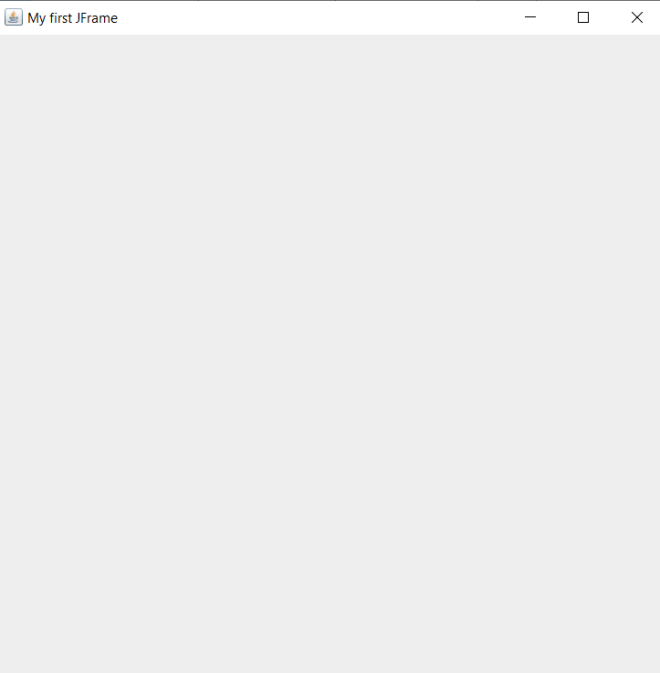
Now, before we start drawing shapes onto our JFrame, let’s create the JFrame and make all the necessary imports (this code will probably seem familiar to you if you read my previous Java lesson):
import javax.swing.*;
import java.awt.*;
import javax.swing.JComponent;


public class Graphics101 {

    public static void main(String[] args) {
        JFrame frame = new JFrame("My first JFrame");
        frame.setSize(600, 600);
        frame.setDefaultCloseOperation(JFrame.EXIT_ON_CLOSE);

        frame.setVisible(true);
    }

}
Ok, now that we’ve got our JFrame window set, let’s start drawing some shapes. We’re going to start off by drawing a rectangle:
import javax.swing.*;
import java.awt.*;
import javax.swing.JComponent;

class ShapeDrawing extends JComponent {

    public void paint(Graphics g)
    {
        Graphics2D g2 = (Graphics2D) g;
        g2.drawRect(100, 150, 60, 200);
    }
}

public class Graphics101 {

    public static void main(String[] args) {
        JFrame frame = new JFrame("My first JFrame");
        frame.setSize(600, 600);
        frame.setDefaultCloseOperation(JFrame.EXIT_ON_CLOSE);
        frame.getContentPane().add(new ShapeDrawing ());
        frame.setVisible(true);
    }

}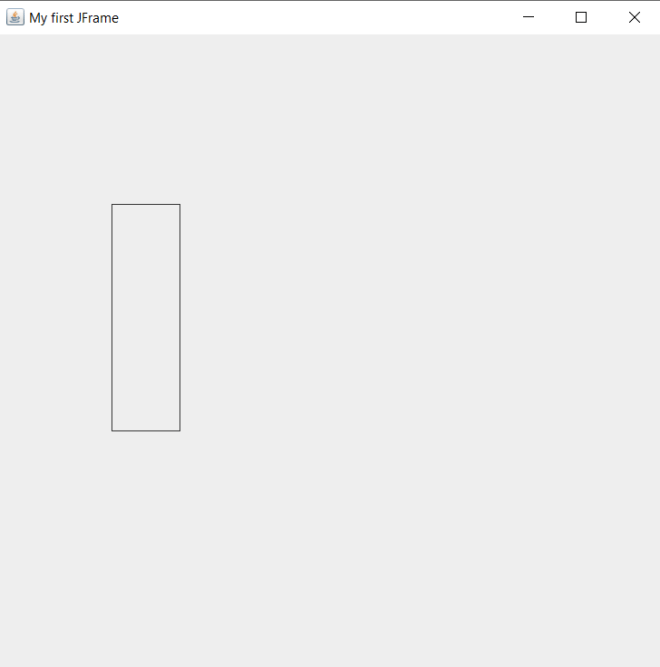
Now, to be able to draw shapes onto the JFrame, I created a new class that contains an object of the Graphics class. I also used a .paint() method that executes the drawing. I did all of this when I was drawing lines onto a JFrame, however for this example I changed the name of the class to ShapeDrawing. Also, just as I did with the LineDrawing class’s .paint() method, I created a separate object of the Graphics class (g2 in this instance); this time, I’m using g2‘s .drawRect() method to draw a rectangle on the JFrame window.
The .drawRect() method takes in four parameters, in the following order:
- The x-coordinate where the rectangle is located
- The y-coordinate where the rectange is located
- The rectangle’s width
- The rectangle’s height
You’re probably wondering why we don’t need to use two x- and y-coordinates like we did when we were drawing lines. This is because even though we only specified two points for the rectangle, Java will figure out where the other two rectangle points are located through the width and height that we provided in the .drawRect() method.
- Note-there is no separate
.drawSquare()method in Java’s Graphics class. If you wanted to draw a square, use the.drawRect()method. After all, when you think about it, a square is basically a modified rectangle.
Now, for fun, let’s try drawing another shape-let’s do a circle this time (we’ll keep the rectangle we drew-all we’re doing is simply adding a circle onto the screen):
import javax.swing.*;
import java.awt.*;
import javax.swing.JComponent;

class ShapeDrawing extends JComponent {

    public void paint(Graphics g)
    {
        Graphics2D g2 = (Graphics2D) g;
        g2.drawRect(100, 150, 60, 200);
        g2.drawOval(185, 235, 80, 220);
    }
}

public class Graphics101 {

    public static void main(String[] args) {
        JFrame frame = new JFrame("My first JFrame");
        frame.setSize(600, 600);
        frame.setDefaultCloseOperation(JFrame.EXIT_ON_CLOSE);
        frame.getContentPane().add(new ShapeDrawing ());
        frame.setVisible(true);
    }

}
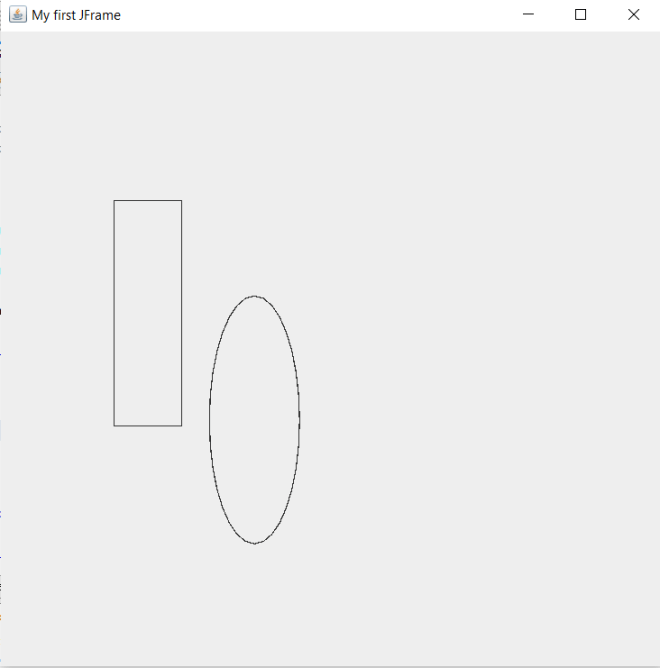
In this example, I added the .drawOval() method to the ShapeDrawing class’s .paint() method. The .drawOval() method has the same four parameters as the .drawRect() method-shape’s x-coordinate, shape’s y-coordinate, shape’s width, and shape’s height-in the same order as the .drawRect() method.
- Whether you want to draw an oval or a circle onto the JFrame, use the
.drawOval()method.
Now, it’s pretty cool that Java has built-in methods for drawing basic shapes such as squares, rectangles, and circles. However, Java has no built-in methods for drawing other polygons such as triangles and hexagons.
Let’s say we wanted to add a triangle to our JFrame. Here’s the code we’ll use:
import javax.swing.*;
import java.awt.*;
import javax.swing.JComponent;

class ShapeDrawing extends JComponent {

    public void paint(Graphics g)
    {
        Graphics2D g2 = (Graphics2D) g;
        g2.drawRect(100, 150, 60, 200);
        g2.drawOval(185, 235, 80, 220);
        int x[] = {400, 400, 500};
        int y[] = {100, 200, 200};
        int numPoints = 3;
        g.drawPolygon(x, y, numPoints);
    }
}

public class Graphics101 {

    public static void main(String[] args) {
        JFrame frame = new JFrame("My first JFrame");
        frame.setSize(600, 600);
        frame.setDefaultCloseOperation(JFrame.EXIT_ON_CLOSE);
        frame.getContentPane().add(new ShapeDrawing ());
        frame.setVisible(true);
    }

}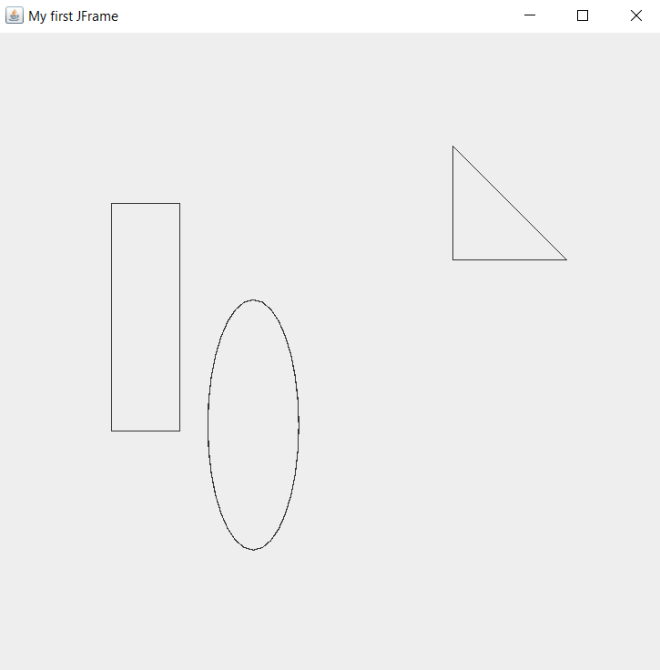
How did I add the right triangle to the JFrame? Pay attention to the four lines of code in the .paint() method that follow the g2.drawOval() line. The lines of code that begin with int x[] and int y[] create arrays that store the polygon’s x- and y-coordinates, respectively. Each point in the int x[] array corresponds to the point in the same position in the int y[] array-for instance, the first element in the int x[] array (400) corresponds to the first element in the int y[] array (100). This means that the first point in the traingle would be (400, 100); likewise, the other two points would be (400, 200) and (500, 200).
- Something to keep in mind when you’re creating your x- and y-coordinate arrays is to keep them the same length. Also, only include as many elements in these arrays as there are points in the polygon you plan to draw. In this case, since I’m drawing a traingle onto the JFrame, I shouldn’t add more than 3 elements to either the x-coordinate or y-coordinate arrays.
After creating my x- and y-coordinate arrays, I also included a numPoints variable that simply indicates how many points I will include in the polygon-3 in this case, after all I’m drawing a triangle. Last but not least, use the .drawPolygon() method to draw the traingle and pass in the x- and y-coordinate arrays along with the numPoints variable as this method’s parameters.
- One more thing to note about the
.drawPolygon()method-bothgandg2have this as a method. Use thegversion (which represents Java’s Graphics class), as ing.drawPolygon(x, y, numPoints). Theg2(which represents Java’s Graphics2D class-Graphics2D is a subclass of the Graphics class) version of this method won’t work as well.
Great! We managed to draw three shapes onto our JFrame! However, they look awfully dull. Let’s see how to add some color to each shape:
import javax.swing.*;
import java.awt.*;
import javax.swing.JComponent;

class ShapeDrawing extends JComponent {

    public void paint(Graphics g)
    {
        Graphics2D g2 = (Graphics2D) g;
        g2.setColor(Color.BLUE);
        g2.drawRect(100, 150, 60, 200);
        g2.fillRect(100, 150, 60, 200);

        g2.setColor(Color.ORANGE);
        g2.drawOval(185, 235, 80, 220);
        g2.fillOval(185, 235, 80, 220);

        g.setColor(Color.YELLOW);
        int x[] = {400, 400, 500};
        int y[] = {100, 200, 200};
        int numPoints = 3;
        g.drawPolygon(x, y, numPoints);
        g.fillPolygon(x, y, numPoints);
    }
}

public class Graphics101 {

    public static void main(String[] args) {
        JFrame frame = new JFrame("My first JFrame");
        frame.setSize(600, 600);
        frame.setDefaultCloseOperation(JFrame.EXIT_ON_CLOSE);
        frame.getContentPane().add(new ShapeDrawing ());
        frame.setVisible(true);
    }

}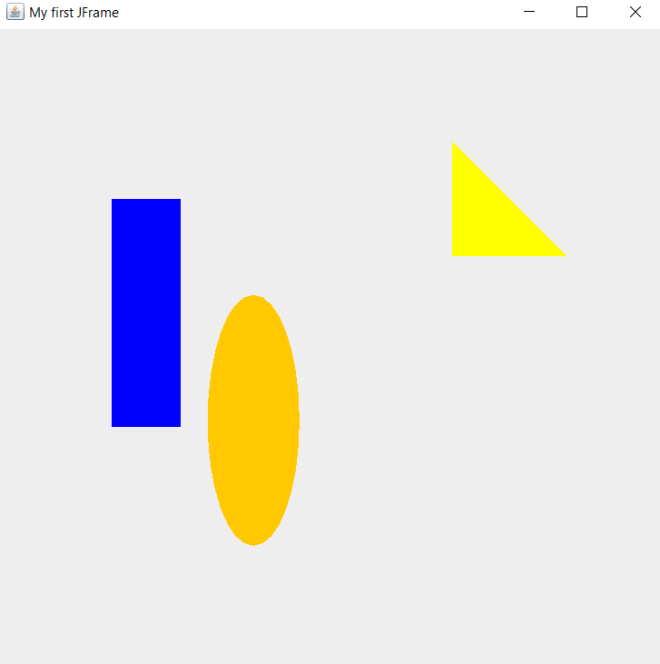
As you can see, we now have a blue rectangle, orange oval, and yellow right triangle on the JFrame. How did I accomplish this?
Well, for the rectangle, I used the .setColor() method and passed in Color.BLUE as the parameter. You might think this method alone would do the trick, however, this method merely set’s the shape’s border color to blue-it doesn’t actually fill in the shape. That’s why we need to use the .fillRect() method to fill the rectangle; like the .drawRect() method, this method also takes in four parameters. To fill in the rectangle, pass in the same four integers that you used for the .drawRect() method in the same order that they are listed in the .drawRect() method. In this case, I used the integers 100, 150, 60 and 200 for both the .drawRect() and .fillRect() methods.
- With regards to the
.fillRect()method, execute this after executing the.drawRect()method. However, still execute the.setColor()method before executing the.drawRect()method.
To fill in the oval and the triangle, I used the same logic I used to fill in the rectangle. However, to fill in the oval, I used the .fillOval() method and passed in the same` four points (in the same order) that I used for the .drawOval() method-185, 235, 80 and 220. I also called the .setColor() method to set the oval’s color before I ran the .drawOval() method-much like I did when I set the color of the rectangle.
To fill in the triangle, I used the .fillPolygon() method and passed in the same three parameters (in the same order) that I used for the .drawPolygon() method-x, y, and numPoints. And, just like I did for the oval and rectangle, I executed the .setColor() method before running the draw and fill methods.
Since this is my last 2021 post, thank you all for reading my content this year (and every year)! I hope you had just as much fun learning new programming skills (or honing existing ones) as I did making this content. Can’t wait to share all the amazing programming content I have planned with you all in 2022! In the meantime, have a very merry holiday season,
Michael