Java Lesson 22: Inserting Images Onto The JFrame

Hello everybody,

Hope you all had a wonderful holiday celebration! I can’t wait to share all the amazing programming content I have for you this year!

For my first post of 2022, I will pick up I left off last year-we covered some basics of working with Java JFrames and also covered how to work with shapes and colors on the JFrame. Today’s post will cover how to add images to a JFrame.

Java applications (and applications in general) often use images on their GUIs. Before we start adding images to our JFrame, let’s create the JFrame window (this code will look familiar to you if you read my previous JFrame lesson):

public class Graphics101 {

    public static void main(String[] args) {
        JFrame frame = new JFrame("My first JFrame");
        frame.setSize(600, 600);  
        frame.setDefaultCloseOperation(JFrame.EXIT_ON_CLOSE);  
        frame.setVisible(true);  
    }
    
}

As you can see, we have a basic 600 by 600 pixel window.

Now, how can we add an image to this window? Take a look at this code:

public class Graphics101 {

    public static void main(String[] args) {
        JFrame frame = new JFrame("My first JFrame");
        frame.setSize(600, 600);  
        ImageIcon image1 = new ImageIcon("C:\\Users\\mof39\\Downloads\\xmas\\20211225_163232.jpg");
        frame.add(new JLabel(image1));
        frame.pack();
        frame.setVisible(true);  
        frame.setDefaultCloseOperation(JFrame.EXIT_ON_CLOSE);  
    }
    
}

Pay attention to these three lines of code:

ImageIcon image1 = new ImageIcon("C:\\Users\\mof39\\Downloads\\xmas\\20211225_163232.jpg");
frame.add(new JLabel(image1));
frame.pack();

The ImageIcon line stores the image I want to add as a variable; to add a new object of the ImageIcon class, I’d need to pass in the image’s file path (where it’s located on my computer) as the parameter for the object. The frame.add(new JLabel(image1)) line adds the image to my JFrame; the image1 variable is passed in as the parameter as an object of the JLabel class. The frame.pack() method simply tells Python to display the image on the JFrame.

  • If you’re trying to create an image to add to the JFrame, always create an object of the ImageIcon class-don’t use any other class to create an image to add to the JFrame.
  • Yes, I’m wearing a Santa hat in this photo (it was taken on Christmas Day 2021).

Now, even though we did successfully get the image displayed onto the JFrame, we’ve got an issue-the whole image won’t fit since it’s too big for the JFrame. How can we resize the image so that the whole image fits within the 600×600 pixel JFrame? Take a look at this code:

public class Graphics101 {

    public static void main(String[] args) {
        JFrame frame = new JFrame("My first JFrame");
        frame.setSize(600, 600);  
        JLabel label = new JLabel();
        label.setIcon(new ImageIcon(new ImageIcon("C:\\Users\\mof39\\Downloads\\xmas\\20211225_163232.jpg").getImage().getScaledInstance(600, 600, Image.SCALE_SMOOTH)));
        frame.add(label);
        frame.pack();
        frame.setVisible(true);  
        frame.setDefaultCloseOperation(JFrame.EXIT_ON_CLOSE);  
    }
    
}

As you can see, I managed to get the whole image to fit into the JFrame. How did I do that? Pay attention to these lines of code:

JLabel label = new JLabel();
        label.setIcon(new ImageIcon(new ImageIcon("C:\\Users\\mof39\\Downloads\\xmas\\20211225_163232.jpg").getImage().getScaledInstance(600, 600, Image.SCALE_SMOOTH)));
        frame.add(label)

The JLabel line simply tells Java to add a new JLabel object to the JFrame; I will store the image I want to display in this JLabel.

The JLabel object’s .setIcon() method is the most important method in this group, as it creates the ImageIcon and resizes it to fit the JFrame window (via the .getScaledInstance() method), all in the same line of code. Pretty impressive right?

Now, the .getScaledInstance() method takes in three parameters-the width you want to use for the image (in pixels), the height you want to use for the image (also in pixels), and the scaling algorithm you’d like to use to scale the image to the JFrame-of which there are five: SCALE_DEFAULT, SCALE_FAST, SCALE_SMOOTH, SCALE_REPLICATE, and SCALE_AREA_AVERAGING. Since my JFrame window is 600×600 pixels, I used 600 for both the width and height parameters.

  • In the .getScaledInstance() method, when you’re indicating the scaling algorithm that you want to use, always include Image. before the name of the scaling algorithm (e.g. Image.SCALE_SMOOTH).

The frame.add() method adds the JLabel object to the JFrame; since the resized image is stored in the JLabel object, the frame.add() method adds the resized image to the JFrame. Just as with the previous example, the frame.add() method is followed by the frame.pack() method, which displays the resized image onto the JFrame.

Looks much better. But what if you wanted to resize the image to different dimensions-dimensions that aren’t equal to the size of your JFrame window, in other words. Take a look at this code:

public class Graphics101 {

    public static void main(String[] args) {
        JFrame frame = new JFrame("My first JFrame");
        frame.setSize(600, 600);  
        JLabel label = new JLabel();
        label.setIcon(new ImageIcon(new ImageIcon("C:\\Users\\mof39\\Downloads\\xmas\\20211225_163232.jpg").getImage().getScaledInstance(300, 300, Image.SCALE_SMOOTH)));
        frame.add(label);
        frame.pack();
        frame.setVisible(true);  
        frame.setDefaultCloseOperation(JFrame.EXIT_ON_CLOSE);  
    }
    
}

I used the same code for this example as I did for the previous example, however I did change the first two parameters of the .getScaledInstance() method from 600 and 600 to 300 and 300. You might think that this would simply resize the image, in which case you’d be half-right. The image is resized to 300×300 pixels, but so is the JFrame window. With that said, keep in mind that, whenever you want to resize an image to fit a JFrame, if the dimensions of your resized image aren’t the same as those of your JFrame window, the JFrame window will change its size to match the dimensions of the image set in the .getScaledInstance() method. In this example, since I changed the dimensions of the image to 300×300 pixels, the JFrame’s inital size settings (600×600) will be overwritten to 300×300 pixels.

Thank you for reading. I’ve got tons of great content for you all this year,

Michael

Java Lesson 21: Drawing and Coloring Shapes on the JFrame

Hello everybody,

Michael here, and this post (my last one for 2021) will serve as a continuation of the previous post, but this time, instead of discussing how to draw lines on the JFrame, I’ll discuss how to draw (and color) shapes on the JFrame.

Now, before we start drawing shapes onto our JFrame, let’s create the JFrame and make all the necessary imports (this code will probably seem familiar to you if you read my previous Java lesson):

import javax.swing.*;
import java.awt.*;
import javax.swing.JComponent;


public class Graphics101 {

    public static void main(String[] args) {
        JFrame frame = new JFrame("My first JFrame");
        frame.setSize(600, 600);  
        frame.setDefaultCloseOperation(JFrame.EXIT_ON_CLOSE);  

        frame.setVisible(true);  
    }
    
}

Ok, now that we’ve got our JFrame window set, let’s start drawing some shapes. We’re going to start off by drawing a rectangle:

import javax.swing.*;
import java.awt.*;
import javax.swing.JComponent;

class ShapeDrawing extends JComponent {
  
    public void paint(Graphics g)
    {
        Graphics2D g2 = (Graphics2D) g;
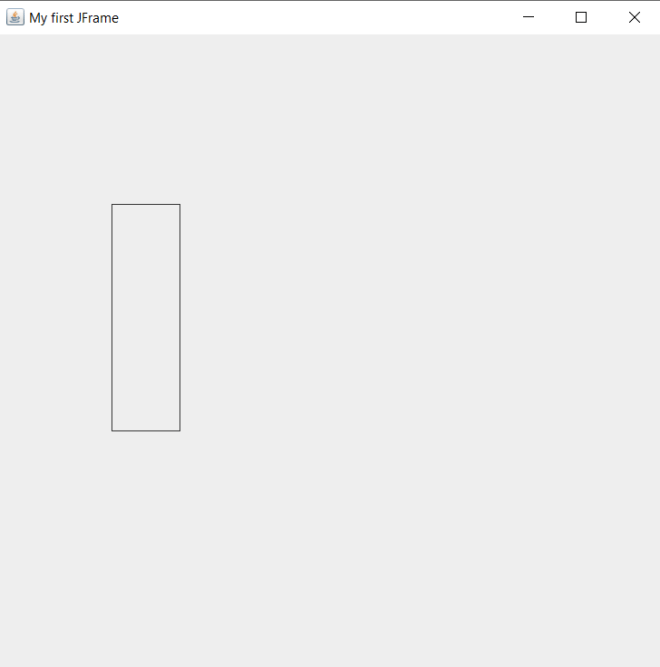
        g2.drawRect(100, 150, 60, 200);
    }
}

public class Graphics101 {

    public static void main(String[] args) {
        JFrame frame = new JFrame("My first JFrame");
        frame.setSize(600, 600);  
        frame.setDefaultCloseOperation(JFrame.EXIT_ON_CLOSE);  
        frame.getContentPane().add(new ShapeDrawing ());
        frame.setVisible(true);  
    }
    
}

Now, to be able to draw shapes onto the JFrame, I created a new class that contains an object of the Graphics class. I also used a .paint() method that executes the drawing. I did all of this when I was drawing lines onto a JFrame, however for this example I changed the name of the class to ShapeDrawing. Also, just as I did with the LineDrawing class’s .paint() method, I created a separate object of the Graphics class (g2 in this instance); this time, I’m using g2‘s .drawRect() method to draw a rectangle on the JFrame window.

The .drawRect() method takes in four parameters, in the following order:

  • The x-coordinate where the rectangle is located
  • The y-coordinate where the rectange is located
  • The rectangle’s width
  • The rectangle’s height

You’re probably wondering why we don’t need to use two x- and y-coordinates like we did when we were drawing lines. This is because even though we only specified two points for the rectangle, Java will figure out where the other two rectangle points are located through the width and height that we provided in the .drawRect() method.

  • Note-there is no separate .drawSquare() method in Java’s Graphics class. If you wanted to draw a square, use the .drawRect() method. After all, when you think about it, a square is basically a modified rectangle.

Now, for fun, let’s try drawing another shape-let’s do a circle this time (we’ll keep the rectangle we drew-all we’re doing is simply adding a circle onto the screen):

import javax.swing.*;
import java.awt.*;
import javax.swing.JComponent;

class ShapeDrawing extends JComponent {
  
    public void paint(Graphics g)
    {
        Graphics2D g2 = (Graphics2D) g;
        g2.drawRect(100, 150, 60, 200);
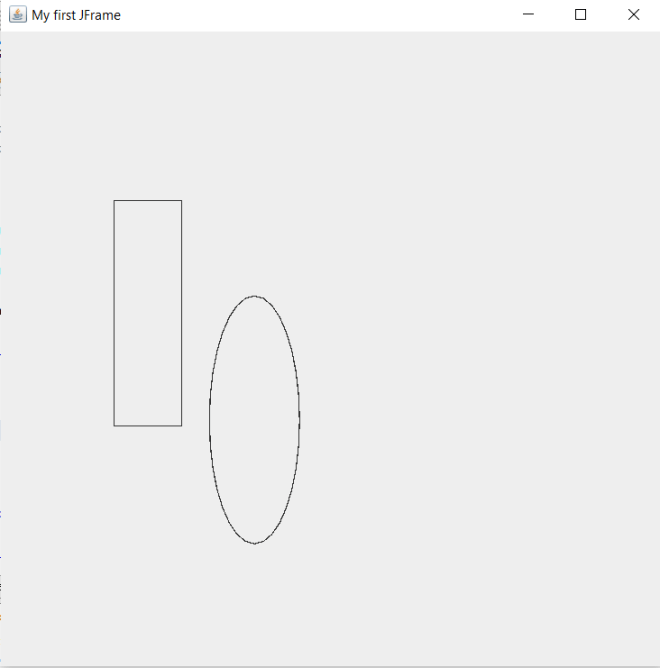
        g2.drawOval(185, 235, 80, 220);
    }
}

public class Graphics101 {

    public static void main(String[] args) {
        JFrame frame = new JFrame("My first JFrame");
        frame.setSize(600, 600);  
        frame.setDefaultCloseOperation(JFrame.EXIT_ON_CLOSE);  
        frame.getContentPane().add(new ShapeDrawing ());
        frame.setVisible(true);  
    }
    
}

In this example, I added the .drawOval() method to the ShapeDrawing class’s .paint() method. The .drawOval() method has the same four parameters as the .drawRect() method-shape’s x-coordinate, shape’s y-coordinate, shape’s width, and shape’s height-in the same order as the .drawRect() method.

  • Whether you want to draw an oval or a circle onto the JFrame, use the .drawOval() method.

Now, it’s pretty cool that Java has built-in methods for drawing basic shapes such as squares, rectangles, and circles. However, Java has no built-in methods for drawing other polygons such as triangles and hexagons.

Let’s say we wanted to add a triangle to our JFrame. Here’s the code we’ll use:

import javax.swing.*;
import java.awt.*;
import javax.swing.JComponent;

class ShapeDrawing extends JComponent {
  
    public void paint(Graphics g)
    {
        Graphics2D g2 = (Graphics2D) g;
        g2.drawRect(100, 150, 60, 200);
        g2.drawOval(185, 235, 80, 220);
        int x[] = {400, 400, 500};
        int y[] = {100, 200, 200};
        int numPoints = 3;
        g.drawPolygon(x, y, numPoints);
    }
}

public class Graphics101 {

    public static void main(String[] args) {
        JFrame frame = new JFrame("My first JFrame");
        frame.setSize(600, 600);  
        frame.setDefaultCloseOperation(JFrame.EXIT_ON_CLOSE);  
        frame.getContentPane().add(new ShapeDrawing ());
        frame.setVisible(true);  
    }
    
}

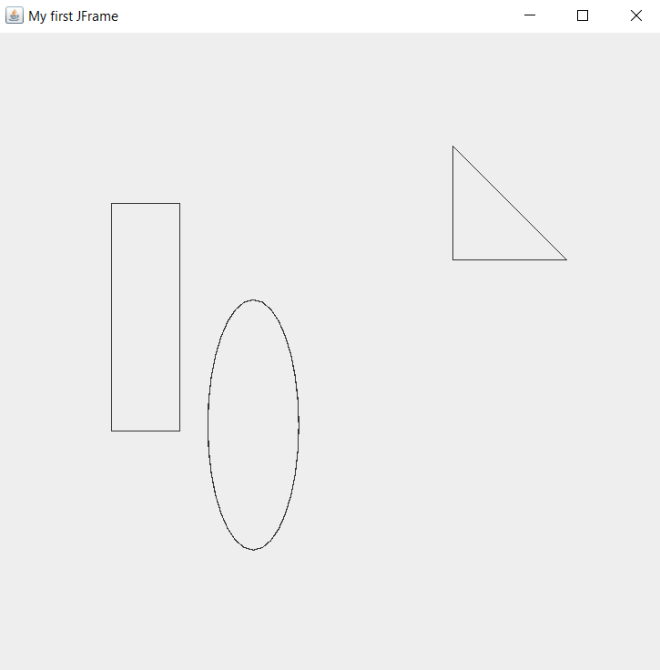
How did I add the right triangle to the JFrame? Pay attention to the four lines of code in the .paint() method that follow the g2.drawOval() line. The lines of code that begin with int x[] and int y[] create arrays that store the polygon’s x- and y-coordinates, respectively. Each point in the int x[] array corresponds to the point in the same position in the int y[] array-for instance, the first element in the int x[] array (400) corresponds to the first element in the int y[] array (100). This means that the first point in the traingle would be (400, 100); likewise, the other two points would be (400, 200) and (500, 200).

  • Something to keep in mind when you’re creating your x- and y-coordinate arrays is to keep them the same length. Also, only include as many elements in these arrays as there are points in the polygon you plan to draw. In this case, since I’m drawing a traingle onto the JFrame, I shouldn’t add more than 3 elements to either the x-coordinate or y-coordinate arrays.

After creating my x- and y-coordinate arrays, I also included a numPoints variable that simply indicates how many points I will include in the polygon-3 in this case, after all I’m drawing a triangle. Last but not least, use the .drawPolygon() method to draw the traingle and pass in the x- and y-coordinate arrays along with the numPoints variable as this method’s parameters.

  • One more thing to note about the .drawPolygon() method-both g and g2 have this as a method. Use the g version (which represents Java’s Graphics class), as in g.drawPolygon(x, y, numPoints). The g2 (which represents Java’s Graphics2D class-Graphics2D is a subclass of the Graphics class) version of this method won’t work as well.

Great! We managed to draw three shapes onto our JFrame! However, they look awfully dull. Let’s see how to add some color to each shape:

import javax.swing.*;
import java.awt.*;
import javax.swing.JComponent;

class ShapeDrawing extends JComponent {
  
    public void paint(Graphics g)
    {
        Graphics2D g2 = (Graphics2D) g;
        g2.setColor(Color.BLUE);
        g2.drawRect(100, 150, 60, 200);
        g2.fillRect(100, 150, 60, 200);
        
        g2.setColor(Color.ORANGE);
        g2.drawOval(185, 235, 80, 220);
        g2.fillOval(185, 235, 80, 220);
        
        g.setColor(Color.YELLOW);
        int x[] = {400, 400, 500};
        int y[] = {100, 200, 200};
        int numPoints = 3;
        g.drawPolygon(x, y, numPoints);
        g.fillPolygon(x, y, numPoints);
    }
}

public class Graphics101 {

    public static void main(String[] args) {
        JFrame frame = new JFrame("My first JFrame");
        frame.setSize(600, 600);  
        frame.setDefaultCloseOperation(JFrame.EXIT_ON_CLOSE);  
        frame.getContentPane().add(new ShapeDrawing ());
        frame.setVisible(true);  
    }
    
}

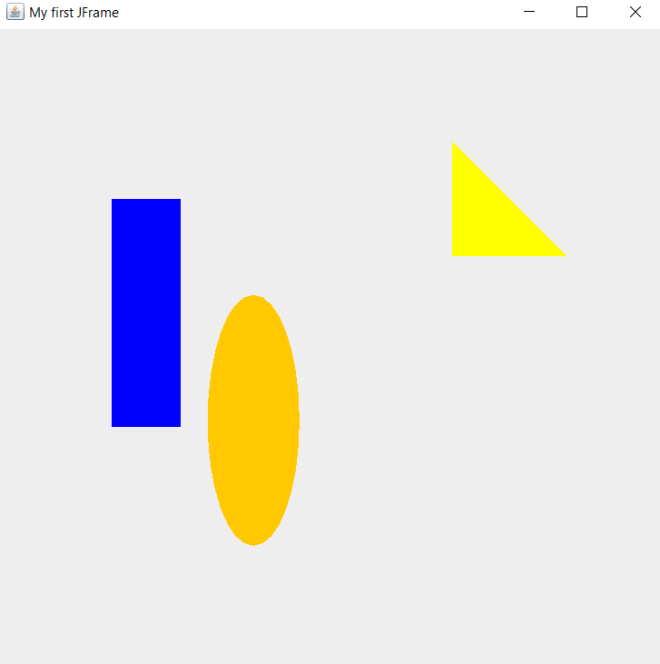
As you can see, we now have a blue rectangle, orange oval, and yellow right triangle on the JFrame. How did I accomplish this?

Well, for the rectangle, I used the .setColor() method and passed in Color.BLUE as the parameter. You might think this method alone would do the trick, however, this method merely set’s the shape’s border color to blue-it doesn’t actually fill in the shape. That’s why we need to use the .fillRect() method to fill the rectangle; like the .drawRect() method, this method also takes in four parameters. To fill in the rectangle, pass in the same four integers that you used for the .drawRect() method in the same order that they are listed in the .drawRect() method. In this case, I used the integers 100, 150, 60 and 200 for both the .drawRect() and .fillRect() methods.

  • With regards to the .fillRect() method, execute this after executing the .drawRect() method. However, still execute the .setColor() method before executing the .drawRect() method.

To fill in the oval and the triangle, I used the same logic I used to fill in the rectangle. However, to fill in the oval, I used the .fillOval() method and passed in the same` four points (in the same order) that I used for the .drawOval() method-185, 235, 80 and 220. I also called the .setColor() method to set the oval’s color before I ran the .drawOval() method-much like I did when I set the color of the rectangle.

To fill in the triangle, I used the .fillPolygon() method and passed in the same three parameters (in the same order) that I used for the .drawPolygon() method-x, y, and numPoints. And, just like I did for the oval and rectangle, I executed the .setColor() method before running the draw and fill methods.

Since this is my last 2021 post, thank you all for reading my content this year (and every year)! I hope you had just as much fun learning new programming skills (or honing existing ones) as I did making this content. Can’t wait to share all the amazing programming content I have planned with you all in 2022! In the meantime, have a very merry holiday season,

Michael

Java Lesson 20: Lines, Colors, and Basic Java Graphics

Hello everybody,

Michael here, and I’ve got an exciting Java lesson for you guys. Today, I’ll not only be covering how to work with lines and colors in Java but I’ll also be giving you guys an introduction to working with graphics in Java.

First, let’s discuss how to work with one of Java’s most important graphics classes-JFrame. The JFrame class allows you to create Java windows where you can add whatever graphics you want. Let’s create a simple JFrame object:

import javax.swing.JFrame;   
public class Graphics101 {

    public static void main(String[] args) {
        JFrame frame = new JFrame("My first JFrame");  
        frame.setSize(600, 600);  
        frame.setDefaultCloseOperation(JFrame.EXIT_ON_CLOSE);  
        frame.setVisible(true);  
    }
    
}

And watch what appears when you run this code:

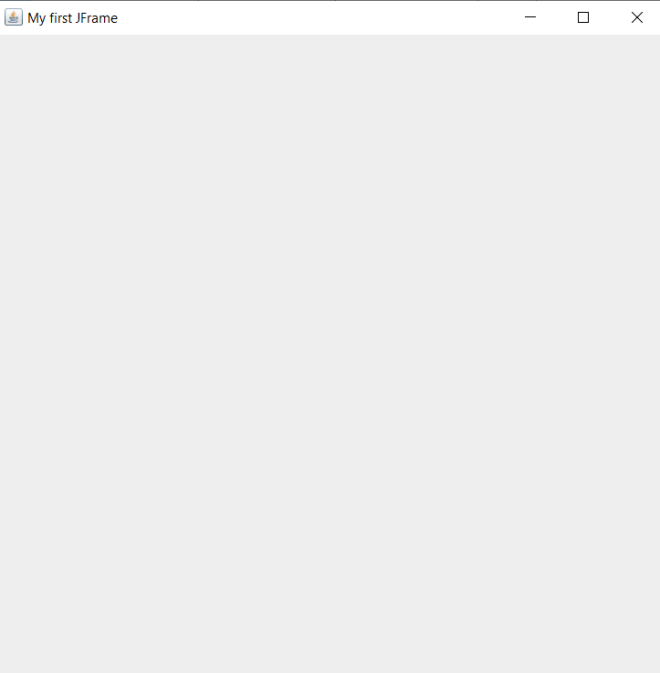
As you can see, a blank 600X600 window appears that serves as your programming canvas, where you can create whatever coding artistry you can imagine.

Now, how did this code manage to create this window? Well, for starters, we’d need to import the JFrame class in order to create a JFrame object; the line of code to import this class is import javax.swing.JFrame;. Next, as you all may have figured out, we’d need to create an object of the JFrame class (called frame in this example) in order to create a new JFrame window. In the JFrame object I created, I passed in the String parameter My first JFrame-this sets the title of the window as “My first JFrame”. I then used three JFrame class methods-.setSize(), .setDefaultCloseOperation(), .setVisible()-to fine-tune the window I’m creating.

Here’s a breakdown of each of these methods:

  • .setSize()-This method takes two integer parameters; the first parameter for width and the second parameter for height (both in pixels). These two parameters set the initial size of the JFrame window.
  • .setDefaultCloseOperation()-This method takes in a predefined constant from the JFrame class; oftentimes, that predefined constant is EXIT_ON_CLOSE, which simply closes the window when you click the X on the window’s upper right hand corner.
  • .setVisible()-This method simply takes in a boolean that tells the code whether or not to display the window when the code is run.

The blank JFrame is a great start, however, it looks awfully dull without anything on it. Before we start drawing cool shapes, let’s first draw a few lines onto our JFrame:

import javax.swing.*;
import java.awt.*;
import javax.swing.JComponent;

class LineDrawing extends JComponent {
  
    public void paint(Graphics g)
    {
        g.drawLine(100, 75, 125, 150);
        g.drawLine(125, 75, 150, 150);
    }
}

public class Graphics101 {

    public static void main(String[] args) {
        JFrame frame = new JFrame("My first JFrame");
        frame.setSize(600, 600);  
        frame.setDefaultCloseOperation(JFrame.EXIT_ON_CLOSE);  
        frame.getContentPane().add(new LineDrawing ());
        frame.setVisible(true);  
    }
    
}

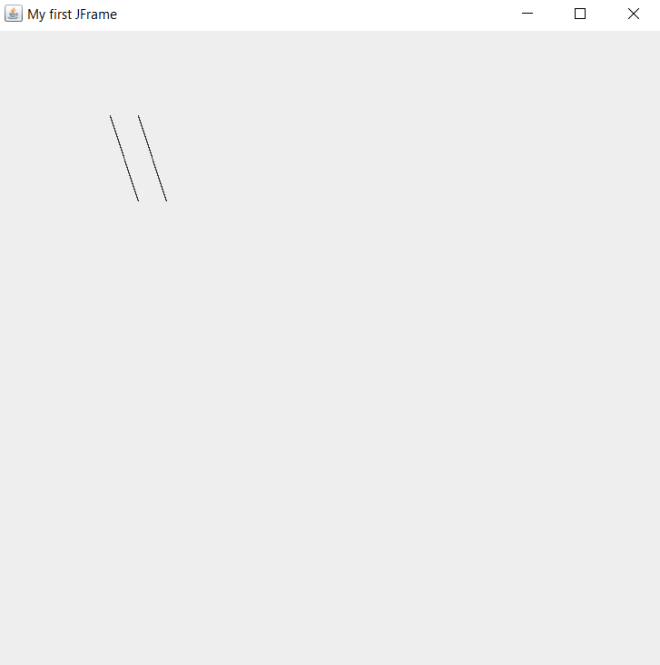
Now let’s take a look at the lines that were generated:

In this example, I used the same code from the previous example to create the JFrame. However, you’ll notice some differences from the previous example’s code. First of all, I did use asterisks (*) in the import statements. Using asterisks for imports in programming (any program, not just Java) is a practice known as star importing-this is where you import all the classes in a particular package or sub-package rather than importing the classes you need one-by-one. Some programmers aren’t fond of star imports and claim it’s bad practice, but I personally find them to be a more efficient method of importing.

The other difference between this code and the previous example’s code is that there is another class above the main class. The other class I created-LineDrawing-extends Java’s JComponent class, which means that my LineDrawing class will be able to access all of the JComponent class’s methods (which we need for line drawing).

My LineDrawing class contains a single method-paint()-which takes in a single parameter-g, which is an object of Java’s Graphics class (which is imported through the star import I used for Java’s java.awt package). The paint() method draws two parallel lines on the JFrame object I created. But how does paint() exactly draw the lines on the JFrame object? Pay attention to this line of code-frame.getContentPane().add(new LineDrawing ()). This line of code allows us to draw the lines on the JFrame window through using the .getContentPane() and .add() methods. In the .add() method, I passed in new LineDrawing() as this method’s parameter; this line of code creates a new object of the LineDrawing class inside the JFrame object. The LineDrawing class object will automatically activiate the class’s paint() method, which will draw the two parallel lines inside the JFrame window.

Now, you’re probably wondering how the .drawLine() method exactly works. This method takes in four parameters, which can be either integers or decimals. The first and third parameters represent the x-coordinates of the first and second point in the line, respectively. The second and fourth parameters represent the y-coordinates of the first and second point in the line, respectively. In this example, the four parameters I passed into the first line were 100, 75, 125, and 150-this means that the first line’s endpoints will be located at (100, 75) and (125, 150).

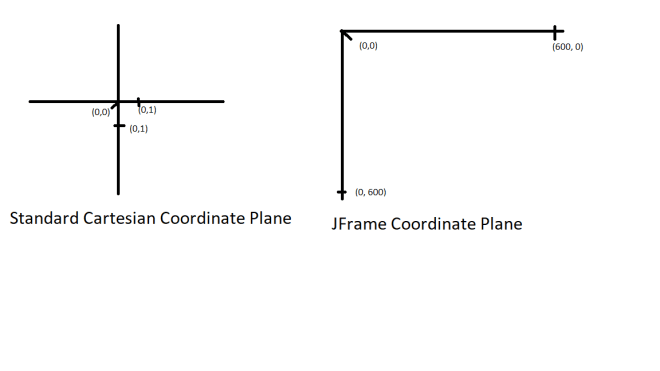
Now, there’s something that you should keep in mind when dealing with JFrame coordinates. JFrame doesn’t go by the same coordinate plane that you likely learned about in pre-algebra class. Rather, JFrame uses it’s own coordinate plane where all x- and y-axis values are positive and the axis values (for both axes) range from 0 to the height and width of the window (in pixels). In this case, since the JFrame window I created is 600×600 pixels, the value ranges for both axes would be from 0 to 600.

Here’s an illustration to show the difference between a standard coordinate plane and a JFrame coordinate plane:

A standard (or Cartesian) coordinate plane contains four quadrants-two of which contain one positive and one negative coordinate (such as (3, -2) or (-4, 5)). The other two quadrants contain either two positive coordinates or two negative coordinates (such as (4, 1) or (3, 3)).

A JFrame coordinate plane, on the other hand, only contains one quadrant which can only contain two positive coordinates (such as (15,20) or (35, 30)). Since JFrame coordinate planes only contain positive integers, trying to run a line of code like this g.drawLine(-100, 75, -125, 150) would give you an error since JFrame coordinate planes have no negative coordinates on either the x- or y-axis. Another difference between JFrame coordinate planes and standard Cartesian coordinate planes is that Cartesian coordinate planes can stretch on to infinite lengths while JFrame coordinate planes can only stretch as far as the window’s pixel size. In this example, the JFrame window is set to a size of 600×600 pixels, which means that the maximum possible value on both the x-axis and y-axis is 600. Thus, the maximum possible coordinate for our window would be (600, 600).

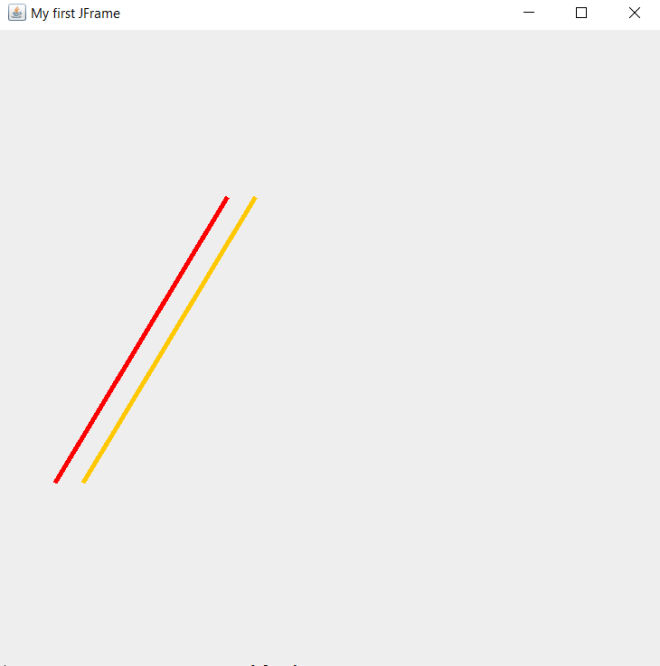
Now, it’s pretty impressive that we managed to draw our own lines on the console. However, the lines look quite boring. What if you wanted to add some color to the lines? Here’s the code to do so (note: I made the lines bigger than they were in the previous example):

import javax.swing.*;
import java.awt.*;
import javax.swing.JComponent;

class LineDrawing extends JComponent {
  
    public void paint(Graphics g)
    {
        g.setColor(Color.RED);
        g.drawLine(50, 400, 200, 150);
        g.setColor(Color.ORANGE);
        g.drawLine(75, 400, 225, 150);
    }
}

public class Graphics101 {

    public static void main(String[] args) {
        JFrame frame = new JFrame("My first JFrame");
        frame.setSize(600, 600);  
        frame.setDefaultCloseOperation(JFrame.EXIT_ON_CLOSE);  
        frame.getContentPane().add(new LineDrawing ());
        frame.setVisible(true);  
    }
    
}

In this example, I still draw the lines onto the window through the LineDrawing class’s paint() method. However, I did add two lines of code to the paint() method-both of these lines contain the Graphics class’s .setColor() method and pass in Color.[name of color] as the method’s parameter. In this case, passing in a HEX code, RGB code, or HSL value won’t work here; you’ll need to use the exact name of a color. Java’s Graphics class has several predefined colors; you can see which colors are available to you through a quick scroll of the Intellisense window that appears after you type Color.. In this example, I set the colors of the two lines to RED and ORANGE, respectively.

  • Something to keep in mind when setting the colors for lines-run the .setColor() method BEFORE running the .drawLine() method. You’ll want to set the color of the line before actually drawing it onto the JFrame.

Now, what if you wanted to add some more style to the lines you created? Let’s say you wanted to change the lines’ thickness. Here’s the code to do so (note: I didn’t change line sizes this time):


import javax.swing.*;
import java.awt.*;
import javax.swing.JComponent;

class LineDrawing extends JComponent {
  
    public void paint(Graphics g)
    {
        Graphics2D g2 = (Graphics2D) g;
        g.setColor(Color.RED);
        g2.setStroke(new BasicStroke(4));
        g.drawLine(50, 400, 200, 150);
        g.setColor(Color.ORANGE);
        g2.setStroke(new BasicStroke(4));
        g.drawLine(75, 400, 225, 150);
    }
}

public class Graphics101 {

    public static void main(String[] args) {
        JFrame frame = new JFrame("My first JFrame");
        frame.setSize(600, 600);  
        frame.setDefaultCloseOperation(JFrame.EXIT_ON_CLOSE);  
        frame.getContentPane().add(new LineDrawing ());
        frame.setVisible(true);  
    }
    
}

As you may have noticed, I did make some modifications to the previous example’s code. First of all, I did create a new object of the Graphics class in the .paint() method-g2. All this does is allow us to have access to more Graphics class methods, which we’ll need for this code.

The new Graphics class method we’ll be using is .setStroke(), which allows us to set a line’s thickness (in pixels). The parameter you’d use for the .setStroke() method is new BasicStroke (int)-with int being the thickness (in pixels) you want to use for the line. In this example, I used 4 (pixels) as the thickness for both lines.

Last but not least, let’s explore how to make our lines dotted. Here’s the code we’ll be using to do just that:

import javax.swing.*;
import java.awt.*;
import javax.swing.JComponent;

class LineDrawing extends JComponent {
  
    public void paint(Graphics g)
    {
        Graphics2D g2 = (Graphics2D) g;
        g.setColor(Color.RED);

        float[] dashingPattern = {12f, 6f};
        Stroke stroke = new BasicStroke(5, BasicStroke.CAP_BUTT, BasicStroke.JOIN_MITER, 1.0f, dashingPattern, 0.0f);
        g2.setStroke(stroke);
        g.drawLine(50, 400, 200, 150);
        
        g.setColor(Color.ORANGE);

        float[] dashingPattern2 = {9f, 5f};
        Stroke stroke2 = new BasicStroke(5, BasicStroke.CAP_BUTT, BasicStroke.JOIN_MITER, 1.0f, dashingPattern2, 0.0f);
        g2.setStroke(stroke2);
        g.drawLine(75, 400, 225, 150);
    }
}

public class Graphics101 {

    public static void main(String[] args) {
        JFrame frame = new JFrame("My first JFrame");
        frame.setSize(600, 600);  
        frame.setDefaultCloseOperation(JFrame.EXIT_ON_CLOSE);  
        frame.getContentPane().add(new LineDrawing ());
        frame.setVisible(true);  
    }
    
}

    public static void main(String[] args) {
        JFrame frame = new JFrame("My first JFrame");
        frame.setSize(600, 600);  
        frame.setDefaultCloseOperation(JFrame.EXIT_ON_CLOSE);  
        frame.getContentPane().add(new LineDrawing ());
        frame.setVisible(true);  
    }
    
}

In this example, there is another addition to the code. This time around, I added three lines of code before each .drawLine() method call. The first line creates a floating-point list that defines each line dash pattern. Each list takes two values-both floating-point numbers (and both ending with f). The first value of each list specifies the length of each dash (in pixels) and the second value of each list specifies the space between each dash (also in pixels).

The second new line of code creates an object of the Stroke class; for an explanation of each parameter in the object of the Stroke class, refer to this Oracle documentation-https://docs.oracle.com/javase/7/docs/api/java/awt/BasicStroke.html#BasicStroke(float,%20int,%20int,%20float,%20float[],%20float).

The third new line simply calls the .setStroke() method and passes in the Stroke object we created in the previous line.

  • Keep in mind that you’d always want to set the styling for your lines (e.g. color, thickness, dashing) before you draw the line in your JFrame.

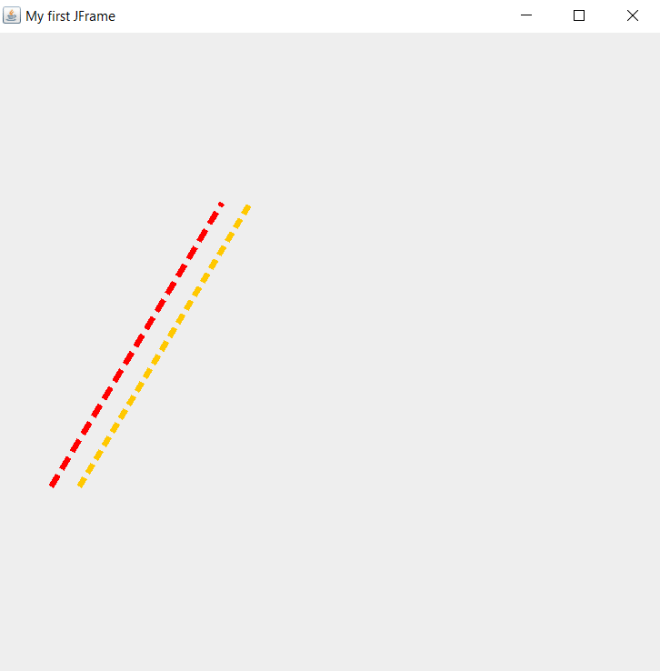
As you can see, we have succesfully created dashed lines in our JFrame.

Thanks for reading,

Michael

Java Lesson 19: Fun with Dates and Times (in Java)

Hello everybody,

Michael here, and today I’ll be sharing a fun Java lesson on the use of dates and times in Java. I already covered date and time manipulation for both Python and R, but here’s the Java version of this concept.

Now, since the last time I posted a Java lesson, I got a new laptop, but I still plan to use NetBeans as my main IDE for these posts.

When working with dates and times in Java, keep in mind that unlike in Python, Java doesn’t have a single Date class/module that you can easily import or pip install. Java does have a java.time package which allows you to work with date/time manipulation. However, unlike with Python, you can’t import the whole package at once and expect to be able to use all of the package’s classes just like that. Rather, you’ll need to import all the package’s classes (the classes that you want to use) one by one-this is one of the major disadvantages of Java.

To start off our exploration of Java date-time manipulation, let’s first explore the Clock class of the java.time package. Some of the things that the Clock class can do is print out the current time (in both UTC and other time zones) and retrieve your current time zone-both of which would be useful when developing applications that deal with time zones. Execute this code and see what happens:

import java.time.Clock;
public class DateTime {

    public static void main(String[] args) 
    {
        Clock c = Clock.systemDefaultZone();
        System.out.println(c);
    }
    
}

SystemClock[America/Chicago]

Now, what exactly does this code do? Well, it creates an object of the Clock class and prints out the value of the object.

You’re likely wondering what systemDefaultZone is. It’s one of several methods in the Clock class. You can’t create an object of the Clock class on it’s own-by that I mean you can’t create a Clock object that looks like this: Clock c = Clock(). You’ll need to use of the class’s methods-in this case, I used the systemDefaultZone method. All this method does is print out the time zone your computer uses. Since I am in Nashville, TN right now, my system default [time] zone is [America/Chicago], as Chicago also uses Central Standard Time.

The Clock class has other methods, which you can find on this documentation from Oracle-https://docs.oracle.com/javase/8/docs/api/java/time/Clock.html. Explore this website for links related to some of the other classes that I will be discussing in this post.

Next up, let’s discuss the LocalDate class. This class allows you to display dates, but not datetimes or time zones. To start exploring the LocalDate class, let’s first create a simple LocalDate object:

import java.time.LocalDate;
public class DateTime {

    public static void main(String[] args) 
    {
        LocalDate ld = LocalDate.now();
        System.out.println(ld);
    }
    
}

2021-11-15

In this example, I created a simple LocalDate object that prints out today’s date using the .now() method (I ran this code on November 15, 2021). Just as with the Clock class, whenever you create a new object of the LocalDate class, you’ll need to include a class method with your object creation; in this case, I used the now() method of the LocalDate class.

Now, let’s explore some more methods of the LocalDate class by executing this code:

import java.time.LocalDate;
public class DateTime {

    public static void main(String[] args) 
    {
        LocalDate ld = LocalDate.now();
        System.out.println(ld.plusMonths(3));
        System.out.println(ld.getDayOfWeek());
        System.out.println(ld.isLeapYear());
        System.out.println(ld.toEpochDay());
    }
    
}

2022-02-15
MONDAY
false
18946

In this example, I still created a LocalDate object called ld that uses the LocalDate class’s .now() method. However, I added four output lines (referenced with System.out.println()) which generate four different outputs based on four different methods. Here’s an explanation of each output:

  • The first output-2022-02-15-was generated through the LocalDate class’s .plusMonths() method. The .plusMonths() method takes in one parameter-an integer that tells Java how many months to add to the date in the LocalDate object. In this case, I passed in 3 as the parameter of the .plusMonths() method, which tells Java to add 3 months to today’s date-the output is February 15, 2022.
  • The second output-MONDAY-was generated through the .getDayOfWeek() method, which in this case retrieves the current date’s day of the week. November 15, 2021 is a Monday, therefore this method will return MONDAY.
    • Recall that the current date in this example is November 15, 2021.
  • The third output-false-was generated through the .isLeapYear() method, which in this case returns either true or false depending on whether the current year is a leap year. Since 2021 isn’t a leap year, this method returned false.
  • The fourth output-18946-was generated through the interesting .toEpochDay() method. You wouldn’t need to use the .toEpochDay() method much, but I’ll discuss it here anyway. This method simply returns the number of days its been since January 1, 1970-the “epoch time” for computers. Why January 1, 1970? It’s basically an arbitrary date that serves as the “zero point” (or default time) for most operating systems.
    • On my old laptops, when the operating system was having issues, the system date would always be set to January 1, 1970.

Now that we’ve explored the LocalDate class a bit, let’s move on to the LocalTime class. LocalTime is basically the opposite of LocalDate since LocalTime only displays times and timestamps but no dates.

Let’s create a simple LocalTime object using the code below:

import java.time.LocalTime;
public class DateTime {

    public static void main(String[] args) 
    {
        LocalTime lt = LocalTime.now();
        System.out.println(lt);
    }
    
}

21:13:50.623089

Similar to the LocalDate example, I created a LocalTime object using the .now() method. And in case you hadn’t figured it out by now, you can’t create a LocalTime object without including a class method (just as you needed a class method for the Clock and LocalDate objects)

In this case, the LocalTime object I created printed out the current (at runtime) time as set on my laptop-21:13:50.623089. I ran the code at 9:13PM Central Standard Time, but Java will print out the time in 24-hour format (and 21 represents the 9PM hour).

Now, let’s explore four other methods of the LocalTime class (you’ll notice that this code looks syntactically similar to the code in the previous example):

import java.time.LocalDate;
import java.time.LocalTime;
import java.time.ZoneOffset;
public class DateTime {

    public static void main(String[] args) 
    {
        LocalTime lt = LocalTime.now();
        System.out.println(lt);
        System.out.println(lt.plusHours(6));
        System.out.println(lt.minusMinutes(45));
        System.out.println(lt.toNanoOfDay());
        System.out.println(lt.toEpochSecond(LocalDate.MAX, ZoneOffset.UTC));
    }
    
}

21:35:06.320094400
03:35:06.320094400
20:50:06.320094400
77706320094400
31556889832772106

Now, just as I did with the four methods in the LocalDate example, let’s explore the four methods I used here:

  • Below the lt output, you’ll see the output 03:35:06.320094400, which was generated from the .plusHours() method. This method takes in an integer parameter (6 in this case) and add that many hours to the current time-in this case, 6 hours from the current [run]time is 3:35AM.
  • The next output is 20:50:06.320094400, which was generated from the .minusMinutes() method. Like the .plusHours() method, the .minusMinutes() method takes in an integer (45 in this case) as the parameter. However, the .minusMinutes() method subtracts a certain amount of minutes from the LocalTime object-in this case, 45 minutes before the current [run]time is 10:50PM.
  • The next output is 77706320094400, which was generated from the .toNanoOfDay() method. This method returns the nanosecond of the current time. In this case, 9:35:06PM is roughly the 77.7 trillionth nanosecond of the day. If the current time was 12:00:00AM, the .toNanoOfDay() method would return 1, as this time would be the first nanosecond of the day.
    • Just so you know, 1 second is equal to a billion nanoseconds.
  • The last output is 31556889832772106, which was generated from the .toEpochSecond() method. This method is conceptually similar to the .toEpochDay() method, since both methods return the amount of time in a certain unit (days or second) since January 1, 1970. However, .toEpochSecond() returns the amount of seconds that have passed since January 1, 1970 at 12:00:00AM, which in this case is roughly 31.6 quadrillion seconds.
    • The ZoneOffset class was needed for the .toEpochDay() method, but don’t worry about it otherwise.

Next up, let’s explore the LocalDateTime class. You might be able to figure out what this class does based off the class name alone, but in case you didn’t, this class displays date-time objects-which are objects that display dates and times (in the same string).

As I did for both LocalDate and LocalTime, I will create a simple object of the LocalDateTime class using the .now() method:

import java.time.LocalDateTime;
public class DateTime {

    public static void main(String[] args) 
    {
        LocalDateTime ldt = LocalDateTime.now();
        System.out.println(ldt);
    }
    
}

2021-11-20T07:22:10.017889200

This example prints out the current date-time (at runtime)-November 20, 2021 at 7:22AM.

Now, let’s explore four different methods of the LocalDateTime class:

import java.time.LocalDateTime;
public class DateTime {

    public static void main(String[] args) 
    {
        LocalDateTime ldt = LocalDateTime.now();

        System.out.println(ldt.minusDays(60));
        System.out.println(ldt.plusMonths(4));
        System.out.println(ldt.withDayOfYear(60));
        System.out.println(ldt.getDayOfMonth());
    }
    
}

2021-09-21T07:29:56.515749900
2022-03-20T07:29:56.515749900
2021-03-01T07:29:56.515749900
20

Let’s explore each of the methods and their corresponding outputs:

  • The first output-2021-09-21T07:29:56.515749900-was generated through the LocalDateTime class’s .minusDays() method, which in this example takes in an integer as a parameter and subtracts that amount of days from the current date-time. In this case, 60 days subtracted from the current date-time equals September 21, 2021 at 7:29AM.
  • The second output-2022-03-20T07:29:56.515749900-was generated through the LocalDateTime class’s .plusMonths() method. Like the .minusDays() method, this method takes in an integer parameter; however, this method will add a certain number of months to the current date-time. In this case, 4 months added to the current date-time equals March 20, 2022 at 7:29AM.
  • The third output-2021-03-01T07:29:56.515749900-was generated through the .withDayOfYear() method. This is one of the LocalDateTime class’s more interesting methods since it oftentimes returns a different date from the date in the date-time object. This method, like the previous two I discussed, takes in an integer as a parameter; in this case, the method will return the date corresponding to the Xth day of the year. Since I passed 60 as the integer parameter, this method will return the date March 1, 2021 (the time part of the date-time object remains unchanged). Had I wrote and ran this code last year, this method would’ve returned February 29, 2020, as February 29 is the 60th day of the year in leap years.
  • The last output-20-was generated through the .getDayOfMonth() method. In this case, the method simply retrieves the day of the month of the current datetime; since the current date [as of runtime] is November 20, 2021, this method will return 20 since it’s currently the 20th day of the month.

Last but not least, let’s explore the DateTimeFormatter class. This class is different from the previous three classes we discussed because unlike those three classes, this class doesn’t return a datetime object. Rather, this class generates a formatted datetime object from an exisiting datetime object. Let me demonstrate this concept with the code below:

import java.time.LocalDateTime;
import java.time.format.DateTimeFormatter;
public class DateTime {

    public static void main(String[] args) 
    {
        LocalDateTime ldt = LocalDateTime.now();
        System.out.println("DateTime before formatting: " + ldt);
        DateTimeFormatter dtf = DateTimeFormatter.ofPattern("MM-dd-yy HH:mm");
        String formattedDateTime = ldt.format(dtf);
        System.out.println("DateTime after formatting: " + formattedDateTime);
    }
    
}

DateTime before formatting: 2021-11-28T09:01:48.974227300
DateTime after formatting: 11-28-21 09:01

Ok, so this example looks more complicated than our previous examples. As you can see from the code above, to be able to format a datetime object, we first need to create a datetime object of the LocalDateTime class.

Next, we’d need to create a datetime formatter object using the DateTimeFormatter class. We’d use this class’s .ofPattern() method and pass in a String pattern as the method’s parameter. In this example, I passed the pattern MM-dd-yy HH:mm into the .ofPattern() method; this pattern will display the datetime object with the date portion being displayed month first (followed by the day and year) and the time portion being displayed with just the hour and minute.

  • When specifying a datetime pattern to use for the .ofPattern() method, the month (MM) and hour (HH) will always be written with capital letters.
  • If you wanted to incorporate the full year into the output (2021 as opposed to just 21), you’ll need to write yyyy in place of yy.

Now, as you may have figured out from the code, the datetime formatter will only specify the pattern to use for the datetime object-the formatter (dtf) won’t actually format the DateTime object. Take a look at the line of code with the formattedDateTime object. In order to actually format the LocalDateTime object (ldt), you’ll need to use that object’s .format() method and pass in the object containing the pattern you want to use (dft in this case) as the .format() method’s parameter.

I also included two output lines-one that shows the current datetime before formatting and another one that shows the current datetime after formatting. Since I ran this code at 9:01AM Eastern Standard Time on November 28, 2021, the datetime object after formatting is 11-28-21 09:01.

Thanks for reading,

Michael

Java Lesson 18: RegEx (or Regular Expressions)

Hello everybody,

Michael here, and today’s post will be about RegEx (or regular expressions) in Java.

Now, since this is the first time I’ll be discussed regular expressions in any programming language, you’re probably wondering “Well, what the heck are regular expressions?” Regular expressions are sequences of characters that form a search pattern. When you’re looking for certain data in a text, you can use regular expressions to describe what you’re looking for.

Still confused? Let me make it easier for you. Let’s say you had a contact list, filled with names, e-mail addresses, birthdates, and phone numbers. Now let’s say you want to retrieve all of the phone numbers from the contact list. Assuming you’re in the US, phone numbers always have 10 digits and always follow the format XXX-XXX-XXXX.

Now let’s say you want to retrieve all of the birthdates from the list. Dates, depending on how they’re written, usually follow the format XX/XX/XXXX (this goes for whether you write the day before the month or vice versa; the year would usually have four digits).

Alright then, let’s explore how regular expressions work in Java. Here’s a simple example where the program searches for a word in a String:

package lesson18;
import java.util.regex.Matcher;
import java.util.regex.Pattern;

public class RegEx
{
public static void main (String [] args)
{
Pattern p = Pattern.compile(“Michael’s Analytics Blog”, Pattern.CASE_INSENSITIVE);
Matcher m = p.matcher(“The best programming blog is Michaels Analytics Blog!”);
boolean matched = m.find();

if (matched)
{
System.out.println(“Found a match!”);
}
else
{
System.out.println(“Didn’t find a match!”);
}
}
}

And here’s the sample output:

run:
Didn’t find a match!
BUILD SUCCESSFUL (total time: 0 seconds)

OK, so most of this probably looks unfamiliar to most of you. Here’s a breakdown of all of the important pieces in this code:

  • To make this program work, there were two classes I needed to import-java.util.regex.Pattern and java.util.regex.Matcher. These are the two classes you will need to import if your program involves regular expressions.
  • I needed to create an object of the Pattern class and the Matcher class. The Pattern class contains the pattern I want to search for and the Matcher class contains the expression (String or otherwise) where I want to look for the pattern.
  • In order to tell Java the pattern I want to look for, I used the compile() method in the Pattern class. The compile() method usually has two parameters-the first being the pattern I want to look for and the second being a flag indicating how the search should be performed. In this example, I used CASE_INSENSITIVE as a flag, which indicates that Java should ignore the case of letters when performing the search.
    • The second parameter is optional.
  • In the Matcher class, I used the matcher() method from the Pattern class to tell Java where to look for the pattern Michael's Analytics Blog. The matcher() method takes a single parameter, which is the expression where I want to search for the pattern (in this case, the expression is The best programming blog is Michaels Analytics Blog!)
  • I don’t think it’s absolutely necessary (but I could be wrong), but I think it’s a good idea to have a boolean variable (such as matched in this example) in any program that uses regular expressions. With a boolean variable (coupled with an if-else statement), the program has an easy way to let the user know whether or not a match was found in the Matcher class expression.
  • Last but not least, the program will output one of two messages, depending on whether a match was found.

Oh, and one more thing. You guys certainly noticed that the message Didn't find a match! was printed, but only those with a great eye for detail would understand why the message was printed. See, the Matcher class expression I used was The best programming blog is Michaels Analytics Blog! while the pattern I wanted to search for was Michael's Analytics Blog. Since there isn’t an exact match (as Michaels Analytics Blog is missing an apostrophe), the boolean variable matched is false and the message Didn't find a match! was printed.

Alright then, now let’s play around with some RegEx patterns:

public class RegEx
{
public static void main (String [] args)
{
Pattern p = Pattern.compile(“[aeiouy]”, Pattern.CASE_INSENSITIVE);
Matcher m = p.matcher(“Nashville, Tennessee”);
boolean matched = m.find();

if (matched)
{
System.out.println(“Found a match!”);
}
else
{
System.out.println(“Didn’t find a match!”);
}
}

And here’s the sample output:

run:
Found a match!
BUILD SUCCESSFUL (total time: 13 seconds)

In this example, I used the pattern [aeiouy] to search for any vowels (and yes I counted y as a vowel) in the Matcher class expression Nashville, Tennessee. In this case the program found a match, as there are vowels in Nashville, Tennessee.

  • Keep in mind that you need to wrap any RegEx patterns (not just words) in double quotes, as the first parameter in the Pattern.compile() method must be a String.
  • I could’ve also used the pattern [^aeiouy] to search for consonants in the Matcher class expression (and there would’ve been matches). The ^ operator means NOT, as in “search for characters NOT in a certain range”.

Alright, now let’s explore meta-characters and quantifiers. In the context of Java regular expressions, meta-characters are characters with a special meaning and quantifiers define quantities in pattern searching. Here’s an example of meta-characters and quantifiers in action:

public class RegEx
{
public static void main (String [] args)
{
Pattern p = Pattern.compile(“^\\d{2}/\\d{2}/\\d{2}$”, Pattern.CASE_INSENSITIVE);
Matcher m1 = p.matcher(“08/05/20”);
Matcher m2 = p.matcher(“08/05/2020”);
boolean matched1 = m1.find();
boolean matched2 = m2.find();

if (matched1)
{
System.out.println(“Found a match!”);
}
else
{
System.out.println(“Didn’t find a match!”);
}

if (matched2)
{
System.out.println(“Found a match!”);
}

else
{
System.out.println(“Didn’t find a match”);
}
}
}

And here’s the output:

run:
Found a match!
Didn’t find a match
BUILD SUCCESSFUL (total time: 3 seconds)

In this example, I have two Strings-08/05/20 and 08/05/2020 (both of which are dates)-and I’m checking both of them to see if they follow the pattern ^\\d{2}/\\d{2}/\\d{2}$ (and this time, I created matched variables for both Strings). In plain English, I’m trying to see whether the two dates follow the MM-DD-YY format.

You’re probably wondering what the pattern ^\\d{2}/\\d{2}/\\d{2}$ means. Here’s a breakdown of the pattern:

  • ^ & $ look for matches at the beginning and end of a String, respectively. Including both of these meta-characters in the pattern ensures that the pattern search will look for a String that exactly matches the pattern specified in the Pattern.compile() method.
  • The three instances of \\d{2} tell Java to look for a sequence of two digits. The main pattern \\d{2}/\\d{2}/\\d{2}tells Java to look for a sequence of two digits followed by a slash followed by a sequence of two digits followed by a slash followed by a sequence of two digits.
    • Keep in mind that you need two backslashes by the d, not just one. This is because if you only have one backslash by the d, Java will think it’s an escape character and not a regex element.

The two boolean variables-matched1 and matched2-then analyze whether the pattern is found in the two Matcher class expressions m1 and m2; matched1 searches m1 for a match while matched2 searches m2 for a match. The output shows that m1 returned a match but m2 didn’t return a match. The reason m2 didn’t return a match is because m2 follows the pattern \\d{2}/\\d{2}/\\d{4}, which isn’t the pattern Java was looking for.

Last but not least, here’s an explanation of some of the important meta-characters in Java regex:

  • |-find a match for any pattern separated by the pipe symbol (|) as in boy|girl|person
  • .-find just one instance of a particular character
  • ^ & $-find a match at the beginning and end of a String, respectively (I discussed these two meta-characters in the example above)
  • \d-find a digit
  • \s-find a whitespace character
  • \b-find a match either at the beginning of a word (as in \bpattern) or at the end of a word (as in pattern\b)
  • \uxxxx-find a Unicode character with a certain hexadecimal code

Keep in mind that the double slash rule I discussed with \d also applies to \s, \b, and \uxxx.

Now let’s discuss the important quantifiers in Java regex:

  • x+-match any String that contains at least one x
  • x*-match any String that contains zero or more instance of x
  • x?-match any String that contains either zero or one instance(s) of x
  • x{Y}-match any String that contains a sequence of Y xs
  • x{Y, Z}-match any String that contains a sequence of between Y to Z xs
  • x{Y, }-match any String that contains a sequence of at least Y xs.

You can use the curly bracket quantifiers in conjunction with some of the meta-characters, as I did in the second example program. In that program, I had three instances of \\d{2}, indicating that I wanted to search for three instances of two-digit sequences. However, if I wanted the String 08/05/2020 to match the pattern, I could’ve altered the pattern to read ^\\d{2}/\\d{2}/\\d{4}$ or ^\\d{2}/\\d{2}/\\d{2, 4}$ or ^\\d{2}/\\d{2}/\\d{2, }$.

Thanks for reading,

Michael


Java Lesson 17: Interfaces

Hello everybody,

Michel here, and today’s post will be about interfaces in Java. This lesson does relate to my previous post on abstraction in Java.

But how exactly do interfaces relate to abstraction? Interfaces are completely abstract classes with only abstract methods; this means that interfaces only have abstract methods.

Here’s an example of an interface:

interface InterfaceDemo
{
public void birthdate ();
public void address ();
public void name ();
public void maritalStatus ();
}

In this example, I created an interface with four abstract methods. To access these methods, the interface must be inherited from another class-this is exactly how you would access methods from an abstract class.

  • The main difference between an interface and an abstract class is that you would use the keyword interface for interfaces and the keywords abstract class for abstract classes.

Now let’s create a new subclass to access the four abstract methods:

class Info implements InterfaceDemo
{
public void birthdate ()
{
System.out.println(“11/30/1985”);
}

public void address ()
{
System.out.println(“724 Evergreen Terrace”);
}

public void name()
{
System.out.println(“Eddie Brock”);
}

public void maritalStatus()
{
System.out.println(“Married”);
}
}

Just as you would do with abstract classes, you need to create a subclass to access the interface. The difference with interfaces is that you would use the implements keyword to access the class-not the extends keyword.

Now let’s create a main class (a class with a main method) to run the interface:

public class Form
{
public static void main (String [] args)
{
Info myInfo = new Info();
myInfo.birthdate();
myInfo.address();
myInfo.name();
myInfo.maritalStatus();
}
}

And here’s the output:

run:
11/30/1985
724 Evergreen Terrace
Eddie Brock
Married
BUILD SUCCESSFUL (total time: 5 seconds)

Now, there’s one major feature of interfaces that makes them stand out. See, Java doesn’t support multiple inheritance; a Java class can only inherit from one superclass. However, multiple inheritance is possible with interfaces, because Java classes can implement multiple interfaces. Here’s how multiple inheritance with interfaces would work:

First, let’s create the interfaces:

interface TestInterface2
{
public void city();
}

interface TestInterface3
{
public void state();
}

interface TestInterface4
{
public void country();
}

As you can see, we have three interfaces. Now let’s access each of them with a subclass:

class City implements TestInterface2, TestInterface3, TestInterface4
{
public void city()
{
System.out.println(“Nashville”);
}

public void state()
{
System.out.println(“Tennessee”);
}

public void country()
{
System.out.println(“USA”);
}
}

Remember to separate the names of each of the interfaces with a comma!

Now that we’ve got the subclass set up, let’s set up the main class:

public class Location
{
public static void main (String [] args)
{
City c = new City();
c.city();
c.state();
c.country();
}
}

And let’s run the main class:

run:
Nashville
Tennessee
USA
BUILD SUCCESSFUL (total time: 2 seconds)

The multiple inheritance we built worked perfectly!

Alright, so you’re probably wondering why you should use interfaces. After all, abstraction serves the same purpose-to achieve greater program security by only showing the important details of an object. However, interfaces have the advantage of multiple inheritance (which I just demonstrated above).

Thanks for reading,

Michael

Java Lesson 16: Abstract Classes

Hello everybody,

Michael here, and today’s post will be on abstract classes in Java.

First off, let’s start by discussing abstract classes. What is an abstract class? Well, let’s start off by explaining the concept of data abstraction. In Java (or any other programming language), data abstraction is the process of hiding certain details of the program and showing only essential information to the user. An abstract class is a restricted class that cannot be used to create objects-abstract classes can only be accessed if other classes inherit them (I’ll explain that more later). Also, just as regular classes can have regular methods, abstract classes can have abstract methods, which are methods that don’t have a body and can only be used in abstract classes.

  • It probably seems obvious to you guys, but the magic word  you would use to make a class or method abstract is abstract .
  • Abstract methods are created without a body, but the body of an abstract method is created in a subclass.

Alright, now that I’ve given you guys some explanation, let’s create an abstract class:

abstract class Abstract
{
public abstract void password();

public void username()
{
System.out.println(“MIKE2020”);
}
}

In this example, I created an abstract class with an abstract method-password-and a regular method-username(). Since abstract methods don’t have a body, the password() method doesn’t have a body either; the body of the password() method will be inherited from a subclass.

  • Also, I know it seems like a no-brainer, but abstract classes and methods would be denoted with the abstract key-word.

Another thing I wanted to note is that it’s not possible to create an object of an abstract class, since you can only access abstract classes by inheriting them from subclasses. Trying to create an object of an abstract class will generate an error, so statements like this aren’t possible in Java:

Abstract myObj = new Abstract();

But wait-I did say that you can access abstract classes and their methods by inheriting them from subclasses. Here’s how to do that:

class Login extends Abstract
{
@Override
public void password()
{
System.out.println(“abstract10n”);
}
}

In this example, I created a subclass of Abstract called Login (the fact that it’s a subclass is denoted by the extends key-word). Since Login is a subclass of Abstract, I was able to create the body of the password() method (which consists of a single System.out.println() command). Keep in mind that since Login isn’t an abstract class, password() isn’t an abstract method.

Now that we’ve got an abstract class and a subclass, what else do we need? We would need a main class to run the program. Here’s the main class:

public class Credentials
{
public static void main (String [] args)
{
Login login1 = new Login();
login1.username();
login1.password();
}
}

Here’s the output:

run:
MIKE2020
abstract10n
BUILD SUCCESSFUL (total time: 2 seconds)

In this example, I created the main class Credentials to run the program. To access the username() and password() methods, I had to create an object of the Login class, not the Abstract class, because I can only create objects of the subclass, not the abstract class. Also, I can only access the abstract class’s methods through the subclass, not through the abstract class itself.

Anyway, you might be wondering “What is the purpose of abstraction?”. The point of abstraction is that it improves the security of your program, as abstraction hides certain details of a program and only shows a program’s important details. Program details hidden in an abstract class are harder to access, as you would need to create a new subclass to access the abstract class and all of its methods.

Thanks for reading,

Michael


Java Lesson 15: Enums

Hello readers,

It’s Michael, and today’s post will be about enums in Java. What exactly are enums?

Enums are special “classes” (that aren’t really classes in the Java sense) that represent groups of constants, such as unchangeable variables (which are any variables with the word final, as in public final int speed = 7). Remember that any final variables have set their values at the beginning of the class, rather than setting their values somewhere in the main code of the class. Also, you can’t change the values of final variables at any point in the main code.

  • Enums can be any list of strings or numbers, as you will see in the next example.
  • Enum is short for enumeration, which means “specifically listed”. It might be helpful to think of enums as lists of elements (but don’t confuse them with Arrays or ArrayLists)

So how do we create an enum? Take a look below:

public class Enums
{
enum Cats
{
Persian,
Bengal,
Sphinx,
Ragamuffin,
Calico
}
}

In this example, I created an enum that contains the names of five different cat breeds. To create an enum, remember to use the enum keyword instead of class, and remember to capitalize the first letter of each constant (if your enum contains words).

OK, the enum is great, but it can’t be run on it’s own. You’ll need a class with a main method, like this:

public class Enums
{
enum Cats
{
Persian,
Bengal,
Sphinx,
Ragamuffin,
Calico
}

public static void main(String[] args)
{
Cats myVar = Cats.Sphinx;
System.out.println(myVar);
}
}

run:
Sphinx
BUILD SUCCESSFUL (total time: 1 second)

In this example, I have incorporated the enum into the main class Enums (yes I know I could’ve picked a better name). In the main method, I am printing out an element from the enum.

But how did the main method return Sphinx as the output? Take a look at the line Cats myVar = Cats.Sphinx. This line tells Java to access the Sphinx element from Cats and store it in myVar (which is then printed out in the next line).

  • To access an element from an enum, remember to use the syntax Enum name.Enum element (and you should ideally store the accessed element in a variable of type Enum name (meaning the variable type should be the enum name).

You can also use an enum in a switch statement, like this:

public class Enums
{
enum Cats
{
Persian,
Bengal,
Sphinx,
Ragamuffin,
Calico
}

public static void main(String[] args)
{
Cats myVar = Cats.Calico;

switch(myVar)
{
case Persian:
System.out.println(“Persian cat”);
break;
case Bengal:
System.out.println(“Bengal cat”);
break;
case Sphinx:
System.out.println(“Sphinx cat”);
break;
case Ragamuffin:
System.out.println(“Ragamuffin cat”);
break;
case Calico:
System.out.println(“Calico cat”);
break;
}
}
}

run:
Calico cat
BUILD SUCCESSFUL (total time: 1 second)

In this example, I used a switch statement to display a certain output based on the value of myVar (the value of myVar was created using the Enum name.Enum element formula that I just discussed). Since the enum element I chose was Calico, the output displayed was Calico cat.

You can also loop through enums with a handy little method that is exclusive for enums. Here’s how to do so:

public class Enums
{
enum Cats
{
Persian,
Bengal,
Sphinx,
Ragamuffin,
Calico
}

public static void main(String[] args)
{
for (Cats myVar: Cats.values())
System.out.println(myVar);
}
}

run:
Persian
Bengal
Sphinx
Ragamuffin
Calico
BUILD SUCCESSFUL (total time: 2 seconds)

The handy little enum-exclusive method that I was talking about is the values method, which returns an array of all of the elements in the enum. The values method is the best way to loop through all of the elements in an enum-plus, I don’t think for loops, while loops, or do-while loops would work for iterating through enums.

  • The syntax for an enum loop looks quite similar to the syntax of a for-each loop.

So, you might still be wondering “What are the differences between an enum and a class?” Here are two significant differences:

  • Enums can have attributes and methods, just like classes can. However, the elements of enums are unchangeable and can’t be overridden at any point in the code.
  • Enums can’t create objects, nor can they extend other classes (so a line like enum extends [class name here] won’t work)

You might also be wondering when the best times to use enums would be. The answer to that would be that the best times to use enums would be when you have values that you know won’t change. Let’s say you’re building a poker program-the values of the 52 cards won’t change, so those card values could be your enum. Another example would be if you were building a calendar program-the months of the year could be an enum, since each year will always have the same 12 months.

Thanks for reading,

Michael


Java Lesson 14: ArrayLists

Hello everybody,

Michael here, and today I’ll post a Java lesson-my first one in nearly six months! Today’s lesson will be on ArrayLists in Java. What exactly is an ArrayList? Well, here’s an example:

package lesson14;
import java.util.ArrayList;

public class ArrayListsDemo
{
public static void main (String[] args)
{
ArrayList<String> cities = new ArrayList<String>();
}
}

An ArrayList is basically a resizable array. See, in Java, you can’t add/remove elements from an array without creating a new array (which interestingly isn’t the case with Python arrays), but with ArrayLists, you can add and remove elements as you wish. The other differences between arrays and ArrayLists include:

  • You need to import a package for ArrayLists, but not for arrays.
  • The syntax for ArrayLists is different than that for arrays. Here’s the basic structure for ArrayLists:
    • ArrayList<type> name_of_array = new ArrayList <type>()
    • All elements in an ArrayList must be of the same type!

In the example above, the ArrayList is empty. Let’s see how we can fill it up:

package lesson14;
import java.util.ArrayList;

public class ArrayListsDemo
{
public static void main (String[] args)
{
ArrayList<String> cities = new ArrayList<String>();
cities.add(“Nashville”);
cities.add(“Franklin”);
cities.add(“Chattanooga”);
cities.add(“Knoxville”);
cities.add(“Memphis”);
cities.add(“Murfreesboro”);
cities.add(“Brentwood”);
System.out.println(cities);
}
}

And here’s the output:

run:
[Nashville, Franklin, Chattanooga, Knoxville, Memphis, Murfreesboro, Brentwood]
BUILD SUCCESSFUL (total time: 1 second)

In this example, I used the add method to add the names of Tennessee cities into the cities ArrayList. Unfortunately, there isn’t a way to add several elements into the ArrayList with just one line of code; you’ll need to add all of the elements 1-by-1.

Now that we have elements in our ArrayList, let’s see how we can access them:

System.out.println(cities.get(2));

run:
[Nashville, Franklin, Chattanooga, Knoxville, Memphis, Murfreesboro, Brentwood]
Chattanooga
BUILD SUCCESSFUL (total time: 1 second)

I would use the get method to access items in the cities ArrayList.  The same element accessing array logic applies to ArrayLists, meaning that the first element corresponds to index 0, the second to index 1, and so forth. If you’re wondering why you see the entire ArrayList again, that’s because I appended the line System.out.println(cities.get(2)) to the end of the code that was present.

OK, so what if we want to change an element? Well, here’s the line of code to do that (along with the resulting output):

cities.set(5, “Pigeon Forge”);
System.out.println(cities);

[Nashville, Franklin, Chattanooga, Knoxville, Memphis, Pigeon Forge, Brentwood]
BUILD SUCCESSFUL (total time: 8 seconds)

To change an element to an ArrayList, simply use the set method and include the index of the element you wish to change as well as the new value for that index as parameters. In this example, I am changing the element at index 5 (the 6th element) to Pigeon Forge.

Now let’s see how we can remove an element:

cities.remove(3);
System.out.println(cities);

[Nashville, Franklin, Chattanooga, Memphis, Pigeon Forge, Brentwood]
BUILD SUCCESSFUL (total time: 4 seconds)

To remove an element from an ArrayList, use the remove method along with the index of the element you want to remove as a parameter. In this example, I removed the element at index 3 (the 4th element).

  • If you wanted to empty the entire ArrayList, use the clear method.

Now let’s see how we can find the size of the ArrayList (after removing the element at index 3):

System.out.println(cities.size());

6

To find the size of the ArrayList, use the size method. In this example, the size of the cities ArrayList is 6.

Ok, so let’s see how we can loop through an ArrayList:

for (int i = 0; i < cities.size(); i++)
{
System.out.println(cities.get(i));
}

Nashville
Franklin
Chattanooga
Memphis
Pigeon Forge
Brentwood
BUILD SUCCESSFUL (total time: 5 seconds)

The best way to iterate through an ArrayList is with a for loop. Now, you could possibly try to iterate through an ArrayList with a while or do-while loop, but I’d stick with a for loop.

  • You should also use the size method to indicate how many times the loop should run.

You could also use a for-each loop to iterate through the ArrayList. Here’s how you’d write it:

for (String i: cities)

{

System.out.println(i);

}

Last but not least, I want to show you guys a cool little trick for ArrayLists that you can’t use for regular arrays. But first, you’d have to import the Collections class. Let me demonstrate:

import java.util.Collections;

Collections.sort(cities);
for (String i: cities)
{
System.out.println(i);
}

Brentwood
Chattanooga
Franklin
Memphis
Nashville
Pigeon Forge
BUILD SUCCESSFUL (total time: 2 seconds)

To sort the items in an ArrayList, first import java.util.Collections. To sort the elements, use the line Collections.sort(name of ArrayList) along with a for loop (or for-each loop, which I used here). You must loop through the ArrayList after sorting it, otherwise the sorting won’t work.

ArrayLists can either be sorted numerically or alphabetically (depending on the elements in your ArrayList). From what I tried, it seems like the Collections.sort method can only sort either in ascending order (for numerical ArrayLists) or alphabetical order (for non-numerical ArrayLists). I’m not sure if ArrayLists can be sorted in descending numerical order or reverse alphabetical order, but then again there could be methods for accomplishing these types of sorts.

Thanks for reading,

Michael

Java Program Demo 3: More Fun With Method Making, Exceptions, Recursion, and Encapsulation

Hello readers,

It’s Michael, and today’s post will be another Java program demo utilizing the concepts covered in the previous four posts (encapsulation, method making, exceptions, and recursion). I thought this would be a good post to show more examples using these four concepts (as well as build upon the other concepts I discussed in the previous 9 Java posts, because after all, the harder concepts in Java build upon the easier concepts).

First let’s do an encapsulation demo. Here’s our method class (the one that has our getter and setter methods):

package demo3;

public class Demo3
{
private double surfaceArea;
private double volume;

public double setSurfaceArea (double radius, double height)
{
surfaceArea = (2*3.14*Math.pow(radius,2)) + (2*3.14*radius*height);
return surfaceArea;
}

public double setVolume (double radius, double height)
{
volume = (3.14*Math.pow(radius, 2)*height);
return volume;
}

}

And here’s our main class (the class where we will run the program):

package demo3;
import java.util.Scanner;

public class DemoClass3
{
public static void main (String [] args)
{
Demo3 cylinder = new Demo3();

Scanner sc = new Scanner(System.in);

System.out.println(“Please give me a radius: “);
double r = sc.nextDouble();

System.out.println(“Please give me a height: “);
double h = sc.nextDouble();

System.out.println(“The cylinder’s surface area is ” + cylinder.setSurfaceArea(r, h));
System.out.println(“The cylinder’s volume is ” + cylinder.setVolume(r, h));
}
}

And here’s some sample output:

run:
Please give me a radius:
9.5
Please give me a height:
11.2
The cylinder’s surface area is 1234.962
The cylinder’s volume is 3173.912
BUILD SUCCESSFUL (total time: 30 seconds)

In the Demo3 class, I have two private double variables-surfaceArea and volume. My two setter methods-setSurfaceArea and setVolume-will set the values of the surfaceArea and volume variables. Oh, and in case you’re wondering where I got the formulas from, they are the formulas for the surface area and volume of a cylinder, respectively.

You will notice that I don’t have any getter methods here. Why? Since I am using formulas to set the values of surfaceArea and volume, using only the setter methods is fine; due to the nature of this program, there is no need to use getter and setter methods (and the code might have been more confusing if I had used both getters and setters).

In my main class, I have a Scanner object and two doubles-r and h-that will serve as the parameters for each setter method (r will be radius and h will be height). R and h will be set based on the user’s input.

  • One thing I wanted to mention that I didn’t mention earlier is that you don’t have to use the words get and set in your getter and setter methods, but it’s a good idea to do so.

Next, here’s a program demonstrating method making and exception handling. First, here’s the method class (the class that contains the method(s) needed for the program):

package demo3;

public class Demo3
{
private double windchill;

public void findWindchill (double airTemp, double windSpeed)
{
try
{
windchill = 35.74 + (0.6215*airTemp) – (35.75*Math.pow(windSpeed, 2)) + (0.4275*airTemp*Math.pow(windSpeed, 16));
System.out.println(“The windchill is: ” + windchill);
}

catch (Exception e)
{
System.out.println(“Sorry please enter a number”);
}
}
}

And here is the main class (the class from where we will run the program):

package demo3;

public class Demo3
{
private double windchill;

public void findWindchill (double airTemp, double windSpeed)
{
try
{
windchill = 35.74 + (0.6215*airTemp) – (35.75*Math.pow(windSpeed, 2)) + (0.4275*airTemp*Math.pow(windSpeed, 16));
System.out.println(“The windchill is: ” + windchill);
}

catch (Exception e)
{
System.out.println(“Sorry please enter a number”);
}
}
}

And here are two sample outputs (one where the exception runs and one where the program runs normally):

run:
Please enter the temperature:
12
Please enter wind speed:
55
The windchill is : 3.596834017946246E28
BUILD SUCCESSFUL (total time: 3 seconds)

run:
Please enter the temperature:
12
Please enter wind speed:
H
Exception in thread “main” java.util.InputMismatchException
at java.util.Scanner.throwFor(Scanner.java:864)
at java.util.Scanner.next(Scanner.java:1485)
at java.util.Scanner.nextDouble(Scanner.java:2413)
at demo3.DemoClass3.main(DemoClass3.java:15)
/Users/michaelorozco-fletcher/Library/Caches/NetBeans/8.2/executor-snippets/run.xml:53: Java returned: 1
BUILD FAILED (total time: 5 seconds)

In this program, the method findWindchill will calculate the temperature with windchill using airTemp and windSpeed as parameters-both of which are double.

In the method findWindchill , I have included a try-catch statement. In the try portion, the block of code I will test will calculate and display the windchill. In the catch portion, the message Sorry please enter a number will be displayed should the method catch an error (which would involve either airTemp or windSpeed not being double).

Or so you would think that the Sorry please enter a number message will be displayed (I thought this would happen too). Here’s what you really see:

Exception in thread “main” java.util.InputMismatchException
at java.util.Scanner.throwFor(Scanner.java:864)
at java.util.Scanner.next(Scanner.java:1485)
at java.util.Scanner.nextDouble(Scanner.java:2413)
at demo3.DemoClass3.main(DemoClass3.java:15)
/Users/michaelorozco-fletcher/Library/Caches/NetBeans/8.2/executor-snippets/run.xml:53: Java returned: 1
BUILD FAILED (total time: 5 seconds)

So why don’t you see the Sorry please enter a number message? It’s because that, when dealing with double input, Java will automatically throw an InputMismatchException if the input is non-numeric.

In other words, writing a try-catch statement in my findWindchill method wasn’t necessary. I’ll admit that I didn’t realize this at first, and only found out this would happen after browsing through a few StackOverflow forums. Hey, even I learn new things in programming every now and then.

  • StackOverflow is a great resource for any coding questions you might have, but keep in mind that you might have to look through a few forums until you get the answer that you need.

Lastly, here’s a recursion demo, starting with the method class. Notice anything familiar about this program?:

public class Demo3
{
private int month;
private int day;
private String year;

public String findMonth (int month)
{
String m = null;

switch(month)
{
case 1: m = “January”; break;
case 2: m = “February”; break;
case 3: m = “March”; break;
case 4: m = “April”; break;
case 5: m = “May”; break;
case 6: m = “June”; break;
case 7: m = “July”; break;
case 8: m = “August”; break;
case 9: m = “September”; break;
case 10: m = “October”; break;
case 11: m = “November”; break;
case 12: m = “December”; break;

default:
{
System.out.println(“ERROR”);
System.exit(0);

}

}

return m;
}

public String findDay1 (int day)
{
String d = null;

{
switch(day)
{
case 1: d = “1st”; break;
case 2: d = “2nd”; break;
case 3: d = “3rd”; break;
case 4: d = “4th”; break;
case 5: d = “5th”; break;
case 6: d = “6th”; break;
case 7: d = “7th”; break;
case 8: d = “8th”; break;
case 9: d = “9th”; break;
case 10: d = “10th”; break;
case 11: d = “11th”; break;
case 12: d = “12th”; break;
case 13: d = “13th”; break;
case 14: d = “14th”; break;
case 15: d = “15th”; break;
case 16: d = “16th”; break;
case 17: d = “17th”; break;
case 18: d = “18th”; break;
case 19: d = “19th”; break;
case 20: d = “20th”; break;
case 21: d = “21st”; break;
case 22: d = “22nd”; break;
case 23: d = “23rd”; break;
case 24: d = “24th”; break;
case 25: d = “25th”; break;
case 26: d = “26th”; break;
case 27: d = “27th”; break;
case 28: d = “28th”; break;
case 29: d = “29th”; break;
case 30: d = “30th”; break;

default:
{
System.out.println(“ERROR”);
System.exit(0);
}
}

return d;
}
}

public String findDay2 (int day)
{
String d2 = null;

switch(day)
{
case 1: d2 = “1st”; break;
case 2: d2 = “2nd”; break;
case 3: d2 = “3rd”; break;
case 4: d2 = “4th”; break;
case 5: d2 = “5th”; break;
case 6: d2 = “6th”; break;
case 7: d2 = “7th”; break;
case 8: d2 = “8th”; break;
case 9: d2 = “9th”; break;
case 10: d2 = “10th”; break;
case 11: d2 = “11th”; break;
case 12: d2 = “12th”; break;
case 13: d2 = “13th”; break;
case 14: d2 = “14th”; break;
case 15: d2 = “15th”; break;
case 16: d2 = “16th”; break;
case 17: d2 = “17th”; break;
case 18: d2 = “18th”; break;
case 19: d2 = “19th”; break;
case 20: d2 = “20th”; break;
case 21: d2 = “21st”; break;
case 22: d2 = “22nd”; break;
case 23: d2 = “23rd”; break;
case 24: d2 = “24th”; break;
case 25: d2 = “25th”; break;
case 26: d2 = “26th”; break;
case 27: d2 = “27th”; break;
case 28: d2 = “28th”; break;

default:
{
System.out.println(“ERROR”);
System.exit(0);
}
}
return d2;
}

public String findDay3 (int daÿ)
{
{
String d3 = null;

switch(day)
{
case 1: d3 = “1st”; break;
case 2: d3 = “2nd”; break;
case 3: d3 = “3rd”; break;
case 4: d3 = “4th”; break;
case 5: d3 = “5th”; break;
case 6: d3 = “6th”; break;
case 7: d3 = “7th”; break;
case 8: d3 = “8th”; break;
case 9: d3 = “9th”; break;
case 10: d3 = “10th”; break;
case 11: d3 = “11th”; break;
case 12: d3 = “12th”; break;
case 13: d3 = “13th”; break;
case 14: d3 = “14th”; break;
case 15: d3 = “15th”; break;
case 16: d3 = “16th”; break;
case 17: d3 = “17th”; break;
case 18: d3 = “18th”; break;
case 19: d3 = “19th”; break;
case 20: d3 = “20th”; break;
case 21: d3 = “21st”; break;
case 22: d3 = “22nd”; break;
case 23: d3 = “23rd”; break;
case 24: d3 = “24th”; break;
case 25: d3 = “25th”; break;
case 26: d3 = “26th”; break;
case 27: d3 = “27th”; break;
case 28: d3 = “28th”; break;
case 29: d3 = “29th”; break;
case 30: d3 = “30th”; break;
case 31: d3 = “31st”; break;

default:
{
System.out.println(“ERROR”);
System.exit(0);
}

}
return d3;
}
}

public String findYear (String year)
{
String y = null;

switch(year)
{
case “00”: y = “2000”; break;
case “01”: y = “2001”; break;
case “02”: y = “2002”; break;
case “03”: y = “2003”; break;
case “04”: y = “2004”; break;
case “05”: y = “2005”; break;
case “06”: y = “2006”; break;
case “07”: y = “2007”; break;
case “08”: y = “2008”; break;
case “09”: y = “2009”; break;
case “10”: y = “2010”; break;
case “11”: y = “2011”; break;
case “12”: y = “2012”; break;
case “13”: y = “2013”; break;
case “14”: y = “2014”; break;
case “15”: y = “2015”; break;
case “16”: y = “2016”; break;
case “17”: y = “2017”; break;
case “18”: y = “2018”; break;
case “19”: y = “2019”; break;

default:
{
System.out.println(“ERROR”);
System.exit(0);
}
}

return y;
}
}

And here’s the main class:

package demo3;
import java.util.Scanner;

public class DemoClass3
{
public static void main (String [] args)
{
Demo3 date = new Demo3 ();
Scanner sc = new Scanner (System.in);

System.out.println(“Please enter a number: “);
int month = sc.nextInt();

System.out.println(“Please enter a number: “);
int day = sc.nextInt();

System.out.println(“Please enter a two digit String: “);
String year = sc.next();

if (month == 4 || month == 6 || month == 9 || month == 11)
{
System.out.println(“The date is: ” + date.findMonth(month) + ” ” + date.findDay1(day) + ” , ” + date.findYear(year));
}

else if (month == 2)
{
System.out.println(“The date is: ” + date.findMonth(month) + ” ” + date.findDay2(day) + ” , ” + date.findYear(year));
}

else
{
System.out.println(“The date is: ” + date.findMonth(month) + ” ” + date.findDay3(day) + ” , ” + date.findYear(year));
}
}
}

And here are two sample outputs, one where the program runs as normal, and another where the default case is executed:

run:
Please enter a number:
11
Please enter a number:
27
Please enter a two digit String:
19
The date is: November 27th , 2019
BUILD SUCCESSFUL (total time: 13 seconds)

run:
Please enter a number:
11
Please enter a number:
31
Please enter a two digit String:
19
ERROR
BUILD SUCCESSFUL (total time: 6 seconds)

Alright, so the familiar thing about this program is that it is a more complicated version of the recursion example from Java Lesson 13: Recursion (the one where you enter a number and return a month). However, unlike that program, you are trying to put together a whole date using three variables-month, day, and  year.

But that’s not all. See, the month and day variables are int but the year is actually a String. Ok, so year is really a two-digit String that can range from 00 to 19 (representing 2000 to 2019). From that two-digit string, the full year is returned.

The method class has 5 methods: findMonth, findDay1, findDay2, findDay3 and findYear.  If you’ll notice from the code,  the findDay methods do the same basic thing; the only difference is that findDay1 has 30 cases, findDay2 has 28 cases, and findDay3 has 31.

As for why I made three different findDay methods, here’s a poem that explains my reasoning:

Thirty days hath September
April, June and November
All the rest have 31
Except for February which has 28

See, depending on the value for the month that the user enters, I needed three different findDay methods to handle every appropriate scenario, since not all months have the same amount of days.

And yes, I know February has a 29th every four years, but I didn’t feel like overcomplicating this program. If you tried to input a date such as February 29, 2016, you would get an error:

run:
Please enter a number:
2
Please enter a number:
29
Please enter a two digit String:
16
ERROR
BUILD SUCCESSFUL (total time: 21 seconds)

As for the two pieces of sample output shown earlier, the first piece shows the output when month=11, day=27, year="19" (that output is November 27, 2019 , the day this post was published). The second piece shows the output when month=11, day=31, year "19" (this returns an error message, since there is no such date as November 31, 2019).

Thanks for reading and Happy Thanksgiving,

Michael