Hello everybody,
Michael here, and today’s post will be on creating and reading Microsoft Word documents in R.
As you’ve seen in my previous blog posts, R is capable of several amazing things-you can create a game of Minesweeper, plot US maps and color-code them with data, create calendar plots (with moon phases included), and so much more.
First, let’s discuss how to create Word documents in R. We’ll need to start by installing two packages-officer and dplyr.
Once these two packages are installed, let’s use the read_docx() function to create an empty Word document:
testDoc <- read_docx()- Ideally, you should store the empty document in a variable.
Now, after creating the empty document, let’s add some text to the document:
testDoc <- testDoc %>% body_add_par("This is the first line on the document")
testDoc <- testDoc %>% body_add_par("Here is another test paragraph")
testDoc <- testDoc %>% body_add_par("And here is yet another test paragraph")
Using the body_add_par() function, three paragraphs will be added to the word document. Keep in mind that three separate paragraphs will be added, therefore, the three lines of text you see here will appear on three different lines. If you wanted to add all these lines on the same paragraph, you’d only need to use one body_add_par() line.
Now, what if you wanted to add some images to the document? Here’s how you’d do that:
set.seed(0)
img <- tempfile(fileext=".png")
png(filename=img, width=6, height=6, units='in', res=500)
plot(sample(100,50))
dev.off()
null device
          1
testDoc <- testDoc %>% body_add_img(src = img, width = 5, height = 5, style = "centered")
To add an image to a Word document via R, you’ll need to create a temp file using the tempfile() function (and remember to store the temp file in a variable). Temp files (or temporary files) are files that need to be stored on your computer momentarily and removed when they are no longer needed. You’d also need to run the plot() function in order to plot the sample image onto the document.
Now, to save the document to your computer, run this code:
print(testDoc, target="C:/Users/mof39/OneDrive/Documents/testDoc.docx")To save the document, you’d need to run the print() function along with two parameters-the document you created earlier, and a target location on your computer where you want to store the document. If there’s a certain location on your computer where you wish to save the Word document, you’ll need to specify the whole path as the target.
Here’s what the Word document looks like:

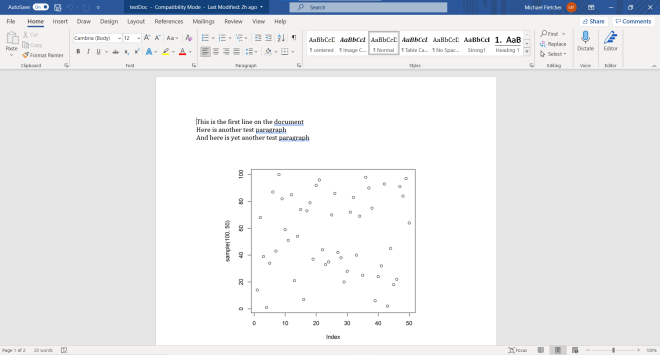
As you can see, the Word document has the three paragraphs (rather, lines) that we added, along with the plot-image that we added.
But what if you wanted to add a non-plot image to the document? Here’s how to do so:
testDoc2 <- read_docx("C:/Users/mof39/OneDrive/Documents/testDoc.docx")
testDoc2 <- testDoc2 %>% body_add_img(src = "C:/Users/mof39/OneDrive/Pictures/ball.png", width=5, height=5, style="centered")
print(testDoc2, target="C:/Users/mof39/OneDrive/Documents/testDoc.docx")
To add a new image to a word document, you’d first create a new document object and run the read_docx() function-passing in the path to the original test document as a parameter for this function. Next, to add a new image to the document, run the body_add_img function and pass in the necessary parameters-the path to the image on your computer, the image’s height, width, and style. Finally, save the image by running the print function, using the new document variable and the path to the original test document as parameters (use the path to the original test document as the target parameter).
- If you want to add a new paragraph to your document, use the
body_add_par()function. Refer to thebody_add_par()example earlier in this post if you’re unsure of the syntax you’ll need to use.
Here’s what the document looks like with the added image:


Awesome! Now that we’ve covered the basics of creating Word documents in R, let’s now discuss how to read existing Word documents in R.
To start, let’s demonstrate how to read the Word document we just created into R:
testDoc3 <- read_docx("C:/Users/mof39/OneDrive/Documents/testDoc.docx")
content <- docx_summary(testDoc3)
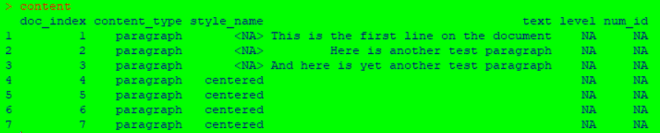
To read a Word document into R, use the read_docx() function and pass the path (the location where the document is stored on your computer) to the document as the parameter for the function. Remember to store the output for this function in a variable (I used test3 in this example).
Next, to be able to display the document’s content, run the docx_summary() function and pass in the variable your created in the previous step as the function parameter. Just as with the previous step, you should store the output for this step in a variable (I used content in this example).
To actually see the document’s content, run the command content (or whatever variable you used for the docx_summary() function output) in the R console. As you can see from the example above, this function returns a data-frame that contains the Word document’s content. This data-frame gives you information such as the content type of a certain element along with the content of the element (such as the text of the paragraph).
Now, what if we only wanted to retrieve a certain content type when we read in the document? Here’s how to do so:
paragraph <- content %>% filter(content_type == "paragraph")
paragraph$text

To only retrieve a certain element type from the file, run the content %>% filter(content_type == "paragraph") line-remember to store the output from this function in a variable. Also remember to replace content with the variable name you used for the output of the docx_summary() function.
To actually retrieve the text from each paragraph, run the command paragraph$text (remember to replace paragraph with whatever variable name you used for the output of the filter() function.
Thanks for reading,
Michael