Hello everyone,
Michael here, and in today’s post, we’ll see how well OCR and PyTesseract can read text from photos!
Here’s the photo we will be reading from:


This is a photo of a banner at Nashville Farmer’s Market, taken by me on August 29, 2025. I figured this would be a good example to testing how well OCR can read text from photos, as this banner contains elements in different colors, fonts, text sizes, and text alignments (I know you might not be able to notice at first glance, but the Nashville in the Nashville Farmers Market logo on the bottom right-hand corner of this banner is on a small yellow background).
Let’s begin!
But first, the setup!
Before we dive right in to text extraction, let’s read the image to the IDE and install & import any necessary packages. First, if you don’t already have these modules installed, run the following commands on either your IDE or CLI:
!pip install pytesseract
!pip install opencv-python
Next, let’s import the following modules:
import pytesseract
import numpy as np
from PIL import Image
And now, let’s read the image!
Now that we’ve got all the necessary modules installed and imported, let’s read the image into the IDE:
testImage = 'farmers market sign.jpg'
testImageNP = np.array(Image.open(testImage))
testImageTEXT = pytesseract.image_to_string(testImageNP)
print(testImageTEXT)

Output: [no text read from image]
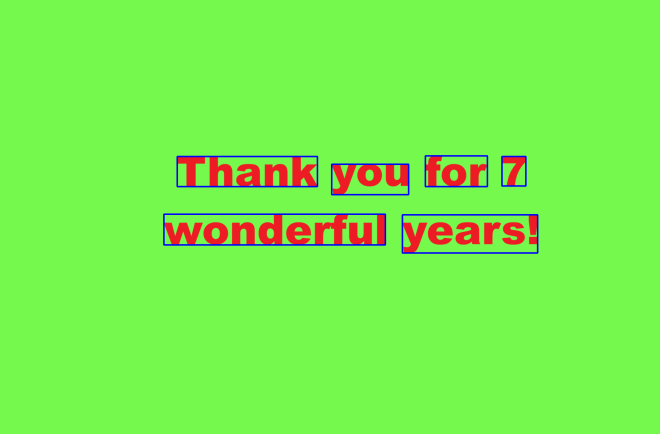
Unlike the 7 years image I used in the previous lesson, no text was picked up by PyTesseract from this image. Why could that be? I have a few theories as to why no text was read in this case:
- There’s a lot going on in the background of the image (cars, pavilions, etc.)
- PyTesseract might not be able to understand the fonts of any of the elements on the banner as they are not standard computer fonts
- Some of the elements on the banner-specifically the Nashville Farmers’ Market logo on the bottom right hand corner of the banner don’t have horizontally-aligned text and/or the text is too small for PyTesseract to read.
Can we solve this issue? Let’s explore one possible method-image thresholding.
A little bit about thresholding
First of all, I figured we can try image thresholding to read the image text for two reasons: it might help PyTesseract read at least some of the banner text AND it’s a new concept I haven’t yet covered in this blog, so I figured I could teach you all something new in the process.
Now, as for image thresholding, it’s the process where grayscale images are converted to a two-colored image using a specific pixel threshold (more on that later). The two colors used in the new thresholding image are usually black and white; this helps emphasize the contrast between different elements in the image.
And now, let’s try some thresholding!
Now that we know a little bit about what image thresholding is, let’s try it on the banner image to see if we can extract at least some text from it.
First, let’s read the image into the IDE using cv2.read() and convert it to grayscale (thresholding only works with gray-scaled images):
import cv2
from google.colab.patches import cv2_imshow

banner = cv2.imread('farmers market sign.jpg')
banner = cv2.cvtColor(banner, cv2.COLOR_BGR2GRAY)
cv2_imshow(banner)
As you can see, we now have a grayscale image of the banner that can be processed for thresholding.
The thresholding of the image
Here’s how we threshold the image using a type of thresholding called binary thresholding:
ret, thresh = cv2.threshold(banner, 127, 255, cv2.THRESH_BINARY)
cv2_imshow(thresh)
The cv2.threshold() method takes four parameters-the grayscale image, the pixel threshold to apply to the image, the pixel value to use for conversion for pixels above and below the threshold, and the thresholding method to use-in this case, I’m using cv2.THRESH_BINARY.
Now, what is the significance of the numbers 127 and 255? 127 is the threshold value, which means that any pixel with an intensity less than or equal to this threshold will be set to black (intensity 0) while any pixel with an intensity above this value will be set to white (intensity 255). While 127 isn’t a required threshold value, it’s ideal because it’s like a midway point between the lowest and highest pixel intensity values (0 and 255, respectively). In other words, 127 is a quite useful threshold value for helping to establish black-and-white contrast in image thresholding. 255, on the other hand, represents the pixel intensity value to use for any pixels above the 127 intensity threshold. As I mentioned earlier, white pixels have an intensity of 255, so any pixels in the image above a 127 intensity are converted to a 255 intensity, so those pixels turns white while pixels at or below the threshold are converted to a 0 intensity (black).
- A little bit about the
retparameter in the code: this value represent the pixel intensity threshold value you want to use for the image. Since we’re doing simple thresholding,retcan be used interchangeably with the thresholding value we specified here (127). For more advanced thresholding methods,retwill contain the calculated optimal threshold.
And now the big question…will Tesseract read any text with the new image?
Now that we’ve worked OpenCV’s thresholding magic onto the image, let’s see if PyTesseract picks up any text from the image:
bannerTEXT = pytesseract.image_to_string(thresh)
print(bannerTEXT)

a>
FU aba tee
RKET
Using the PyTesseract image_to_string() method on the new image, the only real improvement here is that there was even text read at all. It appears that even after thresholding the image, PyTesseract’s output didn’t even pick up anything close to what was on the banner (although it surprisingly did pick up the RKET from the logo on the banner).
All in all, this goes to show that even with some good image preprocessing methods, PyTesseract still has its limits. I still have several other scenarios that I will test with PyTesseract, so stay tuned for more!
Here’s the GitHub link to the Colab notebook used for this tutorial (you will need to upload the images again to the IDE, which can easily be done by copying the images from this post, saving them to your local drive, and re-uploading them to the notebook)-https://github.com/mfletcher2021/blogcode/blob/main/OCR_photo_text_extraction.ipynb.
Thanks for reading,
Michael