The MySQL database I wrote for MySQL Lesson 1 & MySQL Lesson 2 is finally ready for querying (and this series of querying posts). Querying, for those that don’t know, is basically asking the database a question and using SQL to find the answer.
First off, let’s start with the most basic query-SELECT * FROM (table). The asterisk means “everything”, as in “Select everything from a certain table”.
In this case, I wrote SELECT * FROM mydb.Singer, which means I would select every record and every column from the Singer table (remember mydb is the name of the schema).
Let’s try that same query again, except with the album table.
Just as with the previous query, every record and every column are selected from this table.
Now, once again using the album table, here’s a query where only certain columns are selected.
For this query, I selected the columns name, duration, and release date, which means my query will only display every record for these three columns.
At first my query kept giving me a syntax error message for the Release Date field, so I just put the name of the field in back-ticks; these errors usually happen with fields that have spaces in their names (like Release Date) because MySQL isn’t sure whether the word Date is part of the field name or a separate data type. Back-ticks usually solve this issue.
As you can see, I selected the Singer Name, Age, and Gender columns from the Singer table; thus, only the records for those three columns will be displayed.
Yes, I know you all wanted to learn about MySQL queries, but I am still preparing the database (don’t worry it’s coming, just taking a while to prepare). And since I did mention I’ll be doing analyses on this blog, that is what I will be doing on this post. It’s basically an expansion of the TV show set from R Lesson 4: Logistic Regression Models & R Lesson 5: Graphing Logistic Regression Models with 3 new variables.
So, as we should always do, let’s load the file into R and get an understanding of our variables, with str(file).
As for the new variables, let’s explain. By the way, the numbers you see for the new variables are dummy variables (remember those?). I thought the dummy variables would be a better way to categorize the variables.
Rating-a TV show’s parental rating (no not how good it is)
1-TV G
2-TV PG
3-TV 14
4-TV MA
5-Not applicable
Usual day of week-the day of the week a show usually airs its new episodes
1-Monday
2-Tuesday
3-Wednesday
4-Thursday
5-Friday
6-Saturday
7-Sunday
8-Not applicable (either the show airs on a streaming service or airs 5 days a week like a talk show or doesn’t have a consistent airtime)
Medium-what network the show airs on
1-Network TV (CBS, ABC, NBC, FOX or the CW)
2-Cable TV (Comedy Central, Bravo, HBO, etc.)
3-Streaming TV (Amazon, Hulu, etc.)
I decided to do three logistic regression models (one for each of the new variables). The renewed/cancelled variable (known as X2018.19.renewal.) is still the binary variable, and the other dependent variable I used for the three models is season count (known as X..of.seasons..17.18.).
First, remember to install (and use the library function for) the ggplot2 package. This will come in handy for the graphing portion.
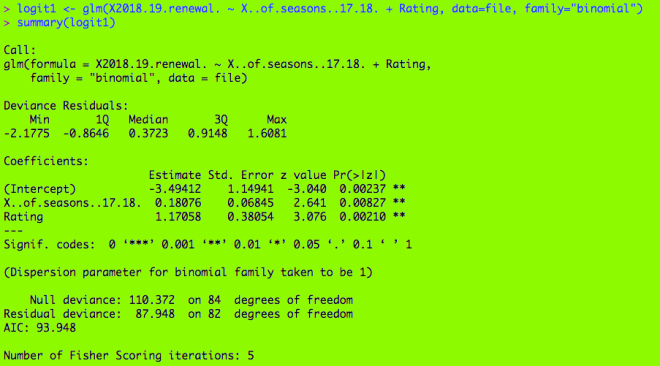
Here’s my first logistic regression model, with my binary variable and two dependent variables (season count and rating). If you’re wondering what the output means, check out R Lesson 4: Logistic Regression Models for a more detailed explanation.
Here are two functions you need to help set up the model. The top function help set up the grid and designate which categorical variable you want to use in your graph. The bottom function helps predict the probabilities of renewal for each show in a certain category. In this case, it would be the rating category (the ones with TV-G, TV-PG, etc.)
Here’s the ggplot function. Geom_line() creates the lines for each level of your categorical variable; here are 5 lines for the 5 categories.
Here’s the graph. As you see, there are five lines, one for each of the ratings. What are some inferences that can be made?
The TV-G shows (category 1) usually have the lowest chance of renewal. In this model, a TV-G show would need to have run for approximately a minimum of 22 seasons for at least 50% chance of renewal. (Granted, the only TV-G show on this database is Fixer Upper, which was not renewed)
The TV-PG shows have a slightly better chance at renewal as renewal odds for these shows are at least 25%. To attain at a minimum 50% of renewal, these shows would only need to have run for approximately a minimum of 17 seasons, not 22 (like The Simpsons).
The TV-14 shows have a minimum 50% chance of renewal, regardless of how many seasons they have run. They would need to have run for at least 25 seasons to attain a minimum 75% chance of renewal, however (SNL would be the only applicable example here, as it was renewed and has run for 43 seasons).
The TV-MA shows have a minimum 76% (approximately) chance of renewal no matter how many seasons they have aired. Shows like South Park, Archer, Real Time, Big Mouth and Orange is the New Black are all TV-MA, and all of them were renewed.
The unrated shows had the best chances at renewal, as they had a minimum 92% (approximately) chance at renewal. (Granted, Watch What Happens Live! is the only unrated show on this list)
Next, we repeat the process used to create the plot for the first model for these next two models.
What are some inferences that can be made? (I know this graph is hard to read, but we can still make observations from this graph.
The orange line (representing Tuesday shows) is the lowest on the graph, so this means Tuesday shows usually had the lowest chances of renewal. This makes sense, as Tuesday shows like LA to Vegas, The Mick, and Rosanne were all cancelled.
On the other end, the pink line (representing shows that either aired on streaming services, did not have a consistent time slot, or aired every day like talk shows) is the highest on the graph, so this means shows without a regular time slot had the best chances at renewal (such as Atypical, Jimmy Kimmel Live!, and House of Cards).
What inferences can we make from this graph?
The network shows (from the 5 major broadcast networks CBS, ABC, NBC, FOX and the CW) had the lowest chances at renewal. At least 11 seasons would be needed for a minimum 50% chance of renewal.
Some shows would include The Simpsons (29 seasons), Family Guy (16 seasons), The Big Bang Theory (11 seasons), and NCIS (15 seasons), all of which were renewed.
The cable shows (from channels such as Comedy Central, HBO, and Bravo) have a minimum 58% (approximately) chance of renewal, but at least 15 seasons would be needed for a minimum 70% chance of renewal.
Some shows would include South Park (21 seasons) and Real Time (16 seasons), both of which were renewed.
The streaming shows (from services such as Netflix, Hulu, or CBS All Access) had the best odds for renewal (approximately 76% minimum chance at renewal). At least 30 seasons would be needed for a 90% chance at renewal.
This doesn’t make any sense yet, as streaming shows have only been around since the early-2010s.
Thanks for reading, and I’ll be sure to have the MySQL database ready so you can start learning about querying.
It’s Michael, and I thought the prefect place to continue from last post would be to show you guys how to launch the database as well as insert records into the database.
But first, I have some corrections to make. This will be the diagram we will use
It’s similar to the one in the previous post, except for one less foreign key in the Awards table that should not have been there along with some other added and modified attributes such as
The release year for album has been changed to release date.
The featured artist and singer tables have new and/or modified attributes, which include
Gender-the gender of the singer/featured artists (it can be null if we are analyzing a group)
This is the only addition to the singer table.
Age-the age of the featured artist as of August 1, 2018.
Birthplace-the birthplace of the featured artist (or where a group was formed)
Death-the date of death of the singer/featured artist
This was a new column for the featured artist table, but it was on the singer table (I just changed the name from “Date of Death” to Death”)
Now that I got that clarified, the next question would be “How do we launch the database?” We do so with a process called forward engineering (under the database drop-down menu click forward engineering). Forward engineering allows us to export our diagram to an SQL server.
You’ll also see an option for reverse engineering in the drop-down menu. You won’t need it to launch the database, but just if you’re wondering what reverse engineering is, it’s essentially the opposite of forward engineering, where you can extract the ER diagram from a launched database (this process can come in handy if you want to modify attributes or relationships in the diagram, but remember to forward engineer again)
Alright, now here’s how to forward engineer your database.
First step is connection options. Choose “new connection” for stored connection and “Standard (TCP/IP)” for connection method. Keep everything else as is.
Next step would be setting up options for the database to be created. Personally, the only two boxes I would check include “Generate INSERT statements for tables” and “Include model attached scripts”.
Next we have to select the objects to forward engineer. Since there are only table objects so far in this diagram, then table objects are the only thing we will be forward engineering. If you’re wondering what the show filter button does, it just allows you to select which tables you don’t want to (or want to) include in the final diagram. Since all five tables are relevant to the database, ignore the show filter column.
If your forward engineering process succeeds, then you will see green checkmarks by each item and the message “Forward Engineer Finished Successfully”.
However, if your forward engineering process had errors, then you will be notified. There will be a white box showing you what exactly your error is. This happened to me the first time I tried to forward engineer, as the fields of data type TIME() had 10 as the maximum length while 6 can be the maximum length for fields with data type TIME(). I fixed the error, ran the forward engineering process again, and it worked, as shown below.
Now let’s check to see if our database successfully launched.To do so, click on the schemas tab, then click the loading icon. If you see something called “mydb”, then the database successfully loaded onto the MySQL server.
Now our database is active, but it’s also empty. So, let’s fill it up (and we’re gonna need to fill up all 5 tables separately). So, we use SELECT * FROM mydb.(whatever table you want to insert data into) to first check out the table (the output is shown in the bottom half of the screen). The output, as seen on the bottom half of the picture, shows that the table is empty.
Now let’s add a record to the table and see what happens.
Note-this was before I decided to add a gender field. But the procedure is basically the same.
If the “Apply Script Process” is successful, then the next time you run the (SELECT * FROM mydb.Singer) prompt, you should see the record added into the database.
The same procedure applies to fill in other records for this table
The process wasn’t successful for me at first, but this was only because my “Date of Death” values should have been formatted like Year-Month-Day, not Month/Day/Year.
Here’s a screenshot of the database with the gender field filled out.
Now let’s fill out the album table (because it connects to the idSinger column)
And if you’re wondering what to put for Singer_idSinger, refer back to the Singer table to figure out which primary key in that table corresponds to the album.
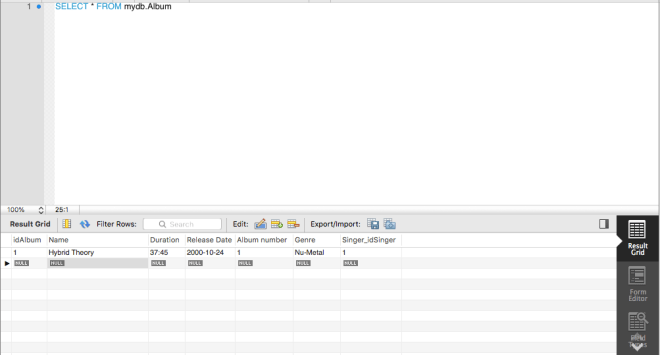
And if forward engineering succeeds, then this record should pop up the next time you run (SELECT * FROM mydb.Album).
Let’s add two more records to see what happens.
Here’s the output, and in case you’re wondering, I set the idAlbum primary key field to auto-increment, so all I had to do was type 1 as the Hybrid Theory primary key, then the primary keys for the rest of the albums were automatically generated.
If you know how to fill in one table, then you can figure out how to fill out the rest. I’ll actually get into querying with my next post.