Python Lesson 30: MATPLOTLIB Histograms, Pie Charts, and Scatter Plots (MATPLOTLIB pt. 3)

Advertisements

Hello everybody,

Michael here, and today’s post will be on creating histograms and pie-charts in MATPLOTLIB (this is the third lesson in my MATPLOTLIB series).

For this lesson, we’ll be using this dataset:

This dataset contains information on the top 125 US grossing movies of 2021 (data from BoxOfficeMojo.com-great source if you want to do data analyses on movies) . Let’s read it into our IDE and learn about each of the variables in this dataset:

import pandas as pd
films2021 = pd.read_excel(r'C:/Users/mof39/OneDrive/Documents/2021 movie data.xlsx')
films2021.head()

Now, what do each of these variables mean? Let’s take a look:

  • Rank-In terms of overall US gross during theatrical run, where the movie ranks (from 1-125)
  • Movie-The name of the movie
  • Total Gross-The movie’s total US gross over the course of its theatrical run (as of January 25, 2022)
  • Screens played in (overall)-The number of US theaters the movie played in during its theatrical run
  • Opening Weekend Gross-The movie’s total opening weekend US gross
  • Opening Weekend % of Total Gross-The movie’s US opening weekend gross’s percentage of the total US gross
  • Opening Weekend Theaters-The number of US theaters the movie played in during its opening run
  • Release Date-The movie’s US release date
  • Distributor-The studio that distributed the movie
  • Rotten Tomatoes Score-The movie’s Rotten Tomatoes Score-0 represents a 0% score and 1 represents a 100% score. For movies that had no Rotten Tomatoes score, a 0 was listed.
    • These are the critics scores I used, not the audience rating (which, if you’ve read Rotten Tomatoes reviews, can vary widely from the critic’s scores).

Now, let’s get started with the visualization creations! First off, let’s explore creating histograms in MATPLOTLIB. For our first MATPLOTLIB histogram, let’s use the Rotten Tomatoes Score column to analyze the Rotten Tomatoes score distribution among the 125 movies on this list:

import matplotlib.pyplot as plt
%matplotlib inline

plt.figure(figsize=(10, 8))
plt.hist(films2021['Rotten Tomatoes Score'])
plt.ylabel('Frequency', size = 15)
plt.xlabel('Rotten Tomatoes Score', size=15)
plt.title('Rotten Tomatoes score distribution among 2021 movies', size=15)

First of all, remeber that since we’re using MATPLOTLIB to create these visualizations, you’ll need to include the lines import matplotlib.pyplot as plt and %matplotlib inline in your code (before you create the plot).

Now, to create the histogram, I used five lines of code. The first line of code simply sets the graph size to 10×8-you’d need to execute this line of code (though you can change the dimensions as you wish). The plt.hist() line of code takes in a single paramter-the column you want to use for the histogram. Since histograms are created with just a single column, you’d only need to pass in one column as the parameter for this function-in this case, I used the Rotten Tomatoes Score column. The next three lines of code set name and size of the graph’s y-label, x-label, and title, respectively.

So, what conclusions can we draw from this graph? First of all, since there are 10 bars in the graph, we can conclude that the Rotten Tomatoes score frequencies are being distributed in 10% intervals (e.g. 0-10%, 10-20%, 20-30%, and so on). We can also conclude that most of the 125 movies in this dataset fall in either the 80-90% interval or the 90-100% interval, so critics seemed to enjoy most of the movies on this list (e.g. Spider-Man: No Way Home, Dune, Free Guy). On the other hand, there are very few movies on this list that critics didn’t enjoy-most of the 0s on this list have no Rotten Tomatoes critic score-as only 11 of the movies on this list had either no critic score or had a score in the 0-10% or 10-20% intervals (e.g. The House Next Door: Meet The Blacks 2).

Now, the graph looks great, but what if you wanted fewer frequency intervals? In this case, let’s cut down the amount of intervals from 10 to 5. Here’s the code to do so:

import matplotlib.pyplot as plt
%matplotlib inline

plt.figure(figsize=(10, 8))
plt.hist(films2021['Rotten Tomatoes Score'], bins=5)
plt.ylabel('Frequency', size = 15)
plt.xlabel('Rotten Tomatoes Score', size=15)
plt.title('Rotten Tomatoes score distribution among 2021 movies', size=15)

As you can see, our graph now only has 5 bars rather than 10. How did I manage to make this change? Pay attention to this line of code:

plt.hist(films2021['Rotten Tomatoes Score'], bins=5)

I still passed in the same column into the plt.hist() function. However, I added the optional bins parameter, which allows me to customize the number of intervals in the histogram (I used five intervals in this case). Since there are only five intervals in this graph rather than 10, the intervals entail 20% score ranges (0-20%, 20-40%, 40-60%, 60-80%, 80-100%).

  • You can use as many intervals as you want for your histogram, but my suggestion is that you take a look at the maximum value of any column you want to use for your histogram and pick a bins value that evenly divides by that maximum value (in this case, I used 5 for the bins since 100 evenly divides by 5).
  • Speaking of maximum value, you’ll only want to use quantiative (numerical) values for your histogram, as quantiative values work best when measuring frequency distribution.

Awesome work so far! Next up, let’s explore pie-charts in MATPLOTLIB. To start with pie-charts, let’s create one based off the Distributors column in the data-frame:

import matplotlib.pyplot as plt
%matplotlib inline

distributors = films2021['Distributor'].value_counts()
distributors = distributors[:6]

plt.figure(figsize=(10,8))
plt.title('Major Movie Distributors in 2021', size=15)
distributors.plot(kind='pie')

So, how did I manage to generate this nice looking pie chart? First of all, to create the pie chart, I wanted to get a count of how many times each distributor appears in the list, so I used PANDAS’ handy-dandy .value_counts() function to get the number of times each distributor appears in the list-I stored the results of the .value_counts() function in the distributors variable. As for the distributors[:6] line of code, I included this since there were over 20 distributors on this list, I only wanted to include the top 6 distributors (the 6 distribtuors that appear the most on this list) to create a neater-looking pie chart.

You’ll recognize the plt.figure() and plt.title() lines from the histogram example, as their functionalities are to set the figure size of the graph and the graph’s title, respectively. However, pay attention to the distributors.plot(kind='pie') line. Whenever you create a data-frame out of value counts (as I did with the distributors variable), running plt.[insert code here] won’t work. You’d need to use the syntax data-frame.plot(kind='kind of graph you want to create')-and yes, remember to pass in the value for kind as a string.

So, what can we infer from this pie-chart? For one thing, Warner Bros. had most of the top-US grossing movies of 2021, with 18 movies on this list coming from Warner Bros. (Dune, Space Jam: A New Legacy, Godzilla vs. Kong). Surprisingly, there are only 7 Disney movies on this list (well, 14 if you count the 7 Searchlight Pictures films-Searchlight Pictures is a subsidiary of Disney as of March 2019). Even more surprising? Warner Bros. released all of their 2021 films on a day-and-date model, meaning that all of their 2021 films were released in theaters AND on their streaming service HBO MAX, so I’m surprised that they (not Disney) have the most movies on this list.

OK, so our pie chart looks good so far. But what if you wanted to add in the percentages along with the corresponding values (values refering to the amount of times a distributor’s name appears in the dataset)? Change this line of code from the previous example:

distributors.plot(kind='pie', autopct=lambda p : '{:.0f}%  ({:,.0f})'.format(p,p * sum(distributors)/100))

In the .plot() function, I added an extra parameter-autopct. What does autopct do? Well, I could say this function displays the percentage of the time each distributor appears in the list, but that’s oversimplifying it. Granted, all percentages are displayed alongside their corresponding values (e.g. the Lionsgate slice shows 12% alongside the 7 label, indiciating that Lionsgate appears 7 times (and 12% of the time) on the distributors data-frame). However, this is accomplished with the help of a handy-dandy lambda function (for a refresher on lambda functions, refer to this lesson-Python Lesson 12: Lambdas & List Comprehension) that, in summary, calculates the amount of times each distributor’s name appears in distributors and displays that number (along with the corresponding percentage) in the appropriate slice of the pie chart.

Awesome work so far! Now, last but not least, let’s create a scatterplot using the Total Gross and Screens played in (overall) columns to analyze the relationship between a movie’s total US gross and how many US theaters it played in during its run:

import matplotlib.pyplot as plt
%matplotlib inline

plt.figure(figsize=(10,8))
plt.title('Screens played in', size=15)
plt.xlabel('Total screens played in during theatrical run', size=15)
plt.ylabel('Total US gross (in hundereds of millions of dollars)', size=15)
plt.scatter(films2021['Screens played in (overall)'], films2021['Total Gross'])
  • I could only get part of the scatter plot since the output was too big to be displayed without needing to scroll down.

So, how did I manage to generate this output? First of all, as I’ve done with every MATPLOTLIB visual I’ve created in this post, I include the .figure(), .title(), .xlabel(), and .ylabel() functions to help with the plotting of this graph. To actually generate and plot the scatterplot, I use the .scatter() function and passed in two parameters-the x-axis (Screens played in (overall)) and the y-axis (Total Gross).

So, what can we conclude from this scatterplot? It appears that the more screens a movie played in during its theatrical run, the higher its total gross-however, this trend isn’t noticeable for movies that played in under 2000 screens nationwide (namely the foreign films and limited-release films). Oh, and in case you’re wondering, there is one point in the scatterplot that you can’t see which corresponds to Spider-Man: No Way Home (which still has a handful of showing left at my local movie theater as of February 3, 2022). Not surprising that the Spider-Man: No Way Home point is all the way at the top, since it grossed approximately $677 million in the US during its (still-ongoing) theatrical run. Just for perspective, the #2 ranked movie on this list-Shang-Chi and the Legend of the Ten Rings-grossed approximately $224 million during its theatrical run (and played on just 36 fewer screens than Spider-Man: No Way Home). The highest grossing non-MCU (Marvel Cinematic Universe for those unaware) movie-F9: The Fast Saga (ranked at #5)-grossed approximately $173 million in comparison.

Thanks for reading,

Michael

Python Lesson 29: More Things You Can Do With MATPLOTLIB Bar Charts (MATPLOTLIB pt. 2)

Advertisements

Hello everybody,

Michael here, and today’s lesson will cover more neat things you can do with MATPLOTLIB bar-charts.

In the previous post, I introduced you all to Python’s MATPLOTLIB package and showed you how you can use this package to create good-looking bar-charts. Now, we’re going to explore more MATPLOTLIB bar-chart functionalities.

Before we begin, remember to run these imports:

import pandas as pd
import numpy as np
import matplotlib.pyplot as plt

#Also include the %matplotlib inline line in your notebook.

Also remember to run this code:

tokyo21medals = pd.read_csv('C:/Users/mof39/OneDrive/Documents/Tokyo Medals 2021.csv')

This code creates a data-frame that stores the Tokyo 2021 medals data. The link to this dataset can be found in the Python Lesson 27: Creating Pandas Visualizations (pandas pt. 4) post.

Now that we’ve done all the necessary imports, let’s start exploring more cool things you can do with a MATPLOTLIB bar-chart.

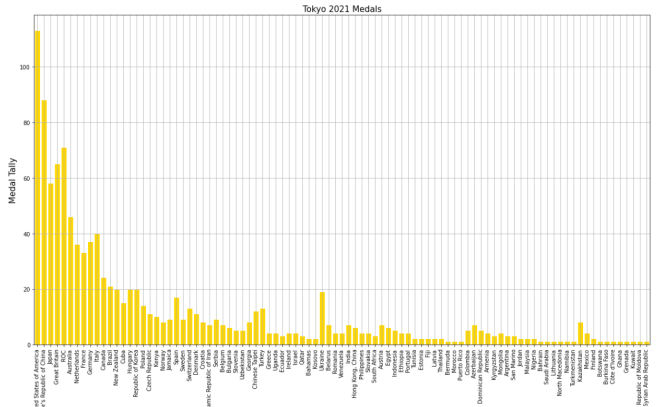
Let’s say you wanted to add some grid lines to your bar-chart. Here’s the code to do so (using the gold bar vertical bar-chart example from Python Lesson 28: Intro to MATPLOTLIB and Creating Bar-Charts (MATPLOTLIB pt. 1)):

tokyo21medals.plot(x='Country', y='Total', kind='bar', figsize=(20,11), legend=None)
plt.title('Tokyo 2021 Medals', size=15)
plt.ylabel('Medal Tally', size=15)
plt.xlabel('Country', size=15)
xValues = np.array(tokyo21medals['Country'])
yValues = np.array(tokyo21medals['Total'])
plt.bar(xValues, yValues, color = 'gold')
plt.grid()

Pretty neat, right? After all, all you needed to do was pop the plt.grid() function to your code and you get neat-looking grid lines. However, in this bar-chart, it isn’t ideal to have grid lines along both axes.

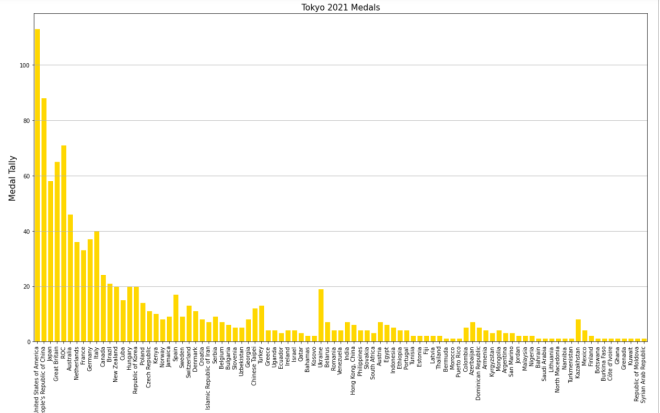
Let’s say you only wanted grid lines along the y-axis. Here’s the slight change in the code you’ll need to make:

plt.grid(axis='y')

In order to only display grid lines on one axis, pass in an axis parameter to the plt.grid() function and set the value of axis as the axis you wish to use as the parameter (either x or y). In this case, I set the value of axis to y since I want the gridlines on the y-axis.

Here’s the new graph with the gridlines on just the y-axis:

Honestly, I think this looks much neater!

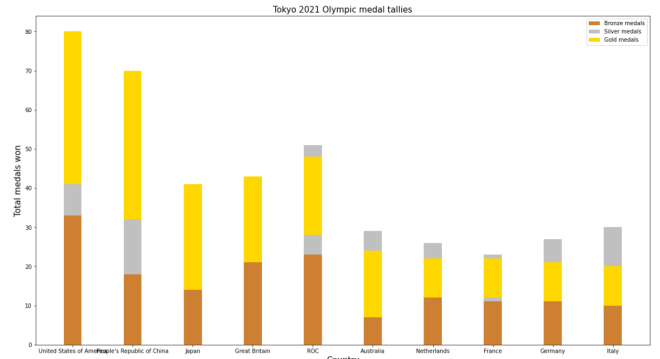
Now, what if you wanted to plot a bar-chart with several differently-colored bars side-by-side? In the context of this dataset, let’s say we wanted to plot each country’s bronze medal, silver medal, and gold medal count side-by-side. Here’s the code we’d need to use:

tokyo21medalssubset = tokyo21medals[0:10]

plt.figure(figsize=(20,11))
X = tokyo21medalssubset['Country']
bronze = tokyo21medalssubset['Bronze Medal']
silver = tokyo21medalssubset['Silver Medal']
gold = tokyo21medalssubset['Gold Medal']
Xaxis = np.arange(len(X))
plt.bar(Xaxis - 0.2, bronze, 0.3, label='Bronze medals', color='#cd7f32')
plt.bar(Xaxis, silver, 0.3, label='Silver medals', color='#c0c0c0')
plt.bar(Xaxis + 0.2, gold, 0.3, label='Gold medals', color='#ffd700')
plt.xticks(Xaxis, X)
plt.xlabel('Country', size=15)
plt.ylabel('Total medals won', size=15)
plt.title('Tokyo 2021 Olympic medal tallies', size=15)
plt.legend()
plt.show()

So, how does all of the code work? Well, before I actually started creating the code that would create the bar-chart, I first created a subset of the tokyo21medals data-frame aptly named tokyo21medalssubset that contains only the first 10 rows of the tokyo21medals data-frame. The reason I did this was because the bar-chart would look rather cramped if I tried to include all countries.

After creating the subset data-frame, I then ran the plt.figure function with the figsize tuple to set the size of the plot to (20,11).

The variable X grabs the x-axis values I want to use from the data-frame-in this case I’m grabbing the Country values for the x-axis. However, X doesn’t create the x-axis; that’s the work of the aptly-named Xaxis variable. Xaxis actually creates the nice, evenly-spaced intervals that you see on the above bar-chart’s x-axis; it does so by using the np.arange() function and passing in len(X) as the parameter.

As for the bronze, silver, and gold variables, they store all of the Bronze Medal, Silver Medal, and Gold Medal values from the tokyo21medalssubset data-frame.

After creating the Xaxis variable, I then ran the plt.bar() function three times-one for each column of the data-frame I used. Each plt.bar() function has five parameters-the bar’s distance from the “center bar” in inches (represented with Xaxis +/- 0.2), the variable representing the column that the bar will use (bronze, silver, or gold), the width of the bar in inches (0.3 in this case), the label you want to use for the bar (which will be used for the bar-chart’s legend), and the color you want to use for the bar (I used the hex codes for bronze, silver, and gold).

  • By “center bar”, I mean the middle bar in a group of bars on the bar-chart. In this bar-chart, the “center bar” is always the grey bar as it is always between the silver and gold bars in all of the bar groups.
  • Don’t worry, I’ll cover color hex codes in greater detail in a future post.

After creating the bronze, gold, and silver bars, I then used the plt.xticks() function-and passed in the X and Xaxis variable to create the evenly-spaced x-axis tick marks on the bar-chart. Once the x-axis tick marks are plotted, I used the plt.title(), plt.xlabel(), and plt.ylabel() functions to set the labels (and display sizes) for the chart’s title, x-axis, and y-axis, respectively.

Lastly, I ran the plt.legend() and plt.show() functions to create the chart’s legend and display the chart, respectively. Remember the label parameter that I used in each of the plt.bar() functions? Well, each of these values were used to create the bar-chart’s legend-complete with the appropriate color-coding!

Now, what if instead of plotting the bronze, silver, and gold bars side-by-side, you wanted to plot them stacked on top of each other. Here’s the code we’d use to do so:

plt.figure(figsize=(20,11))
X = tokyo21medalssubset['Country']
bronze = tokyo21medalssubset['Bronze Medal']
silver = tokyo21medalssubset['Silver Medal']
gold = tokyo21medalssubset['Gold Medal']
Xaxis = np.arange(len(X))
plt.bar(Xaxis, bronze, 0.3, label='Bronze medals', color='#cd7f32')
plt.bar(Xaxis, silver, 0.3, label='Silver medals', color='#c0c0c0', bottom=bronze)
plt.bar(Xaxis, gold, 0.3, label='Gold medals', color='#ffd700', bottom=silver)
plt.xticks(Xaxis, X)
plt.xlabel('Country', size=15) 
plt.ylabel('Total medals won', size=15)
plt.title('Tokyo 2021 Olympic medal tallies', size=15)
plt.legend()
plt.show()

Now, this code is similar to the code I used to create the bar-chart with the side-by-side bars. However, there are some differences the plt.bar() functions between these two charts, which include:

  • There’s no +/- 2 in any parameter, as I’m stacking bars on top of each other rather than plotting them side-by-side
  • For the second and third plt.bar() functions, I included a bottom parameter and set the value of this parameter to the bar I want to plot below the bar I’m plotting.
    • OK, that may sound confusing, but to clarify, when I’m plotting the silver bar, I set bottom equal to bronze as I’m plotting the bronze bar below the silver bar. Likewise, when I plot the gold bar, I set bottom equal to silver, as I want the silver bar below the gold bar.

Honestly, this looks much neater than the side-by-side bar-chart we made.

Aside from the differences in plt.bar() functions between this chart and the chart above, the rest of the code is the same between the two charts.

Thanks for reading,

Michael

Python Lesson 28: Intro to MATPLOTLIB and Creating Bar-Charts (MATPLOTLIB pt. 1)

Advertisements

Hello everybody,

Michael here, and today’s lesson will serve as an intro to Python’s MATPLOTLIB package-this is part 1 in my MATPLOTLIB series. I will also cover bar-chart manipulation with MATPLOTLIB.

Now, as I mentioned in my previous post (Pandas Lesson 27: Creating Pandas Visualizations (pandas pt. 4)), MATPLOTLIB is another Python visualization creation package-just like pandas-but unlike the pandas package, MATPLOTLIB has more functionalities (such as adding interactive components to visualizations).

Now, to work with the MATPLOTLIB package, be sure to run this command to install the package-pip install matplotlib (or run the pip list command to check if you already have it).

For this post, we’ll be working with the same Tokyo 2021 dataset we used for the previous post (click the Pandas Lesson 27 link to find and download that dataset).

Once you’ve installed the MATPLOTLIB package, run this code in your IDE:

import pandas as pd
import matplotlib.pyplot as plt
%matplotlib inline

tokyo21medals = pd.read_csv('C:/Users/mof39/OneDrive/Documents/Tokyo Medals 2021.csv')
  • Since I didn’t discuss the PYPLOT sub-package, I’ll do so right here. PYPLOT is essentially a MATPLOTLIB sub-package that contains the majority of MATPLOTLIB’s utilities-this is why when we import MATPLOTLIB to our IDE, we usually include the PYPLOT sub-package.

You’ll probably recognize all of this code from the previous post. That’s because I used some MATPLOTLIB in the previous post and included the %matplotlib inline line. You’ll also need to import pandas and create a pandas data-frame that stores the Tokyo Medals 2021 dataset into the IDE (just for consistency’s sake, I’ll call this data-frame tokyo21medals).

Now, before we get into more MATPLOTLIB specifics, let’s review the little bit of MATPLOTLIB I covered in the previous lesson.

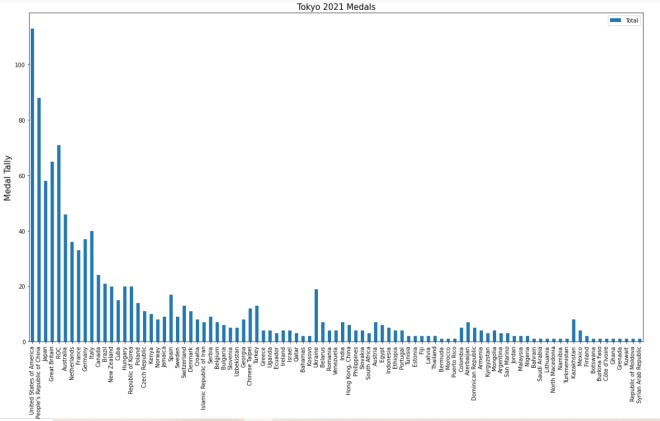
So, just to recap, here’s the MATPLOTLIB code I used to create the bar-chart in the previous lesson:

tokyo21medals.plot(x='Country', y='Total', kind='bar', figsize=(20,11))
plt.title('Tokyo 2021 Medals', size=15)
plt.ylabel('Medal Tally', size=15)
plt.xlabel('Country', size=15)

And here’s the bar-chart that was generated:

Now, how exactly did I generate this bar-chart? First of all, I used pandas’ plot() function (remember to import pandas) and filled it with four parameters-the column I want to use for the x-axis, the column I want to use for the y-axis, the type of visual I want to create, and the display size I want for said visual.

After creating the blueprint of the visual with pandas’ plot() function, I then used MATPLOTLIB’s plt.title() function to set a title for the bar-chart (I also passed in a size parameter to set the display size of the title). Next, I used MATPLOTLIB’s plt.ylabel() function to set a label for the chart’s y-axis and just as I did with the plt.title() function, I passed in a size parameter to set the display size for the y-axis label. Lastly, I used the plt.xlabel() function to change the bar-chart’s x-axis label, and, just as I did for the plt.title() and plt.xlabel() functions, I also added a size parameter to set the display size for the x-axis label. However, when you first create the bar-chart, you’ll notice that a default x-axis label has already been set-Country-which is the name of the column I chose for the x-axis. In this case, I didn’t change the label name, just the label display size. However, in order to change the label display size, you’ll need to pass in the x-axis label you’d like to use as the first parameter of the plt.xlabel() axis function.

  • Why do all of these functions start with plt? Remember the import matplotlib.pyplot as plt import you did.

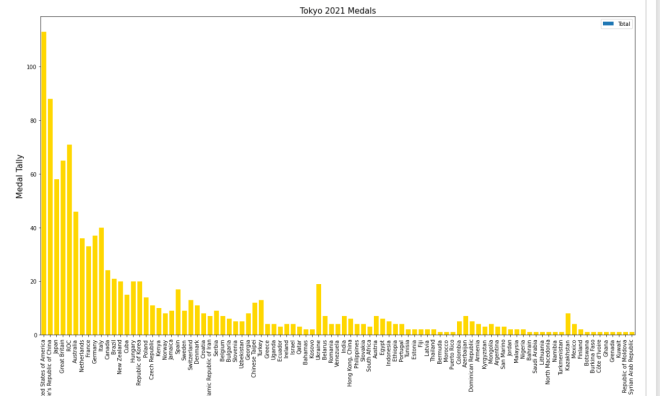
Now, MATPLOTLIB bars are blue by default. What if you wanted to change their color? Let’s say we wanted to go with the theme of this dataset and change all the bars to gold (this dataset covers Tokyo 2021 Olympic medal tallies, after all). Here’s the code to do so:

tokyo21medals.plot(x='Country', y='Total', kind='bar', figsize=(20,11))
plt.title('Tokyo 2021 Medals', size=15)
plt.ylabel('Medal Tally', size=15)
plt.xlabel('Country', size=15)
xValues = np.array(tokyo21medals['Country'])
yValues = np.array(tokyo21medals['Total'])
plt.bar(xValues, yValues, color = 'gold')

So, how did I get the gold color on all of these bars? Well, before I discuss that, let me remind you that you’ll need to install NumPy (import numpy as np in case you forgot) here. I’ll explain why shortly.

After you create the outline for the bar-chart (with panda’s plot() function) and set labels for the bar-chart’s x-axis, y-axis, and title, you’ll need to store the values for the x-axis and y-axis in NumPy arrays (this is where the NumPy package comes in). For both the x-axis and y-axis, use the np.array() function and pass in the data-frame columns you used for the x-axis and y-axis, respectively. After creating the NumPy arrays, write this line of code-plt.bar(xValues, yValues, color = 'gold'). The plt.bar() function takes three parameters-the two NumPy arrays you created for you x-axis and y-axis and the color parameter which sets the color of the bars (I set the bars to gold in this case).

  • Hex codes will work for the color as well.

Looks pretty good! But wait, the legend is still blue!

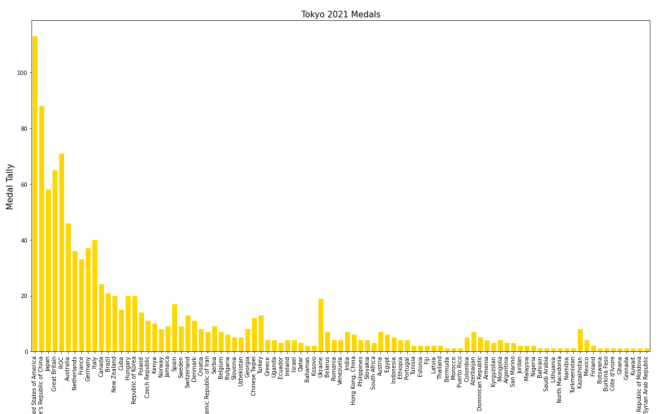
In this case, let’s remove the legend altogether. Here’s the code to do so:

tokyo21medals.plot(x='Country', y='Total', kind='bar', figsize=(20,11), legend=None)
plt.title('Tokyo 2021 Medals', size=15)
plt.ylabel('Medal Tally', size=15)
plt.xlabel('Country', size=15)
xValues = np.array(tokyo21medals['Country'])
yValues = np.array(tokyo21medals['Total'])
plt.bar(xValues, yValues, color = 'gold')

And here’s the bar-chart without the legend:

In order to remove the legend from the bar-chart, all you needed to do was add the line legend=None to the tokyo21medals.plot() function. The legend=None line removes the legend from the bar-chart.

Last but not least, let’s explore how to display the bars horizontally rather than vertically.

Assuming we keep the gold coloring on the bars, here’s the code you’d need to display the bars horizontally:

plt.figure(figsize=(25,25))
plt.title('Tokyo 2021 Medals', size=15)
plt.ylabel('Country', size=15)
plt.xlabel('Medal Tally', size=15)
xValues = np.array(tokyo21medals['Country'])
yValues = np.array(tokyo21medals['Total'])
plt.barh(xValues, yValues, color='gold')

And here’s the new bar-chart with the horizontal bars (well, part of it-the bar-chart was too big to fit in one picture):

As you can see, the code I used to create this horizontal bar-chart is different from the code I used to create the vertical bar-chart. Here are some of those code differences:

  • I didn’t use pandas’ plot() function at all; to create the horizontal bar-chart, PYPLOT functions alone did the trick.
  • Unlike the code I used for the vertical bar-charts, I included PYPLOT’s figsize() function as the first function to be executed in this code block. I passed in a two-element tuple as this function’s parameter in order to set the size of the bar-chart (in this case, I set the bar-chart’s size to 25×25).
    • Just a suggestion, but if you’re using MATPLOTLIB to create your visual, you should set the size of the visual in the first line of code you use to create your visual.
  • Country is in the x-axis NumPy array while Total is in the y-axis NumPy array.
  • To plot the bar chart, I used PYPLOT’s barh() function rather than the bar() function. I still passed in a color parameter to the barh() function, though.

Even with all these differences, I didn’t change the plot title, x-axis label, or y-axis label.

Thanks for reading,

Michael
Python Lesson 27: Creating Pandas Visualizations (pandas pt. 4)

Advertisements

Hello everybody,

Michael here, and today’s post will be about creating visualizations in Python’s pandas package. This is the dataset we will be using:

These three datasets contains information regarding the Tokyo 2021 (yes I’ll call it that) Olympics medal tally for each participating country-this include gold medal, silver medal, bronze medal, and total medal tallies for each nation.

Once you open your IDE, run this code:

import pandas as pd

tokyo21medals = pd.read_csv('C:/Users/mof39/Downloads/Tokyo Medals 2021.csv')

Now, let’s check the head of the data-frame we’ll be using for this lesson. Here’s the head of the tokyo21medals data-frame:

As you can see, this data-frame has 5 variables, which include:

  • Country-the name of a country
  • Gold Medal-the country’s gold medal tally
  • Silver Medal-the country’s silver medal tally
  • Bronze Medal-the country’s bronze medal tally
  • Total-the country’s total medal tally

OK, now that we’ve loaded and analyzed our data-frame, let’s start building some visualizations.

Let’s create the first visualization using the tokyo21medals data-frame with this code:

tokyo21medals.plot(x='Country', y='Total')

And here’s what the plot looks like:

The plot was successfully created, however, here are some things we can fix:

  • The y-axis isn’t labelled, so we can’t tell what it represents.
  • A title for the plot would be nice as well.
  • The plot should be larger.
  • A line graph isn’t the best visual for what we’re trying to plot

So, how can we make this graph better? The first thing we’d need to do is import the MATPLOTLIB package:

import matplotlib.pyplot as plt
%matplotlib inline

What exactly does the MATPLOTLIB package do? Well, just like the pandas package, the MATPLOTLIB package allows you to create Python visualizations. However, while the pandas package allows you to create basic visualizations, the MATPLOTLIB package allows you to add interactive and animated components to the visual. MATPLOTLIB also allows you to modify certain components of the visual (such as the axis labels) that can’t be modified with pandas alone; in that sense, MATPLOTLIB works as a great supplement to pandas.

  • I’ll cover the MATPLOTLIB package more in depth in a future post, so stay tuned!

The %matplotlib inline code is really only used for Jupyter notebooks (like I’m using for this lesson); this code ensures that the visual will be displayed directly below the code as opposed to being displayed on another page/window.

Now, let’s see how we can fix the visual we created earlier:

tokyo21medals.plot(x='Country', y='Total', kind='bar', figsize=(20,11))
plt.title('Tokyo 2021 Medals', size=15)
plt.ylabel('Medal Tally', size=15)

In the plot() function, I added two parameters-kind and figsize. The kind parameter allows you to change the type of visual you want to create-the default visual that pandas uses is a line graph. By setting the value of kind equal to bar, I’m able to create a bar-chart with pandas. The figsize parameter allows you to change the size of the visual using a 2-value tuple (which can consists of integers and/or floats). The first value in the figsize tuple represents width (in inches) of the visual and the second value represents height (also in inches) of the visual. In this case, I assigned the tuple (20,11) to the `figsize parameter, which makes the visual 20 inches wide by 11 inches tall.

Next, take a look at the other lines of code in the code block (both of which begin with plt). The plt functions are MATPLOTLIB functions that allow you to easily modify certain components of your pandas visual (in this case, the y-axis and title of the visual).

In this example, the plt.title() function took in two parameters-the title of the chart and the font size I used for the title (size 15). The plt.ylabel() function also took in two parameters-the name and font size I used for the y-axis label (I also used a size 15 font here).

So, the chart looks much better now, right? Well, let’s take a look at the x-axis:

The label for the x-axis is OK, however, it’s awfully small. Let’s make the x-axis label size 15 so as to match the sizing of the title and y-axis label:

plt.xlabel('Country', size=15)

To change the size of the x-axis label, use the plt.xlabel() function and pass in two parameters-the name and size you want to use for the x-axis label. And yes, even though there is already an x-axis label, you’ll still need to specify a name for the x-axis label in the plt.xlabel() function.

  • Just a helpful tip-execute the plt.xlabel() function in the same code-block where you executed the plot() function and plt() functions.

Now, let’s see what the x-axis label looks like after executing the code I just demonstrated:

The x-axis label looks much better (and certainly more readable)!

Thanks for reading,

Michael

R Lesson 24: A GUI for ggplots

Advertisements

Hello everybody,

Michael here, and first of all, thank you all for reading my first 100 posts-your support is very much appreciated! Now, for my 101st post, I will start a new series of R lessons-today’s lesson being on how to use an R GUI (graphical user interface for those unfamiliar with programming jargon) to build data visualizations and to perform some exploratory data analysis.

Now, you may be thinking that you can build data visualizations and perform exploratory data analysis with several lines of code. That’s true, but I will show you another approach to building visuals and performing exploratory data analysis.

At the beginning of this post, I mentioned that I will demonstrate how to use an R GUI. To install the GUI, install the esquisse package in R.

  • Fun fact: the esquisse package was created by two developers at DreamRs-a French R consulting firm (apparently R consulting firms are a thing). Esquisse is also French for “sketch”.

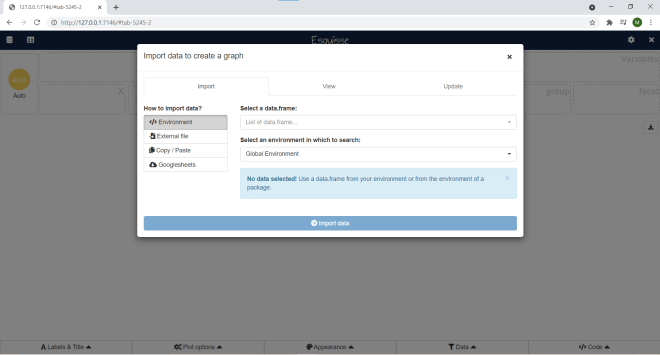
To launch the Esquisse GUI, run this command in R-esquisse:esquisser(). Once you run this command, this webpage should pop up:

Before you start having fun creating visualizations, you would need to import data from somewhere. Esquisse gives you four options for importing your data-a dataframe in R that you created, a file on your computer, copying & pasting your data, or a Googlesheets file (Google Sheets is Google’s version of Excel spreadsheets).

For this demonstration, I will use the 2020 NBA playoffs dataset I used in the post R Analysis 10: Linear Regression, K-Means Clustering, & the 2020 NBA Playoffs.

Now, you could realistically import data into Esquisse through these four commands I just mentioned, but there is a more efficient way to import data into Esquisse. First, I ran this line of code to create a data frame from the dataset I’ll be using-NBA <- read.csv("C:/Users/mof39/OneDrive/Documents/2020 NBA playoffs.csv"). You’d obviously need to change this depending on the dataset you’ll be using and the location on your computer where the dataset is stored.

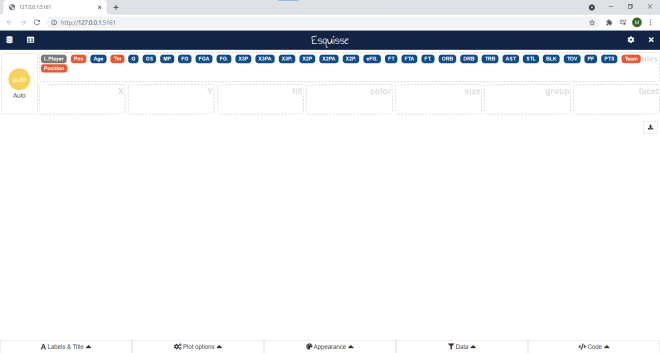
Next, I ran the command esquisse::esquisser(NBA), which tells Esquisse to automatically load in the NBA data-frame:

As you can see, all the variables from the NBA data-frame appear here. For explanations on each of these variables, please refer to the aforementioned 2020 NBA Playoffs analysis post I hyperlinked to here.

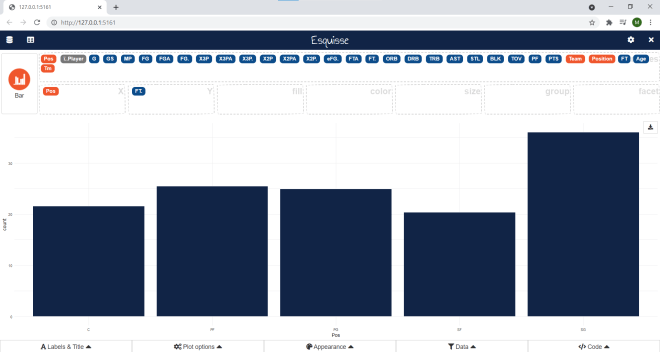
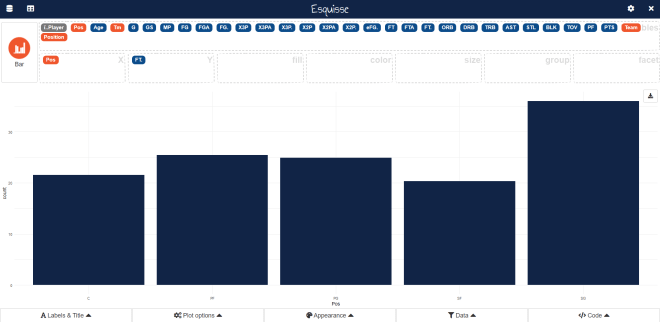
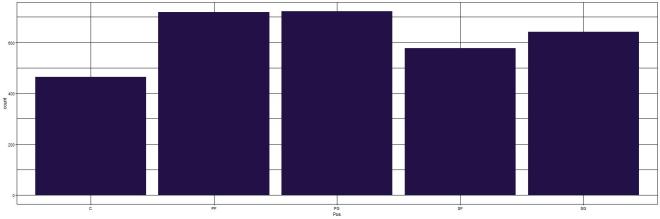
Now, let’s start building some visualizations! Here’s a simple bar-chart using the Pos. and FT. variables:

In this example, I built a simple bar-chart showing the total amount of playoff free throws made (not those that missed) in the 2020 NBA playoffs grouped by player position. Simple enough right? After all, all I did was drag Pos into the X-axis box and FT. into the Y-axis box.

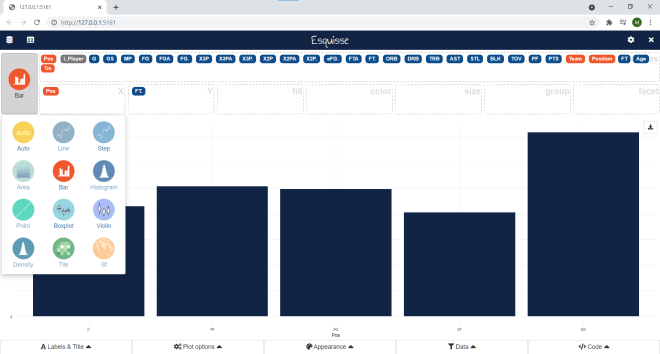
Now, did you know there are further options for modifying the chart? Click on the Bar button and see what you can do:

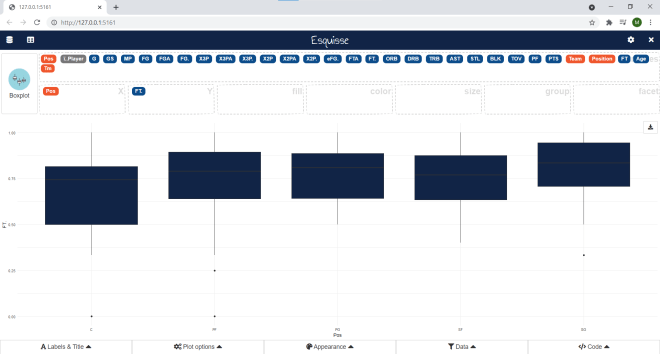
Depending on the data you’re using for your visualization, you can change the type of visual you use. Any visual icon that looks greyed-out won’t work for the data you’re using; in this example, only a bar-chart, box-plot, or violin-plot would work with the data I’m using.

Here’s what the data looks like as a box-plot:

Now, let’s change this plot back to a bar graph:

Click on the Appearance button:

In the Appearance interface, you can manipulate the color of the bars (either with the color slider or by typing in a color hex code), change the theme of the bar graph (or whatever visual you’re using), and adjust the placement of the legend on your bar graph (if your bar graph has a legend).

  • The four arrows for Legend position allow you to place the legend either to the left of the bar graph, on top of the bar graph, or on the bottom of the bar graph (the X allows you to exclude a legend).
  • The theme allows you to customize the appearance of the bar graph. Here’s what the graph looks like with the linedraw theme:

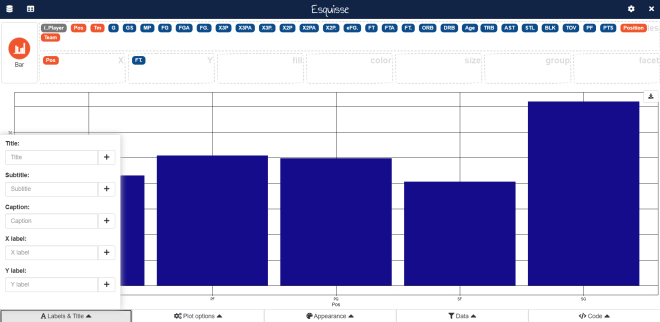
Now, let’s say we wanted to change the axis labels for our bar-chart and add a title. Click on Labels & Title:

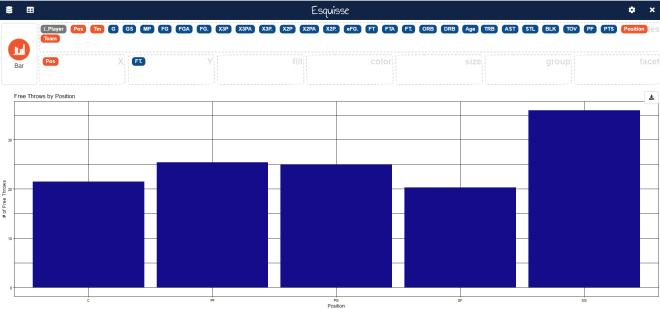
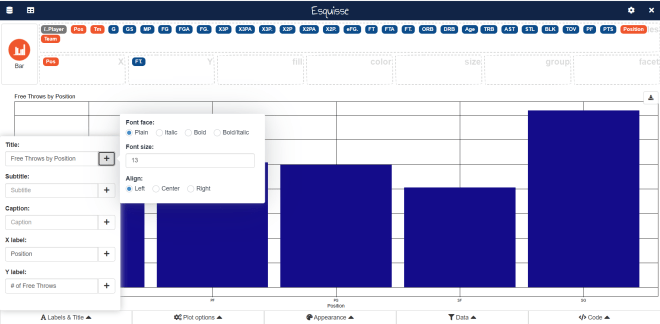
As you can see, we can set a title, subtitle, caption, x-axis label, and y-axis label for our bar chart. In this example, we’ll only set a title, x-axis label, and y-axis label:

Looks good so far-but the print does seem small. Also, the left-aligned title doesn’t look good (but this is just my opinion). Luckily there’s an easy way to fix this. Click on Labels & Title again:

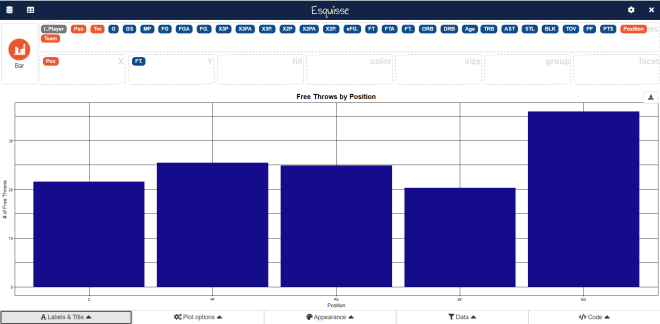
To change the title (or any of the label elements), click on the + sign right by an element’s text box. For all label elements, a mini-interface will appear that allows you to change the font face (though you can’t change the font itself), the font size, and the alignment for all elements. For the title, I’ll use a bold font face with size 16 and center-alignment. For the axis labels, I’ll use a plain font face with size 12 and center-alignment:

Now the graph looks much better!

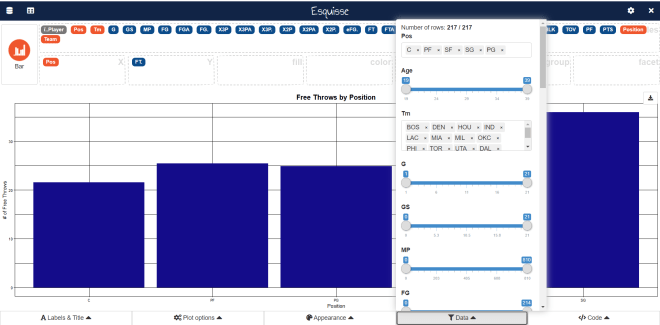
What if we wanted to filter the graph further? Let’s say we wanted to see this same data, but only for players 30 and over. Click on the Data button:

If you scroll down this interface, you will see all the fields that you can filter the data with; numerical fields are shown with slicers while non-numerical fields are shown as lists of elements. To filter data for only the players who are 30 and over, move the left end of the slider for Age to 30 and keep the right end of the slider in its current position.

  • You can filter by fields that you’re not using in your visual.

Last but not least, let’s check out the Code button:

Unlike the other four buttons, the Code button doesn’t alter anything in the bar chart. Rather, the Code button will simply display the R code used to create the chart. Honestly, I think this is a pretty great feature for anyone who’s just getting started with R and wants to get the basic idea of how to create simple ggplots.

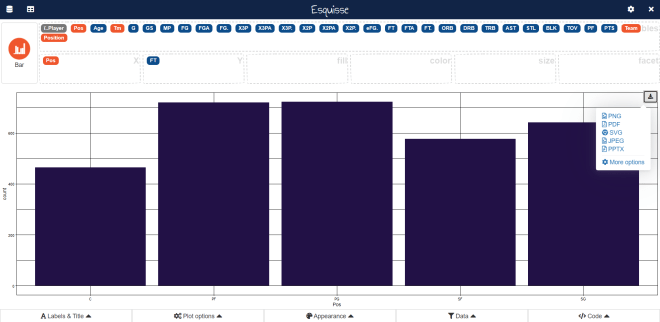
Lastly, let’s explore how to export your visualization. To export your visualization, first click on the download icon on the upper-right hand side of your visualization:

There are five main ways you can export your visualization-into a PDF, PNG, JPEG, PPTX, or SVG file. Just in case any of you weren’t aware, PNGs and JPEGs are images and a PPTX is a PowerPoint file. An SVG is a standard file type used for rendering 2-D images on the internet.

I will save this visualization as a JPEG. Here’s what it looks like in JPEG form:

You’ll see the graph as I left it, but you won’t see the Esquisse interface in the image (which is probably for the best)

All in all, Esquisse is pretty handy if you want to create simple ggplot visualizations without writing code. Sadly, Esquisse doesn’t allow you to create dashboards yet (dashboards are collections of related visualizations on a single page, like the picture below):

  • This picture shows a sample Power BI dashboard; Power BI is a Microsoft-owned dashboard building tool.

R Lesson 23: US Mapmaking with R (pt. 2)-Coloring the Map with Geographic Data

Advertisements

Hello everybody,

Michael here, and first of all, Happy New Year! I bet you’re glad that 2020 is finally behind us!

Now, for my first post of 2021, I will continue my lesson on US Mapmaking with R that I started before the holidays. This time, I will cover how to fill in the map based on certain geographic data. Also, before you start coding along, make sure to install the usmap package.

Now, let’s upload our first data set (I’ll use two data sets for this lesson) to R. Here’s the file for the data:

This is a simple dataset showing the amount of COVID-19 cases and deaths in each state (excluding DC) as of January 13, 2021. However, this data-frame needs one more column-FIPS (representing the FIPS code of each state). Here’s how to add the FIPS column to this data-frame:

> file$fips <- fips(file$ï..state)
> str(file)
'data.frame':   50 obs. of  4 variables:
 $ ï..state: chr  "Alabama" "Alaska" "Arizona" "Arkansas" ...
 $ Cases   : int  410995 50816 641729 262020 2815933 366774 220576 67173 1517472 749417 ...
 $ Deaths  : int  5760 225 10673 4186 31105 5326 6536 994 23754 11803 ...
 $ fips    : chr  "01" "02" "04" "05" ...

In this example, I used the fips function to retrieve all of the FIPS codes for each state. I then stored the results of this function in a variable called file$fips, which attaches the fips variable to the existing file data-frame. Once I ran the str(file) command again, I see that the fips variable has been added to the file data-frame.

Now, let’s plot a basic US map with the COVID case data-this time, let’s focus on cases:

plot_usmap(data=file, values="Cases")

In order to create a US map plot of COVID cases, all I needed to do was to indicate the data (which is the data-frame file) and the values (Cases enclosed in double quotes).

As you can see, the map plot above is colored in varying shades of blue to represent a state’s cumulative COVID case count-the lighter the blue, the more cumulative cases a state had. California is the colored with lightest shade of blue, as they had over 2 million cumulative cases as of January 13, 2021. On the other hand, Vermont is colored with the darkest shade of blue, as they were the only state with fewer than 10,000 COVID cases as of January 13, 2021.

The map plot above looks good, but what if you wanted to change the color or scale? Here’s how to do so (and add a title in the process)-also keep in mind that if you want to update the color, scale, and title for the map plot, remember to install the ggplot2 package:

 plot_usmap(data=file, values="Cases") + labs(title="US COVID cases in each state 1-13-21") + scale_fill_continuous(low = "lightgreen", high = "darkgreen", name = "US COVID cases", label = scales::comma) + theme(legend.position = "right")

In this example, I still created a US plot map from the Cases column in the dataset, but I changed the color scale-and in turn color-of the map plot to shades of green (where the greater of COVID cases in a state, the darker the shade of green that state is colored). I also changed the scale name to US COVID cases and labels to scales::comma, which displays the numbers on the scale as regular numbers with thousands separators (not the scientific notation that was displayed on the previous example’s scale.

After modifying the coloring and scale of the map plot, I also added a title with the labs function and used the theme function to place the legend to the right of the map plot.

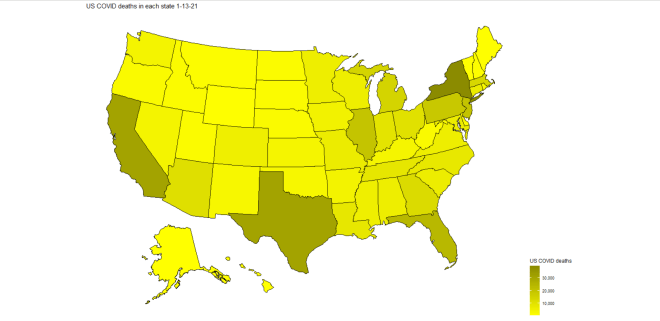
Now I will create another map, this time using the Deaths column as the values. Here’s the code to do so:

 plot_usmap(data=file, values="Deaths") + labs(title="US COVID deaths in each state 1-13-21") + scale_fill_continuous(low = "yellow1", high = "yellow4", name = "US COVID deaths", label = scales::comma) + theme(legend.position = "right")

In this example, I used the same code from the previous example, except I replaced “cases” with “deaths” and colored the map in yellow-scale (the more deaths a state had, the darker the shade of yellow). As you can see, California, Texas, and New York have the darkest shades of yellow, which meant that they led the nation in COVID-19 deaths on January 13, 2021. However, unlike with COVID cases, New York led the nation in COVID deaths, not California (New York had just under 40,000 COVID deaths while California had roughly 31,000).

Now, let’s try creating a state map (broken down by county) with COVID data. For these next examples, I’ll create a county map of the state of Tennessee’s COVID cases and deaths-similar to what I did in the previous two examples.

First, let’s upload the new dataset to R. Here’s the file for the dataset:

Just like the previous dataset, this dataset also has data regarding COVID cases & deaths, except this time it’s broken down by counties in the state of Tennessee (and the data is from January 22, 2021, not January 13).

Now, before we start creating the map plots, we need to retrieve the county FIPS codes for each of the 95 Tennessee counties. Here’s the code to do so:

> file2$fips <- fips(file2$ï..county, state="TN")
> str(file2)
'data.frame':   95 obs. of  4 variables:
 $ ï..county: chr  "Davidson County" "Shelby County" "Knox County" "Hamilton County" ...
 $ Cases    : int  81141 79388 40804 36652 33687 21776 18551 14836 14674 12811 ...
 $ Deaths   : int  679 1169 434 337 294 142 232 149 160 216 ...
 $ fips     : chr  "47037" "47157" "47093" "47065" ...

To retrieve the FIPS codes for counties, you would follow the same syntax as you would if you were retrieving FIPS codes for states. However, you also need to specify the state where the counties in the dataset are located-recall that from the previous lesson R Lesson 22: US Mapmaking with R (pt. 1) that there are several counties in different states that have the same name (for instance, 12 states have a Polk County, including Tennessee).

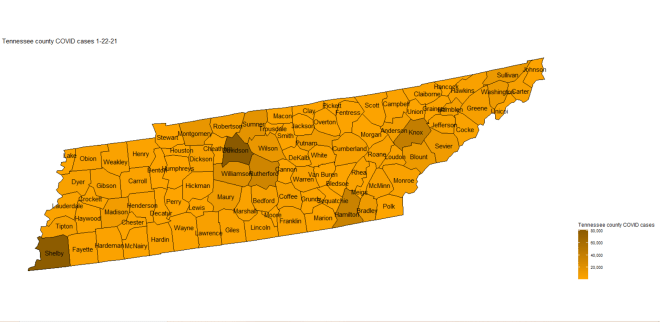
Now that we have the county FIPS codes, let’s start plotting some maps! Here’s the code to plot the map of Tennessee counties with COVID case data by county:

plot_usmap(regions="counties", data=file2, values="Cases", labels=TRUE, include=c("TN")) + labs(title="Tennessee county COVID cases 1-22-21") + scale_fill_continuous(low = "orange1", high = "orange4", name = "Tennessee county COVID cases", label = scales::comma) + theme(legend.position = "right")

Now, the code to create a state map plot broken down by county is nearly identical to the code used to create a map plot of the whole US with a few differences. Since you are plotting a map of an individual state, you need to specify the state you are plotting in the include parameter’s vector (the state is TN in this case). Also, since you are breaking down the state map by county, specify that regions are counties (don’t use county since you’re plotting all counties in a specific state, not just a single county).

  • You don’t need to add the county name labels to the map-I just thought that it would be a nice addition to the map plot.

In this example, I colored the map plot in orange-scale (meaning that the more cases of COVID in a county, the darker the shade of orange will be used). As you can see, the four counties with the darkest shades of orange are Davidson, Shelby, Knox, and Hamilton counties, meaning that these four counties had the highest cumulative case count as of January 22, 2021. These four counties also happen to be where Tennessee’s four major cities-Nashville, Memphis, Knoxville, and Chattanooga-are located.

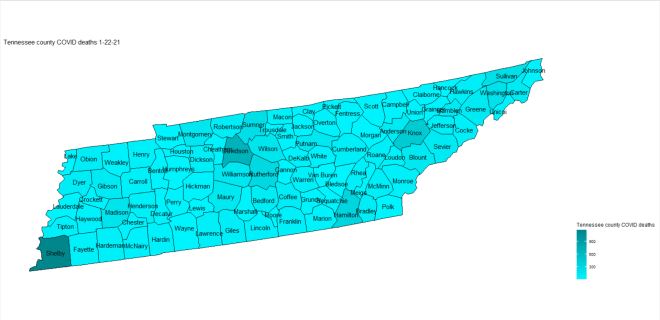
Now let’s re-create the plot above, except this time let’s use the Deaths variable for values (and change the color-scale as well):

plot_usmap(regions="counties", data=file2, values="Deaths", labels=TRUE, include=c("TN")) + labs(title="Tennessee county COVID deaths 1-22-21") + scale_fill_continuous(low = "turquoise1", high = "turquoise4", name = "Tennessee county COVID deaths", label = scales::comma) + theme(legend.position = "right")

In this example, I used the same code from the previous example, except I used Deaths for the values and replaced the word “cases” with “deaths” on both the legend scale and title of the map plot. I also used turquoise-scale for this map plot rather than orange-scale.

An interesting difference between this map plot and the Tennessee COVID cases map plot is that, while the four counties that led in case counts (Hamilton, Knox, Shelby, and Davidson) also led in deaths, Shelby County is actually darker on the map than Davidson county, which implies that Shelby County (where Memphis is located) led in COVID deaths (Davidson County led in cases).

Thanks for reading, and can’t wait to share more great programming and data analytics content in 2021 with you all!

Michael

R Lesson 22: US Mapmaking with R (pt. 1)

Advertisements

Hello everybody,

Michael here, and today’s post (which is my last post for 2020) will be a lesson on basic US mapmaking with R. Today we’ll only focus on US mapmaking with R, but don’t worry, I intend to do a global mapmaking with R post later on.

Before we get started mapmaking, install these two packages to R-ggplot2 and usmap. Once you get these two packages installed, write this code and see the output:

plot_usmap(regions = "states") + labs(title="US States") + theme(panel.background = element_rect(color="black", fill = "lightblue"))

As you can see, we have created a basic map of the US (with Alaska and Hawaii), complete with a nice blue ocean.

However, this isn’t the only way you can plot a basic map of the US. The regions parameter has four different options for plotting the US map-states (which I just plotted), state, counties, and county.

Let’s see what happens when we use the state option:

plot_usmap(regions = "state", include=c("TN")) + labs(title="Tennessee") + theme(panel.background = element_rect(color="black", fill = "lightblue"))

In this example, I used the state option for the regions parameter to create a plot of the state of Tennessee (but left everything else unaltered).

How did I manage to get a plot of a single state? The plot_usmap function has several optional parameters, one of which is include. To plot the state of Tennessee, I passed a vector to the include parameter that consisted of a single element-TN.

  • Whenever you want to plot a single state (or several states), don’t type in the state’s full name-rather, use the state’s two-letter postal code.
  • Another parameter is exclude, which allows you to exclude certain states from a multi-state map plot (I’ll discuss multi-state map plots later).

Awesome! Now let’s plot our map with the counties option:

plot_usmap(regions = "counties") + labs(title="US Counties") + theme(panel.background = element_rect(color="black", fill = "lightblue"))

This map looks just like the first map, except it shows all of the county lines in each state.

Last but not least, let’s plot our map with the county option:

plot_usmap(regions = "county", include=c("Davidson County")) + labs(title="Davidson County") + theme(panel.background = element_rect(color="black", fill = "lightblue"))

In this example, I attempted to create a plot of Davidson County, TN, but that didn’t work out. The plot didn’t work because, even though I told R to include Davidson County in the plot, R didn’t know which state Davidson County was in, as there are two counties named Davidson in the US-one in Tennessee and another in North Carolina.

This shows you that using the county name alone when using the county argument for the regions parameter won’t work, since there are often multiple counties in different states that share the same name-the most common county name in the US is Washington County, which is shared by 31 states.

So, how do I correctly create a county plot in R? First, I would need to retrieve the county’s FIPS code.

To give you some background, FIPS stands for Federal Information Processing Standards and FIPS codes are 2- or 5-digit codes that uniquely identify states or counties. State FIPS codes have 2-digits and county FIPS codes have 5 digits; the first two digits of a county FIPS code are the corresponding state’s FIPS code. Here’s an example of county FIPS codes using the two Davidson Counties I discussed earlier:

> fips(state="TN", county="Davidson")
[1] "47037"
> fips(state="NC", county="Davidson")
[1] "37057"

In this example, I printed out the county FIPS codes for the two Davidson Counties. The FIPS code for Davidson County, TN is 47307 because Tennessee’s FIPS code is 47. Similarly, the FIPS code for Davidson County, NC is 37057 because North Carolina’s FIPS code is 37.

Now that we know the FIPS code for Davidson County, TN, we can create a plot for the county. Here’s the code to do so:

plot_usmap(regions = "county", include=c(fips(state="TN", county="Davidson"))) + labs(title="Davidson County, TN") + theme(panel.background = element_rect(color="black", fill = "lightblue"))

When I create a map plot of an individual US county, I get the shape of the county.

  • A more efficient way to write the code for this plot would have been plot_usmap(regions = "county", include=c(fips) + labs(title="Davidson County, TN") + theme(panel.background = element_rect(color="black", fill = "lightblue")) where fips would be stored as a variable with the value fips <- fips(state="TN", county="Davidson") .

So how can we get a map of several US counties, or rather, a state map broken down by counties? Here’s the code to do so:

plot_usmap(regions = "counties", include=c("TN")) + labs(title="Tennessee's 95 counties") + theme(panel.background = element_rect(color="black", fill = "lightblue"))

To create a state map broken down by counties, set regions to counties and set the include parameter to include the state you want to plot (TN in this case). As you can see, I have created a map plot of the state of Tennessee that shows all 95 county boundaries in the state.

What if you wanted to plot several states at once? Well, the usmap packages has built-in region parameters that create a plot of certain US regions (as defined by the US Census Bureau), which consist of several states. The regions you can plot include:

  • .east_north_central-Illinois, Indiana, Michigan, Ohio, and Wisconsin
  • .east_south_central-Alabama, Kentucky, Mississippi, and Tennessee
  • .midwest_region-any state in the East North Central and the West North Central regions
  • .mid_atlantic-New Jersey, New York, and Pennsylvania
  • .mountain-Arizona, Colorado, Idaho, Montana, Nevada, New Mexico, Utah, and Wyoming
  • .new_england-Connecticut, Maine, Massachusetts, New Hampshire, Rhode Island, and Vermont
  • .northeast_region-any state in the New England or Mid-Atlantic regions
  • .north_central_region-any state in the East and West North Central regions
  • .pacific-Alaska, California, Hawaii, Oregon, and Washington
  • .south_atlantic-Delaware, Florida, Georgia, Maryland, North Carolina, South Carolina, Virginia, Washington DC, and West Virginia
  • .south_region-any state in the South Atlantic, East South Central, and West South Central regions
  • .west_north_central-Iowa, Kansas, Minnesota, Missouri, Nebraska, North Dakota, and South Dakota
  • .west_region-any state in the Mountain and Pacific regions
  • .west_south_central-Arkansas, Oklahoma, Louisiana, and Texas

Let’s plot out a simple region map for the .east_south_central region. Here’s the code to do so:

 plot_usmap(include = .east_south_central) +  labs(title="East South Central US", size=10) + theme(panel.background = element_rect(color="black", fill = "lightblue"))

Simple enough, right? All I did was set the include parameter to .east_south_central.

  • Remember to always include a dot in front of the region name so R reads the region name as one of the built-in regions in usmap; if you don’t include the dot, R would read the region name as a simple String, which will generate errors in your code.

Now let’s break up the region map by counties. Here’s the code to do so:

plot plot_usmap(regions = "counties", include = .east_south_central) +  labs(title="East South Central US", size=10) + theme(panel.background = element_rect(color="black", fill = "lightblue"))

To show all of the county lines in a specific region, simply set the regions parameter to counties. Also (and you probably noticed this already), if you don’t set a value for the regions parameter, regions defaults to states.

OK, so I’ve covered the basics of US map plotting with the usmap package. But did you know you can display state and county names on the map plot? Here’s the code to add state name labels to a map plot of the whole US:

 plot_usmap(regions = "states", labels=TRUE) + labs(title="US States") + theme(panel.background = element_rect(color="black", fill = "lightblue"))

The code I used to create this map plot is almost identical to the code I used to create the first map plot with one major exception-I included a labels parameter and set it to TRUE. If the labels parameter is set to true, the state label name will be displayed on each state (the label name being the state’s 2-letter postal code).

Now let’s display county names on a map, using the state map of Tennessee. Here’s the code to do so:

 plot_usmap(regions = "counties", labels=TRUE, include=c("TN")) + labs(title="Tennessee's 95 counties") + theme(panel.background = element_rect(color="black", fill = "lightblue"))

As you can see, by setting labels to TRUE, I was able to include all of Tennessee’s county names on the map (and most of them fit quite well, though there are a few overlaps).

Thanks for reading,

Michael
Also, since this is my last post of 2020, thank you all for reading my content this year. I know it’s been a crazy year, but hope you all learned something from my blog in the process. Have a happy, healthy, and safe holiday season, and I’ll see you all in 2021 with brand new programming content (including a part 2 to this lesson)!

R Lesson 21: Calendar Plots

Advertisements

Hello everybody,

Michael here, and today’s post will be an R lesson on calendar plots in R. Now I know I already did a lesson on dates and times in R, but this lesson will focus on creating cool calendar plots in R with the calendR package.

Before we start making calendar plots, let’s install the calendR package.

Once we install these packages, let’s start by building a simple calendar plot with this line of code-calendR(). Here’s the output we get:

As you can see, the calendR() prints out a calendar for the current year (2020). If no parameter is specified, calendR() print the current year’s calendar by default.

If you want to print the calendar for a different year, specify the year in the parameter. Let’s say you wanted to print last year’s calendar (2019). To print last year’s calendar, use this line of code-calendR (year=2019). Here’s the output from that line of code:

OK, now let’s try some other neat calendar tricks. First, let’s set up our calendar plot to have weeks start on Monday (weeks start on Sunday by default). Here’s the code to do so:

calendR(start="M")

Since I didn’t specify a year in the parameter, calendR will print out a calendar of the current year by default.

Awesome! Now let’s add some color to certain special days. Here’s the code to do so:

calendR(special.days = c(61,91,121,331,360,366), special.col="lightgreen", low.col="white")

When adding color to certain special days, here are some things to keep in mind:

  • The calendR function has its own parameter to denote special days-aptly named special.days. Special.col specifies a color for the special days while low.col specifies a color for all other days.
  • To choose which days to highlight, specify the corresponding number for the day you want to highlight (e.g. 1 corresponds to January 1, 2 to January 2, and so on). Remember that if the calendar plot is for a leap year (like the plot above), day numbers from March 1 onward will be different than they would be in a non-leap year (e.g. the day number for March 2 in a non-leap year would be 61, while in a leap year it would be 62).

Now what if we wanted to highlight all of the weekends? Let’s see how we can do that. Use this line of code to highlight the weekends in 2020:

calendR(special.days="weekend")

Now what if we wanted to add several color-coded events to the calendar? Here’s the code to do that:

events <- rep(NA, 366) 
events[1] <- "Holidays"
events[45] <- "Holidays"
events[146] <- "Holidays"
events[186] <- "Holidays"
events[251] <- "Holidays"
events[305] <- "Holidays"
events[331] <- "Holidays"
events[360] <- "Holidays"
events[366] <- "Holidays"
events[61] <- "My Birthday"
calendR(special.days=events, special.col=c("green", "orange"), legend.pos="right") 

How did I create this calendar plot? Let me give you a step-by-step breakdown:

  • In order to add events to the calendar plot, you would first need to create a vector of NA values. My vector is called events, but the name of the vector doesn’t matter. Just remember to make the vector the same length of the number of days of days as the corresponding year.
    • Hint-the vector will have a length of 366 for leap years (such as 2020) and 365 for non-leap years (such as 2021)
  • Next, add all of the events you want on the calendar to the corresponding day of the year on the vector. For example, two days I wanted to highlight were January 1 and May 25 (New Year’s Day and Memorial Day 2020, respectively), so I added these two days to positions 1 and 146 of the events vector, as January 1 and May 25 were the 1st and 146th days of 2020, respectively.
    • If you want multiple dates under the same event category (e.g. “Holidays” in this example) , you’ll have to list all of the corresponding days of the year in the vector 1-by-1, unless the dates are consecutive (e.g. an event that goes on for 7 consecutive days). You can’t list all of the corresponding days of the year in a comma-separated array like you can in Java or Python (I know because I tried to do this and it didn’t work).
  • Once you added all of the events to the calendar, use the calendR function to create the color-coded calendar plot with events. The function takes four parameters, which include:
    • year-the year for the calendar plot; if a year isn’t specified, calendR will create a plot of the current year by default (as it does in this example)
    • special.days-the vector of events you created (events in this example)
    • special.col-the colors to represent each of the events
      • Only use as many colors as you have event categories. In this example, I only have two event categories-“My Birthday” and “Holidays”-and thus only use two colors for this function. Also keep in mind that the first color listed will be used for the first event category, the second color for the second event category, and so on.
    • legend.pos-the positioning of the legend on the plot; in this example, legend.pos equals right, which means that the legend will be displayed on the right of the graph

Now, what if you wanted to make a calendar plot for just a single month? Using the current month as an example, here’s how to do so:

calendR(month = 12)

By simply using the code calendR(year = X, month = 1-12) you can create a calendar plot for any month of any year. Remember that if you don’t specify the year, calendR will create a plot for chosen month of the current year (2020) by default.

Great, now let’s add some color to certain days! Here’s the code to do that (along with the corresponding output):

calendR(month = 12, special.days=c(9, 16, 25, 27, 31), special.col="yellow", low.col="white")

OK, what if we wanted to add several color-coded events to the calendar? Let’s see how we can do this:

events2 <- rep(NA, 31)
events2[24:25] <- "Holidays"
events2[31] <- "Holidays"
events2[1:4] <- "Workweek"
events2[16] <- "Birthdays"
events2[27] <- "Birthdays"
calendR(month = 12, special.days=events2, special.col = c("red", "orange", "lightblue"), low.col="white", legend.pos="top") 

The process for adding color-coded events for a month-long calendar plot is the same as it is for a year-long calendar plot, except you would need to make the events vector the length of the days in the month rather than the length of the days in the year. In this case the length of the events vector (called events2 to avoid confusion with the other events vector) would be 31, as there are 31 days in December.

  • Just so you know, low.col in the last two examples refers to the color of the boxes that don’t contain color-coded events.

Great, now let’s say we wanted to add some text to the days. How would we go about this? Here’s how:

calendR(month = 12, text=c("Battlebots", "Birthday", "Christmas", "Birthday", "New Year's Eve"), text.pos=c(3, 16, 25, 27, 31), text.size=4.5, text.col="green4")

Here’s a step-by-step breakdown of how I created this plot:

  • First, I indicated the month I wanted to use for my calendar plot. Since I didn’t specify a year, calendR will automatically plot the chosen month of the current year (December 2020).
  • Next, I created a vector of text I wanted to add to the calendar plot and used text.pos to indicate which days should contain which text (for instance, the first element in the text vector corresponds with the first element of the text.pos vector).
    • Remember to keep the text vector the same size as the text.pos vector.
    • I know this sounds obvious, but know how many days the month on your calendar plot has, or else the calendar plot won’t work. For instance, trying to place text on 32 in this plot won’t work because December doesn’t have a 32nd.
  • Text.size and text.col specify the font size and color of the text, respectively.

Now let’s try something different-creating a lunar calendar, which is a month-long calendar plot that shows the different moon phases on each day of the month. Also, just out of curiosity, let’s create a lunar calendar for next month-here’s the code to do so:

calendR(year = 2021, month = 1, lunar = TRUE, lunar.col="gray60", lunar.size=8)

Here’s a step-by-step breakdown of how I created this lunar calendar:

  • Since I’m creating this lunar calendar for next month, I had to specify both the year (2021) and the month (1), as next month is the January 2021 (crazy, huh).
  • I had to set lunar to TRUE to indicate that this is a lunar calendar
  • Lunar.col signifies the color of the non-visible area of the moons.
  • Lunar.size signifies the size of the moons on the calendar plot.
  • In case you’re wondering what each of the moon phases are, here’s a handy little graphic (feel free to Google this information if you want to learn more about moon phases):

Last but not least, let me show you how we can create a calendar plot with custom start and end dates. A perfect example of this type of calendar plot would be an academic calendar, which I will show you how to create below, using the 2020-21 Metro Nashville Public Schools calendar as an example:

events3 <- rep(NA, 304)
events3[3] <- "Day Off"
events3[6] <- "Day Off"
events3[38] <- "Day Off"
events3[63] <- "Day Off"
events3[66:70] <- "Day Off"
events3[73] <- "Day Off"
events3[84] <- "Day Off"
events3[95] <- "Day Off"
events3[103] <- "Day Off"
events3[117:119] <- "Day Off"
events3[140] <- "Day Off"
events3[143:147] <- "Day Off"
events3[150:154] <- "Day Off"
events3[157:159] <- "Day Off"
events3[171] <- "Day Off"
events3[199] <- "Day Off"
events3[227:231] <- "Day Off"
events3[238] <- "Day Off"
events3[245] <- "Day Off"
events3[299] <- "Day Off"
events3[4] <- "First & Last Days of School"
events3[298] <- "First & Last Days of School"
events3[136:139] <- "Half Days"
events3[293:294] <- "Half Days"
events3[297] <- "Half Days" 

calendR(start_date = "2020-08-01", end_date = "2021-05-31", special.days=events3, special.col=c("salmon", "seagreen1", "gold"), legend.pos="right", title = "Metro Nashville Public Schools 2020-21 Calendar")

So, how did I create this color-coded calendar plot with a custom start and end date? Here’s a step-by-step breakdown of the process:

  • Since I knew the start and end dates I wanted to use for this calendar plot, I created an events vector (named events3 to avoid confusion with the other two events vectors) of length 304. My start and end dates are August 1, 2020 and May 31, 2021, respectively, which cover a 304 day period (including the end date).
  • I then added all of the events to the corresponding days on the vector. Since this isn’t a standard calendar year vector, knowing which element corresponds to which day is trickier. However, I created an excel table with the dates in my date range on one column and the corresponding day in the other column, like this:
  • After inserting all of the events to the corresponding days in the vector, I then used the calendR function to indicate my start_date and end_date.
  • For the special.days argument, I used the events3 vector I created.
  • I then indicated the three colors I wanted to use for the three event categories as the argument for special.col
    • For special.col remember to include the same amount of colors as event categories in this vector. Since I had 3 event categories, I used 3 colors in this vector.
  • I then set legend.pos to right, which tells calendR to place the legend to the right of the calendar plot.
  • Lastly, I set the title of the plot to Metro Nashville Public Schools 2020-21 Calendar.

Thanks for reading,

Michael

R Lesson 15: Decision Trees

Advertisements

Hello everybody,

It’s Michael, and today’s lesson will be about how to create decision trees in R. I briefly explained the concept of decision trees in my previous post. This post serves as the second part of a two-part lesson (with R Lesson 14 being the first part); I will be using the same dataset.

Now I know you’ve learned the basic concept of a decision tree from my previous post, so I’ll start off this post by going further in depth with more decision tree terminology.

Here’s an example of the decision tree (it’s not the one you saw in my previous post):

The uppermost question-“Income range of applicant?”-is the root node of the tree, which represents the entire population/sample. Splitting the tree involves dividing a node (ovals represent the nodes here) into sub-nodes (represented by the other questions in this tree); the opposite of splitting is pruning, which is when sub-nodes are removed. When sub-nodes split into further sub-nodes, they are referred to as decision nodes (but you can use the terms sub-node and decision node interchangeably). Also, when dealing with sub-nodes, the main node is called the parent node while the sub-node is called the child node. Nodes can be both a parent and child node; for instance, the “Years in present job?” node is the child node of the “Income range of applicant?” node but it is the parent node of the “Makes credit card payments?” node. Nodes that don’t split are called terminal nodes, or leaves (the ovals with loan and no loan are terminal nodes in this tree).

There are two main types of decision trees-regression and classification (which are also the two types of random forest models). Regression trees are more appropriate for QUANTITATIVE problems (such as the percentage likelihood that something will or wont happen) while classification trees are more appropriate for QUALITATIVE problems (such as Yes/No questions). Since the models we made in the previous post are classification problems, then we will learn how to build classification trees.

  • An easy way to remember how decision trees work is to think of them as questions that need more questions to be answered.

To create our decision tree, let’s start by installing a package called rpart.  Then let’s use the printcp function to display a summary of the tree:

To create the classification tree, use the `Convicting.Offense.Type` variable (and only this variable) along with `trainSet` as your data. Since we are creating a classification tree, use `class` as the method; if we were creating a regression tree, use `anova`for the method.

Now what do all the unfamiliar terms in the output actually mean? The first term, root node error, sounds like a misnomer since it refers to percentage of correctly sorted records at the first root or split. The higher this number is, the better. Here, the root node error is 69.3%, which is OK, but we should try to figure out how to increase this number to at least 75%.

The other part of the output is the pruning table that you can see at the bottom of the output (that six-by-five matrix is referred to as a pruning table). The numbers 1-5 refer to each of the five values of Convicting.Offense.TypeDrug, Property, Violent, Public Order, and Other. The CP refers to the complexity parameter, which is a metric that is used to control the size of the tree and select the optimal tree size. It decreases with each successive level (the numbers 1-5 are referred to as levels), and tree building stops when the CP reaches 0. nsplit refers to the amount of splits at that level of the tree; in this case, the number of splits equals the level minus 1 (e.g. the 1st level has no splits, while the 2nd level has 1 split). However, that won’t always be the case, since the 2nd level of a tree might have more than 1 split sometimes.

The `relerror` for each level is 1 minus the root mean squared error (or the mean squared error, which is the square of the RMSE); this is the error for predictions of the data that were used to estimate the model-`trainSet` in this case. The lower the `relerror`, the better.

Next is the xerror, which is the cross-validated error rate for each level. Cross-validation is the process of testing the results of the model on an independent, unseen dataset in order to avoid overfitting or underfitting the model, as well as to analyze how well the data will fit with an independent data set. The xerror is used to measure the error generated from the cross-validation process; the lower the `xerror` the better. In this case, all of the `xerror` values are equal to all of the `relerror` values, but that won’t always be the case.

Last is the xtsd, which represents the standard deviation, which is a measure of how much observations in a certain level are spread out from one another. The smaller the number, the less spread out the observations are from each other.

The graph below is simply a visual representation of the matrix I just described:

So, what do we do next? We try to find the best place to prune the tree. If you don’t know, pruning means to remove nodes from the tree that aren’t significant to the model. It’s similar to the concept of pruning your tree, since you would be removing unnecessary branches from the tree.

And how do we find the best place to prune the tree? A rule of thumb is to find the lowest level where rel error-xstd < xerror. But, since this is an unusual case where all of the rel error equals all of the xerror, I’ll let R decide where to prune the tree (if doing so is necessary)

But before I do that, let me plot a pre-pruned decision tree:

The first thing you would do is to use the `plot` function (along with any parameters) to plot the tree then use the `text` function (along with any parameters) to place the text on the tree. Remember-KEEP the window with the decision tree open when calling your `text` function.

  • The `margin` parameter is completely optional; it’s just a good idea since the default tree tends to cut off some of the text. A margin of 0.25 or 0.3 is ideal.
  • Even though I didn’t use Convicting.Offense.Subtype in the model, it is included in the tree since the tree couldn’t be created with only one variable (plus `Convicting.Offense.Subtype` and `Convicting.Offense.Type` are closely related to one another).

Now, you might be wondering about all the letters on the tree right by Convicting.Offense.Subtype. Here’s the thing-the actual values of this variable are too long to show on the tree, and there are 26 possible values, so it wouldn’t have been practical to create 26 nodes (one for each value). Since there are 26 possible values, each value is represented by a letter of the alphabet. Each of the values are represented by a letter of the alphabet; the values and their corresponding letters are listed alphabetically. Here’s the list of values along with the letters they correspond to:

  • A-alcohol (I’m guessing public intoxication is a part of this)
  • B-animals (namely animal cruelty offenses)
  • C-arson
  • D-assault
  • E-burglary
  • F-drug possession
  • G-flight/escape (probably referring to prison escapes but could also mean offenders who flee town before trial/sentencing)
  • H-forgery/fraud
  • I-kidnap
  • J-murder/manslaughter (not sure why these are grouped together, since murder would suggest malicious intent while manslaughter is mostly negligence)
  • K-other criminal (meaning some other criminal offense that won’t fit into the other 25 types)
  • L-other drug (any other drug offense that isn’t possession, so sale of drug paraphernalia would count towards this)
  • M-other public order (so something like indecent exposure)
  • N-other violent (other violent crimes that won’t fall into any of the other mentioned subtypes)
  • O-OWI (operating while intoxicated, the legalese term for a DUI)
  • P-prostitution/pimping
  • Q-robbery
  • R-sex (possibly sexual assault, maybe human trafficking)
  • S-sex offender registry/residency (sex crimes against kids)
  • T-special sentence revocation (usually for those who violate probation/parole)
  • U-stolen property
  • V-theft (I guess this means both petty theft and grand theft)
  • W-traffic (any other traffic offense that is not a DUI/OWI)
  • X-trafficking (I think this means drug trafficking)
  • Y-vandalism (graffiti, destruction of property, etc.)
  • Z-weapons (probably illegal possession of weapons, i.e. convicted felon possessing a gun)

So, knowing what each of the letters refer to, how do we read this tree? First, let’s look at the uppermost node. It starts with offense sub-types F, L, and X (which are all drug-related offenses) and has the type of offense-Drug-on the bottom of the Convicting.Offense.Subtype line. The string of numbers you see after the word Drug5982/974/5490/2706/4363-refer to how many observations belong in each level. Since this string of numbers is on the root node, all 19,515 observations in trainSet are considered. As we move down the tree, you’ll start to see more 0s in each section and as a result, you’ll figure out exactly how many observations are in each level.

So, the root node splits into two branches. The left branch has the word Drug and the number string 5982/0/0/0/0 on it. Since this branch doesn’t split any further, we can conclude that 5,982 of the 19,515 offenses are drug crimes. The right branch contains offense sub-types C, E, H, U, V, and Y, which are all property-related offenses, along with the number string 0/974/5490/2706/4363, which refers to all 13,533 of the offenses that aren’t drug-related.

The Property branch (the right branch from the Drug branch split) also splits in two. The left branch contains the word Property and the number string 0/0/5490/0/0. Since this branch doesn’t split any further, we can conclude that 5,490 of the 19,515 offenses are property crimes.  The right branch contains offense sub-types A, B, G, K, M, O, P, S, T, W, and Z, which are all violent crimes, and the number string 0/974/0/2706/4363, which refers to the 8,043 crimes that aren’t drug or property related.

The Violent branch (the right branch from the Property branch split) also splits in two, just like the previous two branches. The right branch has the word Violent and the number string 0/37/0/0/4363, which indicates that 4,400 (4363+37) of the offenses are violent crimes. The left branch has the word Public Order and the offense sub-types B, K, and T, which are public order offenses, along with the number string 0/937/0/2706/0, which refers to the 3,643 observations that haven’t yet been classified. If you’re wondering how 937 was derived, the Violent branch had the number string 0/974/0/2706/4363. When that branch split in two, 37 of the 974 observations went into the right split while the other 937 went into the left split.

The Public Order branch (with the number string 0/937/0/2706/0) also splits into two. The left branch has the word Other and the number string 0/937/0/0/0, meaning that 937 of the offenses are miscellaneous crimes that don’t fit into the other 4 categories and the right branch has the number string 0/0/0/2706/0, meaning that 2,706 of the offenses are public order crimes (i.e. prostitution).

At this point, all observations have been classified. Here’s a breakdown of the results:

  • 5,982 Drug crimes
  • 5,490 Property crimes
  • 937 Other crimes
  • 2,706 Public Order crimes
  • 4,400 Violent crimes

Now, we will let R do the magic of pruning the tree (if R finds it necessary to do so). Here’s the code that you need to prune the tree (remember to not close the window with the tree when you are writing the text line):

And here’s the tree. Turns out, R didn’t think it was necessary to prune the tree, so we got the exact same tree.

How come R didn’t prune the tree. Well, let’s analyze this graph from earlier:

Notice the dashed horizontal line. See how it meets the curve at the 5th level. Well, that line gives us an idea of where the tree should be pruned. Since it’s at the 5th level, the tree won’t be pruned, as all 5 levels are significant. This could also be because all of the rel error values are equal to all of the xerror values.

Thanks for reading,

Michael
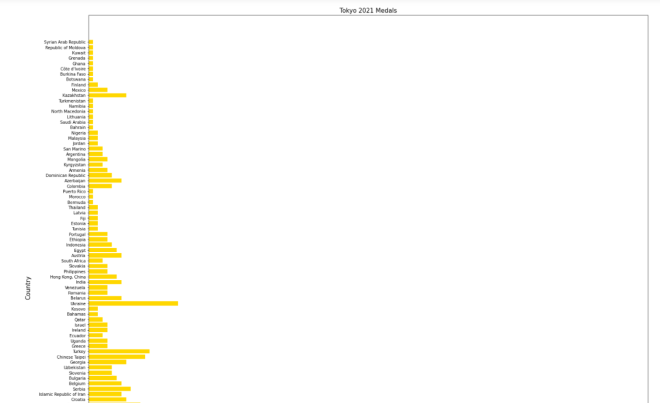
R Lesson 14: Random Forests

Advertisements

Hello everybody,

It’s Michael, and today’s post will be on random forests in R.

You’re probably wondering what a random forest does? Me too, since I’ve never actually done any random forest problems (the other R lessons covered concepts from my undergrad business analytics coursework, so I was familiar with them).

Random forests are a form of supervised learning (look at R Lesson 10: Intro to Machine Learning-Supervised and Unsupervised for an explanation on supervised and unsupervised learning). But to better explain the concept of random forests, let me provide an easy to understand example.

Let’s say you wanted to visit the new ice cream shop in town, but aren’t sure if its any good. Would you go in and visit the place anyway, regardless of any doubts you have? It’s unlikely, since you’d probably want to ask all of your buddies and/or relatives about their thoughts on the new ice cream place. You would ideally ask multiple people for their opinions, since the opinion of one person is usually biased based on his/her preferences. Therefore, by asking several people about their opinions, we can eliminate bias in our decision making process as much as possible. After all, one person might not like the ice cream shop in question because they weren’t satisfied with the service, or. they don’t like the shop’s options, or a myriad of other reasons.

In data analytics jargon, the above paragraph provides a great example of a technique called ensembling, which is a type of supervised learning technique where several models are trained on a training set with their individual outputs combined by a set rule to determine the final output.

Now, what does all of that mean? First of all, when I mentioned that several models are trained on a training set, this means that either the same model with different parameters or different models can utilize the training set.
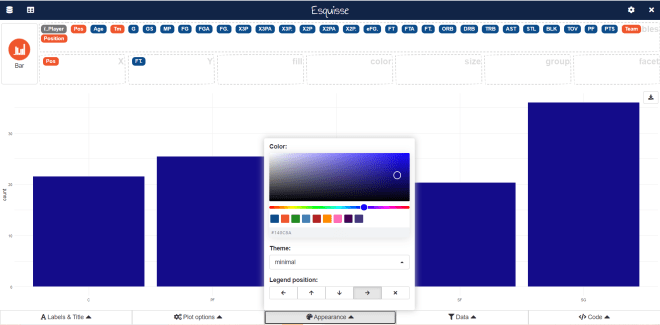
When I mentioned that their [referring to the “several models”] individual outputs are combined by a set rule to determine the final output, this means that the final output is derived by using a certain rule to combine all other outputs. There are plenty of rules that can be utilized, but the two most common are averages (in terms of numerical output) and votes (in terms of non-numerical output). In the case of numerical output, we can take the average of all the outputs and use that average as the final output. In the case of categorial (or non–numerical) output, we can use vote (or the output that occurs the most times) as the final output.
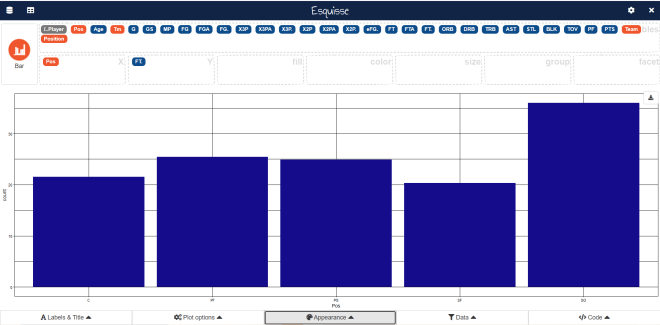
Random forests are an example of an ensembling algorithm. Random forests work by creating several decision trees (which I’ll explain a little more) and combining their output to derive a final output. Decision trees are easy to understand models, however they don’t have much predictive power, which is why they have been referred to as weak learners.

Here’s a basic example of a decision tree:

This tree isn’t filled with analytical jargon, but the idea is the same. See, this tree answers a question-“Is a person fit?”-just as decision trees do. It then starts with a basic question on the top branch-“Is the person younger than 30?” Depending on the answer to that question (Yes/No), another question is then posed, which can be either “Eats a lot of pizzas?” or “Exercises in the morning?”. And depending on the answer to either question (both are Yes/No questions), you get the answer to the question the tree is trying to answer-“Is a person fit?”. For instance, if the answer to “Eats a lot of pizzas?” is “Yes”, then the answer to the question “Is a person fit?” would be “No”.

This tree is a very simple example of decision trees, but the basic idea is the same with R decision trees (which I will show you more of in the next post).

Now let’s get into the dataset-Iowa Recidivism-which gives data on people serving a prison term in the state of Iowa between 2010 and 2015, with recidivism follow–up between 2013 and 2018. If you are wondering, I got this dataset from Kaggle.

Now, let’s start our analysis by first understanding our data:

Here, we have 26020 observations of 12 variables, which is a lot, but lets break it down variable-by-variable:

  • Fiscal.Year.Released-the year the person was released from prison/jail
  • Recidivism.Reporting.Year-the year recidivism follow-up was conducted, which is 3 years after the person was released
  • Race..Ethnicity-the race/ethnicity of the person who was released
  • Age.At.Release-the age a person was when he/she was released. Exact ages aren’t given; instead, age brackets are mentioned, of which there are five. They include:
    • Under 25
    • 25-34
    • 35-44
    • 45-54
    • 55 and over
  •  Convicting.Offense.Classification-The level of seriousness of the crime, which often dictates the length of the sentence. They include:
    • [Class] A Felony-Up to life in prison
    • [Class] B Felony-25 to 50 years in prison
    • [Class] C Felony-Up to 10 years in prison
    • [Class] D Felony-Up to 5 years in prison
    • Aggravated Misdemeanor-Up to 2 years in prison
    • Serious Misdemeanor-Up to 1 year in prison
    • Simple Misdemeanor-Up to 30 days in prison
  • Convicting.Offense.Type-the general category of the crime the person was convicted of, which can include:
    • Drug-drug crimes (anything from narcotics trafficking to possession of less than an ounce of marijuana)
    • Violent-any violent crime (murder, sexual assault, etc.)
    • Property-any crimes against property (like robbery/burglary)
    • Public order-usually victimless and non-violent crimes that go against societal norms (prostitution, public drunkenness, etc.)
    • Other-any other crimes that don’t fit the four categories mentioned above (like any white collar crimes)
  • Convicting.Offense.Subtype-the more specific category of the crime the person was convicted of, which can include “animal” (for animal cruelty crimes), “trafficking” (which I’m guessing refers to human trafficking), among others.
  • Main.Supervising.District-the jurisdiction supervising the offender during the 3 year period (Iowa has 11 judicial districts)
  • Release.Type-why the person was released, which can include parole, among other things
  • Release.type..Paroled.to.detainder.united-this is pretty much the same as Release.Type; I won’t be using this variable in my analysis
  • Part.of.Target.Population-whether or not a prisoner is a parolee
  • Recidivism...Return.to.Prison.numeric-Whether or not a person returned to prison within 3 years of release; 1 means “no”, they didn’t return and 0 means “yes”, they did return

Now let’s see if we’ve got any missing observations (remember to install the Amelia package):

Looks like there’s nothing missing in our dataset, which is always a good sign (though not all datasets will be perfectly tidy).

Next let’s split our data into training and validation sets. If you’re wondering what a validation set is, it’s essentially the dataset you would use to fine tune the parameters of a model to prevent overfitting. You can make a testing set for this model if you want, but I’ll just go with training and validation sets.

Here’s the training/validation split, following the 75-25 rule I used for splitting training and testing sets:

  • This will be a different approach to splitting the data than what you’ve seen in previous R posts. The above line of code is used as a guideline to splitting the data into training (trainSet) and validation (validationSet) sets. It tells R to utilize 75% of the data (19651 observations) for the training set. However, the interesting thing is the nrow function, which tells R to utilize ANY 19651 observations SELECTED AT RANDOM, as opposed to simply using observations 1-19651.
  • On the lines of code seen below, train selects the 75% of the observations chosen with the sample function while -train selects the other 25% of observations that are NOT part of the training set. By the way, the minus sign means NOT.

Now here’s our random forest model, using default parameters and the Convicting.Offense.Type. variable  (remember to install the randomForest package):

In case you were wondering, the default number of decision trees is 500, the default number of variables tried at each split is 2 (it’s 3 in this case), and the default OOB estimate of error rate is 3.6% (it’s much lower here-0.22%).

The confusion matrix you see details how many observations from the Convicting.Offense.Type variable are correctly classified and how many are misclassified. A margin of error-class.error-in this matrix tells you the percentage of observations that were misclassified. Here’s a breakdown:

  • Drug-No misclassification
  • Other-3.5% misclassification
  • Property-0.02% misclassification
  • Public Order-0.04% misclassification
  • Violent-0.1% misclassification

So all the crimes that were classified as Drug from trainSet were classified correctly, while Other had the most misclassification (and even 3.5% is a relatively small misclassification rate).

  • One important thing to note is that random forests can be used for both classification and regression analyses. If I wanted to do a regression analysis, I would’ve put my binary variable-Recidivism...Return.to.Prison.numeric-to the left of the ~ sign and other variables to the right of the ~ sign.

Now let’s change the model by change ntree and mtry, which refer to the number of decision trees in the model and the number of variables sampled at each stage, respectively:

By reducing ntree and increasing mtry, the OOB estimate of error rate decreases (albeit by only 0.02%) as does the amount of variables that have a misclassification error. By that I mean that the previous model had only one variable with no misclassification error-Drug-while this model has 3 variables with no misclassification error-Drug, Property, and Public Order. Also, the misclassification error for the other two variables-Other and Violent-is both smaller and larger than that of the previous model. Other had a 3.5% error in the previous model while it has a 2.2% error in this model, so the misclassification error decreased in this case. On the other hand, Violent had a 0.1% error in the previous model but it has a 0.44% error in this model, so the misclassification error increased in this case.

Now let’s do some predictions, first on our training set and then on our validation set (using the second model):

And then let’s check the accuracy of each prediction:

For both the training set and validation set, the classifications are very accruate. trainSet has a 99.9% accuracy rate (only 10 of the 19,651 observations were misclassified) while `validationSet` has a 99.8% accuracy rate (only 13 of the 19,651 observations were misclassified).

Now let’s analyze the importance of each variable using the `importance` function:

So what exactly does this complex matrix mean? It shows the importance of each of the 12 variables when classifying a crime based on the five types of offenses derived from the variable Convicting.Offense.Type.  More specifically, this matrix shows the importance of the 12 variables when classifying a variable-Convicting.Offense.Type-that has five possible values. The two important metrics to focus on in this matrix are MeanDecreaseAccuracy and MeanDecreaseGini.

A variable’s MeanDecreaseAccuracy is a metric of how much the accuracy of the model would decrease if that variable was to be excluded. The higher the number, the more accuracy the model will lose if that variable will be excluded. For instance, if I was to exclude the Recidivism...Return.to.Prison.numeric variable, the accuracy of the model wouldn’t be impacted much since it has the lowest MeanDecreaseAccuracy-3.42. Another reason the exclusion of this variable wouldn’t impact the model much is because this is a binary variable, which would be better suited to a regression problem as opposed to a classification problem (as this model is). On the other hand, excluding the variable Convicting.Offense.Subtype would have a significant impact on the model, since it has the largest MeanDecreaseAccuracy at 13,358.53.

A variable’s MeanDecreaseGini is a metric of how much Gini impurity will decrease when a certain variable is chosen to split a node. What exactly is Gini impurity? Well, let’s take a random point in the dataset. Using the guidelines of trainSet, let’s classify that point as Drug 5982/19651 of the time and as Property 5490/19651 of the time. The odds that we misclassify the data point based on class distribution is the Gini impurity. With that said, the MeanDecreaseGini is a measure of how much the misclassification likelihood will decrease if we include a certain variable. The higher this number is, the less likely the model will make misclassifications if that variable is included. For instance, Convicting.Offense.Subtype has the highest MeanDecreaseGini, so misclassification likelihood will greatly decrease if we include this variable in our model. On the other hand, Part.of.Target.Population has the lowest MeanDecreaseGini, so misclassification likelihood won’t be significantly impacted if this variable is included. This could be because this variable is a binary variable, which is better suited for regression problems rather than classification problems.

But what about all of the numbers in the first five columns? What do they mean? The first five columns, along with all the numbers, show the importance of each of the 12 variables when classifying a crime as one of the five possible types of crimes listed in Convicting.Offense.Type, which is the variable I used to build both random forest models. The higher the number, the more important that variable is when classifying a crime as one of the five possible crimes. For instance, the highest number (rounded) in the Fiscal.Year.Released row is 11.16, which corresponds to the Violent column. This implies that many Iowa prisoners convicted of violent crimes were likely released around the same time. Another example would be the highest number (rounded) in the Main.Supervising.District row-14.45-which corresponds to the `Other` column. This implies that Iowa prisoners who were convicted of crimes that don’t fall under the `Drug`, `Violent`, `Public Order`, or `Property` umbrellas would be, for the most part, located in the same Iowa jurisdiction.

  • If you wish to see the numbers in this matrix as a percent of 1, simply write scale = FALSEafter model2 in the parentheses. Remember to separate these two things with a comma.

Thanks for reading,

Michael