OCR Scenario 5: Tesseract Translation

Advertisements

Hello readers!

Michael here, and in this post, I had one more Tesseract scenario I wanted to try-this one involving Tesseract translation and seeing how well Tesseract text in other languages can be translated to English. Let’s dive right in, shall we?

Let’s get stuff set up!

Before we dive into the juicy Tesseract translations, let’s first get our packages installed and modules imported on the IDE:

!pip install pytesseract
!pip install googletrans
import pytesseract
import numpy as np
from PIL import Image
from googletrans import Translator

Now, unlike our previous Tesseract scenarios, we’ll need to pip install an additional package this time-googletrans (pip install googletrans), which is an open-source library that connects to Google Translate’s API. Why is this package necessary? While Tesseract certainly has its capabilities when it comes to reading text from standard-font images (recall how Tesseract couldn’t quite grasp the text in OCR Scenario 2: How Well Can Tesseract Read Photos?, OCR Scenario 3: How Well Can Tesseract Read Documents? and OCR Scenario 4: How Well Can Tesseract Read My Handwriting?), one thing Tesseract cannot do is translate text from one language to another. Granted, it can read the text just fine, but googletrans will actually help us translate the text from one language to another. In this post, I’ll test the abilities of Tesseract in conjunction with googletrans to see not only how well Tesseract can read foreign language but also how well googletrans can translate the foreign text. I’ll test the Tesseract/googletrans conjunction with three different images in the following languages-Spanish, French, and German-and see how each image’s text is translated to English.

Leyendo el texto en Español (reading the Spanish text)

In our first Tesseract translation, we’ll attempt to read the text from and translate the following phrase from Spanish to English:

This phrase simply reads Tomorrow is Friday in English, but let’s see if our Tesseract/googletrans combination can pick up on the English translation.

First, we get the text that Tesseract read from the image:

testImage = 'spanish text.png'
testImageNP = np.array(Image.open(testImage))
testImageTEXT = pytesseract.image_to_string(testImageNP)
print(testImageTEXT)

Manana es
viernes

Next, we run a googletrans translation and translate the text from Spanish to English:

translator = Translator()
translation = await translator.translate(testImageTEXT, src='es', dest='en')
print(translation.text)

Tomorrow is
friday

As you can see, the googletrans Translator object worked its magic here with the translator method which takes three parameters-the text extracted from Tesseract, the text’s original language (Spanish or es) and the language that you want to use for text translation (English or en). The translated text is correct-the image’s text did read Tomorrow is friday in English. Personally, I’m amazed it managed to get the correct translation even though Tesseract didn’t pick up the enye (~) symbol when it read the text.

Now, you may be wondering why I added the await keyword in front of the translator.translate() method call-and here’s where I’ll introduce a new Python concept. See, the translator.translate() function is what’s known as an asynchronous function, which returns a coroutine object so that while the Google Translate API is being called and the translation is taking place, subsequent code in the program can be executed. Since the translator.translate() method is asynchronous, calling translation.text won’t return the translated text as the API request is still being made. Instead, this call will return an error, so to get around this, we’ll need to add the await keyword in front of translator.translate() before calling translator.text to be able to retrieve the translated text. The await keyword will make the program await the completion of the translation request from the Google Translate API before subsequent code is executed.

Auto-detection…how might that work?

Granted the googletrans package did a good job of translating the text above from Spanish to English, but I want to see if the translator.translate() method can auto-detect the fact that the text is in Spanish and translate it to English:

translator = Translator()
translation = await translator.translate(testImageTEXT, dest='en')
print(translation.text)

Tomorrow is
friday

In this example, I only specified that I want to translate the text to English without mentioning that the original text is in Spanish. Despite the small change, I still get the same desired translation-Tomorrow is friday.

  • I’ve noticed that when I use Google Translate, it can sometimes do a good job of auto-detecting the text’s language (though like any AI translation tool, it can also mis-detect the source language at times)

Traduisons ce texte français (Let’s translate this French text)

For my next scenario, we’re going to see how well the Tesseract/googletrans conjuction can translate the following French text:

Just as we did with the Spanish text image, let’s first read the text using Tesseract:

testImage = 'french text.png'
testImageNP = np.array(Image.open(testImage))
testImageTEXT = pytesseract.image_to_string(testImageNP)
print(testImageTEXT)

Joyeux
anniversaire a tol

OK, so a small misreading here (tol instead of the French pronoun toi), but pretty accurate otherwise. Perhaps Tesseract thought the lowercase i in toi was a lowercase l? Let’s see how this affects the French-to-English translation:

translator = Translator()
translation = await translator.translate(testImageTEXT, src='fr', dest='en')
print(translation.text)

Happy
birthday to you

Interestingly, even with the slight Tesseract misread of the French text, we still got the correct English translation of Happy birthday to you.

Deutsche Textübersetzung (German text translation)

Last but not least, we’ll see the Tesseract/googletrans conjuction’s capabilities on German-to-English text translation. Here’s the German text we’ll try to translate to English:

Now just as we did with the Spanish text and French text images, let’s first extract the German text from this image with Tesseract:

testImage = 'german text.png'
testImageNP = np.array(Image.open(testImage))
testImageTEXT = pytesseract.image_to_string(testImageNP)
print(testImageTEXT)

Ich liebe
Programmieren
wirklich.

Let’s see what the resulting English translation is!

translator = Translator()
translation = await translator.translate(testImageTEXT, src='de', dest='en')
print(translation.text)

I love
Programming
really.

OK, so the actual phrase I put into Google translate was I really love programming and the German translation was Ich liebe Programmieren wirklich. Fair enough, right? However, the German-to-English translation of this phrase read I love programming really. How is this possible?

The translation quirk is possible because of the adverb in this case-wirklich (German for really). See, unlike English adverbs, German adverbs tend to be more flexible with where they’re placed in a sentence. So in English, “I love programming really” doesn’t sound too grammatically correct but in German, “Ich liebe Programmieren wirklich”-which places the adverb “really” after the thing it’s emphasizing “love programming”-is a more common way to use adverbs, as German adverbs tend to commonly be placed after the thing they’re emphasizing. And that is my linguistic fun fact for this post!

The Colab notebook can be found in my GitHub at this link-https://github.com/mfletcher2021/blogcode/blob/main/Tesseract_Translation.ipynb

Thanks for reading,

Michael

OCR Scenario 4: How Well Can Tesseract Read My Handwriting?

Advertisements

Hello everyone,

Michael here, and in today’s post, we’ll take a look at how well Tesseract could possibly read a sample of my handwriting.

So far, we’ve tested Tesseract against standard computer-font text, a photo of a banner with text, and a common US tax document. Aside from the standard computer-font text, Tesseract didn’t work well with either the banner or the tax document.

However, can Tesseract work well with reading my handwriting? Let’s find out!

But first, a little pre-processing…

Before we test Tesseract on my handwriting, let’s follow the pre-processing steps we’ve followed for the other three Tesseract scenarios: pip install the necessary packages and import them onto the IDE.

First, the pip installing:

!pip install pytesseract
!pip install opencv-python

Next, let’s import the necessary packages:

import pytesseract
import numpy as np
from PIL import Image

And now, the initial handwriting Tesseract test

Now, upon initial testing, how well can Tesseract read this sample of my handwriting?:

Let’s find out, shall we:

testImage = 'handwriting.png'
testImageNP = np.array(Image.open(testImage))
testImageTEXT = pytesseract.image_to_string(testImageNP)
print(testImageTEXT)

Output: 

Interestingly, Tesseract didn’t seem to pick up any text. I thought it might’ve picked up something, as the image simply contains black text on a white background. After all, there are no other objects in the image, nor is the information arranged like a document.

Could a little bit of image preprocessing be of any use with this image? Let’s find out!

Preprocessing time!

For this example, let’s try the same technique we used in the other two lessons-thresholding!

First off, let’s grayscale this image:

import cv2
from google.colab.patches import cv2_imshow

handwriting = cv2.imread('handwriting.png')
handwriting = cv2.cvtColor(handwriting, cv2.COLOR_BGR2GRAY)
cv2_imshow(handwriting)

Next, let’s do a little thresholding on the image. Since the image is black font with white text, let’s see how a different thresholding technique (THRESH_BINARY_INV) might be able to assist us here:

ret, thresh = cv2.threshold(handwriting, 127, 255, cv2.THRESH_BINARY_INV)
cv2_imshow(thresh)

The technique we used here-THRESH_BINARY_INV-is the opposite of what we used for the previous two lessons. In inverse binary thresholding, pixels above a certain threshold (127 in this case) turn black while pixels below this threshold turn white. I think this type of thresholding could be quite useful for handling black text on a white background, as was the case here.

Any luck reading?

Once we’ve done the thresholding, let’s see if that made a difference in the image’s Tesseract readability:

handwritingTEXT = pytesseract.image_to_string(thresh)
print(handwritingTEXT)

Output: 

Interestingly, unlike the previous two Tesseract scenarios we tested (the photo of the banner and the W-2 document), no text was read at all after thresholding.

Honestly, I thought the handwriting scenario would do far better than the banner photo or W-2 given that the contents of this image are simply black text on a white background. I mean, Tesseract was able to perfectly read the image in The Seven-Year Coding Wonder, and that was red text on a lime-green background. I guess this goes to show that while Tesseract has its potential, it also has several limitations as we’ve discovered.

Here’s the GitHub link to the Google Colab notebook for this post-https://github.com/mfletcher2021/blogcode/blob/main/OCR_handwriting_readings.ipynb.

Thanks for reading,

Michael

OCR Scenario 3: How Well Can Tesseract Read Documents?

Advertisements

Hello everybody,

Michael here, and in today’s post, we’ll be testing out another OCR/Tesseract scenario-how well can Tesseract read documents?

Here’s the document we’ll use for testing:

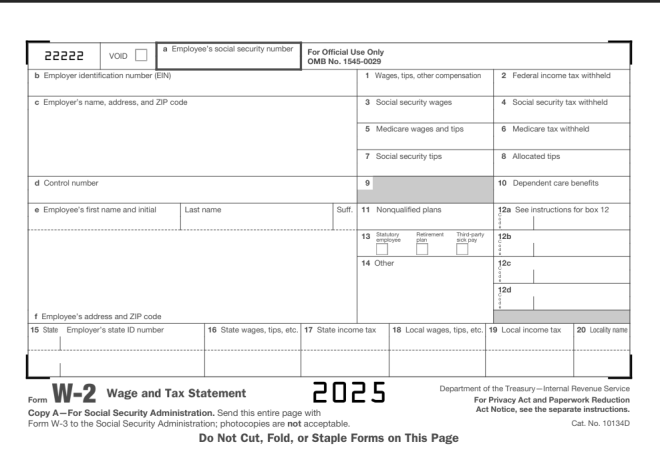
This is a standard-issue US W-2 form. For my international readers, a W-2 form is how US employees report their taxes to the federal government. All employee earnings and taxes withheld for a given calendar year are reported to the IRS (Internal Revenue Service, the agency that handles US taxpayer matters).

  • If you want to follow along with my Google Colab notebook, please save this image to your local drive and upload it to the IDE.

Let’s read the W-2

And now, let’s read in this W-2 form into our IDE. Before we start reading in the text to our IDE, let’s pip install the necessary packages if we don’t already have them:

!pip install pytesseract
!pip install opencv-python

Next, let’s import all the necessary packages to read in the image to the IDE:

import pytesseract
import numpy as np
from PIL import Image

Last but not least, let’s try to read in the W-2 form into the IDE and see what interesting results we’ll get:

testImage = 'w2 form.png'
testImageNP = np.array(Image.open(testImage))
testImageTEXT = pytesseract.image_to_string(testImageNP)
print(testImageTEXT)

| Deze | vow ] | * mens saat secur number For oficial Use Ory


Li

5 Ebr otcaon abo eR a
© Eglo ra, area, DP Sle 7 Secale wane 7 Secarmeuny ew
Teaco wager mips | aca a
7 Secisecuy oe © mosses
& Conan 3 Deport cars oan
@ Employee's frst name and inal Ee E 11 Nonqualified plans {2a See instructions for box 12
3 ey a =e =
mi
14 Other We
a
f Employee's address and ZIP code u
{5 Sie Empayers mae Dane? Te Sia wagon he, a] 7 Sa icone ax ]16 Losalwagen tp 6] 10 Local oome ax] 20 lyme
I


_|


Department of the Treasury Internal Revenue Service
com Wr=2,_ Wage and Tax statement e025 Ta Pony fl uaa
Copy A—For Social Security Admi 1. Send this entire page with ‘Act Molios, see the seperate insimuctions.

Form W-8 to the Social Security Administration; photocopies are not acceptable.
Do Not Cut, Fold, or Staple Forms on This Page

Cat. No, 10134D

OK, so using Tesseract, it appears we have some improvement from the previous scenario detailed in OCR Scenario 2: How Well Can Tesseract Read Photos? in the sense that text was even picked up at all. It appears that some sections of the W-2 form were even read perfectly (such as the line that read Do Not Cut, Fold, or Staple Forms on This Page). However, the bulk of the results appear to be complete gibberish, with a surprising amount of misread words (insimuctions instead of instructions, for example).

Now that we know how well Tesseract reads documents, let’s work some preprocessing magic to see if it yields any improvements in the text-reading process.

W-2 preprocessing

Could thresholding actually improve the Tesseract reading’s accuracy like it did for the photo test (granted, that was a marginal improvement, but it was still something).

First, let’s grayscale the image:

import cv2
from google.colab.patches import cv2_imshow

w2 = cv2.imread('w2 form.png')
w2 = cv2.cvtColor(w2, cv2.COLOR_BGR2GRAY)
cv2_imshow(w2)

Now that the image has been gray-scaled, let’s try and threshold it using the same techniques we learned from the last post:

ret, thresh = cv2.threshold(w2, 127, 255, cv2.THRESH_BINARY)
cv2_imshow(thresh)

Now that we’ve run the thresholding process on the image, let’s see how well it read the text:

w2TEXT = pytesseract.image_to_string(thresh)
print(w2TEXT)

vag


jen -urtbee EINE

" ¢ kirpleyo"s -ane. adeross. a


D Errplayers social


code

uray sunt

For Official Use Only
‘OMB No. 1545-0029

4 sans,

3. Seca seounty wae


5 Mo


7 Seca seounty 198,


andtps


|


B Allocaree s198


4 Corte naib 8 10. Lope~dent sare oe-otts
Te Eirpleyors frat “ar 1 Wa See natruct ons to Bax Te
° 13 125
14 Oe We
ta
f Eirployos's adaross ave £ * ence
18 Se EB Deiter 2 sraaes. ips. ote 18 Loca sages tps cto] 19 Lea noone tax


com WE=-2 wage and Tax Statement

Copy A—For Social Security Administration. Sere ths entire page
te the Social Securty Admin stratio7: onotoccpies are not acceptan e

born Ww.


cOes


Do Not Cut, Fold, or Staple Forms on This Page

ane


ot the


‘easy inter
For Privacy Act and Paperwork Reduction
‘Act Notice. see the separate instructions.

No.


349)

Granted, the original Tesseract reading of the W-2 form wasn’t that great, but wow this is considerably worse! I mean, what kind of a phrase is Errplayers social? However, I’ll give Tesseract some credit for surprisingly reading phrases such as the For Privacy Act and Paperwork Reduction correctly. Then again, I noticed the phrases in the document that Tesseract read the most accurately were the phrases in bold typeface.

Another one of Tesseract’s limitations?

Just as we saw when we tested Tesseract on the photo of the banner, we see that Tesseract has its limitations on reading documents as well. Interestingly enough, when we ran preprocessing on the photo of the banner, the preprocessing helped extract some text from the photo of the banner. However, when we ran the same preprocessing on the photo of the W-2, the reading came out worse than the reading we got from the original, un-processed image.

Why might that be? As you can see from the thresholding we did on the image of the W-2, most of the text in the form itself (namely the sections that contain people’s taxpayer information) comes out like it had been printed on a printer that was overdue for a black ink cartridge replacement. Thus, Tesseract wouldn’t have been able to properly read the text that came out of the image with the thresholding.

Then again, when Tesseract tried to read the text on the original, un-processed image, the results weren’t that great either. This could be because W-2 forms, like many legal forms, have a complex, multi-row layout that isn’t suited for Tesseract’s reading capabilities.

  • Personally, one reason I thought Tesseract would read this document better than the photo from the previous post is that the document’s text is not in a weird font and there’s nothing in the background of the document. I guess the results go to show that even with the things I just mentioned about the document, Tesseract still has its limitations.

Here’s the GitHub containing my Google Colab notebook for this post-https://github.com/mfletcher2021/blogcode/blob/main/OCR_document_readings.ipynb.

Thanks for reading,

Michael

OCR Scenario 2: How Well Can Tesseract Read Photos?

Advertisements

Hello everyone,

Michael here, and in today’s post, we’ll see how well OCR and PyTesseract can read text from photos!

Here’s the photo we will be reading from:

This is a photo of a banner at Nashville Farmer’s Market, taken by me on August 29, 2025. I figured this would be a good example to testing how well OCR can read text from photos, as this banner contains elements in different colors, fonts, text sizes, and text alignments (I know you might not be able to notice at first glance, but the Nashville in the Nashville Farmers Market logo on the bottom right-hand corner of this banner is on a small yellow background).

Let’s begin!

But first, the setup!

Before we dive right in to text extraction, let’s read the image to the IDE and install & import any necessary packages. First, if you don’t already have these modules installed, run the following commands on either your IDE or CLI:

!pip install pytesseract
!pip install opencv-python

Next, let’s import the following modules:

import pytesseract
import numpy as np
from PIL import Image

And now, let’s read the image!

Now that we’ve got all the necessary modules installed and imported, let’s read the image into the IDE:

testImage = 'farmers market sign.jpg'
testImageNP = np.array(Image.open(testImage))
testImageTEXT = pytesseract.image_to_string(testImageNP)
print(testImageTEXT)

Output: [no text read from image]

Unlike the 7 years image I used in the previous lesson, no text was picked up by PyTesseract from this image. Why could that be? I have a few theories as to why no text was read in this case:

  • There’s a lot going on in the background of the image (cars, pavilions, etc.)
  • PyTesseract might not be able to understand the fonts of any of the elements on the banner as they are not standard computer fonts
  • Some of the elements on the banner-specifically the Nashville Farmers’ Market logo on the bottom right hand corner of the banner don’t have horizontally-aligned text and/or the text is too small for PyTesseract to read.

Can we solve this issue? Let’s explore one possible method-image thresholding.

A little bit about thresholding

First of all, I figured we can try image thresholding to read the image text for two reasons: it might help PyTesseract read at least some of the banner text AND it’s a new concept I haven’t yet covered in this blog, so I figured I could teach you all something new in the process.

Now, as for image thresholding, it’s the process where grayscale images are converted to a two-colored image using a specific pixel threshold (more on that later). The two colors used in the new thresholding image are usually black and white; this helps emphasize the contrast between different elements in the image.

And now, let’s try some thresholding!

Now that we know a little bit about what image thresholding is, let’s try it on the banner image to see if we can extract at least some text from it.

First, let’s read the image into the IDE using cv2.read() and convert it to grayscale (thresholding only works with gray-scaled images):

import cv2
from google.colab.patches import cv2_imshow

banner = cv2.imread('farmers market sign.jpg')
banner = cv2.cvtColor(banner, cv2.COLOR_BGR2GRAY)
cv2_imshow(banner)

As you can see, we now have a grayscale image of the banner that can be processed for thresholding.

The thresholding of the image

Here’s how we threshold the image using a type of thresholding called binary thresholding:

ret, thresh = cv2.threshold(banner, 127, 255, cv2.THRESH_BINARY)
cv2_imshow(thresh)

The cv2.threshold() method takes four parameters-the grayscale image, the pixel threshold to apply to the image, the pixel value to use for conversion for pixels above and below the threshold, and the thresholding method to use-in this case, I’m using cv2.THRESH_BINARY.

Now, what is the significance of the numbers 127 and 255? 127 is the threshold value, which means that any pixel with an intensity less than or equal to this threshold will be set to black (intensity 0) while any pixel with an intensity above this value will be set to white (intensity 255). While 127 isn’t a required threshold value, it’s ideal because it’s like a midway point between the lowest and highest pixel intensity values (0 and 255, respectively). In other words, 127 is a quite useful threshold value for helping to establish black-and-white contrast in image thresholding. 255, on the other hand, represents the pixel intensity value to use for any pixels above the 127 intensity threshold. As I mentioned earlier, white pixels have an intensity of 255, so any pixels in the image above a 127 intensity are converted to a 255 intensity, so those pixels turns white while pixels at or below the threshold are converted to a 0 intensity (black).

  • A little bit about the ret parameter in the code: this value represent the pixel intensity threshold value you want to use for the image. Since we’re doing simple thresholding, ret can be used interchangeably with the thresholding value we specified here (127). For more advanced thresholding methods, ret will contain the calculated optimal threshold.

And now the big question…will Tesseract read any text with the new image?

Now that we’ve worked OpenCV’s thresholding magic onto the image, let’s see if PyTesseract picks up any text from the image:

bannerTEXT = pytesseract.image_to_string(thresh)
print(bannerTEXT)

a>
FU aba tee
RKET

Using the PyTesseract image_to_string() method on the new image, the only real improvement here is that there was even text read at all. It appears that even after thresholding the image, PyTesseract’s output didn’t even pick up anything close to what was on the banner (although it surprisingly did pick up the RKET from the logo on the banner).

All in all, this goes to show that even with some good image preprocessing methods, PyTesseract still has its limits. I still have several other scenarios that I will test with PyTesseract, so stay tuned for more!

Here’s the GitHub link to the Colab notebook used for this tutorial (you will need to upload the images again to the IDE, which can easily be done by copying the images from this post, saving them to your local drive, and re-uploading them to the notebook)-https://github.com/mfletcher2021/blogcode/blob/main/OCR_photo_text_extraction.ipynb.

Thanks for reading,

Michael
How To Use OCR Bounding Boxes

Advertisements

Hello everyone,

Michael here, and today’s post will be a lesson on how to use bounding boxes in OCR.

You’ll recall that in my 7th anniversary post The Seven-Year Coding Wonder I did an introduction to Python OCR with the Tesseract package. Now, I’ll show you how to make bounding boxes, which you can use in your OCR analyses.

But first, what are bounding boxes?

That’s a very good question. Simply put, it’s a rectangular region that denotes the location of a specific object-be it text or something else-within a given space.

For instance, let’s take this restaurant sign. The rectangle I drew on the COME ON IN part of the sign would serve as a bounding box

In this case, the red rectangular bounding box would denote the location of the COME ON IN text.

You can use bounding boxes to find anything in an image, like other text, other icons on the sign, and even the shadow the sign casts on the sidewalk.

Bounding boxes, tesseract style!

Now that we’ve explained what bounding boxes are, it’s time to test them out on an image with Tesseract!

Here’s the image we’ll test our bounding boxes on:

Now, how do we get our bounding boxes? Here’s how:

  • Keep in mind, I will continue from where I left off on my 7-year anniversary post, so if you want to know how to read the image and print the text to the IDE, here’s the post you should read-The Seven-Year Coding Wonder.

First, install the OpenCV package:

!pip install opencv-python

Next, run pytesseract’s image_to_data() method on the image and print out the resulting dictionary:

sevenYears = pytesseract.image_to_data(testImageNP, output_type=pytesseract.Output.DICT)
print(sevenYears)

{'level': [1, 2, 3, 4, 5, 5, 5, 5, 4, 5, 5], 'page_num': [1, 1, 1, 1, 1, 1, 1, 1, 1, 1, 1], 'block_num': [0, 1, 1, 1, 1, 1, 1, 1, 1, 1, 1], 'par_num': [0, 0, 1, 1, 1, 1, 1, 1, 1, 1, 1], 'line_num': [0, 0, 0, 1, 1, 1, 1, 1, 2, 2, 2], 'word_num': [0, 0, 0, 0, 1, 2, 3, 4, 0, 1, 2], 'left': [0, 528, 528, 571, 571, 1069, 1371, 1618, 528, 528, 1297], 'top': [0, 502, 502, 502, 504, 529, 502, 504, 690, 690, 692], 'width': [2129, 1205, 1205, 1124, 452, 248, 200, 77, 1205, 714, 436], 'height': [1399, 313, 313, 125, 97, 98, 99, 95, 125, 99, 123], 'conf': [-1, -1, -1, -1, 96, 96, 96, 96, -1, 96, 96], 'text': ['', '', '', '', 'Thank', 'you', 'for', '7', '', 'wonderful', 'years!']}

Now, what does all of this juicy data mean? Let’s dissect it key-by-key:

  • level-The element level in Tesseract output (1 indicates page, 2 indicates block, 3 indicates paragraph, 4 indicates line and 5 indicates word)
  • page_num-The page number on the document where the object was found; granted, this is just a one-page image we’re working with, so this information isn’t terribly useful (though if we were working with a PDF or multi-page document, this would be very helpful information)
  • block_num-This indicates which chunk of connected text (paragraph, column, etc.) an element belongs to (this runs on a 0-index system, so 0 indicates the first chunk)
  • par_num-The paragraph number that a block element belongs to (also runs on a 0-index system)
  • line_num-The line number within a paragraph (also runs on a 0-index system)
  • word_num-The word number within a line (also runs on a 0-index system)
  • left & top-The X-coordinate for the left boundary and Y-coordinate for the top boundary of the bounding box, respectively
  • width & height-The width & height in pixels, respectively, of the bounding box
  • conf-The OCR confidence value (from 0-100, 100 being an exact match) that the correct word was detected in the bounding box. If you see a conf of -1, the element has no confidence value as its not a word
  • text-The actual text in the bounding box

Wow, that’s a lot of information to dissect! Another thing to note about the above output-not all of it is relevant. Let’s clean up the output to only display information related to the words in the image:

import pandas as pd

sevenYearsDataFrame = pd.DataFrame(sevenYears)
sevenYearsWords = sevenYearsDataFrame[sevenYearsDataFrame['level'] == 5]
print(sevenYearsWords)

    level  page_num  block_num  par_num  line_num  word_num  left  top  width  \
4       5         1          1        1         1         1   571  504    452   
5       5         1          1        1         1         2  1069  529    248   
6       5         1          1        1         1         3  1371  502    200   
7       5         1          1        1         1         4  1618  504     77   
9       5         1          1        1         2         1   528  690    714   
10      5         1          1        1         2         2  1297  692    436   

    height  conf       text  
4       97    96      Thank  
5       98    96        you  
6       99    96        for  
7       95    96          7  
9       99    96  wonderful  
10     123    96     years!  

Granted, it’s not necessary to convert the image dictionary into a dataframe, but I chose to do so since dataframes are quite versatile and easy to filter. As you can see here, we have all the same metrics we got before, just for the words (which is what we really wanted).

And now, let’s see some bounding boxes!

Now that we know how to find all the information about an image’s bounding boxes, let’s figure out how to display them on the image. Granted, the pytesseract library won’t actually draw the boxes onto the images. However, we can use another familiar library to help us out here-OpenCV (which I did a series on in late 2023).

First, let’s install the opencv-python module onto our IDE if it’s not already there:

!pip install opencv-python
  • Remember, no need for the exclamation point at the front of the string if your running this command on a CLI.

Next, let’s read the image into the IDE:

import cv2
from google.colab.patches import cv2_imshow

sevenYearsTestImage = cv2.imread('7 years.png', cv2.IMREAD_COLOR)
cv2_imshow(sevenYearsTestImage)
cv2.waitKey(0)

After installing the opencv module in the IDE, we then read the image into the IDE using the cv2.imread() method. The cv2.IMREAD_COLOR ensures we read and display this image in its standard color format.

  • You may be wondering why we’re reading the image into the IDE again, especially after reading it in with pytersseract. We need to read the image again as pytesseract will only read the image string into the IDE, not the image itself. We need to read in the actual image in order to display the bounding boxes.
  • If you’re not using Google Colab as your IDE, no need to include this line-from google.colab.patches import cv2_imshow. The reason Google Colab makes you include this line is because the cv2.imshow() method caused Google Colab to crash, so think of this line as Google Colab’s fix to the problem. It’s annoying I know, but it’s just one of those IDE quirks.

Drawing the bounding boxes

Now that we’ve read the image into the IDE, it’s time for the best part-drawing the bounding boxes onto the image. Here’s how we can do that:

sevenYearsWords = sevenYearsWords.reset_index(drop=True)

howManyBoxes = len(sevenYearsWords['text'])

for h in range(howManyBoxes):
  (x, y, w, h) = (sevenYearsWords['left'][h], sevenYearsWords['top'][h], sevenYearsWords['width'][h], sevenYearsWords['height'][h])
  sevenYearsTestImage = cv2.rectangle(sevenYearsTestImage, (x, y), (x + w, y + h), (255, 0, 0), 3)

cv2_imshow(sevenYearsTestImage)

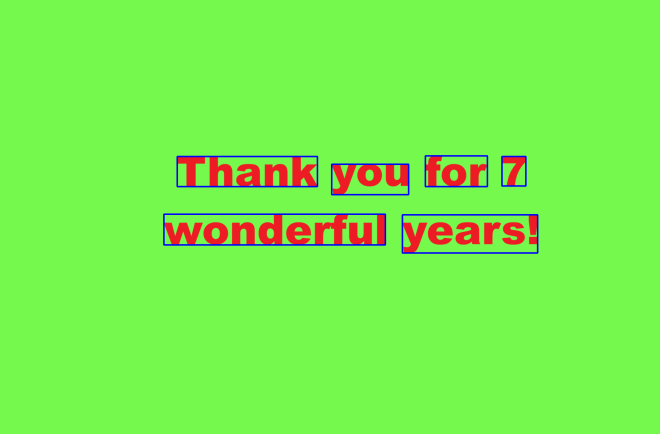
As you can see, we can now see our perfectly blue bounding boxes on each text element in this image. The process also worked like a charm, as each text element is captured perfectly inside each bounding box-then again, it helped that each text element had a 96 OCR confidence score (which ensured high detection accuracy).

How did we get these perfectly blue bounding boxes?

  • I first reset the index on the sevenYearsWords dataframe because when I first ran this code, I got an indexing error. Since the sevenYearsWords dataframe is essentially a subset of the larger sevenYearsDataFrame (the one with all elements, not just words), the indexing for the sevenYearsWords dataframe would be based off of the original dataframe, so I needed to use the reset_index() command to reset the indexes of the sevenYearsWords dataframe to start at 0.
  • Keep this method (reset_index()) in mind whenever you’re working with dataframes generated as subsets of larger dataframes.
  • howManyBoxes would let the IDE know how many bounding boxes need to be drawn-normally, you’d need as many bounding boxes as you have text elements
  • The loop is essentially iterating through the elements and drawing a bounding box on each one using the cv2.rectangle() method. The parameters for this method are: the image where you want to draw the bounding boxes, the x & y coordinates of each box, the x-coordinate plus width and y-coordinate plus height for each box, the BGR color tuple of the boxes, and the thickness of the boxes in pixels (I went with 3-px thick blue boxes).

Come find the code on my GitHub-https://github.com/mfletcher2021/blogcode/blob/main/OCR_bounding_boxes.ipynb.

Thanks for reading!

Michael