Java Lesson 22: Inserting Images Onto The JFrame

Advertisements

Hello everybody,

Hope you all had a wonderful holiday celebration! I can’t wait to share all the amazing programming content I have for you this year!

For my first post of 2022, I will pick up I left off last year-we covered some basics of working with Java JFrames and also covered how to work with shapes and colors on the JFrame. Today’s post will cover how to add images to a JFrame.

Java applications (and applications in general) often use images on their GUIs. Before we start adding images to our JFrame, let’s create the JFrame window (this code will look familiar to you if you read my previous JFrame lesson):

public class Graphics101 {

    public static void main(String[] args) {
        JFrame frame = new JFrame("My first JFrame");
        frame.setSize(600, 600);  
        frame.setDefaultCloseOperation(JFrame.EXIT_ON_CLOSE);  
        frame.setVisible(true);  
    }
    
}

As you can see, we have a basic 600 by 600 pixel window.

Now, how can we add an image to this window? Take a look at this code:

public class Graphics101 {

    public static void main(String[] args) {
        JFrame frame = new JFrame("My first JFrame");
        frame.setSize(600, 600);  
        ImageIcon image1 = new ImageIcon("C:\\Users\\mof39\\Downloads\\xmas\\20211225_163232.jpg");
        frame.add(new JLabel(image1));
        frame.pack();
        frame.setVisible(true);  
        frame.setDefaultCloseOperation(JFrame.EXIT_ON_CLOSE);  
    }
    
}

Pay attention to these three lines of code:

ImageIcon image1 = new ImageIcon("C:\\Users\\mof39\\Downloads\\xmas\\20211225_163232.jpg");
frame.add(new JLabel(image1));
frame.pack();

The ImageIcon line stores the image I want to add as a variable; to add a new object of the ImageIcon class, I’d need to pass in the image’s file path (where it’s located on my computer) as the parameter for the object. The frame.add(new JLabel(image1)) line adds the image to my JFrame; the image1 variable is passed in as the parameter as an object of the JLabel class. The frame.pack() method simply tells Python to display the image on the JFrame.

  • If you’re trying to create an image to add to the JFrame, always create an object of the ImageIcon class-don’t use any other class to create an image to add to the JFrame.
  • Yes, I’m wearing a Santa hat in this photo (it was taken on Christmas Day 2021).

Now, even though we did successfully get the image displayed onto the JFrame, we’ve got an issue-the whole image won’t fit since it’s too big for the JFrame. How can we resize the image so that the whole image fits within the 600×600 pixel JFrame? Take a look at this code:

public class Graphics101 {

    public static void main(String[] args) {
        JFrame frame = new JFrame("My first JFrame");
        frame.setSize(600, 600);  
        JLabel label = new JLabel();
        label.setIcon(new ImageIcon(new ImageIcon("C:\\Users\\mof39\\Downloads\\xmas\\20211225_163232.jpg").getImage().getScaledInstance(600, 600, Image.SCALE_SMOOTH)));
        frame.add(label);
        frame.pack();
        frame.setVisible(true);  
        frame.setDefaultCloseOperation(JFrame.EXIT_ON_CLOSE);  
    }
    
}

As you can see, I managed to get the whole image to fit into the JFrame. How did I do that? Pay attention to these lines of code:

JLabel label = new JLabel();
        label.setIcon(new ImageIcon(new ImageIcon("C:\\Users\\mof39\\Downloads\\xmas\\20211225_163232.jpg").getImage().getScaledInstance(600, 600, Image.SCALE_SMOOTH)));
        frame.add(label)

The JLabel line simply tells Java to add a new JLabel object to the JFrame; I will store the image I want to display in this JLabel.

The JLabel object’s .setIcon() method is the most important method in this group, as it creates the ImageIcon and resizes it to fit the JFrame window (via the .getScaledInstance() method), all in the same line of code. Pretty impressive right?

Now, the .getScaledInstance() method takes in three parameters-the width you want to use for the image (in pixels), the height you want to use for the image (also in pixels), and the scaling algorithm you’d like to use to scale the image to the JFrame-of which there are five: SCALE_DEFAULT, SCALE_FAST, SCALE_SMOOTH, SCALE_REPLICATE, and SCALE_AREA_AVERAGING. Since my JFrame window is 600×600 pixels, I used 600 for both the width and height parameters.

  • In the .getScaledInstance() method, when you’re indicating the scaling algorithm that you want to use, always include Image. before the name of the scaling algorithm (e.g. Image.SCALE_SMOOTH).

The frame.add() method adds the JLabel object to the JFrame; since the resized image is stored in the JLabel object, the frame.add() method adds the resized image to the JFrame. Just as with the previous example, the frame.add() method is followed by the frame.pack() method, which displays the resized image onto the JFrame.

Looks much better. But what if you wanted to resize the image to different dimensions-dimensions that aren’t equal to the size of your JFrame window, in other words. Take a look at this code:

public class Graphics101 {

    public static void main(String[] args) {
        JFrame frame = new JFrame("My first JFrame");
        frame.setSize(600, 600);  
        JLabel label = new JLabel();
        label.setIcon(new ImageIcon(new ImageIcon("C:\\Users\\mof39\\Downloads\\xmas\\20211225_163232.jpg").getImage().getScaledInstance(300, 300, Image.SCALE_SMOOTH)));
        frame.add(label);
        frame.pack();
        frame.setVisible(true);  
        frame.setDefaultCloseOperation(JFrame.EXIT_ON_CLOSE);  
    }
    
}

I used the same code for this example as I did for the previous example, however I did change the first two parameters of the .getScaledInstance() method from 600 and 600 to 300 and 300. You might think that this would simply resize the image, in which case you’d be half-right. The image is resized to 300×300 pixels, but so is the JFrame window. With that said, keep in mind that, whenever you want to resize an image to fit a JFrame, if the dimensions of your resized image aren’t the same as those of your JFrame window, the JFrame window will change its size to match the dimensions of the image set in the .getScaledInstance() method. In this example, since I changed the dimensions of the image to 300×300 pixels, the JFrame’s inital size settings (600×600) will be overwritten to 300×300 pixels.

Thank you for reading. I’ve got tons of great content for you all this year,

Michael

Java Lesson 21: Drawing and Coloring Shapes on the JFrame

Advertisements

Hello everybody,

Michael here, and this post (my last one for 2021) will serve as a continuation of the previous post, but this time, instead of discussing how to draw lines on the JFrame, I’ll discuss how to draw (and color) shapes on the JFrame.

Now, before we start drawing shapes onto our JFrame, let’s create the JFrame and make all the necessary imports (this code will probably seem familiar to you if you read my previous Java lesson):

import javax.swing.*;
import java.awt.*;
import javax.swing.JComponent;


public class Graphics101 {

    public static void main(String[] args) {
        JFrame frame = new JFrame("My first JFrame");
        frame.setSize(600, 600);  
        frame.setDefaultCloseOperation(JFrame.EXIT_ON_CLOSE);  

        frame.setVisible(true);  
    }
    
}

Ok, now that we’ve got our JFrame window set, let’s start drawing some shapes. We’re going to start off by drawing a rectangle:

import javax.swing.*;
import java.awt.*;
import javax.swing.JComponent;

class ShapeDrawing extends JComponent {
  
    public void paint(Graphics g)
    {
        Graphics2D g2 = (Graphics2D) g;
        g2.drawRect(100, 150, 60, 200);
    }
}

public class Graphics101 {

    public static void main(String[] args) {
        JFrame frame = new JFrame("My first JFrame");
        frame.setSize(600, 600);  
        frame.setDefaultCloseOperation(JFrame.EXIT_ON_CLOSE);  
        frame.getContentPane().add(new ShapeDrawing ());
        frame.setVisible(true);  
    }
    
}

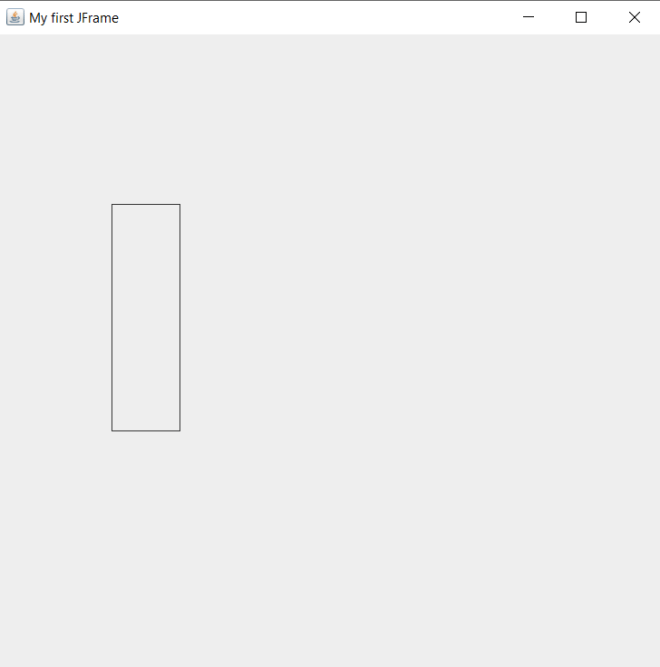
Now, to be able to draw shapes onto the JFrame, I created a new class that contains an object of the Graphics class. I also used a .paint() method that executes the drawing. I did all of this when I was drawing lines onto a JFrame, however for this example I changed the name of the class to ShapeDrawing. Also, just as I did with the LineDrawing class’s .paint() method, I created a separate object of the Graphics class (g2 in this instance); this time, I’m using g2‘s .drawRect() method to draw a rectangle on the JFrame window.

The .drawRect() method takes in four parameters, in the following order:

  • The x-coordinate where the rectangle is located
  • The y-coordinate where the rectange is located
  • The rectangle’s width
  • The rectangle’s height

You’re probably wondering why we don’t need to use two x- and y-coordinates like we did when we were drawing lines. This is because even though we only specified two points for the rectangle, Java will figure out where the other two rectangle points are located through the width and height that we provided in the .drawRect() method.

  • Note-there is no separate .drawSquare() method in Java’s Graphics class. If you wanted to draw a square, use the .drawRect() method. After all, when you think about it, a square is basically a modified rectangle.

Now, for fun, let’s try drawing another shape-let’s do a circle this time (we’ll keep the rectangle we drew-all we’re doing is simply adding a circle onto the screen):

import javax.swing.*;
import java.awt.*;
import javax.swing.JComponent;

class ShapeDrawing extends JComponent {
  
    public void paint(Graphics g)
    {
        Graphics2D g2 = (Graphics2D) g;
        g2.drawRect(100, 150, 60, 200);
        g2.drawOval(185, 235, 80, 220);
    }
}

public class Graphics101 {

    public static void main(String[] args) {
        JFrame frame = new JFrame("My first JFrame");
        frame.setSize(600, 600);  
        frame.setDefaultCloseOperation(JFrame.EXIT_ON_CLOSE);  
        frame.getContentPane().add(new ShapeDrawing ());
        frame.setVisible(true);  
    }
    
}

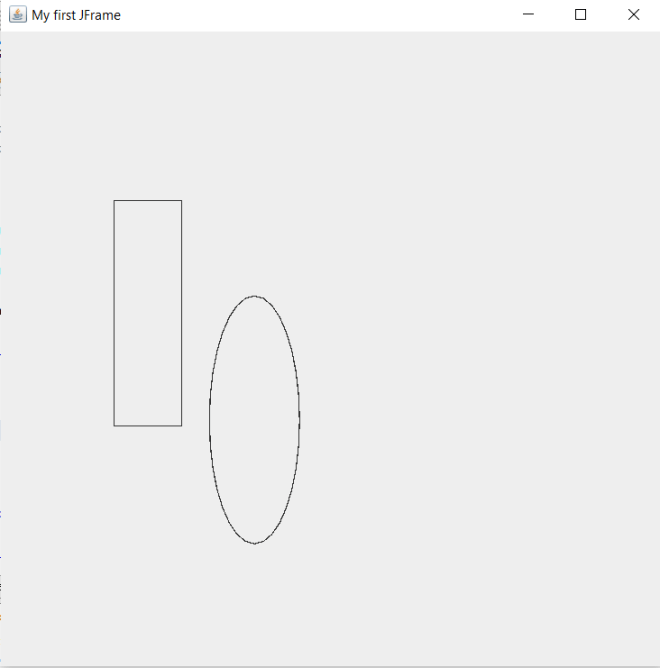
In this example, I added the .drawOval() method to the ShapeDrawing class’s .paint() method. The .drawOval() method has the same four parameters as the .drawRect() method-shape’s x-coordinate, shape’s y-coordinate, shape’s width, and shape’s height-in the same order as the .drawRect() method.

  • Whether you want to draw an oval or a circle onto the JFrame, use the .drawOval() method.

Now, it’s pretty cool that Java has built-in methods for drawing basic shapes such as squares, rectangles, and circles. However, Java has no built-in methods for drawing other polygons such as triangles and hexagons.

Let’s say we wanted to add a triangle to our JFrame. Here’s the code we’ll use:

import javax.swing.*;
import java.awt.*;
import javax.swing.JComponent;

class ShapeDrawing extends JComponent {
  
    public void paint(Graphics g)
    {
        Graphics2D g2 = (Graphics2D) g;
        g2.drawRect(100, 150, 60, 200);
        g2.drawOval(185, 235, 80, 220);
        int x[] = {400, 400, 500};
        int y[] = {100, 200, 200};
        int numPoints = 3;
        g.drawPolygon(x, y, numPoints);
    }
}

public class Graphics101 {

    public static void main(String[] args) {
        JFrame frame = new JFrame("My first JFrame");
        frame.setSize(600, 600);  
        frame.setDefaultCloseOperation(JFrame.EXIT_ON_CLOSE);  
        frame.getContentPane().add(new ShapeDrawing ());
        frame.setVisible(true);  
    }
    
}

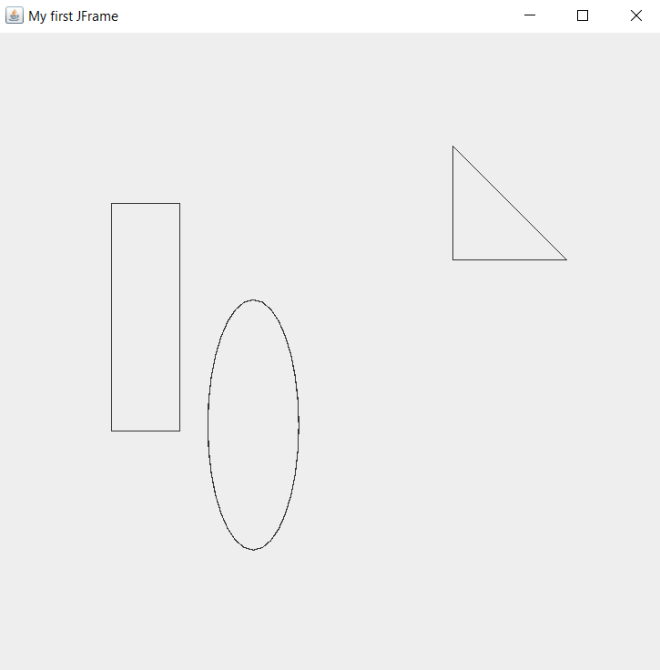
How did I add the right triangle to the JFrame? Pay attention to the four lines of code in the .paint() method that follow the g2.drawOval() line. The lines of code that begin with int x[] and int y[] create arrays that store the polygon’s x- and y-coordinates, respectively. Each point in the int x[] array corresponds to the point in the same position in the int y[] array-for instance, the first element in the int x[] array (400) corresponds to the first element in the int y[] array (100). This means that the first point in the traingle would be (400, 100); likewise, the other two points would be (400, 200) and (500, 200).

  • Something to keep in mind when you’re creating your x- and y-coordinate arrays is to keep them the same length. Also, only include as many elements in these arrays as there are points in the polygon you plan to draw. In this case, since I’m drawing a traingle onto the JFrame, I shouldn’t add more than 3 elements to either the x-coordinate or y-coordinate arrays.

After creating my x- and y-coordinate arrays, I also included a numPoints variable that simply indicates how many points I will include in the polygon-3 in this case, after all I’m drawing a triangle. Last but not least, use the .drawPolygon() method to draw the traingle and pass in the x- and y-coordinate arrays along with the numPoints variable as this method’s parameters.

  • One more thing to note about the .drawPolygon() method-both g and g2 have this as a method. Use the g version (which represents Java’s Graphics class), as in g.drawPolygon(x, y, numPoints). The g2 (which represents Java’s Graphics2D class-Graphics2D is a subclass of the Graphics class) version of this method won’t work as well.

Great! We managed to draw three shapes onto our JFrame! However, they look awfully dull. Let’s see how to add some color to each shape:

import javax.swing.*;
import java.awt.*;
import javax.swing.JComponent;

class ShapeDrawing extends JComponent {
  
    public void paint(Graphics g)
    {
        Graphics2D g2 = (Graphics2D) g;
        g2.setColor(Color.BLUE);
        g2.drawRect(100, 150, 60, 200);
        g2.fillRect(100, 150, 60, 200);
        
        g2.setColor(Color.ORANGE);
        g2.drawOval(185, 235, 80, 220);
        g2.fillOval(185, 235, 80, 220);
        
        g.setColor(Color.YELLOW);
        int x[] = {400, 400, 500};
        int y[] = {100, 200, 200};
        int numPoints = 3;
        g.drawPolygon(x, y, numPoints);
        g.fillPolygon(x, y, numPoints);
    }
}

public class Graphics101 {

    public static void main(String[] args) {
        JFrame frame = new JFrame("My first JFrame");
        frame.setSize(600, 600);  
        frame.setDefaultCloseOperation(JFrame.EXIT_ON_CLOSE);  
        frame.getContentPane().add(new ShapeDrawing ());
        frame.setVisible(true);  
    }
    
}

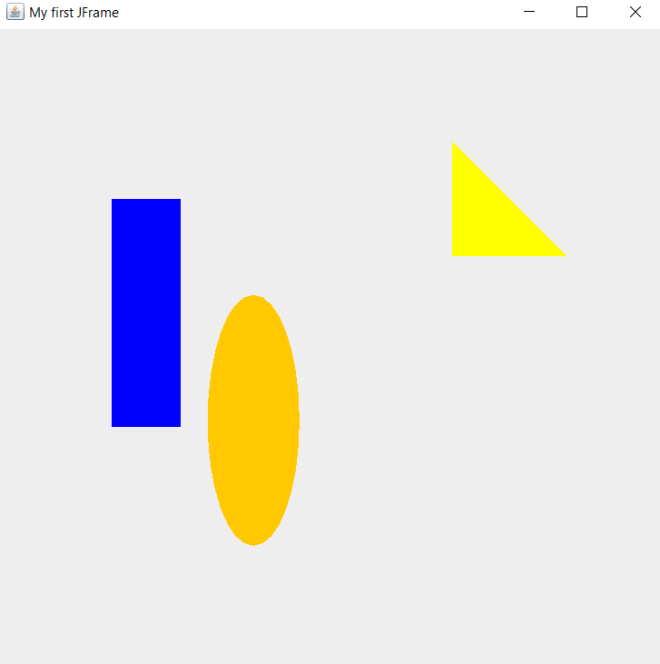
As you can see, we now have a blue rectangle, orange oval, and yellow right triangle on the JFrame. How did I accomplish this?

Well, for the rectangle, I used the .setColor() method and passed in Color.BLUE as the parameter. You might think this method alone would do the trick, however, this method merely set’s the shape’s border color to blue-it doesn’t actually fill in the shape. That’s why we need to use the .fillRect() method to fill the rectangle; like the .drawRect() method, this method also takes in four parameters. To fill in the rectangle, pass in the same four integers that you used for the .drawRect() method in the same order that they are listed in the .drawRect() method. In this case, I used the integers 100, 150, 60 and 200 for both the .drawRect() and .fillRect() methods.

  • With regards to the .fillRect() method, execute this after executing the .drawRect() method. However, still execute the .setColor() method before executing the .drawRect() method.

To fill in the oval and the triangle, I used the same logic I used to fill in the rectangle. However, to fill in the oval, I used the .fillOval() method and passed in the same` four points (in the same order) that I used for the .drawOval() method-185, 235, 80 and 220. I also called the .setColor() method to set the oval’s color before I ran the .drawOval() method-much like I did when I set the color of the rectangle.

To fill in the triangle, I used the .fillPolygon() method and passed in the same three parameters (in the same order) that I used for the .drawPolygon() method-x, y, and numPoints. And, just like I did for the oval and rectangle, I executed the .setColor() method before running the draw and fill methods.

Since this is my last 2021 post, thank you all for reading my content this year (and every year)! I hope you had just as much fun learning new programming skills (or honing existing ones) as I did making this content. Can’t wait to share all the amazing programming content I have planned with you all in 2022! In the meantime, have a very merry holiday season,

Michael

Java Lesson 20: Lines, Colors, and Basic Java Graphics

Advertisements

Hello everybody,

Michael here, and I’ve got an exciting Java lesson for you guys. Today, I’ll not only be covering how to work with lines and colors in Java but I’ll also be giving you guys an introduction to working with graphics in Java.

First, let’s discuss how to work with one of Java’s most important graphics classes-JFrame. The JFrame class allows you to create Java windows where you can add whatever graphics you want. Let’s create a simple JFrame object:

import javax.swing.JFrame;   
public class Graphics101 {

    public static void main(String[] args) {
        JFrame frame = new JFrame("My first JFrame");  
        frame.setSize(600, 600);  
        frame.setDefaultCloseOperation(JFrame.EXIT_ON_CLOSE);  
        frame.setVisible(true);  
    }
    
}

And watch what appears when you run this code:

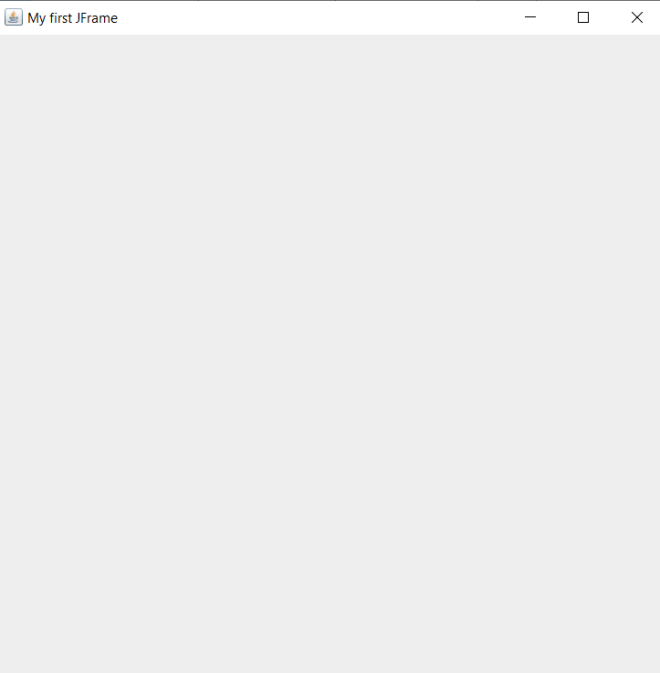
As you can see, a blank 600X600 window appears that serves as your programming canvas, where you can create whatever coding artistry you can imagine.

Now, how did this code manage to create this window? Well, for starters, we’d need to import the JFrame class in order to create a JFrame object; the line of code to import this class is import javax.swing.JFrame;. Next, as you all may have figured out, we’d need to create an object of the JFrame class (called frame in this example) in order to create a new JFrame window. In the JFrame object I created, I passed in the String parameter My first JFrame-this sets the title of the window as “My first JFrame”. I then used three JFrame class methods-.setSize(), .setDefaultCloseOperation(), .setVisible()-to fine-tune the window I’m creating.

Here’s a breakdown of each of these methods:

  • .setSize()-This method takes two integer parameters; the first parameter for width and the second parameter for height (both in pixels). These two parameters set the initial size of the JFrame window.
  • .setDefaultCloseOperation()-This method takes in a predefined constant from the JFrame class; oftentimes, that predefined constant is EXIT_ON_CLOSE, which simply closes the window when you click the X on the window’s upper right hand corner.
  • .setVisible()-This method simply takes in a boolean that tells the code whether or not to display the window when the code is run.

The blank JFrame is a great start, however, it looks awfully dull without anything on it. Before we start drawing cool shapes, let’s first draw a few lines onto our JFrame:

import javax.swing.*;
import java.awt.*;
import javax.swing.JComponent;

class LineDrawing extends JComponent {
  
    public void paint(Graphics g)
    {
        g.drawLine(100, 75, 125, 150);
        g.drawLine(125, 75, 150, 150);
    }
}

public class Graphics101 {

    public static void main(String[] args) {
        JFrame frame = new JFrame("My first JFrame");
        frame.setSize(600, 600);  
        frame.setDefaultCloseOperation(JFrame.EXIT_ON_CLOSE);  
        frame.getContentPane().add(new LineDrawing ());
        frame.setVisible(true);  
    }
    
}

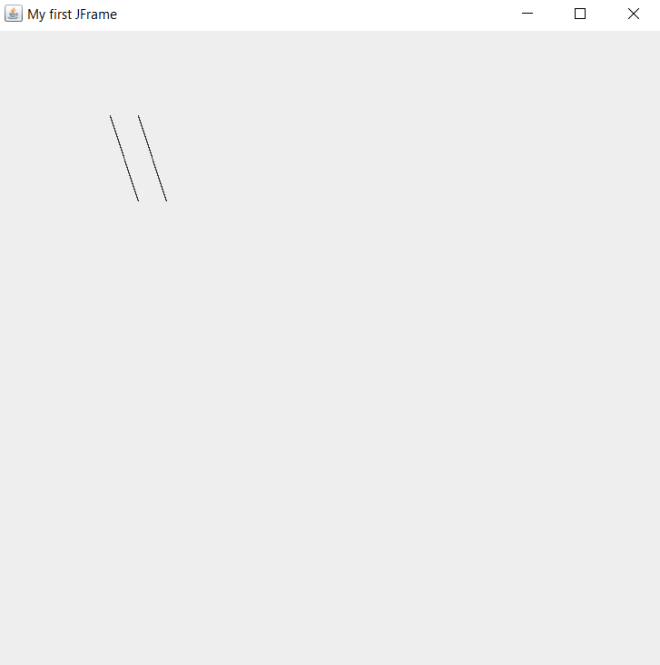
Now let’s take a look at the lines that were generated:

In this example, I used the same code from the previous example to create the JFrame. However, you’ll notice some differences from the previous example’s code. First of all, I did use asterisks (*) in the import statements. Using asterisks for imports in programming (any program, not just Java) is a practice known as star importing-this is where you import all the classes in a particular package or sub-package rather than importing the classes you need one-by-one. Some programmers aren’t fond of star imports and claim it’s bad practice, but I personally find them to be a more efficient method of importing.

The other difference between this code and the previous example’s code is that there is another class above the main class. The other class I created-LineDrawing-extends Java’s JComponent class, which means that my LineDrawing class will be able to access all of the JComponent class’s methods (which we need for line drawing).

My LineDrawing class contains a single method-paint()-which takes in a single parameter-g, which is an object of Java’s Graphics class (which is imported through the star import I used for Java’s java.awt package). The paint() method draws two parallel lines on the JFrame object I created. But how does paint() exactly draw the lines on the JFrame object? Pay attention to this line of code-frame.getContentPane().add(new LineDrawing ()). This line of code allows us to draw the lines on the JFrame window through using the .getContentPane() and .add() methods. In the .add() method, I passed in new LineDrawing() as this method’s parameter; this line of code creates a new object of the LineDrawing class inside the JFrame object. The LineDrawing class object will automatically activiate the class’s paint() method, which will draw the two parallel lines inside the JFrame window.

Now, you’re probably wondering how the .drawLine() method exactly works. This method takes in four parameters, which can be either integers or decimals. The first and third parameters represent the x-coordinates of the first and second point in the line, respectively. The second and fourth parameters represent the y-coordinates of the first and second point in the line, respectively. In this example, the four parameters I passed into the first line were 100, 75, 125, and 150-this means that the first line’s endpoints will be located at (100, 75) and (125, 150).

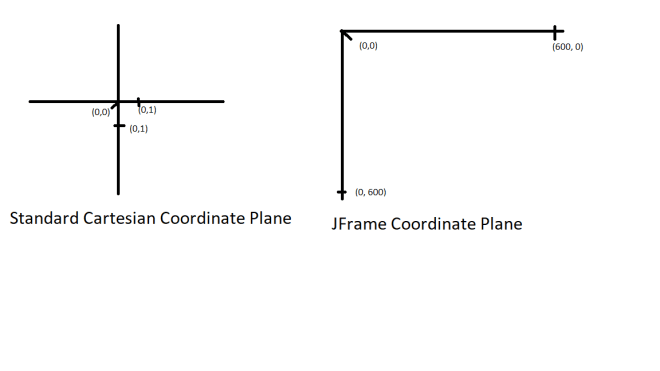
Now, there’s something that you should keep in mind when dealing with JFrame coordinates. JFrame doesn’t go by the same coordinate plane that you likely learned about in pre-algebra class. Rather, JFrame uses it’s own coordinate plane where all x- and y-axis values are positive and the axis values (for both axes) range from 0 to the height and width of the window (in pixels). In this case, since the JFrame window I created is 600×600 pixels, the value ranges for both axes would be from 0 to 600.

Here’s an illustration to show the difference between a standard coordinate plane and a JFrame coordinate plane:

A standard (or Cartesian) coordinate plane contains four quadrants-two of which contain one positive and one negative coordinate (such as (3, -2) or (-4, 5)). The other two quadrants contain either two positive coordinates or two negative coordinates (such as (4, 1) or (3, 3)).

A JFrame coordinate plane, on the other hand, only contains one quadrant which can only contain two positive coordinates (such as (15,20) or (35, 30)). Since JFrame coordinate planes only contain positive integers, trying to run a line of code like this g.drawLine(-100, 75, -125, 150) would give you an error since JFrame coordinate planes have no negative coordinates on either the x- or y-axis. Another difference between JFrame coordinate planes and standard Cartesian coordinate planes is that Cartesian coordinate planes can stretch on to infinite lengths while JFrame coordinate planes can only stretch as far as the window’s pixel size. In this example, the JFrame window is set to a size of 600×600 pixels, which means that the maximum possible value on both the x-axis and y-axis is 600. Thus, the maximum possible coordinate for our window would be (600, 600).

Now, it’s pretty impressive that we managed to draw our own lines on the console. However, the lines look quite boring. What if you wanted to add some color to the lines? Here’s the code to do so (note: I made the lines bigger than they were in the previous example):

import javax.swing.*;
import java.awt.*;
import javax.swing.JComponent;

class LineDrawing extends JComponent {
  
    public void paint(Graphics g)
    {
        g.setColor(Color.RED);
        g.drawLine(50, 400, 200, 150);
        g.setColor(Color.ORANGE);
        g.drawLine(75, 400, 225, 150);
    }
}

public class Graphics101 {

    public static void main(String[] args) {
        JFrame frame = new JFrame("My first JFrame");
        frame.setSize(600, 600);  
        frame.setDefaultCloseOperation(JFrame.EXIT_ON_CLOSE);  
        frame.getContentPane().add(new LineDrawing ());
        frame.setVisible(true);  
    }
    
}

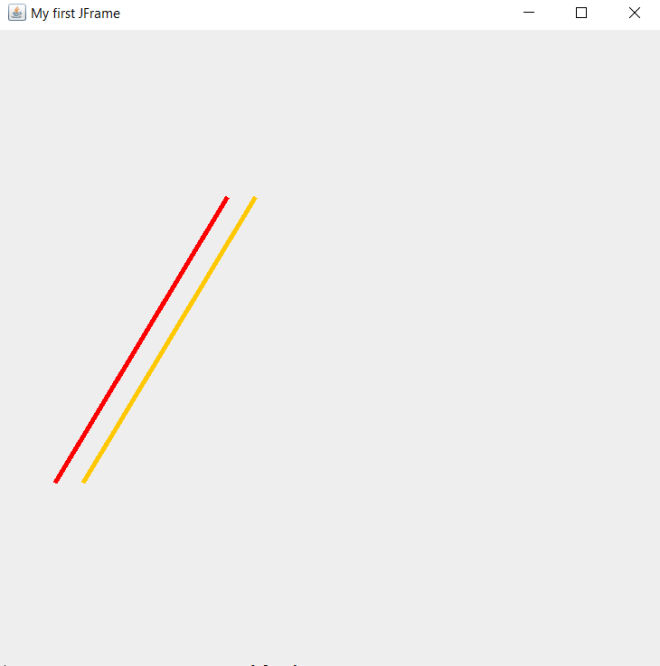
In this example, I still draw the lines onto the window through the LineDrawing class’s paint() method. However, I did add two lines of code to the paint() method-both of these lines contain the Graphics class’s .setColor() method and pass in Color.[name of color] as the method’s parameter. In this case, passing in a HEX code, RGB code, or HSL value won’t work here; you’ll need to use the exact name of a color. Java’s Graphics class has several predefined colors; you can see which colors are available to you through a quick scroll of the Intellisense window that appears after you type Color.. In this example, I set the colors of the two lines to RED and ORANGE, respectively.

  • Something to keep in mind when setting the colors for lines-run the .setColor() method BEFORE running the .drawLine() method. You’ll want to set the color of the line before actually drawing it onto the JFrame.

Now, what if you wanted to add some more style to the lines you created? Let’s say you wanted to change the lines’ thickness. Here’s the code to do so (note: I didn’t change line sizes this time):


import javax.swing.*;
import java.awt.*;
import javax.swing.JComponent;

class LineDrawing extends JComponent {
  
    public void paint(Graphics g)
    {
        Graphics2D g2 = (Graphics2D) g;
        g.setColor(Color.RED);
        g2.setStroke(new BasicStroke(4));
        g.drawLine(50, 400, 200, 150);
        g.setColor(Color.ORANGE);
        g2.setStroke(new BasicStroke(4));
        g.drawLine(75, 400, 225, 150);
    }
}

public class Graphics101 {

    public static void main(String[] args) {
        JFrame frame = new JFrame("My first JFrame");
        frame.setSize(600, 600);  
        frame.setDefaultCloseOperation(JFrame.EXIT_ON_CLOSE);  
        frame.getContentPane().add(new LineDrawing ());
        frame.setVisible(true);  
    }
    
}

As you may have noticed, I did make some modifications to the previous example’s code. First of all, I did create a new object of the Graphics class in the .paint() method-g2. All this does is allow us to have access to more Graphics class methods, which we’ll need for this code.

The new Graphics class method we’ll be using is .setStroke(), which allows us to set a line’s thickness (in pixels). The parameter you’d use for the .setStroke() method is new BasicStroke (int)-with int being the thickness (in pixels) you want to use for the line. In this example, I used 4 (pixels) as the thickness for both lines.

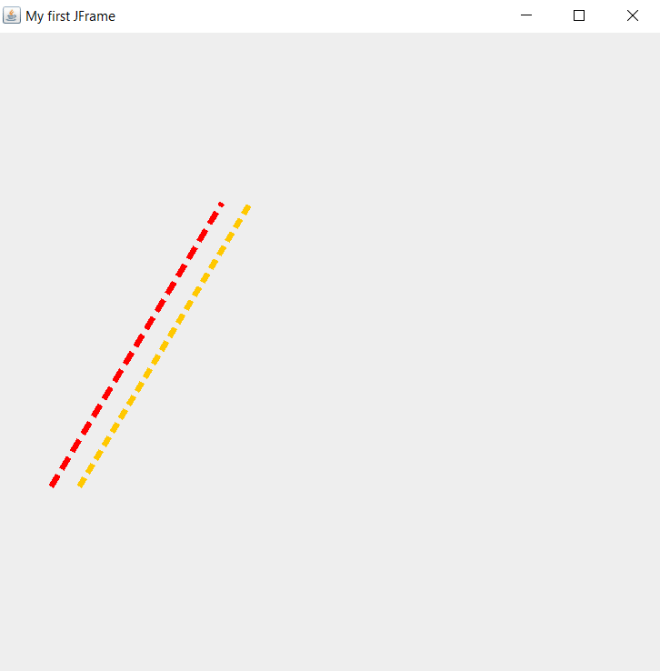
Last but not least, let’s explore how to make our lines dotted. Here’s the code we’ll be using to do just that:

import javax.swing.*;
import java.awt.*;
import javax.swing.JComponent;

class LineDrawing extends JComponent {
  
    public void paint(Graphics g)
    {
        Graphics2D g2 = (Graphics2D) g;
        g.setColor(Color.RED);

        float[] dashingPattern = {12f, 6f};
        Stroke stroke = new BasicStroke(5, BasicStroke.CAP_BUTT, BasicStroke.JOIN_MITER, 1.0f, dashingPattern, 0.0f);
        g2.setStroke(stroke);
        g.drawLine(50, 400, 200, 150);
        
        g.setColor(Color.ORANGE);

        float[] dashingPattern2 = {9f, 5f};
        Stroke stroke2 = new BasicStroke(5, BasicStroke.CAP_BUTT, BasicStroke.JOIN_MITER, 1.0f, dashingPattern2, 0.0f);
        g2.setStroke(stroke2);
        g.drawLine(75, 400, 225, 150);
    }
}

public class Graphics101 {

    public static void main(String[] args) {
        JFrame frame = new JFrame("My first JFrame");
        frame.setSize(600, 600);  
        frame.setDefaultCloseOperation(JFrame.EXIT_ON_CLOSE);  
        frame.getContentPane().add(new LineDrawing ());
        frame.setVisible(true);  
    }
    
}

    public static void main(String[] args) {
        JFrame frame = new JFrame("My first JFrame");
        frame.setSize(600, 600);  
        frame.setDefaultCloseOperation(JFrame.EXIT_ON_CLOSE);  
        frame.getContentPane().add(new LineDrawing ());
        frame.setVisible(true);  
    }
    
}

In this example, there is another addition to the code. This time around, I added three lines of code before each .drawLine() method call. The first line creates a floating-point list that defines each line dash pattern. Each list takes two values-both floating-point numbers (and both ending with f). The first value of each list specifies the length of each dash (in pixels) and the second value of each list specifies the space between each dash (also in pixels).

The second new line of code creates an object of the Stroke class; for an explanation of each parameter in the object of the Stroke class, refer to this Oracle documentation-https://docs.oracle.com/javase/7/docs/api/java/awt/BasicStroke.html#BasicStroke(float,%20int,%20int,%20float,%20float[],%20float).

The third new line simply calls the .setStroke() method and passes in the Stroke object we created in the previous line.

  • Keep in mind that you’d always want to set the styling for your lines (e.g. color, thickness, dashing) before you draw the line in your JFrame.

As you can see, we have succesfully created dashed lines in our JFrame.

Thanks for reading,

Michael