Hello everybody,
Michael here, and it looks like we’ve got quite a lesson today-we’ll be covering Jumbrotrons and carousels in Bootstrap!
Now, let’s begin with some Bootstrap Jumbotrons!
Bootstrap Jumbotrons
What is a Bootstrap Jumbotron? If you answer anything like a Jumbotron you’d see in sporting arenas, you are sort of right. While Bootstrap Jumbotrons aren’t as gigantic as their sporting arena counterparts, the general idea of both Jumbotrons is the same-to emphasize and call attention to specific content (whether it be a cheering crowd or webpage content).
Now, here’s a little quirk about Bootstrap Jumbotrons-there’s no longer a special class to create them in Bootstrap. See, Jumbotrons were introduced in Bootstrap 3-with their own Bootstrap class-as big padded boxes used to call attention to special webpage content. However, the Jumbotron class was phased out by Bootstrap 5 BUT even with that being said, you can still create Jumbotrons in Bootstrap through a clever combination of <div> tags and special Bootstrap classes. Let’s take a look at the code below to see how we can replicate a Jumbotron in Bootstrap 5:
<!DOCTYPE html>
<link href="https://cdn.jsdelivr.net/npm/bootstrap@5.2.0/dist/css/bootstrap.min.css" rel="stylesheet" integrity="sha384-gH2yIJqKdNHPEq0n4Mqa/HGKIhSkIHeL5AyhkYV8i59U5AR6csBvApHHNl/vI1Bx" crossorigin="anonymous">
<script src="https://cdn.jsdelivr.net/npm/bootstrap@5.2.0/dist/js/bootstrap.bundle.min.js" integrity="sha384-A3rJD856KowSb7dwlZdYEkO39Gagi7vIsF0jrRAoQmDKKtQBHUuLZ9AsSv4jD4Xa" crossorigin="anonymous"></script>
<head>
  <body>
    <div class="mt-4 p-5 bg-light text-black">
      <h1>Michael's photos</h1>
      <p>Photos of me from my phone's camera roll</p>
    </div>
  </body>
</head>

- The line
mt-4 p-5 bg-primary text-white roundedis made up of a combination of several different Bootstrap helper classes, which I’ll cover in future Bootstrap posts.
As you can see, using several Bootstrap helper classes (along with an <h1> and <p> tag), I managed to replicate a Bootstrap Jumbotron. Pretty simple stuff right?
Now that Jumbotrons have been covered, let’s move on to our next topic for today-Bootstrap carousels.
Carousels
No, we’re not going to ride the state fair’s merry-go-round here today (though wouldn’t that be fun). Rather, we’re going to discuss the image carousel, which is a feature used in webpage design that serves as a slideshow (or “carousel”) of images.
How would we implement the carousel in Bootstrap? Pay attention to the highlighted section of code below:
<!DOCTYPE html>
<link href="https://cdn.jsdelivr.net/npm/bootstrap@5.2.0/dist/css/bootstrap.min.css" rel="stylesheet" integrity="sha384-gH2yIJqKdNHPEq0n4Mqa/HGKIhSkIHeL5AyhkYV8i59U5AR6csBvApHHNl/vI1Bx" crossorigin="anonymous">
<script src="https://cdn.jsdelivr.net/npm/bootstrap@5.2.0/dist/js/bootstrap.bundle.min.js" integrity="sha384-A3rJD856KowSb7dwlZdYEkO39Gagi7vIsF0jrRAoQmDKKtQBHUuLZ9AsSv4jD4Xa" crossorigin="anonymous"></script>
<head>
  <body>
    <div class="mt-4 p-5 bg-light text-black">
      <h1>Michael's park photos</h1>
      <p>My favorite parks</p>
    </div>

<div id="demo" class="carousel slide" data-bs-ride="carousel">
  <div class="carousel-indicators">
    <button type="button" data-bs-target="#demo" data-bs-slide-to="0" class="active"></button>
    <button type="button" data-bs-target="#demo" data-bs-slide-to="1"></button>
    <button type="button" data-bs-target="#demo" data-bs-slide-to="2"></button>
<button type="button" data-bs-target="#demo" data-bs-slide-to="3"></button>
  </div>


  <div class="carousel-inner">
    <div class="carousel-item active">
      <img src="bicentennial.jpg" alt="Bicentennial Capitol Mall State Park" class="d-block w-100">
    </div>
    <div class="carousel-item">
      <img src="stafford.jpg" alt="Stafford Park" class="d-block w-100">
    </div>
    <div class="carousel-item">
      <img src="sevier.jpg" alt="Sevier Park" class="d-block w-100">
    </div>
    <div class="carousel-item">
      <img src="veterans.jpg" alt="Veterans Park" class="d-block w-100">
    </div>
  </div>

  <button class="carousel-control-prev" type="button" data-bs-target="#demo" data-bs-slide="prev">
    <span class="carousel-control-prev-icon"></span>
  </button>
  <button class="carousel-control-next" type="button" data-bs-target="#demo" data-bs-slide="next">
    <span class="carousel-control-next-icon"></span>
  </button>
</div>
  </body>
</head>
- Yes, I did change the Jumbotron message from the previous example, but that’s irrelevant here.
The carousel elements, explained
So, how was I able to create the carousel? First, pay attention to the <div id="demo" class="carousel slide" data-bs-ride="carousel"> line. This line creates the carousel by using the Bootstrap class carousel slide and initializes the carousel with the data-bs-ride="carousel" line; the purpose of including this line is to include the ability to jump from image to image in the carousel.
The four following lines of code create buttons that allow you to jump from image to image on the carousel. Pay attention to this chunk of code-data-bs-slide-to="0", as it’s repeated four times-one for each of the four images I’ve included in this carousel. The only difference in the four instances of this line is that “0” is replaced with “1”, “2”, and “3”, which allow you to naviagate to the second, third, and fourth images in the carousel, respectively. Also, in the line of code to create the first button (the line that contains data-bs-slide-to="0"), you’ll also see a chunk of code that says class="active"-this indicates the carousel’s default image (in other words, the first image you’ll see on the carousel when you open the webpage).
- Why is the value of the first
data-bs-slide-toset to 0 while the value of the lastdata-bs-slide-toset to 3, even though there are four images in the carousel? This is because, when building a Bootstrap carousel, 0 refers to the first image-thus, 3 would refer to the fourth image. Zero-indexing system at work, much like in Python!
After adding the buttons, you’ll need to add another div class-carousel-inner. This is the fun part of the carousel, as this section of code actually adds your images to the carousel. All images except for the default image must have the class carousel-item, though the default image must have the class carousel-item active; this way, Bootstrap knows which image to display upon a user’s arrival to the webpage.
As for the image source (or src), if you have your images in the same directory as your HTML/CSS code, all you need to do to include the image onto the carousel is write src="[image name].[image extension]". If your images are in a different directory than your HTML/CSS code, you’ll need to include the image’s whole file path in the src parameter.
After including the images, the last thing you’ll need to add to the carousel are the Back and Next buttons, which can be accomplished with the carousel-control-prev and carousel-control-next classes and their corresponding <span> tags. Why do each of these classes need their own <span> tags? All the carousel-control-prev and carousel-control-next classes do is add the functionality to go back and forth in the carousel. However, simply having the functionality to go back and forth isn’t enough on its own-after all, how can you expect the user to navigate back and forth in the carousel if they don’t want to use the tiny rectangular buttons on the bottom of the carousel? That’s where the <span> tags come in, as they link to the aforementioned functionalities to display two icons on the center-left and center-right hand sides of the carousel to allow the user to easily navigate back and forth through the carousel.
- Honestly, you only need either the small rectangluar buttons or the Back and Next buttons in the carousel-you don’t absolutely need to include both elements. The only reason I did so is to teach you guys the basics of developing a Bootstrap carousel. Also, keep in mind that the differences between the small rectangular buttons and the Back/Next buttons is that the former option will allow you to jump all across the carousel (which can certainly help if you’ve got lots of images) while the latter option will only allow you to naviagate through the carousel one image at a time.
Re-sizing the carousel
Now, as you may have noticed from running the code, the carousel is looking a little big on the display. Let’s fix the sizing and fit the carousel to the screen with a little CSS magic:
html,body{
   height:100%;
}
.carousel,.item,.active{
   height:100%;
 }
.carousel-inner{
    height:100%;
}

- By the way, this screen shot above is zoomed in at 100%.
- Remember to save your CSS code in a CSS file and link it to your HTML/Bootstrap code-it would also be ideal to give your CSS file the same name as your corresponding HTML file.
Why would we need to set the height of all carousel elements (along with the larger HTML and body elements) to 100%? Doing so will ensure that all carousel elements fit within the entire screen without cutting off portions of the carousel.
Now, even though I said the carousel can now fit to screen once this CSS code has been added, you’ll notice that the CSS carousel doesn’t quite fit to screen. How do we fix this? Remove the Jumbotron!
Code to remove:
<div class="mt-4 p-5 bg-light text-black">
      <h1>Michael's park photos</h1>
      <p>My favorite parks</p>
</div> 

Now the carousel fits within the screen 100% with no need for scrolling!
Carousel captions
Last but not least, let’s discuss how to add captions to the carousel. Honestly, the carousel looks great so far, but what would really improve it (and in turn, improve the user experience) are captions for each image to give the user an idea of what they’re looking at.
How would we add captions to the carousel? Take a look at the highlighted sections of code below:
<!DOCTYPE html>
<link href="https://cdn.jsdelivr.net/npm/bootstrap@5.2.0/dist/css/bootstrap.min.css" rel="stylesheet" integrity="sha384-gH2yIJqKdNHPEq0n4Mqa/HGKIhSkIHeL5AyhkYV8i59U5AR6csBvApHHNl/vI1Bx" crossorigin="anonymous">
<link rel="stylesheet" href="BootstrapSite.css">
<script src="https://cdn.jsdelivr.net/npm/bootstrap@5.2.0/dist/js/bootstrap.bundle.min.js" integrity="sha384-A3rJD856KowSb7dwlZdYEkO39Gagi7vIsF0jrRAoQmDKKtQBHUuLZ9AsSv4jD4Xa" crossorigin="anonymous"></script>
<head>
  <body>
    <!-- <div class="mt-4 p-5 bg-light text-black">
      <h1>Michael's park photos</h1>
      <p>My favorite parks</p>
    </div> -->


<div id="demo" class="carousel slide" data-bs-ride="carousel">
  <div class="carousel-indicators">
    <button type="button" data-bs-target="#demo" data-bs-slide-to="0" class="active"></button>
    <button type="button" data-bs-target="#demo" data-bs-slide-to="1"></button>
    <button type="button" data-bs-target="#demo" data-bs-slide-to="2"></button>
    <button type="button" data-bs-target="#demo" data-bs-slide-to="3"></button>
  </div>


  <div class="carousel-inner">
    <div class="carousel-item active">
      <img src="bicentennial.jpg" alt="Bicentennial Capitol Mall State Park" class="d-block w-100">
      <div class="carousel-caption">
        <h2>Bicentennial Capitol Mall State Park</h2>
        <p>Nashville, TN</p>
      </div>
    </div>
    <div class="carousel-item">
      <img src="stafford.jpg" alt="Stafford Park" class="d-block w-100">
      <div class="carousel-caption">
        <h2>Stafford Park</h2>
        <p>Miami Springs, FL</p>
      </div>
    </div>
    <div class="carousel-item">
      <img src="sevier.jpg" alt="Sevier Park" class="d-block w-100">
      <div class="carousel-caption">
        <h2>Sevier Park</h2>
        <p>Nashville, TN</p>
      </div>
    </div>
    <div class="carousel-item">
      <img src="veterans.jpg" alt="Veterans Park" class="d-block w-100">
      <div class="carousel-caption">
        <h2>Veterans Park</h2>
        <p>Mentor, OH</p>
      </div>
    </div>
  </div>

  <button class="carousel-control-prev" type="button" data-bs-target="#demo" data-bs-slide="prev">
    <span class="carousel-control-prev-icon"></span>
  </button>
  <button class="carousel-control-next" type="button" data-bs-target="#demo" data-bs-slide="next">
    <span class="carousel-control-next-icon"></span>
  </button>
</div>
  </body>
</head>


The carousel sure is looking much nicer, isn’t it? After all, now the users know exactly what they are looking at. Without the captions, the users would’ve assumed that the four pictures above were of random outdoor spaces.
How did I get the captions on each slide of the carousel? Easy-below the line where you insert the image (the line with the <img> tag), insert another <div> tag and set the class as carousel-caption, which indicates that you’d like to add some captions to a particular slide.
- As you can see in the above example, I added a
<div class="carousel-caption">line four times. If you’ve got multiple images you’d like to add captions to, you’ll need to add the<div class="carousel-caption">line for each image.
Inside the <div class="carousel-caption"> tag, you can add the caption by using as many standard HTML tags as you wish (I used the <h2> and <p> tags). Keep in mind that the more HTML tags you use, the more lines the image’s caption will have.
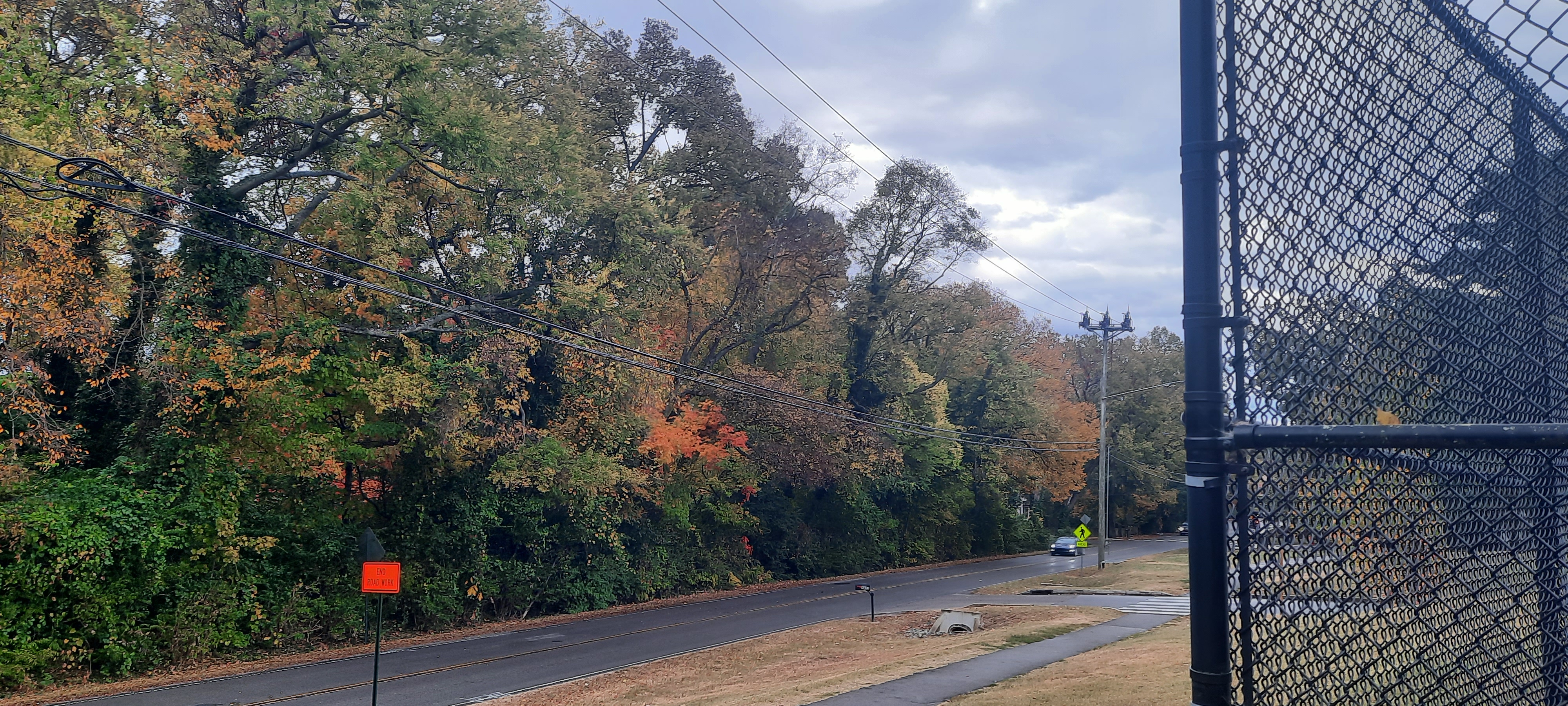
- If you want to code-along with this tutorial, any four JPG images will work. If you wish to use the images I used, you’ll find the links to download each image below.



Thanks for reading,
Michael