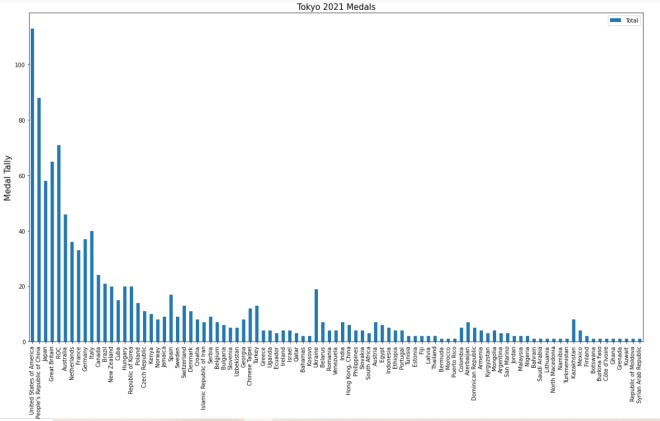
These three datasets contains information regarding the Tokyo 2021 (yes I’ll call it that) Olympics medal tally for each participating country-this include gold medal, silver medal, bronze medal, and total medal tallies for each nation.
Once you open your IDE, run this code:
import pandas as pd

tokyo21medals = pd.read_csv('C:/Users/mof39/Downloads/Tokyo Medals 2021.csv')
Now, let’s check the head of the data-frame we’ll be using for this lesson. Here’s the head of the tokyo21medals data-frame:
As you can see, this data-frame has 5 variables, which include:
Country-the name of a country
Gold Medal-the country’s gold medal tally
Silver Medal-the country’s silver medal tally
Bronze Medal-the country’s bronze medal tally
Total-the country’s total medal tally
OK, now that we’ve loaded and analyzed our data-frame, let’s start building some visualizations.
Let’s create the first visualization using the tokyo21medals data-frame with this code:
tokyo21medals.plot(x='Country', y='Total')
And here’s what the plot looks like:
The plot was successfully created, however, here are some things we can fix:
The y-axis isn’t labelled, so we can’t tell what it represents.
A title for the plot would be nice as well.
The plot should be larger.
A line graph isn’t the best visual for what we’re trying to plot
So, how can we make this graph better? The first thing we’d need to do is import the MATPLOTLIB package:
import matplotlib.pyplot as plt
%matplotlib inline
What exactly does the MATPLOTLIB package do? Well, just like the pandas package, the MATPLOTLIB package allows you to create Python visualizations. However, while the pandas package allows you to create basic visualizations, the MATPLOTLIB package allows you to add interactive and animated components to the visual. MATPLOTLIB also allows you to modify certain components of the visual (such as the axis labels) that can’t be modified with pandas alone; in that sense, MATPLOTLIB works as a great supplement to pandas.
I’ll cover the MATPLOTLIB package more in depth in a future post, so stay tuned!
The %matplotlib inline code is really only used for Jupyter notebooks (like I’m using for this lesson); this code ensures that the visual will be displayed directly below the code as opposed to being displayed on another page/window.
Now, let’s see how we can fix the visual we created earlier:
In the plot() function, I added two parameters-kind and figsize. The kind parameter allows you to change the type of visual you want to create-the default visual that pandas uses is a line graph. By setting the value of kind equal to bar, I’m able to create a bar-chart with pandas. The figsize parameter allows you to change the size of the visual using a 2-value tuple (which can consists of integers and/or floats). The first value in the figsize tuple represents width (in inches) of the visual and the second value represents height (also in inches) of the visual. In this case, I assigned the tuple (20,11) to the `figsize parameter, which makes the visual 20 inches wide by 11 inches tall.
Next, take a look at the other lines of code in the code block (both of which begin with plt). The plt functions are MATPLOTLIB functions that allow you to easily modify certain components of your pandas visual (in this case, the y-axis and title of the visual).
In this example, the plt.title() function took in two parameters-the title of the chart and the font size I used for the title (size 15). The plt.ylabel() function also took in two parameters-the name and font size I used for the y-axis label (I also used a size 15 font here).
So, the chart looks much better now, right? Well, let’s take a look at the x-axis:
The label for the x-axis is OK, however, it’s awfully small. Let’s make the x-axis label size 15 so as to match the sizing of the title and y-axis label:
plt.xlabel('Country', size=15)
To change the size of the x-axis label, use the plt.xlabel() function and pass in two parameters-the name and size you want to use for the x-axis label. And yes, even though there is already an x-axis label, you’ll still need to specify a name for the x-axis label in the plt.xlabel() function.
Just a helpful tip-execute the plt.xlabel() function in the same code-block where you executed the plot() function and plt() functions.
Now, let’s see what the x-axis label looks like after executing the code I just demonstrated:
The x-axis label looks much better (and certainly more readable)!
It’s Michael here, and today’s lesson will be on cleaning a pandas data-frame (pt.3 in my pandas series).
Analyzing data certainly gives you useful insights on your data-however, most real life datasets don’t look as neat as the datasets we’ve worked with over the course of this blog’s run. Oftentimes, real life datasets can be quite messy, which means you’d need to tidy them up before working with them.
Here’s the messy dataset we’ll be working with in this post:
This datasets contains data regarding 650 employees at a company. And in case you’re wondering, unlike with most of my blog posts, this data doesn’t pertain to anything in real life. I completely made it up.
Now, let’s open up our IDE, import the pandas package, and read our data-frame into our IDE:
import pandas as pd

employees = pd.read_csv('C:/Users/mof39/OneDrive/Documents/Employee data.csv')
Keep in mind that the dataset I’m using and the dataset I provided for you guys have different names-that’s because WordPress doesn’t let me upload CSVs and the read_csv function doesn’t work with XLSX files. The dataset I provided for you guys and the dataset I’m using in this code is the same dataset-just named differently so I can easily distinguish between the CSV and XLSX files.
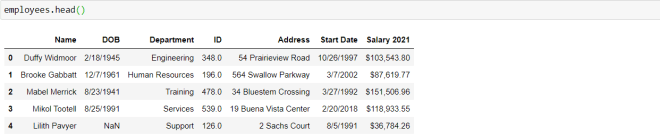
Great! Now, let’s take a look at the head of our data-frame:
As you can see, our dataset has seven variables. Let’s explore what each variable represents:
Name-The name of the employee
DOB-The employee’s date of birth
Department-The employee’s department in the company
ID-The employee’s employee ID number
Address-The employee’s home address
Start Date-The date the employee started with the company
Salary 2021-The employee’s base (pre-tax) salary for the calendar year 2021.
However, we can’t yet create any visualizations with this data or conduct any meaningful analyses. Here are the things we must clean up first:
Two employee records are repeated multiple times.
There are several null records in the DOB column.
Several records in the ID column are stored as float, not int.
First, let’s take care of the null records in the DOB column. When dealing with null/blank records in a data-frame, there are two ways you can deal with this issue:
Remove the rows with null values from the dataset.
Replace the null values with a specific value or the mean/median/mode of the values in the column.
Well, since the null records are found in a date column, replacing the nulls with the mean/median/mode won’t work here. We could replace the null records in the DOB column with something like 1/1/2021 or we could remove the rows with null records altogether.
In this case, let’s remove the null records altogether. Here’s the code to do so:
employees.dropna(inplace=True)
You will only need a single line of code with the dropna() function in order to drop all null rows from the dataset. Now, you’re probably wondering what inplace=True means-this line of code signifies that you want to drop all null rows from your current data-frame. If you don’t include this line of code, a new data-frame with the null rows removed will be created-your current data-frame (employees) won’t be changed at all.
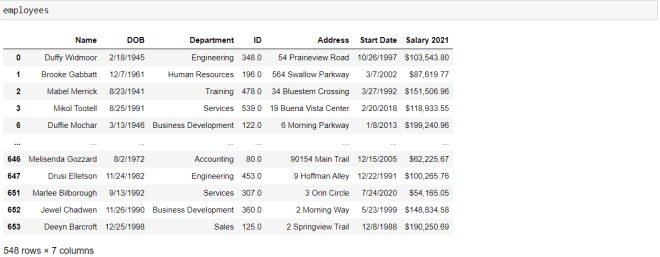
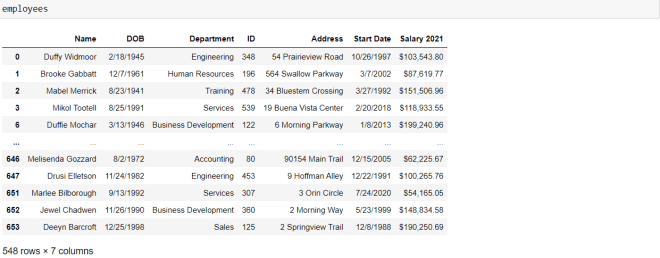
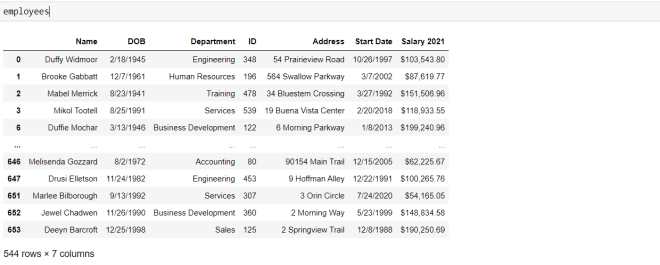
Now, let’s see what the dataset looks like without the null rows:
As you can see, there are now 548 rows in the dataset (there were 654 rows before we removed the null records).
But what if you didn’t want to remove all the records with null birthdates? What if you simply wanted to fill all null DOB records with a placeholder date-let’s say 8/29/2021. Here’s the code you’d need to run:
To replace all the null values in a certain column with a placeholder value, use the fillna() function with two parameters-the value you’d want to use to replace the null values and the inplace=True line. The inplace=True line works the same way here as it does with the dropna() function.
Another thing to note is that if you only want to replace the null values in a specific column, you’d need to specify that column before the fillna() function. If you don’t do this, ALL null values in the data-frame will be replaced, which isn’t ideal since the values in each column of your data-frame are usually of different data types.
Now, the second bit of cleaning we’d need to do is to change the ID values to type int-they are currently of type float. Here’s the code we’d use to change the data type of values in a pandas data-frame column:
To change the data type of the values in the ID column from floats to integers, use the to_numeric() function and pass in two parameters-the column that you want to format (employees["ID"]) in this case and downcast=integer. The reason for the downcast=integer line is to ensure all of the values in the ID column will be converted into integers. Had we not included this line, the data type of the values in the ID column would’ve still been floats.
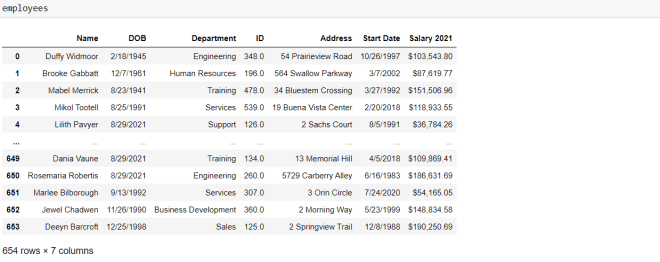
Now, let’s see what the table looks like after this modification:
As you can see, all of the values of the ID column are now integers.
Note, this is what the data-frame looks like after I dropped the null DOB values, not after I filled the null DOB values with 8/29/2021.
Last but not least, I mentioned that two employees’ records are duplicated. Let’s see how we can remove duplicate values from a data-frame:
employees.drop_duplicates(inplace=True)
To remove the duplicates from the data-frame, simply use the drop_duplicates() function and pass in the parameter inplace=True.
Last but not least, let’s export our cleaned data-frame to a CSV file. Here’s the code to do so:
employees.to_csv('C:/Users/mof39/OneDrive/Documents/Employee data cleaned.csv')
After specifying the data-frame you want to export, use the to_csv() function to export the data-frame. You’ll need to pass in 1 parameter-the location on your computer where you want to store the cleaned data frame. It’s that simple.
Michael here, and today’s lesson will cover more pandas Python fundamentals-this is the second lesson in my pandas series.
Now that I’ve introduced you all to the basics of Python’s pandas package, let’s discover some more fundamental functionalities of the Python pandas package.
The dataset I’ll be using is the 2020 US gubernatorial election dataset I used in the previous post. Here’s the link to that post, where you will find that dataset: Python Lesson 24: The Basics of Pandas (pandas pt. 1).
Before we begin, be sure you have the pandas package installed on your computer. Once you confirm that you have the pandas package installed, run these two lines of code:
import pandas as pd

elections = pd.read_csv('C:/Users/mof39/OneDrive/Documents/2020 Gubernatorial Data.csv')
The first line of code will import the pandas package to Jupyter Notebook (or whatever IDE you’re using). The second line of code will read the 2020 Gubernatorial Data CSV file to your IDE.
The downloadable dataset actually comes in an XLSX format, but that’s only because WordPress wouldn’t let me upload CSV files. However, you’ll need a CSV file for the second line of code to work. An easy workaround would be to change the .XLSX at the end of the file name to a .CSV, which automatically changes the file type to a CSV.
Now, before we begin exploring some other basic pandas functionalities, let’s explore each of the variables in this dataset, as I feel it will be important to do so for context:
state-the state where the election took place
county-the county in a particular state
candidate-the gubernatorial candidate on the ballot in a particular state’s election
party-the political party of the candidate
votes-how many votes the candidate earned in a particular county
won-whether the candidate won the gubernatorial election in a state (True means they won and False means they lost)
Incumbent Party-the political party of the state’s incumbent governor (as of November 2020)
Winner Party-the political party of the winner of the state’s gubernatorial election (effective January 2021)
Great, now that we’ve explained the data and created the data-frame, let’s start exploring more pandas functionalities!
The first thing I’ll demonstrate is how to create a smaller data-frame from a larger data-frame (slicing a data-frame, in other words). Let’s say we wanted to create a smaller data-frame that focuses on the North Carolina 2020 gubernatorial election. How would we do so? Here’s how:
To slice a pandas data-frame, use the loc[] function. Notice that you’ll need to pass in parameters into square brackets rather than the regular parentheses.
Speaking of parameters, you’ll need to pass in the filtering criteria that you will use to create your new array-you’ll also need to pass in the filtering criteria in regular parentheses ().
Pay attention to the filtering criterion I used-elections["state"] == "North Carolina". In this section of code, I’m specifying that I want to create a new data-frame containing only records from the original data-frame (elections) where the state is North Carolina.
The loc[] function is always appended to the name of the original data-frame (e.g. elections.loc[(...)].
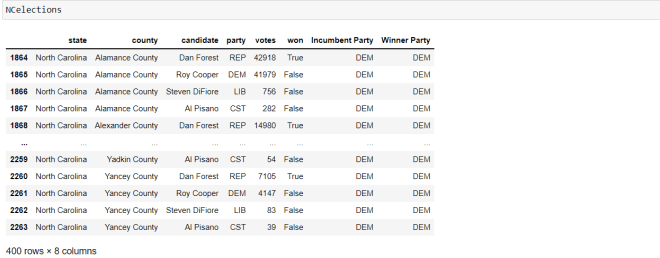
Now, let’s take a look at the new mini data-frame we created:
To see the mini data-frame, simply type the name of the mini data-frame you created (NCelections) and run the code. As you can see here, there are 400 records for the North Carolina 2020 gubernatorial elections.
Now, let’s say we wanted to created a new mini data-frame that uses two filtering criteria. Let’s keep the data limited to North Carolina records, but let’s also further filter the data to only display five columns-county, candidate, party, votes, and won.
Just as with the previous example, we’d use the loc[] function here too. We’d also pass in the elections["state"] == "North Carolina" line as a parameter here too. However, we’d also pass in another parameter-an array of columns that we would like to display in the data-frame; the only columns that will be displayed are those that are included in this list (county, candidate, party, votes, and won in this example). Also remember to separate both of the filtering criteria with a comma.
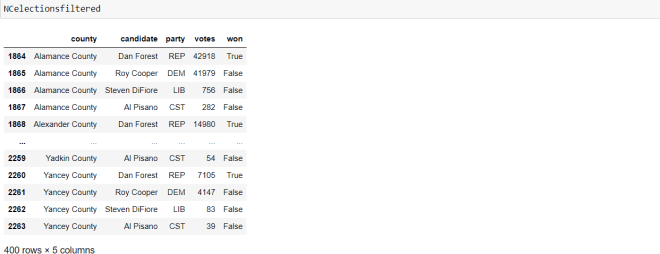
Now, let’s take a look at the new mini data-frame we created:
Just like the last mini data-frame we created, this data-frame also has 400 records. However, we only see the five columns we specified in the filtering criteria (which I think makes the data-frame look neater).
The next pandas functionality that I will discuss is grouping data in pandas. A cool thing about pandas data-frames is that they can be split on either rows or columns. You can also group the data by multiple criteria.
Let’s use the original elections data-frame to group the data both by state and by candidate. Here’s how we’d do so:
elections.groupby(["state", "candidate"]).first()
In this example, I used the groupby() function to group the data first by state and then by candidate. To group data in pandas, you’d need to use the groupby() function and pass a list of all the column(s) or row(s) you wish to group the data by as the parameter for this function.
You can also see that I added an additional first() functionality. In this example, first() sorts the data alphabetically, first by state, then by candidate name. In other words, the states are displayed in ascending alphabetical order and the candidates for each state are displayed in ascending alphabetical order by first name (e.g. for Missouri, Jerome Bauer is listed first, then Mike Parson, then Nicole Galloway, and Rick Combs). However, you’ll notice that in the New Hampshire group, Write-ins are displayed before Chris Sununu-this could be because Write-ins aren’t a name and therefore are listed before any of the candidate names.
Next up, I’ll demonstrate how to access individual columns in a pandas data-frame. Let’s say we wanted to access the state, candidate, and party columns (using the original elections dataframe):
elections.loc[:,["state", "candidate", "party"]]
To retrieve specific columns from a data-frame, use the loc[] function and pass in two parameters-: to retrieve the rows from the dataset, and a nested list of column names to retrieve.
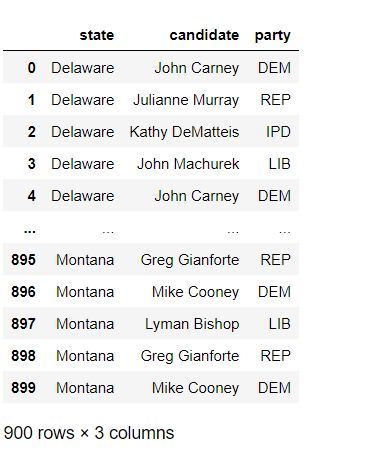
Now, regarding the colon (:) parameter-the colon allows you to retrieve all rows of data pertaining to the columns you chose to retrieve. However, if you wanted to only retrieve the first X rows or the last X rows of the dataset, how would you approach this? Let’s see how this would work by retrieving only the first 900 rows:
To retrieve the first 900 rows of the dataset, use :899 in place of : as the first parameter of the loc[] function-using :899 tells the loc[] function to only retrieve the first 900 rows of the dataset. If you wanted to retrieve the last 900 rows of this dataset, use 4245: in place of : as the first parameter of the loc[] function.
You’re probably wondering why you’d need to use :899 instead of :900 to retrieve the first 900 rows of the filtered data. This is because the first parameter of the loc[] function involves array indexing, so the first-index-is-0 rule applies here-by that same logic, the 900th index is 899 not 900.
To only retrieve certain columns, you’d need to add a nested list of columns you want to retrieve as the second parameter of the loc[] function-I used the nested list ["state", "candidate", "party"] to retrieve the state, candidate, and party columns.
Next, I’ll show you how to access a certain element in a data-frame. Let’s say we wanted to see how many votes the candidate in the 100th row (index 99) got. Here’s the code we’d use to find the answer to this question (using the elections data-frame):
elections.loc[99].at["votes"]

25647
So how did we get 25,647 as the output? Let’s break down this code function-by-function. The first function, elections.loc[99], returns this pandas object:
state                     Indiana
county             Hancock County
candidate            Eric Holcomb
party                         REP
votes                       25647
won                          True
Incumbent Party               REP
Winner Party                  REP
Name: 99, dtype: object
When using the loc[] function to retrieve an element from a pandas data-frame, the number that you pass into the loc[] parameter corresponds to the row that will be returned. Since I passed in 99 as the loc[] parameter, the function will retrieve the 100th row in the elections data-frame (loc[99] corresponds to the 100th row).
The second function in the above code-.at["votes"]-retrieves the value of the votes column that corresponds to the 100th row in the elections data-frame. Since the values of votes for the 100th row is 25,647, 25,647 is the output for the function.
The last thing I will show you is how to delete columns & rows from a data-frame. Let’s say we wanted to remove the Incumbent Party and Winner Party columns. Here’s the code we’d use to do so:
To drop columns in a data-frame, you’ll need to use the drop() function along with three parameters-the column(s) you want to drop, the line axis=1 which signifies that you want to remove a column from a data-frame, and the line inplace=True which ensures that the column will be removed.
It’s important to include the inplace=True line because by doing so, you’ll ensure that you’ll obtain the original data-frame without the removed columns. If you don’t include this line, you’ll simply get a copy of the original data-frame without the removed columns-in other words, the original data-frame with the columns you wanted to remove will still sit in your computer’s memory, which isn’t efficient when dealing with large datasets.
The axis=1 line is also important to include because it signifies that you are removing columns from the data-frame. Using axis=0 would signify that you want to remove rows from the data-frame (I’ll show you how to do this shortly).
Also, you’ll only need to pass in a list of columns for the first parameter if you’re removing several columns. if you’re only removing a single column, there’s no need to nest that column in a list.
To see the data-frame after removing the columns, simply type the name of the data-frame in your IDE and run the code. Here’s what the elections data-frame looks like after removing the Incumbent Party and Winner Party columns:
Awesome! Now let’s see how to remove rows from a data-frame. More specifically, let’s see how to remove the last row from this data-frame:
elections.drop(5144, axis=0, inplace=True)
Since there are 5,145 rows in this data-frame, you’d pass in 5144 as the first parameter since 5144 corresponds to the index of the last row of data. Similar to the previous example, right? However, you’d pass in axis=0 as the second parameter of the drop() function rather than axis=1 because you’re removing a row, not a column. You’d also include the inplace=True argument to signify that you want to return the original data-frame with the dropped row rather than a copy of the data-frame with the dropped row.
Now, let’s see what the elections data-frame looks like (remember to run the line elections on your IDE):
As you can see, the data-frame now has 5,144 rows as opposed to 5,145.
Now, what if you wanted to delete a range of rows as opposed to a single row? Here’s the code we’d use to do so:
elections.drop([0:9], axis=0, inplace=True)
Just like the last example, we’d use the axis=2 and inplace=True values as the second and third parameters, respectively. However, we’d pass an array as the first parameter instead of a single value-the array represents the range of rows we’d like to remove from the dataset.
I didn’t execute this code-I just included this as an example of how to write your code if you want to remove multiple rows of data.
Now, the cool thing about pandas row-removal is that you can remove rows according to very specific criteria (which you can’t do with columns). Let’s say we wanted to remove all the rows corresponding to Delaware’s gubernatorial elections. How would we do that? Here’s how:
In this example, I still used axis=0 and inplace=True as the second and third parameters of the drop function, respectively. However, for the first parameter, I used a nested index() function. Inside the index() function, I passed the filtering criteria I wanted to use to drop rows-elections["state"] == "Delaware". This portion of code lets Python know that I want to drop all rows containing Delaware as the value for state.
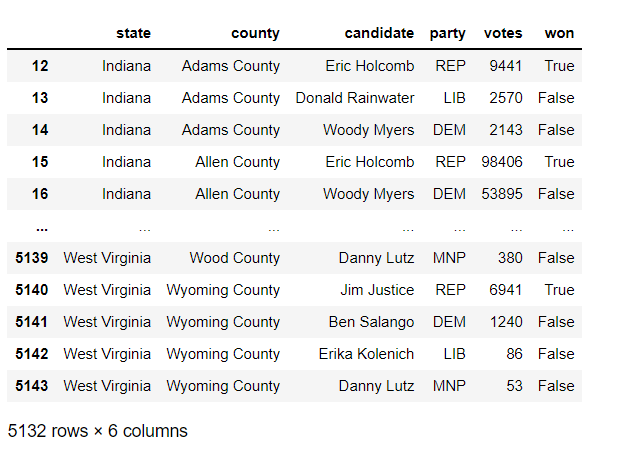
Let’s see what the data-frame looks like once we drop the Delaware rows:
Before we dropped the Delaware rows, there were 5,144 rows in this data-frame. After removing the Delaware rows, we now have 5,132 rows in this data-frame. Interestingly enough, the last index is still 5143-which is what the last index was before we dropped the 5,145th row. Also, since the Delaware rows were also the first 12 rows of the dataset, rows 0-11 have been removed; the first row is the 13th row (or 12th index).
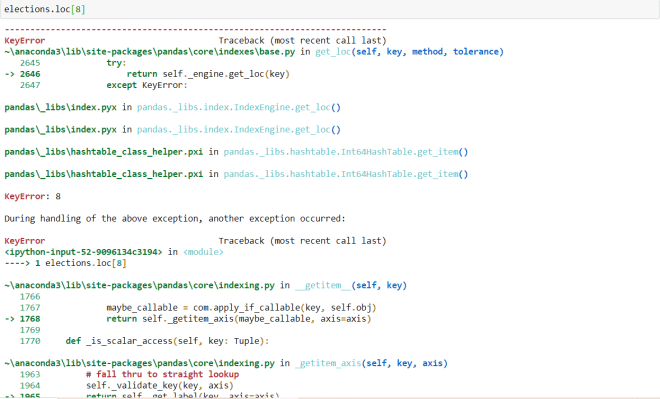
Watch what happens when I try to retrieve row index 8 (the original 9th row):
Since row index 8 was deleted, I get an error when trying to retrieve this row index as it no longer exists.
Last but not least, let’s see how to delete a whole data-frame:
del elections
That’s it-it just takes a simple del command to delete a data-frame. Now, let’s try to access the data-frame’s head to see if it’s still there:
As you can see, when we try to access the data-frame’s head after deleting it, we get a NameError telling us that the name elections is not defined. This confirms that the data-frame was successfully deleted.
Michael here, and today’s post will be a Python lesson that demonstrates the basics of the pandas package-this will be the first lesson in my pandas Python series.
So, what does the pandas package do? Well, just like the NumPy package, pandas is another package for working with datasets in Python. However, one major difference between the pandas and NumPy packages is that pandas has functions to read data into Python, while NumPy has no such functionality (yet). The pandas package is also better suited for cleaning up messy data sets than the NumPy package.
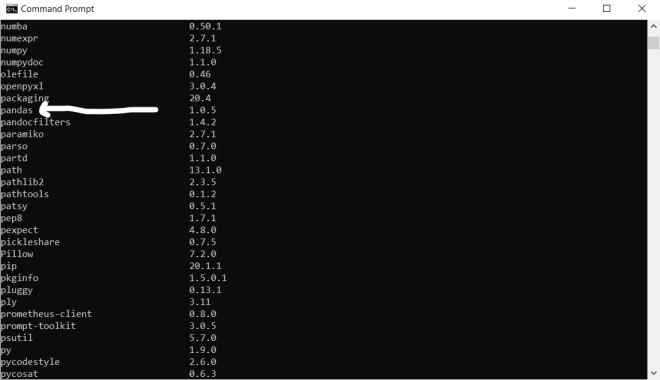
To use the pandas packages, run the pip install pandas command on your command prompt (or better yet, before you run this command, run pip list on the command prompt to see if pandas is already installed and if it isn’t, then run the pip install pandas command).
In this case, I already have the pandas package installed on my computer, so no need to install it again.
After you’ve installed the pandas package on your computer, run the import pandas as pd command to import pandas onto whatever Python IDE you are using (I’m using Jupyter notebook for these posts).
Great! Now that we’ve gotten the installation underway, let’s start exploring some of the basic things we can do with the pandas package.
One of the most common things that you can do with pandas is read CSV files into Python. Here’s how to do so:
In this line of code, I read a CSV dataset stored on my computer onto Python using the pd.read_csv function. This dataset contains data on various 2020 gubernatorial elections that occurred in the United States (I was going to use this for a blog post last year but never did). You should also save your dataset as a variable, which represents a pandas data frame.
As you all might have figured out, to read a CSV dataset into pandas, you’d need to use the pd.read_csv() function and pass in the path to the CSV file as this function’s parameter.
If your CSV file is stored in the same directory where you’re running this code, simply passing in the name of the CSV file will work (though don’t forget to add the .csv at the end of the file name.
Passing in an XLS or XLSX file won’t work here!
Now that we’ve read the dataset into Python, let’s do some exploratory analysis!
First, let’s see what the head of the dataset looks like:
The head of the dataset refers to the first X rows of the dataset. You can specify a number in the head() function parameter, but if you don’t, the first five rows of the dataset will be displayed be default.
When displaying the head of the dataset, use this syntax-dataframe name.head(rows to display)
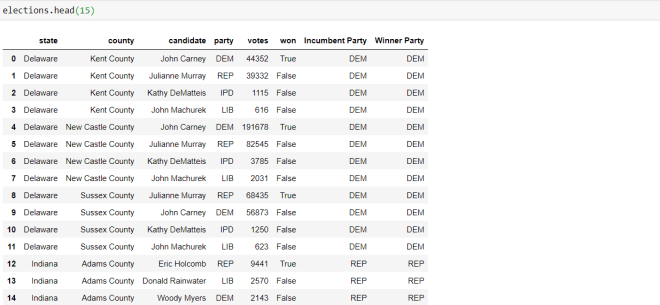
Ok, what if we wanted to see this dataset’s first 10 rows? Here’s how we’d execute the code:
To display the first 15 rows of the data-frame, I ran the code elections.head(15)-passing in 15 as the parameter of the head() function.
Now that we’ve learned to display the head of the dataset, let’s display the tail of the dataset. In case you didn’t figure out the head/tail logic-the head refers to the first X rows of the dataset while the tail refers to the last X rows of the dataset.
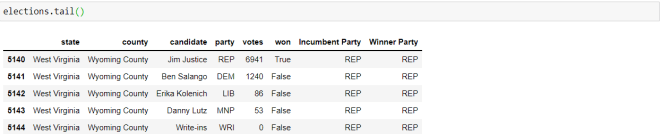
Here’s how to display the tail of the dataset:
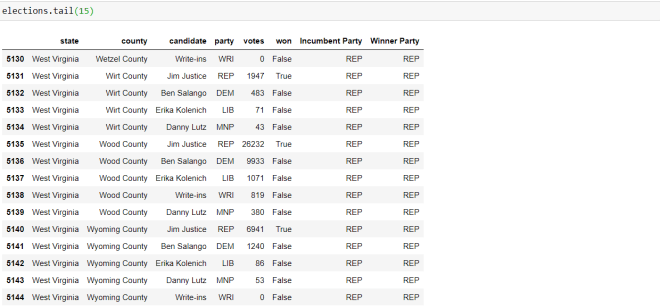
To display the tail of a dataset, you’d use the same syntax that you’d use to display the head of a dataset, except you’d swap the head() function for the tail() function. Also, just as with the head() function, you can pass in a number for the tail() function and if you don’t pass in a number, the last five rows will be displayed by default (recall that with the head() function, if you don’t pass in a number into the function, the first five rows will be displayed by default.
Now, let’s display the last 15 rows of the dataset:
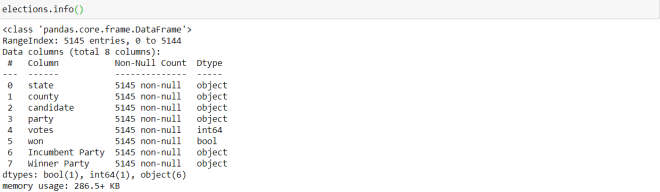
Now, what if we wanted to retrieve the basic information about this dataset? The info() function allows us to do just that:
The syntax to run the info() function is name of dataframe.info(). Unlike the head() and tail() functions, you can’t pass in any parameters to the info() function.
The info() function displays the following information:
The class of the elections object (a pandas.core.frame.DataFrame)
The RangeIndex (which indicates the number of records in the dataset-5145)
The names of each of the variables/columns, the non-null count (which shows how many non-null records are in a certain column) for each column, and each columns’ variable type
The dtypes and count of each dtype (which simply displays a count of each variable type in the dataset)