Python Lesson 29: More Things You Can Do With MATPLOTLIB Bar Charts (MATPLOTLIB pt. 2)

Advertisements

Hello everybody,

Michael here, and today’s lesson will cover more neat things you can do with MATPLOTLIB bar-charts.

In the previous post, I introduced you all to Python’s MATPLOTLIB package and showed you how you can use this package to create good-looking bar-charts. Now, we’re going to explore more MATPLOTLIB bar-chart functionalities.

Before we begin, remember to run these imports:

import pandas as pd
import numpy as np
import matplotlib.pyplot as plt

#Also include the %matplotlib inline line in your notebook.

Also remember to run this code:

tokyo21medals = pd.read_csv('C:/Users/mof39/OneDrive/Documents/Tokyo Medals 2021.csv')

This code creates a data-frame that stores the Tokyo 2021 medals data. The link to this dataset can be found in the Python Lesson 27: Creating Pandas Visualizations (pandas pt. 4) post.

Now that we’ve done all the necessary imports, let’s start exploring more cool things you can do with a MATPLOTLIB bar-chart.

Let’s say you wanted to add some grid lines to your bar-chart. Here’s the code to do so (using the gold bar vertical bar-chart example from Python Lesson 28: Intro to MATPLOTLIB and Creating Bar-Charts (MATPLOTLIB pt. 1)):

tokyo21medals.plot(x='Country', y='Total', kind='bar', figsize=(20,11), legend=None)
plt.title('Tokyo 2021 Medals', size=15)
plt.ylabel('Medal Tally', size=15)
plt.xlabel('Country', size=15)
xValues = np.array(tokyo21medals['Country'])
yValues = np.array(tokyo21medals['Total'])
plt.bar(xValues, yValues, color = 'gold')
plt.grid()
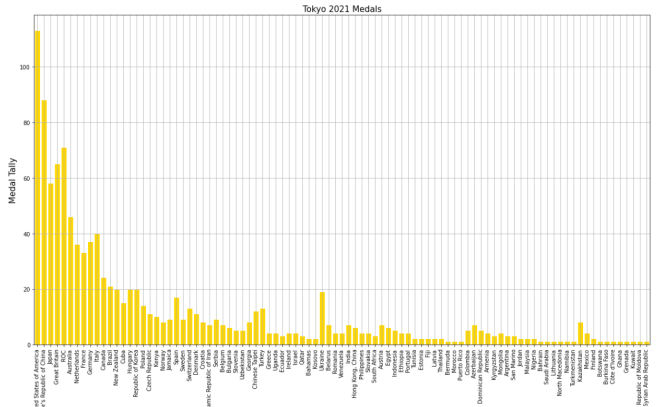
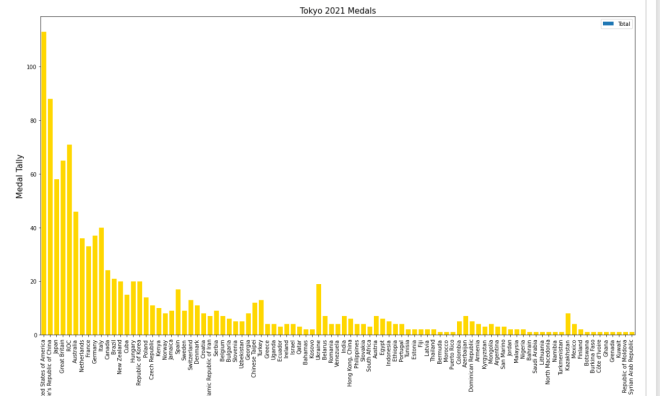
Pretty neat, right? After all, all you needed to do was pop the plt.grid() function to your code and you get neat-looking grid lines. However, in this bar-chart, it isn’t ideal to have grid lines along both axes.

Let’s say you only wanted grid lines along the y-axis. Here’s the slight change in the code you’ll need to make:

plt.grid(axis='y')

In order to only display grid lines on one axis, pass in an axis parameter to the plt.grid() function and set the value of axis as the axis you wish to use as the parameter (either x or y). In this case, I set the value of axis to y since I want the gridlines on the y-axis.

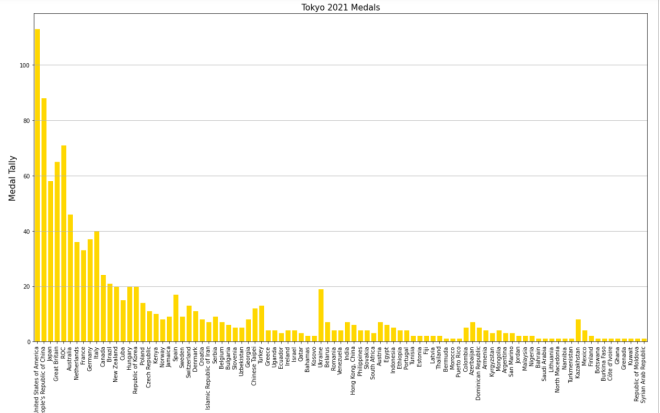
Here’s the new graph with the gridlines on just the y-axis:

Honestly, I think this looks much neater!

Now, what if you wanted to plot a bar-chart with several differently-colored bars side-by-side? In the context of this dataset, let’s say we wanted to plot each country’s bronze medal, silver medal, and gold medal count side-by-side. Here’s the code we’d need to use:

tokyo21medalssubset = tokyo21medals[0:10]

plt.figure(figsize=(20,11))
X = tokyo21medalssubset['Country']
bronze = tokyo21medalssubset['Bronze Medal']
silver = tokyo21medalssubset['Silver Medal']
gold = tokyo21medalssubset['Gold Medal']
Xaxis = np.arange(len(X))
plt.bar(Xaxis - 0.2, bronze, 0.3, label='Bronze medals', color='#cd7f32')
plt.bar(Xaxis, silver, 0.3, label='Silver medals', color='#c0c0c0')
plt.bar(Xaxis + 0.2, gold, 0.3, label='Gold medals', color='#ffd700')
plt.xticks(Xaxis, X)
plt.xlabel('Country', size=15)
plt.ylabel('Total medals won', size=15)
plt.title('Tokyo 2021 Olympic medal tallies', size=15)
plt.legend()
plt.show()

So, how does all of the code work? Well, before I actually started creating the code that would create the bar-chart, I first created a subset of the tokyo21medals data-frame aptly named tokyo21medalssubset that contains only the first 10 rows of the tokyo21medals data-frame. The reason I did this was because the bar-chart would look rather cramped if I tried to include all countries.

After creating the subset data-frame, I then ran the plt.figure function with the figsize tuple to set the size of the plot to (20,11).

The variable X grabs the x-axis values I want to use from the data-frame-in this case I’m grabbing the Country values for the x-axis. However, X doesn’t create the x-axis; that’s the work of the aptly-named Xaxis variable. Xaxis actually creates the nice, evenly-spaced intervals that you see on the above bar-chart’s x-axis; it does so by using the np.arange() function and passing in len(X) as the parameter.

As for the bronze, silver, and gold variables, they store all of the Bronze Medal, Silver Medal, and Gold Medal values from the tokyo21medalssubset data-frame.

After creating the Xaxis variable, I then ran the plt.bar() function three times-one for each column of the data-frame I used. Each plt.bar() function has five parameters-the bar’s distance from the “center bar” in inches (represented with Xaxis +/- 0.2), the variable representing the column that the bar will use (bronze, silver, or gold), the width of the bar in inches (0.3 in this case), the label you want to use for the bar (which will be used for the bar-chart’s legend), and the color you want to use for the bar (I used the hex codes for bronze, silver, and gold).

  • By “center bar”, I mean the middle bar in a group of bars on the bar-chart. In this bar-chart, the “center bar” is always the grey bar as it is always between the silver and gold bars in all of the bar groups.
  • Don’t worry, I’ll cover color hex codes in greater detail in a future post.

After creating the bronze, gold, and silver bars, I then used the plt.xticks() function-and passed in the X and Xaxis variable to create the evenly-spaced x-axis tick marks on the bar-chart. Once the x-axis tick marks are plotted, I used the plt.title(), plt.xlabel(), and plt.ylabel() functions to set the labels (and display sizes) for the chart’s title, x-axis, and y-axis, respectively.

Lastly, I ran the plt.legend() and plt.show() functions to create the chart’s legend and display the chart, respectively. Remember the label parameter that I used in each of the plt.bar() functions? Well, each of these values were used to create the bar-chart’s legend-complete with the appropriate color-coding!

Now, what if instead of plotting the bronze, silver, and gold bars side-by-side, you wanted to plot them stacked on top of each other. Here’s the code we’d use to do so:

plt.figure(figsize=(20,11))
X = tokyo21medalssubset['Country']
bronze = tokyo21medalssubset['Bronze Medal']
silver = tokyo21medalssubset['Silver Medal']
gold = tokyo21medalssubset['Gold Medal']
Xaxis = np.arange(len(X))
plt.bar(Xaxis, bronze, 0.3, label='Bronze medals', color='#cd7f32')
plt.bar(Xaxis, silver, 0.3, label='Silver medals', color='#c0c0c0', bottom=bronze)
plt.bar(Xaxis, gold, 0.3, label='Gold medals', color='#ffd700', bottom=silver)
plt.xticks(Xaxis, X)
plt.xlabel('Country', size=15) 
plt.ylabel('Total medals won', size=15)
plt.title('Tokyo 2021 Olympic medal tallies', size=15)
plt.legend()
plt.show()
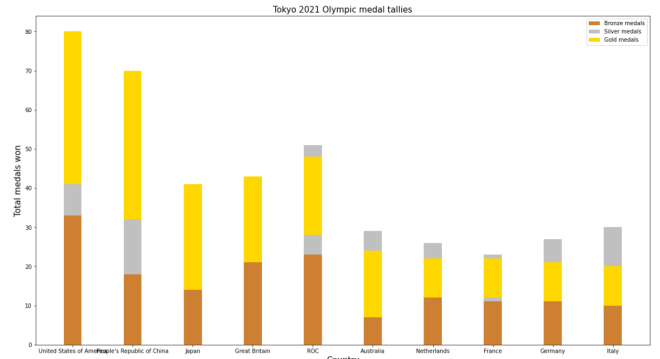
Now, this code is similar to the code I used to create the bar-chart with the side-by-side bars. However, there are some differences the plt.bar() functions between these two charts, which include:

  • There’s no +/- 2 in any parameter, as I’m stacking bars on top of each other rather than plotting them side-by-side
  • For the second and third plt.bar() functions, I included a bottom parameter and set the value of this parameter to the bar I want to plot below the bar I’m plotting.
    • OK, that may sound confusing, but to clarify, when I’m plotting the silver bar, I set bottom equal to bronze as I’m plotting the bronze bar below the silver bar. Likewise, when I plot the gold bar, I set bottom equal to silver, as I want the silver bar below the gold bar.

Honestly, this looks much neater than the side-by-side bar-chart we made.

Aside from the differences in plt.bar() functions between this chart and the chart above, the rest of the code is the same between the two charts.

Thanks for reading,

Michael

Python Lesson 28: Intro to MATPLOTLIB and Creating Bar-Charts (MATPLOTLIB pt. 1)

Advertisements

Hello everybody,

Michael here, and today’s lesson will serve as an intro to Python’s MATPLOTLIB package-this is part 1 in my MATPLOTLIB series. I will also cover bar-chart manipulation with MATPLOTLIB.

Now, as I mentioned in my previous post (Pandas Lesson 27: Creating Pandas Visualizations (pandas pt. 4)), MATPLOTLIB is another Python visualization creation package-just like pandas-but unlike the pandas package, MATPLOTLIB has more functionalities (such as adding interactive components to visualizations).

Now, to work with the MATPLOTLIB package, be sure to run this command to install the package-pip install matplotlib (or run the pip list command to check if you already have it).

For this post, we’ll be working with the same Tokyo 2021 dataset we used for the previous post (click the Pandas Lesson 27 link to find and download that dataset).

Once you’ve installed the MATPLOTLIB package, run this code in your IDE:

import pandas as pd
import matplotlib.pyplot as plt
%matplotlib inline

tokyo21medals = pd.read_csv('C:/Users/mof39/OneDrive/Documents/Tokyo Medals 2021.csv')
  • Since I didn’t discuss the PYPLOT sub-package, I’ll do so right here. PYPLOT is essentially a MATPLOTLIB sub-package that contains the majority of MATPLOTLIB’s utilities-this is why when we import MATPLOTLIB to our IDE, we usually include the PYPLOT sub-package.

You’ll probably recognize all of this code from the previous post. That’s because I used some MATPLOTLIB in the previous post and included the %matplotlib inline line. You’ll also need to import pandas and create a pandas data-frame that stores the Tokyo Medals 2021 dataset into the IDE (just for consistency’s sake, I’ll call this data-frame tokyo21medals).

Now, before we get into more MATPLOTLIB specifics, let’s review the little bit of MATPLOTLIB I covered in the previous lesson.

So, just to recap, here’s the MATPLOTLIB code I used to create the bar-chart in the previous lesson:

tokyo21medals.plot(x='Country', y='Total', kind='bar', figsize=(20,11))
plt.title('Tokyo 2021 Medals', size=15)
plt.ylabel('Medal Tally', size=15)
plt.xlabel('Country', size=15)

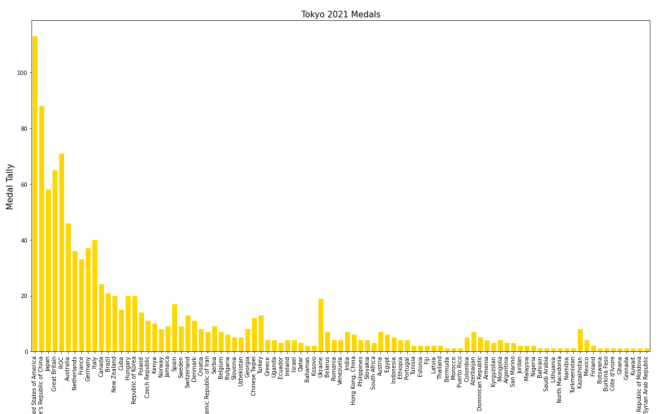
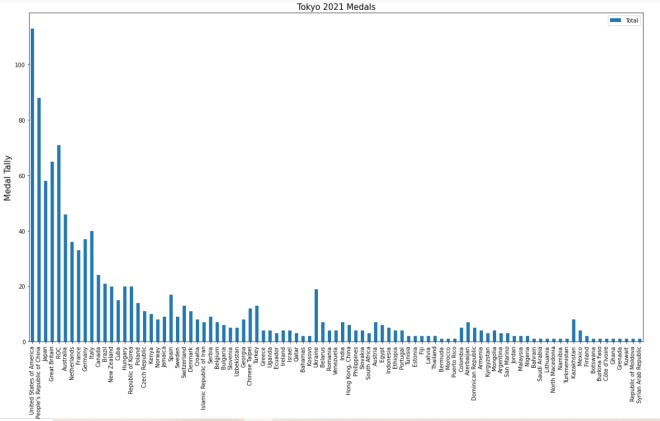
And here’s the bar-chart that was generated:

Now, how exactly did I generate this bar-chart? First of all, I used pandas’ plot() function (remember to import pandas) and filled it with four parameters-the column I want to use for the x-axis, the column I want to use for the y-axis, the type of visual I want to create, and the display size I want for said visual.

After creating the blueprint of the visual with pandas’ plot() function, I then used MATPLOTLIB’s plt.title() function to set a title for the bar-chart (I also passed in a size parameter to set the display size of the title). Next, I used MATPLOTLIB’s plt.ylabel() function to set a label for the chart’s y-axis and just as I did with the plt.title() function, I passed in a size parameter to set the display size for the y-axis label. Lastly, I used the plt.xlabel() function to change the bar-chart’s x-axis label, and, just as I did for the plt.title() and plt.xlabel() functions, I also added a size parameter to set the display size for the x-axis label. However, when you first create the bar-chart, you’ll notice that a default x-axis label has already been set-Country-which is the name of the column I chose for the x-axis. In this case, I didn’t change the label name, just the label display size. However, in order to change the label display size, you’ll need to pass in the x-axis label you’d like to use as the first parameter of the plt.xlabel() axis function.

  • Why do all of these functions start with plt? Remember the import matplotlib.pyplot as plt import you did.

Now, MATPLOTLIB bars are blue by default. What if you wanted to change their color? Let’s say we wanted to go with the theme of this dataset and change all the bars to gold (this dataset covers Tokyo 2021 Olympic medal tallies, after all). Here’s the code to do so:

tokyo21medals.plot(x='Country', y='Total', kind='bar', figsize=(20,11))
plt.title('Tokyo 2021 Medals', size=15)
plt.ylabel('Medal Tally', size=15)
plt.xlabel('Country', size=15)
xValues = np.array(tokyo21medals['Country'])
yValues = np.array(tokyo21medals['Total'])
plt.bar(xValues, yValues, color = 'gold')

So, how did I get the gold color on all of these bars? Well, before I discuss that, let me remind you that you’ll need to install NumPy (import numpy as np in case you forgot) here. I’ll explain why shortly.

After you create the outline for the bar-chart (with panda’s plot() function) and set labels for the bar-chart’s x-axis, y-axis, and title, you’ll need to store the values for the x-axis and y-axis in NumPy arrays (this is where the NumPy package comes in). For both the x-axis and y-axis, use the np.array() function and pass in the data-frame columns you used for the x-axis and y-axis, respectively. After creating the NumPy arrays, write this line of code-plt.bar(xValues, yValues, color = 'gold'). The plt.bar() function takes three parameters-the two NumPy arrays you created for you x-axis and y-axis and the color parameter which sets the color of the bars (I set the bars to gold in this case).

  • Hex codes will work for the color as well.

Looks pretty good! But wait, the legend is still blue!

In this case, let’s remove the legend altogether. Here’s the code to do so:

tokyo21medals.plot(x='Country', y='Total', kind='bar', figsize=(20,11), legend=None)
plt.title('Tokyo 2021 Medals', size=15)
plt.ylabel('Medal Tally', size=15)
plt.xlabel('Country', size=15)
xValues = np.array(tokyo21medals['Country'])
yValues = np.array(tokyo21medals['Total'])
plt.bar(xValues, yValues, color = 'gold')

And here’s the bar-chart without the legend:

In order to remove the legend from the bar-chart, all you needed to do was add the line legend=None to the tokyo21medals.plot() function. The legend=None line removes the legend from the bar-chart.

Last but not least, let’s explore how to display the bars horizontally rather than vertically.

Assuming we keep the gold coloring on the bars, here’s the code you’d need to display the bars horizontally:

plt.figure(figsize=(25,25))
plt.title('Tokyo 2021 Medals', size=15)
plt.ylabel('Country', size=15)
plt.xlabel('Medal Tally', size=15)
xValues = np.array(tokyo21medals['Country'])
yValues = np.array(tokyo21medals['Total'])
plt.barh(xValues, yValues, color='gold')

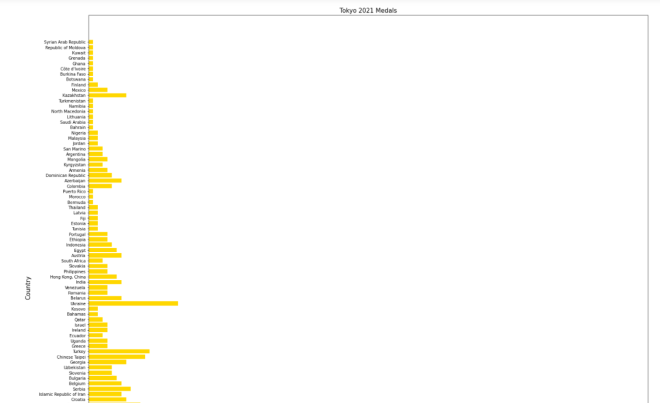
And here’s the new bar-chart with the horizontal bars (well, part of it-the bar-chart was too big to fit in one picture):

As you can see, the code I used to create this horizontal bar-chart is different from the code I used to create the vertical bar-chart. Here are some of those code differences:

  • I didn’t use pandas’ plot() function at all; to create the horizontal bar-chart, PYPLOT functions alone did the trick.
  • Unlike the code I used for the vertical bar-charts, I included PYPLOT’s figsize() function as the first function to be executed in this code block. I passed in a two-element tuple as this function’s parameter in order to set the size of the bar-chart (in this case, I set the bar-chart’s size to 25×25).
    • Just a suggestion, but if you’re using MATPLOTLIB to create your visual, you should set the size of the visual in the first line of code you use to create your visual.
  • Country is in the x-axis NumPy array while Total is in the y-axis NumPy array.
  • To plot the bar chart, I used PYPLOT’s barh() function rather than the bar() function. I still passed in a color parameter to the barh() function, though.

Even with all these differences, I didn’t change the plot title, x-axis label, or y-axis label.

Thanks for reading,

Michael

Python Lesson 27: Creating Pandas Visualizations (pandas pt. 4)

Advertisements

Hello everybody,

Michael here, and today’s post will be about creating visualizations in Python’s pandas package. This is the dataset we will be using:

These three datasets contains information regarding the Tokyo 2021 (yes I’ll call it that) Olympics medal tally for each participating country-this include gold medal, silver medal, bronze medal, and total medal tallies for each nation.

Once you open your IDE, run this code:

import pandas as pd

tokyo21medals = pd.read_csv('C:/Users/mof39/Downloads/Tokyo Medals 2021.csv')

Now, let’s check the head of the data-frame we’ll be using for this lesson. Here’s the head of the tokyo21medals data-frame:

As you can see, this data-frame has 5 variables, which include:

  • Country-the name of a country
  • Gold Medal-the country’s gold medal tally
  • Silver Medal-the country’s silver medal tally
  • Bronze Medal-the country’s bronze medal tally
  • Total-the country’s total medal tally

OK, now that we’ve loaded and analyzed our data-frame, let’s start building some visualizations.

Let’s create the first visualization using the tokyo21medals data-frame with this code:

tokyo21medals.plot(x='Country', y='Total')

And here’s what the plot looks like:

The plot was successfully created, however, here are some things we can fix:

  • The y-axis isn’t labelled, so we can’t tell what it represents.
  • A title for the plot would be nice as well.
  • The plot should be larger.
  • A line graph isn’t the best visual for what we’re trying to plot

So, how can we make this graph better? The first thing we’d need to do is import the MATPLOTLIB package:

import matplotlib.pyplot as plt
%matplotlib inline

What exactly does the MATPLOTLIB package do? Well, just like the pandas package, the MATPLOTLIB package allows you to create Python visualizations. However, while the pandas package allows you to create basic visualizations, the MATPLOTLIB package allows you to add interactive and animated components to the visual. MATPLOTLIB also allows you to modify certain components of the visual (such as the axis labels) that can’t be modified with pandas alone; in that sense, MATPLOTLIB works as a great supplement to pandas.

  • I’ll cover the MATPLOTLIB package more in depth in a future post, so stay tuned!

The %matplotlib inline code is really only used for Jupyter notebooks (like I’m using for this lesson); this code ensures that the visual will be displayed directly below the code as opposed to being displayed on another page/window.

Now, let’s see how we can fix the visual we created earlier:

tokyo21medals.plot(x='Country', y='Total', kind='bar', figsize=(20,11))
plt.title('Tokyo 2021 Medals', size=15)
plt.ylabel('Medal Tally', size=15)

In the plot() function, I added two parameters-kind and figsize. The kind parameter allows you to change the type of visual you want to create-the default visual that pandas uses is a line graph. By setting the value of kind equal to bar, I’m able to create a bar-chart with pandas. The figsize parameter allows you to change the size of the visual using a 2-value tuple (which can consists of integers and/or floats). The first value in the figsize tuple represents width (in inches) of the visual and the second value represents height (also in inches) of the visual. In this case, I assigned the tuple (20,11) to the `figsize parameter, which makes the visual 20 inches wide by 11 inches tall.

Next, take a look at the other lines of code in the code block (both of which begin with plt). The plt functions are MATPLOTLIB functions that allow you to easily modify certain components of your pandas visual (in this case, the y-axis and title of the visual).

In this example, the plt.title() function took in two parameters-the title of the chart and the font size I used for the title (size 15). The plt.ylabel() function also took in two parameters-the name and font size I used for the y-axis label (I also used a size 15 font here).

So, the chart looks much better now, right? Well, let’s take a look at the x-axis:

The label for the x-axis is OK, however, it’s awfully small. Let’s make the x-axis label size 15 so as to match the sizing of the title and y-axis label:

plt.xlabel('Country', size=15)

To change the size of the x-axis label, use the plt.xlabel() function and pass in two parameters-the name and size you want to use for the x-axis label. And yes, even though there is already an x-axis label, you’ll still need to specify a name for the x-axis label in the plt.xlabel() function.

  • Just a helpful tip-execute the plt.xlabel() function in the same code-block where you executed the plot() function and plt() functions.

Now, let’s see what the x-axis label looks like after executing the code I just demonstrated:

The x-axis label looks much better (and certainly more readable)!

Thanks for reading,

Michael

R Analysis 10: Linear Regression, K-Means Clustering, & the 2020 NBA Playoffs

Advertisements

Hello everybody,

Michael here, and today’s post will be an R analysis on the 2020 NBA Playoffs.

As many of you know, the 2019-20 NBA Season was suspended on March 11, 2020 due to COVID-19. However, the season resumed on July 30, 2020 inside a “bubble” (essentially an isolation zone without fans present) in Disney World. 22 teams played 8 regular-season “seeding” games in the bubble before playoffs commenced on August 14, 2020. The resumed season concluded on October 11, 2020, when the LA Lakers defeated the Miami Heat in the NBA Finals to win their 17th championship. The data comes from https://www.basketball-reference.com/playoffs/NBA_2020_totals.html (Basketball Reference), which is a great site if you’re looking for basketball statistics and/or want to do some basketball analyses.

Before we start analyzing the data, let’s first upload it to R and learn about the data (and here’s the data):

This dataset contains the names of 217 NBA players who participated in the 2020 Playoffs along with 30 other types of player statistics.

Now, I know it’s a long list, but here’s an explanation of all 31 variables in this dataset:

  • ..Player-The name of the player
  • Pos-The player’s position on the team. For an explanation of the five main basketball positions, please check out this link https://jr.nba.com/basketball-positions/
  • Age-The age of the player as of July 30, 2020 (the date the NBA season resumed)
  • Tm-The team the player played for during the 2019-20 NBA season
  • G-The games the player participated in during the 2020 NBA playoffs
  • GS-The amount of playoff games that the player was in the game’s starting lineup
  • MP-The amount of minutes a player was on the court during the playoffs
  • FG-The amount of field goals a player scored during the playoffs
    • For those who don’t know, a field goal in basketball is any shot that’s not a free throw.
  • FGA-The amount of field goals a player tried to make during the playoffs (this includes both successful and unsuccessful field goals)
  • FG.-The percentage of a player’s field goal attempts that were successful.
  • X3P-The amount of 3-point field goals a player scored during the playoffs
    • Field goals can be worth either 2 or 3 points, depending on where the player shoots the field goal from
  • X3PA-The amount of 3-point field goals a player attempted during the playoffs (both successful and unsuccessful 3-pointers)
  • X3P.-The percentage of a player’s 3-point field goals that were successful
  • X2P-The amount of 2-point field goals a player scored during the playoffs
  • X2PA-The amount of 2-point field goals a player attempted during the playoffs (both successful and unsuccessful 2-pointers)
  • X2P.-The percentage of a player’s 2-point field goals that were successful
  • eFG.-The percentage of a player’s successful field goal attempts, adjusting for the fact that 3-point field goals are scored higher than 2-point field goals
  • FT-The amount of free throws a player scored during the playoffs
  • FTA-The amount of free throw attempts a player made during the playoffs (both successful and unsuccessful attempts)
  • FT.-The percentage of a player’s successful free throw attempts during the playoffs
  • ORB-The amount of offensive rebounds a player made during the playoffs
    • A player gets a rebound when they retrieve the ball after another player misses a free throw or field goal. The player gets an offensive rebound if their team is currently on offense and a defensive rebound if their team is currently on defense.
  • DRB-The amount of defensive rebounds a player made during the playoffs
  • TRB-The sum of a player’s ORB and DRB
  • AST-The amount of assists a player made during the playoffs
    • A player gets an assist when they pass the ball to one of their teammates who then scores a field goal.
  • STL-The amount of steals a player made during the playoffs
    • A player gets a steal when they cause a player on the opposite team to turnover the ball.
  • BLK-The amount of blocks a player made during the playoffs
    • A player gets a block when they deflect a field goal attempt from a player on the other team
  • TOV-The amount of turnovers a player made during the playoffs
    • A player gets a turnover when they lose possession of the ball to the opposing team. Just in case you were wondering, the goal for a player is to make as few turnovers as possible.
  • PF-The amount of personal fouls a player made during the playoffs
    • A player gets a personal foul when they make illegal personal contact with a player on the other team. The goal for players is to make as few personal fouls as possible, since they will be disqualified from the remainder of the game if they get too many.
  • PTS-The sum of the amount of field goals and free throws a player made during the playoffs
  • Team-The name of the team the player played for during the 2020 NBA playoffs
    • Team and Tm basically give you the same information, except Team gives you the name of the team (e.g. Mavericks) while Tm gives you the three-letter abbreviation for the team (e.g. in the case of the Mavericks the 3-letter abbreviation is DAL)
  • Position-The position the team reached in the 2020 NBA playoffs. There are 7 possible values for position which include:
    • ECR1-The team made it to the first round of the Eastern Conference playoffs
    • ECSF-The team made it to the Eastern Conference Semifinals
    • ECF-The team made it to the Eastern Conference Finals
    • WCR1-The team made it to the first round of the Western Conference playoffs
    • WCSF-The team made it to the Western Conference Semifinals
    • WCF-The team made it to the Western Conference Finals
    • Finals-The team made it to the 2020 NBA Finals

Whew, that was a lot of information to explain, but I felt it was necessary to explain this in order to better understand the data (and the analyses I will do).

Now, before we start creating analyses, let’s first create a missmap to see if there are any missing rows in the data (to create the missmap, remember to install the Amelia package). To create the missmap, use this line of code-missmap(file):

As you can see here, 98% of the observations are present, while only 2% are missing.

Let’s take a look at the five columns with missing data. They are:

  • FT.-free throw percentage
  • X3P.-percentage of 3-pointers made during playoffs
  • X2P.-percentage of 2-pointers made during playoffs
  • eFG.-percentage of successful field goal attempts during playoffs (adjusted for the fact that 3-pointers are worth more than 2-pointers)
  • FG.-percentage of successful field goal attempts during playoffs (not adjusted for the score difference between 2- and 3-pointers)

What do all of these columns have in common? They are all percentages, and the reason why there would be missing data in these columns is because a player doesn’t have any statistics in these categories. For instance, the reason why FT. would be blank is because a player didn’t make any free throws during the playoffs (same logic applies to 3-pointers, 2-pointers, and field goals).

So what will we do with these columns? In this case, I will simply ignore these columns in my analysis because I won’t be focusing on percentages.

Alright, now that I went over the basics of the data, let’s start analyzing the data. First off, I’ll start with a couple of linear regressions.

The first linear regression I will do will analyze whether a player’s age affects how many playoff games they played. Here’s the formula for that linear regression:

linearModel1 <- lm(Age~G, data=file)

And here’s a summary of the linear model:

Now, what does all of this mean? (and for a refresher on linear regression models, please read my post _):

  • The residual standard error gives us the amount that the response variable (Age) deviates from the regression line. In this example, the player’s age deviates from the regression line by 4.066 years.
  • The Multiple R-Squared and Adjusted R-Squared are measures of how well the model fits the data. The closer the R-squared to 1, the better the fit of the model.
    • In this case, the Multiple R-Squared is 3.42% and the Adjusted R-Squared is 2.97%, indicating that there is almost no correlation between a player’s age and the amount of playoff games they played.
  • The F-Statistic is a measure of the relationship (or lack thereof) between the dependent and independent variables. This metric (and the corresponding p-value) isn’t too important when dealing with simple linear regression models such as this one, but it is important when analyzing multiple linear regression models (i.e. models with multiple variables).
    • To make things easier, just focus on the F-statistic’s corresponding p-value when analyzing the relationship between the dependent and independent variables. If the p-value is less than 0.05, accept the null hypothesis (that the independent variable and dependent variables aren’t related). If the p-value value is greater than 0.05, reject the null hypothesis.

OK, so it looks like there isn’t any correlation between a player’s age and the amount of playoff games they played. But what happens when I include Team in the analysis?

Here’s the code for that linear regression model:

linearModel2 <- lm(Age~G+Team, data=file)

However, something to note is that Team is of type chr, which isn’t allowed in linear regression analysis. So, we would need to use this simple line of code to convert Team to type factor:

file$Team <- as.factor(file$Team)

Alright, so let’s see the summary of this linear regression model:

Now, let’s analyze this model further:

  • The residual standard error shows us that a player’s age deviates from the regression line by 3.902 years (down from 4.066 years in the previous model).
  • The Multiple R-Squared and Adjusted R-Squared (17.26% and 10.64% respectively) shows us that this model has a better fit than the previous model, but both metrics are still too small to imply that there is any correlation between a player’s age, the team he plays for, and how many playoff games he played.
  • The F-statistic’s corresponding p-value is much less than 0.05 (0.001024), which indicates that a player’s age has no bearing on the amount of playoff games they played or the team they played for.
  • Notice how all of the values for Team are displayed. This is because when you include a factor in a linear regression, you will see all of the possible values for the factor (there are 16 possible values in this case for the 16 teams that made it to playoffs)

Now we will do some k-means clustering analyses. First, let’s create a cluster using the variables FT and FG (free throws and field goals, respectively):

As you can see, I have displayed the head (the first six observations) of the cluster.

  • I used 8 and 18 as the column numbers because FG and FT are the 8th and 18th columns in the dataset, respectively.

Alright, let’s do some k-means clustering:

So what does this output tell us? Let’s find out:

  • In this example, I created 5 clusters from cluster1. The 5 clusters have sizes of 104, 36, 10, 64, and 3 respectively.
  • The cluster means show us the means for each variable used in this analysis-FT and FG. Recall that cluster means are calculated from the values in each cluster, so the cluster mean for FG in cluster 1 is calculated from all of the FG values in cluster 1 (same logic applies for the other 4 clusters).
  • The clustering vector shows you which observations belong to which cluster. In this example, the cluster observations are sorted alphabetically by a player’s last name. The first three observations belong to clusters 1, 4, and 3, which correspond to Jaylen Adams, Steven Adams, and Edrice “Bam” Adebayo. Likewise, the last three observations belong to clusters 1, 1, and 2, which correspond to Nigel Williams-Goss, Delon Wright, and Ivica Zubac, respectively.
  • The WCSSBC (within cluster sum of squares by cluster) shows us the variablity of observations in a certain cluster. The smaller the WCSSBC, the more compact the cluster. In this example, cluster 1 is the most compact since it has the smallest WCSSBC (2886.26).
  • The between_SS/total_SS ratio shows the overall goodness-of-fit for the model. The higher this ratio is, the better the model fits the data. In this example, the between_SS/total_SS is 91.5%, indicating that this model is an excellent fit for the data.

Now let’s graph our clusters (and remember to install the ggplot2 package);

Here’s the code we’ll use to make the first graph:

plot(cluster1, col=NBAPlayoffs$cluster, main="2020 NBA Playoffs Field Goals vs Free Throws", xlab = "Playoff field goals", ylab="Playoffs free throws", pch=19)

In this graph, we have 5 clusters grouped by color. Let’s analyze each of these clusters:

  • The black cluster represent players who scored 20 or fewer playoff free throws and 20 or fewer playoff field goals. Some notable players that fall into this cluster include Jared Dudley (Lakers), Hassan Whiteside (Trail Blazers), and Bol Bol (Nuggets).
  • The dark blue cluster represents players who scored between 0 and 35 playoff free throws and between 15 and 50 playoff field goals. Some notable players that fall into this cluster include Andre Igoudala (Heat), Markieff Morris (Lakers), and Victor Oladipo (Pacers).
  • The red cluster represents players who scored between 20 and 50 playoff free throws and between 35 and 90 playoff field goals. Some notable players that fall into this cluster include Giannis Antentokonumpo (Bucks), Jae Crowder (Heat), and Rudy Gobert (Jazz).
  • The other two clusters (which are light green and light blue) represent players who scored at least 45 playoff free throws and at least 100 playoff field goals.
    • In case you’re wondering, the three players who are in the light green cluster are Jimmy Butler (Heat), Anthony Davis (Lakers), and LeBron James (Lakers)-all three of whom participated in the 2020 NBA Finals.

So, what insights can we gather from this data? One insight is certain-a team’s playoff position alone doesn’t have much impact on the amount of free throws and field goals they scored. For instance, Dion Waiters, JR Smith, and Talen Horton-Tucker are in the lowest FG/FT cluster, but all three of them are on the Lakers, who won the NBA Championship. However, Dion Waiters and Talen Horton-Tucker didn’t play in any Finals games, while JR Smith did play in some Finals games but only averaged 7.5 minutes per games throughout the playoffs.

Likewise, you might think that the two highest FG/FT clusters would only have Heat and Lakers players, given that these two teams made it all the way to the Finals. Two exceptions to this are James Harden (Rockets) and Kawhi Leonard (Clippers), who were both eliminated in the Western Conference semifinals.

Now let’s do another k-means clustering analysis, this time using two different scoring categories-total rebounds and assists (represented by TRB and AST respectively).

First, let’s create the main cluster (let’s use 23 and 24 as the column numbers because TRB and AST are the 23rd and 24th columns of the dataset, respectively):

Now, let’s create the k-means analysis:

What does this output tell us? Let’s find out:

  • In this example, I created 4 clusters from cluster2 with sizes of 65, 18, 128, and 6, respectively.
  • The cluster means display the averages of TRB and AST for each cluster.
  • The clustering vector shows us which observations correspond to which cluster. From this vector, we can see that the first three observations belong to cluster 3.
  • The WCSSBC indicates the compactness of each cluster. Since cluster 4 has the smallest WCSSBC (13214.83), it is the most compact cluster. Cluster 1, on the other hand, has the highest WCSSBC (32543.42), so it is the least compact cluster.
  • The between_SS/total_SS ratio shows us the goodness-of-fit for the model. In this case, the between_SS/total_SS ratio is 82.9%, which indicates that this model is a good fit for the data (though this ratio is lower than the previous model’s ratio of 91.5%).

Alright, now let’s graph this cluster. Remember to install the ggplot2 package and use this line of code:

plot(cluster2, col=NBAPlayoffs2$cluster, main="2020 NBA Playoffs Rebounds vs Assists", xlab = "Playoff rebounds", ylab="Playoff assists", pch=19)

In this graph, we have 4 clusters grouped by color. Let’s see what each of these clusters mean:

  • The green cluster represents players who scored 40 or fewer playoff assists and 30 or fewer playoff rebounds. Notable players who fall into this cluster include Meyers Leonard (Heat), Dion Waiters (Lakers), and Al Horford (76ers).
  • The black cluster represents players who scored between 0 and 60 playoff assists and between 35 and 100 playoff rebounds. Notable players who fall into this cluster include Kelly Olynyk (Heat), Chris Paul (Thunder), and Kyle Kuzma (Lakers).
  • The red cluster represent players who scored between 15 and 130 playoff assists and between 45 and 130 playoff rebounds. Notable players who fall into this cluster include Russell Westbrook (Rockets), Jae Crowder (Heat), and Kyle Lowry (Raptors).
  • The blue cluster represents the six players in the top rebounds/assists tier, which include:
    • Jimmy Butler (Heat)
    • Jayson Tatum (Celtics)
    • Nikola Jokic (Nuggets)
    • Bam Adebayo (Heat)
    • Anthony Davis (Lakers)
    • LeBron James (Lakers)
      • Four of these players participated in the NBA Finals while Jayson Tatum and Nikola Jokic were eliminated in the Conference Finals.

So, what insights can we draw from this cluster analysis? First of all, similar to the previous cluster analysis, a team’s playoff position (i.e. Conference Finals) has no bearing as to which player falls in which cluster. For example, the Heat and Lakers made it to the NBA Finals, yet there are Heat and Lakers players in every cluster.

And just as with the previous cluster analysis, the top cluster doesn’t only have Finals players, as Jayson Tatum and Nikola Jokic are included in the top cluster-and both of them were eliminated in the Conference Finals.

Last but not least, let’s create a cluster analyzing two things players try not to get-personal fouls and turnovers. First, let’s create the main cluster (use 27 and 28 as the column numbers since TOV and PF are the 27th and 28th columns in the dataset respectively):

Next, let’s create the k-means analysis:

So, what does this output tell us? Let’s find out:

  • In this example, I created 4 clusters from cluster3 with sizes of 30, 70, 104, and 13, respectively.
  • The cluster means display the means of TOV and PF for each cluster.
  • The clustering vector shows us which observations belong to which cluster. In this example, the first three observations belong to cluster 3 (just like in the previous example).
  • The WCSSBC shows us how compact each cluster is; in this example, cluster 3 is the most compact since it has the smallest WCSSBC (1976.298).
  • The between_SS/total_SS ratio shows us the goodness-of-fit for the model; in this example, this ratio is 84.9%, which indicates that the model is a great fit for the data.
    • Interestingly, the k-means analysis with the best goodness-of-fit is the first analysis with a between_SS/total_SS ratio of 91.5%. I think this is surprising since the first model had 5 clusters while this model and the previous model have 4 clusters.

Now, let’s plot our k-means analysis (and remember to install ggplot2!)

plot(cluster3, col=NBAPlayoffs3$cluster, main="2020 NBA Playoffs Turnovers vs Personal Fouls", xlab = "Playoff turnovers", ylab="Playoff personal fouls", pch=19)

Just as with the previous graph, we have four clusters grouped by color in this plot (and coincidentally in the same color order as the previous graph). What do each of these clusters mean? Let’s find out:

  • The green cluster represents players who committed 15 or fewer playoff turnovers as well as 12 or fewer playoff personal fouls. Notable players that fall into this cluster include JR Smith (Lakers), Kyle Korver (Bucks), and Damian Lillard (Trail Blazers).
    • In this example, being in the lowest cluster is the best, since the aim of every player is to commit as few turnovers and personal fouls as possible. Plus, if a player commits too many personal fouls in a game, they’re ejected.
    • Also, the more turnovers a player commits, the more opportunities the opposing team gets to score.
      • In reality, the data isn’t as black-and-white as I make it seem. This is because the further a player made it into the playoffs, the more opportunities they would have for committing turnovers and personal fouls.
      • Data is never black-and-white as it looks. The key to being a good data analyst is to analyze every piece of data in a dataset to see how it’s all interconnected.
  • The red cluster represents players who committed between 7 and 35 playoff turnovers and between 2 and 35 playoff personal fouls. Notable players who fall into this cluster include Carmelo Anthony (Trail Blazers), Kendrick Nunn (Heat), and Rudy Gobert (Jazz).
  • The black cluster represents players who committed between 9 and 35 playoff turnovers and between 33 and 66 playoff personal fouls. Notable players who fall into this cluster include Rajon Rondo (Lakers), Danny Green (Lakers), and Jae Crowder (Heat).
  • The blue cluster represents the 13 players who are in the highest turnover/personal foul tier. Here’s the full list:
    • Goran Dragic (Heat)
    • Paul George (Clippers)
    • Jaylen Brown (Celtics)
    • Tyler Herro (Heat)
    • James Harden (Rockets)
    • Marcus Smart (Celtics)
    • Bam Adebayo (Heat)
    • Jayson Tatum (Celtics)
    • Jamal Murray (Nuggets)
    • Anthony Davis (Lakers)
    • Jimmy Butler (Heat)
    • Nikola Jokic (Nuggets)
    • and Lebron James (Lakers)
      • You might be surprised to see 6 NBA Finalists on this list, but I have a theory as to why that’s the case. See, the farther a player makes it in the playoffs, the more opportunities they have to score (and commit fouls and turnovers). And if you saw the 2020 NBA Finals, there were quite a bit of personal fouls and turnovers committed by both the Heat and Lakers (especially with Anthony Davis’s foul trouble in Game 3).

Thanks for reading,

Michael
R Lesson 8: Predictions For Linear & Logistic Regression/Multiple Linear Regression

Advertisements

Hello everybody,

It’s Michael, and today’s lesson will be about predictions for both linear and logistic regression models. I will be using the same dataset that I used for R Analysis 2: Linear Regression & NFL Attendance, except I added some variables so I could create both linear and logistic regression models from the data. Here is the modified dataset-NFL attendance 2014-18

Now, as always, let’s first try to understand our variables:

I described most of these variables in R Analysis 2, but here are what the two new ones mean (I’m referring to the two bottommost variables):

  • Playoffs-whether or not a team made the playoffs. Teams that made playoffs are represented by a 1, while teams that didn’t make playoffs are represented by a 0. Recall that teams who finished 1st-6th in their respective conferences made playoffs, while teams that finished 7th-16th did not.
  • Division-What division a team belongs to, of which there are 8:
    • 1-AFC East (Patriots, Jets, Dolphins, Bills)
    • 2-AFC North (Browns, Steelers, Ravens, Bengals)
    • 3-AFC South (Colts, Jaguars, Texans, Titans)
    • 4-AFC West (Chargers, Broncos, Chiefs, Raiders)
    • 5-NFC East (Cowboys, Eagles, Giants, Redskins)
    • 6-NFC North (Packers, Bears, Vikings, Lions)
    • 7-NFC South (Falcons, Saints, Panthers, Buccaneers)
    • 8-NFC West (Seahawks, 49ers, Cardinals, Rams)

I added these two variables so that I could create logistic regression models from the data. In both cases, I used dummy variables (remember those?).

Another function I think will help you in your analyses is sapply. Here’s how it works:

As you can see, you can do two things with supply-find out if there are any missing variables (as seen on the top function) or find out how many unique values there are for a certain variable (as seen on the bottom function). According to the output, there are no missing values for any variables (in other words, there are no blank spots in any column of the spreadsheet). Also, on the bottom function, you can see how many distinct values correspond to a certain variable (e.g. Conference Standing has 16 distinct values).

Before I get into analysis of the models, I want to introduce two new concepts-training data and testing data:

The difference between training and testing data is that training data are used as guidelines for how a model (whether linear or logistic) should make decisions while testing data just gives us an idea as to how well the model is performing. When splitting up your data, a good rule of thumb is 80-20, meaning that 80% of the data should be for training while 20% of the data should be for testing (It doesn’t have to be 80-20, but it should always be majority of the data for training and the minority of the data for testing). In this model, observations 1-128 are part of the training dataset while observations 129-160 are part of the testing dataset.

I will post four models in total-two using linear regression and two using logistic regression. I will start with the logistic regression:

In this model, I chose playoffs as the binary dependent variable and Division and Win Total as the independent variables. As you can see, intercept (referring to Playoffs) and Win Total are statistically significant variables, while Division is not statistically significant. Also, notice the data = train line, which indicates that the training dataset will be used for this analysis (you should always use the training dataset to create the model)

Now let’s create some predictions using our test dataset:

The fitted.results variable calculates the predictions while the ifelse function determines whether each of the observations in our test dataset (observations 129-160) is significant to the model. A 1 under an observation number indicates that the observation has at least a 50% significance to the model while a 0 indicates that the observation has less than a 50% significance to the model.

If we wanted to figure out exactly how significant each observation is to the model (along with the overall accuracy of the model), here’s how:

The misClasificError basically indicates the model’s margin of error using the fitted.results derived from the test dataset. The accuracy is calculated by subtracting 1 from the misClasificError, which turns out to be 87%, indicating very good accuracy (and indicating that the model’s margin of error is 13%).

Finally, let’s plot the model:

We can also predict various what-if scenarios using the model and the predict function. Here’s an example:

Using the AFC South as an example, I calculated the possible odds for a team in that division to make the playoffs based on various possible win totals. As you can see, an AFC South team with 10 or 14 wins is all but guaranteed to make the playoffs, as odds for both of those win totals are greater than 1. However, AFC South teams with only 2 or 8 wins aren’t likely to go to playoffs because the odds for both of those win totals are negative (however 8 wins will fare better than 2).

Let’s try another example, this time examining the effects of 9 wins across all 8 divisions (I chose 9 because 9 wins sometimes results in playoff berths, sometimes it doesn’t):

As you can see, 9 wins will most likely earn a playoff berth for AFC East teams (55.6% chance) and least likely to earn a playoff spot in the NFC West (35.7% chance)

I know it looks like all the lines are squished into one big line, but you can imply that the more wins a team has, the greater its chances are at making the playoffs. The pink line that appears to be the most visible represents the NFC West (Rams, Seahawks, 49ers, Cardinals). Unsurprisingly, the teams likeliest to make the playoffs were the teams with 9 or more wins (expect for the 2017 Seahawks, who finished 9-7 and missed the playoffs).

Now let’s create another logistic regression model that is similar to the last one except with the addition of the Total Attendance variable

The summary output looks similar to that of the previous model (I also use the training dataset for this model), except that this time, none of the variables have asterisks right by them, meaning none of them are statistically significant (which happens when the p-value is above 0.1).  Nevertheless, I’ll still analyze this model to see if it is better than my first logistic regression model.

Now let’s create some predictions using the test dataset:

Like our previous model, this model also has a nice mix of 0s and 1s, except this model only has 11 1s, while the previous model had 14 1s.

And now let’s find the overall accuracy of the model:

Ok, so I know 379% seems like crazy accuracy for a logistic regression model. Here’s how it was calculated:

R took the sum of these numbers and divided that sum by 32 to find the average of the fitted results. R then subtracted 1 from the average to get the accuracy measure.

Just as we did with the first model, we can also create what-if scenarios. Here’s an example:

Using the AFC North as an example, I analyzed the effect of win total on a team’s playoff chances while keeping total attendance the same (1,400,000). Unsurprisingly (if total attendance is roughly 1.4 million fans in a given season), teams with a losing record (7-8-1 or lower) are less likely to make the playoffs than teams with a split or winning record (8=8 or higher). Given both record and a total attendance of 1,400,000 fans, the threshold for clinching a playoff berth appears to be 12 or 13 wins (though barring attendance, most AFC North teams fare well with 10, 9, or even 8 wins).

Now here’s another example. this time using the NFC East (and changing both win totals and total attendance):

So given increasing win totals and total attendance, an NFC East team’s playoff chances increase. The playoff threshold here, just as it been with most of my predictions, is 9 or 10 wins.

Now let’s see what happens when win totals increase but attendance goes down (also using the NFC East):

Ultimately (with regards to the NFC East), it’s not total attendance that matters, but a team’s win totals. As you can see, regardless of total attendance, playoff clinching odds increase with higher win totals (win threshold remains at 9 or 10).

And here’s our model plotted:

Now, I know this graph is just about as easy-to-read as the last graph (not very, but that’s how R works), but just like with the last graph, you can draw some conclusions. Since this graph factors in Total Attendance and Win Total (even though only Total Attendance is displayed), you can tell that even though a team’s fanbase may love coming to their games, if the wins are low, so are the playoff chances.

Now, before we start the linear regression models, let’s compare the logistic regression models to see which is the better of the two by analyzing various criteria:

  • Difference between null & residual deviance
    • Model 1-73.25 with a decrease of two degrees of freedom
    • Model 2-115.82 with a decrease of three degrees of freedom
    • Better model-Model 1
  • AIC
    • Model 1-101.86
    • Model 2-60.483
    • Better model-Model 2 (41.377 difference)
  • Number of Fisher Scoring Iterations
    • Model 1-5
    • Model 2-7
    • Better model-Model 1 (less Fisher iterations)
  • Overall Accuracy
    • Model 1-87%
    • Model 2-379%
    • Better model-Model 1 (379% sounds too good to be true)

Overall better model: Model 1

Now here’s the first linear regression model:

This model has Win Total as the dependent variable and Total Attendance and Conference Standing as the independent variables. This will also by my first model created with multiple linear regression, which is basically linear regression with more than one independent variable.

And finally, let’s plot the model:

In cases of multiple linear regression such as this, I had to graph each independent variable separately; graphing Total Attendance and Conference Standing separately allows us to examine the effects each independent variable has on our dependent variable (Win Total). As you can see, Total Attendance increases with an increasing Win Total while Conference Standing decreases with a decreasing Win Total. Both graphs make lots of sense, as fans are more tempted to come to a team’s games when the team has a high win total and conference standings tend to decrease with lower win totals (an interesting exception is the 2014 Carolina Panthers, who finished 4th in the NFC despite a 7-8-1 record).

  • In case you are wondering what the layout function does, it basically allowed two graphs to be displayed side by side. I can also alter the function depending on how many independent variables I use; if for instance I used 4 independent variables, I could change c to 2,2 to display the graphs in a 2 by 2 matrix.

Multiple linear regression equations are quite similar to those of simple linear regression, except for an added variable. In this case, the equation would be:

  • Win Total = 6.366e-6(Total Attendance)-5.756e-1(Conference Standing)+5.917

Now, using the predict function that I showed you for my logistic regression models won’t be very efficient here, so we can go the old-fashioned way by plugging numbers into the equation. Here’s an example:

Regardless of what conference a team is part of, a total attendance of at least 750,000 fans and a bottom seed in the conference should at least bring the team a 1-15 record. For teams with a total attendance of at least 1.1 million fans who fall just short of the playoffs with a 7th seed, a 9-7 record would be likely. Top of the conference teams with an attendance of at least 1.45 million should net a 14-2 record.

Now, let’s see what happens when conference standing improves, but attendance decreases:

According to my predictions, bottom-seeded teams with a total attendance of at least 1.5 million fans should net at least a 6-10 record. However, as conference standings improve and total attendance decreases, predicted records stagnate at either 9-7 or 8-8.

Now here’s my second linear model:

In this model, I used two different independent variables-Home Attendance and Average Age of Roster-but I still used Win Total as my dependent variable.

The equation goes like this:

  • Win Total = 1.051e-5(Home Attendance)+5.534e-1(Average Age of Roster)-1.229e+1

Now just like I did with both of my logistic regression models and the linear regression model, let’s create some what-if scenarios:

In this scenario, home attendance is increasing along with the average age of roster. Win total also increases with a higher average age of roster. For instance, teams with a home attendance of at least 350,000 fans and an average roster age of 24 (meaning the team is full of rookies and other fairly-fresh faces) should expect at least a 5-11 record. On the other hand, teams with a roster full of veterans (yes, 28.5 is old for an average roster age)  and a home attendance of at least 1.2 million fans should expect a perfect 16-0 season.

Now let’s try a scenario where home attendance decreases but average age of roster increases:

In this scenario, when home attendance decreases but average age of roster increases, a team’s projected win total also goes down. For teams full of fresh-faces and breakout stars (average age 24) and a home attendance of at least 1.1 million fans, a 13-3 record seems likely. On the other hand, for teams full of veterans (average age 28.5) and a home attendance of at least 300,000 fans, a 7-9 record appears in reach.

One thing to keep in mind with my linear regression predictions is that I rounded projected win totals to the nearest whole number. So I got the 13-3 record projection from the 12.5526 output.

Now let’s plot the model:

Just as I did with linear1, I graphed the two independent variables separately, not only because it’s the easiest way to graph multiple linear regression but also because we can see each variable’s effect on Win Total. As you can see, Home Attendance and Average Age of Roster increases with an increasing win total, though the increase in Average Age of Roster is smaller than that of Home Attendance. Each scenario makes sense, as teams are likelier to have a higher win total if they have more supportive fans in attendance (particularly in their 7 or 8 home games per season) and having more recognizable veterans on a team (like the Saints with QB Drew Brees or the Broncos with LB Von Miller) will be better for the team’s overall record than having a team full of newbies (like the Browns with QB Baker Mayfield or the Giants with RB Saquon Barkley).

  • The Home Attendance numbers are displayed in scientific notation, which is how R displays large numbers. 1e+05 is 100,000, 3e+05 is 300,000, and so on.

Now, before I go, let’s compare the two linear models:

  • Residual Standard Error
    • Model 1-1.09 wins
    • Model 2-2.948 wins
    • Better Model-Model 1 (less deviation)
  • R-Squared (Multiple and Adjusted respectively)
    • Model 1-88.72% and 88.58%
    • Model 2-17.49% and 16.44%
    • Better Model-Model 1 (much higher than Model 2)
  • F-statistic & P-Value (since there are 2 degrees of freedom, this is an important metric)
    • Model 1-617.5 on 2 and 157 degrees of freedom; 2.79e-7
    • Model 2-16.64 on 2 and 157 degrees of freedom; 2.79e-7
    • Better Model-Model 1 (both result in the same p-value, but the f-statistic on Model 1 is much larger)
  • Overall better model-Model 1

Thanks for reading,

Michael


R Analysis 2: Linear Regression & NFL Attendance

Advertisements

Hello everybody,

It’s Michael, and today’s post will be an R analysis post using the concept of linear regression. The dataset I will be using NFL attendance 2014-18, which details NFL attendance for each team from the 2014-2018 NFL seasons along with other factors that might affect attendance (such as average roster age and win count).

First, as we should do for any analysis, we should read the file and understand our variables:

  • Team-The team name corresponding to a row of data; there are 32 NFL teams total
  • Home Attendance-How many fans attend a team’s home games (the NFL’s International games count towards this total)
  • Road Attendance-How many fans attend a team’s road games
    • Keep in mind that teams have 8 home games and 8 away games.
  • Total Attendance-The total number of fans who go see a team’s games in a particular season (attendance for home games + attendance for away games)
  • Win Total-how many wins a team had for a particular season
  • Win.. (meaning win percentage)-the precent of games won by a particular team (keep in mind that ties are counted as half-wins when calculating win percentages)
  •  NFL Season-the season corresponding to the attendance totals (e.g. 2017 NFL season is referred to as simply 2017)
  • Conference Standing-Each team’s seeding in their respective conference (AFC or NFC), which ranges from 1 to 16-1 being the best and 16 being the worst. The teams that were seeded 1-6 in their conference made the playoffs that season while teams seeded 7-16 did not; teams seeded 1-4 won their respective divisions while teams seeded 5 and 6 made the playoffs as wildcards.
    • As the 2018 season is still in progress, these standings only reflect who is LIKELY to make the playoffs as of Week 11 of the NFL season. So far, no team has clinched a playoff spot yet.
  • Average Age of Roster-The average age of a team’s players once the final 53-man roster has been set (this is before Week 1 of the NFL regular season)

One thing to note is that I removed the thousands separators for the Home Attendance, Road Attendance, and Total Attendance variables so that they would read as ints and not factors. The file still has the separators though.

Now let’s set up our model (I’m going to be using three models in this post for comparison purposes):

In this model, I used Total Attendance as the dependent variable and Win Total as the independent variables. In other words, I am using this model to determine if there is any relationship between fans’ attendance at a team’s games and a team’s win total.

Remember how in R Lesson 7 I mentioned that you should pay close attention to the three bottom lines in the output? Here’s what they mean for this model:

  • As I mentioned earlier, the residual standard error refers to the amount that the response variable (total attendance) deviates from the true regression line. In this case, the RSE is 1,828,000, meaning the total attendance deviates from the true regression line by 1,828,000 fans.
    • I didn’t mention this in the previous post, but the way to find the percentage error is to divide the RSE by the average of the dependent variable (in this case, Total Attendance). The lower the percentage error, the better.
    • In this case, the percentage error is 185.43% (the mean for Total Attendance is 985,804 fans, rounded to the nearest whole number).
  • The R-Squared is a measure of the goodness-of-fit of a model-the closer to 1, the better the fit. The difference between the Multiple R-Squared and the Adjusted R-Squared is that the former isn’t dependent on the amount of variables in the model while the latter is. In this model, the Multiple R-Squared is 20.87% while the Adjusted R-Squared is 20.37%, indicating a very slight correlation.
    • Remember the idea that “correlation does not imply causation”, which states that even though there may be a strong correlation between the dependent and independent variable, this doesn’t mean the latter causes the former.
    • In the context of this model, even though a team’s total attendance and win total have a very slight correlation, this doesn’t mean that a team’s win total causes higher/lower attendance.
  • The F-squared measures the relationship (or lack thereof) between independent and dependent variables. As I mentioned in the previous post, for models with only 1 degree of freedom, the F-squared is basically the independent variable’s t-value squared (6.456²=41.68). The F-Squared (and resulting p-value) aren’t too significant to determining the accuracy of simple linear regression models such as this one, but are more significant when dealing with with multiple linear regression models.

Now let’s set up the equation for the line (note the coef function I mentioned in the previous post isn’t necessary):

Remember the syntax for the equation is just like the syntax of the slope-intercept equation (y=mx+b) you may remember from algebra class. The equation for the line is (rounded to 2 decimal places):

  • Total Attendance = 29022(Win Total)+773943

Let’s try the equation out using some scenarios:

  • “Perfect” Season (no wins): 29022(0)+773943=expected total attendance of 773,943
  • Split Season (eight wins): 29022(8)+773943=expected total attendance of 1,006,119
  • Actual Perfect Season (sixteen wins): 29022(16)+773943=expected total attendance of 1,238,295

And finally, let’s create the graph (and the regression line):

As seen in the graph above, few points touch the line (which explains the low Multiple R-Squared of 20.68%). According to the regression line, total attendance INCREASES with better win totals, which indicates a direct relationship. One possible reason for this is that fans of consistently well-performing teams (like the Patriots and Steelers) are more eager to attend games than are fans of consistently struggling teams (like the Browns and Jaguars). An interesting observation would be that the 2015 4-12 Dallas Cowboys had better total attendance than the 2015 15-1 Carolina Panthers had. The 2016 and 2017 Cleveland Browns fared pretty well for attendance-each of those seasons had a total attendance of at least 900,000 fans (the records were 1-15 and 0-16 respectively).

Let’s create another model, once again using Total Attendance as the dependent variable but choosing Conference Standing as the independent variable:

So, is this model better than lr1? Let’s find out:

  • The residual standard error is much smaller than that of the previous model (205,100 fans as opposed to 1,828,000). As a result, the percentage error is much smaller-20.81%-and there is less variation among the observation points around the regression line.
  • The Multiple R-Squared and Adjusted R-Squared (0.4% and -0.2% respectively) are much lower than the R-Squared amounts for lr1. Thus, there is even less of a correlation between Total Attendance and Conference Standing than there is between Total Attendance and Win Total (for.a particular team).
  • Disregard the F-statistic and p-value.

Now let’s set up our equation:

From this information, we get the equation:

  • Total Attendance = -2815(Conference Standing)+1009732

Here are some scenarios using this equation:

  • Top of the conference (1st place): -2815(1)+1009732=expected total attendance of 1,006,917
  • Conference wildcard (5th place): -2815(5)+1009732=expected total attendance of 995,657
  • Bottom of the pack (16th place): -2815(16)+1009732=expected total attendance of 964,692

Finally, let’s make a graph:

As seen in the graph, few points touch the line (less points touch this line than in the line for lr1). The line itself has a negative slope, which implies that total attendance DECREASES with WORSE conference standings (or increases with better conference standings). Yes, I know the numbers under conference standing are increasing, but keep in mind that 1 is the best possible conference finish for a team, while 16 is the worst possible finish for a team. One possible reason that total attendance decreases with lower conference standings is that fans are possibly more enticed to come to games for consistently top conference teams and division winners (like the Patriots and Panthers) rather than teams who miss playoffs year after year (like the Jaguars, save for the 2017 squad that made it to the AFC Championship). Interestingly enough, the 2015 4-12 Dallas Cowboys rank second overall in total attendance (16th place in their conference), just behind the 2016 13-3 Dallas Cowboys (first in their conference).

Now let’s make one more graph, this time using Average Age of Roster as the independent variable:

Is this model better than lr2? Let’s find out:

  • The residual standard error is the smallest one of the three (204,600 fans) and thus, the percentage error is the smallest of the three-20.75%.
  • The Multiple R-Squared and Adjusted R-Squared are smaller than those of lr1 but larger than that of lr2 (0.84% and 0.22% respectively). Thus, Average Age of Roster correlates better with Total Attendance than does Conference Standing, however Win Total correlates the best with Total Attendance.
  • Once again, disregard the F-Statistic & corresponding p-value.

Now let’s create the equation:

  • Total Attendance = 36556(Average Age of Roster)+33594

Here are some scenarios using this equation

  • Roster with mostly rookies and 2nd-years (an average age of 24)=36556(24)+33594=expected total attendance of 910,938
  • Roster with a mix of newbies and veterans (an average age of 26)=36556(26)+33594=expected total attendance of 984,050
  • Roster with mostly veterans (an average age of 28)=36556(28)+33594=expected total attendance of 1,057,162

And finally, let’s create a graph:

Like the graph for lr2, few points touch the line. As for the line itself, the slope is positive, implying that Total Attendance INCREASES with an INCREASING Average Age of Roster. One possible reason for this is that fans are more interested in coming to games if the team has several veteran stars* (names like Phillip Rivers, Tom Brady, Jordy Nelson, Antonio Gates, Rob Gronkowski, Richard Sherman, Julius Peppers, Marshawn Lynch and many more) rather than if the team is full of rookies and/or unknowns (Myles Garrett, Sam Darnold, Josh Rosen, Leighton Vander Esch, among others). Interestingly enough, the team with the oldest roster (the 2018 Oakland Raiders, with an average age of 27.4), have the second lowest total attendance, just ahead of the 2018 LA Chargers (with an average age of 25.8).

*I’ll use any player who has at least 6 seasons of NFL experience as an example of a “veteran star”.

So, which is the best model to use? I’d say lr1 would be the best model to use, because even though it has the highest RSE (1,828,000), it also has the best correlation between the independent and dependent variables (a Multiple R-Squared of 20.87%). All in all, according to my three analyses, a team’s Win Total has the greatest influence on how many fans go to their games (both home and away) during a particular season.

Thanks for reading, and happy Thanksgiving to you all. Enjoy your feasts (and those who are enjoying those feasts with you),

Michael